
In einer Welt voller endloser Informationen kann die Art, wie du Notizen machst, den Unterschied ausmachen zwischen bloßem Festhalten von Fakten und echtem Verstehen. Althergebrachtes Abschreiben ist ineffizient; es erfasst Worte, verfehlt aber oft die Bedeutung und hinterlässt dir Seiten voller Texte, die du nie wieder ansiehst. Es ist Zeit für ein Upgrade. Dieser Leitfaden stellt dir 10 kraftvolle, praktische und einfach anzuwendende Notizstrategien vor, die speziell darauf optimiert sind, dein Leben auf dem iPad zu erleichtern. Wir zeigen dir, wie du dein Tablet in ein intelligentes Produktivitätszentrum verwandelst – egal, ob du Student bist, der Prüfungen bestehen will, kreativer Profi beim Brainstorming oder Remote-Mitarbeiter, der Projektdetails organisiert.
Vergiss Füllwörter und vage Ratschläge. Dies sind umsetzbare Techniken, die du noch heute anwenden kannst, um deinen Arbeitsablauf zu vereinfachen – von der strukturierten Cornell-Methode bis zum vernetzten Zettelkasten-System. Jede Strategie ist darauf ausgelegt, dir zu helfen, kritisch zu denken, Konzepte zu verknüpfen und Informationen effektiver zu behalten. Wir geben klare Beispiele und zeigen dir, wie du sie digital umsetzt, besonders in Kombination mit Tools wie dem Tinymoose Pencil Pro 2. Er bietet unvergleichliche Präzision, sodass sich digitales Schreiben so natürlich und einfach anfühlt, dass deine Notizen praktisch von selbst entstehen. Mach dich bereit, das Abschreiben zu beenden und mit Notizen zu beginnen, die wirklich für dich arbeiten.
1. Cornell-Notizsystem
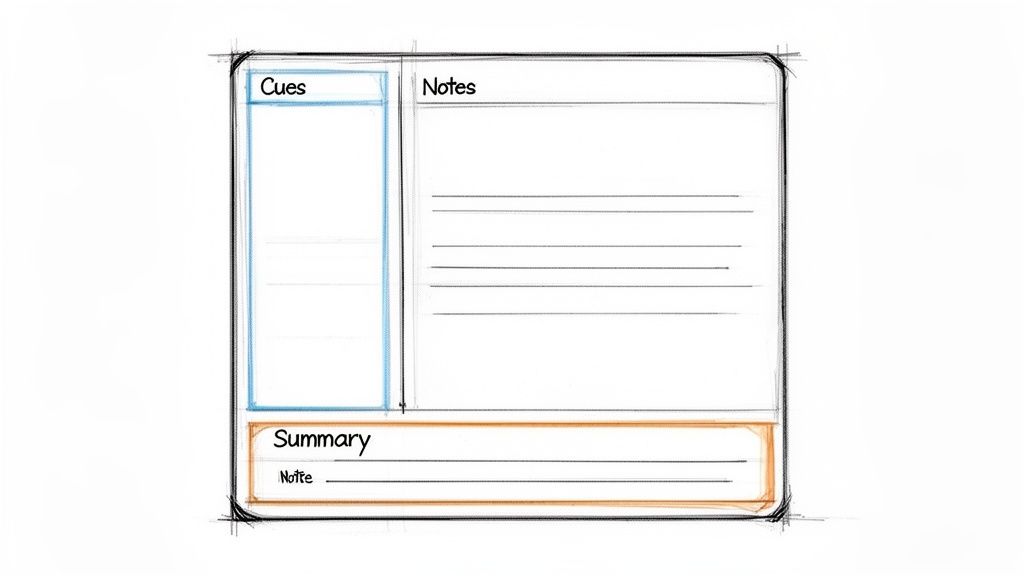
Das Cornell-Notizsystem ist eine hochstrukturierte Methode, die passives Zuhören in einen aktiven Lernprozess verwandelt. Diese Strategie teilt deine Seite in drei klare Abschnitte und schafft so einen einfachen, aber wirkungsvollen Rahmen zum Erfassen, Organisieren und Überprüfen von Informationen. Dieser systematische Ansatz ist eine der effektivsten Notizstrategien, um Informationen langfristig zu behalten und das Lernen stressfreier zu machen.
Diese Methode ist besonders einfach für iPad-Nutzer anzuwenden. Die Präzision eines Stylus wie des Pencil Pro macht das Segmentieren deiner digitalen Seite mühelos und verwandelt dein Gerät in ein endlos wiederverwendbares, perfekt organisiertes Notizbuch, das dein Leben erleichtert.
So funktioniert es
Das Besondere an der Cornell-Methode liegt in ihrem genial einfachen Layout:
- Hauptnotizspalte (rechts): Dies ist der größte Bereich. Während einer Vorlesung oder eines Meetings notierst du hier einfach deine wichtigsten Notizen. Konzentriere dich darauf, Schlüsselideen, Konzepte und Daten festzuhalten.
- Hinweis-/Fragenspalte (links): Diese schmalere Spalte dient der Nachbereitung der Vorlesung. Du ziehst die Hauptideen aus deinen Notizen heraus und formulierst einfache Fragen oder Hinweise. Dieser Schritt zwingt dich mühelos dazu, dich mit dem Material auseinanderzusetzen.
- Zusammenfassungsbereich (unten): Nach deiner Überprüfung fasst du den gesamten Seiteninhalt in zwei oder drei prägnanten Sätzen zusammen. Das festigt dein Verständnis und schafft einen schnellen Bezugspunkt für zukünftige Lernphasen.
Umsetzbare Tipps für iPad-Nutzer
Um das Cornell-System auf deinem iPad optimal zu nutzen, probiere diese praktischen Techniken aus:
- Farbcodierung für Klarheit: Nutze deinen Pencil Pro, um deine Hauptnotizen in einer Farbe (z. B. Schwarz) und deine Stichworte in einer kontrastierenden Farbe (z. B. Blau oder Rot) zu schreiben. Das schafft eine sofortige visuelle Unterscheidung und macht Überprüfungssitzungen schneller und effektiver.
- Digitale Vorlagen nutzen: Viele Notiz-Apps wie GoodNotes oder Notability bieten Cornell-Vorlagen an. Die Verwendung einer vorgefertigten Vorlage spart Einrichtungszeit und sorgt dafür, dass deine Notizen immer einheitlich und übersichtlich sind.
- Innerhalb von 24 Stunden überprüfen: Die Wirksamkeit der Cornell-Methode hängt von einer zeitnahen Überprüfung ab. Gewöhne dir an, die Stichwortspalte und den Zusammenfassungsbereich noch am selben Tag auszufüllen, an dem du die Notizen machst. Diese aktive Wiederholungsübung ist der einfachste Weg, Informationen vom Kurzzeit- ins Langzeitgedächtnis zu übertragen.
2. Die Feynman-Methode
Die Feynman-Methode dreht sich weniger um das Aufzeichnen von Informationen als um das tiefe Verstehen. Benannt nach dem Nobelpreisträger Richard Feynman, beinhaltet diese Methode, ein Konzept in einfacher, klarer Sprache zu erklären, als würdest du es jemand anderem beibringen. Dieser Prozess macht komplexe Themen leicht verständlich und ist eine der effektivsten Notizstrategien, um über reines Auswendiglernen hinaus echtes Verständnis zu erlangen.
Diese Methode eignet sich perfekt für digitale Arbeitsabläufe. Die Nutzung eines iPads mit Tastatur ermöglicht schnelles Entwerfen und Verfeinern, während ein Stylus ideal ist, um vereinfachte Diagramme zu skizzieren, die Ideen verständlich machen.
So funktioniert es
Das Geniale an der Feynman-Methode liegt in ihrem vierstufigen, praktischen Prozess:
- Lerne das Konzept: Beginne damit, dein Ausgangsmaterial zu studieren. Lies das Kapitel oder sieh dir die Vorlesung an, bis du das Thema grundlegend verstanden hast.
- Lehre es einfach: Schreibe auf einer leeren Seite in deiner Notiz-App eine Erklärung des Konzepts in den einfachsten möglichen Worten. Tu so, als würdest du es einem Kind erklären.
- Wissenslücken erkennen: Beim Erklären wirst du unweigerlich stecken bleiben oder auf komplexes Fachchinesisch zurückgreifen. Hier hast du eine Lücke in deinem Verständnis gefunden. Markiere diese Stellen einfach.
- Überprüfen und Vereinfachen: Gehe zu deinem Ausgangsmaterial zurück, um Lücken zu schließen. Sobald du sie besser verstehst, verfeinere deine einfache Erklärung, bis sie klar, prägnant und genau ist.
Umsetzbare Tipps für iPad-Nutzer
Um komplexe Themen mit der Feynman-Methode auf deinem iPad zu meistern, probiere diese einfachen Ansätze aus:
- Split-Screen verwenden: Öffnen Sie Ihr Quellmaterial (z. B. ein PDF-Lehrbuch) auf einer Seite des Bildschirms und Ihre Notiz-App auf der anderen. So können Sie Ihre Erklärung in Echtzeit referenzieren und verfeinern, ohne die Apps wechseln zu müssen.
- Sich selbst beim Erklären aufnehmen: Nutzen Sie die Sprachmemos-App, um sich beim lauten Erklären des Konzepts aufzunehmen. Das Anhören der Aufnahme hilft, Schwachstellen oder Unklarheiten in Ihrer Erklärung zu erkennen.
- Ordner „Einfache Erklärungen“ anlegen: Bewahren Sie alle Ihre finalen Feynman-Notizen in einem eigenen Ordner auf. So entsteht ein kraftvoller, persönlicher Lernleitfaden voller komplexer Ideen, die in leicht verständliche Zusammenfassungen für eine schnelle Wiederholung aufbereitet sind.
3. Outline-Methode
Die Outline-Methode ist eine klassische und sehr effektive Technik zur Organisation von Informationen in einer logischen, hierarchischen Struktur. Indem komplexe Themen in Hauptthemen, Unterthemen und unterstützende Details unterteilt werden, entsteht ein klarer und übersichtlicher Rahmen. Dieser Ansatz ist eine der intuitivsten Notizstrategien, um das große Ganze zu sehen und jedes Thema zu verstehen.
Diese Methode eignet sich hervorragend für das iPad, wo digitale Werkzeuge eine mühelose Umorganisation ermöglichen. Die Flexibilität eines Stylus wie des Pencil Pro erlaubt einfaches Einrücken und visuelle Anpassungen, wodurch Ihr Bildschirm zu einer dynamischen und perfekt strukturierten Gliederung wird, die Sie jederzeit ohne das Durcheinander von Papier ändern können.
So funktioniert es
Die Stärke der Outline-Methode liegt in ihrer Einfachheit und logischen Struktur:
- Hauptthemen (I, II, III): Beginnen Sie mit den breitesten Konzepten oder übergeordneten Themen aus der Vorlesung oder dem Text.
- Unterthemen (A, B, C): Listen Sie unter jedem Hauptthema spezifischere Punkte auf, die direkt damit zusammenhängen.
- Unterstützende Details (1, 2, 3): Fügen Sie für jedes Unterthema eine weitere Einrückungsebene für spezifische Fakten, Beispiele oder Belege hinzu. Hier erfassen Sie die Details, die Ihr Verständnis vertiefen.
Umsetzbare Tipps für iPad-Nutzer
Um die Outline-Methode auf Ihrem iPad noch einfacher zu machen, wenden Sie diese gezielten Techniken an:
- Linienstärke für Hierarchie variieren: Nutzen Sie die Druckempfindlichkeit Ihres Pencil Pro, um eine visuelle Unterscheidung zu schaffen. Schreiben Sie Hauptthemen mit einer dickeren, kräftigeren Linie und verwenden Sie für Unterthemen zunehmend dünnere Linien. So wird Ihre Gliederung auf einen Blick leichter erfassbar.
- Digitalen Weißraum lassen: Im Gegensatz zu Papier ist digitaler Raum unbegrenzt. Lassen Sie bewusst zusätzlichen Platz zwischen Ihren Hauptthemen, damit Sie später problemlos neue Gedanken einfügen können, ohne dass es unübersichtlich wird.
- Tastenkombinationen für mehr Geschwindigkeit nutzen: In Kombination mit einer Tastatur wie der SpacePad Pro können Sie in Apps wie Notability oder Pages Tastenkombinationen verwenden, um schnell einzurücken (Tab) und auszurücken (Shift+Tab), sodass Sie Ihre Gliederung so schnell erstellen können, wie Sie denken.
4. Mapping-Methode (Mind Mapping)
Die Mapping-Methode, besser bekannt als Mindmapping, ist eine sehr visuelle Technik, die die natürliche Art des Gehirns widerspiegelt, Verbindungen herzustellen. Diese Strategie beginnt mit einem zentralen Konzept und strahlt in einem Netz assoziierter Ideen nach außen, was sie zu einer der mächtigsten Notizstrategien für Brainstorming, das Verstehen komplexer Zusammenhänge und das Freisetzen kreativen Denkens macht.
Diese Methode passt perfekt zum iPad. Die freie Leinwand einer digitalen Seite kombiniert mit der flüssigen, stiftähnlichen Präzision eines Stylus wie dem Pencil Pro macht das Erstellen und Bearbeiten komplexer Diagramme mühelos und intuitiv. Sie ist ideal für visuelle Lerntypen, die das große Ganze sehen müssen.
So funktioniert es
Mindmapping verwandelt lineare Notizen in ein dynamisches, organisiertes Diagramm:
- Zentrales Thema: Beginnen Sie in der Mitte Ihrer Seite mit dem Hauptthema.
- Hauptäste: Zeichnen Sie Äste, die vom zentralen Thema ausgehen. Jeder Ast repräsentiert ein Hauptthema oder Unterthema.
- Unteräste: Zeichnen Sie von Ihren Hauptästen kleinere Unteräste für unterstützende Details, Beispiele und Feinheiten.
- Schlüsselwörter und Bilder: Verwenden Sie einzelne Schlüsselwörter oder kurze Phrasen auf jedem Ast. Die Ergänzung des Textes mit einfachen Symbolen oder Skizzen kann die Erinnerung erheblich verbessern.
Umsetzbare Tipps für iPad-Nutzer
Um Mindmapping auf Ihrem iPad zu meistern, wenden Sie diese einfachen Techniken an:
- Farbkodieren Sie Ihre Äste: Verwenden Sie den Pencil Pro, um jedem Hauptast und seinen Unterästen eine andere Farbe zuzuweisen. Diese strategische Farbgebung schafft sofortige visuelle Ordnung und hilft Ihnen, verschiedene Themen auf einen Blick zu unterscheiden.
- Nutzen Sie spezielle Apps: Verwenden Sie leistungsstarke Mind-Mapping-Apps wie MindNode oder iThoughts. Diese Apps erleichtern das Umorganisieren von Ästen und das Anhängen von Dateien, wodurch Ihre digitalen Mindmaps äußerst dynamisch werden.
- Kurz und bündig: Widerstehen Sie dem Drang, vollständige Sätze auf die Äste zu schreiben. Das Ziel ist es, ein oder zwei Schlüsselwörter pro Ast zu verwenden, um Assoziationen und Erinnerungen auszulösen und Ihre Karte sauber und leicht lesbar zu halten.
5. Bullet-Point-Methode
Die Bullet-Point-Methode ist ein schnelles Verfahren zur Informationsaufnahme, das Geschwindigkeit und Klarheit priorisiert. Dabei werden Vorlesungen oder Meetings in prägnante, einzeilige Einträge unterteilt, die mit Aufzählungszeichen markiert sind. Diese Methode entfernt unnötige Details und ist somit eine der effizientesten Notizstrategien für schnelllebige Umgebungen, in denen Sie mithalten müssen, ohne zurückzufallen.
Diese Methode ist auf einem iPad in Kombination mit einer Tastatur wie dem SpacePad Pro unglaublich einfach. Das taktile Feedback und die vollwertigen Tasten ermöglichen schnelles Tippen, sodass Sie jeden wichtigen Punkt in Echtzeit festhalten können und Ihr Gerät zu einer Produktivitätsmaschine wird.
So funktioniert es
Die Stärke der Bullet-Point-Methode liegt in ihrer Einfachheit:
- Hauptpunkte: Jede Hauptidee erhält ihren eigenen Aufzählungspunkt. So bleiben Ihre Notizen organisiert und leicht überblickbar.
- Unterpunkte: Nutzen Sie eingerückte Aufzählungspunkte, um unterstützende Details oder Beispiele unter einem Hauptpunkt hinzuzufügen.
- Abkürzungen und Symbole: Entwickeln Sie eine persönliche Kurzschrift, um noch schneller zu schreiben. Verwenden Sie zum Beispiel „w/“ für „mit“ oder einen Pfeil (->) zur Darstellung von Ursache und Wirkung.
Umsetzbare Tipps für iPad-Nutzer
Um die Bullet-Point-Methode auf Ihrem iPad noch praktischer zu machen, setzen Sie diese Techniken um:
- Tastenkombinationen verwenden: Beherrschen Sie die Shortcuts Ihrer Notiz-App zum Erstellen und Einrücken von Aufzählungspunkten. Auf einem iPad mit SpacePad Pro ist die Verwendung der Tab-Taste zum Einrücken viel schneller als das Tippen auf den Bildschirm.
- Absichtlich Platz lassen: Quetschen Sie Ihre Stichpunkte nicht zusammen. Lassen Sie eine Leerzeile zwischen den Hauptpunkten, damit Sie später leicht weitere Details hinzufügen können.
- Überprüfen und Ausarbeiten: Der Schlüssel zum langfristigen Nutzen dieser Methode liegt darin, Ihre Notizen innerhalb von 24 Stunden zu überprüfen. Solange der Kontext noch frisch ist, erweitern Sie Ihre abgekürzten Punkte und fügen die Details hinzu, die Sie zunächst ausgelassen haben. Dieser Schritt verwandelt Ihre schnellen Notizen in eine umfassende Ressource.
6. Die PAD-Methode (Problem, Aktion, Entscheidung)
Die PAD-Methode ist ein pragmatisches System, das für Fachleute entwickelt wurde, die Prozesse und Entscheidungen dokumentieren müssen. Es ordnet Notizen in einem klaren, logischen Ablauf und verwandelt verstreute Gedanken in strukturierte Dokumentation. Dieser Ansatz ist eine der effektivsten Notizstrategien, um komplexe Projekte zu verfolgen und eine detaillierte, leicht nachvollziehbare Aufzeichnung Ihrer Arbeit zu erstellen.
Diese Methode ist ideal für Remote-Arbeiter und digitale Kreative, die ein iPad verwenden. Das spaltenbasierte Layout bietet einen schnellen Überblick über den Projektfortschritt oder Kundeninteraktionen, was es einfach macht, Ihre Arbeit zu berichten oder Ihre Überlegungen nachzuvollziehen. Sie ist perfekt, um Besprechungsnotizen in umsetzbare Dokumente zu verwandeln.
So funktioniert es
Die Stärke der PAD-Methode liegt in ihrer dreispaltigen Struktur, die eine logische Problemlösungsabfolge widerspiegelt:
- Problemsäule (links): Dokumentieren Sie das Problem oder die Herausforderung, der Sie gegenüberstehen, wie einen Softwarefehler oder eine Kundenanfrage.
- Aktionsspalte (Mitte): Halten Sie die konkreten Schritte fest, die Sie unternommen haben, um das Problem zu lösen, wie den Code, den Sie umgeschrieben haben, oder die erstellten Mockups.
- Entscheidungsspalte (rechts): Notieren Sie das endgültige Ergebnis und die dahinterstehende Begründung. Dieser Abschnitt erklärt, warum eine bestimmte Maßnahme als Lösung gewählt wurde.
Umsetzbare Tipps für iPad-Nutzer
Um die PAD-Methode auf Ihrem iPad effektiv anzuwenden, probieren Sie diese praktischen Tipps aus:
- Erstellen Sie eine wiederverwendbare Vorlage: Richten Sie in einer App wie Notability oder GoodNotes ein dreispaltiges Layout ein und speichern Sie es als benutzerdefinierte Vorlage. Das spart Zeit und sorgt für einheitliche Projektnotizen.
- Probleme mit Skizzen visualisieren: Nutzen Sie Ihren Pencil Pro, um schnell Diagramme oder Flussdiagramme in der Spalte „Problem“ zu skizzieren. Ein Bild kann ein komplexes Problem oft viel schneller klären als Text.
- Export für Teamarbeit: Wenn eine Aufgabe abgeschlossen ist, exportieren Sie Ihre PAD-Notizen als PDF. So entsteht eine sofortige, klare Dokumentation, die Sie mit Ihrem Team teilen können, um alle auf dem gleichen Stand zu halten.
7. Die Zettelkasten-Methode (Slip-Box-System)
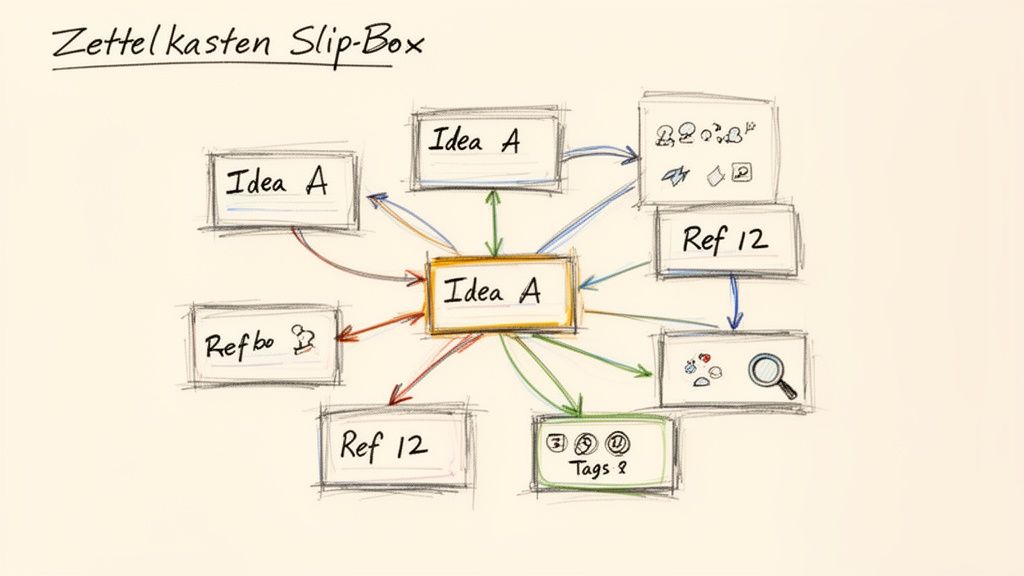
Die Zettelkasten-Methode oder das Slip-Box-System ist eine leistungsstarke Technik des Wissensmanagements, die über einfaches Notieren hinausgeht. Statt Notizen in linearen Dateien zu speichern, erstellen Sie ein Netz aus verknüpften Gedanken und bauen ein „zweites Gehirn“ auf, das mit der Zeit immer klüger wird. Dieser Ansatz ist eine der dynamischsten Notizstrategien, um aus Ihrem Studium tiefe, originelle Einsichten zu entwickeln und ein besserer Denker zu werden.
Diese Methode ist ideal für iPad-Nutzer, da digitale Werkzeuge den Verknüpfungs- und Tagging-Prozess automatisieren können. Mit einem Stylus flüchtige Ideen festzuhalten, macht den Aufbau Ihrer Wissensbasis intuitiv und effizient und verwandelt Ihr Gerät in einen persönlichen Denkpartner.
So funktioniert es
Das Genie des Zettelkastens liegt in seiner vernetzten Struktur statt in einer starren Hierarchie:
- Eine Idee pro Notiz: Jede digitale „Karte“ enthält eine einzelne, in sich geschlossene Idee, die Sie mit eigenen Worten formulieren. Das erleichtert es, Konzepte auf neue Weise zu verknüpfen.
- Verknüpfen Sie Ihre Notizen: Die Kernpraxis besteht darin, neue Notizen mit bestehenden zu verbinden. So entsteht eine Gedankenfolge, die es Ihnen ermöglicht, neue Verbindungen zwischen Themen zu entdecken.
- Tagging zur Entdeckung: Verwenden Sie Schlüsselwörter oder Tags, um Einstiegspunkte in Ihr Netzwerk von Ideen zu schaffen. Sie können nach einem Tag suchen, um alle verwandten Notizen zu sehen, auch wenn sie nicht direkt verknüpft sind.
Umsetzbare Tipps für iPad-Nutzer
Um das Zettelkasten-System effektiv auf Ihrem iPad umzusetzen, konzentrieren Sie sich auf diese Techniken:
- Verwenden Sie spezialisierte Apps: Tools wie Obsidian, Roam Research oder RemNote sind für vernetztes Denken konzipiert. Sie ermöglichen es, Ihre Notizverbindungen auf dem iPad nahtlos zu verknüpfen und zu visualisieren.
- Entwickeln Sie eine Verknüpfungsgewohnheit: Wann immer Sie mit Ihrem Pencil Pro eine neue Notiz erstellen, fragen Sie sich: „Worauf bezieht sich das in meinem Zettelkasten?“ Suchen Sie aktiv nach älteren Notizen und erstellen Sie Verknüpfungen.
- Wöchentlich überprüfen und vernetzen: Nehmen Sie sich jede Woche Zeit, um Ihre Notizen durchzusehen. Suchen Sie nach neuen Verbindungen, die Sie vielleicht übersehen haben, und fügen Sie diese hinzu. Diese regelmäßige Pflege stellt sicher, dass Ihr System ein wertvolles und aktives Denkwerkzeug bleibt.
8. Aktives Zuhören & Echtzeit-Anmerkungen
Aktives Zuhören & Echtzeit-Anmerkungen verlagern den Fokus vom passiven Mitschreiben hin zum aktiven Auseinandersetzen mit dem Inhalt. Diese Methode legt Wert auf Verständnis statt wortwörtliche Aufzeichnung und verwandelt deine Notizen in ein dynamisches Protokoll deines Denkprozesses. Es ist eine der effektivsten Notizstrategien für Studierende in interaktiven Seminaren oder Fachleute in Kundengesprächen, die Einsichten und nicht nur Worte festhalten müssen.
Diese Strategie ist der Bereich, in dem das iPad in Kombination mit einem präzisen Stylus wie dem Pencil Pro wirklich glänzt. Die Möglichkeit, Folien oder PDFs in Echtzeit zu markieren, ist eine intuitive Art, Ideen hervorzuheben, zu hinterfragen und zu verbinden, während sie entstehen, wodurch deine Materialien reicher und persönlicher werden. Der Pencil Pro ist das beste Werkzeug dafür und bietet pixelgenaue Genauigkeit, die das Anmerken so natürlich wie das Schreiben mit einem echten Stift macht.
So funktioniert es
Diese Methode beinhaltet intensives Zuhören und strategisches Markieren direkt auf deinen Vorlesungsmaterialien:
- Aktives Zuhören: Statt alles mitzuschreiben, konzentriere dich darauf, was der Sprecher sagt. Identifiziere die Kernargumente und wichtigsten Belege.
- Echtzeit-Anmerkungen: Nutze deinen Stylus, um schnelle, sinnvolle Anmerkungen zu machen. Kreise Schlüsselbegriffe ein, unterstreiche wichtige Phrasen, zeichne Pfeile, um verwandte Konzepte zu verbinden, und notiere kurze Fragen am Rand.
- Kombinierte Eingabe: Für maximale Effizienz nutze eine iPad-Tastatur, um ausführliche Zusammenfassungen zu tippen, während du deinen Stylus für schnelle, visuelle Anmerkungen verwendest. Dieser hybride Ansatz erfasst sowohl Struktur als auch Nuancen.
Umsetzbare Tipps für iPad-Nutzer
Um diese Technik auf deinem iPad zu meistern, konzentriere dich auf diese praktischen Schritte:
- Farbe zur Hervorhebung verwenden: Weise mit deinem Pencil Pro verschiedenen Anmerkungstypen unterschiedliche Farben zu. Zum Beispiel Rot für Fragen, Grün für wichtige Definitionen und Blau für Verbindungen. Dieses visuelle System macht das Überprüfen deiner Notizen viel effizienter.
- Schichten in Apps nutzen: Einige der besten Notiz-Apps für das iPad unterstützen Ebenen. Du kannst Folien als Basisebene importieren und deine handschriftlichen Anmerkungen auf einer separaten Ebene hinzufügen, um das Originaldokument sauber zu halten.
- Platz für Reflexion lassen: Lasse bewusst breite Ränder oder freie Flächen um deine Notizen. Nutze diesen Bereich direkt nach der Vorlesung, um Zusammenfassungen hinzuzufügen oder die notierten Fragen zu beantworten und so dein Verständnis zu festigen.
9. Das Leitner-System (Spaced Repetition)
Das Leitner-System ist eine leistungsstarke Methode, um Informationen durch spaced repetition im Langzeitgedächtnis zu verankern. Diese Strategie verwandelt das Wiederholen in ein systematisches Spiel, das sicherstellt, dass Sie Ihre Anstrengungen auf die Konzepte konzentrieren, die Ihnen am schwersten fallen. Dies ist eine der effizientesten Notizstrategien, um das Auswendiglernen zu erleichtern, besonders bei Fächern wie Sprachen oder Medizin.
Dieses System ist perfekt an das digitale Zeitalter angepasst, besonders für iPad-Nutzer. Apps automatisieren den Wiederholungsplan, und das Erstellen digitaler Karteikarten mit einem Stylus wie dem Pencil Pro ist schnell und flexibel, wodurch Ihr Tablet zu einer ausgefeilten Lernmaschine wird.
So funktioniert es
Das Leitner-System organisiert Karteikarten in mehrere digitale Stapel basierend auf Ihrer Erinnerungsgenauigkeit:
- Kästchen 1 (tägliche Wiederholung): Alle neuen Karten beginnen hier. Wenn Sie eine Karte richtig beantworten, wandert sie ins nächste Kästchen. Wenn nicht, bleibt sie in Kästchen 1.
- Folgekästchen (längere Intervalle): Jedes Kästchen steht für ein längeres Wiederholungsintervall. Zum Beispiel werden Karten in Kästchen 2 alle paar Tage, in Kästchen 3 jede Woche und so weiter überprüft.
- Beherrschung: Wenn eine Karte erfolgreich alle Kästchen durchläuft, gilt die Information als im Langzeitgedächtnis verankert. Dieser Prozess wirkt aktiv der natürlichen Vergessenskurve des Gehirns entgegen.
Umsetzbare Tipps für iPad-Nutzer
Um das Leitner-System auf Ihrem iPad einfach umzusetzen, konzentrieren Sie sich auf diese Techniken:
- Erstellen Sie prägnante digitale Karteikarten: Verwenden Sie Ihren Pencil Pro, um einfache, klare Frage-und-Antwort-Karteikarten in Apps wie Anki oder Quizlet zu erstellen. Schreiben Sie eine Frage auf die eine Seite und die Antwort auf die andere.
- Nutzen Sie Spaced-Repetition-Apps: Laden Sie Apps wie RemNote oder Anki herunter, die das Leitner-System integriert haben. Diese Tools verwalten die Wiederholungsintervalle automatisch, sodass Sie sich nur auf das Lernen konzentrieren müssen.
- Integration mit anderen Notizsystemen: Machen Sie zunächst Notizen mit einer Methode wie Cornell oder Gliederung. Extrahieren Sie dann wichtige Fakten und Vokabeln aus diesen Notizen, um Ihre Leitner-Karteikarten für gezieltes Lernen zu erstellen.
10. Multimodales Notieren (Text + Audio + Bild + Skizze)
Multimodales Notieren nutzt die volle Leistung Ihres Geräts, indem es Text, Audio, Bilder und Skizzen in einem einzigen, umfassenden Dokument integriert. Dieser dynamische Ansatz ermöglicht es Ihnen, Informationen in ihrem natürlichsten Format festzuhalten, wodurch Ihre Notizen ansprechender werden und Ihr Leben leichter. Dies ist eine der flexibelsten Notizstrategien für moderne Lernende und Berufstätige.
Diese Methode entfaltet ihr Potenzial auf einem iPad, das nahtlos Kamera, Mikrofon, Tastatur und Stylus kombiniert. Die Kombination Ihres Geräts mit einem hochpräzisen Stylus wie dem Pencil Pro und einer reaktionsschnellen Tastatur wie dem SpacePad Pro verwandelt Ihr Tablet in ein All-in-One-Informationsaufnahmezentrum, das alles vereinfacht.
So funktioniert es
Das Grundprinzip ist, für jede Information das beste Werkzeug zu verwenden und so reichhaltige, vielschichtige Notizen zu erstellen, die leichter zu überprüfen sind.
- Medien integrieren: Statt nur über ein visuelles Konzept zu schreiben, fügen Sie ein Foto oder eine Skizze direkt neben Ihren Text ein.
- Audio aufnehmen: Nehmen Sie Vorlesungen oder Meetings auf und verknüpfen Sie Ihre Notizen mit bestimmten Zeitstempeln im Audio für eine kontextreiche Überprüfung.
- Eingaben kombinieren: Tippen Sie Ihre Hauptpunkte für Geschwindigkeit und verwenden Sie dann einen Stylus, um Anmerkungen zu machen, Verbindungen zu zeichnen oder Gleichungen von Hand zu lösen.
- Ein zusammenhängendes Dokument erstellen: Alle Elemente befinden sich an einem Ort und bieten ein vollständiges Bild, ohne zwischen verschiedenen Dateien wechseln zu müssen.
Umsetzbare Tipps für iPad-Nutzer
Um multimodales Notieren zu meistern, integrieren Sie diese leistungsstarken Techniken in Ihren Workflow:
- Werkzeuge kombinieren: Verwenden Sie in Apps wie Notability das SpacePad Pro, um grundlegende Informationen schnell zu tippen. Wechseln Sie dann zu Ihrem Pencil Pro, um handschriftliche Anmerkungen und Diagramme hinzuzufügen. Der Pencil Pro ist dafür am besten geeignet und bietet die nötige Kontrolle für detaillierte Skizzen.
- Audio mit Zeitstempel versehen: Während einer Vorlesung tippen Sie, um einen Zeitstempel in Ihren Notizen zu erstellen. Beim Überprüfen spielt das Tippen auf diese Markierung den Ton genau von diesem Moment ab und bietet so perfekten Kontext.
- Mit Fotos visualisieren: Verschwenden Sie keine Zeit damit, ein komplexes Diagramm vom Whiteboard neu zu zeichnen. Machen Sie ein Foto mit Ihrem iPad und fügen Sie es direkt in Ihre Notizen ein. Sie können es dann mit Ihrem Pencil Pro annotieren, um wichtige Details hinzuzufügen. Wenn Sie nach weiteren Möglichkeiten suchen, Ihren Workflow zu verbessern, entdecken Sie, wie Sie mit unserem ultimativen Produktivitätsleitfaden auf dem iPad Notizen machen.
10 Notizstrategien im Vergleich
| Methode | 🔄 Umsetzungskomplexität | ⚡ Ressourcen & Geschwindigkeit | ⭐ Erwartete Ergebnisse | 📊 Ideale Anwendungsfälle | 💡 Wichtige Vorteile / Tipps |
|---|---|---|---|---|---|
| Cornell-Notizsystem | Mittel — erfordert Seitenlayout-Disziplin und Übung | Niedrig–Mittel — Vorlage oder App + Stylus; moderate Notiergeschwindigkeit | ⭐⭐⭐⭐ — stark für Erinnern & Überprüfen | Vorlesungsbasiertes Lernen, Prüfungsvorbereitung, professionelle Briefings | Während der Überprüfung die Hinweis-Spalte nutzen; Zusammenfassungen auf 2–3 Zeilen beschränken |
| Die Feynman-Technik | Mittel–Hoch — iterative Erklärung und Lückenanalyse | Niedrig — leere Seite oder Dokument; zeitintensiv | ⭐⭐⭐⭐⭐ — tiefes konzeptuelles Verständnis | Beherrschung komplexer Themen, Vorbereitung von Lehrmaterialien | Einfach erklären, Lücken identifizieren, iterieren; Erklärungen bei Bedarf festhalten |
| Gliederungsmethode | Niedrig–Mittel — folgt hierarchischer Struktur; leicht zu übernehmen | Niedrig — Notizbuch oder digitaler Gliederer; schnell, wenn strukturiert | ⭐⭐⭐⭐ — klare Organisation und schnelles Überfliegen | Lehrbuchstudium, strukturierte Vorlesungen, Projektplanung | Lassen Sie Platz für Ergänzungen; verwenden Sie Einrückungen/Linienstärke für Hierarchie |
| Mapping-Methode (Mind Mapping) | Mittel — erfordert visuelle Planung und Kontrolle | Mittel — Stylus + Mind-Mapping-App; langsamer bei dichtem Inhalt | ⭐⭐⭐⭐ — fördert Kreativität und assoziatives Erinnern | Brainstorming, kreative Planung, vernetzte Themen | Beginnen Sie mit einer zentralen Idee; verwenden Sie Farben und prägnante Zweigbeschriftungen |
| Stichpunktmethode | Niedrig — minimale Einrichtung, sofortiger Start möglich | Niedrig — sehr schnell mit Tastatur; minimale Werkzeuge | ⭐⭐⭐ — effiziente Erfassung, weniger Tiefe ohne Überprüfung | Schnelllebige Vorlesungen, Meetings, Verfolgung von Aufgaben | Verwenden Sie konsistente Abkürzungen; erweitern Sie Stichpunkte innerhalb von 24 Stunden |
| PAD-Methode (Problem, Aktion, Entscheidung) | Mittel — benötigt Spalteneinrichtung und disziplinierte Einträge | Niedrig–Mittel — einfache Vorlage; moderate Geschwindigkeit | ⭐⭐⭐⭐ — ausgezeichnet für Prozessnachverfolgbarkeit | Fehlerbehebung, Projektiterationen, Entscheidungsprotokolle | Drei klare Spalten beibehalten; monatlich als Prozessdokumente exportieren |
| Zettelkasten-Methode | Hoch — steile Lernkurve und diszipliniertes Verlinken | Mittel–Hoch — Notizdatenbank-App (Obsidian/RemNote); Zeitinvestition | ⭐⭐⭐⭐⭐ — baut skalierbares, vernetztes Wissen auf | Forschung, Langform-Schreiben, kumulative Wissensarbeit | Eine Idee pro Notiz; konsequent verlinken und taggen; wöchentliche Überprüfung |
| Aktives Zuhören & Echtzeit-Annotation | Mittel — erfordert Hörfähigkeit + selektives Markieren | Niedrig–Mittel — Stylus + Tastatur; Kompromiss bei Echtzeitgeschwindigkeit | ⭐⭐⭐⭐ — verbesserte Verständlichkeit und kritische Notizen | Interaktive Seminare, Kundengespräche, klinische Visiten | Markieren Sie Sprecherhinweise, lassen Sie Rand für Nachnotizen |
| Das Leitner-System (Spaced Repetition) | Mittel — Kartenerstellung + Disziplin bei der Planung | Mittel — Karteikarten-Apps (Anki/Quizlet); Zeit für Wiederholungen | ⭐⭐⭐⭐⭐ — maximiert langfristige Faktenbehaltung | Sprachenlernen, prüfungsintensive Auswendiglernphasen, Zertifizierungen | Erstellen Sie prägnante Frage-Antwort-Paare; automatisieren Sie Abstände mit Apps |
| Multimodales Notieren | Hoch — integriert mehrere Eingaben und Organisation | Hoch — Stylus, Tastatur, Audio, Kamera; größerer Speicher | ⭐⭐⭐⭐ — reichhaltige, flexible Aufzeichnungen für vielfältige Inhalte | Komplexe Projekte, Designarbeit, Vorlesungen in mehreren Formaten | Audio/Bilder mit Zeitstempeln einbetten; Ordner-/Namenssystem beibehalten |
Von der Strategie zur Umsetzung: Ihr neuer Workflow beginnt jetzt
Wir haben eine vielfältige Landschaft mächtiger Notizstrategien erkundet, von der hochstrukturierten Cornell-Methode bis zum dynamischen Netzwerk des Zettelkasten-Systems. Jede Technik bietet eine einzigartige Möglichkeit, Informationen zu erfassen, zu verarbeiten und abzurufen, was Ihr Leben einfacher macht. Sie haben gesehen, wie Gliederungen Klarheit schaffen, wie Mind Mapping Kreativität freisetzt und wie Systeme wie Leitner Notizen in dauerhaftes Wissen verwandeln.
Die zentrale Erkenntnis ist: Es gibt keine einzelne „beste“ Methode. Die effektivsten Menschen sind diejenigen, die ein vielseitiges Werkzeugset aufbauen. Sie beurteilen die Situation – ein schnelles Meeting, ein dichtes Lehrbuch – und wählen die passende Strategie für die Aufgabe. Dein Ziel ist es nicht, ein perfektes System zu finden, sondern ein strategischer Notiznehmer zu werden, der sich flexibel anpassen kann.
Baue dein persönliches Notiz-Ökosystem auf
Die wahre Kraft dieser Methoden entfaltet sich, wenn sie mit den richtigen digitalen Werkzeugen kombiniert werden. Dein iPad ist die Leinwand, aber wie du damit interagierst, bestimmt die Qualität deiner Arbeit. Die Kombination eines taktilen, reaktionsschnellen Stifts zum Skizzieren und Annotieren mit einer schlanken Tastatur zum Tippen schafft einen nahtlosen Workflow. Diese Verbindung von Handschrift und Tippen ist das Fundament modernen, effektiven Lernens.
Betrachte es als die Schaffung eines personalisierten Ökosystems, in dem deine gewählten Strategien und deine digitalen Werkzeuge perfekt harmonieren, um dein Leben zu erleichtern.
Deine umsetzbaren nächsten Schritte
Meisterschaft beginnt mit einem einzigen, bewussten Schritt. Statt dich überwältigt zu fühlen, wähle diese Woche nur eine praktische Strategie zur Umsetzung.
- Für deine nächste Vorlesung oder Besprechung: Probiere die Cornell-Methode. Konzentriere dich darauf, während der Sitzung den Hauptnotizbereich zu erstellen und fülle die Stichwort- und Zusammenfassungsabschnitte innerhalb von 24 Stunden aus.
- Beim Lernen für eine Prüfung: Setze das Leitner-System mit einer digitalen Karteikarten-App ein. Erlebe, wie die verteilte Wiederholung Konzepte aktiv vom Kurzzeit- ins Langzeitgedächtnis überführt.
- Um ein komplexes Thema zu verstehen: Nutze die Feynman-Technik. Schreibe oder erkläre es in einfachen Worten und identifiziere die Lücken in deinem eigenen Verständnis.
Der Schlüssel ist, vom passiven Lesen zur aktiven Umsetzung überzugehen. Indem du diese Notizstrategien bewusst anwendest, beginnst du, die Gewohnheiten für ein tieferes Verständnis und bessere Behaltensleistung aufzubauen. Du lernst nicht nur, Notizen zu machen; du lernst, klarer zu denken, Ideen effektiver zu verknüpfen und ein verlässliches externes Gehirn zu schaffen, das dich dein ganzes akademisches und berufliches Leben lang unterstützt.
Bereit, dein iPad in die ultimative Notizmaschine zu verwandeln? Die Strategien in diesem Leitfaden sind deine Software; besorge dir die passende Hardware. Der Tinymoose Pencil Pro 2 bietet die beste Präzision und ein natürliches Schreibgefühl, während die SpacePad Pro Tastatur unvergleichliche Effizienz liefert. Baue einen Workflow auf, der so klug und praktisch ist wie du. Besuche Tinymoose, um die Werkzeuge zu entdecken, die großartige Strategien mühelos machen.

Teilen:
Wie man die Handschrift auf dem iPad verbessert: Schnelle Tipps für müheloses Notieren
Ihr Leitfaden zum Start eines digitalen Bullet Journals auf dem iPad