
You're probably here because your iPad already works for notes, but the writing still feels off. The Pencil skates. Your hand tightens. By the end of a long lecture or meeting, you've got usable notes and a mildly annoying wrist.
The fix isn't “buy the loudest paper-feel protector and call it done.” The choice is simpler and more annoying, it's about matching the screen surface to how you use the iPad, then thinking about what that choice costs you over a year. If you mostly write, matte often wins. If you split time between notes and media, smooth glass starts making more sense fast.
Table of Contents
- What the Best iPad Screen Protector for Note-Taking Actually Does
- The Core Concept of Stylus-on-Glass Friction
- Matte Film vs Tempered Glass Trade-Offs
- Stylus and iPad Compatibility Checks
- Installation and Post-Install Testing
- The Year-Long Cost Angle Most Guides Miss
- Your Decision Checklist and Quick Answers
What the Best iPad Screen Protector for Note-Taking Actually Does
A student in the back row is trying to keep up with a fast lecture, and the Pencil keeps skating across the glass. That's the core problem. Not scratches, not packaging claims, not the marketing language on the box. The job of the best iPad screen protector for note taking is to change how the tip feels against the display so your strokes stay controlled when you're writing fast, small, or for a long time.
A paper-textured protector adds friction between the stylus tip and the screen, which makes the surface feel more like paper than smooth glass. Paperlike's own product details acknowledge that this texture also causes minor stylus-tip wear over time because the Pencil repeatedly slides across the coating (Paperlike product details). That trade-off is the whole game, better control usually means more abrasion.
Practical rule: if your iPad lives in lectures, meetings, or annotation-heavy study sessions, pick for writing feel first and everything else second.
Scratch protection is nice. It's not the main reason to buy one of these. The core question is whether you want the tip to move with resistance or glide with almost no resistance. That's why the right protector depends on whether your dominant workflow is writing, media, or a mix of both. If you're using your iPad mainly for notes and planning, a textured surface makes the most sense. If you're also watching video, editing photos, or doing anything color-sensitive, the clearer surface starts to look smarter.
For students who pair note-taking with typing and document cleanup, the surface choice sits alongside app choice, keyboard choice, and how often you handwrite. If you're still sorting that whole setup, the guide to iPad word processors for students is a useful companion because it helps you separate writing on-screen from typing work.
The Core Concept of Stylus-on-Glass Friction
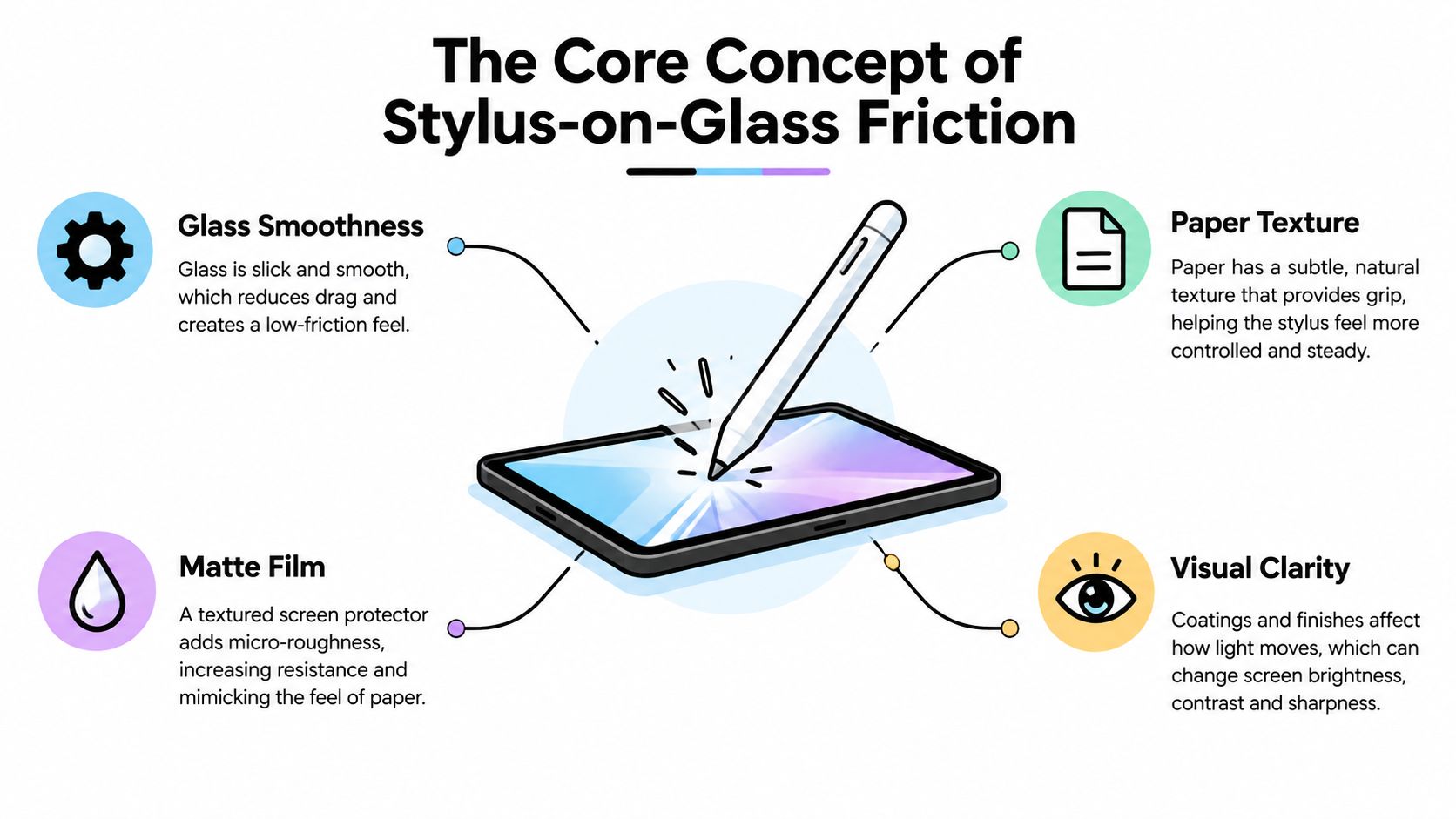
A screen protector does one job well. It changes the contact surface between the Pencil and the glass. Smooth glass lets the tip glide. A textured surface adds resistance, so your hand gets feedback instead of skating across the screen.
What friction changes and what it doesn't
A protector does not add palm rejection. That comes from the iPad's software and touch sensors, so the film's real job is to preserve that behavior, not pretend to create it (InAirSpace guide). Bad installs can still cause edge lift or odd touch behavior, which is a setup problem, not a friction feature.
Friction changes handwriting feel. Matte or paper-like film adds microscopic texture that slows the stylus tip down, which helps with small letters, diagrams, and long note sessions. A smooth protector keeps the surface slick and leaves most of the writing feel to your own technique.
The right mental model is simple, feel is friction, clarity is smoothness, durability is the third variable.
Why the protector choice has to match the stylus
The iPad and Pencil pairing matters too. Apple's Pencil line brings the handwriting features people use, including pressure sensitivity, tilt recognition, and palm rejection. Apple's current Pencil documentation highlights pixel-level precision, low latency, tilt sensitivity, and palm rejection, and independent testing says Pencil models with pressure sensitivity and tilt recognition give the most natural writing and drawing experience (Wirecutter's stylus review).
That leaves the protector with one job, stay out of the way. It should not interfere with tip registration, latency, or palm rejection. If you are comparing active styluses, including the Tinymoose Pencil Pro models compared, the same rule applies. The surface has to work with the tip, the charge path, and the magnetic behavior, not against them.
Matte Film vs Tempered Glass Trade-Offs
The split is cleaner than most buyers want to admit. Matte film gives you control. Tempered glass gives you clarity and harder protection. If you write all day, matte is usually the better tool. If you bounce between notes, streaming, and photos, glass is often the calmer choice.
Where matte wins
Paper-like films reduce the tendency of the stylus to slide, and one comparison places the reduction in perceived sharpness at about 10 to 15 percent versus bare glass or clear tempered glass. The same comparison reports 12 to 15 percent lower luminance transmission than bare glass or clear tempered protectors (comparison on friction and clarity). That's not nothing. It's the reason matte can feel so right for handwriting and so irritating for video.
Where tempered glass wins
Tempered glass usually sits around 0.25 to 0.33 millimeters thick and can carry scratch-resistance claims up to 9H under pencil-hardness testing (glass vs film guide). It's the safer pick when the iPad gets tossed in a bag, shared across contexts, or used as a general-purpose screen first and a notebook second. It also keeps the display looking close to native, which matters more than most note-takers admit once they watch a lot of content on the same device.
The actual trade-off
Matte gives you more resistance and less glare, but the same texture can make the display softer and the stylus tip wear faster. Smooth glass preserves brightness and sharpness, but it can feel annoyingly slippery during fast annotation. The choice should follow your dominant workflow, not your instinct to buy the “professional” sounding option.
| Criterion | Matte Film | Tempered Glass |
|---|---|---|
| Writing feel | More resistance, more control | Slicker, less resistance |
| Screen clarity | Softer image, less crisp | Near-native sharpness |
| Glare reduction | Better in bright rooms | Less effective |
| Scratch protection | Good, but mainly about surface texture | Strong general-purpose protection |
| Stylus-tip wear | More abrasion over time | Lower wear on the nib |
If your day is mostly lectures, labs, client calls, or marked-up PDFs, matte earns its place. If your iPad is also your video screen, gallery viewer, and travel display, tempered glass is the cleaner compromise.
Stylus and iPad Compatibility Checks
The protector has to match the iPad generation and the stylus you own. That sounds obvious until someone buys a paper-feel film that interferes with a case cutout, a magnetic charger, or the way their Pencil sits on the edge. Fit comes first, then feel.
Start with the Pencil, not the protector
Apple's current lineup makes this easier and harder at the same time. The USB-C Apple Pencil, released in late 2023, is the only Pencil model reported as working across every iPad released since 2018, but it doesn't provide the same pressure-sensitivity feature set as higher-end models (Wirecutter's stylus review). If you rely on pressure variation for shading, note markup, or more natural handwriting, that matters.
The point is simple, buy the protector around the way your stylus behaves. Don't assume every matte film will preserve every feature equally well. Check whether the protector plays nicely with palm rejection, magnetic attachment, and any charging path your stylus uses. If those basics fail, the surface feel doesn't matter.
Don't skip the sample test
A protector can look perfect on paper and still feel wrong in practice. The safest move is to test a sample sheet or install one carefully and write real notes with your usual pressure, angle, and handwriting speed before you commit to a full stack. That's especially true for students whose writing changes between shorthand lecture notes and slower exam revision.
For stylus shoppers comparing active pens, the Tinymoose stylus pen guide is useful because it keeps the focus on practical features like palm rejection and drawing control instead of marketing fluff.
Quick compatibility checklist
- Match the iPad model: Check the exact generation before buying anything else.
- Match the stylus behavior: Pressure, tilt, and charging support need to stay intact.
- Check the case edges: Some protectors and cases fight each other at the corners.
- Test palm rejection after install: Rest your hand where you normally write.
- Write on day one, not just on the box: Use the actual Pencil and your usual note app.
If you skip this step, you'll blame the wrong thing later. Most bad protector experiences are compatibility problems dressed up as feel problems.
Installation and Post-Install Testing
A bad install can ruin a good protector faster than the wrong material choice. Dust, bubbles, misalignment, and rushed curing all turn into frustration the moment you start writing quickly.
Install it like you care about edge performance
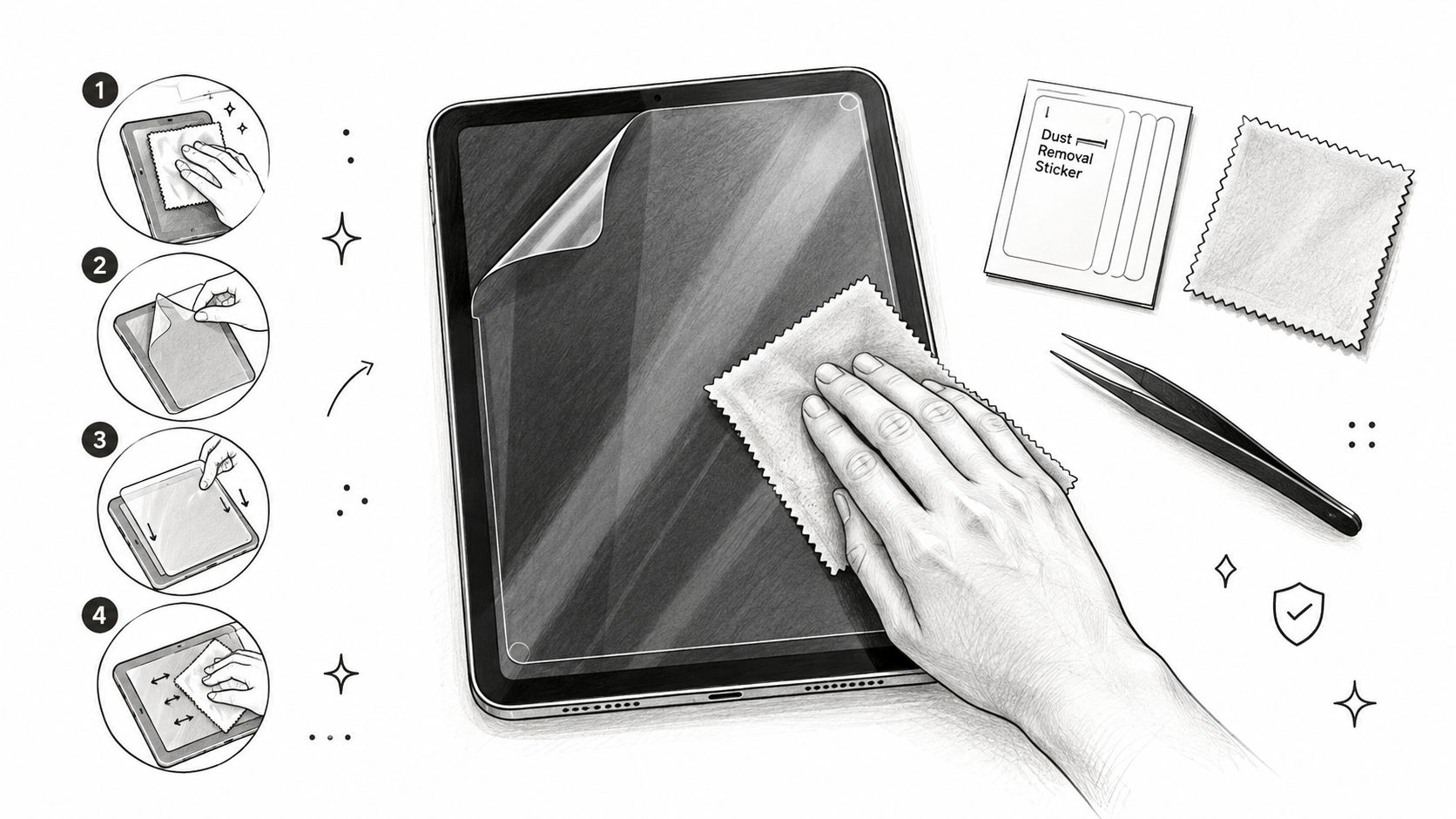
Start with a dry wipe to clear loose debris, then use a wet wipe for the full screen, follow with a microfiber cloth, and finish with dust-removal stickers for anything left behind (installation guide). Align from the bottom edge, lower the protector slowly, and press from the center outward so the adhesive spreads evenly. Give the adhesive time to settle, because it may take up to 24 hours to fully cure (installation guide).
Clean the screen more than you think you need to. Most “bad protector” complaints start with dust trapped under the film.
Once it's on, test it immediately with real writing. Run long edge-to-edge lines, then tiny letters, then a few fast scribbles. Use light pressure and heavier pressure so you can see whether the surface responds evenly.
What to check after the install
Palm rejection should still behave normally, and the screen should not create dead zones near edges or cutouts. That's the post-install test to remember, not whether the bubbles disappeared in ten minutes. The protector should support your writing, not make you think about the screen while you take notes.
If edge bubbles stay put, press them outward with a cloth-wrapped squeegee and give the adhesive time. If a dead zone shows up near a camera or home area, the alignment was off, not the stylus. For laggy-feeling strokes after install, Tinymoose's step-by-step lag guide is a useful diagnostic because it focuses on the usual causes instead of sending you in circles.
The Year-Long Cost Angle Most Guides Miss
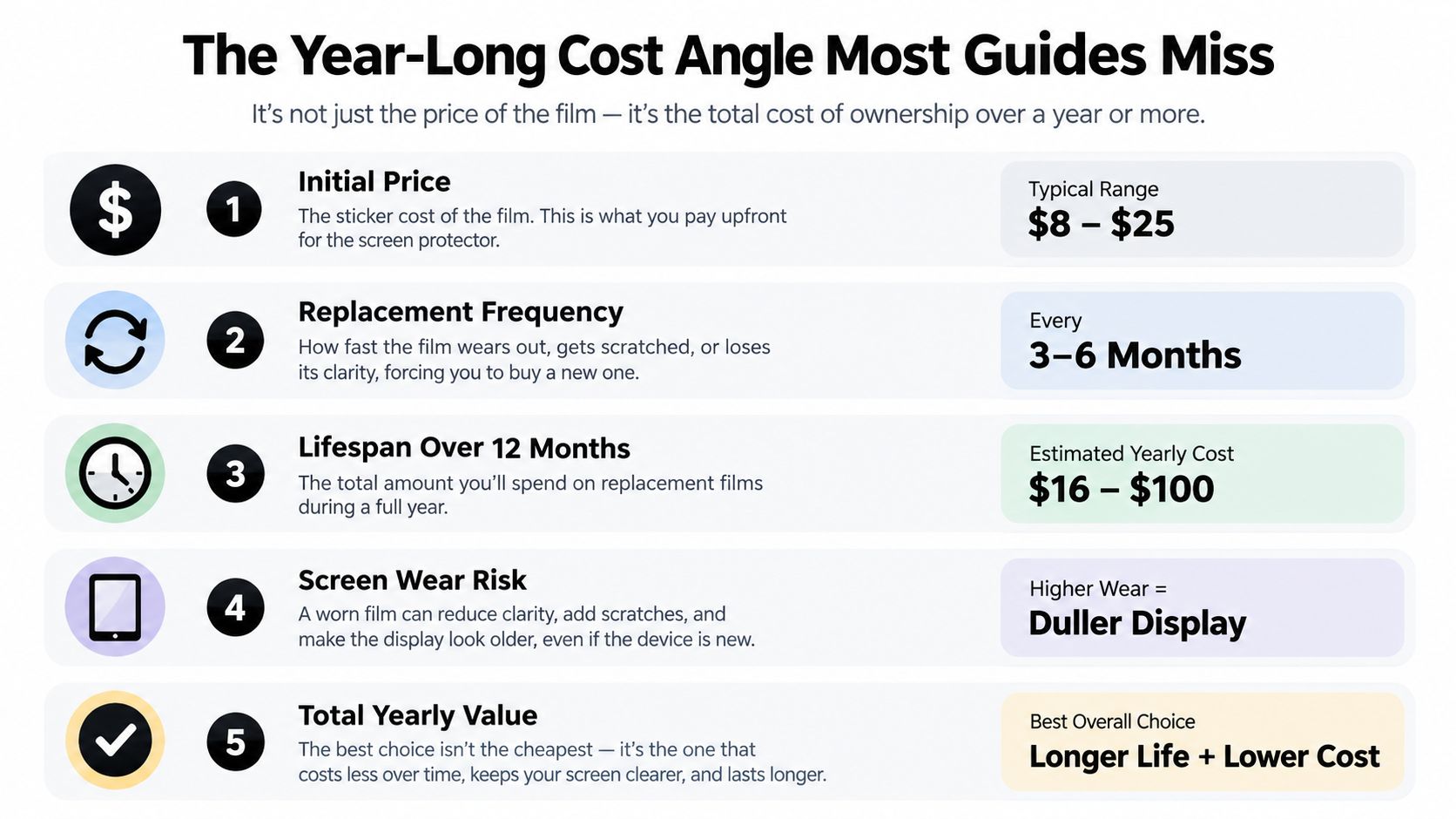
An expensive protector is not always the costly one. That's the part people miss when they grab the most paper-like option and move on. Over a year, the true bill includes the protector itself, nib wear, how often you write, and whether your iPad is mostly a notebook or a mixed-use screen.
The nib cost you keep ignoring
One controlled comparison reported visible tip smoothing after roughly 3 to 4 months and replacement around 6 to 9 months for paper-like protectors, versus about 12 to 18 months for tempered glass under 30 minutes of daily drawing. That evidence isn't independently replicated, so treat it as directional, not definitive (controlled comparison on nib wear). Even so, it tells you the direction of travel, textured surfaces can cost more in nibs.
Why annual value beats sticker price
A cheap matte film can still be the wrong buy if you write a lot and replace tips often. A smoother protector can win on total value if it lets you keep clearer screen quality and slower nib wear without making handwriting miserable. The right question isn't “What costs less today?” It's “What keeps my setup usable all year without annoying me every week?”
Use-case decides the winner
If you write daily, annotate heavily, and care about paper-like control, matte is still a good buy. If you split your time between note-taking and media, or you're picky about display crispness, smooth tempered glass is usually the better long-term value. You can always change writing technique or nib feel later. You can't get back clarity once you've made the screen softer than you wanted.
Simple rule: the best value protector is the one you stop noticing after a week, not the one that sounds most like paper on checkout day.
Your Decision Checklist and Quick Answers
Buy for the way you work, not for the loudest paper-feel pitch.
- Dominant workflow: mostly notes, mostly media, or a real mix of both.
- Lighting environment: bright classroom, office glare, outdoor use, or mostly indoors.
- iPad and stylus model: check the exact iPad generation first, then the stylus.
- Case and charging fit: make sure nothing blocks the edges or magnetic behavior.
- Twelve-month budget: include nibs, not just the screen protector price.
Quick answers
Can a protector interfere with palm rejection?
It should not. Palm rejection comes from the iPad's software and touch sensors. The main risk is a bad install or a poor fit, not the material itself.
How often does a matte protector need replacing?
That depends on use, pressure, dust, and nib material. Textured surfaces wear faster than smooth glass, so check both the film and the Pencil tip regularly. If the stroke starts feeling rough or uneven, replace what is worn.
What if I use my iPad equally for notes and media?
Choose the compromise that fits the part of your day you cannot ignore. If you spend more time writing than watching, go matte. If you spend more time watching than writing, go glass. If the split is even, lightly textured or hybrid films are the smarter middle ground.
Tinymoose keeps the same no-fluff mindset across its iPad accessories, including Pencil Pro models with palm rejection, tilt sensitivity, magnetic attachment, shortcut buttons, and USB-C or wireless charging. If you're building a note-taking setup that makes daily use easier, start with Tinymoose and choose the gear that matches the way you work.
Compartir:
El Mejor Stylus para Celular 2026: Probado en iPhone y Android