
Keyboard travel is how far a key physically moves from its resting position to its stopping point, measured in millimeters. A traditional mechanical keyboard typically travels roughly 4 mm on every press, while many laptop keyboards move 2 mm or less.
That gap sounds dramatic on a product page, so plenty of shoppers assume deeper keys always mean happier hands. Yet why do two slim tablet keyboards with the exact same millimeter rating feel totally different after twenty minutes of writing?
Because travel alone doesn't predict comfort. Measured differences between neighboring travel depths are small and depend heavily on the switch mechanism underneath each cap. When you're picking an iPad keyboard to make daily work and study easier, physical keys, comfortable spacing, key stability, and a neutral wrist angle come first, while millimeters work best as a final tie-breaker.
Table of Contents
- What Keyboard Travel Measures and Where a Keystroke Happens
- Travel Distances by Keyboard Type
- What Studies Show About Travel and Typing Feel
- Why Compact iPad Keyboards Travel Less
- What iPad Users Should Check Beyond Travel
- Choose a Compact iPad Keyboard for Your Typing Day
What Keyboard Travel Measures and Where a Keystroke Happens
Keyboard travel is the vertical distance a key sinks from its resting height down to the point where it bottoms out, measured in millimeters. If you've ever asked what is keyboard travel while comparing slim tablet covers, think of clicking a retractable ballpoint pen. Travel isn't the audible click itself; it's the full downward slide of the plunger from top to stop.
According to the Wikipedia overview of computer keyboards, early electronic boards inherited deep strokes from typewriters, measuring roughly 4.75 mm (0.187 inches), before improved plastic molding and integrated plungers trimmed travel down to about 2.79 mm (0.110 inches). Today, a typical traditional mechanical keyboard still uses around 4 mm of total travel, while many laptop keyboards move 2 mm or less. That means a desktop mechanical key travels about twice as far as a slim portable key on every single letter you type.
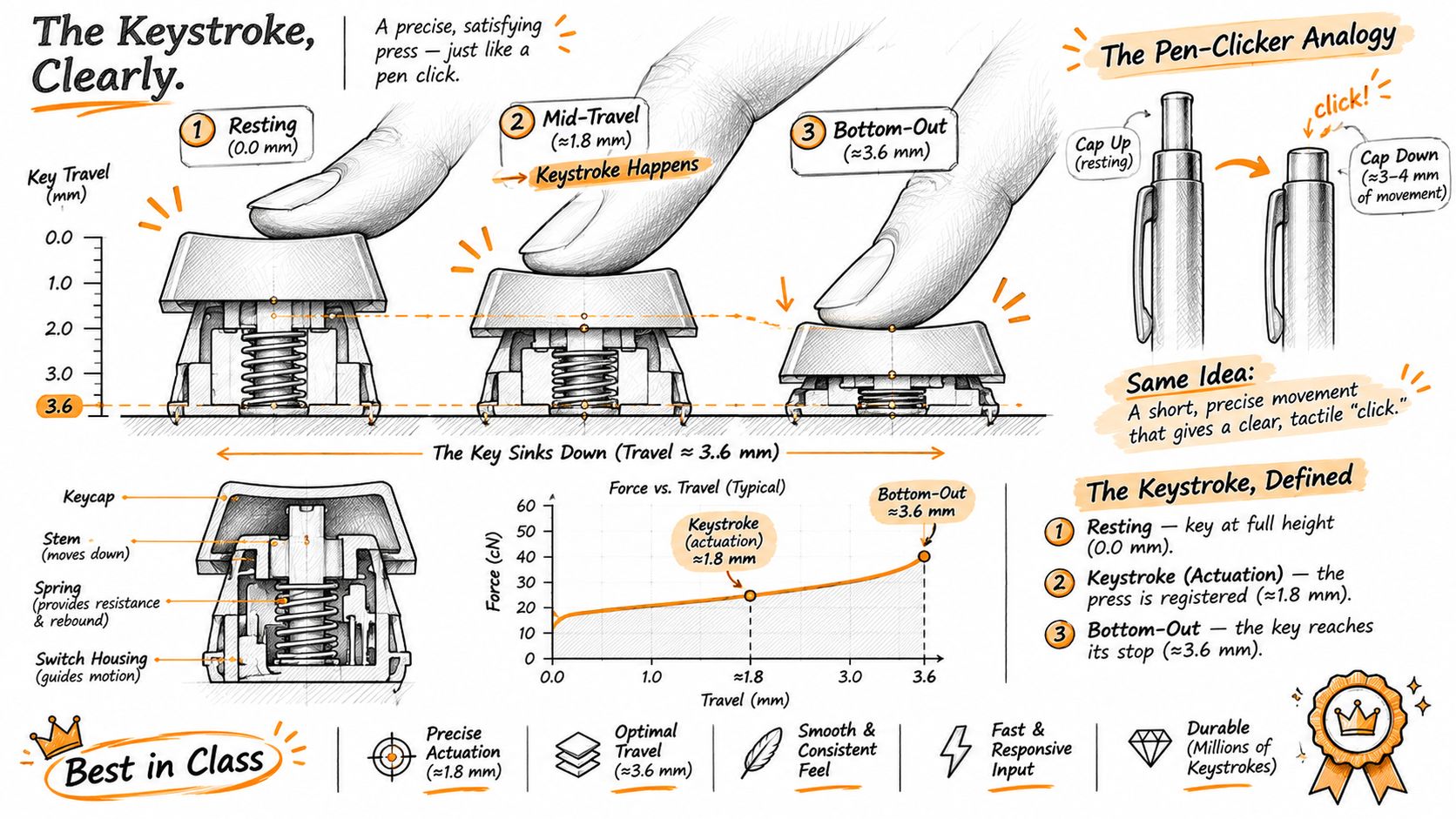
Inside a Single Keystroke From Rest to Bottom Out
A keystroke isn't a single instant. It unfolds in four distinct stages, much like pressing a front doorbell that chimes partway in before the button hits the doorframe:
- Resting position: The key sits untouched at its top height, supported by its spring, rubber dome, or scissor frame.
- Actuation point: Your finger pushes down to the actuation distance, the exact depth where the switch closes and sends the character to your screen.
- Overtravel: Most switches register before the key hits the floor, leaving extra downward motion called overtravel that softens the stop.
- Bottom-out: The keycap reaches the base plate and halts, absorbing whatever downward momentum remains in your fingertip.
For example, imagine a compact keyboard with 2.0 mm of total travel that actuates at 1.5 mm. That leaves 0.5 mm of overtravel after the letter appears, giving your finger a brief buffer instead of a jarring slap against hard plastic. On ultra-thin tablet covers, less total travel leaves less room for cushioning, which is why shallow boards can feel snappy yet firm.
Why Travel Must Be Read Alongside Force
Distance only tells you how far a key moves, not how hard your finger has to push to move it. A University of Wisconsin ergonomics paper by Radwin and Jeng notes technical standards spanning 0.25 to 1.5 N of activation force alongside 1.5 to 6.0 mm of key displacement, showing that force and distance always interact during repetitive tapping.
Two keyboards with identical advertised travel can feel worlds apart because of their force-displacement curve. One switch might ramp resistance smoothly and register cleanly with a light tap, while another demands a stiff initial push before collapsing suddenly. A shallow rubber-dome switch can require noticeably heavier effort than a slightly deeper scissor switch, tiring your fingers much faster during an afternoon of emails.
Spec-sheet check: Before trusting any travel claim, ask two quick questions. First, does the listed millimeter number measure total travel or actuation distance? Second, what activation force pairs with that stroke?
Travel Distances by Keyboard Type
Seeing every keyboard category on one scale makes spec sheets far easier to decode. The table below places everyday input devices alongside the international benchmarks engineers use to evaluate them.
| Keyboard or standard | Travel distance | What it tells you |
|---|---|---|
| Virtual on-screen keyboard | 0 mm | No physical key movement at all |
| Micro-travel keyboard | Under 2.0 mm | Below the 2.0 mm minimum used in keyboard ergonomics |
| Flat keyboard | Less than 2 mm | Classed as flat in a 2025 ergonomics study |
| Scissor tablet cover keyboard | About 1.3 to 1.8 mm | Typical of slim covers and thin notebooks |
| Laptop keyboard | 2 mm or less | Common in slim notebooks and tablet covers |
| Conventional keyboard | At least 2 mm | Classed as conventional in a 2025 ergonomics study |
| Traditional mechanical keyboard | About 4 mm | Common desktop benchmark |
| ISO 9241-4 acceptable range | 1.5 to 6.0 mm | Outer limits for usable key displacement |
| ISO 9241-4 preferred range | 2.0 to 4.0 mm | Zone where most desktop keyboards sit |
A 2025 ergonomics study indexed by PubMed Central sorts keyboards into three straightforward buckets: virtual glass keyboards sit at 0 mm, flat keyboards measure less than 2 mm, and conventional boards offer at least 2 mm. Putting those numbers beside the ISO 9241-4 usability guidelines summarized in a Deskthority discussion of keyboard ergonomics adds helpful context. ISO 9241-4 sets 1.5 to 6.0 mm as the acceptable displacement range and 2.0 to 4.0 mm as the preferred zone, while peer-reviewed research defines micro-travel keyboards as anything under that 2.0 mm preferred floor.
Putting a Spec Sheet Number Into Context
A quick subtraction shows how much finger motion changes across categories. Take a slim 1.8 mm keyboard and compare it with a 4 mm desktop mechanical board. Each press on the 1.8 mm board moves 2.2 mm less, cutting vertical movement by more than half on every single keystroke.
That same table flags when a slim design pushes past established comfort boundaries. A 1.3 mm tablet cover sits below the 2.0 mm preferred floor and even dips under the 1.5 mm acceptable limit in ISO 9241-4. That doesn't automatically ruin the keyboard, since switch feel and portability matter too, but it tells you the design trades physical cushioning for a razor-thin profile.
When you check a product listing, pull the travel figure, find its matching row above, and note immediately whether it lands inside the preferred zone, within the acceptable range, or below both.
What Studies Show About Travel and Typing Feel
Controlled lab experiments paint a much subtler picture than marketing claims suggest. Instead of proving that deeper or shallower keys always win, testing reveals modest mechanical shifts and big differences between switch designs.
| Study | Travel tested | Main finding |
|---|---|---|
| Repeated typing comparison | 0.5, 0.7, 1.2, 1.6 and 2.0 mm; 20 participants | Ultra-low travel lowered typing force, but differences stayed small |
| Dome versus scissor comparison | 0.55 mm dome, 0.55 mm butterfly, 1.3 and 1.6 mm scissor | 0.55 mm dome used more force, typed slower and caused twice the discomfort |
| Short versus long comparison (2014) | Under 2.5 mm against 4.0 mm; 17 participants | Shorter travel produced smaller peak forces and shorter keystroke duration |
| Speed and fatigue comparison | 2.0, 2.5 and 4.0 mm; 15 participants | No significant difference in speed, accuracy or perceived fatigue |
In a CDC-archived typing study, 20 participants typed for 10 minutes each across five keyboards ranging from 0.5 mm to 2.0 mm. Ultra-low-travel boards lowered typing force and wrist extension compared to the 2.0 mm reference, yet they also increased sideways wrist bend (ulnar deviation). Even more telling, those shifts stayed tiny: under 0.5 newtons for typing force and under 4 degrees for both wrist extension and ulnar deviation. A repeated-measures study in the Proceedings of the Human Factors and Ergonomics Society examining that same 20-person 0.5 to 2.0 mm range found muscle-activity changes stayed under 1.3%, confirming how minor pure travel shifts can be in daily use.
Why Mechanism Matters More Than Millimeters
Switch hardware changes the outcome dramatically. In a separate CDC-archived experiment comparing short-travel mechanisms, researchers tested a 0.55 mm dome keyboard, a 0.55 mm butterfly keyboard, and scissor-switch models at 1.3 mm and 1.6 mm. Compared with the other devices, the 0.55 mm dome keyboard drove 6 to 8% higher forearm muscle activity, 12% higher typing force, 8% slower typing speed, and twice as much reported discomfort.
A PubMed Central review of short-travel keyboard research highlights the important counterpoint inside that 20-person comparison: the fastest typing and lowest discomfort came from the deepest device tested at 1.6 mm. That's why shorter travel is a design trade-off rather than a guaranteed upgrade. The same review also reports a 15-person comparison of 2.0 mm, 2.5 mm, and 4.0 mm keyboards that found no significant differences in typing speed, accuracy, keystroke duration, or perceived fatigue.
Shorter strokes can still alter finger motion in useful ways. A 2014 laboratory study in the Human Factors and Ergonomics Society proceedings tested 17 participants on boards under 2.5 mm versus a 4.0 mm keyboard and recorded smaller sideways finger angles, lower peak and mean combined forces, and shorter keystroke durations on the shorter-travel designs.
Keep the Limits of the Evidence in Mind
Every controlled experiment above used small groups and brief sessions lasting minutes rather than months. Because of those limits, no researcher can credibly claim that a specific millimeter figure prevents repetitive-strain injuries over years of office work.
Judge a compact keyboard by how smoothly its mechanism feels during sustained writing, not by chasing the smallest or largest millimeter number on the box.
Why Compact iPad Keyboards Travel Less
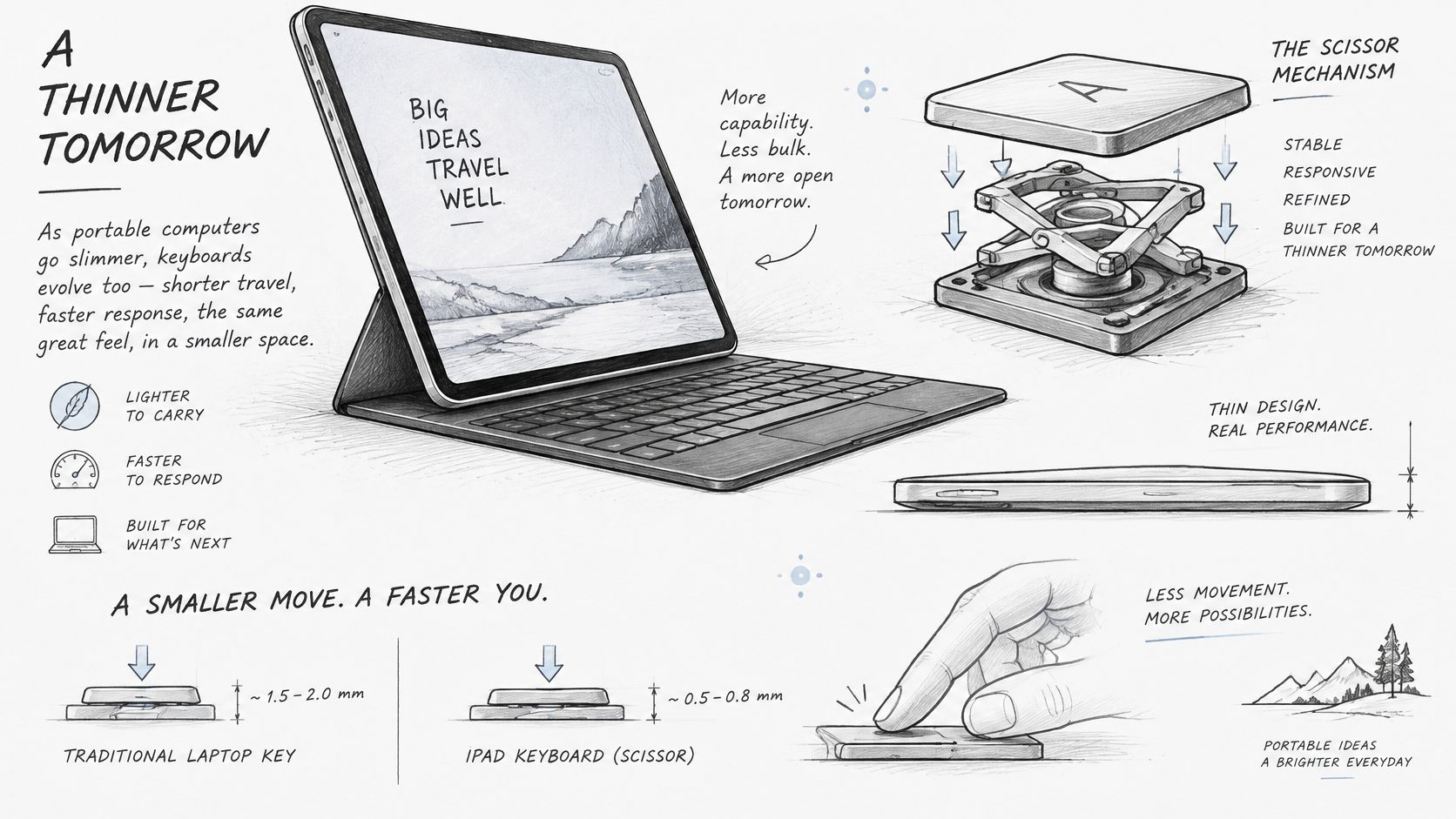
As portable computers slimmed down, engineers couldn't fit tall desktop springs inside thin travel cases. They adopted scissor mechanisms, compact X-shaped linkages underneath each keycap that stabilize the press and register cleanly across a much shorter vertical drop.
The illustration below shows how that low-profile scissor design trims keyboard height so a tablet cover stays light and packable.
Say a university student types two hours of morning biology notes on a 1.2 mm tablet cover, then writes an afternoon seminar summary on a 2.0 mm keyboard. On the 1.2 mm board, every press feels quick and light, keeping finger lift minimal while the thin case barely adds bulk to a backpack. On the 2.0 mm board, each key offers more visible drop and clearer tactile confirmation before bottoming out, which makes pacing feel steadier during long paragraphs.
Neither physical board is broken. Both trade a slice of cushioning for convenience, yet either one transforms how fast you can work compared to tapping directly on glass.
The Real Leap Is From Glass to Physical Keys
Shoppers often agonize over 1.5 mm versus 1.8 mm while overlooking the biggest productivity jump available to an iPad owner. A CDC-archived comparison of virtual and physical keyboards tested a 0 mm virtual touchscreen, a 1.8 mm notebook keyboard, and a 4 mm desktop keyboard. Adjusted typing speed on the virtual screen was roughly 60% slower than on the physical keyboards, while the notebook and desktop boards showed no significant speed gap between them.
That finding simplifies tablet buying immediately. Moving from on-screen glass to a dependable, compact physical keyboard delivers a massive everyday boost in writing speed and ease of use, far larger than switching between two similar physical travel depths. Just watch out for overcrowded keys, because that same research warns that reduced key spacing can slow typing down even when physical switches are present.
For a quick visual breakdown of how compact key mechanisms move and feel in everyday typing, watch this short overview.
What iPad Users Should Check Beyond Travel
A millimeter figure works like a label on a suitcase. It tells you something, but it does not tell you whether the trip feels smooth. iPad buyers should first secure physical keys, sensible spacing, stable caps, and a wrist-friendly angle. Then travel becomes a useful tie-breaker, not the whole decision. The checklist below summarizes the physical cues to feel for during a quick test.
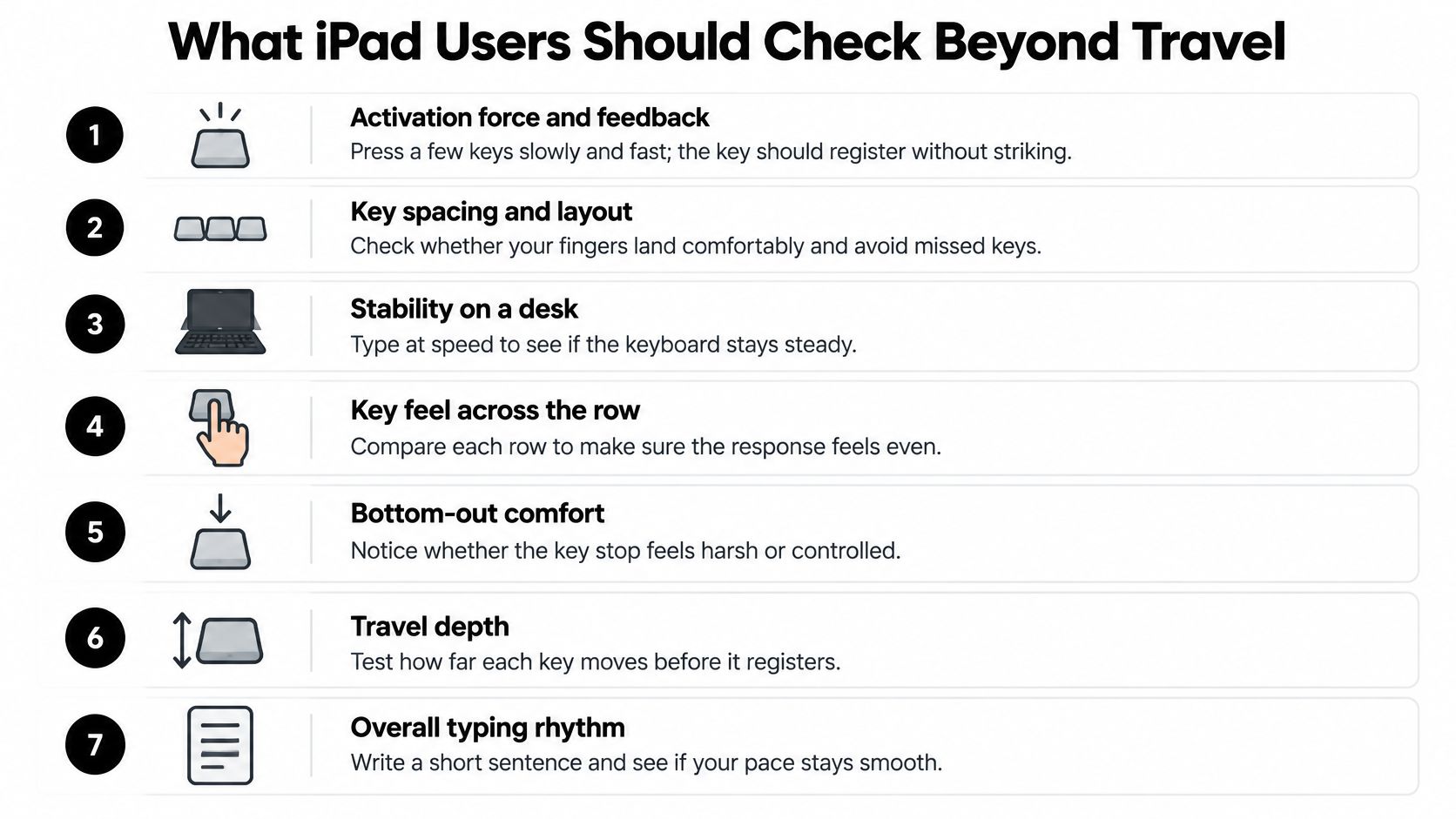
- Activation force and feedback: Keys should register cleanly without forcing you to hammer the base plate. Press a handful of keys slowly, then tap them at full speed. Each letter should trigger with light, even pressure, so feedback feels predictable rather than sudden.
- Key spacing and layout: Cramped punctuation and shrunken backspace keys cause constant typos that stall your flow. Type two full sentences at your normal pace and check whether your pinky and ring fingers hit edge keys cleanly without bunching up. Good spacing matters because typing is a repeated route your fingers learn.
- Mechanism type: Confirm whether the board uses scissor switches, rubber domes, or another structure underneath the caps. A crisp scissor layout often feels steadier over a long writing session than a soft dome sheet, even when both have similar travel. The mechanism shapes the feel more than the depth alone.
- Key stability: Wobbly caps tilt sideways when struck off-center, which lowers accuracy and makes a keyboard feel cheap. Rest a finger on keys in both the middle and outer rows and wiggle them gently. Solid lateral support keeps fast typing from feeling scattered.
- Wrist position: Your desk and stand angle influence comfort at least as much as key depth. A PubMed-indexed study of 25 typists typing for 10 to 15 minutes at adjusted workstations found average wrist extension of 23.4 degrees on the left hand and 19.9 degrees on the right. That is why a shallow keyboard can still feel comfortable when the whole setup supports neutral wrists. Check whether the board lets you adjust viewing and typing angles, then use a desk setup guide for NJ homes to align chair height, desk height, and screen position.
- Session length: Be realistic about how long you write each day. Quick calendar updates and messages tolerate ultra-thin compromises easily. Multi-hour essays and work reports reward dependable tactile support, because small irritations become harder to ignore over time.
- Device fit: Tablet dimensions, camera cutouts, and magnetic connectors vary across generations. Verify that the product listing explicitly matches your exact iPad model before checking out. That check helps magnets align, ports stay accessible, and the keyboard feel does not depend on an awkward attachment.
Choose a Compact iPad Keyboard for Your Typing Day
Matching your keyboard to your actual routine prevents buyer's remorse and makes carrying your iPad feel effortless.
Match the Hardware to Your Workload
- Light daily typists (under an hour a day): If you mostly jot meeting notes, answer messages, and search the web between classes or errands, prioritize slim portability, quick magnetic attachment, and a clean physical layout with comfortable spacing.
- Heavy daily writers (two or more hours a day): If your iPad serves as a primary writing tool for essays, client reports, or remote work, prioritize crisp scissor-switch stability, well-spaced keys, smooth trackpad navigation, and adjustable viewing angles over chasing the thinnest profile on the market.
Once you confirm your preferred travel feel, actuation crispness, spacing, and wrist alignment, set up your workspace so your screen sits comfortably at eye level. Pairing a portable setup with practical home office guidance from Groen's Fine Furniture helps keep your posture relaxed when working from a desk, and students comparing everyday carry setups can also explore our portable keyboard guide for students to weigh portability against full-day study needs.
A Practical Setup Built for Everyday Ease
If you want one tool that handles both quick tablet sketching and serious writing without hassle, our SpacePad iPad Keyboard is built specifically for that balance. Priced at $146.00 in Black (and available for iPad 11 (A16) and iPad 10th Gen), it combines responsive scissor-switch keys with a detachable magnetic keyboard that shifts smoothly between tablet mode and laptop mode whenever your task changes.
It also simplifies daily life with a 3-way multi-touch trackpad for scrolling and swiping, adjustable viewing angles, RGB backlit keys with 7-color adjustable brightness, a stable Bluetooth connection, Type-C charging, and up to 200 hours of working time on a single charge. It works smoothly alongside our iPad styluses too, letting you move from typing reports to marking up PDFs without carrying extra clutter.
Before picking your next keyboard, track how many hours you type across a normal week, notice where your wrists rest, and let those real habits guide your decision.
Looking to turn your iPad into a fast, comfortable workstation without bulky gear or inflated prices? Explore scissor-switch iPad keyboards, precision styluses, and practical everyday accessories designed around straightforward performance at Tinymoose.
Compartir:
What Is Wireless Charging? How It Works and Who Needs It