
Your iPad rides in a backpack beside textbooks, lands on a café table, then balances on your lap during the train ride home. A keyboard case has to make all of that easier, not just look convincing in a product photo. The right choice protects the tablet during carry, opens into a comfortable workspace, and gets out of the way when you want to read or write by hand.
Table of Contents
- What a Protective Keyboard Case Must Protect and Why
- Model Compatibility Before You Buy
- The Evaluation Checklist for Protective Keyboard Cases
- Protection Level Against Drops, Scratches and Spills
- Keyboard, Trackpad and Viewing Angles for Real Typing
- Common Use Cases and the Features Each One Needs
- Weight, Trade-Offs and Long-Term Ownership
- Confirm Your Model and Choose the Right Case
What a Protective Keyboard Case Must Protect and Why
The main buying question is simple: will this protect your tablet in a backpack, on a desk, and during commuting without making it miserable to carry? Judge it as a daily workflow tool: safe in a bag, stable enough for decent typing posture, and reasonable to own after the novelty wears off. Start with accidental drops, then repeated rubbing and scraping inside a bag. Spill resistance matters too, but it isn't a substitute for either.
Screen cracks and scratches are among the most common worries for tablet owners, so set priorities in that order: protect vulnerable edges and corners first, then cover the surfaces that rub against other belongings.
Everyday use puts those priorities into context.

Protection that earns its place
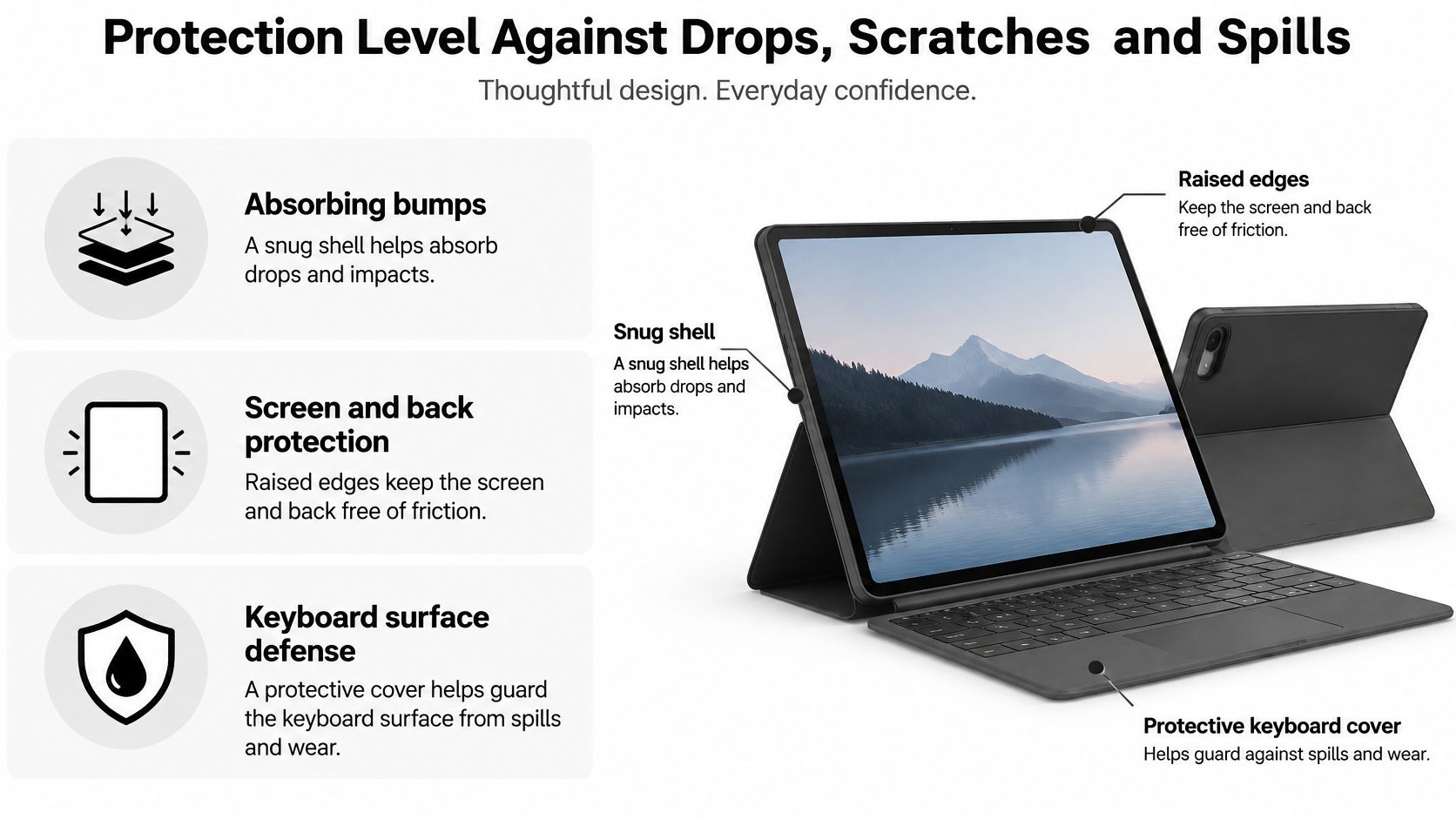
A snug shell helps keep the iPad seated during handling, while raised edges help separate vulnerable surfaces from direct contact. A closing cover addresses a different problem: friction from notebooks, cables, and loose objects during bag carry.
Spill resistance usually matters most at the keyboard surface, where liquid can enter key gaps and affect operation. Unless the enclosure has documented sealing, don't treat a covered keyboard as protection for the whole iPad.
Buying priority: Choose protection you can inspect, not a durability label you can't verify.
A useful protective keyboard case for iPad must also remain pleasant to carry and use. Score fit, coverage, typing comfort, support, and serviceability together rather than letting a thick shell decide the purchase.
Model Compatibility Before You Buy
Open Settings > General > About and read your iPad's model information before browsing cases. If the Model Number field displays a part number, tap it to reveal the model identifier. Keep that identifier handy when checking the compatibility list.
Screen size alone isn't enough. Different generations can have different camera layouts, dimensions, magnet positions, and button locations, even when their names sound interchangeable. A case that attaches magnetically can still be the wrong case.
Compatibility check for the SpacePad iPad Keyboard (Black)
At Tinymoose, we ask customers to select their exact iPad model when ordering the SpacePad keyboard to ensure correct fit.
| iPad Model | Listed Compatibility | What to Do |
|---|---|---|
| iPad Air 13-inch (2024–2025) | Listed as compatible | Match the exact model number before ordering |
| iPad Pro 12.9-inch (2018–2022) | Listed as compatible | Match the exact model number before ordering |
| Other iPad models | Not verified | Check the product page list and ask the seller in writing |
Treat an unlisted model as a reason to pause, not permission to assume. The same applies if a marketplace title and the seller's detailed compatibility list disagree.
A mismatch can show up as weak magnetic attachment, a blocked camera, a button held down by the shell, or a screen edge that doesn't sit properly inside the protective lip. Don't force the tablet into place to compensate.
A reliable fit-check routine
- Identify the tablet. Open Settings, General, About and note the model number.
- Match the listing. Compare the screen size and generation with the supported models, not just the product title.
- Inspect the openings. Confirm that the camera, speakers, buttons, and charging port remain accessible.
- Resolve omissions before paying. If your model isn't listed, get written confirmation of compatibility.
Also check Apple Pencil attachment and charging access if those are part of your routine. A case that fits the enclosure but interrupts your main input method isn't a good practical fit.
The Evaluation Checklist for Protective Keyboard Cases
| Criterion | What to Check | Red Flag |
|---|---|---|
| Model fit | Exact model and year listed; cutouts match your camera and buttons | Only “fits iPad” with no model list |
| Drop protection | Raised lip around the screen, rigid shell, corner coverage | Military-grade claims with no test data |
| Scratch coverage | Soft lining over the screen and back panel | Bare hard plastic that touches the glass in a bag |
| Spill resistance | Keyboard surface and key gaps have documented protection | Open key gaps when spill protection is a requirement |
| Key travel and feedback | Rigid deck with tactile response and consistent spacing | Flexing deck or mushy keys when typing |
| Trackpad | Multi-touch support with scrolling and swipe gestures | No trackpad or single-touch only when gestures are essential |
| Viewing angles | Several stable angles for typing, reading, and watching | One fixed angle only |
| Weight with iPad inside | Total weight you'll carry every day | Complete setup feels burdensome; investigate if the case outweighs the tablet |
| Serviceability | Replaceable parts and clear warranty terms | No warranty or spare-part information |
Turn the checklist into a decision
Give each criterion a score from 1 to 5, using the scale as a personal buying tool rather than a laboratory rating. A low score means the case obstructs your routine; a high score means it supports that routine without an awkward workaround. Mark an unverified feature as unresolved instead of giving it the benefit of the doubt.
Weight the criteria around what you do. Backpack commuters should give drop and scratch protection more influence. Students and writers should put greater emphasis on key feedback, deck rigidity, and comfortable viewing positions.
Don't add everything together and automatically buy the highest total. Compatibility is a pass-or-fail requirement, and excellent backlighting can't compensate for a shell that leaves the tablet insecure.
Test the claims in ordinary conditions
Product photos usually show a clean desk and an ideal angle. Your test should include the bag, chair, table depth, and lighting you normally use.
- Carry it closed. Check whether the cover stays shut and whether exposed edges can rub against objects in your bag.
- Open it naturally. Notice whether setup requires rearranging loose pieces or repeatedly correcting the stand.
- Change tasks. Move from typing to reading or handwriting without accepting an awkward grip.
- Inspect contact points. Look for rough seams, hard protrusions, or grit trapped against the tablet.
Some red flags are conditional. An open keyboard deck isn't disqualifying for someone who never needs spill protection, and a missing trackpad may suit a touch-first user. But neither should be scored as a feature the case doesn't provide.
A high total doesn't cancel a failed essential requirement.
Any red flag affecting your needs is a deal-breaker until the seller answers it in writing. A case that looks protective but makes typing uncomfortable or daily carry unpleasant is the wrong tool, however reassuring its shell appears.
Protection Level Against Drops, Scratches and Spills
A keyboard case has separate protection jobs: cushioning bumps, keeping abrasive contact away from the screen and back, and guarding the keyboard surface. No single design feature handles all of them.
A well-fitted shell limits movement inside the enclosure. Raised edges can keep the glass away from a flat desk when placed face down, provided the lip extends beyond the screen or fitted protector. A scratch-safe lining protects contact surfaces, while secure support reduces the chance of the tablet tipping during use.
The main physical features are easy to identify.
Know where the evidence stops
Apple's published iPad environmental specifications permit operation between 0° and 35°C, with 5% to 95% relative humidity provided moisture is noncondensing, but don't establish a water-resistance or drop-protection rating for the iPad itself. Humidity tolerance isn't permission to expose the device to a spilled drink.
A case can reasonably add protection against bag friction, desk contact, and ordinary handling. Claims such as waterproof, spill-sealed, or military-grade need separate, product-specific evidence. A rugged appearance doesn't establish any of those properties.
For screen privacy in shared spaces, consider privacy screen options for iPad Air, but treat privacy and impact protection as separate purchasing decisions. Check that any protector leaves enough clearance for the case lip and closing cover.
Slim protection versus armor
Armor-style cases generally have the advantage in severe impacts and corner cushioning when their construction is designed for those hazards. Slim cases prioritize a smaller package, easier handling, and a more convenient typing setup. Neither category guarantees protection because it looks substantial or minimalist.
Use a simple listing test:
- Edges and corners. Are they covered, and does the screen lip remain raised with your protector fitted?
- Interior contact. Is the surface against the tablet smooth and lined where appropriate?
- Evidence. Does the seller identify a tested protection level and the conditions behind it?
Don't perform a deliberate drop test with your own iPad. Inspect construction and demand documentation instead.
Keyboard, Trackpad and Viewing Angles for Real Typing
Type a full page or try 15–30 minutes of notes before deciding whether a keyboard feels comfortable. Treat that as a practical trial, not a medical threshold. Include punctuation, corrections, shortcuts, and text selection rather than repeating a sentence with familiar words.
In a controlled evaluation of tablet cover keyboards, users achieved approximately 10 fewer words per minute with the thinnest pressure-sensitive keyboard than with slightly thicker mechanical-key alternatives, alongside more substitutions, omissions, and accidental insertions. That finding doesn't rank current cases, but it gives you a good reason not to equate thinner with better.
Check the keyboard as a working surface
Look for distinct key movement and a clear actuation feel. Consistent spacing matters more than a laptop-like appearance, especially around punctuation, Shift, and Backspace.
Press keys near the middle of the deck while the case rests on your lap. If the whole surface bends, your hands must accommodate a moving platform while typing.
- Key layout. Write a sentence with capitals, numbers, and punctuation to expose cramped or relocated keys.
- Trackpad response. Select text, scroll a long document, and try supported swipe gestures.
- Backlight control. Check adjustable brightness in dim light; excessive brightness can be distracting.
- Connection behavior. Let the keyboard sleep, then resume typing and check whether the opening characters register.
When comparing an ipad keyboard, prioritize those interactions over decorative lighting or a dramatic floating-screen photo.
Adjust the screen without sacrificing stability
A useful stand offers comfortable positions for typing, reading, and watching without gradually slipping backward. Press near the upper part of the touchscreen and check that the support stays planted.
Where the design permits, separate the keyboard from the display so you can raise the screen toward eye level while keeping your hands lower. Don't position an attached keyboard at an uncomfortable wrist angle just to improve screen height.
Finish with a repeatable test: type at your planned angle, check whether the keys still feel firm after 20 minutes, and confirm that trackpad gestures respond without stuttering. The duration is a suggested test interval, not a performance claim.
Comfort check: If you keep moving your body to accommodate the case, adjust the setup before accepting it.
Common Use Cases and the Features Each One Needs
A commuter needs a case that packs cleanly and opens quickly. Someone studying at a desk can accept a larger footprint if it produces a better typing position. Those are different requirements, even when both people own the same iPad.
A CDC-hosted laboratory study of tablet keyboard layouts found that orientation, keyboard position, and split-versus-standard layouts affected typing speed, discomfort, task difficulty, and thumb or wrist posture; in one mode, a split keyboard reduced thumb reach and discomfort, while discomfort was lowest with the keyboard near the middle of the device. These findings concern the layouts tested, not proof that a particular physical keyboard case is ergonomic.
Priority features by common use case
| Use Case | Priority Features | Trade-Off to Accept |
|---|---|---|
| Commuting and backpack carry | Snug shell, raised edges, light total weight | Less shock absorption than an armor-style case |
| Desk study or office work | Stable multi-angle stand, rigid deck, full-size keys | Bulkier to pack than a bare iPad |
| Lap typing | Stable hinge, balanced weight, firm deck | Stability changes with the angle chosen |
| Classroom or lecture hall | Consistent key feedback, stable angle, quiet typing | Heavier than a sleeve-only setup |
| Café or shared-table work | Protected keyboard edges, compact footprint | Needs a clear surface for the stand |
| Handwriting or reading with keyboard folded back | Keyboard folds behind the screen without pressing keys | Folded keys can add bulk in the hand |
Test transitions, not just individual modes
For commuting, practice closing the case and putting it away while seated. Loose keyboard components and protruding supports are inconvenient when you need to clear your space quickly.
At a café, check the complete footprint, including any rear kickstand. A compact keyboard doesn't guarantee a compact setup if the stand extends toward the far edge of the table.
Handwriting deserves its own trial. Rest your palm on the screen, reach the corners with your stylus, and check whether the folded keyboard rocks underneath the tablet. For reading, confirm that your fingers aren't pressing exposed keys or gripping an uncomfortable hinge.
Use a 15–30 minute comfort trial as a personal comparison method. Try lap stability, thumb reach in portrait orientation, and the range of usable viewing angles, without treating the trial as a clinical assessment.
The heaviest or most rigid case isn't automatically the best productivity choice. If you switch frequently between typing, handwriting, and reading, adjustability can matter more than maximum stiffness.
Weight, Trade-Offs and Long-Term Ownership
The toughest-looking case isn't necessarily the best value. Extra material can improve cushioning, but it can also make the iPad awkward to hold, slow down camera access, or turn quick tablet-only tasks into a folding exercise. A slimmer case accepts a different compromise: less cushioning in exchange for easier everyday handling.
Judge ownership cost by what happens when something fails, not just by the purchase price. A worn keyboard shouldn't automatically make a sound protective enclosure useless.
Check what can be kept in service
- Weigh the working setup. Put the iPad, case, stylus, and necessary charging accessories in your normal bag before judging portability.
- Separate the components. Check whether the keyboard can be removed and whether the remaining enclosure still works as protection.
- Inspect charging and connection parts. Find out whether a damaged cable, socket, or connection component can be replaced.
- Monitor the hinge. Check for increasing play, slipping support, or uneven resistance during ownership.
- Ask about end-of-life handling. Look for separable materials and usable recycling guidance.
- Read the support terms. Confirm warranty coverage and replacement-part availability before relying on either.
An independent Fraunhofer evaluation of 21 tablets found that glued construction complicated repairs and material sorting. The evaluation concerns tablets rather than keyboard cases, so it supports asking serviceability questions, not claiming that a particular case is repairable or recyclable.
Long-term value: Durability includes whether you can keep using the good components after another component fails.
A detachable design helps only if the remaining pieces remain useful and replacements are obtainable. A case earns its price by protecting the iPad over years of normal use, not merely by surviving an impressive demonstration.
Confirm Your Model and Choose the Right Case
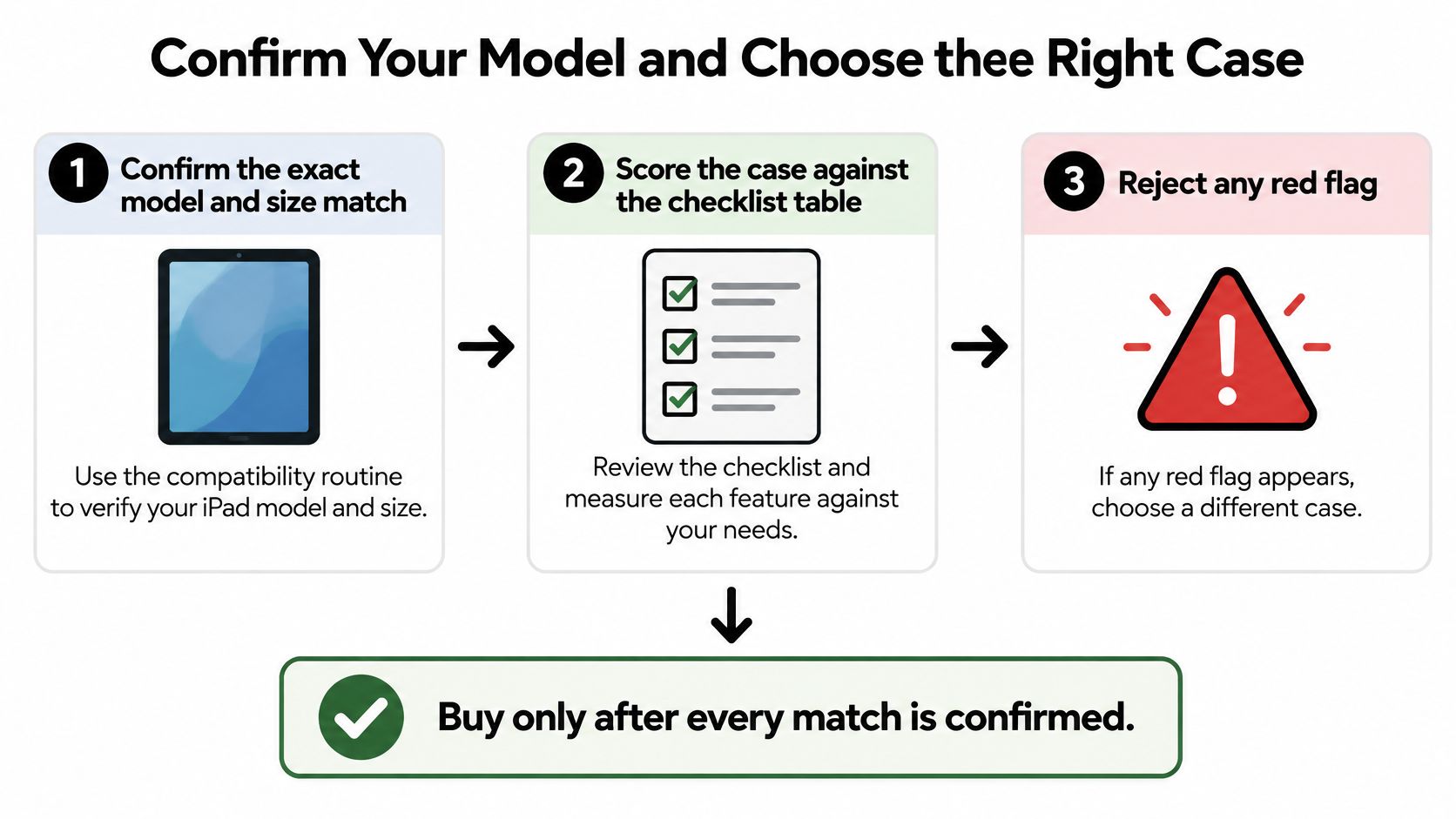
Make the purchase decision in a deliberate sequence.
- Confirm the exact model and size. Match your iPad's identifier to the supported listing.
- Score the case. Reject essential red flags that remain unanswered in writing.
- Test the working setup. Check typing, key firmness, and trackpad gestures at your planned angle, then carry it in your normal bag.
Use this visual as a final buying check.
Our SpacePad iPad Keyboard (Black) provides a concrete benchmark for a slim, typing-focused setup. It combines a detachable magnetic keyboard, scissor-switch keys, a 3-way multi-touch trackpad, RGB backlighting, adjustable viewing angles, and stable Bluetooth connectivity.
It costs $143.00 and offers up to 200 hours of working time on a single charge. Confirm the current listing price and battery information before ordering, rather than budgeting around a summary.
Use the video alongside your feature checks, not as proof of drop protection.
A rugged armor-style case remains the stronger category to investigate for extreme drops and corner impacts. Choose a slim keyboard setup when portable typing matters more. Start by checking your model number, then compare the product page against your checklist.
We offer iPad keyboards and styluses for practical work, study, and note-taking. Visit Tinymoose to compare a keyboard setup with your exact iPad model and the way you carry, type, and switch tasks.

Partager:
Best Keyboard Case for iPad Air: How to Choose in 2026