Your stylus arrived, it writes, and the notes still look wrong. Every stroke lands at the same thickness, your handwriting turns into marker scrawl, and pressing harder changes nothing.
That's not a bad pen. It's a screen that never learned to listen. The same disappointment starts earlier for most buyers: you find a listing that says "Android compatible", and nothing on the page tells you whether the pen will write with real pressure or just tap the glass like a fingertip.
Shopping for an active stylus for Android is really shopping for two things at once, the pen and the digitizer under the display. Learn to identify the digitizer first, and the decision takes about five minutes.
Table of Contents
- What an Active Stylus Does Differently on Android
- Which Protocol Your Android Screen Uses
- Which Android Phones and Tablets Support Active Styluses
- What Really Works
- Which Active Stylus Fits Your Android Use
- Pre-Purchase Checklist for Android Active Styluses
What an Active Stylus Does Differently on Android
A flat-line note page is the clearest diagnostic you'll get. If the pen writes but nothing changes when you press harder or tilt the tip, you're holding a pen that imitates touch rather than one that reports data.
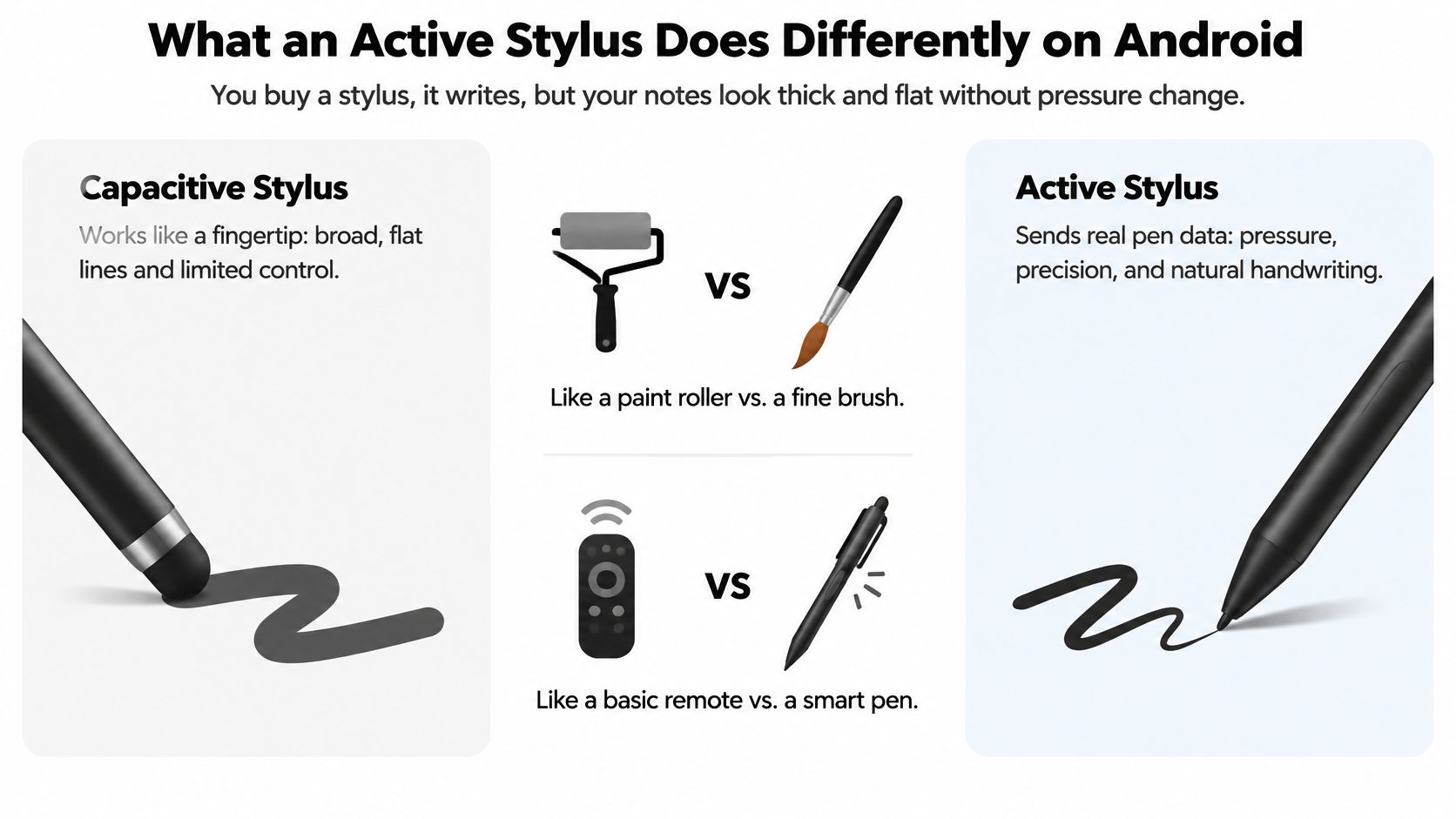
Why the ink looks flat. Think of a capacitive stylus as a gloved finger on a doorbell. The button registers a press either way. It can't tell your thumb from your knuckle, and the screen can't tell a light stroke from a heavy one. An active stylus works more like a walkie-talkie: it broadcasts its own signal about pressure, tilt and position, and a digitizer built to receive that signal passes the data to your app. Take away the receiver and the walkie-talkie is a plastic stick.
Three Kinds of Pen, Three Different Jobs
| Pen type | How it reaches the screen | Pressure and tilt | Palm rejection | Works on any Android touchscreen? |
|---|---|---|---|---|
| Capacitive stylus | Imitates a fingertip | No | Usually no | Yes |
| Active stylus (protocol-based) | Sends its own signal to a compatible digitizer | Yes, when the screen reads the protocol | Yes, when the screen reads the protocol | No, only compatible screens |
| Bluetooth-only pen | Sends button or gesture data over Bluetooth | No for writing | Only if the screen already filters palm touch | Writing: no; buttons: needs pairing |
Read the table from the screen's side, not the pen's. Row one works everywhere precisely because it does almost nothing beyond touch. Row two can deliver pressure, tilt and palm rejection, but only on a digitizer that speaks its protocol. Row three is the one that trips people up: a Bluetooth pen sends button presses and gestures over a radio link while the writing itself still travels as ordinary touch. Pair it and the shortcut button works. Expect pressure sensitivity while writing and you'll send it back.
The quick test: press hard, then barely touch. If the line never changes weight, you're on a touch-only path no matter what the box promised.
What the Market Says About Compatibility
The scale of the confusion shows up in the numbers. Market research published in 2025 estimated that Android-compatible active styluses represented 32.8% of the global active-stylus market, equivalent to approximately $1.58 billion, and that about 34.2% of Android active-stylus purchasers experienced compatibility challenges with non-Samsung devices. A separate estimate from Mordor Intelligence put Android at 36.65% of global digital-pen market revenue in 2025.
Treat these as commercial market estimates rather than official statistics, since the reports use their own methodologies and no single accepted dataset exists. The lesson holds either way: Android is a major platform for pen input, and compatibility is a purchasing constraint rather than an afterthought.
If one pen is meant to cover a tablet and a phone from different brands, check each device's protocol, then find a stylus for multiple devices that names both. An active pen is only as capable as the digitizer behind the glass.
Which Protocol Your Android Screen Uses
A pen can be charged, paired and still behave like a plastic fingertip. The part that decides is under the glass: the digitizer, the layer that senses the pen and reports pressure, tilt and hover to Android.
Start there, not with the badge on the box. The same word, “active,” can describe very different paths into the screen:
- USI: found on tablets and Chromebook-linked devices that name it in their specifications.
- Samsung S Pen: an electromagnetic resonance layer built into the screen, plus Bluetooth for remote features.
- Microsoft Pen Protocol (MPP): common on pens designed alongside Windows hardware.
- Wacom AES: used across several stylus makers and tablet brands.
The Universal Stylus Initiative (USI) launched to build one open active-stylus standard that could work across compatible touchscreens and graphics tablets. Google publicly backed the initiative in January 2018, alongside Dell, Intel, Lenovo, LG, Wacom, 3M Touch Systems and a group of smaller component and software firms. Apple, Microsoft and Samsung had not joined at the time of that report, which helps explain the fragmentation Android buyers still meet.
A rechargeable pen sold as “for Android” may imitate a fingertip if the screen lacks the matching digitizer. A USI pen suits a tablet whose spec sheet lists USI support. A Samsung tablet with built-in S Pen hardware needs an S Pen designed for that model family; a generic active pen can miss features the S Pen layer provides. Search the exact model number with “USI,” “S Pen,” “MPP” or “AES,” then read the manufacturer page rather than the stylus listing.
USI's proposed specification also aimed to carry settings such as ink colour and stroke width between compatible devices, and to change radio frequencies when it detected interference. Those behaviours depend on the device's digitizer, operating-system implementation and standards compliance, so the pen's marketing copy is the last place to trust.
The diagnostic that settles it: exact model number, digitizer protocol, operating system version. Get those three and the pen question answers itself.
Which Android Phones and Tablets Support Active Styluses
Start with the lookup table. It covers the device families buyers ask about most, and it shows why one brand name can produce two opposite answers.
| Device family | Active stylus support | Pen to look for | What to verify |
|---|---|---|---|
| Galaxy Tab S6, S7, S8, S9 and S10 | Yes, S Pen | S Pen designed for the tablet family | Exact model number before ordering |
| Galaxy Note series and S21 Ultra to S25 Ultra | Yes, S Pen | Phone-specific S Pen | Exact model; Air Actions availability |
| Galaxy A-series and FE-series tablets and phones | No S Pen support | Capacitive or other non-S Pen option | Samsung states S Pen is not compatible |
| Google Pixel Tablet | USI pens are the likely match | USI 2.0 pen | Active-pen support listed on Google's spec sheet |
| Lenovo and Xiaomi tablets | Model by model | Pen named in the manufacturer's spec sheet | "Active pen" or "stylus" wording, not just "touchscreen" |
| Amazon Fire tablets | Selected models only | Manufacturer-supported stylus, if listed | Model-specific stylus support on the product page |
Samsung's own documentation is blunt about the split. Samsung lists S Pen support for selected Galaxy Tab S models (the Tab S6, S7, S8, S9 and S10 families) and selected phones (the Note series and the S21 Ultra through S25 Ultra), and states plainly that Galaxy A-series and FE-series tablets and phones are not S Pen compatible.
A Tab S9 and a Tab A9 Need Different Pens
Say you own a Galaxy Tab S9 and you want pressure-sensitive lecture notes. That screen has the S Pen digitizer built in, so you buy an S Pen made for the Tab S family and get pressure, tilt and palm rejection inside Samsung Notes. Now say your classmate owns a Galaxy A9 tablet and wants the same thing. The digitizer isn't there. No pen at any price will manufacture pressure data on that screen.
For the A-series owner, the practical purchase is a fine-tip capacitive stylus for tapping, scrolling and simple handwriting, which lines up with Samsung's own note that a broadly compatible capacitive stylus suits ordinary use where advanced S Pen features aren't required.
What to Check on Everything Else
Google's Pixel Tablet, Lenovo and Xiaomi tablets, and Amazon Fire tablets don't appear on Samsung's support list, so verify each one against its own official spec sheet. Look for the words "active pen", "USI" or a named stylus, and treat "touchscreen" as proof only that fingers work. The Pixel Tablet is the one to watch in that group, since a USI pen is the natural match where active-pen support is confirmed. On Fire tablets, support is model-specific, so check the product page for the exact device you're buying.
If you're weighing a Galaxy Tab purchase and want to know how the newest model handles a pen before you commit, HearSmart's take on Samsung's latest tablet goes through it in detail. Once you've confirmed your model sits on the supported list, choose a stylus for your Samsung tablet using the same model-first logic.
What Really Works
A box that says 4096 pressure levels tells you what the pen can report. It says nothing about what your screen and app will read.
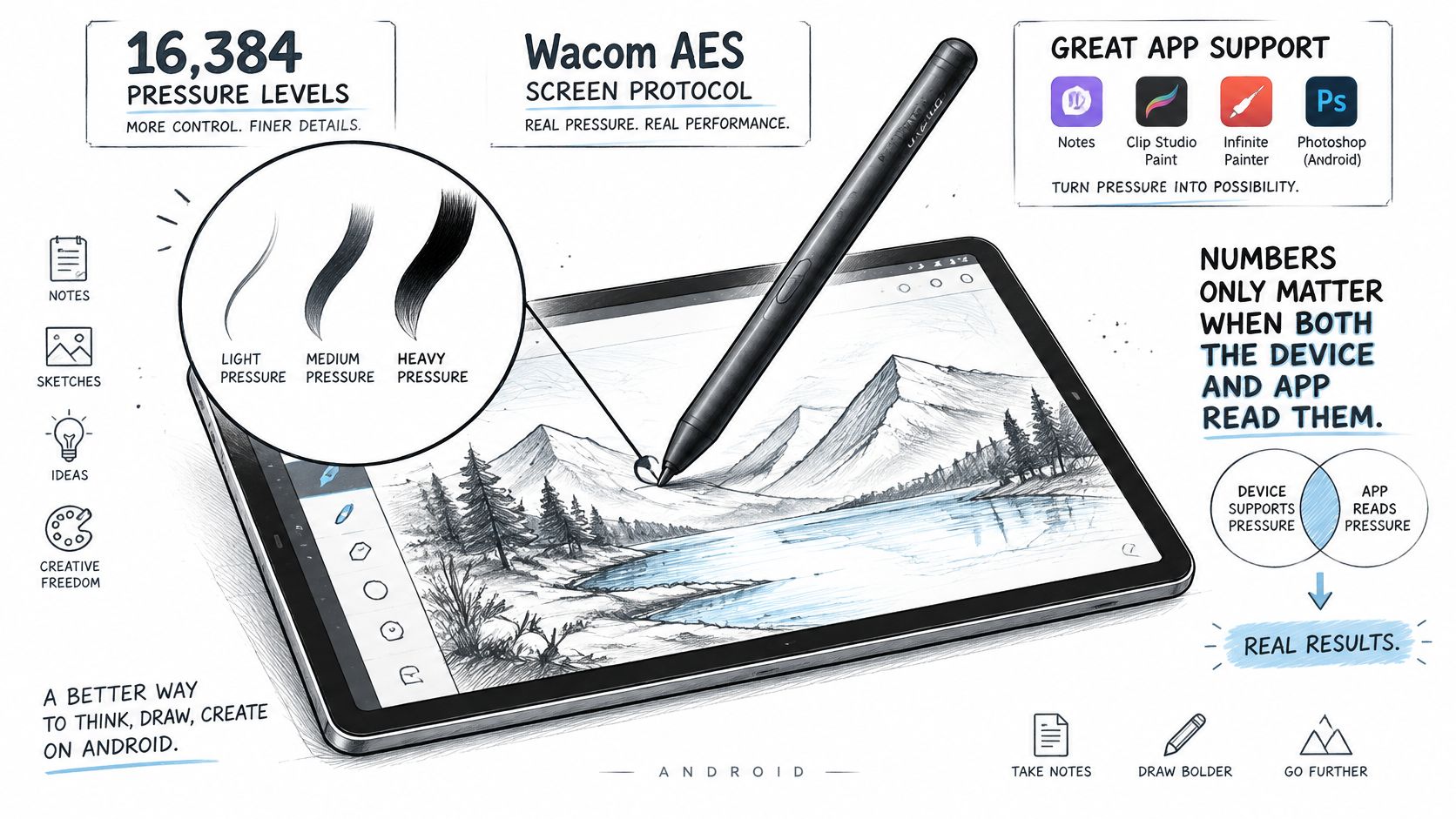
Pressure labels only matter when the screen's protocol supports them and the app interprets the data. USI implementations can differ in how many pressure tiers they expose and whether they report tilt at all. Tilt is the clearest example of a feature that evaporates in practice: it shades and angles strokes in a drawing app, then disappears in a note app or during system navigation.
Palm rejection follows the same rule. It comes from the digitizer and the software stack working together, not from the pen carrying Bluetooth or a battery.
Writing and Remote Control Are Two Separate Features
Samsung documents the split clearly. Most S Pens handle handwriting on supported devices, but remote-control functions depend on the model. Samsung's Air Actions support note lists availability on the Tab S7, Tab S8, Tab S9 and Tab S10 families, Note-series phones, and the Galaxy S21 Ultra through S24 Ultra. It also names the devices where Air Actions are unavailable, including the S25 Ultra S Pen, the S26 Ultra S Pen, the Z Fold5 and Z Fold6 S Pens, and the S Pen Creator Edition.
So a pen can write perfectly on a compatible screen while its button shortcuts, camera trigger or gesture commands do nothing at all. Buyers who assume one feature implies the other end up returning pens that were working exactly as designed.
A pen that writes but won't trigger a shortcut isn't broken. It's a writing pen on a screen that doesn't take remote commands.
The Five-Part Test Before You Trust a Pen
- Write a full page in your note app. Vary pressure on purpose and watch whether line weight responds.
- Draw in a creative app. Sketch slow arcs and fast diagonals, then tilt the pen to check shading.
- Switch apps mid-session. Confirm the pen picks up in the new app without a restart or a re-pair.
- Charge it, or confirm it needs no charge. Note how long a top-up takes and whether it charges while attached.
- Walk out of range and come back. A pen that drops its connection and needs re-pairing will annoy you every day.
Run those five checks on any pen you're considering, including cross-platform models. If you also carry an iPhone, find a stylus for your iPhone with the same discipline, because a pen that serves both devices still exposes different features on each.
A cheaper pen using the correct native protocol routinely beats an expensive universal pen whose headline features your screen can't reach.
Which Active Stylus Fits Your Android Use
Four buyers, four different answers. Find the closest match and note the single check that decides it.
The student with a Galaxy Tab S9. The priorities are reliable palm rejection and a note app that reads pressure, so lecture notes stay legible when you write fast. Skip remote-control features entirely, since you won't use them mid-lecture. The check is whether the pen is built for the Tab S family's S Pen digitizer, not whether it says "Android" on the box.
The artist on a Pixel Tablet. A USI pen is the match here, and the drawing app matters as much as the pen does. Before buying, draw a test stroke in your actual app and confirm it responds to pressure and tilt. A pen that reports both is wasted if the app ignores the data.
- The budget note-taker on a Galaxy A-series tablet: with no active digitizer, a fine-tip capacitive stylus is the honest buy. Add a note app that runs well on that specific device and a matte screen protector for a paper-like feel, and ignore any listing that leads with pressure levels.
- The dual-device owner with an Android tablet and an iPad: one pen covers tapping, navigation and basic notes on both screens, which is a practical way to carry less. Advanced features vary by device and app, so test the feature you care about on both screens before you rely on it for real work.
Pre-Purchase Checklist for Android Active Styluses
The whole decision fits in one sentence: confirm the exact device, its protocol and its app support, then choose a pen that matches.
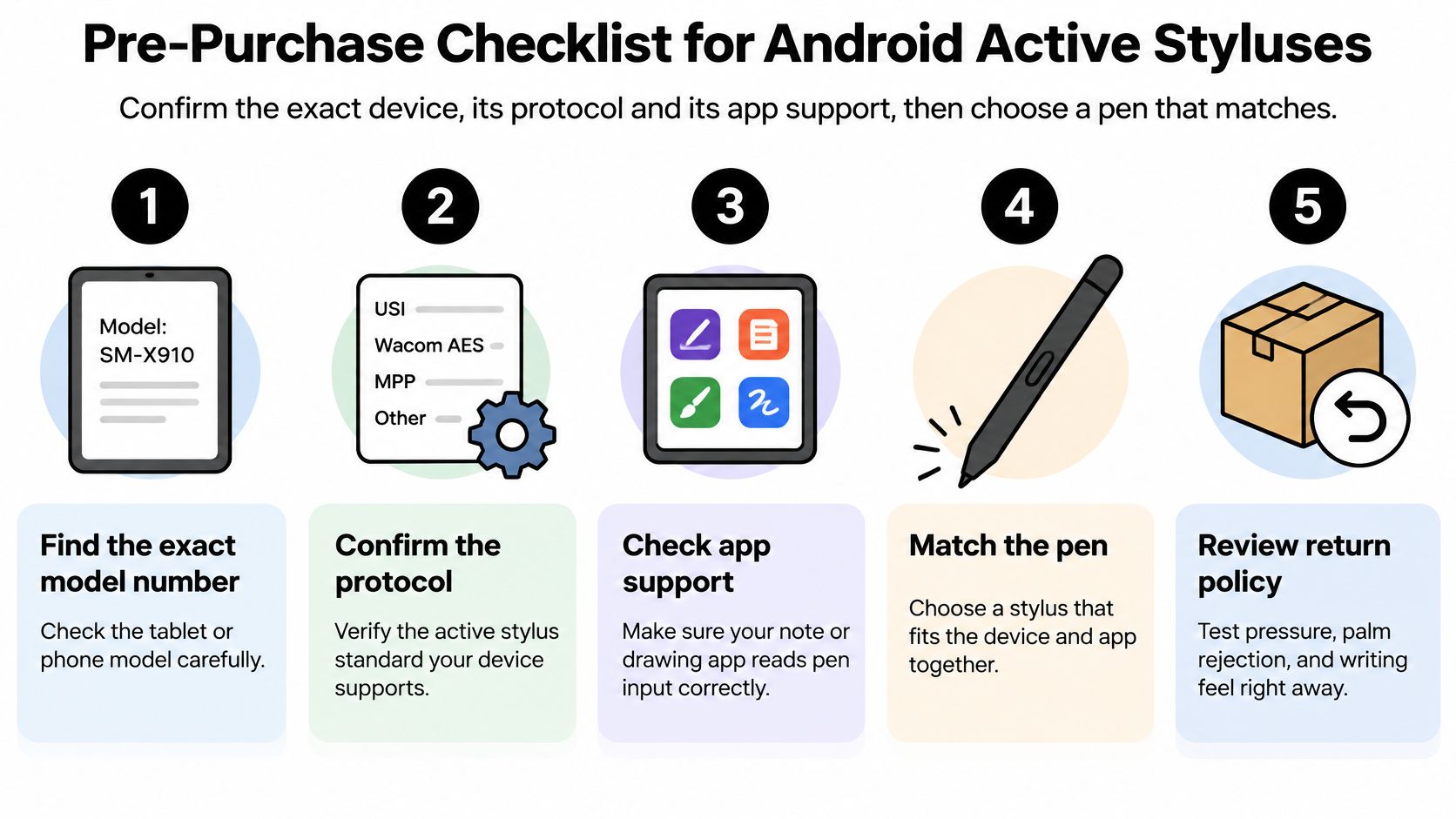
Seven Steps, In Order
- Find the exact model number and Android version. Open Settings, then About tablet or About phone. Support changes between models with near-identical names, so "Galaxy Tab S" isn't precise enough to buy against.
- Identify the protocol from the manufacturer's spec sheet. Look for USI, S Pen, MPP or AES. The common slip is trusting the word "universal" on a product page instead of the device's own documentation.
- Confirm the digitizer accepts active pens. Search the spec sheet for "active pen" or "stylus". The word "touchscreen" only confirms that fingers work.
- Test app support in the app you'll use. Write and draw in your main note or drawing app and check whether pressure and tilt come through. A capable pen still looks basic in an app that ignores the data.
- Confirm pairing and charging for your exact model. Samsung's S Pen pairing guidance explains that the S Pen shipped with a Galaxy phone is built specifically for that model, while the S Pen Pro can be used interchangeably between supported models. For the Tab S6, S7, S8, S9 and S10, Samsung says the pen must be charged and paired for full functionality, with the tablet's designated rear position handling both. Pairing alone doesn't prove every shortcut will work.
- Check that replacement nibs exist. The tip wears first, and a pen with no spare nibs on sale becomes disposable the moment it flattens.
- Decide whether you need pressure and tilt at all. If your use is tapping, scrolling and short notes, a capacitive pen does the job for less money, and that's the honest answer for A-series and FE-series owners.
Want to see the whole routine run end to end rather than read it? This walkthrough covers the same ground in video form.
Any unchecked step on a model you own is a reason to pause before buying. If the screen has no active-pen digitizer, no pen will deliver pressure or palm rejection, however much it costs.
Our own styluses run through the same seven steps. Pencil Glide is compatible with Samsung Galaxy Tab S7, S8 and S9 plus other EMR-supported tablets, and offers 4096 pressure sensitivity, no charging needed, palm rejection and tilt technology. The Pencil Pro Ultra also works with Android tablets, iPad, iPhone and Microsoft Surface devices, and its capacitive mode covers basic navigation, annotation and quick sketches. Compare each pen's stated compatibility against your exact model before you decide.
Tinymoose builds stylus pens for people who would rather write than troubleshoot, and every Pencil Pro model includes palm rejection, tilt sensitivity and USB-C fast charging. If you're setting up an Android tablet for notes, sketching or everyday productivity, the Pencil Glide and Pencil Pro Ultra are both worth checking against your device's protocol. Visit Tinymoose to see the current lineup and pick the pen that matches your screen.
Share:
Universal Stylus Pen: Which Devices It Works with and Why