
Den bästa stylus-pennan för Android: En praktisk köparguide
Du har tittat på din Android-surfplatta och vet att den kan mer än Netflix och e-post. Du har försökt skissa en idé med fingret eller skriva under en PDF, och det blir en klumpig kladd. Frustrerande.
Den bästa stylus-pennan för Android förvandlar din surfplatta från en glorifierad skärm till något du faktiskt kan arbeta på — ta anteckningar under möten, markera PDF-filer, skissa idéer eller redigera foton med den precision som ditt finger aldrig var designat för. Den här guiden täcker vad du ska leta efter, funktionerna som verkligen betyder något och hur du matchar en stylus efter hur du kommer att använda den.
Varför en stylus är värd det
En stylus är inte bara en annan tillbehör. Det är verktyget som sluter gapet mellan idén i ditt huvud och det som visas på skärmen. Fingrar är klumpiga verktyg. En stylus ger dig precision, kontroll och en naturlig känsla som du behöver för att behandla din surfplatta som den produktivitetsenhet den är byggd för.
Och förändringen är verklig. Stylusmarknaden förväntas ta den näst största marknadsandelen år 2025, drivet av yrkesverksamma, studenter och konstnärer som har insett att en surfplatta med rätt penna ersätter tre eller fyra andra verktyg. Du kan läsa mer om tillväxten av marknaden för digitala pennor från SkyQuestt.
Från skärm till arbetsstation
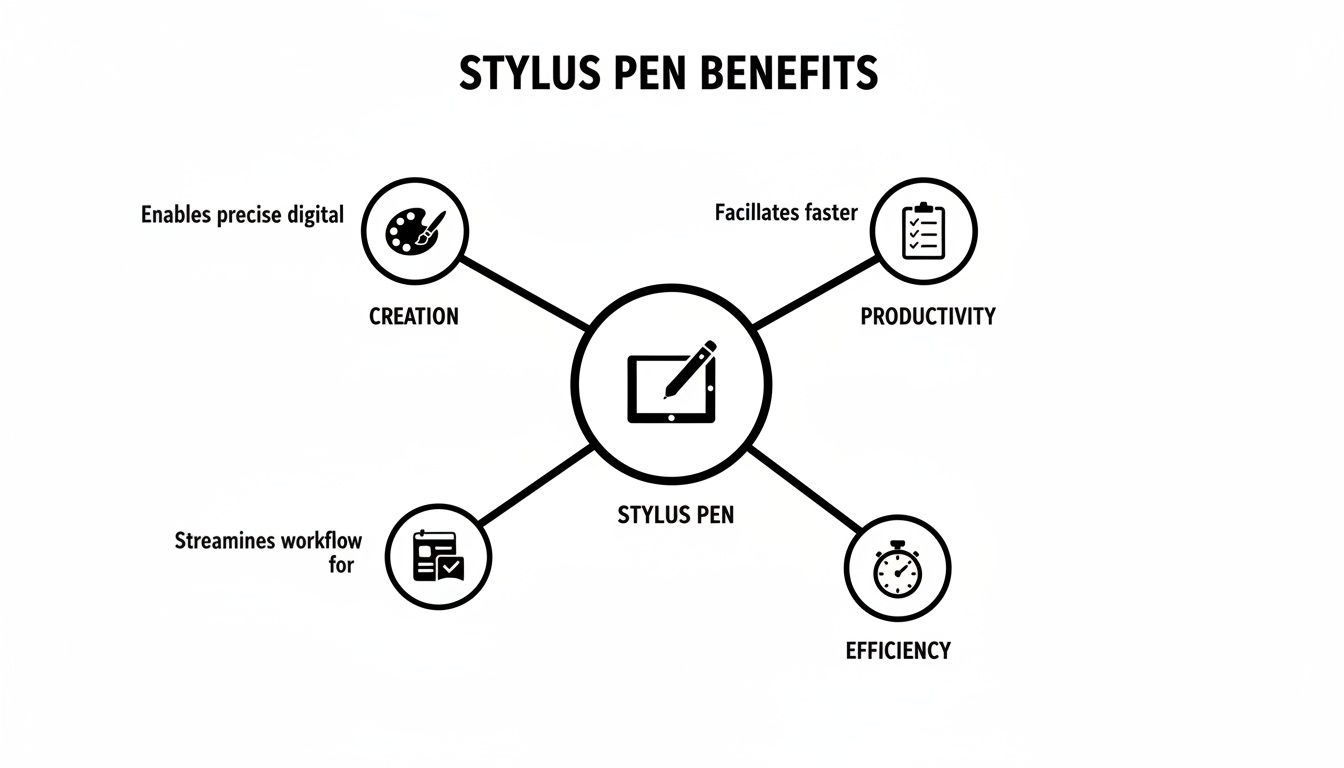
Utan en stylus är din Android-surfplatta mest en konsumtionsenhet — videor, surfning, scrollning. Lägg till en kvalitetspenna och den förvandlas till en skapandeenhet. Samma surfplatta, helt annan användning.
En stylus gör din surfplatta till en tvåvägsgata. Istället för att bara ta emot information skickar du tillbaka den med precision — skriver, skissar och redigerar lika smidigt som på papper.
Var det verkligen hjälper
Det här är inte teoretiskt. En stylus löser specifika, vardagliga problem:
- Anteckningar under möten eller lektioner — skrivandet känns som i en riktig anteckningsbok, och de flesta anteckningsappar kan omvandla handstil till sökbar text.
- Precis navigering — inget mer fumlande med små länkar, menyval eller kalkylbladsceller.
- Snabba markeringar — skriv under kontrakt, kommentera PDF-filer och ge designfeedback på några sekunder, ingen skrivare behövs.
- Skissning och teckning — fin kontroll för detaljerat arbete, så att din surfplatta blir en portabel skissbok.
Aktiv vs. Passiv: Skillnaden som spelar roll
När du börjar leta efter den bästa styluspennan för Android kommer du att se termerna "aktiv" och "passiv." Skillnaden är enkel och avgör vad du faktiskt kan göra med pennan.
En passiv stylus är ett något bättre finger. Den har en mjuk gummispets som skärmen känner igen som en beröring. Ingen elektronik, inga batterier, ingen parkoppling. Plocka upp den och tryck.
Det är okej för navigering, att snabbt signera ett dokument eller hålla smuts borta från skärmen. Men det hjälper dig inte att rita, ta seriösa anteckningar eller göra något som kräver precision.
När du behöver mer
En aktiv stylus är en strömdriven penna med elektronik inuti som kommunicerar direkt med din skärm. Den kommunikationen låser upp funktioner som gör en stylus verkligen användbar: palmavvisning, lutningskänslighet, snabbknappar och — på vissa modeller — tryckkänslighet.
Aktiva stylusar behöver laddas (vanligtvis USB-C), men i gengäld får du den kontroll som gör att surfplattan känns som papper.
En aktiv stylus pekar inte bara på din skärm — den kommunicerar med den. Den berättar för din surfplatta hur du skriver eller ritar, så att den kan reagera som en riktig penna.
Aktiv vs Passiv i korthet
| Funktion | Passiv stylus | Aktiv stylus |
|---|---|---|
| Hur det fungerar | Ledande spets som imiterar ett finger | Elektroniken kommunicerar direkt med skärmen |
| Ström | Ingen | Uppladdningsbar (vanligtvis USB-C) |
| Parkoppling | Ingen | Bluetooth (för premiumfunktioner) |
| Lutningskänslighet | Nej | Ja, skugga genom att luta pennan |
| Palmavvisning | Nej | Ja, vila handen på skärmen som vanligt |
| Snabbknappar | Nej | Ja, snabba åtgärder som att sudda eller byta verktyg |
| Bäst för | Grundläggande navigering, signaturer | Anteckningar, teckning, fotoredigering, professionellt arbete |
| Pris | Billig | Högre, men du betalar för kapacitet |
Vilken behöver du?
För grundläggande tryck och enstaka signaturer räcker en passiv stylus. Om du vill använda din surfplatta för att skriva, rita eller göra något seriöst arbete, skaffa en aktiv stylus. Den bästa styluspennan för Android-användare som gör verkligt arbete är nästan alltid en aktiv. Så här ser det ut beroende på användningsområde:
- Anteckningsskrivare — palmavvisning är den funktion du märker mest. Den låter dig vila handen på skärmen medan du skriver, precis som på papper.
- Konstnärer och skissare — tilt-känslighet låter dig skugga genom att vinkla pennan, vilket ger djup åt teckningar utan att byta penslar.
- Yrkespersoner — genvägsknappar tar bort steg i repetitiva uppgifter som att byta verktyg eller ångra åtgärder.
Funktionerna som verkligen betyder något
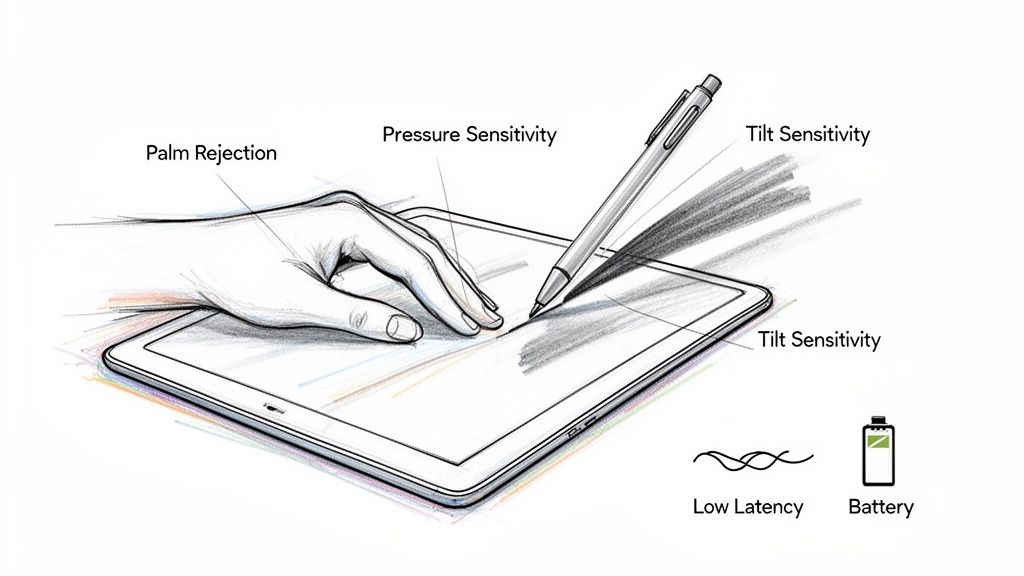
Specifikationslistor är långa och de flesta punkterna spelar ingen roll. Här är de tre funktionerna som avgör en styluspennas värde för Android.
Handflatesavvisning
Om du någonsin skrivit på en surfplatta med handen svävande obekvämt ovanför skärmen, har du upplevt hur livet är utan handflatesavvisning. Det är obekvämt och anteckningarna blir trånga.
Handflatesavvisning talar om för surfplattan att ignorera allt utom styluspennans spets. Din hand kan vila på skärmen precis som på papper. För långa föreläsningsanteckningar eller detaljerade ritningar är detta funktionen som avgör om du faktiskt använder pennan eller lämnar den i en låda.
Tiltkänslighet
Tiltkänslighet efterliknar hur en riktig penna skuggar när du vinklar den. Lägger du pennan på sidan får du en bredare, mjukare linje — den digitala motsvarigheten till att skugga med sidan av en grafitstav.
För konstnärer är detta avgörande. För antecknare och kommentatorer är det en livskvalitetsfunktion som gör handskrift mer naturlig och uttrycksfull.
Latens
Latens är fördröjningen mellan att flytta pennan och se linjen dyka upp. Hög latens förstör upplevelsen — skrivandet känns frånkopplat, ritandet klumpigt, och din hjärna tröttnar på att kämpa mot fördröjningen.
En kvalitativ aktiv stylus har så låg latens att du slutar märka den. Bläcket dyker upp under spetsen i vad som känns som realtid, och tekniken försvinner bakom uppgiften.
Vad en stylus faktiskt gör för dig
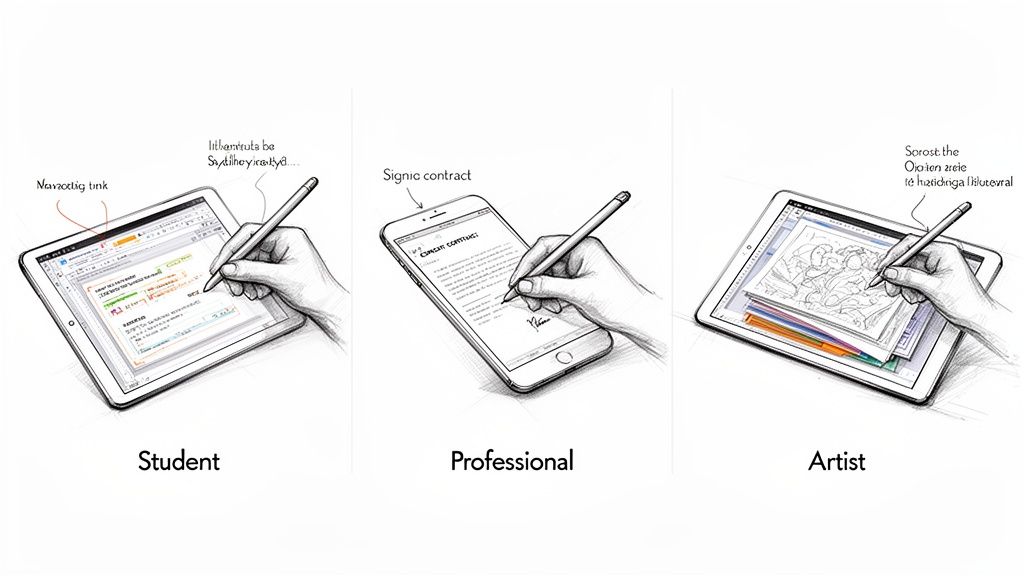
Här blir specifikationerna verkliga. Den bästa styluspennan för Android förändrar hur du gör det du redan gör — snabbare, renare och med mindre friktion.
För studenter
Istället för att skriva febrilt under en föreläsning, antecknar du direkt på professorens PDF-bilder — cirklar viktiga begrepp, skriver anteckningar i marginalen, ritar pilar mellan idéer. Det är pappers flexibilitet med digital ordning.
- Diagram — skissa upp ett biologidiagram eller en kemisk reaktion i OneNote eller Squid utan att kämpa med fingerdragna linjer.
- Matematik och naturvetenskap — skriv ekvationer naturligt. Att skriva formler är jobbigt; att skriva för hand tar bara sekunder.
- Sökbar handstil — de flesta anteckningsappar konverterar handstil till sökbar text, så dina anteckningar förblir lätta att hitta.
För yrkesverksamma
Att skriva under ett kontrakt på en telefon med fingret ser oprofessionellt ut och tar evigheter. Med en stylus skriver du under snyggt på några sekunder. Samma gäller för att markera en presentation, granska en design eller redigera ett kalkylblad på språng.
En stylus låter dig agera på information direkt. Markera en presentation, ge visuell feedback på en design eller fixa en cell i ett kalkylblad utan att ta fram din laptop.
I virtuella möten betyder handskrivna anteckningar också att det inte låter från tangentbordet — vilket dina kollegor kommer att uppskatta.
För konstnärer och formgivare
Det är här tryck- och lutningskänslighet visar sitt värde. En aktiv stylus låter dig:
- Skissa med nyans — börja med lätta utforskande linjer i Sketchbook och bygg upp till tyngre streck.
- Skugga naturligt — luta pennan för mjuk skuggning som tillför djup utan att hoppa mellan penselstorlekar.
- Gör detaljerade redigeringar — retuschera foton eller gör vektorarbete i Krita eller Infinite Painter med en noggrannhet som en mus inte kan matcha.
Den bästa stylusen för Android (och iPad): Tinymoose Pencil Pro Ultra
Här är problemet som de flesta inte tänker på förrän de sitter fast: om du köper en stylus byggd för en enhet är den ofta värdelös på en annan.
Samsungs S Pen fungerar utmärkt på Galaxy Tab-enheter men gör inte mycket på en iPad. Apple Pencil fungerar bara på iPads. De flesta tredjepartsstylusar låser dig till antingen Android-världen eller Apple-världen.
Om du bara äger en surfplatta och planerar att stanna i ett ekosystem för alltid är det okej. Men många använder båda — en iPad hemma och en Android-surfplatta för jobbet, eller byter plattform vartannat år, eller barnen delar surfplattor med olika föräldrar. Att köpa separata stylusar för varje enhet är slöseri. Pencil Pro Ultra rankades just som det bästa Apple Pen-alternativet för 2026.
En stylus, båda plattformarna
Tinymoose Pencil Pro Ultra är byggd för just detta problem. Den använder Smart Switch-teknologi för att fungera på både Android-surfplattor och iPads — en penna, båda ekosystemen, inga kompromisser. Den plattformsoberoende flexibiliteten är vad som gör den till vårt val för bästa styluspenna för Android-användare som också använder (eller kan komma att använda) en iPad.
Vad den ger dig:
- Handflatsavvisning på stödda enheter, så att du kan skriva naturligt.
- Lutningskänslighet för skuggning och mer uttrycksfull teckning.
- USB-C-laddning med lång batteritid.
- Magnetisk fästning så att den clipsar fast på din surfplatta istället för att rulla av skrivbordet.
- Plattformsoberoende kompatibilitet med Android-surfplattor (inklusive Samsung Galaxy Tab-serien med kapacitiva pekskärmar) och iPads från 2018 och framåt.
Om du äger eller kan komma att äga både en iPad och en Android-surfplatta är Pencil Pro Ultra den enda stylus du behöver. En penna, båda plattformarna.
För en fullständig genomgång av Tinymoose stylus-sortiment, se vår Pencil Pro jämförelseguide.
Kompatibilitet: Vad du ska kontrollera innan köp
Innan du köper någon stylus, kontrollera två saker: fungerar den med din enhet och fungerar den med apparna du använder?
Enhetskompatibilitet
De flesta moderna Android-surfplattor använder kapacitiva pekskärmar, som fungerar med standardaktiva stylusar som Pencil Pro Ultra. Några saker att verifiera:
- Din surfplatta har en kapacitiv pekskärm (nästan alla moderna Android-surfplattor har det).
- Din surfplatta stödjer Bluetooth om du vill ha funktioner som genvägsknappar.
- Din specifika modell finns på stylusens kompatibilitetslista — alltid värt en snabb koll innan köp.
Appkompatibilitet
Stylusen är bara halva ekvationen. Appar du använder måste stödja stylusfunktioner för att det ska spela någon roll. Den goda nyheten är att de stora aktörerna alla gör det:
- Anteckningar: OneNote, Squid, Nebo — alla byggda för stylus-inmatning med handflatsavvisning och handskriftskonvertering.
- Digital konst: Krita, Sketchbook, Infinite Painter — full support för lutning och tryck.
- PDF-markering: Adobe Acrobat, Xodo — hanterar stylus-anteckningar inbyggt.
Din inköpschecklista
Innan du köper, gå igenom dessa frågor ärligt:
- Vad kommer jag faktiskt att använda den till? Anteckningar, teckning eller grundläggande navigering? Var realistisk med 90 % av ditt användningsområde.
- Vilka funktioner är viktigast? Handflatsavvisning för skrivande, lutning för teckning, genvägsknappar för arbetsflödet.
- Är min surfplatta kompatibel? Kontrollera specifikationsbladet och stylusens kompatibilitetslista.
- Kommer jag använda flera enheter? Om ja, prioritera stöd för flera plattformar — en stylus som fungerar överallt är bättre än två stylusar låsta till olika ekosystem.
- Vad är min budget? Du behöver inte betala Apple Pencil-priser för att få de viktiga funktionerna.
För en djupare genomgång av hur du matchar funktioner med arbetsflöde, läs vår guide om att välja den perfekta stylusen för ditt arbetsflöde.
Vanliga frågor
Vilken är den bästa styluspennan för Android-surfplattor?
För Android-användare som vill ha professionella funktioner, handflatsavvisning, lutningskänslighet, lång batteritid och flexibiliteten att använda samma penna på en iPad är Tinymoose Pencil Pro Ultra ett starkt val. Den fungerar på båda plattformarna tack vare Smart Switch-teknologin, vilket innebär att du inte är låst till ett enda ekosystem.
Behöver jag en Bluetooth-stylus för min Android?
Endast om du nöjer dig med grundläggande funktioner. Passiva stylusar fungerar utan parning. Vill du ha handflatsavvisning, lutningskänslighet och genvägsknappar behöver du en aktiv stylus med Bluetooth.
Kan jag använda vilken stylus som helst med min Android-enhet?
De flesta moderna Android-surfplattor fungerar med tredjeparts aktiva stylusar som är gjorda för kapacitiva pekskärmar. Kontrollera alltid stylusens kompatibilitetslista mot din specifika enhetsmodell innan köp.
Fungerar Pencil Pro Ultra verkligen på både Android och iPad?
Ja. Smart Switch-teknologin gör att Pencil Pro Ultra fungerar på både stödda Android-surfplattor och iPads (2018 och senare). Samma stylus, båda plattformarna.
Hur tar jag hand om min stylus?
- Torka av spetsen då och då — damm är slipande.
- Byt ut spetsen när den slits ut (de flesta stylusar levereras med reservdelar).
- Tappa den inte. Aktiva stylusar har känsliga interna komponenter.
- Låt inte batteriet bli helt urladdat under långa perioder.
Att förvara stylusen i ett fodral eller fästa den magnetiskt på din surfplatta håller den säker och laddad.
Trött på att köpa separata stylusar för varje enhet? Tinymoose Pencil Pro Ultra ger dig handflatsavvisning, lutningskänslighet och Smart Switch för kompatibilitet mellan Android och iPad.
Dela:
Upptäck de bästa fotoapparna för iPad 2026
10 bästa illustrationsapparna för iPad år 2026