
Your iPad screen is bright enough to finish an essay, but the keyboard below it has disappeared into the dark. You tilt the screen toward the keys, miss a punctuation mark, then wonder whether switching on a lamp will wake someone else.
A backlit keyboard for iPad can solve that small but persistent problem. The right choice isn't the one with the brightest glow. It's the one that fits your tablet, makes the legends readable, and lets you control how much battery you spend on illumination.
Table of Contents
- When a Backlit Keyboard Earns Its Place
- Smart Connector or Bluetooth for Your Setup
- Match the Keyboard to Your Exact iPad
- Night Classes Cabins and Shared Rooms
- Battery Cost and When to Dim or Switch Off
- Pick a Keyboard That Fits How You Type
When a Backlit Keyboard Earns Its Place
Say you're finishing lecture notes in a bedroom after your housemate has gone to sleep. You know where the letter keys are, but finding brackets, quotation marks, and a less familiar shortcut takes extra attention. The tablet still works perfectly; the keyboard is what interrupts you.
Backlighting earns its place when you can't comfortably read the keys in your normal working light. If you only type at a bright desk, it's optional. Paying for illumination makes less sense when you won't use it.
Test the problem before buying the solution
Try a quick visibility check with your current setup. Sit where you usually work at night, set the screen to a comfortable brightness, and type a short passage that includes punctuation.
Don't choose a passage you can type entirely from memory. Include the symbols and shortcuts you use for assignments, spreadsheets, or messages.
- Watch your posture: Are you leaning toward the keyboard to identify a key?
- Notice interruptions: Do you tilt the screen, reach for your phone's torch, or turn on a lamp?
- Check the setting: Is this a regular bedroom, late-library, airplane-cabin, or shared-room problem?
For late-night users, the frustration follows a familiar chain: the keys become hard to see, typing slows, mistakes creep in, and an external light becomes necessary. That extra accessory undermines the convenience of carrying a tablet.
Choose readable light, not a light show
Adjustable brightness is the feature that matters most for this kind of use. It lets you keep the letters visible without making the keyboard feel harsh or distracting.
Buying rule: Pay for visibility you need, not illumination you'll leave switched off.
Keep your decision focused on exact iPad fit, Smart Connector versus Bluetooth, and the lowest brightness that works. Continue only if at least one regular typing session happens in dim light; otherwise, a comfortable non-backlit keyboard may be enough.
Smart Connector or Bluetooth for Your Setup
Think of a backlit keyboard as a thin lamp beneath the key legends, plus a connection to your tablet. A Smart Connector model is closer to a desk lamp plugged into an existing power supply. A Bluetooth model is more like a battery torch: it carries its own energy source.
That distinction affects what you charge, how you start typing, and whether the keyboard can move between devices. The lighting itself doesn't tell you which connection a keyboard uses.
Let the connection match your routine
Apple's iPad keyboard guide provides a useful benchmark: Smart Connector transfers power and data through physical contacts, while its 11-inch Magic Keyboard uses a scissor mechanism with 1 mm of key travel. That thin-keyboard construction is a reference for quiet actuation and some tactile feedback, not a reason to limit your search to Apple.
Smart Connector versus Bluetooth for a backlit iPad keyboard
| Connection | Power for the light | Setup | Best when | Watch-out |
|---|---|---|---|---|
| Smart Connector | Drawn from the iPad through the contacts | No Bluetooth pairing | A case that stays on one iPad | Connector position and model must match; backlight can be the main extra drain on the tablet |
| Bluetooth | Keyboard battery or replaceable cells | Pairing required | The same keyboard moves among tablets, phones, or computers | Reconnection and charging access matter because lighting adds load beyond the radio |
Scan the table and circle the row that describes how the keyboard will live. Only then compare lighting, colors, and decorative effects.
A Smart Connector design suits someone who opens the same iPad case each morning and wants to start typing without a pairing step. There's no separate keyboard battery to remember, but that doesn't make the light free to run. Its power comes from the tablet.
Bluetooth is useful when your keyboard has a life beyond the case. You might type an assignment on an iPad, answer a longer message on a phone, then use the keyboard with a computer. Check that the particular model supports the switching behavior you need; Bluetooth alone doesn't promise convenient device switching.
Check what happens between typing sessions
For Bluetooth, reconnection is almost as important as initial setup. A keyboard that needs repeated attention after sleep can become irritating during stop-start note-taking.
If you're unfamiliar with pairing, learn how to connect a Bluetooth keyboard to your tablet before judging whether that extra setup suits your routine.
Look for practical details rather than an impressive feature list:
- USB-C charging: Check whether you can reach the charging port while the keyboard is mounted.
- Visible battery status: You should be able to tell when charging is needed without guessing from missed keystrokes.
- Separate lighting control: Changing the backlight shouldn't require changing screen brightness or interrupting your writing.
Finally, try the keys if possible. A useful backlight won't compensate for a cramped layout, an awkward space bar, or keys that feel uncomfortable during an entire lecture.
Match the Keyboard to Your Exact iPad
Two iPads with the same screen size can have different camera openings, ports, or connector positions. Match a keyboard case to your iPad's exact model and generation, not just its screen diagonal.
Open Settings > General > About and note the model name and model number. Tap the model-number field to reveal the hardware identifier, then compare it with the keyboard's compatibility listing. Regional names can vary, so use the hardware details to confirm the match.
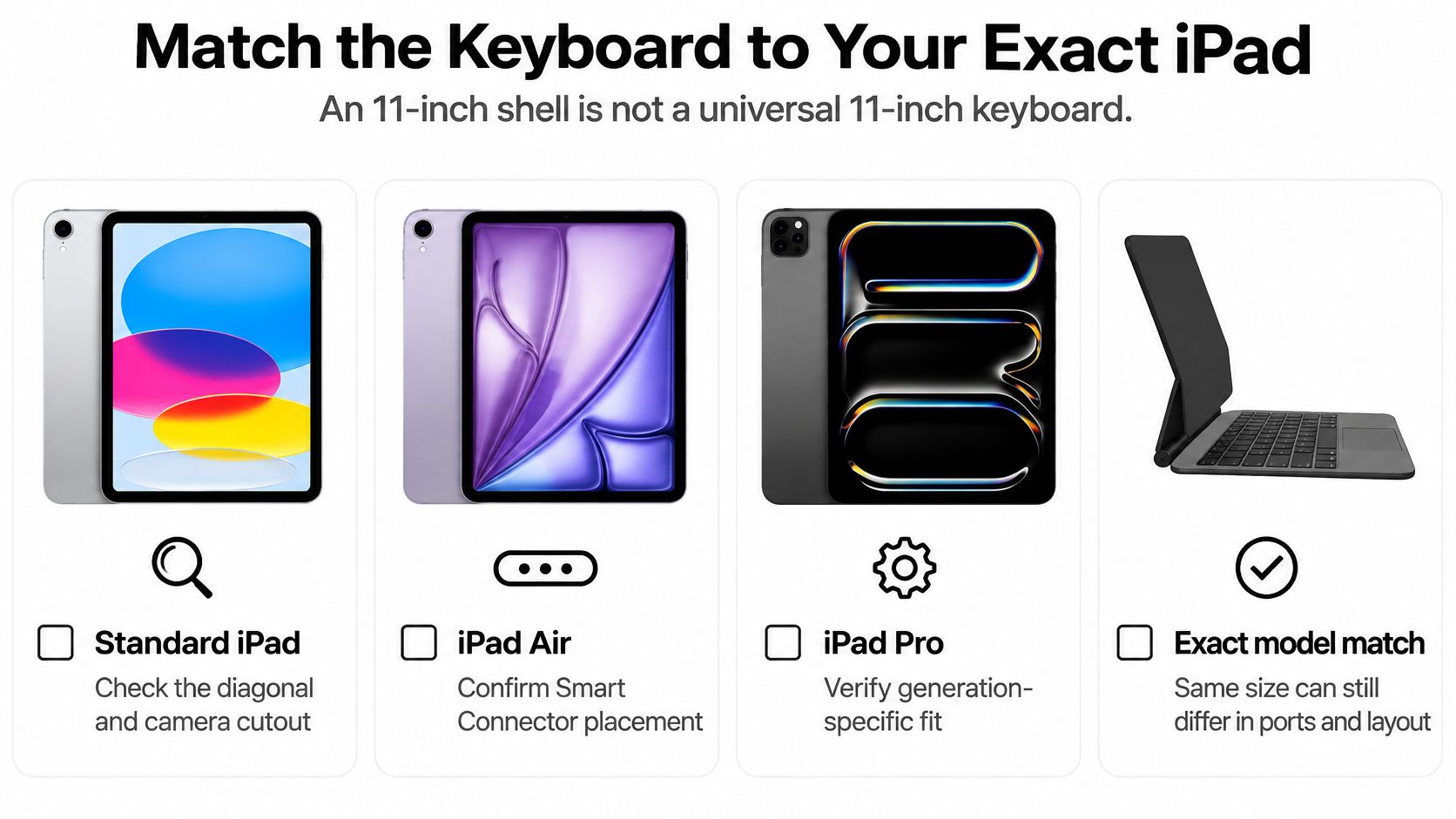
A Bluetooth keyboard may type on multiple devices, while a keyboard case also has to hold the tablet securely and leave its cameras, buttons, and ports accessible. Check the listing for your exact model before comparing backlight features.
Check both hardware and software
Apple's Magic Keyboard specifications list the 2021 Magic Keyboard for the 12.9-inch iPad Pro as compatible with 3rd- through 6th-generation models and iPadOS 14.5 or later. Apple also describes a 14-key function row on compatible 2024 Magic Keyboards for 11-inch and 13-inch iPad Pro models.
Compatibility lookup before buying
| iPad model | Keyboard reference | Connection | Minimum iPadOS | Fit note |
|---|---|---|---|---|
| iPad Pro 12.9-inch, 3rd to 6th generation | 2021 Magic Keyboard | Smart Connector | iPadOS 14.5 or later | Confirm your iPad generation against the listing |
| iPad Pro 11-inch and 13-inch | 2024 Magic Keyboard | Smart Connector | Check the selected keyboard's listing for its software requirement | Function row on compatible models only |
| Standard iPad, iPad Air, iPad mini | A keyboard listing your exact iPad model and generation | Check the selected keyboard's listing for its connection type | Check the selected keyboard's listing for its software requirement | Confirm the model number in Settings before comparing features |
Before buying, look for your iPad's generation in the compatibility list. Check that a case leaves the cameras clear, and confirm that any trackpad or function-row features apply to the specific keyboard model. A listing that gives only a screen size does not confirm physical fit.
Tinymoose's iPad keyboard case guide can help you compare case design and mounting style. For practical planning around a move abroad, find banking options without local residency.
For an iPad mini or older iPad, confirm the generation and model number first. Then compare backlight options, knowing the keyboard is designed to fit your tablet.
Night Classes Cabins and Shared Rooms
A student sits down to finish an essay after the rest of the house turns in. The screen is readable, but every dash, bracket, and quotation mark requires a glance toward keys that are barely visible.
The useful setup looks quieter than a gaming keyboard advertisement: readable legends, restrained brightness, and no desk lamp needed.
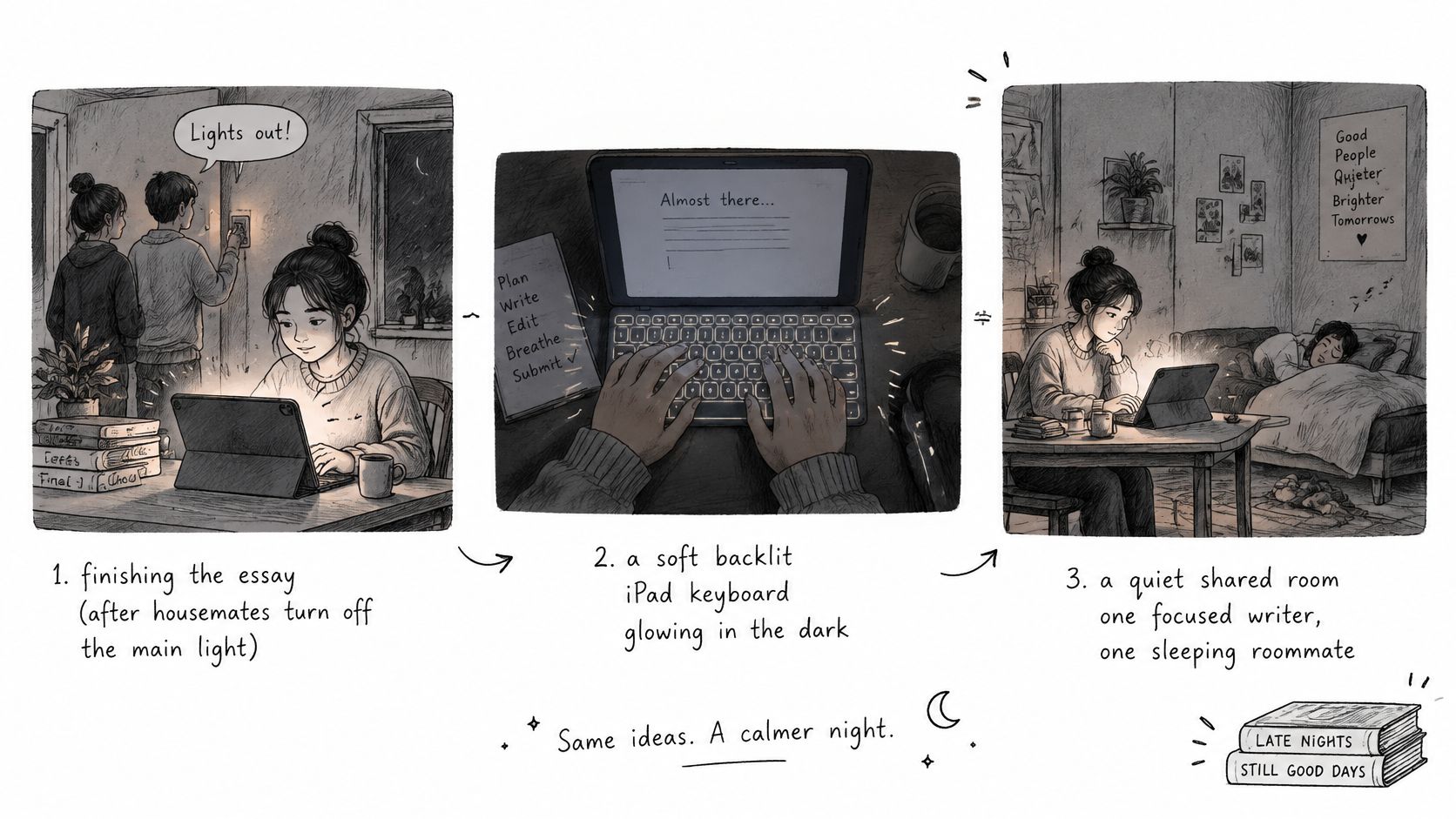
Finishing work after the lights go out
An Alibaba Product Insights low-light comparison reported that non-backlit users typed 18% more slowly and used backspace 42% more often, while illuminated keys helped users find function keys and symbols 60% faster; the same reporting described 37% more typing errors on a non-backlit keyboard than in a well-lit setup. These aren't guaranteed results for a particular iPad keyboard, but they illustrate the kind of visibility problem worth checking.
For the student, the practical question is simpler than a typing-speed score. Can they find punctuation and function keys without leaning in or switching on a lamp?
A dim or uneven backlight can still fail that test. If the middle letters glow clearly but the edge symbols remain shadowed, the keyboard hasn't solved the whole problem.
Working in a dim cabin
On an airplane or night train, a reading light may spill toward the next seat. A restrained keyboard backlight can make shortcuts visible while keeping the light close to your own workspace.
Check the keyboard from your actual sitting angle. A light that looks even from directly above may be less useful when the tablet is balanced on a tray and you're looking down at an angle.
The success check stays the same: you can hit symbols and function keys without leaning forward or reaching for another light.
For a closer look at a keyboard setup, use the video alongside your own visibility check.
Sharing a room without lighting it up
In a shared bedroom or a café corner, a white-hot keyboard can become its own distraction. Uniform illumination matters more than a decorative rainbow left at full power.
The letters should be easy to read without the light becoming the thing you notice most.
White and RGB lighting can both be useful if the legends remain clear. Choose a steady, readable setting rather than an effect that pulls your attention away from the sentence.
Again, judge the result by symbols and function keys. If you can use them comfortably without a lamp or a change in posture, the backlight is doing its job.
Battery Cost and When to Dim or Switch Off
A backlight is a small electrical load, not a free feature. The useful comparison is how long your setup lasts at a comfortable brightness, not how impressive it looks at maximum output.
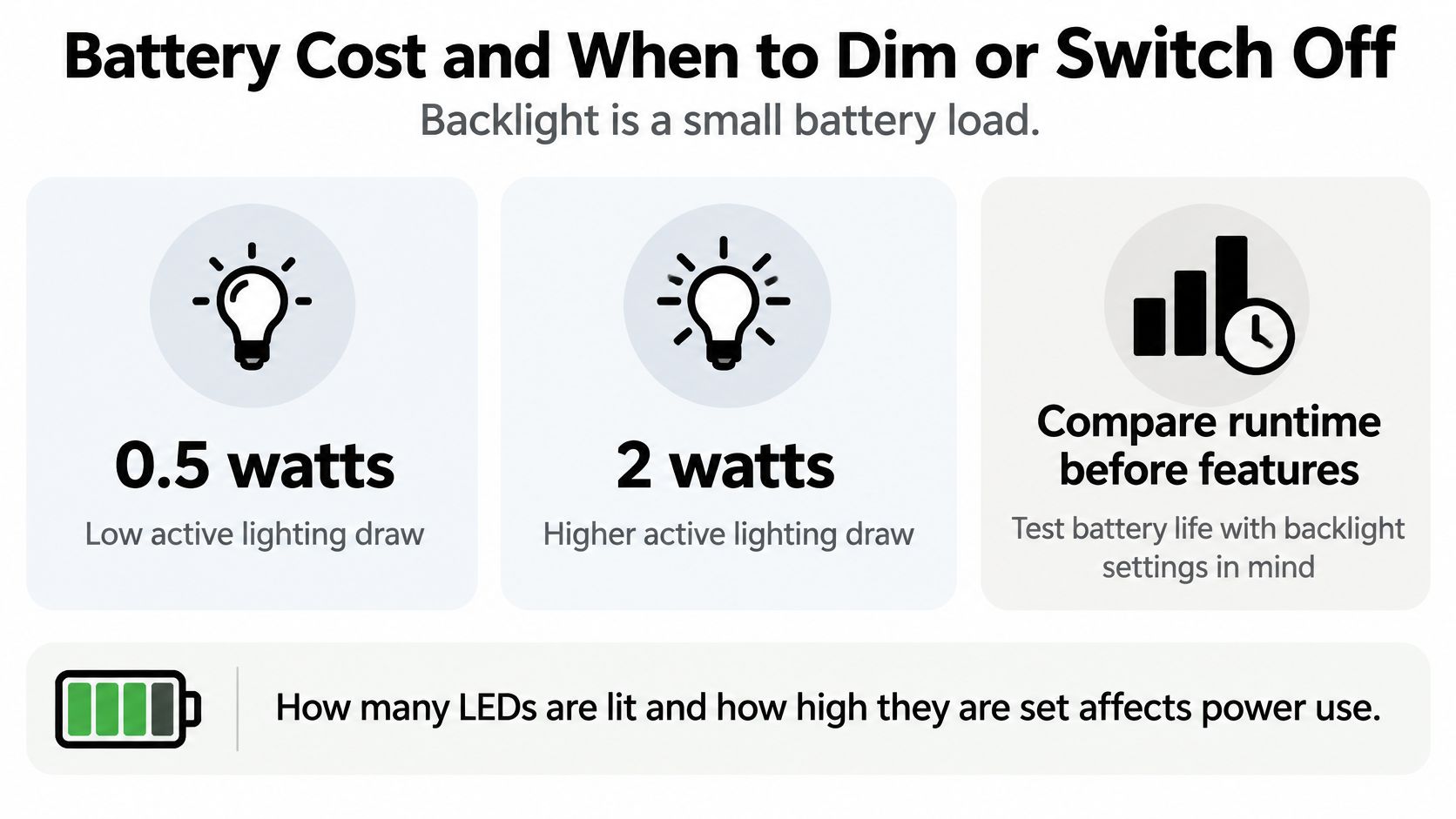
Alibaba Product Insights' backlight power guide places typical active lighting consumption around 0.5 to 2 watts, cites approximately 30% shorter battery life at maximum brightness in one estimate, describes 15% to 25% less total runtime with sustained high brightness, and gives about 5% to 10% less runtime with auto-dimming or moderate brightness. These are general keyboard estimates, not measured runtime promises for a particular iPad accessory.
Compare runtime before comparing effects
Backlight level and the battery trade-off
| Setting | Extra power | Runtime versus lights off | Use it when |
|---|---|---|---|
| Off | None from the LEDs | Full keyboard runtime without lighting load | Daytime, a bright room, or when battery matters more than visibility |
| Low, medium, or auto-dim | Toward the low end of the active-lighting range | About 5% to 10% less runtime in the general estimate above | A dark bedroom, library, or cabin where legends only need to be readable |
| Maximum | Toward the high end of the active-lighting range | About 30% shorter life in one estimate; 15% to 25% less total runtime with sustained use | The room is extremely dark and a lower level still hides the legends |
The estimates describe different usage conditions, so don't add them together or treat them as a universal battery formula. A keyboard's electronics, lighting design, brightness, and timeout behavior all affect the result.
The illustration below summarizes the active-lighting range and the factors behind it.
Also keep the battery being measured in mind. A keyboard's own charge indicator and the iPad's battery percentage describe different parts of the setup.
For a useful personal comparison, keep your screen brightness, apps, and typing task similar while changing the keyboard light. Otherwise, a video call or brighter display may obscure the effect you're trying to judge.
Use the room as your brightness guide
An Alibaba Product Insights comparison of illuminated and non-illuminated keyboards reported participants typing 12% faster with nearly 18% fewer errors in low light, but found no significant speed or accuracy difference in a well-lit room. The practical conclusion isn't to keep the light on all day. It's to use it when the legends disappear into shadow.
Set a simple personal default:
- Off at a bright desk: Don't spend charge lighting letters you can already see.
- Low in a shared room: Raise brightness only if punctuation or edge keys remain difficult to identify.
- High when necessary: Use maximum output as a visibility adjustment, not the automatic starting point.
The commonly overlooked control is brightness reduction. Many buyers learn how to turn the backlight on, then leave it at the strongest setting.
Instead, start low and increase it until the legends are clear. Stop there. If medium looks just as readable as maximum from your normal sitting position, the extra output isn't helping you type.
Battery habit: Match the light to the keys you need to see, not to the brightest setting available.
For travel, require a low setting, a high setting, and an off state at minimum. A keyboard that moves from a sunny departure gate to a dark cabin needs more flexibility than a single always-on intensity.
Read runtime claims carefully
An advertised maximum runtime isn't useful unless you know the lighting conditions behind it. A lights-off test doesn't tell you how the keyboard will perform during an evening of illuminated typing.
Applesfera's iPad keyboard selection guide recommends turning illumination off in bright environments and comparing runtime under stated lighting conditions. Treat an unexplained maximum as a best-case claim, not your expected nightly result.
Before buying, check the following details:
- Automatic timeout: Find out whether the light switches off when you pause and whether it wakes promptly when you resume.
- In-app adjustment: Confirm you can change brightness from the keyboard without leaving your document.
- Charging while mounted: Make sure a Bluetooth model's USB-C port remains accessible in its normal working position.
- Usability without lighting: The printed legends should remain readable in daylight with illumination disabled.
A timeout is particularly useful for note-taking because you may spend long stretches listening rather than typing. You don't need the keys illuminated continuously while you read a slide or review a paragraph.
Don't confuse a low-power mode with a complete solution, either. Check what it changes: lighting, sleep behavior, or other functions you rely on.
The best battery setting is the lowest one that stays comfortable throughout the task. If you repeatedly increase brightness because some legends remain unclear, consider whether the keyboard's lighting quality, rather than your settings, is the problem.
Pick a Keyboard That Fits How You Type
Buy a backlit keyboard if dim typing sessions are part of your normal week and the listing names your iPad generation. Skip the backlight premium if you work only in bright rooms, and skip any case that identifies compatibility by screen size alone. Two iPads can share a diagonal measurement and still need different housings, so treat fit like a key cut for one lock.
Confirm your tablet model in Settings before deciding. Then choose whether you want a keyboard that travels with that iPad or one that pairs across several devices.
Make the final choice practical
Comfort settles the shortlist. Check the keys you reach for most, whether the stand works on your desk or your lap, and whether everyday shortcuts stay where your fingers expect them.
For another angle on the trade-offs, compare the top four iPad keyboards against your own working routine rather than buying by appearance.
- Choose for the task: Essay writing, spreadsheet entry, and occasional messaging each stress a different part of the layout.
- Check the exact variant: A similar product name doesn't mean matching hardware or compatibility.
- Keep the order specific: Select the tablet model you own, not the closest-looking option in the menu.
Where our adjustable-backlight option fits
Our SpacePad iPad Keyboard combines 7-color RGB backlighting with adjustable brightness, Bluetooth, and Type-C charging. The Black version fits iPad Air 13″ (2024–2025) and iPad Pro 12.9″ (2018–2022), and we ask you to select your exact iPad model when ordering so the case matches your tablet.
Adjustable lighting keeps key legends visible without harsh overhead light, and the battery cost stays manageable when you run it at the lowest comfortable level. Order the SpacePad keyboard only if your exact iPad appears on that compatibility list.
Tinymoose offers iPad keyboards and accessories for portable work and study, including adjustable-backlight options for dim typing sessions. Visit Tinymoose to match your exact iPad model with a keyboard that suits your lighting and typing routine.

Teilen:
Protective Keyboard Case for iPad: How to Choose One