
The usual advice is to buy a stylus that snaps to your iPad so you never have to think about charging. That advice skips the most important check: a pen stuck to a tablet isn't proof that it pairs or charges there.
A magnetic stylus for iPad can make note-taking and sketching easier, but only when its charging routine fits your actual tablet. Before trusting a product photo, separate what holds the pen in place from what connects it and what supplies power.
Table of Contents
- What Magnetic Means on an iPad Stylus
- Which iPad Models Support Magnetic Pairing
- How to Pair and Charge Without Guessing
- Notes and Drawing With a Magnetic Stylus
- A Stylus That Stays with the iPad
- Pick the Stylus That Matches Your Routine
What Magnetic Means on an iPad Stylus
Think of a magnetic pen holder like a parking space. Parking a car doesn't automatically refuel it, and parking a stylus against an iPad doesn't automatically recharge its battery.
The word magnetic describes an attachment method, not a complete feature set. That's why pens with similar flat sides can require very different daily routines.
The separate jobs behind the snap
Storage is the physical job. Magnets hold the stylus against the tablet so you can find it without opening a pouch.
Pairing is more like introducing a wireless keyboard to a computer. On a stylus that uses Bluetooth pairing, the iPad needs to establish an electronic connection before the relevant connected features work. Other active styluses use different connection arrangements, so Bluetooth isn't a universal requirement for every pen that writes on an iPad.
Charging is the power job. A compatible side-charging system transfers energy while the pen is attached; a cable-charged pen needs you to plug it in yourself.
What magnetic can mean on an iPad stylus
| What you think you bought | What the magnet does | What else is required | Daily result |
|---|---|---|---|
| Storage only | Holds the stylus on the side | A separate way to pair and charge | Stays put, but the battery is still a manual chore |
| USB-C magnetic stylus | Attaches for storage | USB-C cable plus a supported iPad | Looks docked in photos but still needs a cable |
| Side pair and charge | Attaches, pairs, and charges on a compatible connector | The right iPad generation and Bluetooth on | Grab, write, and park it so it charges |
| Writing performance | Nothing by itself | Palm rejection, low latency, tilt, or pressure from the stylus protocol | A strong snap can still feel like a basic pointer |
Read the table as a description of functions, not interchangeable product categories. A USB-C pen can provide excellent active writing while using its magnet only for storage.
Practical rule: Until the pairing and charging methods are confirmed for your exact iPad, treat the magnet as a clip.
Why similar-looking Pencils behave differently
The change from capped charging to side charging explains much of today's confusion. According to Apple's Pencil specifications, the first-generation Apple Pencil arrived in 2015 alongside the original iPad Pro, measured 175.7 millimeters long and 8.9 millimeters across, weighed 20.7 grams, and paired and charged through Lightning; the second-generation model arrived in 2018 at 166 millimeters long and 18.2 grams, retaining the 8.9-millimeter diameter while adding magnetic attachment, pairing, and charging.
That change removed the need to uncover a charging plug each time. More than that, putting the pen away could also become the act of charging it.
The newer-looking design doesn't always preserve that workflow. Apple's USB-C Pencil specifications describe a model introduced in 2023 that measures 155 millimeters long, 8.9 millimeters across, and weighs 20.5 grams, but uses its magnetic attachment for storage and a USB-C cable for pairing and charging, with iPadOS 17.1.1 or later required.
A photo of that USB-C Pencil sitting neatly against an iPad can therefore be completely accurate while telling you nothing about how it gets power. The cable remains part of ownership, even when it isn't part of the product photo.
Mark the routine you're actually buying
Before comparing colors or shortcut buttons, give the product a plain-language label:
- Storage only: The magnet holds it, but you still need to identify the connection and power routine.
- Cable charge: Keep a compatible cable somewhere you'll remember to use it.
- All three side functions: Confirm that the exact pen and iPad combination supports attachment, pairing, and charging at the connector.
Then ask what happens after a normal study session. Do you put the pen against the tablet and finish, or do you need to remember a separate charging task?
Neither routine is automatically wrong. A cable-charged pen can suit someone who already charges accessories at a desk, while side charging suits someone who wants putting the pen away to handle power too. The useful purchase is the one whose routine you'll follow without thinking.
Which iPad Models Support Magnetic Pairing
A charger that fits your laptop's socket isn't necessarily the right charger for it. An iPad's magnetic edge deserves the same caution: physical fit isn't the compatibility test.
Air and Pro owners often focus on the family name because side-mounted Pencils are strongly associated with those tablets. Base-model iPad and mini buyers face a different trap: a familiar-looking tablet can belong to a different Pencil compatibility group.
Start with the supported models
Apple's Pencil compatibility guide lists Apple Pencil Pro support for the 11-inch and 13-inch iPad Pro with M4 or M5, the 11-inch and 13-inch iPad Air with M2, M3, or M4, and iPad mini with A17 Pro, with iPadOS 17.5 or later required.
Apple Pencil Pro magnetic support by iPad
| iPad group | Pencil Pro pair and charge | System needed | What to verify |
|---|---|---|---|
| 11-inch or 13-inch iPad Pro with M4 or M5 | Supported | iPadOS 17.5 or later | Chip, not just the Pro name |
| 11-inch or 13-inch iPad Air with M2, M3, or M4 | Supported | iPadOS 17.5 or later | Exact Air generation and chip |
| iPad mini with A17 Pro | Supported | iPadOS 17.5 or later | A17 Pro, not every mini |
| Newer base-model iPad | Do not assume from a magnetic edge | Confirm with maker | Generation-specific support |
| Older iPad mini generations | Not listed for Pencil Pro | Confirm with maker | Whether pairing and charging are named for that model |
| iPad Air or iPad Pro before these chips | Pencil Pro not listed | Confirm with maker | Whether an earlier Pencil generation fits that model |
Start with the supported rows, then treat the remaining rows as a reason to identify another compatible pen, not to experiment with a stronger magnet. An operating-system update can't add a missing hardware connector.
Check the tablet rather than the listing photo
Open Settings > General > About and read the model name and iPadOS version. If the name doesn't establish the generation clearly, use the model number to identify it before buying.
This matters particularly when buying a gift or replacing a broken pen. A family member saying they own an iPad Air isn't enough information to choose an Apple Pencil generation.
- For Air and Pro: Match the chip and generation, rather than relying on screen size or the premium-sounding name.
- For mini: Identify the specific mini model. The compact shape doesn't establish Pencil Pro support.
- For base iPad: Look for an explicitly named compatible stylus and its charging method, rather than assuming Pro-style side charging.
An older Air or Pro may work with an earlier Pencil generation that still offers a useful magnetic workflow. Failing the Pencil Pro list doesn't mean the tablet has no suitable stylus option.
If your model isn't listed, treat side attachment as storage until the manufacturer names the pairing and charging method for that exact generation.
How to Pair and Charge Without Guessing
Setting up a stylus is like connecting headphones: being close to the device isn't the same as being connected. Check compatibility, connection, and power in that order instead of repeatedly pulling the pen off and snapping it back.
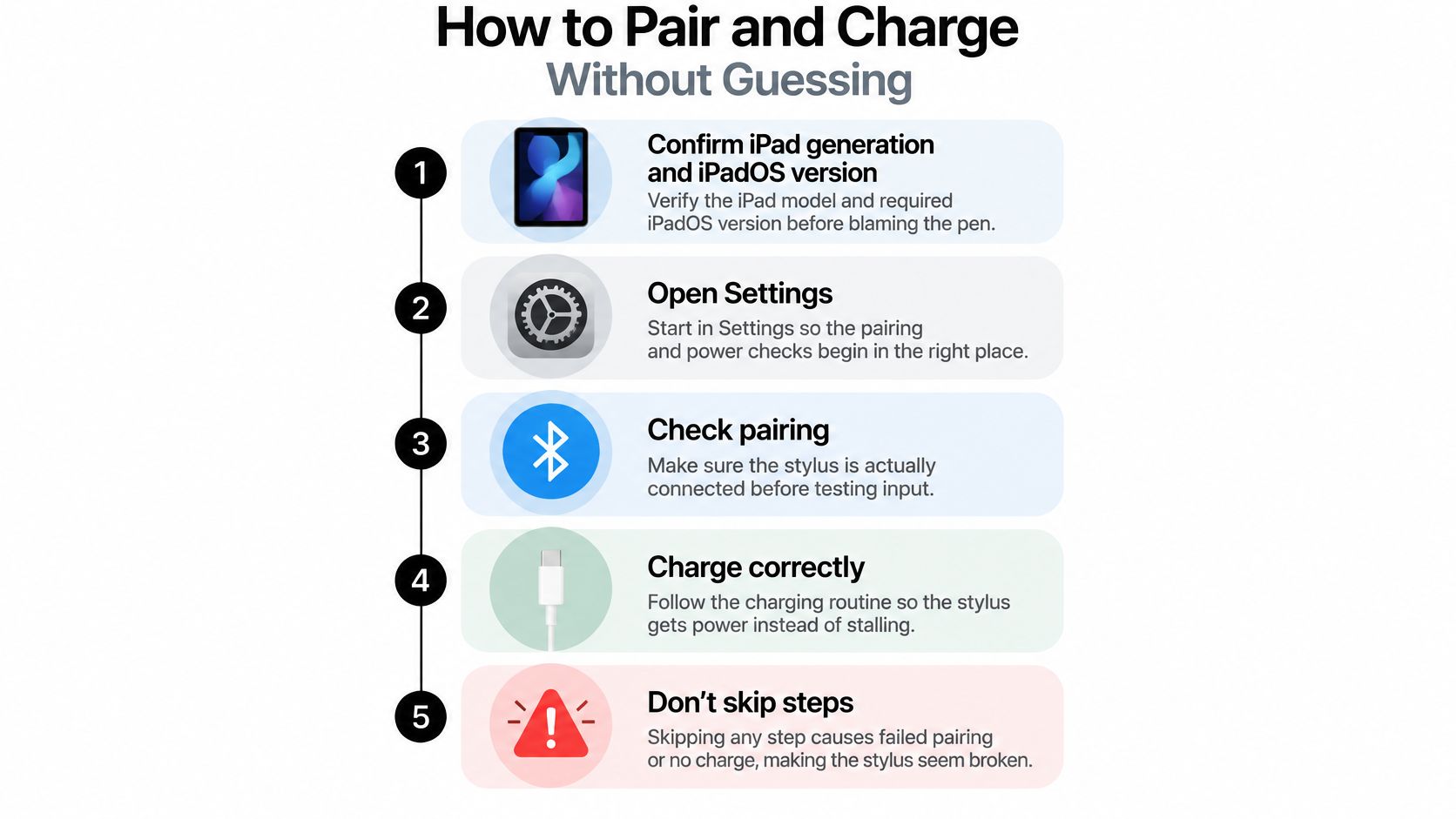
Use this visual as a setup reminder, then follow the detailed routine below.
Follow the setup sequence
- Confirm the tablet and software. Check your iPad generation and the pen's required iPadOS version before troubleshooting. Skipping this can make an incompatible pen look defective.
- Open Settings, then Bluetooth. For Apple Pencil Pro, leave Bluetooth enabled; Apple's pairing instructions require Bluetooth and attachment to the magnetic connector on the long side of a compatible iPad. A magnetic hold alone can't complete that connection.
- Use the actual connector. Position the stylus against the intended long-side connector, not a case magnet or an edge where it happens to cling. A case that obstructs alignment can prevent the correct contact, so check the fit without the case if necessary.
- Watch for the pairing prompt. Complete the connection process when the model uses the side connector for pairing. If nothing appears, recheck compatibility and Bluetooth rather than assuming a firm snap means success.
- Use the cable when the design requires it. A USB-C or storage-only model won't gain side charging through repeated attachment. Apple's USB-C Pencil charging guidance describes the cable-based workflow; don't assume a cable is included, and confirm you have a suitable USB-C cable before the first charge.
- Plan power before leaving. Decide whether your pen recharges while docked or needs a separate cable during a commute or lecture. If the iPad battery is also low, have a compatible power source ready rather than treating the tablet as an unlimited battery.
Verify writing and power separately
A connected pen should respond in a notes app. A charging pen should show the charge state through the battery display or indicator supported by that model; successful writing alone doesn't prove that charging is happening.
Charging the tablet and pen together requires a workable power path: a true side-charge design, or a separately powered cable for the stylus. If both need the same tablet port, plan the connection arrangement before you need both devices.
Once basic input works, you can adjust Pencil gestures and hover for the functions your model supports. Don't troubleshoot a shortcut before confirming that ordinary writing works.
This video provides an additional setup reference.
Notes and Drawing With a Magnetic Stylus
A pen clip doesn't determine how ink flows, and a stylus magnet doesn't determine how a digital line behaves. Judge writing input with your hand on the screen, not by how confidently the pen snaps onto the edge.
Lecture notes and illustration also place different demands on a stylus. A pen can feel comfortable for annotations without offering every input an artist needs.
The same tool may move between handwritten explanations and sketches throughout a study session.
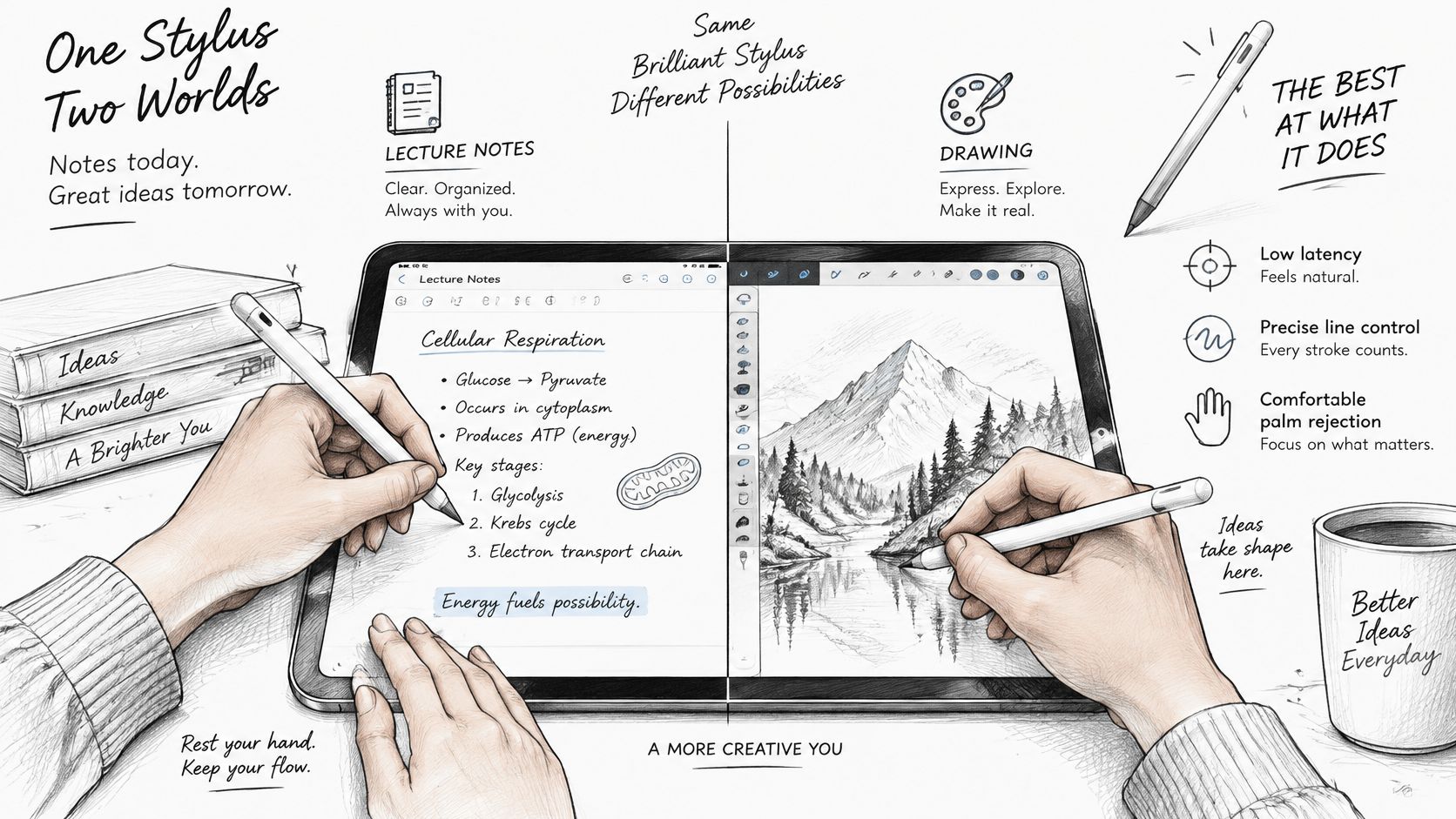
For lecture notes, test your normal handwriting
Palm rejection is like letting a notebook support your hand without treating that resting hand as another pen. You should be able to write naturally instead of holding your wrist above the glass.
Low latency concerns how closely the visible line follows the tip. Test it by writing a normal sentence, circling a word, and adding an arrow, rather than drawing a slow line that hides delay.
For a lecture, try summarizing an idea in your own words and drawing the relationship between concepts. Handwriting can encourage that choice instead of a word-for-word transcript, especially when the pen is already within reach.
Test the posture you'll use for a full page, not just the stroke that looks good in a demonstration.
For drawing, separate the inputs
Think of brush controls like separate knobs on an instrument. Tilting the pen, pressing harder, and rotating it aren't interchangeable gestures.
Apple's Pencil design guidance identifies tilt, force, orientation, and barrel roll as distinct input dimensions, describes palm rejection and low-latency precision, and cautions against using relatively imprecise hover movement as the sole trigger for actions.
Tilt can widen or shade a stroke. Pressure can change intensity or another brush behavior, while orientation can guide directional effects. The app and selected brush must support the input, so test with an appropriate tool before blaming the hardware.
Hover is more like a preview under a cursor than a click. Use it to inspect placement where supported, not as a substitute for a deliberate mark.
Check the feature, not the magnet
A stylus may use a different active-input protocol or emulate basic touch. Neither its shape nor its magnetic strength tells you which sensing capabilities it offers.
Use this short buying checklist:
- For notes: Confirm palm rejection and responsive active input.
- For art: Verify tilt and pressure separately, using a brush that responds to each.
- For repeat use: Choose a charging routine you'll remember when concentrating on work.
If handwriting is your main task, find a tablet-compatible note-taking pen before paying for drawing controls you won't use.
A Stylus That Stays with the iPad
A magnetic attachment works best like a convenient coat hook, not a locked cupboard. It gives the pen an obvious home while you're using the tablet, but it isn't protective storage for every situation.
Consider a student's day with a compatible iPad and Apple Pencil Pro. The useful change isn't a dramatic new gesture; it's removing the small interruptions between opening a page and writing on it.
Between classrooms and into the backpack
At the end of class, the student parks the Pencil Pro on the iPad's side. At the next desk, they pull it free, open their notes, and start the next page without searching through a pouch.
That arrangement suits a short carry or a move from a library desk to a classroom seat. The student can keep the tablet and pen together instead of balancing loose accessories.
On the way home, the situation changes. Once the iPad goes loose into a backpack with books, cables, and a water bottle, the student slides the pen into a case loop or dedicated slot rather than trusting the magnet through bumps and contact with other objects.
Keep the pen on the edge while the tablet is in active use. Give it protected storage when the tablet disappears into a bag.
At the café, fewer things to manage
Later, the student opens the iPad at a café. Compare that with a capped-charging pen: find the pen, keep track of the cap while charging, locate the cable, then decide where everything goes afterward.
The appeal of switching is straightforward. There's less to search for and less to put away, particularly with a design that combines storage and charging.
- No loose cap: A capless design removes a small part from the routine.
- An obvious resting place: The tablet edge replaces an improvised spot beside the keyboard.
- An easier restart: The pen is available when a diagram, annotation, or quick correction is needed.
For a creator, that might mean catching a thumbnail sketch before the idea fades. Palm rejection and tilt matter once the pen is in hand; keeping the tool close makes it easier to start using those capabilities.
The limit is practical rather than disappointing: magnetic attachment is convenient for the hours the iPad is in your hand, not a substitute for storage when it's buried in a bag.
Pick the Stylus That Matches Your Routine
Choose charging habits before extra controls. A side-charging pen is like a tool that returns to its charging stand whenever you put it away; a USB-C pen fits someone who already has a dependable cable routine.
Match the charging method to your week
For a put-it-away-and-charge routine, our Pencil Pro Plus features magnetic wireless charging, so it charges when set on the side of an iPad. It costs $64.00 and comes in Midnight Black or Alpine White; our broader Tinymoose stylus line offers USB-C fast charging, with magnetic attachment, palm rejection, and tilt options for everyday writing.
Our stylus pens work with every iPad model that supports Apple Pencil, including:
- iPad Pro: 11-inch models, 12.9-inch models from the 3rd generation onward, and 13-inch M4/M5 models.
- iPad Air and mini: Air 4th generation and later, and mini 6th generation and later.
- Standard iPad: 6th generation through the current A16 model.
That writing-compatibility range isn't a promise that every tablet supplies side charging. Match the exact iPad to the charging function: magnetic grab-and-go storage, wireless charging on the Plus, or a USB-C top-up.
Make the next choice concrete
Confirm your generation, decide which power routine fits your week, then choose the pen that removes the cap and bag search. For illustration, choosing an art stylus with Tinymoose can help you evaluate the drawing features separately.
Our 1-year warranty and tracked shipping provide the practical close to that decision. Pick the routine you'll maintain, not the product photo that looks most complete.
Tinymoose offers iPad styluses for cable-charged and magnetic wireless-charging routines, including the Pencil Pro Plus. Visit Tinymoose to compare the Plus with the rest of our stylus line and match your exact iPad to the way you want to write, store, and charge.
Teilen:
Backlit Keyboard for iPad: What to Check First