
You've got an iPad in front of you, a Pencil in your hand, and a class, meeting, or drawing session starting soon. Then nothing happens when you touch the screen, or the wrong tool keeps appearing, or the Pencil won't charge where you expected it to. In most cases, the Pencil isn't broken. It's paired the wrong way, matched to the wrong iPad, or set up with gestures that don't fit your grip. Learning how to use Apple Pencil on iPad starts before pairing, with one lookup that prevents most of those problems.
Table of Contents
- Check Which Pencil Your iPad Supports
- How to Pair and Charge Each Pencil Generation
- Core iPadOS Features That Make the Pencil Useful
- Adjust Double-Tap and Squeeze to Fit Your Grip
- Common Problems and How to Fix Them
- Confirm Your Setup Before the Next Session
Check Which Pencil Your iPad Supports
Which Apple Pencil does this exact iPad accept? That answer decides how it pairs, how it charges, and which features you can use. Apple lists four main Pencil options, the 1st generation, 2nd generation, USB-C, and Apple Pencil Pro, with different device support, as shown in Apple's compatibility guide for iPad models. Don't match by appearance. Two iPads can look nearly identical and still use different connection and charging methods.
Find Your Row Before You Pair
| Pencil generation | How it connects | Example compatible iPads | Feature limit |
|---|---|---|---|
| 1st generation | Lightning connector, cap removed | iPad Pro 9.7-inch, 10.5-inch, 12.9-inch (1st and 2nd gen), iPad Air (3rd gen), iPad mini (5th gen), iPad 6th to 9th gen | No double-tap |
| 2nd generation | Bluetooth, magnetic attach to iPad side | iPad mini (6th gen), iPad Air (4th and 5th gen), iPad Pro 11-inch (1st to 4th gen), iPad Pro 12.9-inch (3rd to 6th gen) | Hover only on selected models |
| USB-C | USB-C cable for first connection | 10th-gen iPad, iPad mini (6th gen), iPad Air (4th and 5th gen), many iPad Pro models | Needs iPadOS 17.1.1 or later; no double-tap |
| Apple Pencil Pro | Bluetooth, magnetic attach and charge on iPad side | iPad Pro (M4 and later), iPad Air (M2 and later) | Squeeze and hover on supported models only |
Run three checks in order. First, open Settings > General > About and note the exact model and generation. Second, match it to a row above. Third, open Settings > General > Software Update and confirm the iPadOS version, since the USB-C Pencil requires iPadOS 17.1.1 or later.
The overlap trips people up. iPad Air (4th and 5th gen) and iPad mini (6th gen) accept both the 2nd-generation Pencil and the USB-C Pencil, so the same tablet can work with two different models depending on which features you want. Buying by connector shape, or by the iPad's age, isn't reliable.
Practical rule: Find your exact row first, then pair. Skipping the lookup is how a compatible-looking Pencil becomes an expensive return.
Grip belongs in this check too. The 1st-generation Pencil is round and rolls off desks. The 2nd generation, USB-C, and Pro have a flat side, and readers with limited grip or motor control usually find the flat shape easier to hold, attach, and keep in place. If dexterity is a factor, weigh the shape alongside the feature column before you buy.
One more distinction worth a minute. Magnetically attaches doesn't always mean magnetically charges, and a lower-priced option can handle handwriting and markup well while missing what an artist needs. The Apple Pencil costs up to $129 and only works with certain iPads; the Tinymoose Pencil Pro lineup is a lower-priced alternative that works with every iPad model that supports Apple Pencil. If you depend on pressure sensitivity or hover, confirm those features for your specific pairing before you pay. This is also the right moment to review stylus buying advice for iPad note-takers if you're comparing options instead of buying on brand alone. For notes, search, and PDF markup, the simpler Pencil is often enough. For controlled line work, feature support matters more than price.
How to Pair and Charge Each Pencil Generation
Pairing isn't one universal process. Each generation connects differently, which is why following instructions for the wrong model makes a working Pencil look dead. Apple's steps differ by generation, from a Lightning plug to magnetic attachment to a USB-C cable prompt, as set out in Apple's pairing and charging instructions. Use the routine for your row from the table above.
Pair by Generation
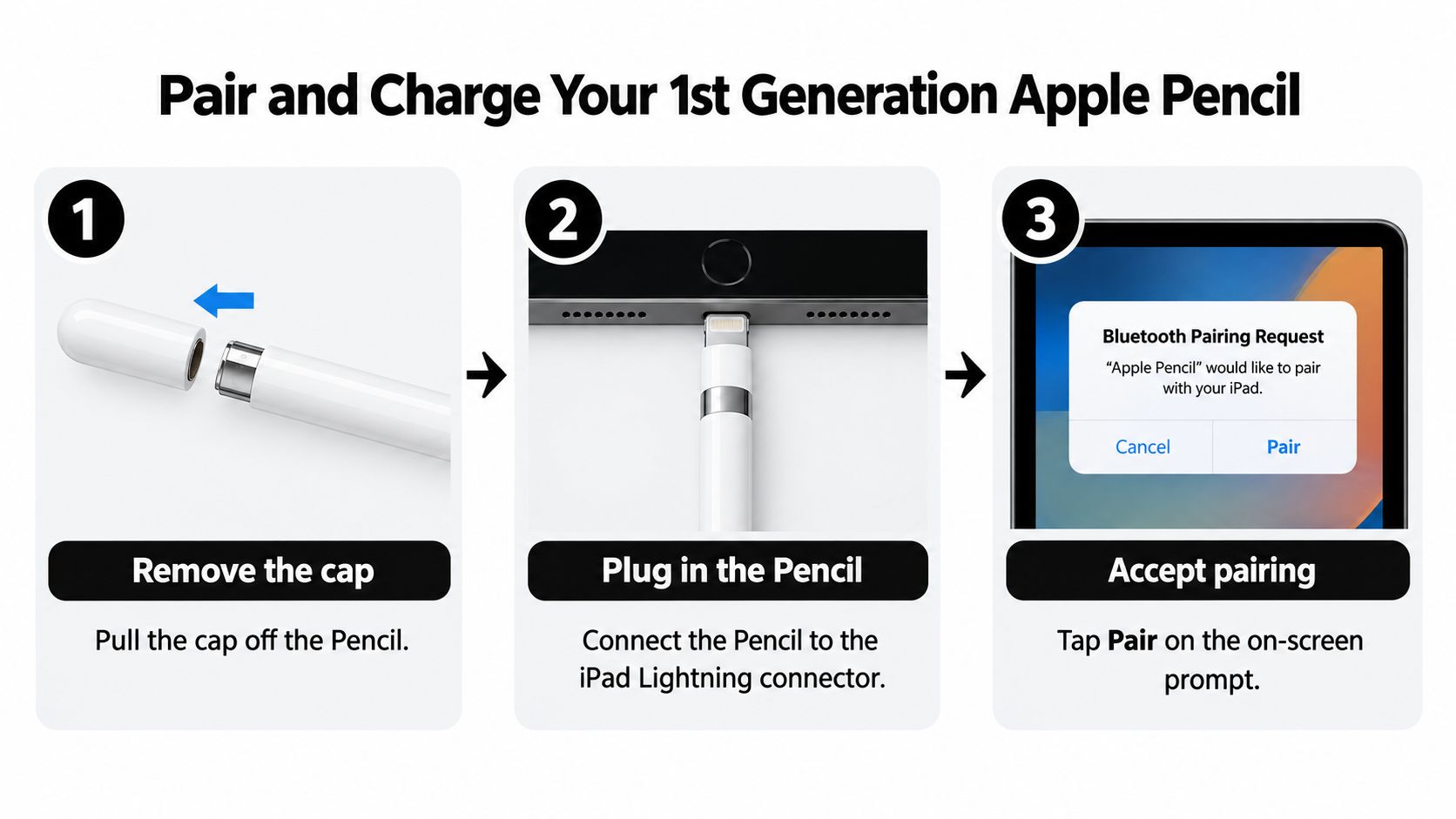
- 1st generation: Remove the cap and plug the Pencil into the iPad's Lightning connector. Tap the on-screen pairing prompt when it appears.
- 2nd generation: Turn on Bluetooth in Settings, then attach the Pencil magnetically to the flat side of the iPad. It pairs there and charges without a separate cable.
- USB-C: Slide open the end, connect a USB-C cable from the Pencil to the iPad, then tap Tap to Connect. That cable handles the first connection and charging.
- Apple Pencil Pro: Keep Bluetooth on and attach it magnetically to the side of a compatible iPad. Confirm the pairing prompt if one appears.
- Charge fully first: Top it up before your first long session so a low battery doesn't look like a pairing fault.
The visual below shows the 1st-generation sequence, which is the easiest one to get wrong because the connector hides under the cap.
Why a Compatible Pencil Can Look Inactive
Bluetooth must be enabled for magnetic 2nd-generation pairing. If it's off, the Pencil can sit on the iPad's side and still do nothing. The USB-C model has the opposite trap. It won't complete its first connection just by touching the screen, because it needs that cable step.
You don't repeat the full process every session. A paired Pencil normally remains paired until you restart the iPad, turn Bluetooth off, enable Airplane Mode, or pair it with another iPad. That's useful when you're moving between classes or meetings and expect to pick up and write.
For a Tinymoose Pencil Pro, the same logic applies in three steps. Confirm it's charged and your iPad model is compatible, pair it following its setup instructions with any required Bluetooth or stylus settings enabled, then test it in Notes with your hand resting naturally on the display. Finish every first setup, Apple or otherwise, with a quick test. Open Notes, write a few lines, and confirm strokes appear smoothly before real work starts.
Charge overnight or between long sessions instead of waiting for the battery to run low. A full charge at the start of the day removes one variable from every later problem.
Core iPadOS Features That Make the Pencil Useful
Once it's connected, the value comes from iPadOS features that remove friction from daily tasks. The image below captures the basic promise, handwriting directly on the screen instead of switching to a keyboard for every short entry.

Scribble, Markup, and Quick Note
Scribble is the feature worth turning on first under Settings > Apple Pencil. It lets you write directly into search bars, URL fields, and forms, where your handwriting converts to typed text. For note-taking, search, and everyday navigation, that keeps the stylus in your hand instead of forcing constant swaps between pen and keyboard.
There's a catch. Support depends on the app and the field, so test Scribble where you'll use it most rather than assuming it works everywhere.
Notes and Markup cover the steady, practical work. You can annotate PDFs, mark up lecture slides, and write over screenshots with the same pen. Quick Note handles the interruptions. Swipe in from the bottom-right corner with the Pencil and jot an idea on any screen without losing your place.
Hover and Tilt
On selected iPad Pro, iPad Air, and iPad mini models with supported Pencils, hover previews the tool and shows the precise landing point before you mark the canvas. It works when the Pencil is held up to 12 millimeters above a compatible display, which helps you position a brush before touching down, as described in Apple's guide to Pencil hover and gestures. You can also improve drawing precision with Pencil hover by practicing that preview distance in your main art app.
Tilt adds shading when you angle the Pencil in a supported drawing app. That matters more for sketching than for plain handwriting, so don't worry if it does nothing in Notes.
The short video below is worth watching before you run your own check, so you can compare normal stroke behavior with what you see on your screen.
Finish with a 60-second validation. Write continuously for a full 60 seconds, vary pressure, tilt the Pencil at different angles to test shading, trigger your configured shortcut several times, and rest your palm on the display. If strokes stay clean and your palm leaves no marks, your setup is ready.
Adjust Double-Tap and Squeeze to Fit Your Grip
An accidental tool switch in the middle of a sentence costs more time and focus than a missing shortcut saves. If your eraser keeps appearing while you write, the default setup is working against you.
Grip, hand size, tremor, fatigue, and hours of note-taking all change how reliably a gesture fires. iPadOS ships accessibility controls for exactly this, including options to disable double-tap, choose a slower double-tap duration, adjust squeeze firmness, and enable Extended Range, as documented in Apple's Pencil accessibility settings for iPad.
Start here:
- Open Settings > Apple Pencil. If you use a 2nd-generation Pencil or Apple Pencil Pro, you will see the double-tap options first.
- For double-tap, pick Off if tools switch mid-sentence, or keep it on and choose a slower duration so a casual tap doesn't register.
- On Apple Pencil Pro, scroll to the squeeze controls. Reassign the action to undo or the tool palette, then move the firmness slider up until a normal writing grip no longer triggers it.
- If the standard firmness choices still misfire, turn on Extended Range. This widens the sensitivity scale beyond the default options, adding lighter and firmer steps so you can require a much harder squeeze before the gesture fires. It exists for users who squeeze the barrel accidentally, and it is the fix when step 3 runs out of room.
Match the settings to the hardware:
- Double-tap: Available on the 2nd-generation Pencil and Apple Pencil Pro only, not on USB-C or 1st-generation models.
- Squeeze: Apple Pencil Pro only. Keep it for undo if your grip is naturally firm; reassign or disable it otherwise.
- On-screen palette: A deliberate tap beats a shortcut you can't control. Use it when a gesture stays unreliable after tuning.
Support your wrist on the desk and hold the barrel loosely. A tense grip triggers gestures, increases fatigue, and makes palm placement less stable. Adjust the settings to your hand, not the other way around.
Common Problems and How to Fix Them
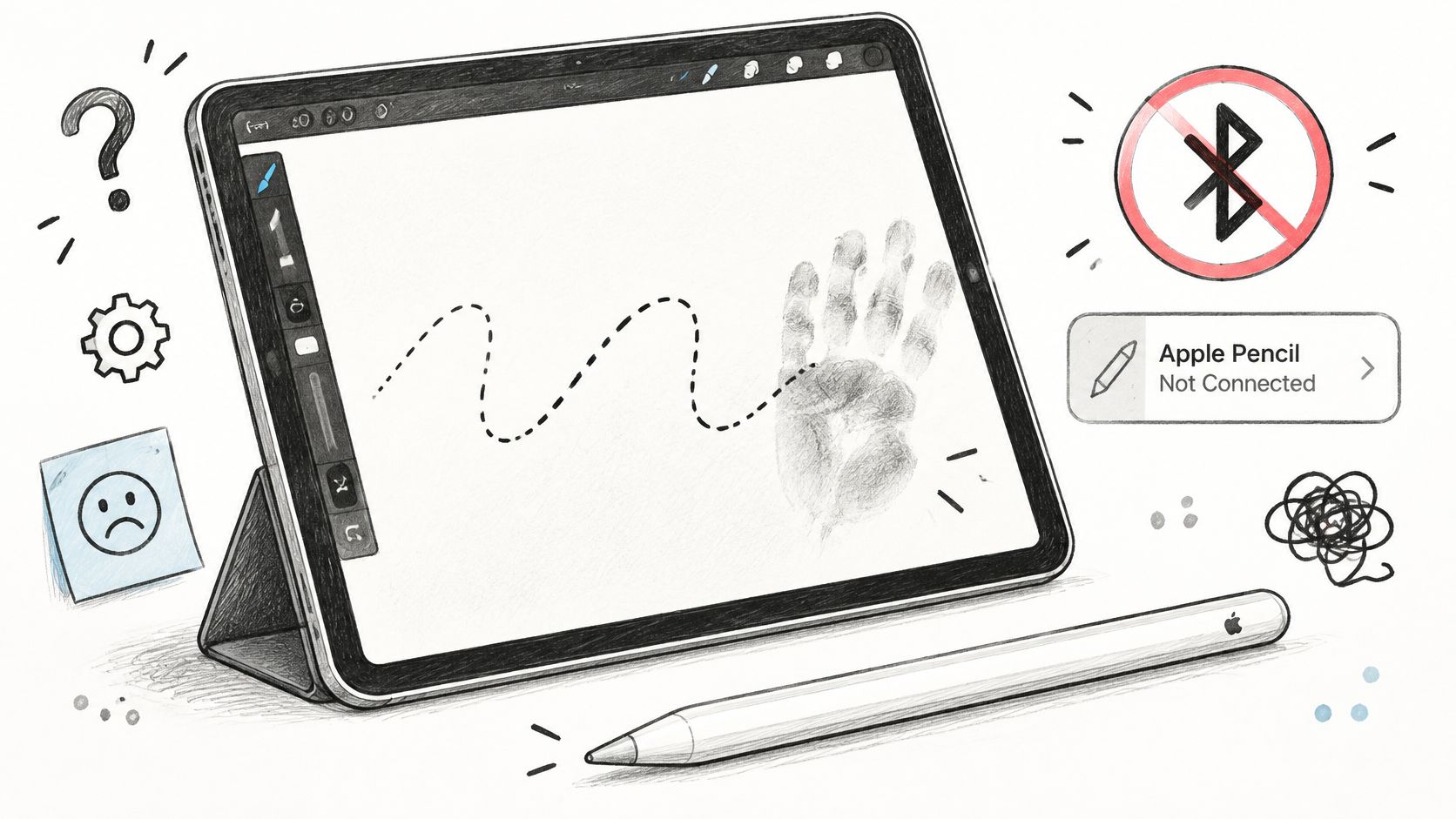
A Pencil that fails mid-session usually fails for one of a handful of reasons, and the first check is almost always the connection type. The illustration below shows the usual scene: a Pencil that should work and an iPad giving no useful feedback about why it doesn't.
Start with a Pencil that won't connect. Confirm whether your generation needs Bluetooth, a Lightning plug, or a USB-C cable, then check the iPadOS version. Palm marks need a different test. Open Notes, rest your hand the way you naturally write, and check whether the problem follows you into another app, since palm rejection behavior can depend on the stylus, iPadOS, and the app in use.
Symptom Lookup
| Symptom | Likely cause | Fix |
|---|---|---|
| Pencil won't pair (USB-C) | Cable not connected or iPadOS older than 17.1.1 | Update iPadOS, connect with a USB-C cable, then tap 'Tap to Connect' |
| 2nd-gen Pencil shows inactive | Bluetooth turned off | Turn Bluetooth on, then reattach the Pencil to the iPad side |
| Marks appear when palm rests | Hand posture or app palm settings | Rest the hand lightly, retest in Notes, adjust the app's settings |
| Double-tap switches tools by accident | Gesture too sensitive | Turn off double-tap or choose a slower duration |
| Squeeze fires while gripping (Pencil Pro) | Firmness set too low | Raise squeeze firmness, then enable Extended Range if needed |
| Hover preview missing | Unsupported iPad, Pencil or app | Check the compatibility table and use a hover-supported app |
| Pencil won't charge | Charging method varies by generation | 2nd-gen and Pencil Pro: reseat the Pencil on the iPad's magnetic edge. 1st-gen: check the Lightning connector is fully seated. USB-C model: try a different USB-C cable |
That last row trips people up because the fix depends entirely on which Pencil you own. A magnetic reseat does nothing for a 1st-generation Pencil, which charges through its Lightning connector, and it does nothing for the USB-C model, which charges by cable.
Accidental tool switches and unwanted squeeze actions are settings problems, so apply the grip adjustments from the previous section before assuming a hardware fault. A missing hover preview usually means the iPad, Pencil, or app doesn't support it. Don't troubleshoot a feature your combination never had.
If lines skip or jitter after pairing is fixed, resolve skipping and jittery pencil lines before changing apps. For stubborn cases, use the reset path. Restart the iPad, toggle Bluetooth, re-pair the Pencil, then rerun the Notes test with your palm down. Apple notes a paired Pencil stays paired until restart, Airplane Mode, or pairing with another iPad, in its guide to pairing and charging Apple Pencil, so a restart legitimately means pairing again.
Diagnostic order: compatibility, connection type, Bluetooth or cable, iPadOS version, then app settings. Changing apps first rarely tells you anything.
Confirm Your Setup Before the Next Session
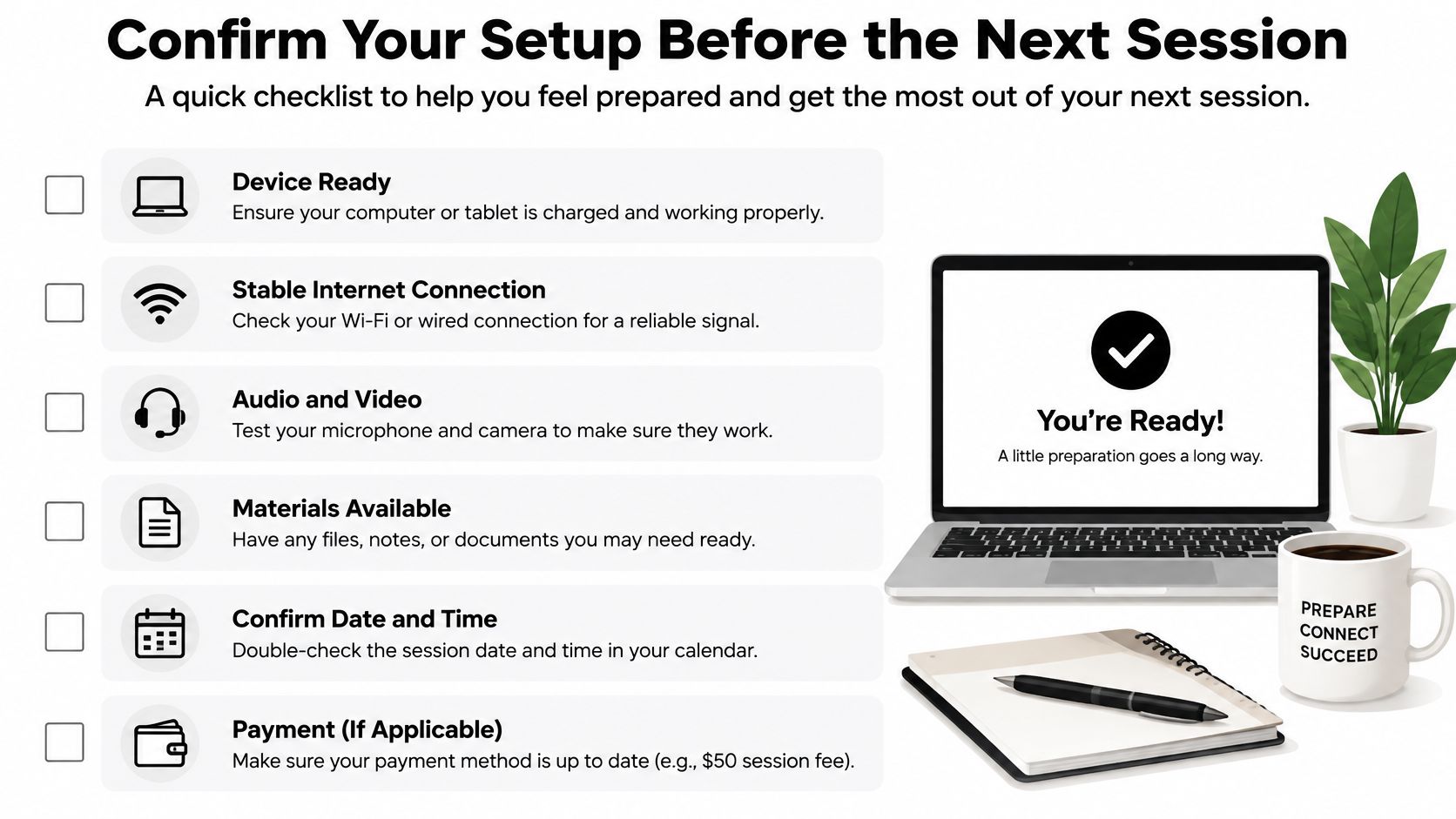
A minute here costs less than ten minutes lost in class. Run it before a lecture, client call, or drawing block, while you can still change a setting instead of working around a dead pen.
The One-Minute Checklist
- Confirm your iPad model matches a row in the compatibility table.
- Update iPadOS if your Pencil needs a newer version.
- Charge the Pencil to full, ideally overnight or between long sessions.
- Confirm it's paired, with Bluetooth on or the USB-C cable step completed.
- Run the Notes test with your palm resting naturally on the screen.
- Check double-tap and squeeze against your actual grip.
If your iPad appears in the compatibility table and every item passes, keep your Apple Pencil and stop tuning. The setup is sound, and more adjustment usually costs attention without paying it back. Apple documents that hover and related features apply only to selected models in its overview of using Apple Pencil with iPad, so a missing feature on an unsupported combination is a limit, not a failure. The Apple Pencil (USB-C) costs $79 in the United States on Apple's current Pencil product page, a useful reference when deciding between replacement and an alternative.
If a replacement is on the table, start with the model number. The Apple Pencil costs up to $129 and only works with certain iPads, while the Tinymoose Pencil Pro lineup is a lower-priced alternative. Tinymoose stylus pens work with every iPad model that supports Apple Pencil, including iPad Pro 11-inch, iPad Pro 12.9-inch (3rd generation and later), iPad Pro 13-inch M4/M5, iPad Air 4th generation and later, iPad mini 6th generation and later, and standard iPad 6th generation through the current A16 model. Depending on the model, they offer wireless magnetic charging, Smart Switch gesture controls, or tool-switching shortcuts, none of which exist on any Apple Pencil.
For limited grip or motor control, treat gestures like fit. If double-tap fires during a relaxed hold, turn it off. If squeeze triggers when you rotate the barrel, reduce the action or raise the firmness you set earlier. Then rerun Notes with your palm down and a normal writing angle.
If the checklist points to a replacement, Tinymoose offers iPad stylus pens with palm rejection, tilt technology, magnetic attachment, and shortcut options for note-taking, sketching, and markup at a lower price than Apple Pencil. Match one to your exact iPad model, run the same Notes test, and start the next session ready to write. Visit Tinymoose to find the pen that fits your iPad and your grip.
Teilen:
Apple Pencil Alternative: What to Compare Before You Buy