
Best Productivity Apps for iPad: A Practical Guide
The iPad is more than a device for entertainment, it's a capable tool for work, study, and creative projects. But to get real value from it, you need the right apps. With thousands of options on the App Store, finding software that's practical and actually useful can be overwhelming. This guide cuts through the noise to help you build a workflow that holds up.
We've selected the best productivity apps for iPad, focusing on tools that do their job well without unnecessary complexity. Whether you're a student taking lecture notes, a professional managing projects, or a creator working on ideas, this list will help you build a solid portable setup. Each app here earns its place in a specific category, and we'll cover how it works, its key features, and pricing so you can decide quickly.
We'll also show you how pairing these apps with the right hardware improves the experience. The precision of writing notes with the Tinymoose Pencil Pro 2 or the speed of typing on the SpacePad Pro makes a noticeable difference. This guide is your roadmap to turning your iPad into something genuinely useful for getting work done.
1. Apple App Store (Productivity for iPad)
The starting point for finding the best productivity apps for iPad is Apple's own App Store. It's more than a download portal, it's the safest place to discover, evaluate, and manage the software on your device. It serves as the catalog for everything from note-taking apps and task managers to professional creative tools, making it a reliable first stop for any search.
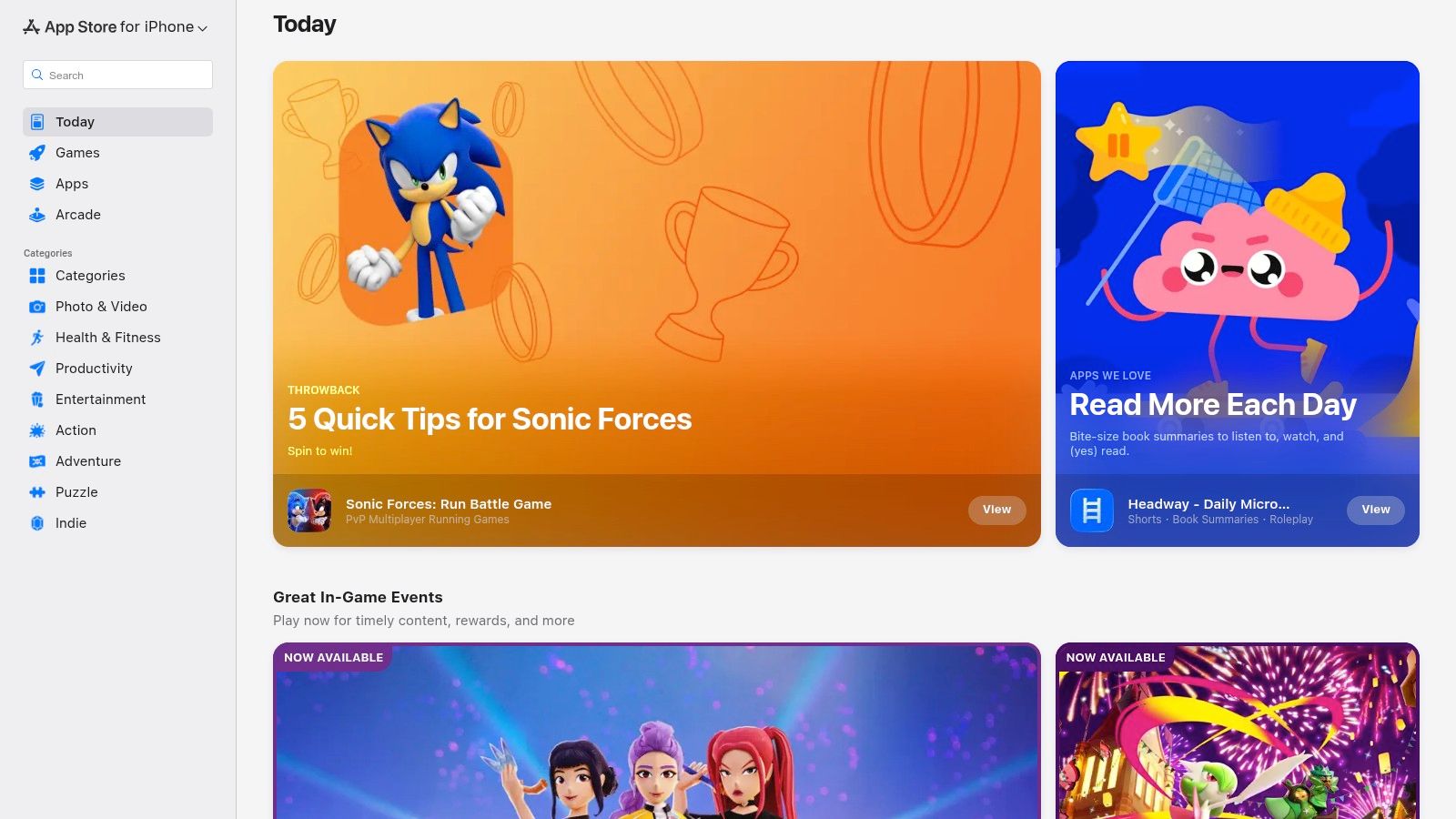
What makes the App Store valuable is its integrated approach to security and usability. Every app is vetted by Apple before listing, which reduces risks from malware. The platform provides privacy "nutrition labels," user reviews, and editorial collections like "Apps for iPad" to help guide your choices. The centralized system handles billing, subscriptions, and app updates, tying everything to your Apple ID for straightforward management.
Key Features & User Experience
The web version of the App Store offers a clean interface for browsing on any device, though installation requires opening the native App Store on your iPad. This ensures a secure handover. The platform presents clear information upfront.
- Centralized Discovery: Browse curated lists and categories specifically for iPad productivity to find what you need without digging.
- Transparent Information: View user ratings, detailed privacy labels, and clear breakdowns of in-app purchase costs before downloading.
- Safe & Secure: Apple's review process and centralized billing provide a reliable way to acquire and manage software. All purchases and refunds are handled through your Apple account.
Practical Tip: Use the "iPad" filter in App Store search results to find apps specifically optimized for the larger screen. This helps you avoid stretched-out iPhone apps that don't take advantage of the display.
Link: Apple App Store (Productivity for iPad)
| Feature | Details |
|---|---|
| Pricing | Varies (Free, Freemium, Paid, Subscription-based) |
| Access | Pre-installed on all iPads; web access for browsing |
| Best For | Safely discovering, comparing, and installing any iPad productivity app. |
2. Microsoft 365
For professionals and students who need desktop-class document editing on a tablet, Microsoft 365 is one of the best productivity apps for iPad. This subscription service provides full-featured versions of Word, Excel, PowerPoint, Outlook, and OneNote, not stripped-down mobile versions. It bridges the gap between mobile convenience and professional document creation, ensuring files created on an iPad look and function the same on a desktop.
What makes Microsoft 365 valuable is its deep integration with OneDrive and solid collaboration features. A single subscription unlocks the full potential of the apps and provides 1 TB of cloud storage, allowing you to access and edit complex spreadsheets or lengthy reports from any device. The ecosystem is built for teamwork, with real-time co-authoring that's essential in modern academic and professional settings.
Key Features & User Experience
The Microsoft 365 apps for iPad are optimized for touch without sacrificing the features users expect. The ribbon-style menu is adapted for easy navigation, and Apple Pencil support in Word and OneNote makes annotations feel natural. The suite maintains document formatting across platforms, important for anyone who works across multiple devices.
- Full-Featured Office Suite: Access the complete functionality of Word, Excel, and PowerPoint, not limited mobile versions, for a real desktop experience.
- Cloud Integration: Comes with 1 TB of OneDrive storage per person for synchronized access to all your files.
- Real-Time Collaboration: Work on documents with colleagues simultaneously, with changes and comments appearing instantly across devices. This works well for group projects and team-based work.
Practical Tip: Use Split View on your iPad to have a Word document open alongside Outlook. This lets you drag and drop content, like text or images, directly from an email into your document without switching apps.
Link: Microsoft 365
| Feature | Details |
|---|---|
| Pricing | Subscription-based (Starts at $6.99/month for Personal, $9.99/month for Family) |
| Access | Download individual apps from the App Store; requires a Microsoft 365 subscription to unlock full features. |
| Best For | Students, professionals, and teams needing cross-platform document compatibility and collaboration tools. |
3. Google Workspace
For teams and individuals already using Google's ecosystem, Google Workspace is one of the best productivity apps for iPad for collaboration. This suite bundles Docs, Sheets, Slides, Drive, and Gmail, all optimized for iPadOS. It provides a consistent, cloud-first experience where real-time collaboration is the default. You can start a document on a desktop and pick it up on an iPad for edits without any file transfer hassle.
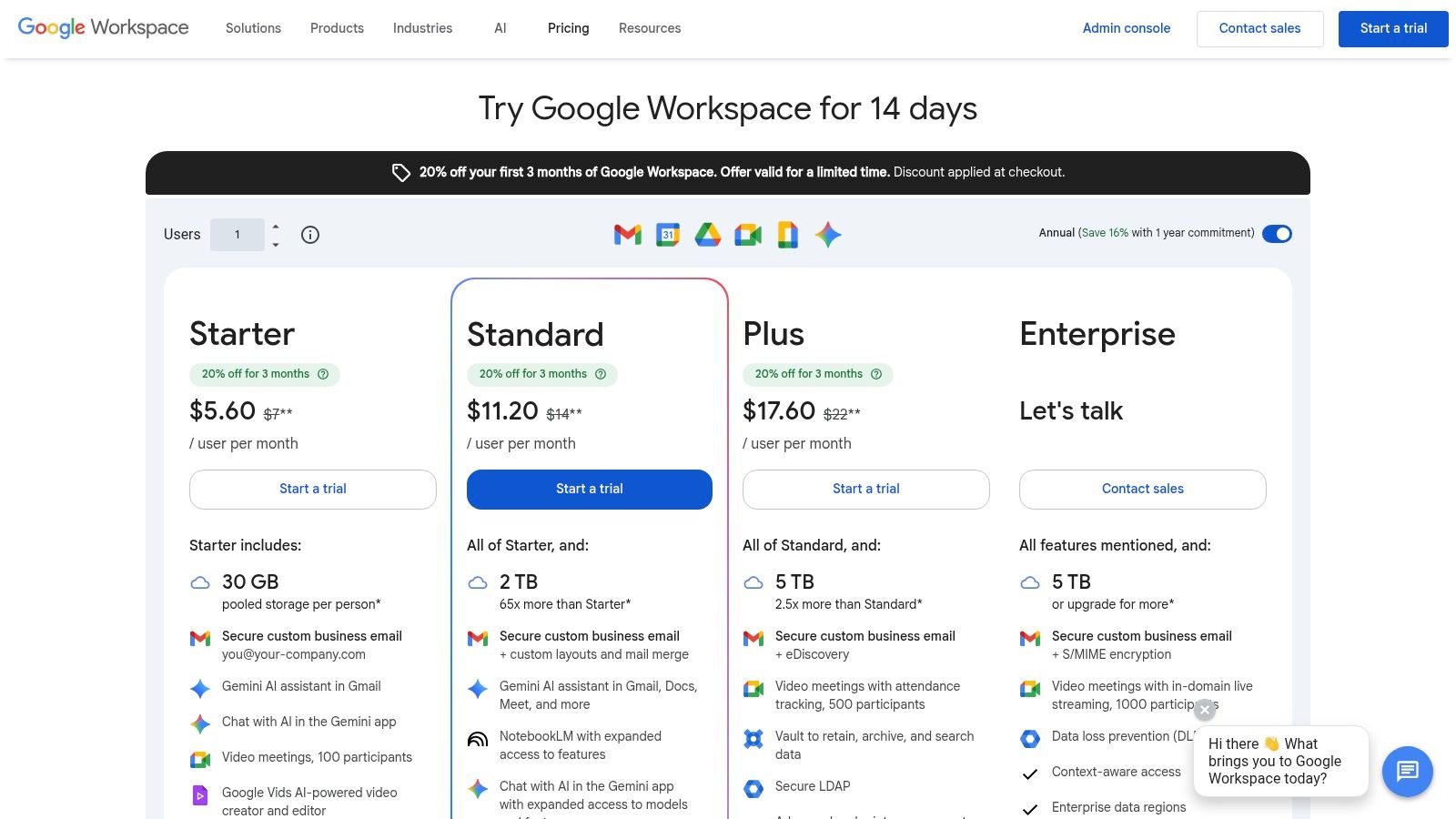
What sets Google Workspace apart is its universal accessibility and focus on teamwork. Unlike some siloed apps, sharing and co-editing are built into its core. A simple link allows anyone, on any device, to view, comment, or edit documents, spreadsheets, and presentations. This easy sharing, combined with business-grade email, pooled cloud storage, and integrated video meetings, makes it useful for remote teams, students, and collaborative projects.
Key Features & User Experience
The Google Workspace apps on iPad deliver a clean, familiar interface that mirrors the desktop experience while being touch-optimized. Performance is fast, and syncing across devices happens immediately, so you always have the latest version of your files.
- Real-Time Collaboration: Work on documents, spreadsheets, and presentations with colleagues simultaneously, seeing changes as they happen.
- Universal File Sharing: Generate secure links to share files with anyone, controlling their access with view, comment, or edit permissions.
- Integrated Communication: Switch between Gmail, Chat, and Meet without leaving the core application, keeping communication in context.
- Gemini AI Integration: Use generative AI features within Docs, Sheets, and Gmail to draft content, summarize information, and automate tasks.
Practical Tip: Enable "Offline" mode in Google Drive and Docs on your iPad before traveling. This downloads key files directly to your device, letting you stay productive without internet. Your changes sync automatically once you're back online.
Link: Google Workspace
| Feature | Details |
|---|---|
| Pricing | Free with a Google account; Business plans start from $6/user/month |
| Access | Web access and dedicated apps for iPad (Docs, Sheets, Slides, Drive, etc.) |
| Best For | Teams and individuals who need real-time collaboration and cross-device file access. |
4. GoodNotes
For anyone who wants to replicate the pen-on-paper experience digitally, GoodNotes is one of the best productivity apps for iPad for digital handwriting. It turns your tablet into an intelligent digital notebook, optimized for writing, sketching, and annotating documents. Its palm rejection and responsive ink engine make writing with a stylus feel natural, which is why it's popular with students, academics, and professionals who think best when they write.
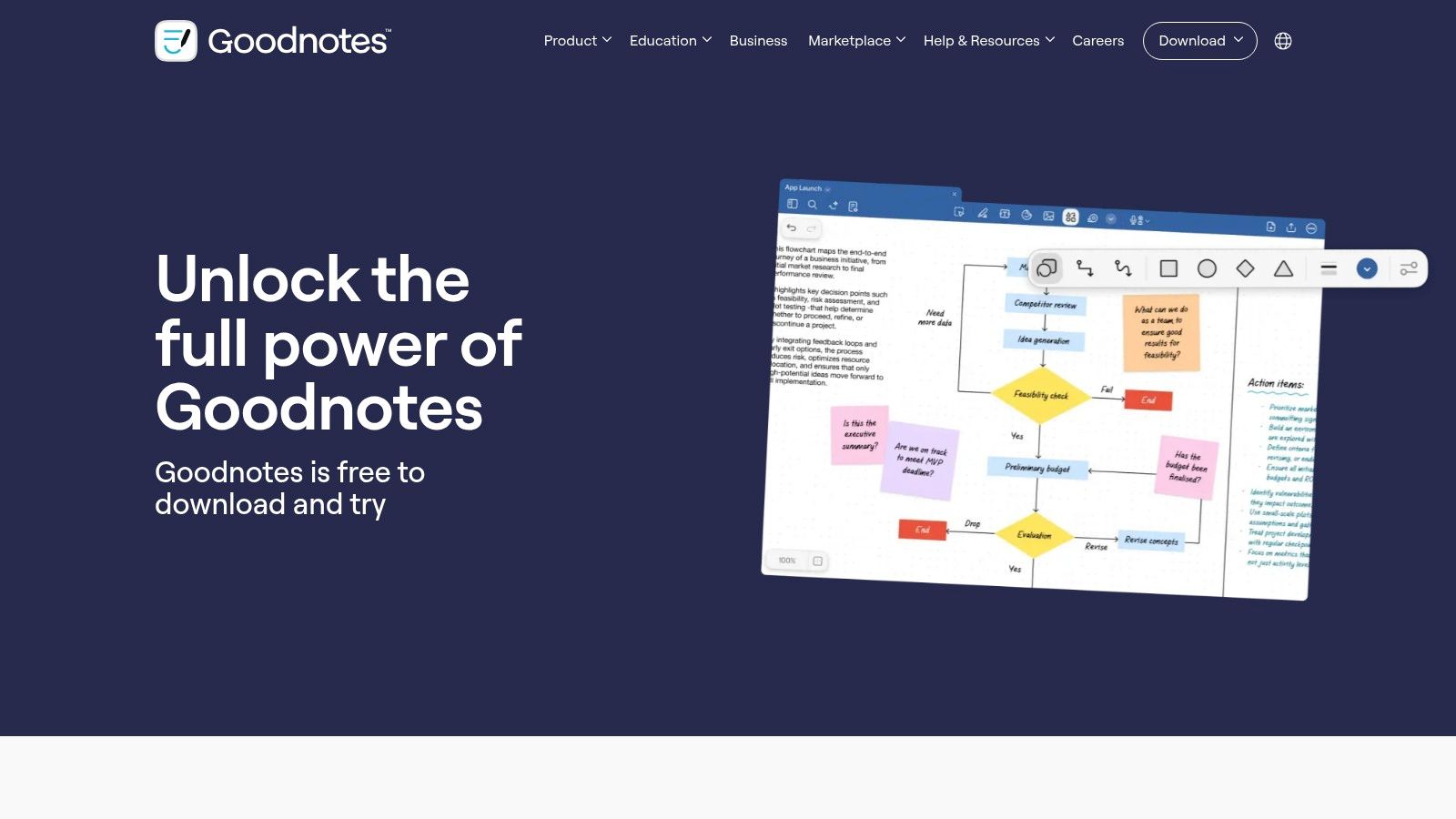
What makes GoodNotes practical is its blend of analog simplicity with digital capability. You can organize notes into unlimited notebooks, import and mark up PDFs, and use tools like the shape recognizer to create clean diagrams. The recent integration of AI features for searching handwritten text, summarizing notes, and generating study aids turns scattered thoughts into structured, searchable knowledge. This makes it useful for everything from lecture notes to client meeting minutes.
Key Features & User Experience
GoodNotes offers a clean, distraction-free interface that puts your content first. Its deep integration with iPadOS and Apple Pencil provides a smooth, intuitive experience. If you're deciding between options, you can find a deeper comparison in our guide to the best iPad note-taking apps.
- Advanced Handwriting & PDF Markup: A quality writing experience with strong palm rejection, plus tools to annotate, highlight, and sign PDF documents.
- Intelligent Organization: Create unlimited notebooks with customizable covers and paper templates. Use the Lasso Tool to move, resize, or convert handwriting to text.
- Cross-Platform Sync & AI Features: Sync your notes across Apple, Windows, and Android devices. An optional AI Pass unlocks features like handwritten note search and AI-powered summaries.
Practical Tip: Use the "Elements" tool to save frequently used stickers, diagrams, or signatures. This lets you quickly drag and drop them into any notebook, saving time when creating structured notes or reports.
Link: GoodNotes
| Feature | Details |
|---|---|
| Pricing | Free (limited); One-time purchase or Subscription for Pro features; Optional AI Pass subscription |
| Access | Available on iOS, iPadOS, macOS, Windows, Android, and Web |
| Best For | Students, educators, and professionals needing a digital handwriting and PDF annotation tool. |
5. Notability
Notability has been a top contender among the best productivity apps for iPad, especially for students and professionals who need to capture information from live events. It's particularly good at recording audio while you take handwritten notes, then syncing the two in real-time. This feature lets you tap on a word and hear exactly what was being said at that moment, useful for reviewing lectures or meetings where you might have missed something.
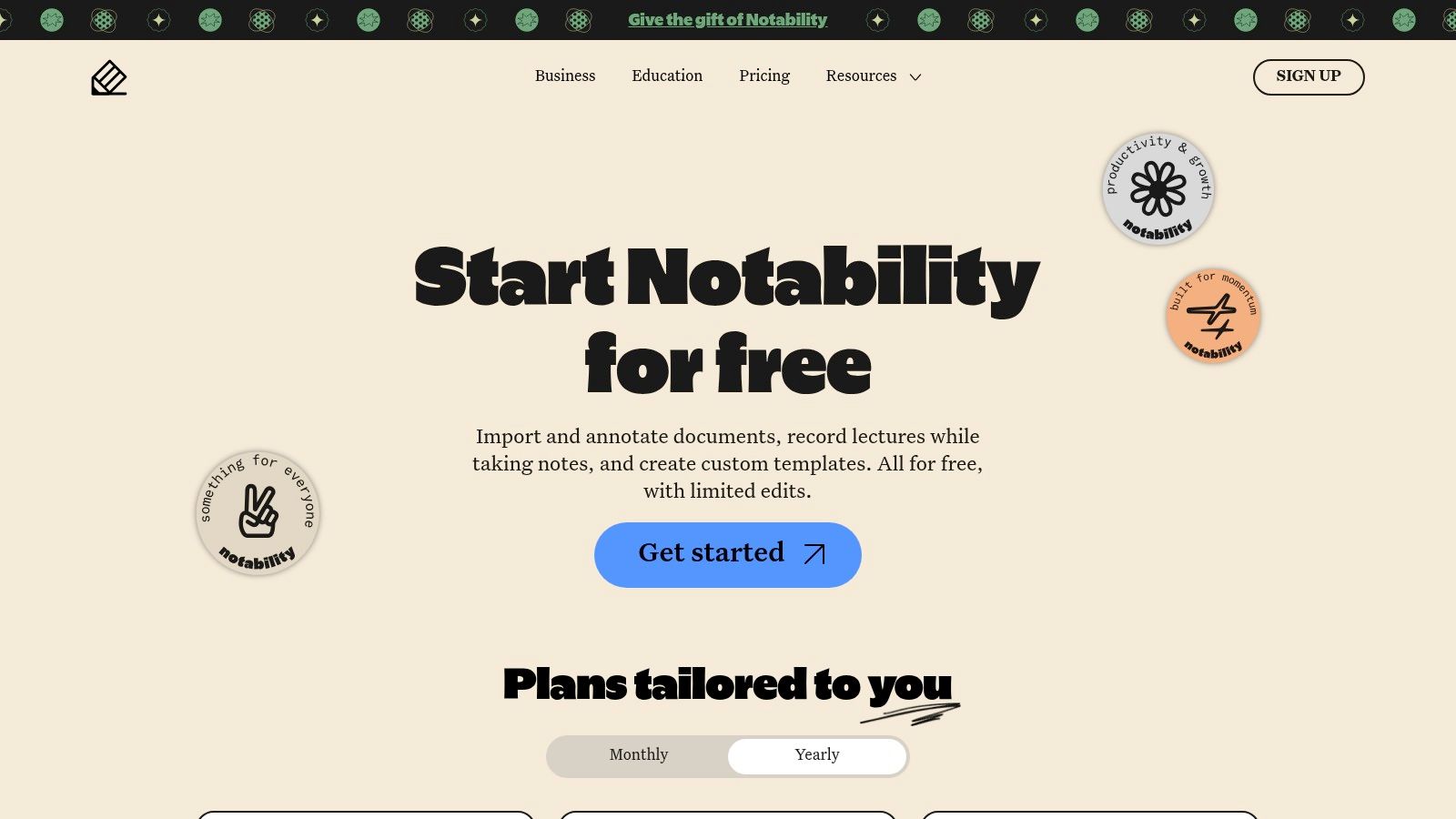
What makes Notability effective is its simple, fast interface. It focuses on making the note-taking process smooth, with minimal distractions. The app's performance on iPad is responsive, whether you're handwriting, typing, or annotating PDFs. Recent updates have added AI features like live transcription and note summaries, moving it beyond a simple note-taker into a more capable study and meeting assistant.
Key Features & User Experience
Notability's design prioritizes ease of use, you can start a note and capture everything you need without navigating complex menus. Pairing it with a quality stylus improves the experience; you can find the best stylus for your iPad in our 2026 guide to get the most from it.
- Audio-Synced Notes: The standout feature for students and professionals — record audio that automatically syncs with your handwritten or typed notes.
- Templates & Cloud Sync: Organize your work with built-in templates and keep everything backed up and accessible across devices with cloud sync.
- AI-Powered Assistance: Higher-tier plans offer real-time audio transcription, AI-generated note summaries, and the ability to search within your notes to find information quickly.
Practical Tip: During a lecture, use different colors or highlighters to mark key points. When you review later, tap these highlighted areas to jump directly to the most important parts of the audio recording, saving study time.
Link: Notability
| Feature | Details |
|---|---|
| Pricing | Free (limited), Plus Annual Subscription ($14.99/year), Classic (one-time purchase for legacy users) |
| Access | Available on the Apple App Store for iPad, iPhone, and Mac |
| Best For | Students, journalists, and professionals who need to capture detailed notes from meetings, interviews, and lectures with audio context. |
6. Notion
Notion has changed what users expect from the best productivity apps for iPad, evolving from a simple note-taker into a flexible all-in-one workspace. It combines notes, tasks, wikis, and databases into a single environment. This adaptability lets it scale from a personal journal or task list to a full project management system, potentially replacing multiple single-purpose apps.
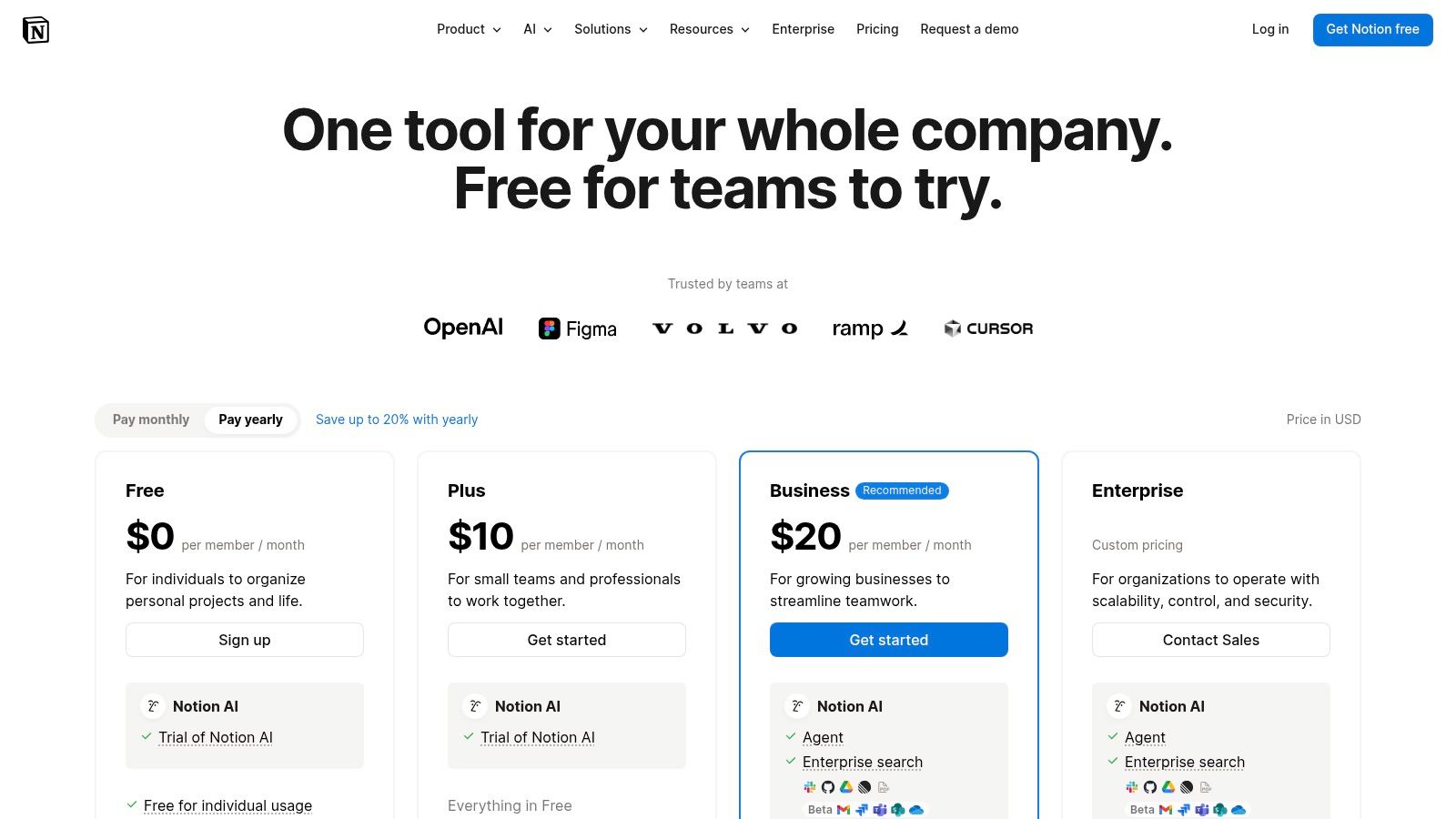
What makes Notion stand out is its block-based editor and interconnected database system. Every piece of content, from a paragraph to an image or a to-do list, is a movable "block." This modular approach gives you control to build and customize layouts to your needs. Its template ecosystem and real-time collaboration features make it useful for both individual creators and teams looking for a centralized hub.
Key Features & User Experience
Notion's iPad app provides a clean, responsive interface that works well with touch, while its web and desktop versions ensure cross-platform sync. The experience centers on building custom workflows without needing any code.
- Customizable Pages & Databases: Build anything from simple documents to complex relational databases for tracking projects, habits, or finances using templates.
- Real-Time Collaboration: Work with team members simultaneously on the same page, with comments and mentions for clear communication.
- Cross-Platform Sync: Your entire workspace is available and instantly updated across your iPad, iPhone, Mac, and Windows devices.
Practical Tip: Start with a pre-built template from Notion's gallery for a common use case like "Content Calendar" or "Meeting Notes" to understand the database structure. This is the easiest way to get started. Once comfortable, you can customize it or build your own from scratch.
Link: Notion
| Feature | Details |
|---|---|
| Pricing | Free for individuals; Paid plans (Plus, Business, Enterprise) with more features, storage, and collaboration tools. Generous free plans for students. |
| Access | Native iPad app, web access, and desktop clients for Mac/Windows. |
| Best For | Individuals and teams needing a single, customizable workspace to manage notes, tasks, and complex projects. |
7. Todoist
For those who want a command center for all their tasks, Todoist is one of the best productivity apps for iPad, offering a good balance of simplicity and capability. It's particularly good at quickly capturing thoughts and to-dos using natural language. Typing "Submit project proposal next Friday at 10 am" automatically creates a task with the correct due date and time, a fast way to get things out of your head and into a system.
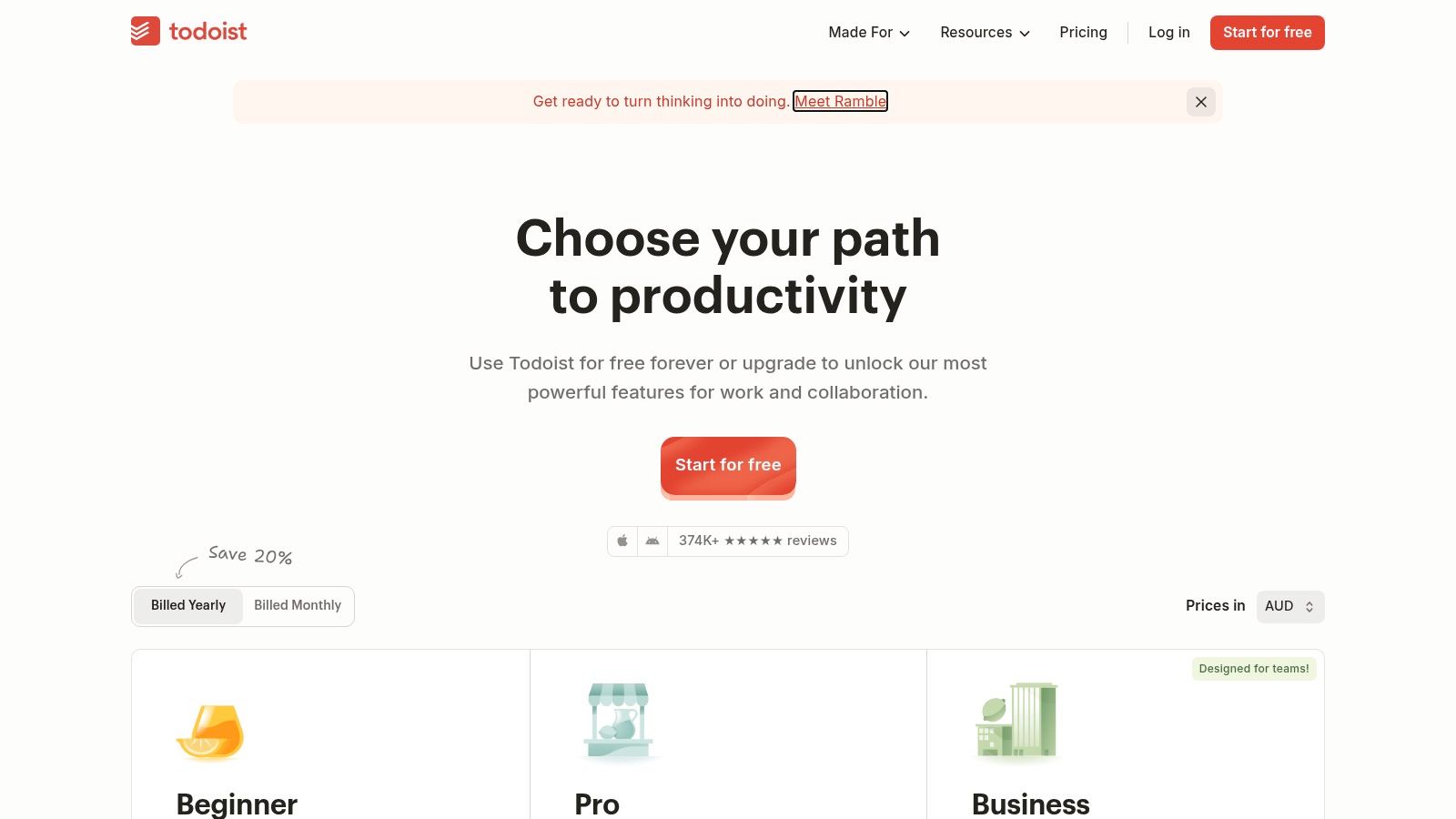
What makes Todoist practical is its cross-platform availability and clean interface. Your tasks sync across your iPad, phone, and desktop, keeping your to-do list current no matter where you are. The iPad app is well-designed, taking full advantage of the screen for its list, board, and calendar views. It adapts to your workflow, whether you're a student managing assignments or a professional coordinating with a small team.
Key Features & User Experience
Todoist's interface on iPad is clean and responsive, focused on getting tasks out of your head with minimal friction. The learning curve is gentle for basic use, but more powerful features are available for those who need them.
- Natural Language Input: Quickly add tasks with due dates, priorities, and project assignments using everyday language.
- Flexible Views: Organize your work with traditional lists, Kanban-style boards, or a calendar view to see your schedule at a glance.
- Robust Integrations: Connects with other tools like your calendar, email, and cloud storage to centralize your workflow.
- Collaboration Tools: Share projects, assign tasks, and add comments to work with family, friends, or colleagues, with progress tracking available for teams.
Practical Tip: Create custom filters to build personalized views of your tasks. For example, a filter like "today & @work" shows you only the tasks due today that are part of your work projects, helping you focus on what's most important right now.
Link: Todoist
| Feature | Details |
|---|---|
| Pricing | Free (Beginner plan with limits), Pro ($4/month billed annually), Business ($6/member/month billed annually) |
| Access | Web, iOS (iPad, iPhone, Apple Watch), macOS, Android, Windows |
| Best For | Individuals and small teams needing a fast, reliable, and cross-platform task manager. |
Top 7 iPad Productivity Apps: Feature Comparison
| Product | 🔄 Implementation complexity | ⚡ Resource requirements | ⭐ Expected outcomes / 📊 Results | 💡 Ideal use cases | Key advantages (⭐) |
|---|---|---|---|---|---|
| Apple App Store (Productivity for iPad) | Low — browse, compare and install via Apple ID; web links open native App Store | iPad + Apple ID, internet; no subscription required to browse | ⭐⭐⭐⭐ — curated discovery and safety; app quality varies 📊 | Finding and evaluating iPad productivity apps before install | ⭐ Centralized catalog, editorial collections, privacy labels |
| Microsoft 365 | Medium — setup subscription, install apps, sign‑in across devices | Subscription per user, 1 TB OneDrive per person, iPad apps + desktop/web | ⭐⭐⭐⭐⭐ — desktop‑class editing and robust real‑time collaboration 📊 | Professional documents, team collaboration, education | ⭐ Consistent formatting, strong collaboration and cloud storage |
| Google Workspace | Medium — user/admin setup for teams; simple for individuals | Subscription tiers for business, pooled Drive storage, web/iPad apps | ⭐⭐⭐⭐ — excellent real‑time collaboration and sharing 📊 | Teams that rely on Docs/Drive, meetings and shared files on iPad | ⭐ Easy link sharing, live collaboration and meetings |
| GoodNotes | Low — install and optional Pro/AI Pass activation | One‑time purchase or subscription for Pro/AI; iPad + Apple Pencil recommended | ⭐⭐⭐⭐ — strong handwriting and PDF annotation 📊 | Stylus‑driven note‑taking, lecture notes, PDF markup | ⭐ Deep iPad optimization, handwriting‑to‑text, templates |
| Notability | Low — install, sign in and enable audio features as needed | Subscription for premium AI/features; iPad + stylus recommended | ⭐⭐⭐⭐ — strong audio‑synced notes and fast performance 📊 | Lectures, meetings and study workflows with audio capture | ⭐ Audio‑linked handwriting, simple UI, reliable sync |
| Notion | Medium — workspace and template configuration for teams | Free tier available; paid Business/AI tiers for advanced features | ⭐⭐⭐⭐ — highly customizable workspace and scalable collaboration 📊 | Project tracking, team wikis, knowledge bases and templates | ⭐ Flexible databases, large template ecosystem, cross‑device sync |
| Todoist | Low — quick install, account setup and optional team workspace | Free tier; paid tiers for advanced reminders, filters and workspaces | ⭐⭐⭐⭐ — reliable task capture, scheduling and multi‑device sync 📊 | Personal task management, routines, small team projects | ⭐ Fast capture, clean UI, natural‑language dates and integrations |
Choosing the Right Tools for Your iPad Workflow
Turning your iPad from a content consumption device into a productive work tool is about finding the right combination of software and hardware. As we've covered, the landscape of the best productivity apps for iPad is varied, with specialized tools for different kinds of workflows. From the structured ecosystems of Microsoft 365 and Google Workspace to the freeform digital canvas of GoodNotes and the organizational capabilities of Notion and Todoist, there are solid options for most needs.
The key point is that there's no single "best" app for everyone. Your ideal setup depends on your specific needs, habits, and goals. The value isn't in downloading every app on this list, but in selecting the few that will have the biggest impact on your daily tasks.
Crafting Your Personal Productivity Stack
To build a workflow that feels intuitive, start by identifying your main pain points. Are you struggling with disorganized meeting notes, missed deadlines, or a cluttered digital workspace? This self-assessment is the first step toward finding the right solution.
- For the Visual Thinker: If you process information best through diagrams, sketches, and handwritten notes, an app like GoodNotes or Notability is essential. Pairing it with a precision stylus turns your iPad into a whiteboard that's always with you — useful for brainstorming sessions or annotating lecture slides.
- For the Structured Planner: If you work better with organized lists, databases, and clear project timelines, a combination of Notion for knowledge management and Todoist for task execution can create an efficient system. This combination helps you see both the big picture and the small, actionable steps required to get there.
- For the Traditional Professional: If your work revolves around documents, spreadsheets, and presentations, sticking with the familiar suites of Microsoft 365 or Google Workspace is a solid choice. These apps offer cross-device syncing and collaboration features that work well for team-based projects.
Actionable Steps to Build Your iPad Workflow
Choosing the right apps is only part of it, integrating them into a working system is where you get real value. Don't try to change everything at once. Instead, adopt one new tool at a time and give yourself a week to integrate it into your routine.
For example, commit to using Todoist for all your personal and professional tasks for seven days. Notice where it helps your process and where friction exists. Once it feels natural, consider adding another app, like Notion, to manage the project details linked to those tasks. This incremental approach prevents overwhelm and ensures each tool serves a distinct purpose in your workflow.
Ultimately, the best productivity apps for iPad are the ones that fade into the background, letting you focus on your work rather than the tool itself.
Ready to get more from your iPad? The right accessories make a difference. Explore Tinymoose's lineup of precision styluses and professional keyboards designed to work well with these apps. Visit Tinymoose to find the tools that complete your setup.
Compartir:
Best iPad Apps for Students: Your Ultimate Guide to a Smarter Workflow
How to Improve Handwriting on iPad: Quick Tips for Effortless Notes