
You're midway through a lecture, a train ride, or a long email, and your tablet is sliding on your knees while your thumbs hunt for tiny on-screen keys. You want the portability you bought the iPad for, but you also need to write at real speed without sore wrists, missed letters, or a stand that gives up. A good tablet keyboard case solves that tension, but only if you judge it by typing comfort, stability, and fit rather than colour or price alone.
Table of Contents
- Why a Keyboard Case Changes What Your iPad Can Do
- Check Compatibility Before You Buy
- Match Your Daily Routine to the Right Features
- How a Keyboard Case Turns a Tablet into a Work Setup
- Judge Typing Feel and Trackpad Before Anything Else
- Protection and Portability Trade-offs Worth Weighing
- How Students and Remote Workers Use a Keyboard Case
- Fix Connection and Setup Problems
- Confirm Your Needs and Pick Your Case
Why a Keyboard Case Changes What Your iPad Can Do
Say a student is balancing an iPad on their knees in a lecture. The screen tips every time they tap, the on-screen keys shrink under their thumbs, and half the sentence disappears before they've finished typing it. That scene explains why people go looking for a case in the first place.
People who switch from an older case name the same three complaints. The keys feel shallow and cramped, the stand wobbles or collapses, and the Bluetooth connection drops at the worst moment. Weak protection is often the fourth complaint, and together these problems make the iPad feel like a compromise instead of a productivity tool.
What a Good Case Has to Get Right
A case turns your iPad into a lightweight work setup only when typing, stability, and carrying work as one system. If the hinge is firm but the keys are cramped, you'll still avoid writing. If the keys feel great but the screen slides on your lap, you won't trust it in class or on a train.
Many buyers compare price and colour first, then discover after a few days that key spacing and response decide whether they keep using the case. I would start the other way around. Confirm compatibility first, match your routine in the quick-pick table, then work through typing, protection, and real examples to the final decision.
A keyboard case earns its place when you stop thinking about the keyboard and start finishing the work.
Follow that order and you can shortlist cases for your own routine in under ten minutes.
Check Compatibility Before You Buy
The exact model decides fit. A case sized for one iPad rarely fits another, even inside the same screen-size family, so treat compatibility as your first filter rather than a final detail.
On your iPad, open Settings, then General, then About. Read the model name and screen size there, and save that exact information before you shop. You'll need it at checkout, and guessing from memory is how people end up with a case that won't close.
| Check | Why it matters | How to verify |
|---|---|---|
| Exact model and screen size | Cases are cut to one size, so near matches do not fit | Settings, General, About shows the model name |
| Connector type | Decides whether the keyboard pairs and charges automatically or needs Bluetooth | Read the product specification |
| Stylus support | Decides whether the case has pen storage or a pen attachment point | Check the stylus compatibility list |
| Magnetic hold and fit | Keeps the keyboard aligned and stops it slipping on a lap | Compare the case dimensions with the iPad specification |
Two Checks That Catch Most Mistakes
If you own a 13-inch iPad Air, confirm the keyboard is listed for 13-inch models, not just for the Air family name. If you own an older iPad Pro, check whether an older 12.9-inch keyboard covers your exact generation. Family names stay similar while dimensions, magnets, and connectors change.
An oversized case slips on your lap and lets the tablet shift as you type. An undersized case won't close properly, which leaves corners exposed in your bag. Neither problem improves with use.
Remember that stylus support and keyboard connector type are separate checks. A case can hold your pen securely without using the connector you expected, or pair reliably while offering nowhere to store the pen. Verify both lines in the specification instead of assuming one implies the other.
The ordering process matters too. We ask customers to select their exact iPad model when ordering the SpacePad keyboard to ensure correct fit, because a wrong model can mean a keyboard that won't pair or charge as intended.
Match Your Daily Routine to the Right Features
Start with the routine that takes the most hours in your week. The table below puts the must-have feature first because that feature decides whether a case survives daily use, while extras only matter after the basics work.
| Routine | Must-have feature | Useful extra | Trap to avoid |
|---|---|---|---|
| Lecture note-taking | Full-size keys with a stable stand | Backlit keys for dim halls | Keys spaced below 17 mm |
| Email and document work | Trackpad with gestures and stable Bluetooth | Detachable keyboard | Shallow key travel for long sessions |
| Travel and commuting | Slim, light body with strong magnetic hold | Detachable keyboard for tablet mode | Very thin cases that cramp typing |
| Stylus notes and sketching | Detachable keyboard with pen attachment | Adjustable viewing angle | Hinge that wobbles under pen pressure |
| Mixed reading and typing | Adjustable viewing angle with firm hinge | Backlit keys | Stands that tip on soft surfaces |
Read the Table Row by Row
Lecture note-taking needs full-size keys and a stable stand because you're typing quickly while listening, often on a small desk. Email and document work needs a trackpad with gestures and stable Bluetooth because you're selecting text, switching apps, and writing for longer stretches.
Travel and commuting needs a slim, light body with strong magnetic hold because the case gets opened, closed, and packed repeatedly. Stylus notes and sketching needs a detachable keyboard with pen attachment because the keyboard has to get out of the way without losing your pen.
Mixed reading and typing needs an adjustable viewing angle with a firm hinge because reading, watching, and writing each put the screen in a different position. A hinge that holds only one angle forces your neck to do the adjusting.
A Short Self-Test
Ask yourself four questions. How many hours a day do you type, do you carry the iPad daily, do you draw or annotate, and do you mainly use a lap or a desk? Two or three honest answers usually point to one row.
Practical rule: Let the routine that takes the most hours each week decide the compromise, not the routine you wish you had.
Features can conflict. A very thin case suits travel but can cramp lecture typing, especially when keys spaced below 17 mm horizontally make sustained typing less comfortable. A heavier protective case can feel reassuring in a bag and tiring in your hands.
Set your price ceiling only after the must-have feature is met. A cheaper case with shallow keys costs more in daily frustration, and you'll replace it sooner. Compare the listed price of your two finalists against the typing and trackpad tests that follow before deciding how much to spend.
How a Keyboard Case Turns a Tablet into a Work Setup
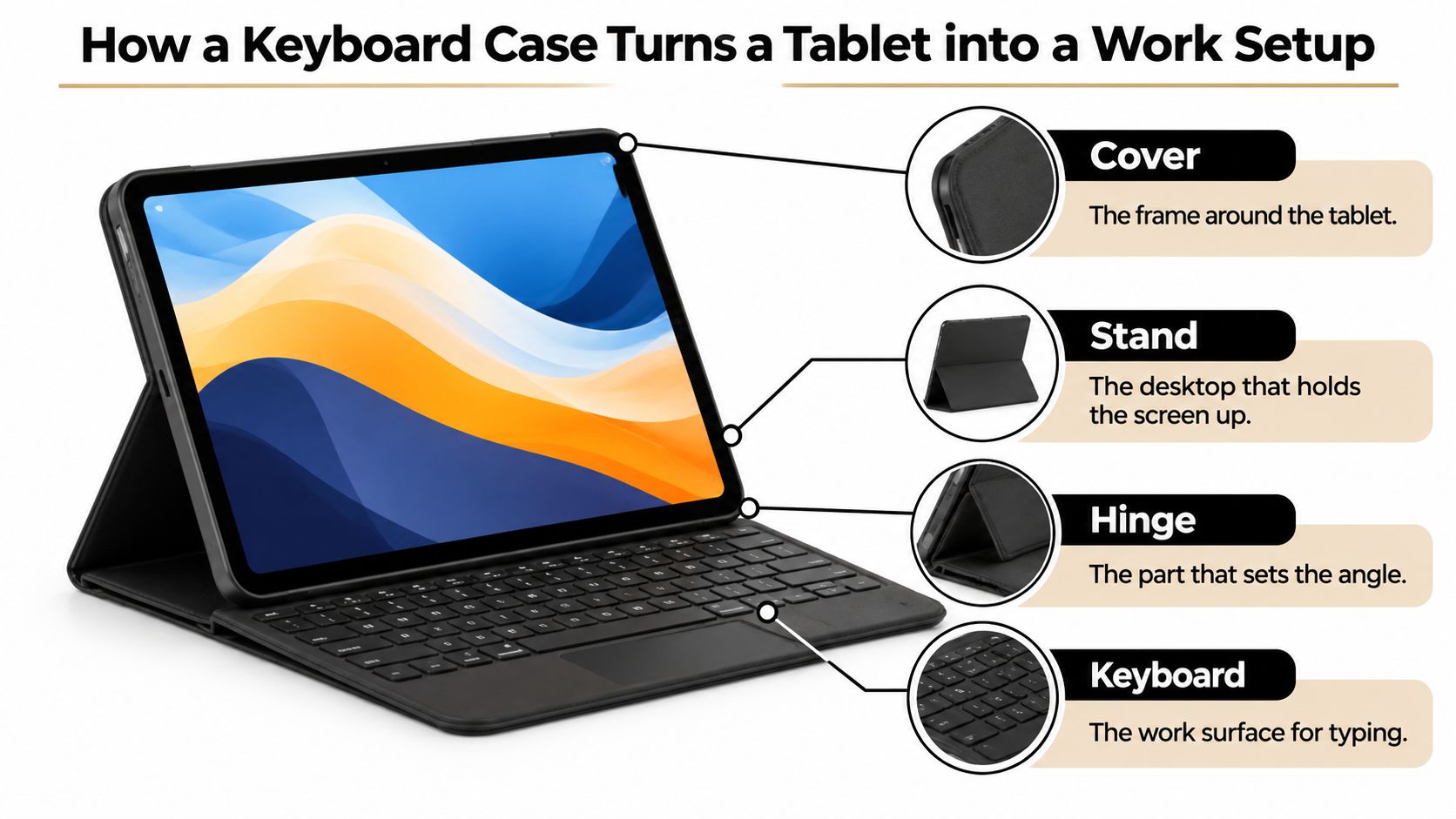
Think of a tablet keyboard case as a portable desk folded around a tablet. The cover is the frame, the stand is the desktop that holds the screen up, the hinge sets the angle, and the keyboard is the work surface. When those parts work together, your hands and eyes stop competing for the same flat piece of glass.
The diagram below labels those four parts so you can picture how the setup carries the screen while your hands stay on the keys.
The Stand Sets Your Posture
A case that props the iPad on its own keeps the screen above lap height. That matters because the mobile-computing ergonomics review reports that tablet use in the lap produced approximately 15 degrees more head-and-neck flexion than neutral, while typing studies measured median wrist extension as high as 40 degrees.
The same review notes that using a tablet case that stands on its own, or positioning the screen above lap height, can improve head-and-neck angles and reduce hand loading. External mechanical keyboards were also associated with increased typing productivity and comfort. In plain terms, raising the screen and separating it from your hands gives your neck and wrists a better starting position.
The Hinge Controls Fatigue
A firm hinge resists wobble while you type and tap. If the screen nods with every keystroke, your eyes keep refocusing and your shoulders tense to steady the device. Prolonged posture work links longer sessions with declining typing performance and rising neck-extensor muscle activity, so stability is a fatigue-control feature, not a cosmetic extra.
There's a trade-off. Raising the screen can push your hands forward to reach the keys, especially on a shallow case with little rear support. Enough depth behind the keyboard helps the display stay lifted on a desk without forcing you to hunch over it.
The Connection Has to Disappear
Most cases pair over Bluetooth and charge through a cable. A steady link prevents dropped keystrokes, repeated letters, and that pause where you wonder whether the sentence registered. You shouldn't have to think about the connection once you've opened the case.
Test three things in a shop or in the listing. Check the viewing-angle range, tap the screen to see how much the hinge moves, and compare how the case sits on a knee versus a desk. The case's job is to separate the screen from the keys so your body can find a comfortable posture and stay there.
Judge Typing Feel and Trackpad Before Anything Else
Typing feel is the most overlooked factor, and it's also measurable. Buyers compare price and appearance first, but after a few days, key spacing, responsiveness, and overall comfort matter more than they expected. You can judge those qualities with numbers before you spend anything.
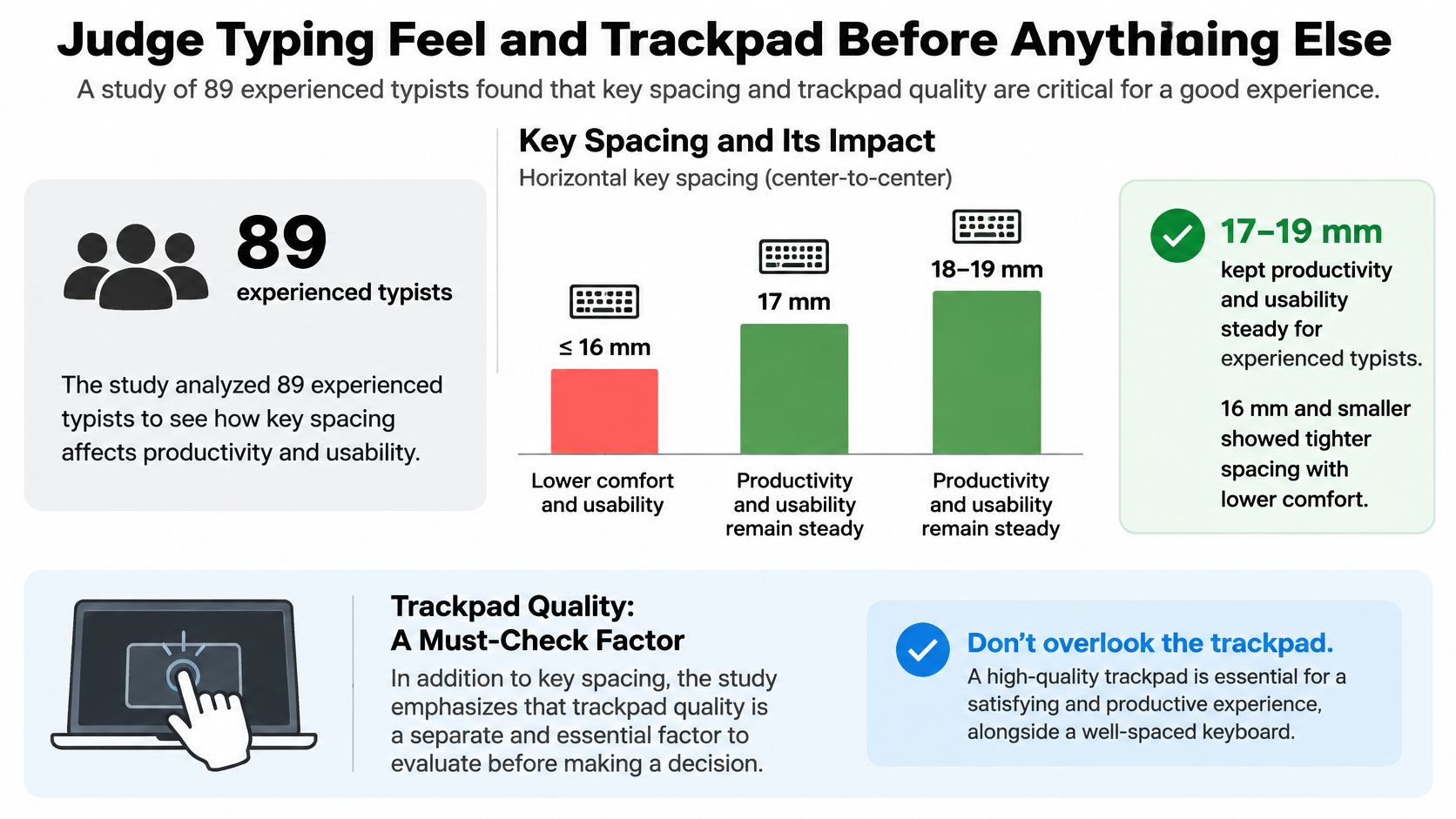
In the laboratory study of 89 experienced typists, reducing horizontal key spacing from 19 mm to 17 mm did not significantly change productivity or usability, but reducing it to 16 mm significantly worsened usability ratings, muscle activity, and posture. The recommended ranges were 17 to 19 mm horizontally and 16 to 19 mm vertically.
That gives you a concrete test for any specification sheet. Keys near or below 16 mm horizontally may make sustained email, notes, or classwork less comfortable, however slim the case looks in photos.
The chart below summarises that spacing test and flags the trackpad as a separate check you shouldn't skip.
| Measurement | Research finding | Practical verdict |
|---|---|---|
| Horizontal spacing 19 mm | No significant change in productivity or usability versus 17 mm | Comfortable baseline |
| Horizontal spacing 17 mm | Within the recommended 17 to 19 mm range | Good for long sessions |
| Horizontal spacing 16 mm | Significantly worse usability, muscle activity and posture | Avoid for daily writing |
| Vertical spacing 16 to 19 mm | Recommended vertical range | Acceptable |
| Vertical spacing 15.5 mm | Produced worse results than the recommended range | Avoid |
Check Key Travel, Not Just Thickness
Spacing tells you whether your fingers have room. Key travel tells you how far each key moves when you press it, and that movement gives your fingers feedback. Without it, you press harder than you need to and fatigue builds.
In the CDC-hosted experimental study of short-travel keyboard switches, participants rated switches with 1.3 mm and 1.6 mm of travel as causing the least discomfort and difficulty, with the differences statistically significant. The device with the greatest travel also produced the fastest typing and the lowest discomfort and difficulty scores.
A very thin keyboard is therefore not automatically comfortable. It's easy to carry, and that's a real benefit, but insufficient travel can make long writing sessions feel like tapping a tabletop. Judge the switch by its actual travel and feel, not by how flat the case photographs.
Test the Trackpad Like You'll Use It
Look for three-finger gestures for scrolling and swiping, because you'll use them constantly when moving through documents and apps. Then drag the pointer slowly across a paragraph of text. It should track your finger without lag, jumping, or overshooting the word you're trying to select.
A trackpad that feels fine for opening apps can fail at precise work. Try placing the cursor between two letters, selecting one sentence, and scrolling a long page in small movements. Those small tasks expose jitter and delay faster than broad swipes.
Backlighting deserves a quick check too. Adjustable brightness helps in dim lecture halls and during night reading, where a single fixed level is either invisible or glaring. Turn it up and down rather than just confirming it exists.
Run the Ten-Minute Test
In a store or during the return window, type a real paragraph for ten minutes. Use your own notes or an email you'd send, not a repeated test phrase. Watch for finger fatigue, missed keys, and the urge to slow down to stay accurate.
- Spacing check: Your fingers should land on single keys without tucking your hands inward.
- Travel check: Each press should register clearly without bottoming out harshly.
- Trackpad check: The pointer should follow small movements across text without delay.
- Stability check: The screen should stay still while you type at normal speed.
If the spacing falls below 16 mm or the travel feels shallow after ten minutes, the case will feel cramped for long writing.
That verdict sounds blunt, but it saves returns. Typing comfort usually surprises people most once they use a good case daily, because they expected portability and didn't expect the iPad to feel so close to a lightweight work setup. The numbers above help you find that comfort on purpose instead of by luck.
Protection and Portability Trade-offs Worth Weighing
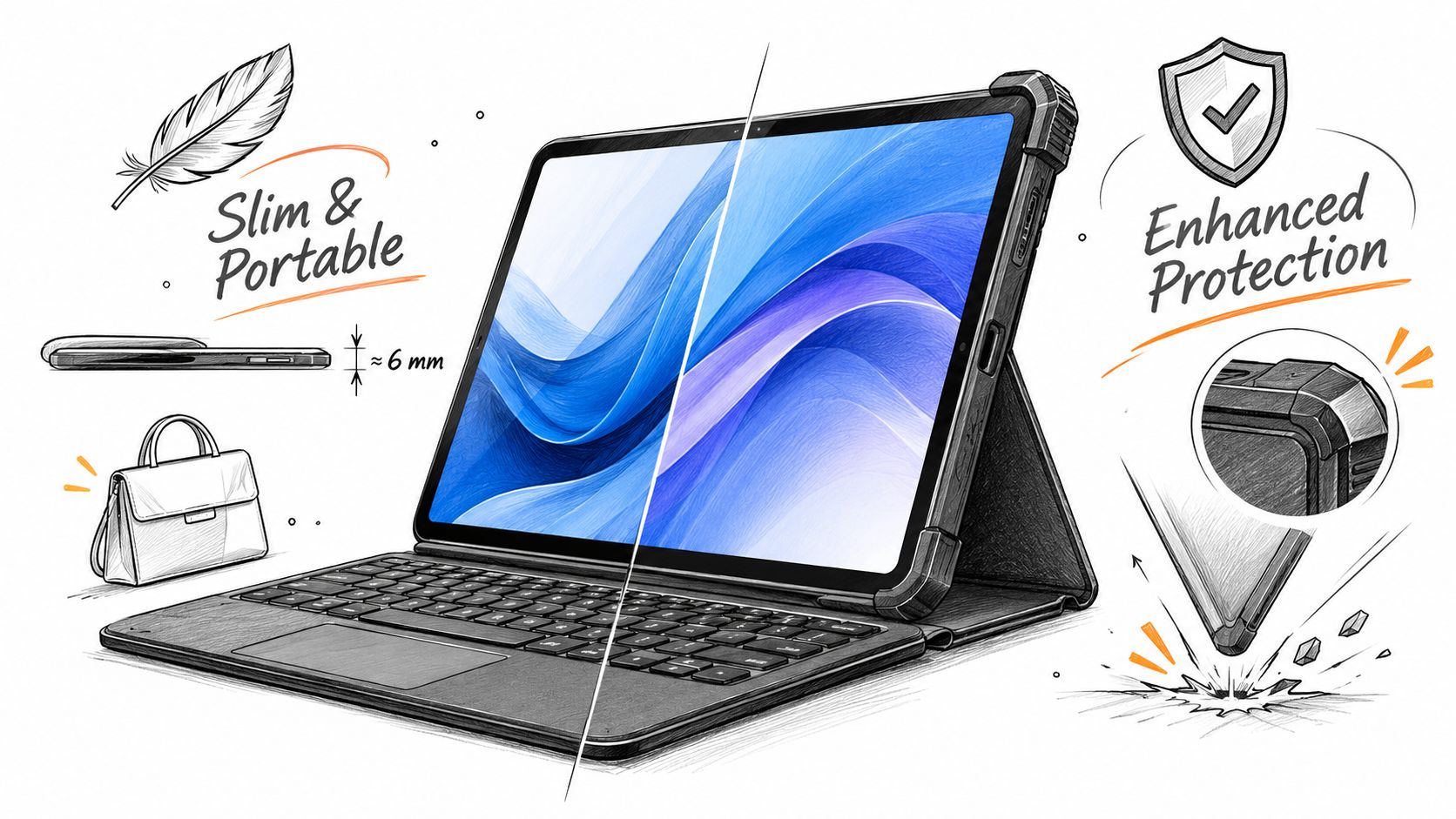
A slim case earns its place on a crowded commute, then loses it the first time a corner hits pavement. Judge the shell, the hinge and the closure as separate parts, because a thin profile can still protect if the corners and screen lip do their job.
Use a Named Benchmark
Adjectives such as rugged and military grade only become useful when they point to a method. A named benchmark such as MIL-STD-810G is easier to compare because its transit-drop procedure uses repeated drops from about 4 ft (1.2 m) onto a hard surface across corners, edges and faces. Ask whether the case discloses a comparable method, impact surface and result. If the listing only says “drop tested,” treat it as a styling claim.
The limit matters too. A drop rating covers the shell event, not every later rattle, so check whether the hinge still holds angle, the keys still sit level and the cover still closes after the case has been handled. A strong shell with a lazy hinge becomes a daily wobble, and that shows up first as a screen that will not stay where you set it.
Choose Your Carrying Compromise
A thicker shell guards corners better and costs you bag space. A slim case carries cleanly and gives up margin at the edges. Pick the side you will accept every day, because a case left at home protects nothing.
Three designs suit different habits. A detachable keyboard lets you carry the iPad alone in a sleeve for reading and handwriting. A folding cover protects the screen but can leave the back exposed to keys and cables in a shared bag. A magnetic keyboard that clips on quickly suits commuters who open the iPad several times a day and do not want to wrestle with a tight shell.
Run a commute test during the return window. Pack the case with your usual items, carry it for a week, and check for scuffed corners, weak magnets and a hinge that loosens. Add one posture check: on a train table or café top, confirm the stand range keeps the screen high enough that you are not rounding your neck to see it. Portability fails when the easy carry leads to a cramped viewing angle, and protection fails when the safer shell is bulky enough to stay behind. The right compromise is the one that still feels usable on day seven.
How Students and Remote Workers Use a Keyboard Case
Say a student sits down in a lecture with the case on a narrow desk. The stand holds steady, the keys are ready as soon as the lecturer starts speaking, and they type fast notes without balancing the tablet against a bag. Speed matters here because they're listening and deciding what's worth writing at the same time.
After class, the same student detaches or repositions the iPad to read the slides properly. They annotate a diagram, handwrite a sketch with a stylus, and highlight the parts they'll revise later. The keyboard handled the long text, while touch and the pen handled the shapes and margins.
That switch is the value, and it connects with the wider kit around the tablet too, including the best iPad accessories for students. The student doesn't carry a second device for writing and another for drawing. One tablet changes shape around the task.
A Different Day for a Remote Professional
Now say a remote professional is working from a café between meetings. They use the trackpad to scroll a document, the keyboard to reply to email, and the stand to keep the screen upright on a small table. The setup feels close enough to a laptop that short work sessions don't require unpacking a full computer.
On the train home, they switch to touch and pen input to mark up a draft. They circle a weak paragraph, sketch a layout idea, and review comments without a lid and hinge dictating how they hold the device. That flexibility is where a tablet keyboard case differs most clearly from a traditional laptop.
The iPad moves between typing, touch, and pen input during one day, rather than forcing every task through a keyboard and trackpad.
Turn Those Stories into Buying Decisions
The student needs a stable stand and backlit keys, because lectures happen on small desks in dim rooms and notes can't wait for ideal conditions. The professional needs a trackpad, a stable Bluetooth link, and a case that detaches for pen work, because their day alternates between documents and markup.
There's a limit you should respect. A laptop still wins for heavy spreadsheets or long coding sessions, and a case can't change the software or screen size you're working with. Buying a keyboard case to erase that limit leads to frustration.
Ask yourself three questions drawn from both stories. Which hours do you type, where do you type, and do you switch to touch or pen during the day? Your answers describe the case you need more accurately than any bestseller list.
Fix Connection and Setup Problems
Most complaints about older cases come from four problems you can often fix before deciding to return the keyboard. Work through them in this order, and use the tablet typing tips for students if you want the pairing steps in one place while you troubleshoot.
- Bluetooth keeps dropping: Open Settings, choose Bluetooth, select the keyboard, and tap Forget This Device. Put the keyboard into pairing mode, pair it again, and keep the iPad within a few feet while you type.
- The keyboard does not respond: Charge it through its Type-C port for at least 30 minutes, confirm it's switched on, and update the iPad to the latest iPadOS version.
- The screen slides or the stand wobbles: Set the viewing angle again so the hinge seats fully, then check that the magnets hold the iPad firmly. A hinge that loosens within a week signals a weak joint, so return it.
- The trackpad lags: Move the pointer across a block of text and watch for delay. If it persists, check the pointer settings under Accessibility and retest after restarting the iPad.
Record each problem with the date and time. A pattern of drops or wobble during normal use is a reason to return the case within the return window rather than keep working around it.
Confirm Your Needs and Pick Your Case
Start with the one fact that decides fit, your exact iPad model from Settings, General, About. Then find your routine in the quick-pick table and confirm its must-have feature before looking at colour, extras, or discounts.
Keep your choice to two candidates and put each through three tests. Run a ten-minute typing session for key spacing and travel, move the pointer slowly over text, and carry the case with your usual items for a week to see how the corners and hinge hold up. The case that passes all three is the one to buy.
If your routine calls for a detachable magnetic keyboard, stable Bluetooth, a multi-touch trackpad, and long battery life, the SpacePad Pro is built for that profile. It features a 3-way multi-touch trackpad, detachable magnetic keyboard, RGB backlit keys, scissor-switch keys, stable Bluetooth connection, and up to 200 hours of working time on a single charge, with adjustable viewing angles, a slim and lightweight body, and Type-C charging. The Black model is compatible with iPad Air 13 inch (2024 to 2025) and iPad Pro 12.9 inch (2018 to 2022), and it costs $143.00, so confirm your exact model at checkout because a mismatch can mean a keyboard that won't pair or charge.
Your next step is simple. Write down your exact model and top routine, find the matching row, then compare two cases on spacing, travel, and trackpad feel before you buy.
If you want your iPad to handle notes, email, and classwork without giving up touch and pen input, explore the SpacePad range at Tinymoose and match it to your exact iPad model before ordering. You'll find practical keyboard cases and styluses built for students, creators, and remote workers who need gear that works every day, not just in product photos.

Compartir:
Teclado para iPad de 10.ª generación: cómo elegir uno