
You're comparing a pink stylus with a plain black one, and the pink option looks like it might suit your iPad setup better. But if you'll use it through lectures, sketches, or a workday of handwritten notes, the question isn't whether the color looks good. It's whether the stylus works with your exact iPad and feels dependable in the apps you use.
A pink stylus pen for iPad can be a practical daily tool, not just an accessory. The reliable way to choose is to confirm compatibility first, check the input features you need, then try the pen in your usual tasks. Color comes into the decision after those basics are settled.
Table of Contents
- Why a Pink Stylus Is More Than a Color Choice
- Checking iPad Compatibility Before You Buy
- Core Features That Shape Everyday Performance
- Using a Pink Stylus for Notes and Sketches
- Weighing Pencil Tiers Against a Tinymoose Pink Stylus
- Living With a Pink Stylus Day to Day
- Your Next Step Toward a Pink Stylus
Why a Pink Stylus Is More Than a Color Choice
A pink stylus is easy to justify in the cart: it matches a case, stands out on a desk, and feels less generic than black. The part that matters shows up later, when your palm is on the screen during a lecture or you are shading a sketch and the pen either keeps up or gets in the way.
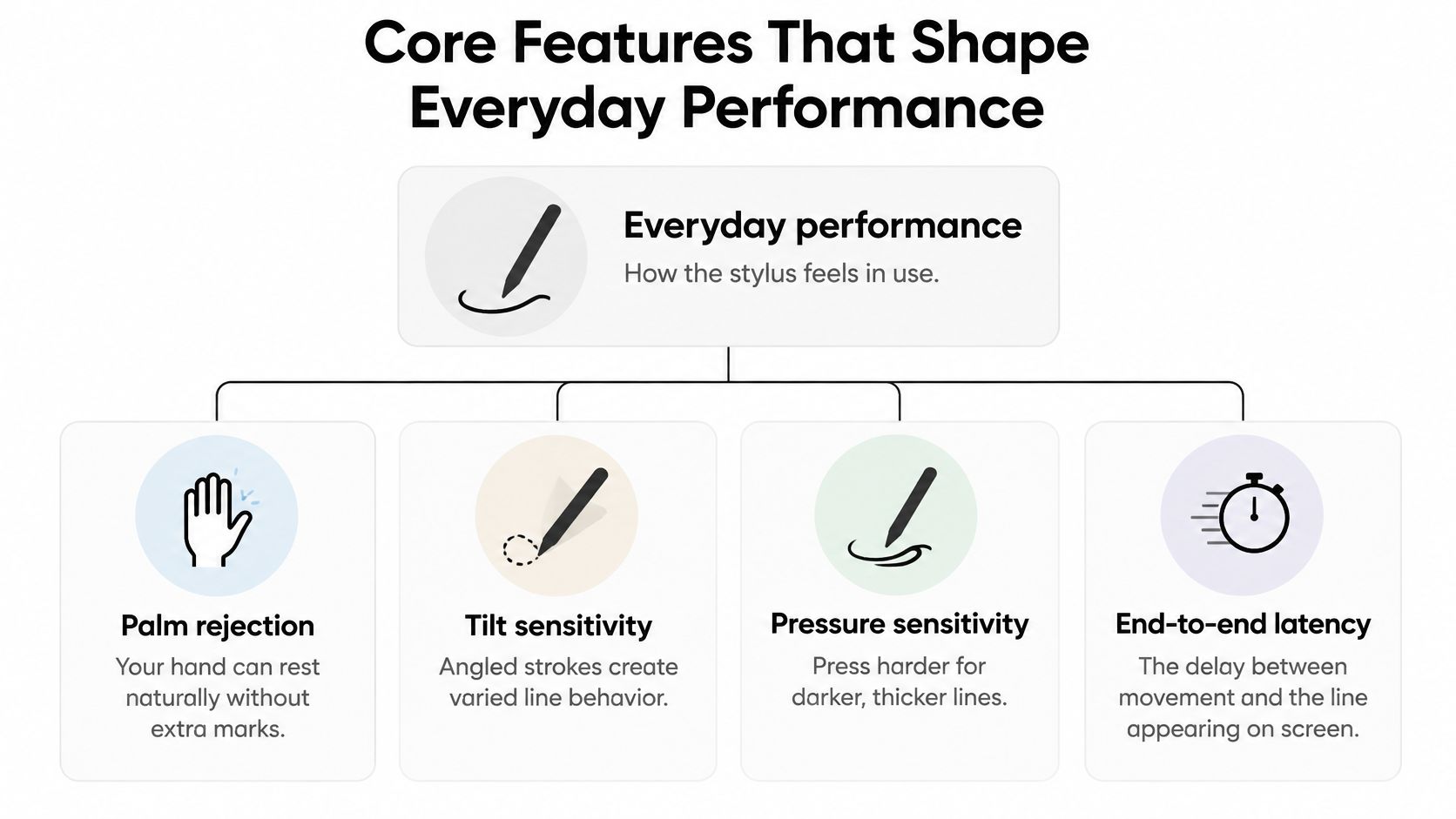
Treat color as the last filter, not the first. Start with the iPad model you own, then confirm the input features that change daily use. Palm rejection decides whether you can write naturally. Tilt response affects shading. Pressure sensitivity matters for lettering and drawing, while shortcut taps and charging style shape how quickly the pen fits into a routine.
Apple's Pencil line shows why appearance is a weak clue. Apple introduced the first-generation Apple Pencil with the first iPad Pro on September 9, 2015, released it that November at $99, and used it to set expectations for pressure-sensitive input and palm rejection. The second-generation model arrived on October 30, 2018 at $129 with magnetic attachment and wireless charging. In 2023, Apple added a $79 USB-C model that launched in November without pressure sensitivity or wireless charging (Apple Pencil history). Same idea, very different behavior.
Before choosing pink, test in the apps you already open: rest your palm in a notebook page, tilt through a brush stroke, annotate a PDF, then switch tools. If those moments feel dependable, the finish is a reasonable personal choice.
Checking iPad Compatibility Before You Buy
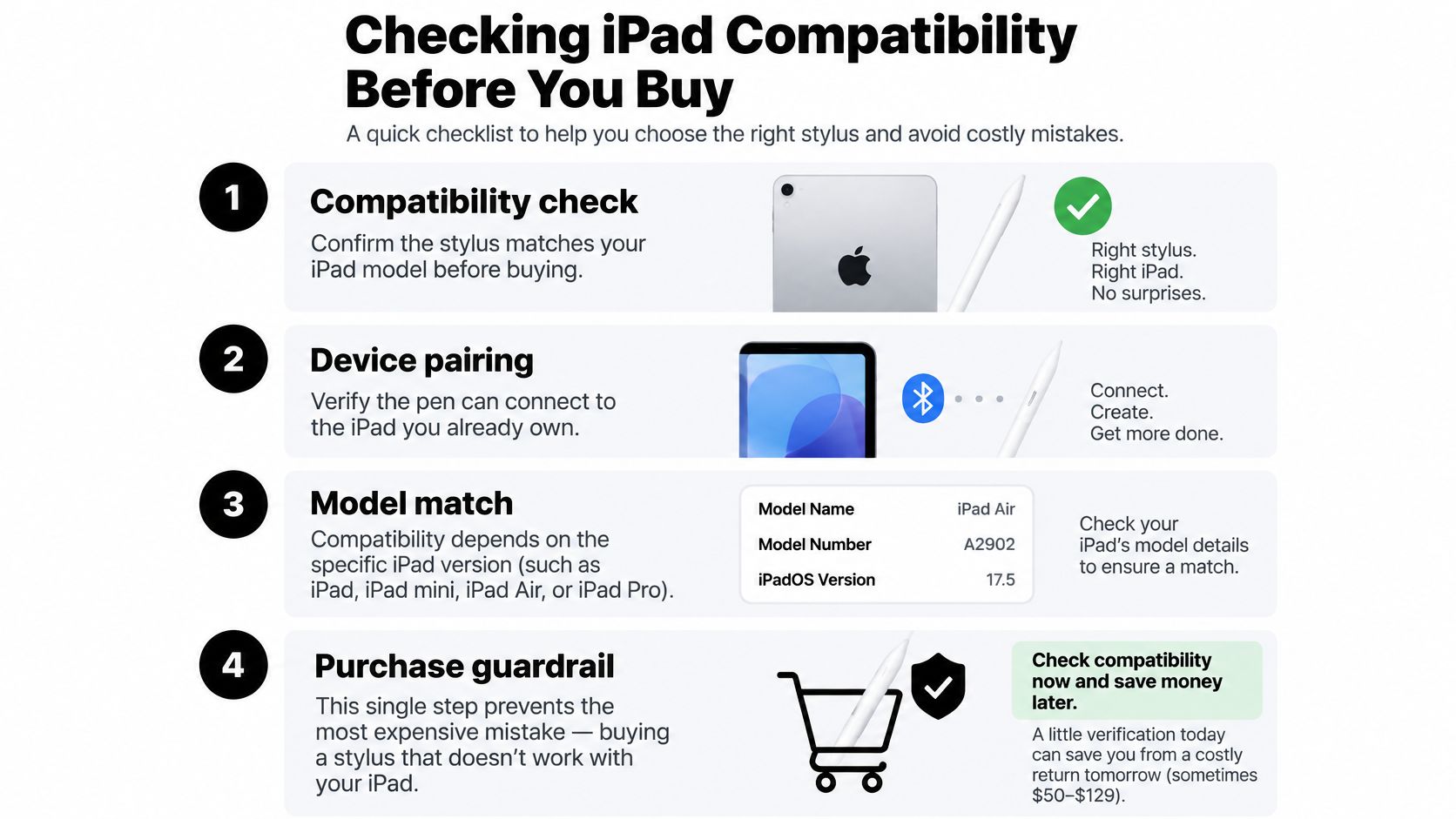
The most frustrating stylus purchase is the one that won't connect to the iPad you already own. Compatibility depends on the exact iPad model, not just whether the tablet is an iPad, iPad Air, iPad mini, or iPad Pro. A pink stylus has to meet the same model-specific requirements as any other pen.
Check the iPad before the stylus
Start by identifying your iPad's model and generation in its settings or device information. Don't rely on a case label, a family member's memory, or the broad product name. Two iPads within the same product line can support different Pencil generations.
Next, check Apple's compatibility list for your exact model. Apple lists Apple Pencil (USB-C) as compatible with models that include the 10th-generation iPad, iPad A16, sixth-generation iPad mini, fourth- and fifth-generation iPad Air, and selected iPad Pro models. Apple Pencil (2nd generation) works with a narrower group, including the sixth-generation iPad mini, fourth- and fifth-generation iPad Air, and selected iPad Pro generations (Apple Pencil model compatibility).
Use this checklist before you put a stylus in your cart:
- Identify the iPad. Record the precise model and generation.
- Find its supported Pencil options. Use Apple's list, not a general statement about the iPad family.
- Check the stylus listing. Confirm that it names your exact model or a clearly matching compatibility group.
- Confirm the connection method. Make sure the pairing and charging approach is suitable for your iPad and the pen you're buying.
A model-specific check is useful beyond stylus shopping. Students who organize research and citations can also compare reference managers for thesis writers as part of building a reliable iPad study setup. Keep the stylus decision separate, though: shortlist only pens that explicitly support your device.
Core Features That Shape Everyday Performance
A stylus can connect successfully and still feel wrong for the job. The specifications that matter most are the ones you can notice while writing, drawing, and moving around a document.
Palm rejection and tilt
Palm rejection lets you rest your hand on the screen without triggering stray touches. For a student writing continuously or someone filling a planner, it makes the posture feel closer to writing on paper. Without it, you may find yourself hovering your hand or correcting unwanted marks.
Tilt sensitivity changes how strokes behave as you angle the pen. That can make shading or broad marker-style strokes feel more natural. It's useful for sketching and highlighting, but less important if your main task is tapping buttons or writing uniform notes.
Pressure and latency
Pressure sensitivity maps how hard you press to properties such as line width or opacity. Artists who vary strokes within the same brush line may rely on it. A basic passive rubber-tip pen may work for tapping, but it doesn't provide the same active communication and feature set as a compatible stylus.
End-to-end latency is the delay between moving the nib and seeing the digital ink appear. Human-factors research found that users can perceive inking latency at roughly 50 milliseconds, while measurements reported for many commercial tablets commonly range from 65 to 120 milliseconds (human-factors research on inking latency). That's why “responsive” by itself isn't enough to judge a pen. The iPad, display behavior, operating system, stylus, and app all contribute to how writing feels.
Apple describes compatible Apple Pencil models as providing pixel-level precision and low latency, and distinguishes palm rejection, tilt, and pressure as separate capabilities (Apple Pencil features). Read product specifications feature by feature. “Precision” doesn't confirm pressure sensitivity, palm rejection, or tilt support.
Practical rule: If the listing doesn't clearly state a feature you need, don't assume it's included.
When comparing accessories more broadly, a guide to finding tools that fit your workflow can help you think through which functions belong in your daily setup. For a stylus, prioritize the features that change your actual writing or drawing, not a long list of claims you won't use.
Using a Pink Stylus for Notes and Sketches
During a lecture, a student may use a stylus to jot down a lecturer's explanation, underline a key phrase, and add a quick diagram beside the notes. Palm rejection matters because the student can rest a hand on the iPad instead of hovering above the display. Low perceived lag matters too. If the ink visibly trails the nib, handwriting can feel less controlled, especially during fast notes.
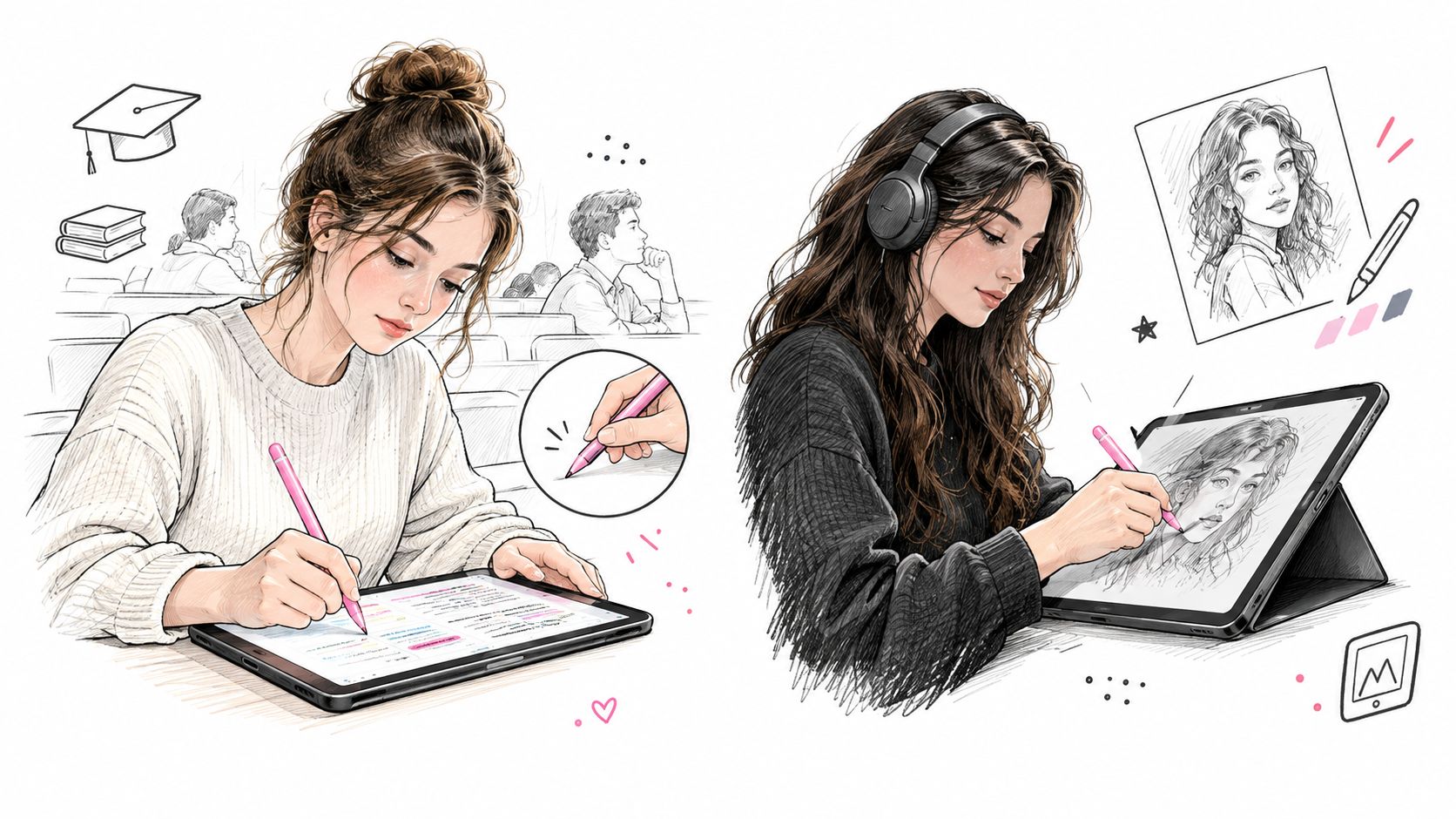
For an artist, the test changes. A quick sketch may call for tilt to vary a stroke, while pressure sensitivity can help control line weight or opacity without repeatedly changing brush settings. The app also matters: a drawing app can recognize and interpret stylus input differently from a basic notes app.
Try the pen in your own app
Before deciding, open the handwriting or sketching app you expect to use most. Write a few lines, make long diagonal strokes, and draw quick loops. Watch whether the line follows the nib closely and whether your resting hand creates stray marks. Then try the same stylus in a drawing app if pressure or tilt is part of your workflow.
A lag that goes unnoticed while tapping may become obvious during continuous writing. Don't judge a pen only by its packaging or a short tap test. Give it a task that resembles your real use.
If lectures are a regular part of your routine, build a better lecture note workflow by pairing handwritten notes with an approach that works for your classes. You can also use note-taking screen protector advice from Tinymoose when deciding whether your writing surface suits your hand and stylus.
For a visual example of the two use cases, this clip can help you think about how handwriting and sketching differ in practice.
Weighing Pencil Tiers Against a Tinymoose Pink Stylus
A stylus listing can lead with the color, but the model behind it decides what you can do. Apple sells three Pencil versions with different charging methods and feature sets, and each one pairs with a different group of iPads. Match the tier to your tablet and your tasks first.
| Stylus | Price Point | Charging | Pressure Sensitivity |
|---|---|---|---|
| Apple Pencil (1st generation) | $99 at launch | Removable cap over a Lightning connector | Yes |
| Apple Pencil (2nd generation) | $129 at launch | Magnetic attachment and wireless inductive charging | Yes |
| Apple Pencil (USB-C) | $79 | Concealed USB-C port; magnetic storage, cable charging | No |
| Tinymoose Pencil Pro line | Check current listing | USB-C or wireless charging, depending on model | Confirm the specific model listing |
Apple introduced the first-generation model in 2015, the second-generation version in 2018, and the USB-C model in 2023. The USB-C version added magnetic storage but left out pressure sensitivity and wireless charging, the same trade-off visible in the table. For artists, that gap matters. For someone who mainly annotates documents or writes meeting notes, it may never come up.
Tinymoose's Pencil Pro line is described as offering palm rejection, tilt sensitivity, magnetic attachment, shortcut buttons, and USB-C or wireless charging. Its pink stylus is presented as carrying the same core features as Pencil Pro, so the color option doesn't sit in a lower tier. The available product information doesn't establish that every pink model includes pressure sensitivity, so artists who depend on it should confirm that detail on the specific listing.
Choose by task, not finish
The app test described earlier tells you which column of the table matters. If your drawing app thinned and thickened strokes under varied force, pressure support belongs on your requirements list. If it handled handwriting cleanly while your palm rested on the glass, palm rejection is doing the heavy lifting, and pressure may be optional. Charging is the third filter: magnetic wireless charging suits a pen that lives attached to the iPad, while cable charging is fine if the pen mostly stays in a case pocket or desk drawer.
Once the features and device support line up, the finish becomes a fair final filter. Compare the tiers, then find the right iPad stylus by matching the model to how you write, draw, and charge.
Living With a Pink Stylus Day to Day
A stylus spends much of its life beside the iPad, in a case pocket, on a desk, or attached to the tablet. That's where color becomes useful in a simple way: it can make the pen easier to distinguish and coordinate with a case or keyboard. Customers often want that coordinated look without giving up the functions they rely on for daily notes and sketches.
A pink finish can hold up as an everyday choice when the stylus is built for regular handling and offers the input features the owner needs. Appearance doesn't replace durability or performance, but it doesn't have to conflict with them either. The Tinymoose pink stylus is presented as having the same core features as Pencil Pro, giving buyers a color option alongside functions intended for writing, drawing, and multitasking. Check the exact product listing to confirm what the particular model includes.
Check the app, not just the pen
The app is part of the writing experience. A note-taking app may handle handwriting and palm rejection well, while a drawing app may expose controls for pressure response. Procreate, for example, offers an adjustable pressure-sensitivity curve, so artists can change how a Pencil or stylus feels during drawing (iPad Pencil compatibility and app behavior).
Test the features you expect to use. Write a page in your notes app, switch to a sketch, and try any shortcut or pressure controls that matter to you. A stylus may physically work while an app doesn't recognize every feature in the way you expect.
Think about a normal week rather than a single demo. Will you carry the pen between classes, use it for a quick sketch, then keep it attached while switching between apps? A comfortable, compatible stylus should fit that routine without forcing you to change how you hold your hand or recharge the pen in a way you dislike. The right pink model is the one that suits the iPad, the apps, and the daily habits you already have.
Your Next Step Toward a Pink Stylus
A good buying decision comes down to a few checks, not a color preference alone. Confirm the exact iPad model, verify which stylus features it supports, and consider the app you'll use most. Then decide whether your routine calls for writing comfort, drawing control, a particular charging method, or a combination.
Students who write by hand and planners who annotate pages will usually benefit most from reliable palm rejection and a natural feel in their notes app. Creators should look closely at pressure and tilt support in their drawing app. Remote workers may want a pen that makes quick notes and multitasking straightforward, with storage and charging that fit the rest of their setup.
The Tinymoose Pencil Pro line is an option for buyers who want a pink finish alongside features such as palm rejection, tilt sensitivity, magnetic attachment, shortcut buttons, and USB-C or wireless charging. Those capabilities are described for the line, but confirm the exact model's compatibility and specifications before ordering. Tinymoose also lists a 1-year warranty and tracked worldwide shipping, useful purchase details to review alongside the product fit.
Visit the Tinymoose store at tinymoose.co to compare the Pencil Pro line, check a specific stylus against your iPad model, and choose the features that fit your everyday work. A pink stylus makes sense when the finish feels personal and the pen performs the tasks you need.
Tinymoose offers pink iPad stylus options alongside its Pencil Pro line, with practical features for writing, sketching, and multitasking. Visit Tinymoose to compare the available models, confirm compatibility with your iPad, and choose a stylus that suits both your workflow and your style.
Dela:
Stylus Pen for Samsung Tablet: A Practical Buyer's Guide