
You're halfway through lecture notes or refining a sketch when your Apple Pencil starts dragging. You press harder to finish the stroke, but the line still feels wrong. Before you blame the app or replace the whole stylus, check the small part touching the screen.
Learning how to replace an Apple Pencil tip is straightforward. The more useful skill is knowing whether it needs replacing, choosing a compatible spare, and changing the habits that wore the old one down.
Table of Contents
- Why Your Apple Pencil Tip Wears Out Faster Than You Think
- The Swap Itself in Six Plain-English Moves
- Choosing a Tip That Actually Fits Your Pencil
- How to Make the New Tip Last Longer
- Troubleshooting Tips That Stick, Skip, or Drag
- A Short Pre-Swap Checklist and Where to Go Next
Why Your Apple Pencil Tip Wears Out Faster Than You Think
A student filling pages of handwritten notes and an artist shading on a textured protector aren't putting their tips through the same workload. Even if they bought their Pencils together, they shouldn't expect to replace the tips together.
Apple Pencil tips are consumable parts, not permanent components. Apple's first-generation Apple Pencil specifications list an extra tip in the original package, a practical sign that replacement was part of the maintenance model from the start.
Inspect the shape, not the calendar
Apple doesn't specify a universal replacement interval. Informal lifespan claims range from roughly 6–18 months for light use to much shorter periods under heavy drawing, but those aren't controlled benchmarks, as discussed in Apple Community's tip-maintenance guidance.
Look for these warning signs instead:
- A flattened profile: The rounded writing end has developed a flat spot or become lopsided.
- A rough surface: The plastic feels coarse, cracked, or visibly damaged rather than smooth.
- Inconsistent line placement: Strokes don't land reliably, or you find yourself adding pressure to get a response.
- Exposed metal: The underlying transducer is visible through the worn plastic. Stop using the Pencil on the display.
A dirty writing surface can feel unpleasant without the tip being worn out. If the profile is intact and no metal is showing, clean the surface appropriately and try a lighter hand before discarding the tip. Persistent dragging or changed pressure response deserves a closer inspection.
Replacement rule: Retire a damaged tip because of its condition, not because a reminder says it's old.
Your protector changes the maintenance decision
Pressure, daily use, and surface texture all affect service life. Faster wear on a matte protector doesn't automatically mean the Pencil is defective.
If you're choosing a surface for studying, compare iPad screen protectors for notes with both writing feel and maintenance in mind. The useful question isn't simply whether it feels like paper. It's whether that resistance suits your hand without encouraging you to push harder.
The Swap Itself in Six Plain-English Moves
The replacement is a finger-tight mechanical swap, not a repair that needs a toolbox. iFixit's Apple Pencil tip replacement guide+Tips+Replacement/154401) describes removal as taking seconds without specialized tools, using the same basic procedure for first- and second-generation models.
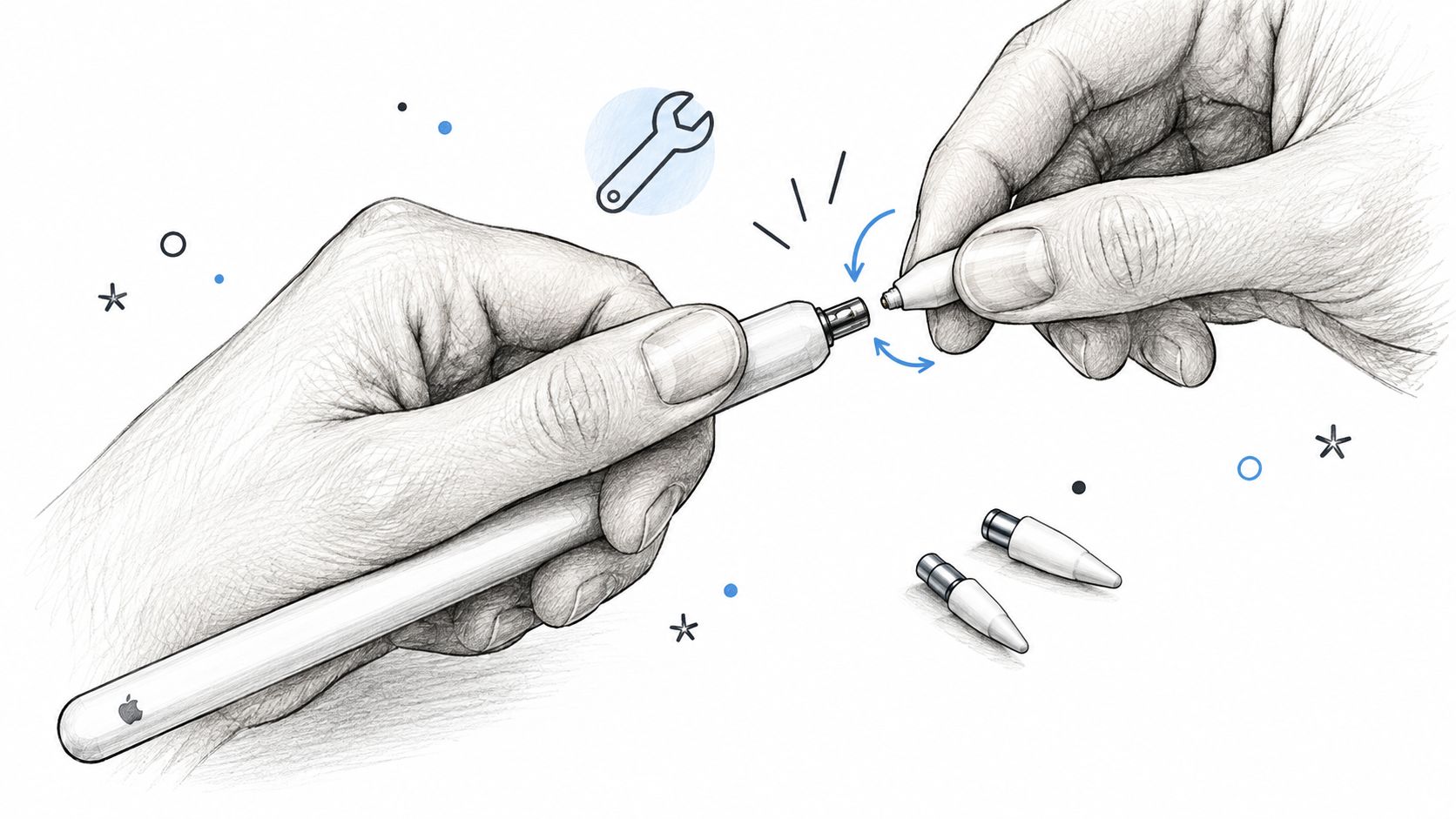
Use this illustration to orient yourself before handling the exposed contact.
Disconnect, grip, and remove
Disconnect the Pencil from charging and active use before starting. Put it somewhere you can work comfortably without balancing it over the iPad display.
Hold the barrel steady in one hand. With the other, pinch the removable plastic tip between your fingers, then rotate that tip counterclockwise until it unscrews and lifts away. Keep the barrel stationary so you're controlling the small part rather than twisting the whole Pencil.
If it won't turn by hand, stop. Pliers, knives, adhesives, and excessive torque can deform the tip, damage threads, or transfer force into the sensor assembly.
Inspect, align, and secure
Inspect the exposed metal contact before fitting the replacement. Metal exposed after removing the tip is expected; metal showing through a worn tip while writing is a stop-use warning because contact can damage the Pencil and potentially scratch the display.
Place the replacement over the metal prong and start the threads gently. Turn clockwise only until it's secure and stops turning easily. If it resists immediately or sits crooked, back it off rather than tightening through the resistance.
Snug means stable. It doesn't mean tightening until every visible clearance disappears.
A small, approximately sheet-of-paper-sized clearance can be normal, as noted in the maintenance guidance above. Don't try to eliminate it with extra force.
Watch the removal-and-installation motion before testing your own replacement.
Reconnect and open a note-taking app. Write naturally, make a quick sketch, and tap a control to check registration and centering. Test pressure and tilt in an app that supports them, plus hover where your setup supports it, without pressing harder to compensate for a poor fit.
Choosing a Tip That Actually Fits Your Pencil
For a first- or second-generation Apple Pencil, official Apple replacement tips are the sensible default. They let you replace the consumable without making the buying decision another troubleshooting exercise.
Apple tips were listed in four-packs for $19, compatible with both generations, in 9to5Mac's replacement guide. Treat that as the published reference price, not a guarantee of today's checkout total in your region.
Start with the spare you might already own
The first-generation Pencil originally included a spare tip, as noted in Apple's specifications above. Check the original packaging before ordering replacements. An unused spare is more useful installed on your Pencil than forgotten beneath the box insert.
If you need to buy, start with Apple's store or an authorized retailer. Check the current listing, compatibility wording, and seller identity rather than assuming that a photograph of a white nib proves it's the right part.
| Choice | What to check | Practical decision |
|---|---|---|
| Original boxed spare | It's unused and the threads look intact | Use it before buying another pack |
| Official Apple replacements | Seller identity and stated compatibility | Straightforward default for the generations covered here |
| Third-party alternatives | Exact model listing, thread condition, material description, and return terms | Consider when you want to evaluate a different feel |
Evaluate alternatives without guessing at fit
For third-party tips, packaging should name your Pencil generation. A listing that only says “iPad stylus tip” isn't enough to establish compatibility. Similar-looking parts shouldn't be treated as interchangeable.
Look for clear information about the plastic material or density if the seller provides it, but don't confuse a hardness claim with proof of durability. Without comparable wear testing, it's more useful to judge thread fit, centering, and writing feel than to assume a different material will last longer.
My buying recommendation is simple: keep the original fit unless you have a specific reason to change it. If you're experimenting with an alternative, evaluate its seating and response before stocking up. No replacement tip should require you to force the threads or accept a wobble as normal.
How to Make the New Tip Last Longer
A fresh tip won't change the surface you write on or how hard you press. To reduce premature replacement, adjust the workload as well as the part.
Apple Pencil users discussing tip wear identify pressure, hours of use, and textured protectors as recurring variables, including faster degradation with rough surfaces and heavy daily use. These are user reports, not a basis for predicting an exact lifespan for your setup.
Change the habits you can control
Ease unnecessary pressure first. During handwriting, try relaxing your grip and keeping strokes lighter. During drawing, preserve the pressure you need for expressive marks, but avoid pushing harder because the protector creates resistance.
Don't keep increasing force to compensate for skipped input. Inspect the tip and its seating instead. More pressure isn't a useful repair technique.
Clean the screen with methods approved for your iPad and protector, and handle the tip and exposed contact conservatively. For a practical cleaning routine, use Tinymoose's Apple Pencil cleaning guide, while following the relevant manufacturer's care instructions.
Workflow check: Before a long study or drawing session, inspect the tip and writing surface while you still have time to deal with a problem.
Choose friction deliberately
A paper-feel surface can provide the resistance you prefer for handwriting or controlled strokes. The trade-off is that a more abrasive surface can also increase consumable wear. Smooth glass generally offers less abrasion, but its glide may not suit your drawing style.
Screen Surface vs Tip Wear Trade-Off
| Surface | Writing feel | Tip wear rate | Best for |
|---|---|---|---|
| Smooth glass | Freer glide with less tactile resistance | Generally less abrasion under comparable use | Light note-takers and users who prefer glide |
| Matte or paper-like protector | More friction and tactile control | Can accelerate wear, depending on texture and pressure | Heavy artists or writers who prioritize resistance and accept closer inspections |
Choose based on the work you do, not a universal durability promise. If your matte protector helps you write comfortably, keeping it may be the right decision. Pair it with a lighter hand, a clean surface, and accessible spares rather than abandoning the feel you like.
Troubleshooting Tips That Stick, Skip, or Drag
A replacement that looks installed can still be poorly seated. Diagnose the symptom before buying another pack or applying more force.
The goal is to get back to reliable notes and sketches without turning a small maintenance job into damage.

The old tip won't budge
Stop rather than escalating your grip with tools. A Pencil that was dropped, or a contact assembly that appears bent, needs more caution than an ordinary worn tip. Don't repeatedly torque the barrel while hoping the plastic will release.
Look for visible damage without probing or bending the assembly. If the tip won't come off with gentle hand pressure, seek service rather than forcing another attempt. The tool-free procedure described earlier depends on intact parts that turn normally.
The new tip sits loose or crooked
Back the tip off and reseat it gently. Cross-threading is a possibility, especially if it resisted from the first turn, but debris or a mismatched replacement can also prevent proper seating.
Check the replacement threads before retrying. The installed tip should be centered and stable, without free rotation or lateral wobble. Don't use the normal clearance described earlier as a reason to accept movement in the tip itself.
- Crooked from the start: Remove it and realign the threads.
- Still loose when seated: Recheck compatibility and inspect for damage.
- Requires force to advance: Stop rather than tightening through resistance.
Input skips after installation
Disconnect from active use, remove the tip, and wipe the exposed contact area with a dry, lint-free cloth. Reinstall gently and repeat the same writing test so you can judge whether seating was the issue.
If the contact looks damaged or the Pencil still responds intermittently with a correctly fitted tip, don't keep tightening it as an experiment. Seek support rather than assuming every input problem comes from wear.
Apple Community's maintenance guidance, cited earlier, warns that both overtightening and leaving the tip loose can cause improper operation or no operation at all. Once the tip is stable and won't turn further easily, leave it alone.
A Short Pre-Swap Checklist and Where to Go Next
Keep a compatible spare accessible so a worn tip doesn't interrupt the work you opened the iPad to do. The useful maintenance kit is modest: a replacement tip, a dry lint-free cloth, and a clear place to set the removed part.
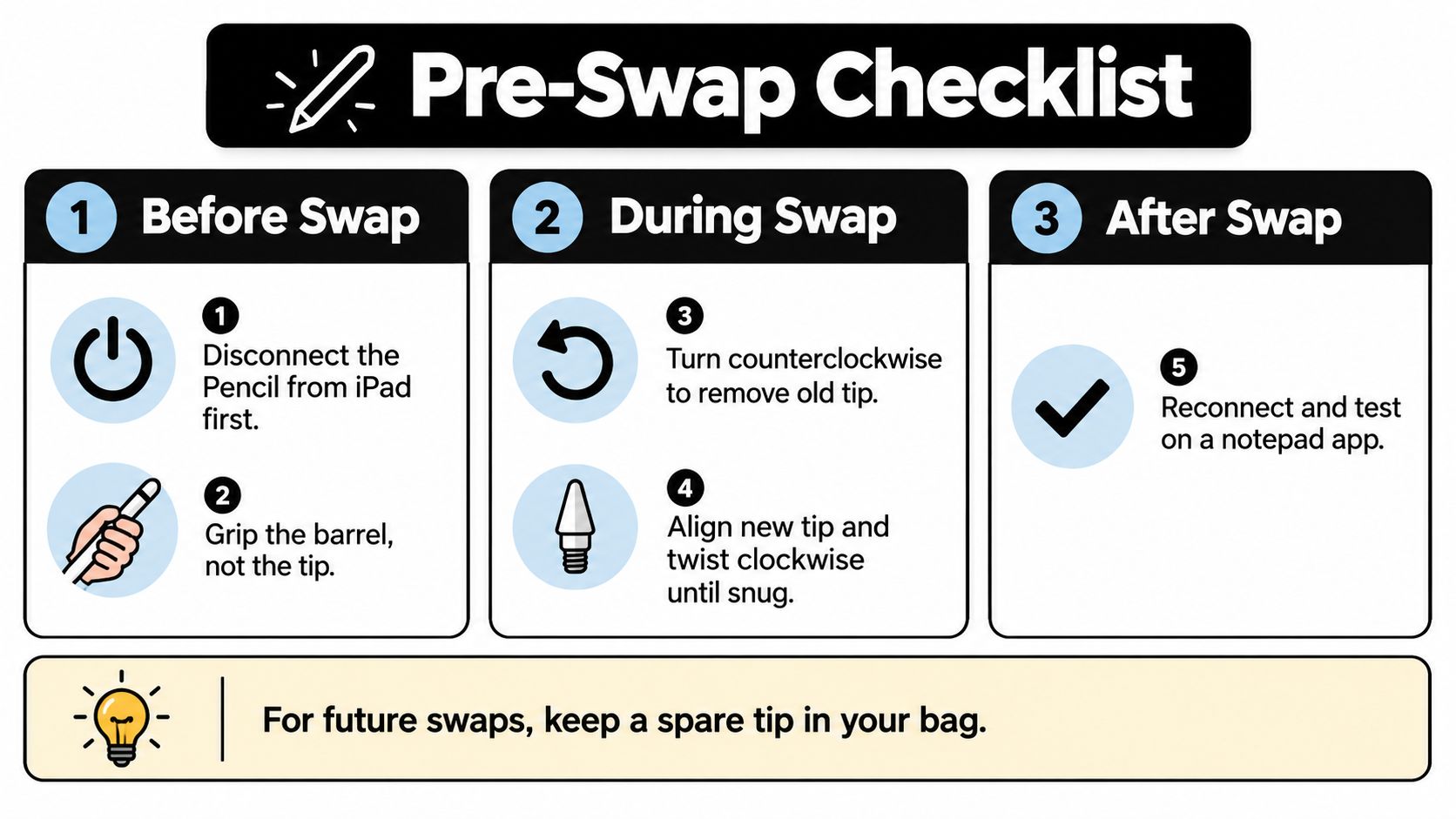
Use this checklist when you're ready to make the swap.
Before, during, and after
- Before the swap: Confirm that wear or damage justifies replacement. Disconnect from charging and active use, and check that the spare matches your Pencil.
- During removal: Hold the barrel steady and turn the old tip counterclockwise by hand. Stop if it won't release normally.
- During installation: Inspect the contact and replacement threads. Align the new tip and turn clockwise until snug, without forcing it.
- After the swap: Reconnect, test handwriting and drawing, and check the supported input features you normally use.
- For the next interruption: Keep an unused compatible spare in your bag or near your usual workspace.
Decide whether the workflow needs changing
If tips keep wearing faster than you'd like, review your surface and pressure habits before replacing the stylus. A different pen won't automatically remove the abrasion created by your writing setup, and no alternative should be chosen on an unsupported promise of longer nib life.
If you're also reconsidering your everyday note-taking tools, Tinymoose's Pencil Pro line is another option to evaluate alongside maintaining your Apple Pencil. The line offers palm rejection, tilt sensitivity, magnetic attachment, and USB-C or wireless charging options. Choose the model around the features and charging routine you need, rather than treating a whole-stylus purchase as the first fix for a worn tip.
Keep replacement compatibility separate from that decision. Tinymoose replacement nibs are intended for its own Pencil Pro styluses, not Apple Pencil or other non-Tinymoose pens.
For today, the most practical solution is usually the smaller one: fit the correct tip, verify normal response, and return to your notes with a maintenance habit that suits your screen.
Tinymoose offers iPad styluses and workflow accessories, including Pencil Pro options for everyday note-taking and sketching. If you're considering a different stylus alongside today's tip replacement, visit Tinymoose to compare features, charging options, and compatible replacement nibs before choosing.
Compartir:
Best Screen Protector for iPad Air: A Practical 2026 Guide