
Associer un iPad avec un clavier est un véritable changement de jeu. C'est le geste qui facilite votre vie, transformant votre tablette d'un appareil fantastique pour se détendre et regarder Netflix en une véritable centrale de productivité. Cette simple addition débloque des capacités proches d'un ordinateur portable, vous permettant de parcourir documents, e-mails et applications avec une rapidité et une précision impossibles à obtenir avec un écran tactile. Pour beaucoup d'entre nous, cette combinaison est le secret d'un flux de travail à la fois plus léger et plus flexible.
Libérez le vrai potentiel de votre iPad
À lui seul, un iPad est incroyable. Il est parfait pour naviguer, regarder des vidéos ou jouer occasionnellement. Mais pensez-y comme un couteau de chef fantastique — incroyablement tranchant et parfait pour certaines découpes, mais vous ne pouvez pas cuisiner un festin entier avec un seul couteau. Ajouter un clavier, c'est comme donner au chef son ensemble complet d'outils de cuisine. Soudain, tout ce que vous faites devient plus simple et plus rapide.
Cet accessoire unique change complètement votre façon d'interagir avec votre appareil. Vous passerez de simple consommateur de contenu à créateur actif. Votre iPad devient une station de travail efficace et prête à tout, que vous soyez installé dans un café, serré dans un avion ou simplement assis à votre bureau. Il rend votre journée plus facile.
Du tactile à l'écran-clavier
Le gain le plus évident ici est l'expérience de frappe. Soyons honnêtes, le clavier à l'écran suffit pour une réponse rapide, mais pour quelque chose de plus long ? Il ne peut tout simplement pas rivaliser avec la vitesse, le confort et le clic satisfaisant des touches physiques. Si vous écrivez plus que quelques phrases à la fois, un vrai clavier est une nécessité pratique.
- Pour les étudiants : Rédiger des dissertations et prendre des notes détaillées en cours devient beaucoup plus rapide et confortable. Vous vous concentrez sur vos idées, sans tâtonner sur l'écran.
- Pour les professionnels : Envoyer des e-mails, rédiger des rapports et gérer des documents en déplacement est aussi efficace que sur votre ordinateur de travail, rendant votre journée de travail plus fluide.
- Pour les créatifs : Que vous esquissiez un scénario, réfléchissiez à votre prochaine grande idée ou rédigiez un article de blog, vos pensées peuvent s'écouler directement à l'écran sans ce décalage gênant du tactile.
Un iPad avec un clavier n'est pas juste une tablette avec un accessoire ajouté ; c'est comme une toute nouvelle catégorie d'appareil. Il comble parfaitement le fossé entre la portabilité instantanée d'une tablette et la puissance efficace d'un ordinateur portable, vous offrant le meilleur des deux mondes.
Bien plus qu'une simple frappe plus rapide
Mais il ne s’agit pas seulement de taper plus vite. Un clavier offre un contrôle bien plus profond sur iPadOS, rendant toute votre expérience plus simple. De nombreux claviers sont équipés de pavés tactiles intégrés, et avec la prise en charge complète des raccourcis clavier, vous pouvez naviguer sur votre iPad sans jamais quitter les touches. Cela crée un flux de travail fluide qui ressemble beaucoup plus à une expérience de bureau traditionnelle. C’est cette intégration étroite qui rend la configuration ipad avec clavier si naturelle.
En fin de compte, cette combinaison simplifie votre vie. Elle vous offre un appareil unique qui s’adapte à vos besoins du moment, proposant une manière plus pratique, confortable et efficace de travailler et de créer. Elle libère le véritable potentiel de votre iPad, le transformant en la centrale puissante qu’il a toujours été destiné à être.
Choisir le Clavier Adapté à Votre Flux de Travail
Choisir le clavier parfait pour votre iPad ne consiste pas à trouver celui avec le plus de fonctionnalités ; il s’agit d’adapter l’outil à votre vie quotidienne réelle pour vous faciliter la tâche. Ce qui fonctionne pour un étudiant qui court entre les cours ne sera pas le même pour un écrivain qui a besoin d’un poste de travail ergonomique à son bureau. Tout dépend de la façon dont vous utilisez votre iPad.
Et il semble que de plus en plus de personnes transforment leur iPad en machine de productivité. La demande pour les claviers d’iPad a littéralement explosé, passant de 896,678 millions de dollars en 2021 à une projection de 1 322,4 millions de dollars d’ici 2025. Ce boom s’explique par le fait que l’iPad n’est plus seulement un appareil pour regarder des films — c’est un outil de travail pratique pour ceux qui ont besoin de la puissance d’un ordinateur portable sans l’encombrement. Vous pouvez consulter les chiffres vous-même dans ce rapport de marché complet.
Alors, un iPad avec clavier est-il vraiment fait pour vous ? Ce petit guide devrait vous aider à y voir plus clair.
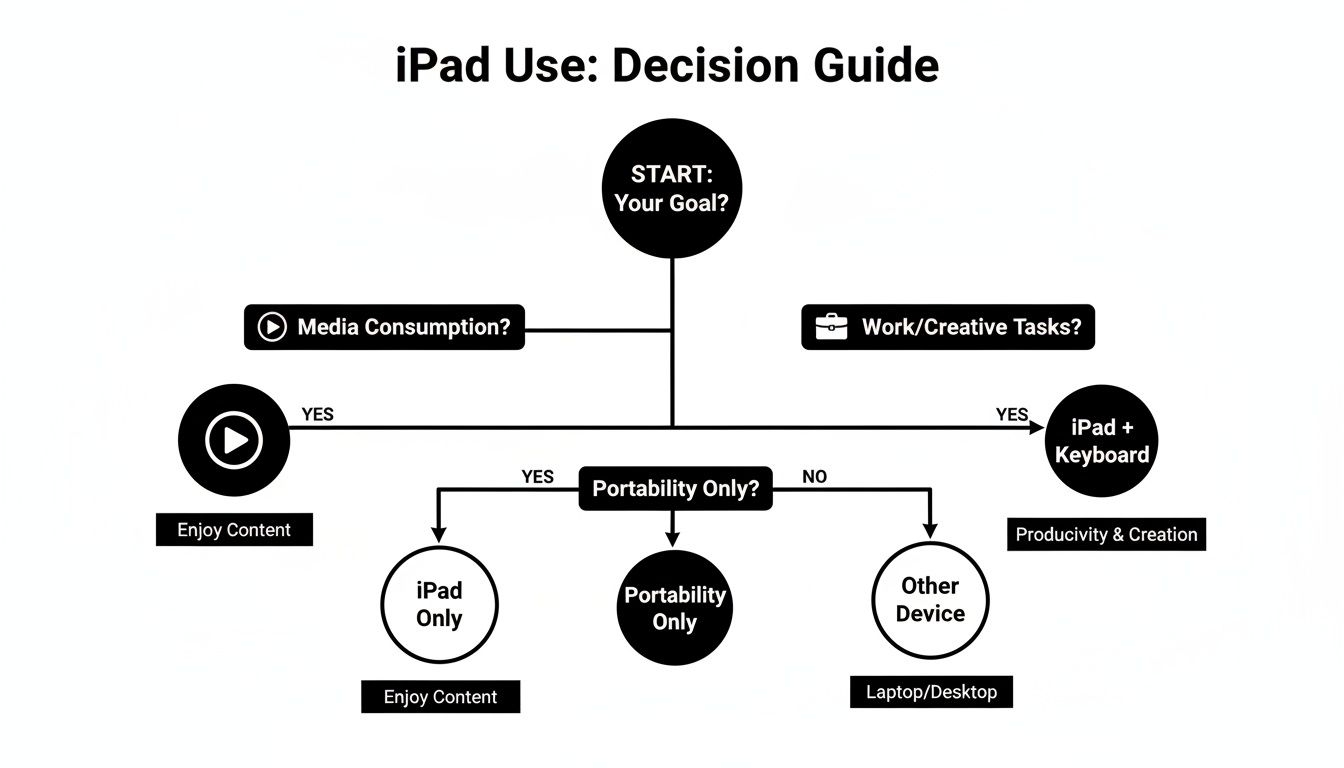
Comme vous pouvez le voir, dès que l’utilisation de votre iPad passe de la simple consommation de contenu à la création, un clavier physique devient un véritable atout pratique. Décomposons les principaux types que vous trouverez.
Étuis Claviers Protecteurs : La Solution Tout-en-Un
Considérez un étui clavier comme l’option robuste et polyvalente. C’est une unité unique qui enveloppe votre iPad dans une coque résistante tout en vous offrant un clavier entièrement intégré. C’est le choix parfait pour quiconque veut simplement prendre son appareil et partir sans jongler avec des pièces séparées. C’est la praticité et la protection réunies en un seul produit.
Ils sont une bouée de sauvetage pour les étudiants, les travailleurs sur le terrain ou toute personne voyageant fréquemment. Vous avez l'esprit tranquille en sachant que votre iPad est protégé des chocs et rayures, et vous êtes toujours prêt à taper. Le seul vrai compromis est un peu de poids supplémentaire, mais la commodité est souvent largement justifiée.
Smart Folios : Le Choix du Minimaliste
Si vous aimez le design fin et élégant de l'iPad, un clavier Smart Folio est probablement votre meilleur choix. Ces housses se fixent magnétiquement et sont incroyablement fines, se pliant pour protéger l'écran quand vous ne les utilisez pas. Elles offrent juste assez de protection et un clavier étonnamment correct sans ajouter de volume.
Ce style est parfait pour le minimaliste qui fait de la frappe légère — envoyer des e-mails, prendre des notes rapides — et privilégie la portabilité avant tout. Il garde votre installation propre et professionnelle. L'inconvénient ? Vous sacrifiez une protection sérieuse contre les chutes, et la sensation de frappe peut être moins satisfaisante que celle des options plus robustes.
Le choix de votre clavier est un choix de mode de vie. Il doit éliminer les frictions de votre journée, pas les ajouter. Le meilleur clavier est celui auquel vous ne pensez pas — il est simplement là quand vous en avez besoin.
Claviers Bluetooth Autonomes : Polyvalence Ultime
Pour ceux qui recherchent une véritable expérience de frappe de bureau, rien ne vaut un clavier Bluetooth séparé. Comme ils ne sont pas physiquement attachés, vous avez une liberté totale pour positionner votre écran et clavier pour une ergonomie optimale. Vous pouvez surélever votre iPad sur un support à hauteur des yeux et garder le clavier confortablement sur votre bureau.
Cette catégorie vous offre le plus de variété, des claviers mécaniques pleine taille pour écrivains aux modèles minuscules et ultra-légers que vous pouvez glisser dans n'importe quel sac.
- Portabilité Compacte : Les claviers comme le Tinymoose SpacePad Pro sont conçus pour la vie nomade. Ils sont assez petits pour aller partout tout en offrant une expérience de frappe et un pavé tactile bien supérieurs au clavier à l'écran.
- Confort Ergonomique : Si vous tapez pendant des heures, vous pouvez associer votre iPad à un vrai clavier ergonomique pour préserver vos poignets.
- Utilisation Multi-Appareils : De nombreux claviers Bluetooth peuvent se connecter à plusieurs appareils simultanément, vous permettant de passer de votre iPad, téléphone et ordinateur portable d'une simple pression sur un bouton.
Cette incroyable flexibilité fait des claviers autonomes un choix fantastique pour les télétravailleurs, les écrivains ou toute personne utilisant son iPad comme ordinateur principal. Pour découvrir ce qui existe, consultez notre guide des meilleures options de claviers sans fil pour iPad.
L’univers des claviers pour iPad est vaste, et savoir par où commencer peut être compliqué. Ce tableau décompose les principales différences pour vous aider à cibler le style qui correspond le mieux à votre routine quotidienne.
Quel style de clavier iPad vous convient le mieux ?
| Type de clavier | Idéal pour | Avantage clé | Inconvénient potentiel |
|---|---|---|---|
| Étui protecteur | Étudiants, voyageurs et travailleurs sur le terrain qui ont besoin de durabilité. | Protection et commodité tout-en-un. Prêt à emporter. | Peut être encombrant et lourd, ajoutant du poids à votre installation. |
| Smart Folio | Minimalistes, cadres et utilisateurs occasionnels qui privilégient la portabilité. | Extrêmement fin et léger, préservant la sensation de l’iPad. | Offre une protection minimale contre les chutes et une sensation de frappe moins robuste. |
| Clavier Bluetooth | Travailleurs à distance, écrivains et toute personne souhaitant une expérience de bureau. | Flexibilité ergonomique maximale et large choix de styles. | Nécessite de transporter un accessoire séparé ; moins portable. |
Au final, le meilleur clavier est celui qui semble être une extension naturelle de votre iPad et de votre flux de travail. Qu’il s’agisse d’un étui tout-en-un ou d’un modèle autonome élégant, l’objectif est de rendre votre temps sur l’iPad plus productif et agréable.
Installation fluide et dépannage simple
L’un des meilleurs aspects d’ajouter un clavier à votre iPad est la facilité avec laquelle vous pouvez commencer. Le but est de vous faire taper en quelques minutes, sans vous embrouiller avec un manuel compliqué. C’est conçu pour être une victoire rapide et satisfaisante qui simplifie votre vie immédiatement.
Que vous ayez un clavier qui se connecte en Bluetooth ou via le Smart Connector d’Apple, le processus est incroyablement intuitif. Ce n’est pas une corvée technique ; c’est une installation sans frustration qui fait partie intégrante de l’expérience iPad avec clavier. Cela vous permet d’accéder rapidement à l’essentiel : une productivité sans effort.
Connecter votre clavier en quelques tapotements
Pour la plupart des claviers, y compris des options polyvalentes comme le Tinymoose SpacePad Pro, la connexion se fait via Bluetooth. Vous n’aurez à le faire qu’une seule fois, et c’est un jeu d’enfant.
- Allumez-le : Avant tout, assurez-vous que votre clavier est chargé et allumé. Vous trouverez généralement un petit interrupteur ou bouton d’alimentation.
- Activez le mode appairage : Cherchez un bouton Bluetooth dédié ou une combinaison de touches (souvent une touche Fn plus une icône Bluetooth). En appuyant dessus, votre clavier devient « détectable » par votre iPad.
- Ouvrez les Réglages de l’iPad : Rendez-vous dans Réglages > Bluetooth sur votre iPad. Assurez-vous que le bouton est activé.
- Choisissez votre appareil : Le nom de votre clavier devrait apparaître dans la liste « Autres appareils ». Il suffit d’appuyer dessus. En quelques secondes, vous êtes connecté. C’est tout ! Vous êtes prêt à l’emploi.
Si vous utilisez un clavier avec un Smart Connector, c’est encore plus simple. Il suffit littéralement de clipser l’iPad en place. Les connecteurs magnétiques gèrent instantanément l’alimentation et le transfert de données. Pas d’appairage, pas de charge — juste un clic satisfaisant, et vous tapez. C’est la configuration ultime « clipser-et-utiliser » pour tous ceux qui apprécient la pure commodité.
Solutions rapides pour les problèmes courants
Même avec une configuration ultra simple, un petit souci peut arriver de temps en temps. Ne vous inquiétez pas. Les solutions sont généralement aussi faciles que la connexion initiale. Voici comment résoudre les problèmes les plus courants sans stress.
- Le clavier ne se connecte pas : Le plus vieux truc du livre fonctionne généralement. Sur votre iPad, désactivez puis réactivez le Bluetooth. Si cela ne suffit pas, allez dans vos réglages Bluetooth, trouvez le clavier et appuyez sur « Oublier cet appareil ». Ensuite, réappairez-le depuis le début.
- Les touches ne répondent pas ou sont lentes : Une batterie faible est presque toujours la cause ici. Rechargez complètement votre clavier. S’il reste lent, un redémarrage rapide de votre iPad peut souvent éliminer les petits bugs logiciels à l’origine du problème.
- La connexion se coupe régulièrement : Essayez d’éloigner les autres appareils Bluetooth de votre iPad et de votre clavier pour réduire les interférences potentielles. Assurez-vous également que votre iPadOS est à jour, car Apple publie souvent des mises à jour qui améliorent la stabilité du Bluetooth.
La vraie beauté du combo iPad et clavier réside dans sa fiabilité. Une fois que vous êtes appairé, cela doit simplement fonctionner, devenant une partie intégrante de votre flux chaque fois que vous vous asseyez pour écrire, créer ou simplement accomplir vos tâches.
Ces conseils rapides de dépannage résoudront presque tous les problèmes que vous rencontrez. L’objectif est de vous sentir confiant avec votre matériel pour pouvoir vous concentrer sur ce qui compte vraiment. Et pour ceux qui sont prêts à maîtriser leur nouvelle configuration, notre guide sur comment prendre des notes sur iPad est un excellent point de départ pour créer de nouveaux flux de travail puissants.
Maîtriser les raccourcis pour une expérience proche d’un ordinateur portable
Associer un clavier physique à votre iPad, c’est bien plus que simplement taper confortablement. C’est votre passeport pour un tout nouveau monde de rapidité et de contrôle qui simplifie la vie. Une fois que vous maîtrisez quelques raccourcis clés, vous transformez iPadOS d’un système tactile en une machine agile pilotée au clavier qui rivalise vraiment avec un ordinateur portable traditionnel. C’est le moment où vous cessez de simplement écrire plus vite pour commencer à naviguer dans tout votre flux de travail sans jamais lever les mains.
Ce changement n’est pas juste une tendance de niche ; c’est un mouvement majeur vers une véritable productivité mobile. Le marché des claviers pour iPad, déjà évalué à 3,5 milliards de dollars, devrait atteindre 5,8 milliards de dollars d’ici 2033. Ce boom est alimenté par les entreprises, les sociétés nord-américaines devant représenter plus de 40% des ventes mondiales en équipant leurs équipes pour un travail efficace en déplacement. Une configuration intuitive ipad avec clavier peut rendre les utilisateurs 2 à 3 fois plus rapides lors de longues sessions de frappe. Vous pouvez trouver plus de détails sur ce marché en expansion et ses moteurs.
Le secret pour libérer tout ce potentiel est de faire en sorte que les raccourcis clavier deviennent une seconde nature. Avec un clavier bien conçu comme le Tinymoose SpacePad Pro, ces commandes paraissent totalement naturelles dès le départ.
Raccourcis essentiels de navigation et multitâche
Considérez-les comme le langage universel de votre iPad. Ils fonctionnent dans presque toutes les applications et sont la base d’un flux de travail vraiment efficace, à la manière d’un ordinateur portable. Une fois que vous les aurez intégrés, vous vous demanderez comment vous faisiez sans.
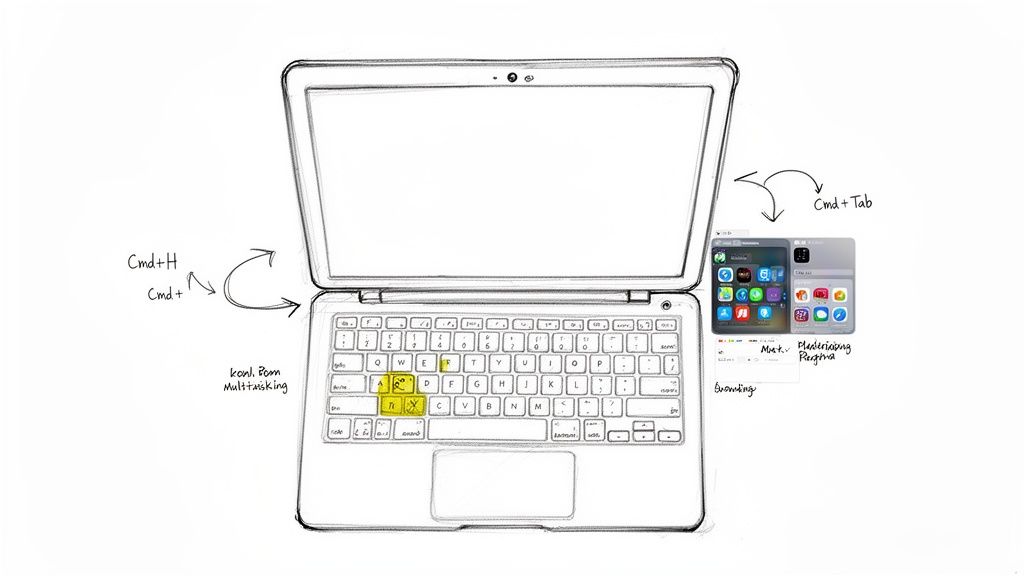
Cmd + H (Aller à l’accueil) : Revenez instantanément à votre écran d’accueil depuis n’importe où. C’est l’équivalent clavier d’un balayage vers le haut depuis le bas de l’écran.
Cmd + Tab (Sélecteur d’applications) : C’est l’outil multitâche ultime. Maintenez Cmd enfoncé et appuyez sur Tab pour faire défiler vos applications récemment utilisées, comme sur un Mac. C’est la façon la plus rapide de passer de votre navigateur, à vos notes, puis à votre messagerie.
Ces deux commandes seules accéléreront considérablement vos déplacements sur votre iPad. Au lieu de glisser et taper, vous pouvez passer d’une tâche à l’autre d’une simple pression de touche.
Raccourcis de flux de travail pour chaque utilisateur
Au-delà des bases, différentes personnes peuvent bénéficier de raccourcis spécifiques adaptés à leur quotidien. Que vous soyez étudiant, créatif ou professionnel à distance, il existe des commandes qui peuvent vraiment simplifier votre processus.
Pour l’étudiant occupé
Gérer des articles de recherche, des notes de cours et des manuels en ligne signifie un multitâche constant. Ces raccourcis facilitent la gestion de toutes ces sources différentes.
- Cmd + Barre d’espace (Recherche Spotlight) : Besoin de trouver un fichier, une application ou une définition spécifique en un éclair ? Cela fait apparaître la puissante recherche Spotlight depuis n’importe où dans iPadOS.
- Cmd + C / Cmd + V (Copier/Coller) : Un classique pour une bonne raison. Capturez rapidement du texte d'un article de recherche et collez-le dans vos notes sans jamais toucher l'écran.
- Cmd + F (Rechercher) : Absolument indispensable pour la recherche. Utilisez-le dans Safari, Pages ou votre application de notes pour trouver des mots-clés spécifiques dans de longs documents, vous évitant un défilement sans fin.
Pour le professionnel à distance
Quand votre boîte de réception déborde et que votre calendrier est chargé, la rapidité est essentielle. Ces raccourcis sont conçus pour vous aider à gérer communications et documents avec une efficacité maximale.
- Cmd + N (Nouvel élément) : Ce raccourci pratique crée un nouvel élément dans de nombreuses applications. Dans Mail, c'est un nouvel e-mail ; dans Notes, une nouvelle note ; dans Calendrier, un nouvel événement.
- Cmd + R (Répondre) : Envoyez une réponse rapide dans l'application Mail.
- Touches fléchées : Naviguez avec précision dans vos e-mails, événements de calendrier et textes, ce qui facilite la navigation et la modification sans avoir à utiliser une souris.
Pour l'esprit créatif
Que vous soyez écrivain, designer ou artiste, votre concentration doit être sur votre création, pas à chercher dans les menus. Les raccourcis spécifiques aux applications sont parfaits pour rester dans ce flux créatif.
De nombreuses applications créatives comme Procreate, LumaFusion et Ulysses ont leur propre longue liste de raccourcis clavier. Voici une astuce géniale : dans n'importe quelle application, il suffit de maintenir la touche Command (Cmd) enfoncée. Une fenêtre contextuelle apparaîtra montrant tous les raccourcis disponibles pour cette application spécifique. Considérez cela comme votre aide-mémoire personnel pour maîtriser vos outils préférés sur votre ipad avec clavier. Cette fonction simple rend l'exploration amusante et vous aide à trouver de nouvelles façons de travailler plus vite.
Garder votre matériel en parfait état : conseils d'entretien et de batterie
Un excellent accessoire ne se juge pas seulement à ses performances le premier jour. C'est un partenaire fiable sur le long terme. Votre configuration iPad avec clavier est un outil puissant, et quelques habitudes simples peuvent le garder en parfait état de fonctionnement. Pas besoin d'un manuel technique—juste un peu d'entretien attentif pour qu'il soit toujours prêt quand vous l'êtes.
Il s'agit de rendre la durabilité et la longévité faciles à gérer. Vous avez investi dans un équipement qui simplifie votre vie, et en prendre soin devrait être tout aussi simple. Avec quelques conseils simples, vous pouvez protéger votre clavier de l'usure tout en tirant le maximum de chaque charge.
Garder votre clavier propre et réactif
Soyons honnêtes : la poussière, les miettes et la saleté quotidienne sont les pires ennemis d'une expérience de frappe fluide. Avec le temps, cette accumulation peut faire coller les touches ou les rendre peu réactives. Une routine de nettoyage rapide et régulière est la façon la plus simple de prévenir cela et de garder votre clavier comme neuf.
- Commencez par un essuyage doux : Prenez un chiffon en microfibre doux et sans peluches et essuyez les touches et le corps. Cela élimine la poussière de surface et les empreintes sans rayer la finition.
- Enlevez les saletés : Pour tout ce qui est coincé entre les touches, une bombe d’air comprimé est votre meilleur allié. Tenez-la en angle et utilisez des jets courts et contrôlés pour déloger les particules tenaces.
- Évitez les produits chimiques agressifs : Ne vaporisez jamais, au grand jamais, de solutions nettoyantes directement sur votre clavier. Si un chiffon sec ne suffit pas, humidifiez-le légèrement avec de l’eau ou une solution d’alcool isopropylique à 70%, et assurez-vous que le clavier est éteint avant.
Pensez-y comme au tableau de bord de votre voiture. Un petit coup de chiffon de temps en temps le garde en bon état et assure que tous les boutons fonctionnent parfaitement quand vous en avez besoin. C’est un petit effort qui protège sa valeur et sa fonction au fil du temps.
Bonnes habitudes de batterie pour le long terme
Pour les claviers Bluetooth, quelques bonnes habitudes de batterie peuvent considérablement prolonger non seulement votre usage quotidien, mais aussi la durée de vie globale de la batterie elle-même. Le but est d’éviter les efforts inutiles et de charger intelligemment. Vous n’avez pas besoin de surveiller obsessionnellement le pourcentage de batterie ; adoptez juste quelques pratiques simples.
L’un des plus gros consommateurs d’énergie est le rétroéclairage. Bien qu’il soit indispensable dans des environnements sombres, le garder à 100% de luminosité dans une pièce bien éclairée est juste une dépense inutile. Baisser simplement la luminosité ou l’éteindre quand vous n’en avez pas besoin peut ajouter des heures—parfois même des jours—à l’autonomie de votre batterie.
Faites aussi confiance à la technologie. La plupart des claviers modernes ont d’excellents modes veille. Quand vous avez fini de taper, laissez-le simplement s’endormir tout seul au lieu de l’allumer et l’éteindre constamment. Pour la charge, essayez de le recharger avant qu’il ne soit complètement déchargé. Éviter les décharges profondes fréquentes aide à préserver la santé à long terme de la batterie, garantissant que votre iPad avec clavier reste un outil fiable pendant des années.
Pourquoi le Tinymoose SpacePad Pro a tout son sens
Choisir le bon accessoire pour votre iPad ne devrait pas être une corvée. Vous avez juste besoin d'un outil qui fonctionne—un outil qui résout de vrais problèmes et facilite votre vie. C’est exactement là que le Tinymoose SpacePad Pro intervient. Il trouve l’équilibre parfait entre performance, portabilité et design pratique, en faisant le meilleur partenaire pour votre iPad. C’est la réponse simple pour quiconque a besoin d’en faire plus.
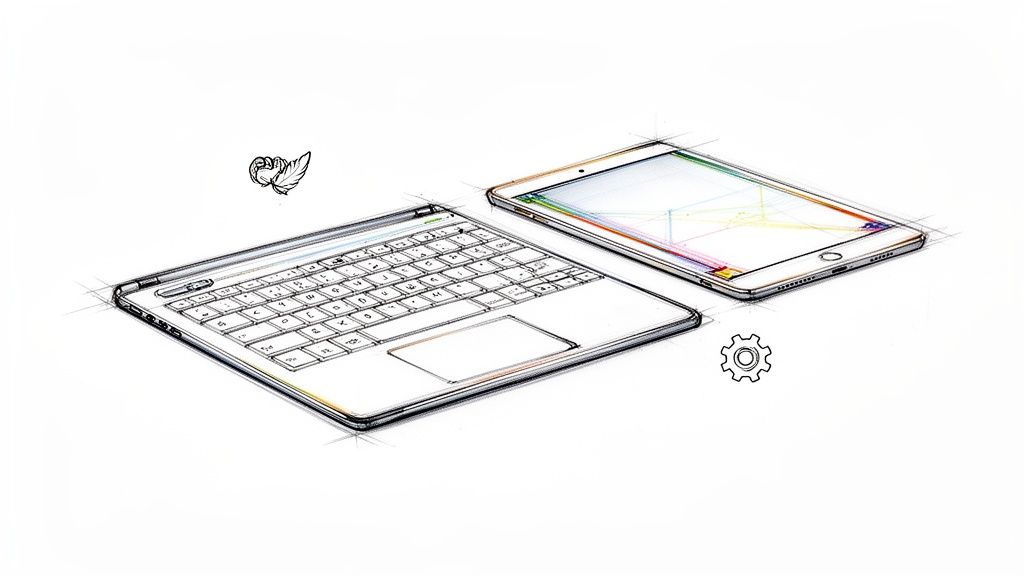
Cette philosophie est intégrée directement dans son design. Nous croyons en « Pas de fioritures. Juste la fonction. » Le SpacePad Pro n’est pas encombré de gadgets que vous utiliserez une fois puis oublierez. Au contraire, chaque fonctionnalité est là pour une raison : rendre votre vie plus facile et votre flux de travail plus fluide, transformant enfin votre iPad en la centrale de productivité qu’il a toujours été destiné à être. C’est tout simplement le meilleur dans ce qu’il fait.
Conçu pour votre mode de vie réel
Le véritable test d’un iPad avec clavier est la façon dont il s’intègre parfaitement dans votre quotidien. Nous avons conçu le SpacePad Pro en gardant cela à l’esprit, en nous concentrant sur ce dont les étudiants, les professionnels créatifs et les travailleurs à distance ont vraiment besoin. Sa construction légère signifie que vous le remarquerez à peine dans votre sac à dos, en faisant le compagnon parfait pour une journée chargée de cours ou un vol à travers le pays.
Mais ne vous laissez pas tromper par son profil fin. Les touches réactives offrent ce retour tactile satisfaisant qui vous permet de taper pendant des heures sans ressentir de fatigue. Il transforme les tâches marathon — comme rédiger un essai ou enfin atteindre la boîte de réception zéro — d’une corvée redoutée en un processus confortable et rapide.
Le SpacePad Pro est plus qu’un simple accessoire ; c’est un système de productivité. Il est basé sur l’idée que le bon outil doit se sentir comme une extension naturelle de votre appareil, augmentant ses capacités sans ajouter de complexité inutile.
Et pour compléter l’expérience proche d’un ordinateur portable, nous avons inclus un pavé tactile multi-touch intuitif. Il vous offre le contrôle précis dont vous avez besoin pour parcourir rapidement les documents, sélectionner du texte et gérer vos applications avec aisance. Vous bénéficiez de toute la puissance d’un pavé tactile sans sacrifier le design élégant qui vous a fait aimer votre iPad dès le départ.
Un investissement intelligent dans votre productivité
Il est indéniable qu’un clavier de qualité a un impact considérable. Ces accessoires changent la façon dont les gens travaillent, avec un marché commercial seul prévu pour dépasser 45 millions d’unités vendues. Pour les travailleurs à distance et les artistes numériques, un bon clavier change la donne, augmentant la productivité grâce à une frappe plus rapide et une meilleure ergonomie. En fait, des études montrent une augmentation moyenne de la vitesse de frappe de 38%, transformant efficacement un iPad en une véritable machine de travail. Vous pouvez en savoir plus sur ces insights de marché transformateurs.
Le SpacePad Pro est conçu pour vous donner cet avantage précis. Il vous permet de taper à des vitesses comparables à celles d’un ordinateur portable traditionnel, ce qui en fait le choix le plus intelligent pour quiconque a besoin de performances sérieuses sans le prix exorbitant. Pour un aperçu plus détaillé de son fonctionnement, consultez notre article sur la façon dont le SpacePad Pro peut booster votre productivité. C’est tout simplement la meilleure façon de libérer le véritable potentiel de votre iPad.
Questions fréquemment posées
Vous avez encore quelques questions sur le choix du bon clavier pour votre iPad ? Vous n’êtes pas seul. Clarifions certaines des interrogations les plus courantes quand on construit la configuration iPad parfaite.
Puis-je utiliser n’importe quel clavier Bluetooth avec mon iPad ?
Oui, vous le pouvez absolument. L’un des meilleurs atouts de l’iPad est que presque n’importe quel clavier Bluetooth standard peut s’y connecter sans problème. Mais — et c’est un gros mais — il y a un monde de différence entre « ça marche » et « ça marche bien ».
Les claviers conçus spécifiquement pour iPadOS, comme notre Tinymoose SpacePad Pro, disposent d’une rangée dédiée de touches de fonction. Cela vous donne un accès instantané et en une touche à des fonctions comme la luminosité de l’écran, le volume et la lecture multimédia. C’est un petit détail qui rend l’expérience moins bricolée et plus fluide, comme un système intégré.
Un clavier va-t-il décharger la batterie de mon iPad plus rapidement ?
Honnêtement, vous le remarquerez à peine. Le Bluetooth moderne est incroyablement économe en énergie, donc l’impact sur la batterie de votre iPad est minime. Le gain de productivité que vous obtenez avec un vrai clavier compense largement la petite consommation d’énergie.
La seule fonction qui consomme vraiment de l’énergie est le rétroéclairage. Si vous essayez de tirer chaque minute de votre batterie, baissez simplement la luminosité du rétroéclairage ou éteignez-le complètement lorsque vous êtes dans une pièce bien éclairée. C’est aussi simple que ça.
Le but principal d’un iPad avec clavier est de rendre votre flux de travail plus fluide. La consommation d’énergie minimale signifie que vous pouvez vous concentrer sur ce que vous faites, pas sur le pourcentage de batterie.
Un iPad avec clavier peut-il vraiment remplacer un ordinateur portable ?
Pour un grand nombre de personnes, la réponse est un oui retentissant. Si vos journées sont remplies d’envoi d’e-mails, de rédaction de documents, de navigation sur le web ou même de travail créatif, la combinaison ipad avec clavier est une alternative sérieusement puissante et portable qui facilite votre vie.
Bien sûr, si vous êtes un ingénieur utilisant un logiciel CAO très spécialisé ou un monteur vidéo travaillant avec des timelines complexes, vous pourriez encore avoir besoin d’un système d’exploitation de bureau traditionnel. Mais pour d’innombrables étudiants, écrivains et professionnels en télétravail, la donne a changé. L’iPad a mûri, et pour beaucoup, il est devenu l’appareil principal qui allie parfaitement puissance et commodité nomade.
Prêt à libérer le véritable potentiel de votre iPad ? Tinymoose propose des accessoires conçus avec soin qui offrent une fonctionnalité pure sans superflu. Découvrez comment le SpacePad Pro peut transformer votre flux de travail sur https://www.tinymoose.co.
Partager:
Le guide ultime du clavier iPad avec pavé tactile
Le guide ultime pour trouver l'étui clavier iPad parfait