
You're standing in an iPad shop, or comparing pens online, and the product pages all promise a smooth writing experience. But a stylus that looks right, attaches magnetically, or has a USB-C cable isn't necessarily compatible with your iPad. Start with your tablet's exact model, then compare the features you'll use: writing responsiveness, palm rejection, pressure, and charging.
| What to check | Why it matters |
|---|---|
| iPad model and iPadOS | Compatibility varies by generation and stylus |
| App and writing performance | A pen should track reliably in your note-taking or drawing apps |
| Pressure and tilt | Tilt can help with shading, but it doesn't prove pressure sensitivity |
| Pairing and charging | Magnetic attachment doesn't necessarily mean magnetic charging |
A dependable Apple Pencil alternative can be a practical choice for notes, PDF markup, and everyday iPad work. It isn't automatically the right fit for every artist or every iPad, though. The useful comparison starts with compatibility, then weighs the trade-offs that show up in daily use.
Table of Contents
- Why Apple Pencil Compatibility Comes First
- Apple Pencil Models and Their Key Differences
- Features That Matter for Notes and Drawing
- Comparing Apple Pencil Alternatives Side by Side
- Charging and Pairing Without Extra Adapters
- Matching Pencil Features to Notes, Art and Hybrid Work
- Which Apple Pencil Alternative to Buy Today
Why Apple Pencil Compatibility Comes First
Apple's stylus lineup isn't built around one universal connection standard. The first-generation, second-generation, and USB-C Apple Pencil models each support different iPad groups, so the iPad model is the first filter for any alternative. Apple's compatibility documentation lists first-generation support for devices including iPad mini 5, iPad generations 6 through 10, iPad A16, iPad Air 3, and selected older iPad Pro models. Second-generation and USB-C models cover different selections of newer iPad mini, iPad Air, and iPad Pro devices. Apple's iPad compatibility guide is a useful reference before you compare features.
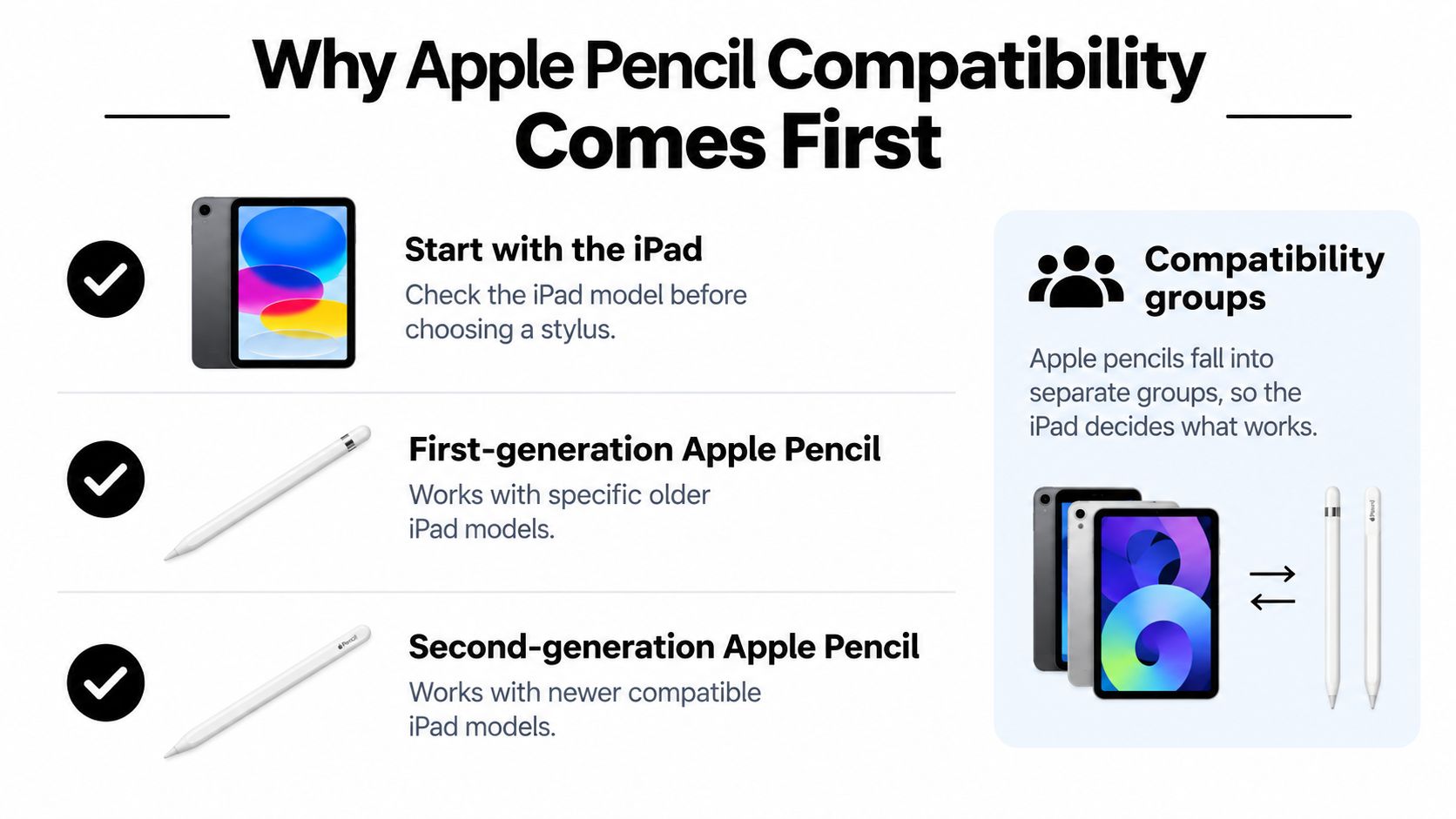
Identify your iPad before shopping
On your iPad, open Settings > General > About and find the model information. Match that exact model against the stylus maker's compatibility list, rather than relying on the screen size, the product photo, or the shape of the connector. A USB-C port tells you how a device connects to some accessories, not whether a particular stylus will pair or support its advertised features.
The operating-system requirement matters, too. Apple's USB-C Pencil, for example, requires iPadOS 17.1.1 or later on supported models, according to Apple's USB-C Pencil compatibility information. Alternatives have their own model lists and may deliver different features across devices, so verify the precise iPad generation before ordering.
Tinymoose stylus pens work with iPads that support Apple Pencil, including iPad Pro 11-inch, iPad Pro 12.9-inch (3rd generation and later), iPad Pro 13-inch M4/M5, iPad Air 4th generation and later, iPad mini 6th generation and later, and standard iPad 6th generation through the current A16 model. Check your model against that list before choosing a pen.
Practical rule: Treat “compatible with iPad” as a starting point, not a complete answer. Confirm the model, desired features, and charging method together.
Apple Pencil Models and Their Key Differences
Three Apple Pencils exist, and they are not interchangeable. The first-generation, second-generation, and USB-C models each pair with a different set of iPads, charge differently, and support different inputs. Start with your iPad model and its connector, then narrow down by the features you need.
The first-generation Apple Pencil supports pressure sensitivity, which matters in drawing apps where stroke force changes line width or opacity. Its charging setup is the awkward part: on iPad (10th generation) or iPad (A16), pairing and charging require a separate adapter, according to Apple's adapter information. Plenty of buyers discover that requirement only at unboxing.
The second-generation Pencil targets another group of iPads and attaches magnetically to pair and charge. The USB-C Apple Pencil covers yet another set of models. It connects through the iPad's USB-C port and offers tilt sensitivity without pressure sensitivity, a distinction that matters if your work depends on stroke force rather than angle.
Hover and price are model-specific, too
Hover is a feature of specific iPad and Pencil pairings, not a property of the whole lineup. Apple lists it for selected newer iPad Pro and iPad Air models, where a supported Pencil can be detected above the display before contact. That preview helps with precise placement in drawing and selection. Verify the exact combination if hover matters to your work.
Apple Pencil pricing can reach $129, while the Tinymoose Pencil Pro lineup is a lower-priced alternative. Apple's USB-C Pencil product listing shows why price alone is an incomplete comparison: the exact model, its inputs, and your use case decide the right pen. A lower-priced stylus handles daily notes well, but anyone relying on pressure-sensitive brush control should weigh that capability before switching.
Features That Matter for Notes and Drawing
A stylus can pair instantly and still write badly. Latency is the gap between nib movement and the ink appearing on screen, and it shows up most during fast handwriting. An independent test filmed stylus response with high-speed 120 fps video and reported sub-9 ms latency for the quickest models it measured. On a 120 Hz iPad, one display refresh takes about 8.3 ms, so consistent tracking matters more than whether the pen connects over Bluetooth at all. The test's method and results give you a concrete benchmark to compare against, though real-world feel still depends on the app and pen you pair together.
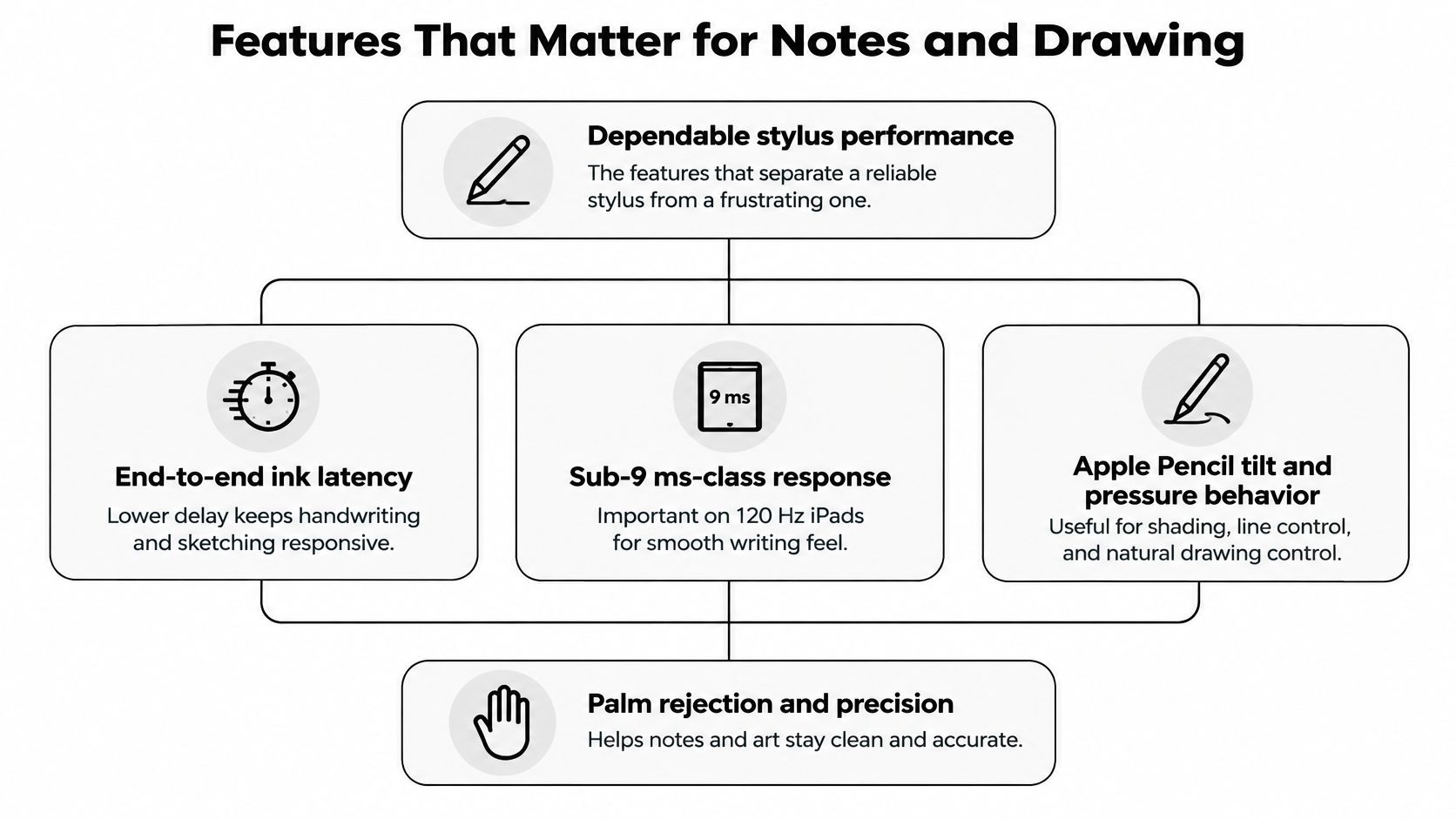
Tilt and pressure are separate inputs
Tilt controls how the pen responds to its angle: hold it low and the stroke widens into shading. Pressure sensitivity tracks how firmly you press. Budget iPad pens frequently ship with tilt-like line behavior while sending no pressure data at all, so read spec sheets for the word "pressure" explicitly instead of assuming tilt implies it.
For a spec-sheet example, the Tinymoose Pencil X lists 4096 levels of pressure sensitivity alongside tilt support for shading and angled strokes. Whether you need pressure depends on the work. Students annotating lecture slides may never touch it, while illustrators who vary stroke width by force will miss it within minutes.
Test in the apps you actually use
Write continuously for a page, rest your palm on the glass, and throw in quick diagonals and tight turns. Watch for ink that skips, breaks, or trails your hand.
Repeat the test in your own apps, whether that is Goodnotes, Notability, or a drawing program, because palm rejection and tilt response can differ from one app to the next. Palm rejection is what lets your hand rest on the screen without leaving stray marks, and why palm rejection matters for writing becomes obvious over a full lecture or meeting rather than in a thirty-second demo. If your work involves documents, learning to mark up PDFs with circles doubles as a quick way to judge annotation control on real material.
Comparing Apple Pencil Alternatives Side by Side
Apple's Pencil costs up to $129 and only works with certain iPads, so a useful comparison starts with your iPad model and its connector, then narrows down by latency, pressure handling and charging. The Tinymoose Pencil Pro lineup sits at a lower price, and the models differ mainly on charging method and shortcut controls. The prices and features below are product details, not a guarantee that every pen fits every iPad.
Tinymoose Pencil Pro lineup at a glance
| Model | Price | Standout feature |
|---|---|---|
| Pencil Pro (Pearl White) | $43.00 | USB-C charging, palm rejection, tilt, magnetic attachment |
| Pencil Pro Sketch (Zebra Yellow) | $57.00 | USB-C charging, finer nib response for detailed line work |
| Pencil Pro 2 (Midnight Black) | $57.00 | Gesture controls, shortcut buttons, palm rejection, tilt |
| Pencil Pro Ultra | $71.00 | Smart Switch technology, 3 replacement nibs included |
The Pencil Pro keeps its feature set focused, which suits lecture notes and form signing. The Pencil Pro 2, the newest generation in the lineup, adds refined gesture controls and shortcut buttons alongside palm rejection, tilt and magnetic attachment. The Pencil Pro Ultra comes in Midnight Black or Alpine White and adds Smart Switch, a touch-sensitive area near the tip that switches tools, undoes strokes or triggers custom shortcuts with a tap. Its three included replacement nibs matter in the comparison because Apple sells Pencil nibs separately.
Read the specs, not the silhouette
A pen that snaps magnetically to the iPad may still charge only by cable, and a stylus with tilt support may carry no pressure sensitivity spec at all. As noted earlier, treat these as separate specs and verify each one in the listing itself.
The base Pencil Pro lists no gesture controls or Smart Switch, so don't assume features from higher tiers carry down the lineup. For marking up PDFs or taking class notes, its core writing tools may be enough. Frequent shortcut users will get more from the Pro 2 or Ultra. Match the model to what you'll tap and draw each day, not to the longest feature list.
Charging and Pairing Without Extra Adapters
A stylus that dies mid-lecture is only as useful as the cable you remembered to pack. Charging and pairing decide whether a pen feels effortless or becomes one more thing to manage. Before buying, work out three things: how it pairs, what it plugs into, and whether your iPad's port matches.
Apple's own lineup shows why the connector matters. The USB-C Apple Pencil pairs and charges by sliding open its cap and plugging into a compatible iPad's USB-C port. The first-generation Apple Pencil needs a USB-C-to-Apple-Pencil adapter to charge from iPad (10th generation) or iPad (A16). Apple lays out both workflows in its pairing and charging instructions. Same brand, two very different routines.
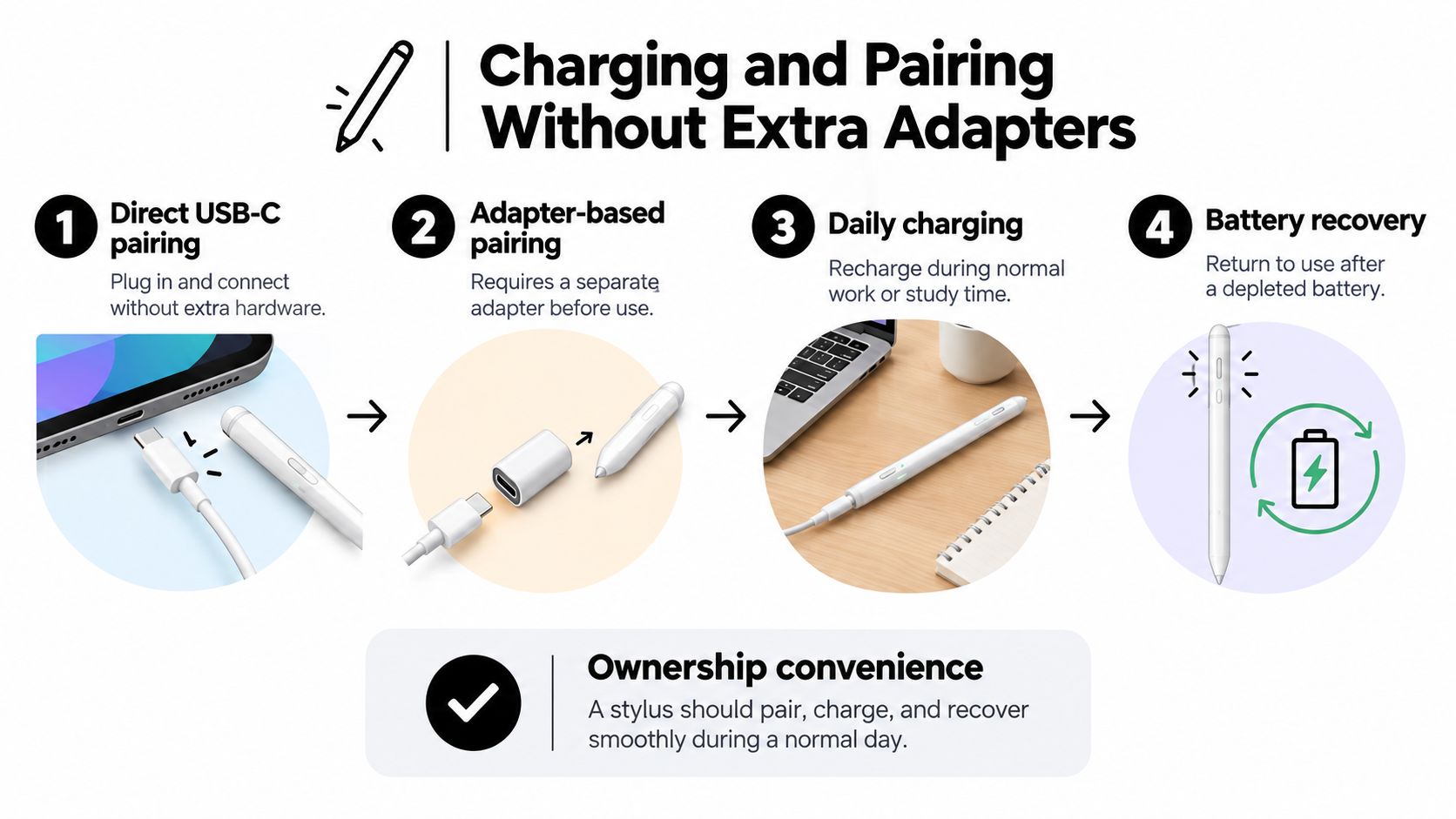
Match the pen to your iPad's port
Start with the iPad you own, because its connector dictates what ends up in your bag. If your iPad charges over USB-C, a pen that charges over USB-C shares one cable. The Pencil Pro (Pearl White, $43.00) and the Pencil Pro Sketch ($57.00) both charge over USB-C, so they slot into that setup without extra hardware. Owners of older Lightning iPads should plan for a second cable instead.
Tinymoose models differ on the details: depending on the pen, the lineup offers wireless magnetic charging, Smart Switch gesture controls, or tool-switching shortcuts, none of which exist on any Apple Pencil. A model with wireless magnetic charging reduces cable handling. A USB-C model asks you to pack the cable you already carry for the iPad itself.
I've learned to treat pairing as a daily cost rather than a one-time setup step. Check whether a pen connects over Bluetooth or powers on and writes, how it attaches for storage, and how you'll recharge it between classes or meetings. The right answer is the routine you won't dread repeating every day.
Matching Pencil Features to Notes, Art and Hybrid Work
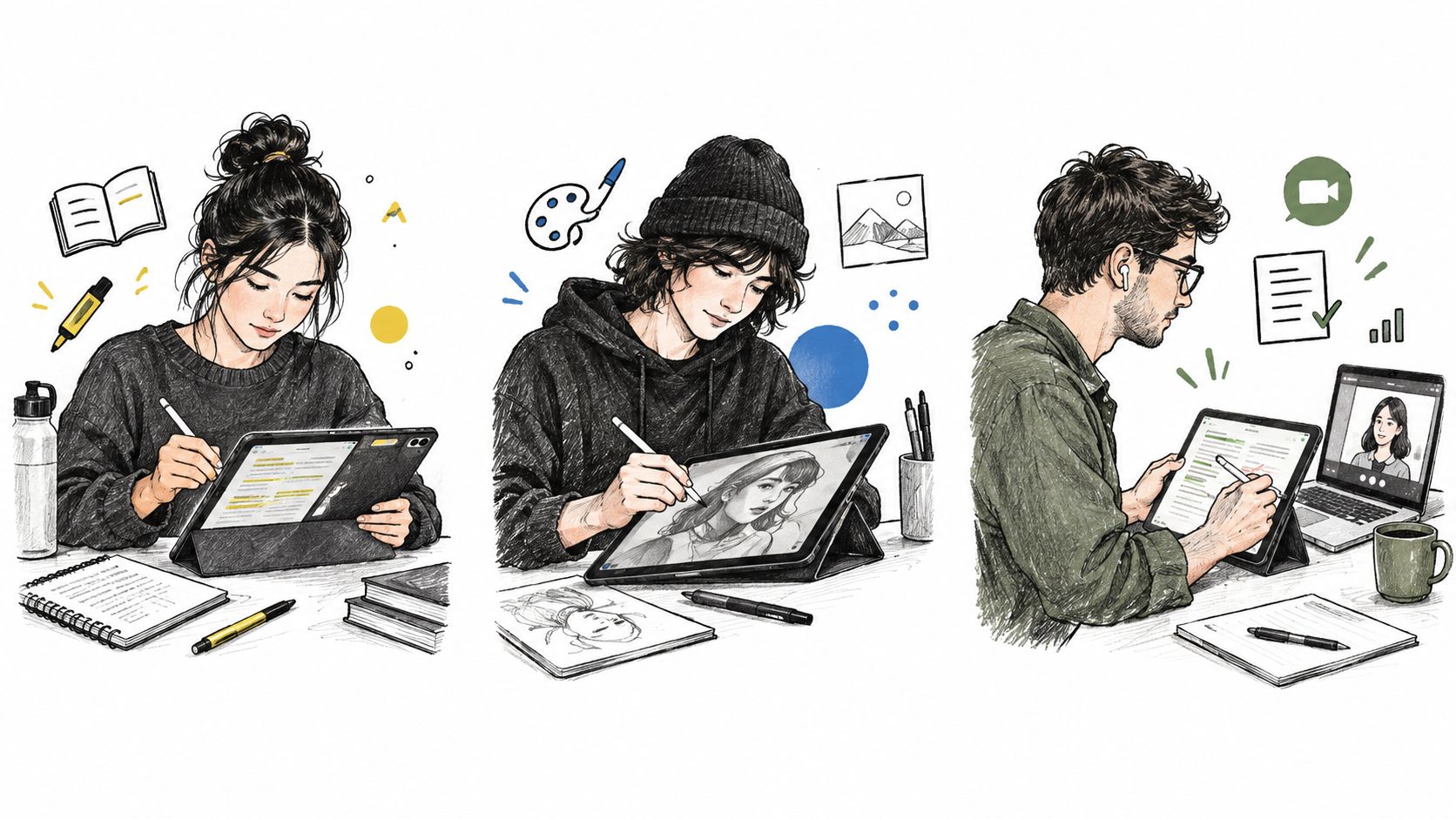
A student annotating lecture slides and an illustrator layering brush strokes can buy the same pen and have opposite experiences. Once you have confirmed which stylus works with your iPad model and connector, the next filter is what you do with it: latency, pressure behavior, and shortcuts only matter relative to the tasks you repeat daily.
For notes and markup, prioritize consistent tracking, palm rejection, comfortable handling, and charging you can manage between classes or meetings. Tilt helps for quick sketches, but pressure rarely affects handwriting, signatures, or highlighting. The Pencil Pro's USB-C charging and core writing features suit this kind of everyday use, and its lower price compared with an Apple Pencil that costs up to $129 makes it a practical candidate for a pen that mostly lives in a notes app.
For digital art, the spec that changes behavior is pressure sensitivity: when an app maps pressure to line width or opacity, a stroke responds to force rather than just angle. As noted earlier, Apple's USB-C Pencil has tilt but no pressure detection, while the first-generation Apple Pencil does. Tinymoose stylus pens support tilt-based line variation, which produces a very similar effect to pressure sensitivity for drawing and writing, and the Pencil Pro Sketch is tuned with a finer nib response for detailed line work.
If your artwork relies on pressure curves, verify pressure support in the exact app and stylus combination before you switch.
Shortcuts matter when you use them often
For hybrid work, one pen may move between meeting notes, document markup, quick sketches, and app navigation in the same afternoon. The Pencil Pro Ultra's Smart Switch is a touch-sensitive area near the tip that can switch tools, undo strokes, or trigger custom shortcuts with a tap. It also includes 3 replacement nibs, whereas Apple Pencil nibs are sold separately.
Those controls pay off only if you use them. If most of your time goes to handwriting, palm rejection and a natural-feeling stroke matter more than a shortcut surface. If you draw through longer sessions, spare nibs are a real convenience. For a more task-focused comparison, compare iPad stylus features for drawing.
Watching a stylus in motion tells you things a spec sheet cannot, though you should still confirm model compatibility separately:
Which Apple Pencil Alternative to Buy Today
A student annotating PDFs on an iPad 9 and an illustrator drawing on an iPad Pro M4 need different pens, even though either Tinymoose stylus will work with both tablets. Start with the iPad model in Settings, confirm it against the compatibility list, then decide by charging style, pressure, and shortcuts. Tinymoose stylus pens cover every iPad that supports Apple Pencil, from iPad 6th generation through the current A16 model up to iPad Pro 13-inch M4/M5. The Apple Pencil costs up to $129 and only works with certain iPads, so once compatibility is settled, choose the tier that fits your routine.
For lecture notes, planning, and PDF markup, the Pencil Pro is the practical pick: USB-C charging, palm rejection, tilt, and magnetic attachment at $43.00. If you want gesture controls and shortcut buttons for faster tool changes, the Pencil Pro 2 adds them at $57.00.
Drawing splits the decision further. If your illustration work depends on force-based strokes, the Pencil X is the model with 4096 levels of pressure sensitivity plus tilt support and full palm rejection. If tilt handling covers what your apps need, the Pencil Pro Sketch is tuned with a finer nib response for detailed line work at $57.00, while the Pencil Pro Ultra at $71.00 adds Smart Switch tool switching and 3 replacement nibs, and it was featured by Cult of Mac as a standout Apple Pencil alternative.
For kids or shared family iPads, the Pencil Mini comes in Blue, Pink, and Purple with an LED light indicator at $43.00.
Match the pen to the device and routine
Schools and workplaces can place bulk orders for models compatible with iPad 9th generation through iPad Pro M4, which makes standardizing easier, but every device in the fleet still needs to appear on the compatibility list.
If you're comparing the lineup, start with the best stylus for iPad, then narrow by charging connector and the controls you'll use daily. A pen bought for features you never trigger costs the same as one bought well.
Check the model number, pick the tier that matches your actual tasks, and skip the upgrades you won't notice in daily use.
Share:
Pink Stylus Pen for iPad: How to Choose the Right One