
You're trying to finish a document on your iPad Air, but the cover keeps slipping against your knees. At a desk it seems fine. On the couch, the screen rocks, your wrists hang off the edge, and a brush against the trackpad sends the cursor into the wrong paragraph.
The best keyboard case for iPad Air is the one that works where you really type. A comfortable keyboard on a library desk can be an awkward purchase for lectures, train journeys or evenings on the sofa.
Table of Contents
- Quick Picks by Keyboard Case Type
- Confirm Your iPad Air Model Before Buying
- What Makes a Keyboard Case Feel Like a Laptop
- Weight, Portability and Lap Stability
- Shortcuts and Accessibility That Cut Down Tapping
- Match Your Case to Student, Creative or Work Needs
- Where SpacePad Fits and How to Check Out
Quick Picks by Keyboard Case Type
No single best case exists, only the best type for a given use. A keyboard case trades typing feel against carry weight and the way the iPad sits while you work.
Keyboard case types matched to use
| Case type | Best for | Typing and trackpad | Main trade-off |
|---|---|---|---|
| Hinged floating keyboard (Apple Magic Keyboard style) | Desk work and long documents | Scissor keys with 1 mm travel on Apple's model, plus a full trackpad | Heavier, works best on a flat desk |
| Detachable magnetic keyboard (SpacePad-type) | Stylus-first note-taking and travel | Scissor keys, multi-touch trackpad and stable Bluetooth on SpacePad | Keyboard is a separate piece to carry |
| Rigid-hinge laptop-style case | Lap, couch and classroom desk | Stable base and firm hinge for steady typing | Bulkier and less flexible in viewing angle |
| Kickstand cover with Bluetooth keyboard | Budget buyers who type occasionally | Check the layout; trackpad often small or absent | Slides on laps and needs a flat surface |
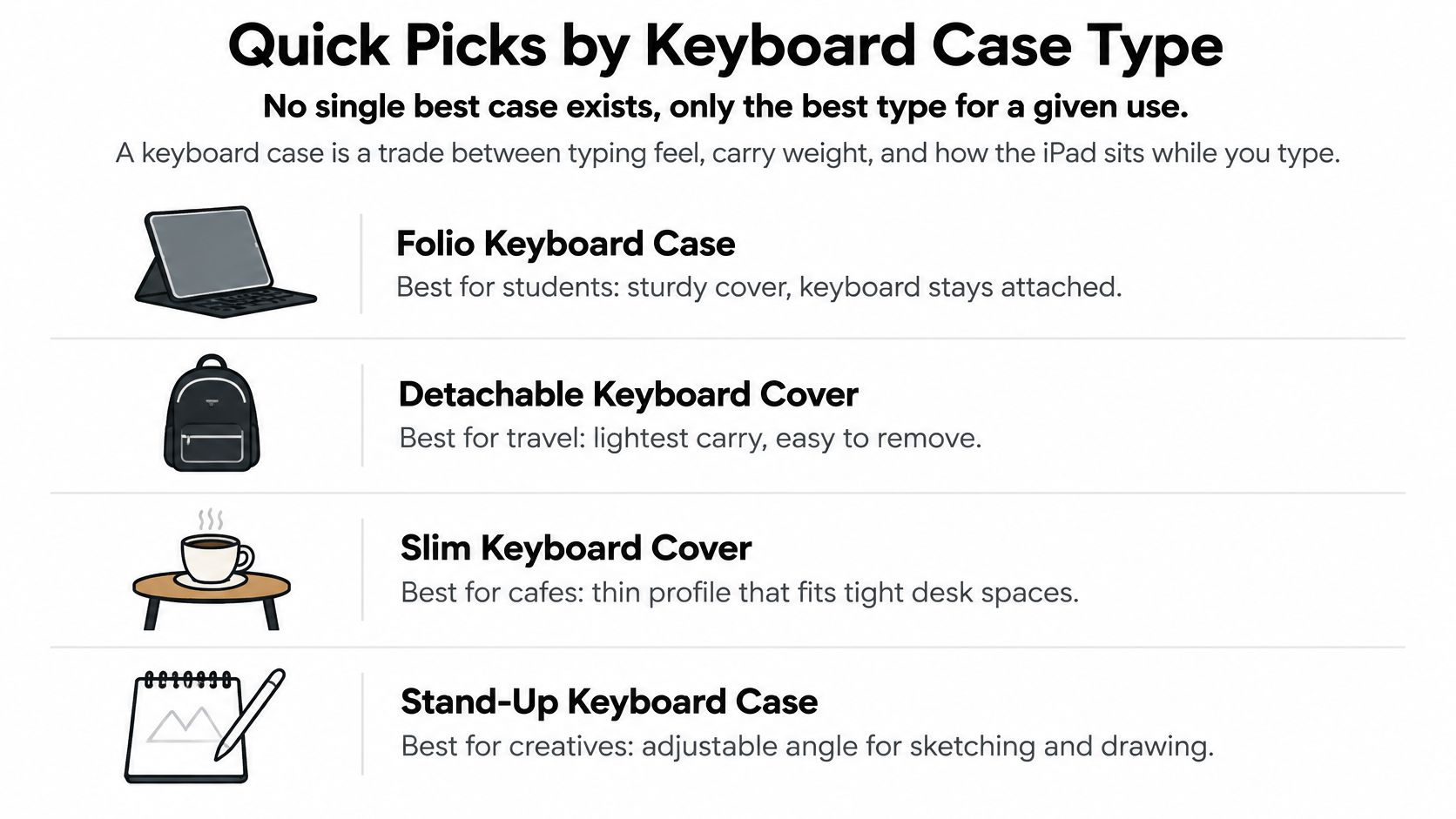
Treat the table as a shortlist, not a promise that every case within a category behaves identically. A floating design holds the screen up without a rear kickstand, while a rigid clamshell gives your legs a continuous base to support. A detachable keyboard earns its place when typing is only part of the day and the iPad often returns to reading, sketching or annotation. For help distinguishing those arrangements, start with choosing an iPad keyboard with Tinymoose.
Choose by where the iPad spends its working hours. A strong typing-speed result on a desk says little about an airplane tray, a narrow lecture desk or a lap, and a bigger trackpad can become a liability if the heel of your hand brushes it mid-sentence. Judge that surface during real writing: type a full paragraph with relaxed hands, rest your palms naturally, then see whether the cursor stays put. A keyboard that lets you write uninterrupted is more useful than one that looks impressive on a specification sheet.
Confirm Your iPad Air Model Before Buying
Use this lookup before comparing hinges, backlighting or trackpads. The dimensions and weights below follow Apple's iPad Air specifications, including the current 11-inch Wi-Fi model at 464 g and the 13-inch model at 616 g, about 33% heavier. That gap matters once a keyboard case joins the stack: a 13-inch setup sits noticeably heavier on a lap or an airplane tray than an 11-inch one.
iPad Air sizes, weights and connectors
| iPad Air model | Size (mm) | Weight (g) | Connector and fit note |
|---|---|---|---|
| iPad Air, 4th and 5th generation, sold as 10.9-inch | 247.6 × 178.5 × 6.1 | About 458 to 461 | Rear Smart Connector and USB-C; same basic body dimensions as the current 11-inch |
| 11-inch iPad Air, current Wi-Fi model | 247.6 × 178.5 × 6.1 | 464 | Confirm the exact model number, not just dimensions |
| 13-inch iPad Air, current | 280.6 × 214.9 | 616 | Needs a 13-inch case |
| 3rd-generation iPad Air | 250.6 × 174.1 | About 456 to 464 | Lightning rather than USB-C; older cases may misalign |
Apple's third-generation iPad Air specifications put the Wi-Fi model at 456 g with a Lightning connection. It is a different physical target from the current case shape, so a case moulded for a recent Air can leave the camera or port cutouts off by enough to matter.
Make the fit check before ordering
- Find the model identity. Open Settings, then General, then About, and note the model name and number. Read the full identifier; a specific generation shortened to “Air” is how the wrong case gets ordered.
- Match both size and generation. Compare that identity with the case listing. A listing for the larger Air won't fit the smaller tablet, even when both listings mention magnetic attachment.
- Inspect the hardware alignment. Check the camera opening, charging-port position and rear Smart Connector where relevant. A Bluetooth keyboard skips the Smart Connector, but its shell still needs clear ports and correctly positioned magnets.
Dimensions are a screening tool, nothing more. Matching measurements still leave camera openings, magnet placement and hinge clearance unverified, which is why the physical check above earns its place before the return window closes.
Fit rule: Buy for the exact tablet model. The words “iPad Air case” on a listing are too vague to trust.
Keep the packaging until you have checked attachment, charging access and closure. A case that needs pressure to seat the tablet properly is the wrong fit, and forcing it only risks the tablet.
What Makes a Keyboard Case Feel Like a Laptop
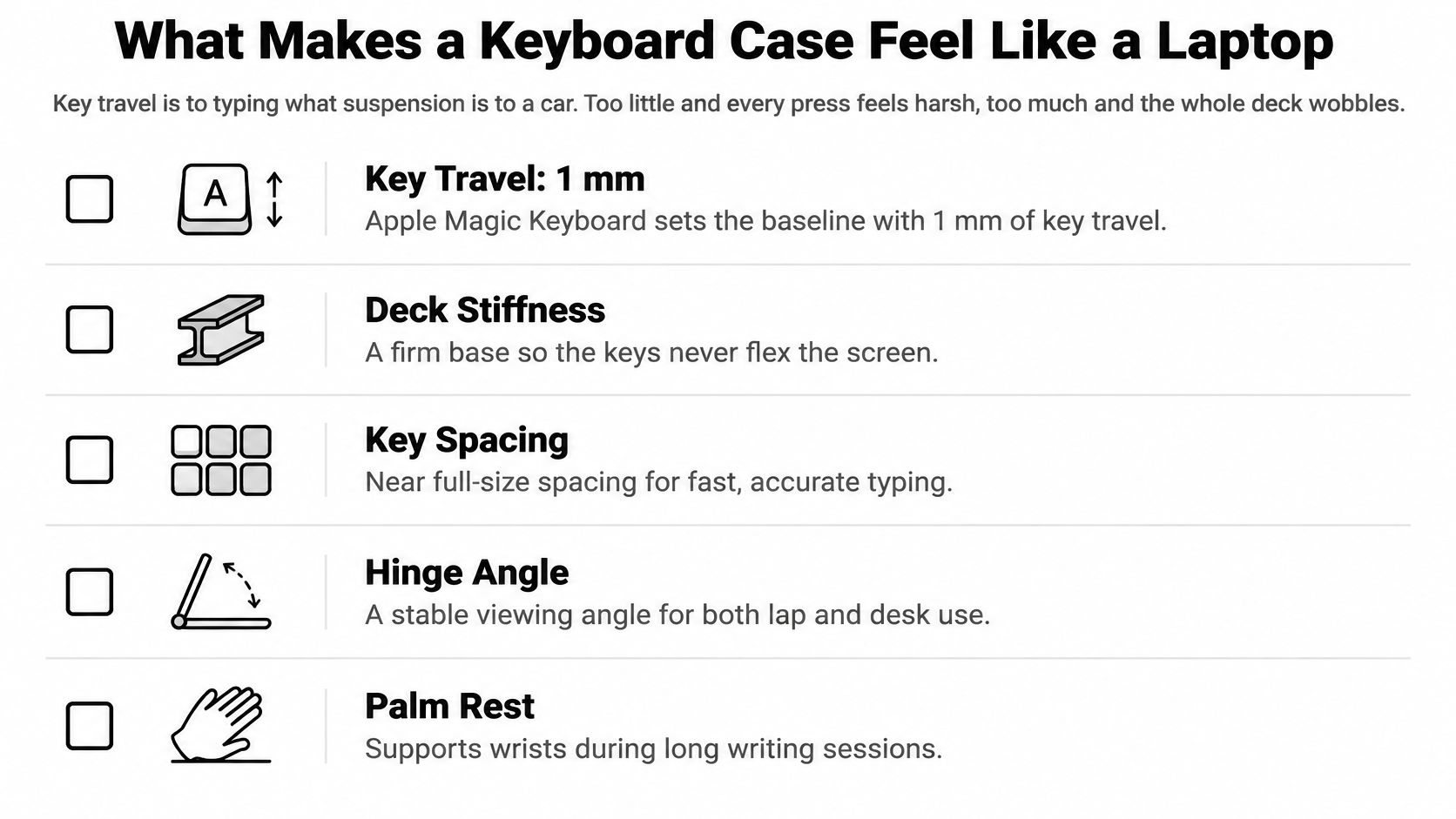
Key travel is to typing what suspension is to a car: too little cushioning can feel harsh, while excessive movement without control feels loose. For a keyboard, the useful combination is predictable key movement and a deck that doesn't flex under your hands.
Apple's Magic Keyboard specification gives a useful baseline: 1 mm scissor-switch travel, an integrated Multi-Touch trackpad, a 14-key function row and USB-C pass-through charging. Its floating cantilever also lets you adjust the screen independently of the keyboard deck.
Check the controls you'll actually use
- Key travel and consistency. Press keys near their corners, not just in the centre. The space bar and Shift keys should register without needing a carefully aimed press.
- A full shortcut row. Dedicated brightness and volume controls save reaching around the screen during a lecture or call. Check the printed functions against the controls you use.
- Trackpad gesture support. Try scrolling a long page, swiping between tasks and selecting text. A pointer that moves correctly doesn't automatically establish that gestures feel natural.
- Charging pass-through. Confirm whether the keyboard can charge the tablet through its own port. A USB-C socket that only charges the keyboard isn't pass-through.
SpacePad takes a detachable approach with scissor-switch keys, a 3-way multi-touch trackpad, stable Bluetooth and adjustable viewing angles. Its RGB keys offer 7-colour backlighting with adjustable brightness, and the maker states up to 200 hours of working time on a single charge. Those features suit mixed typing and tablet use, but they don't establish a particular key-travel measurement, a full function row or tablet charging pass-through.
Separate useful features from attractive specifications
Backlighting helps when you need to find punctuation in a dim room. It won't compensate for cramped key spacing or a palm rest that forces your wrists upward. Likewise, a firm deck matters more than a keyboard that sounds satisfying when tapped in isolation.
If you want to use an iPad as a laptop, test a paragraph, a spreadsheet selection and an app switch rather than judging by appearance.
A bigger trackpad isn't automatically better. Check palm rejection, the gap between the bottom key row and trackpad, and whether you can disable tap-to-click. Your hands should rest naturally without needing to hover to protect the cursor.
Weight, Portability and Lap Stability
Heavier doesn't automatically mean better. You carry the tablet and case together, so extra mass needs to buy something useful: a steadier base, stronger protection or a hinge that holds its position.
In its keyboard-case comparison, Tom's Guide measured Apple's case at approximately 617 g, with tested alternatives ranging from about 1 lb 5.2 oz to 1 lb 12.8 oz, and recorded 58 words per minute at 99% accuracy for Apple's case versus 61 words per minute at 98–99% accuracy for some alternatives. The typing results don't justify choosing by weight alone.
A useful hinge is worth carrying. Extra bulk that doesn't improve your working position isn't.
Test the surface, not just the keys
Use your normal posture and an ordinary document. Watch for accidental touches, screen wobble and wrist angle throughout these checks:
- Desk. Type with your forearms relaxed. Watch whether the keyboard flexes when you press the space bar.
- Couch. Settle into the position you actually use, including cushions. Check whether the screen leans away or forces your neck forward.
- Airplane tray. Recreate a shallow surface and limited opening angle. The whole support footprint must fit, including any rear kickstand.
- Classroom desk. Leave room for a notebook or worksheet. Check whether reaching for it nudges the case out of position.
- Lap. Rest the base across your legs and type naturally. Look for rocking, slipping and a hinge that slowly changes angle.
A kickstand can work well on a generous desk and fail on a short tray because the support extends behind the tablet. A rigid base is easier to balance across your legs, but it occupies more of your bag.
SpacePad's slim, lightweight, removable keyboard suits travel and switching to handwriting. Detachment only reduces what you carry when you leave the keyboard behind; if it stays in your bag, you've changed the working setup, not the total load.
Shortcuts and Accessibility That Cut Down Tapping
A student moves between a lecture PDF, a notes app and a browser. Without a keyboard workflow, each change interrupts writing with a reach toward the screen.
Apple's external-keyboard shortcut guide explains that Command-Tab cycles between open apps, Command-Space opens Search, and Tab moves between lists, text fields and other interface areas. These standard shortcuts are designed to work consistently across iPadOS and most apps, so the habit transfers between study and work.
Make the keyboard fit the user
Apple's keyboard accessibility guide documents Full Keyboard Access, Sticky Keys, Slow Keys and adjustable key-repeat behaviour. They solve different problems:
- Full Keyboard Access. Someone who finds precise touchscreen targeting difficult can move around with keyboard commands instead.
- Sticky Keys. A user who can't comfortably hold Command and another key together can press modifier keys sequentially.
- Slow Keys. Someone who makes unintended brief presses can require a longer press before activation.
- Key-repeat adjustment. A writer who accidentally repeats letters can change how held keys behave.
A case works best when its modifier keys map cleanly to these system controls. Attractive keycaps don't help if the shortcuts you depend on are awkward or unreliable.
Run a brief acceptance test
- Open your working apps. Use a document, a browser and your usual notes app.
- Switch with Command-Tab. Confirm the keyboard responds without reaching for the display.
- Open Search with Command-Space. Search for an app you regularly use.
- Move through a form with Tab. Watch where focus moves.
- Note failures. Record any unresponsive key or unexpected action before changing settings.
Test accessibility settings in the apps you use, not only on the Home Screen. App-specific behaviour can affect whether the keyboard removes effort or merely relocates it.
Match Your Case to Student, Creative or Work Needs
The same case can be a sensible choice for a student and an irritating one for a report writer. These everyday scenarios show how to put features in the right order.
The settings below are useful reminders to judge a case away from a product photograph.

Maya moves between lectures and the library
Say Maya types lecture notes in a tight seat, writes at a library desk and sketches diagrams afterward. Her keyboard needs to support quick changes of task without making the tablet cumbersome to hold.
Priority order: stable lap support, accessible brightness and volume controls, then easy keyboard removal. Skip an unnecessarily heavy rigid base if most of her sustained typing happens at the library desk, but don't sacrifice stability if lecture seating is where she writes most. The study essentials from Tinymoose can help her plan the rest of that setup.
Leo alternates between sketches and briefs
Leo uses a stylus for drawing, then types a design brief beside the finished sketch. A keyboard that detaches without a struggle leaves the tablet easier to position for pen work.
Priority order: quick removal, unobstructed stylus attachment and comfortable access to the screen edges. Skip an oversized trackpad he'll rarely use. Our keyboards work smoothly with our styluses for portable note-taking, drawing and productivity, but the case still needs to suit how he holds the tablet.
For another look at an iPad keyboard setup, use the video alongside your own workspace checks.
Priya writes reports and takes calls
Priya spends most of her working day at a desk, switching between documents, email and meetings. She benefits more from predictable controls than from shaving every possible gram from her setup.
Priority order: rigid base, accurate trackpad, function row and USB-C pass-through. Turn tap-to-click off if incidental contact disrupts editing. Skip the lightest option if it introduces deck flex or makes the screen harder to position.
Sam carries the iPad everywhere
Sam uses the iPad for reading between stops and types when a suitable surface becomes available. Carry comfort matters even on days when the keyboard stays unused.
Priority order: low combined weight, fast detachment and a compact packed shape. Skip a fixed rigid hinge that offers little benefit during the journeys he really makes.
Match each priority list against the trackpad, carry-weight and shortcut checks, rather than buying every available feature.
Where SpacePad Fits and How to Check Out
SpacePad is best suited to stylus-first note-taking and travel within this comparison. Its detachable magnetic arrangement makes sense when you want a keyboard for written work without keeping that keyboard under the tablet for drawing, reading or handwriting.
The SpacePad iPad Keyboard is a premium keyboard case designed to provide a laptop-style experience for work, study and everyday productivity. The Black version costs $143.00 and is compatible with iPad Air 13-inch (2024–2025) and iPad Pro 12.9-inch (2018–2022). Read that compatibility list closely rather than assuming that a similar-looking tablet will fit.
Buy it for the transitions between tasks
SpacePad's strongest argument is the change from typing to tablet use. A student can finish written notes and remove the keyboard for diagrams; a traveller can pack a slim keyboard without committing to a permanently attached laptop-style base.
Its Type-C charging powers the keyboard. That shouldn't be confused with charging the iPad through the keyboard, which is a separate capability.
The adjustable viewing angles also help when changing between typing, browsing and watching. Still, an adjustable screen isn't a substitute for a support system that suits the surface beneath it.
Choose the detachable design because you'll remove it, not simply because removal looks convenient in a demonstration.
A buyer who wants a fixed, rigid laptop feel for long documents on a lap should choose a rigid-hinge case instead. That recommendation is about the support structure, not a judgement that detachable keyboards are inferior. Your knees aren't a flat desk, and a case shouldn't require constant balancing while you work.
Make the purchase with the fit already settled
- Confirm the exact model. Use Settings and the size lookup to establish the tablet's identity. Don't order from screen size alone.
- Choose the structure for your routine. Decide whether your main need is desk typing, lap stability or frequent separation from the keyboard.
- Add tablet and case weight. Compare the combined load with what you're comfortable carrying in your everyday bag.
- Run the surface test where possible. At home or in a shop, reproduce the desk, couch, tray, classroom and lap positions that matter to you. Test cursor behaviour while writing, not just while deliberately using the trackpad.
- Select your exact iPad model at checkout. We ask for the model selection to ensure the keyboard fits correctly. Recheck that choice before paying.
If you're about to replace the tablet, settle that decision before buying its case. Apple's keyboard compatibility guidance separates support by specific models rather than treating every iPad as interchangeable.
Buy now when your current tablet meets your needs and the case supports the functions you rely on. If a new Air generation is close and you intend to upgrade, wait until its accessory compatibility is confirmed instead of assuming your new keyboard will transfer.
Tinymoose offers iPad keyboards, compatible styluses and accessories for practical work and study setups. Visit Tinymoose to compare SpacePad with your tablet model and choose a typing-and-handwriting setup that suits where you work.
مشاركة:
Stylus for Note Taking: How to Choose the Right One