
Best Wireless Keyboard for iPad: What to Look For
A good iPad keyboard should be comfortable to type on, connect reliably, and include a trackpad. That's really it. The Tinymoose SpacePad Pro checks all those boxes at a reasonable price — but let's break down what actually matters when you're choosing.
Why You Need an External Keyboard
The iPad's on-screen keyboard is fine for quick replies. But the moment you need to write something longer — an email, a report, meeting notes — it becomes a problem. It takes up half your screen and typing on glass is slow and uncomfortable.
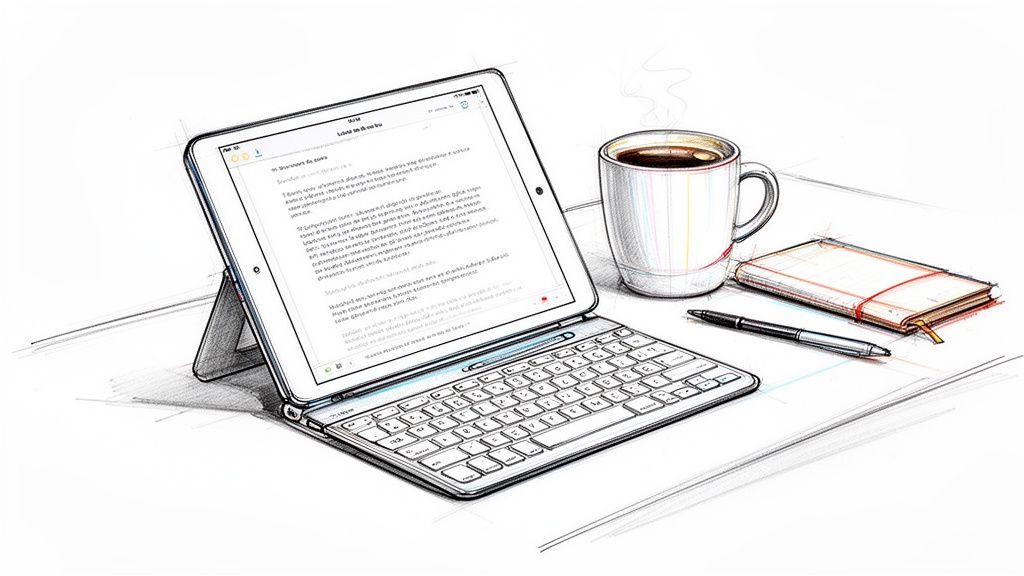
A physical keyboard fixes this. You type faster, make fewer mistakes, and get your whole screen back. It's the single best upgrade if you use your iPad for actual work.
What an External Keyboard Gets You
- Faster typing: Physical keys with real feedback. Essential for students writing papers or anyone managing a busy inbox.
- Full screen: No more keyboard eating half your display. Makes multitasking and reading much easier.
- Trackpad control: Keyboards like the Tinymoose SpacePad Pro include a trackpad. You get laptop-style cursor control for editing documents and navigating apps.
The right keyboard turns your iPad from a media device into something you can actually work on.
What to Look For
There's a lot of marketing around iPad keyboards. Here's what actually matters in daily use.
Typing Feel
This is what matters most. It comes down to two things:
Key travel: How far the keys move when you press them. Too shallow feels cheap. Too deep feels slow. You want enough feedback to type quickly without pounding the keys.
Layout: A familiar, well-spaced layout means you can type accurately from day one. Cramped or unusual layouts slow you down.
Connectivity and Battery
A wireless keyboard needs a reliable Bluetooth connection. It should pair easily and stay connected. Keyboards that constantly drop connection are useless.
Battery life matters too. A good keyboard should last weeks or months on a single charge. You shouldn't be thinking about charging it constantly.
If you can't trust the connection or the battery, the keyboard becomes a frustration instead of a tool.
Portability and Extras
Your iPad goes everywhere. Your keyboard should too — lightweight, durable, and easy to throw in a bag.
The extras that actually matter:
- Trackpad: Makes your iPad feel like a laptop. Smooth scrolling and precise cursor control for editing text and navigating apps.
- Shortcut keys: Dedicated keys for volume, brightness, search, and media controls save time.
Comparing the Top Options
Three keyboards worth considering: Apple's Magic Keyboard, Logitech's Combo Touch, and the Tinymoose SpacePad Pro. Here's how they compare in practice.
Typing Feel
Apple Magic Keyboard: Crisp, snappy keys similar to a MacBook. Good consistency if you switch between devices. The feedback is firm and precise.
Logitech Combo Touch: Softer keys with more cushion. Some people find this more comfortable for long sessions. Others find it less precise.
Tinymoose SpacePad Pro: Quiet, comfortable typing with solid tactile feedback. Good for shared spaces like libraries, classrooms, or open offices where loud keyboards are a problem.
For a MacBook-like feel, the Magic Keyboard is hard to beat. For quiet, all-day typing, the SpacePad Pro is better.
Trackpad
Magic Keyboard: Glass trackpad that's smooth and responsive. Supports all iPadOS gestures. Sets the bar for trackpad quality.
Combo Touch: Larger trackpad with more room for gestures. Not as premium-feeling as Apple's, but the extra space is useful.
SpacePad Pro: Responsive trackpad that handles navigation well. Delivers laptop-style control at a lower price. See the SpacePad Pro's full features.
Comparison
| Feature | Apple Magic Keyboard | Logitech Combo Touch | Tinymoose SpacePad Pro |
|---|---|---|---|
| Typing Feel | Crisp, MacBook-like | Softer, cushioned | Quiet, good feedback |
| Trackpad | Premium glass, precise | Large, responsive | Responsive, good value |
| Backlit Keys | Yes, auto-brightness | Yes, adjustable | Yes, 7 colors, adjustable |
| Shortcut Row | No (function key combos) | Yes, dedicated row | Yes, full function row |
| Connectivity | Smart Connector | Smart Connector | Bluetooth 5.1 |
| Power | Draws from iPad | Draws from iPad | 300-hour rechargeable battery |
| Viewing Angles | Limited by hinge | Flexible kickstand | Multiple stable angles |
| Protection | Front/back, edges exposed | Full-body | All-around, slim profile |
The Magic Keyboard is sleek but lacks a function row and drains your iPad battery. The Combo Touch is versatile but the kickstand doesn't work well on your lap. The SpacePad Pro combines practical features — shortcut row, customizable backlighting, independent battery — at a better price.
Portability
The Magic Keyboard adds noticeable weight to your iPad. It's well-built but not light.
The Combo Touch is versatile — you can detach the keyboard or use the kickstand in different modes. But the kickstand needs a flat surface, so it's awkward on your lap.
The SpacePad Pro is lightweight and slim. It fits easily in a bag and provides solid protection without bulk. This focus on portability is why the tablet keyboard market is growing — it was valued at $4.58 billion in 2020 and is projected to reach $7.62 billion by 2028. (Source: Verified Market Research)
Which Keyboard Fits Your Workflow?
The best keyboard depends on how you work. A keyboard that's ideal for a creative professional might not suit a student's needs.
Market data shows North America accounts for around 35% of global iPad keyboard sales in 2025, expected to exceed 40% by 2033. That's a lot of people looking for mobile productivity tools. (Source: Data Insights Market)
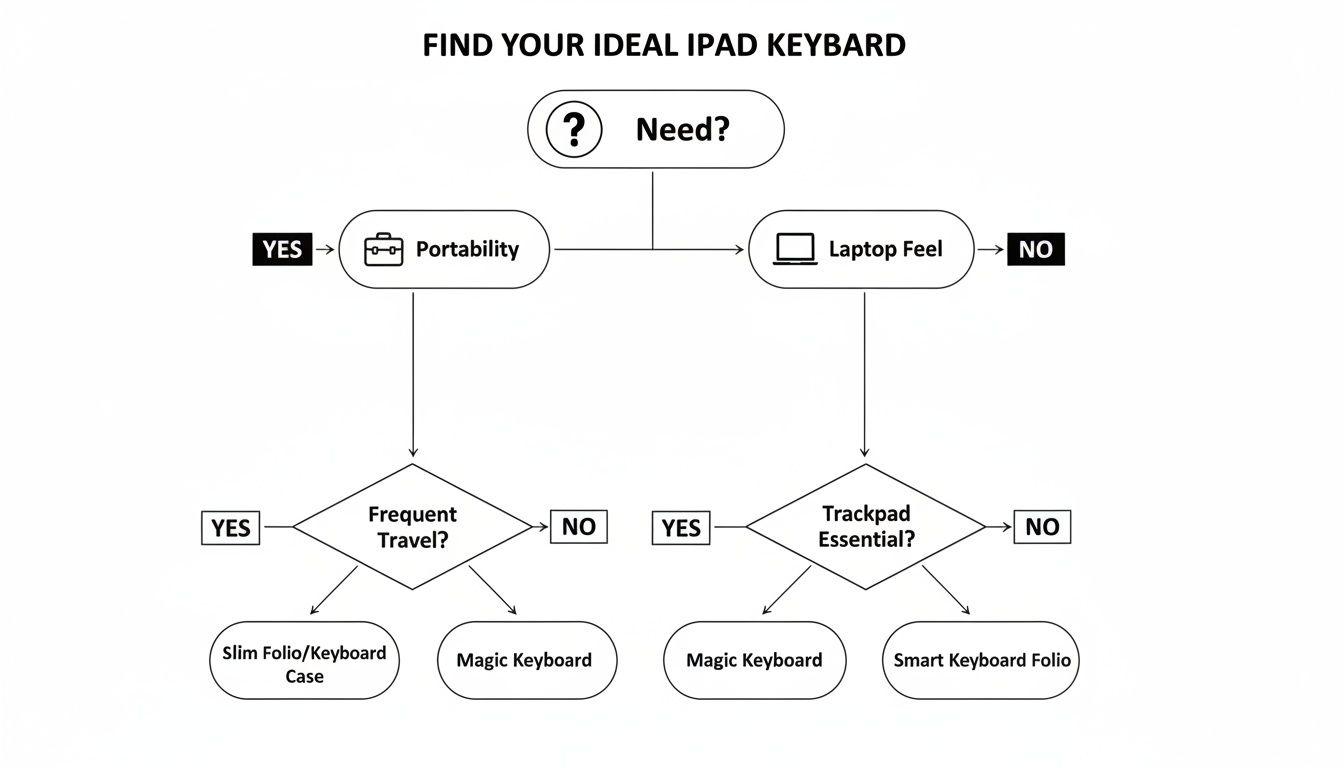
Students
You need something quiet and reliable. You're typing notes in lecture halls, writing essays in the library, working late in your dorm. Loud keyboards don't work in shared spaces.
Battery life matters — you don't want another device to charge every day.
The SpacePad Pro fits student life well. Quiet keys for shared spaces. Long battery life so it's one less thing to worry about.
Mobile Professionals
You need something that feels as close to a laptop as possible. You're answering emails between meetings and editing documents on the go.
A good trackpad is essential for spreadsheets and presentations. The keyboard needs to work on your lap in an airport lounge, not just at a desk.
For professionals, the right keyboard lets you work faster anywhere — not just when you have a flat surface.
The SpacePad Pro delivers solid typing feel and precise trackpad control without laptop bulk. For more on mobile setups, see our guide on wireless tablet keyboards.
Creatives
Artists, writers, and designers need flexibility. One moment you're typing notes, the next you're sketching with a stylus. Your keyboard should support both.
Viewing angles matter. You need one angle for typing and another that lays nearly flat for drawing.
The SpacePad Pro offers multiple stable angles — good for switching between keyboard and stylus work.
Why the SpacePad Pro Makes Sense
The SpacePad Pro is designed around practical needs, not flashy features.
Built for Real Use
The typing experience is quiet and comfortable — good for coffee shops, libraries, and open offices. Keys have solid feedback without being noisy.
The trackpad is smooth and responsive. You don't have to keep reaching up to touch the screen, which saves time and keeps you focused.
The SpacePad Pro's goal is simple: make using your iPad feel natural. Remove the friction so you can focus on your work.
Features That Matter
Battery life is exceptional — weeks without charging. One less cable to carry, one less thing to worry about.
It's lightweight but protective. Slides into a backpack without adding bulk, keeps your iPad safe. Learn more about how the SpacePad Pro improves productivity.
Common Questions
Can I use any Bluetooth keyboard with my iPad?
Yes, most Bluetooth keyboards connect to iPads. But the real question is how well they work.
A generic keyboard won't have iPadOS shortcuts for the Home Screen, brightness, or media controls. iPad-specific keyboards like the SpacePad Pro include these shortcuts, making the experience smoother. With a generic keyboard, you'll keep reaching for the screen to do basic things.
Any Bluetooth keyboard can pair, but only iPad-specific models include the shortcuts that actually save time.
Will a keyboard case drain my iPad's battery?
Depends on the design.
Keyboards using the Smart Connector (like Apple's Magic Keyboard) draw power from your iPad. They'll drain your iPad's battery faster, especially with backlit keys on.
Keyboards with their own rechargeable battery — like the SpacePad Pro with its 300-hour battery — have almost no impact on your iPad's battery life.
Do I need a trackpad?
Not strictly necessary, but it's a significant improvement for productivity work.
Without a trackpad, you're constantly lifting your hands from the keyboard to tap and swipe the screen. That breaks your concentration and slows you down.
A trackpad makes navigating iPadOS feel more like using a laptop — precise cursor control, easy text selection, smooth scrolling. Once you use one, going back feels slow.
The Tinymoose SpacePad Pro gives you comfortable typing, a responsive trackpad, and long battery life at a reasonable price. Check it out here.
مشاركة:
ساعة تمبو الذكية: مصممة للحياة الواقعية، ومبنية للانطلاق
How to Take Notes on iPad: The Ultimate Productivity Guide