
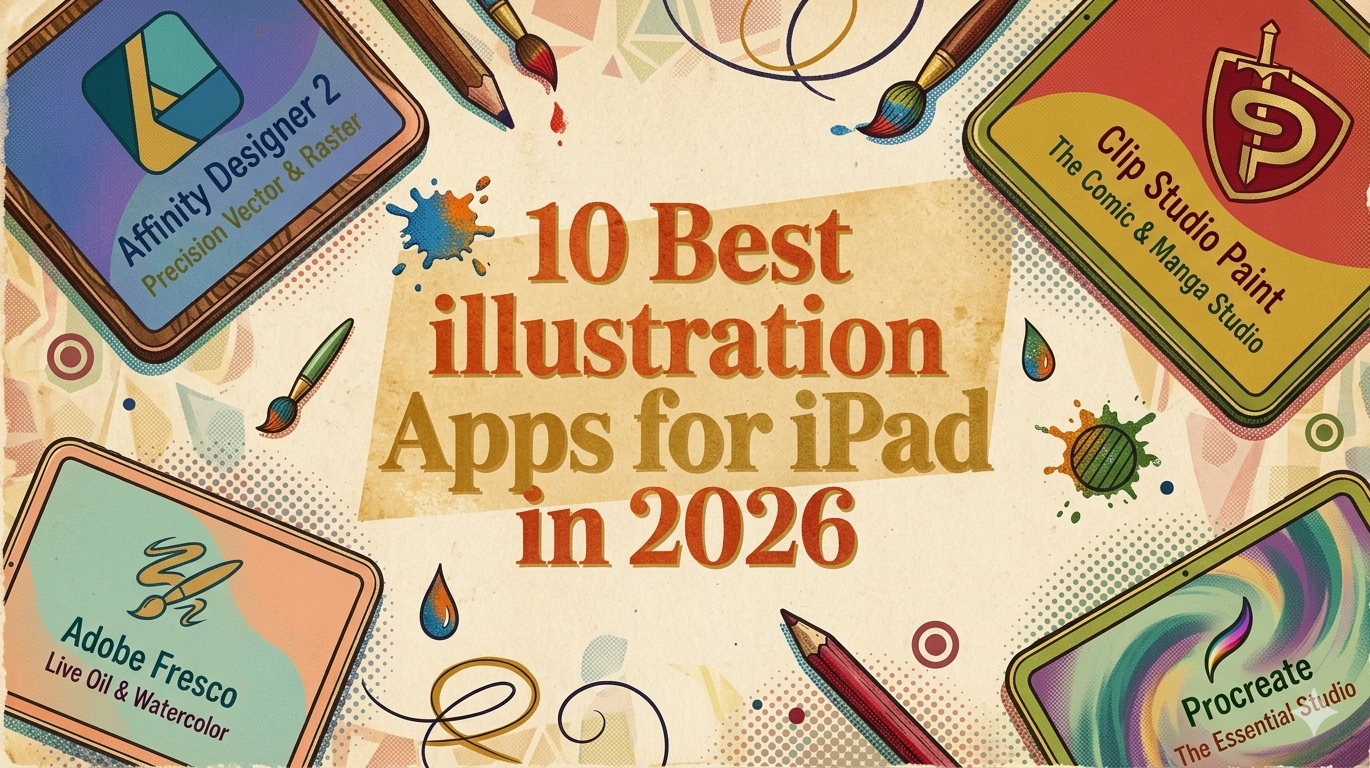
The Best Illustration Apps for iPad (and the Stylus to Pair Them With)
Your iPad is probably already doing part of the job. It sits in your bag, wakes instantly, and gives you a clean surface to sketch on whenever an idea appears. The problem isn't access, it's picking an app that fits how you work.
That choice gets messy fast. Some apps are brilliant for painting but awkward for logos. Some are powerful but overloaded. Some look inexpensive until subscriptions pile up. And some feel great with one stylus, then fall apart when you try to build a more affordable setup around a third-party pen.
This guide keeps the focus where it belongs: practical workflow, real trade-offs, and which apps make drawing feel easier. If you're searching for the best illustration apps for iPad, the right answer depends less on hype and more on what you make — character art, comics, branding, concept sketches, social graphics, or polished client work.
Stylus compatibility matters too. Most app coverage centers on Apple Pencil, but a lot of artists, students, and remote workers want a setup that costs less without feeling compromised. That's where a responsive stylus like the Tinymoose Pencil Pro becomes relevant. Features like palm rejection, tilt sensitivity, shortcut buttons, and magnetic attachment matter most when the app itself is fast, stable, and easy to control.
1. Procreate
Procreate earns its spot because it removes setup friction. Open it, pick a brush, and draw. For a lot of artists, that matters more than having every advanced feature under the sun.
It's also one of the easiest paid apps on iPad to recommend because the pricing is straightforward: buy it once and keep working. Pair it with a responsive third-party stylus and you get a capable kit without committing to Apple Pencil pricing or a monthly software bill.
[IMAGE: Procreate interface screenshot or Pencil Pro being used in Procreate]
Where Procreate feels best
Procreate is raster-first, and that focus is why it feels fast. Sketches, clean line art, painted illustrations, textured shading, lettering, and simple frame-by-frame animation all sit inside an interface that stays out of your way.
The main advantage isn't the feature list — it's the drawing feel. Brush response is immediate, stabilization is reliable, and common actions take very few taps. If your process starts with hand-drawn marks instead of vector shapes, Procreate usually gets you to a finished piece faster than anything else on iPad.
Its shortcut design also works especially well with affordable hardware. Procreate's QuickMenu can hold the commands you use constantly — undo, smudge, eraser, selection, or layer actions. With a stylus like the Tinymoose Pencil Pro, the shortcut buttons reduce how often you need to reach up to the interface, so your drawing hand stays in rhythm and your canvas stays in view. Over a long session that makes the app feel smoother and less interruptive. If you're comparing pen options, our roundup of the best stylus for iPad in 2026 tested and ranked is a useful starting point.
Practical rule: Choose Procreate when your work depends on brush control, speed, and finishing art directly on the iPad.
What Procreate doesn't handle as well
- No true vector workflow: Wrong tool for logos, scalable icons, and illustration systems that need clean resizing across print and web.
- Limited cross-platform continuity: Built around the iPad experience, so artists who need the same app on desktop may prefer Adobe or Affinity.
- Basic text and layout tools: You can place type, but publication-style composition is better handled elsewhere.
For painting and illustration, Procreate remains the benchmark — fast, approachable, and strong enough for professional work.
2. Adobe Fresco
Adobe Fresco is the app to point to when someone says, "I want digital tools, but I still want paint to feel like paint."
Its biggest appeal is how it mixes pixel brushes, vector brushes, and live media in one place. That combination gives Fresco a different personality from Procreate — less pure illustration engine, more flexible painting workspace.
Best for natural media workflows
Fresco's Live Brushes are the reason to use it. Watercolor and oil behavior feel looser and more organic than most iPad apps. If you like layered, painterly work and don't want every mark to look digitally perfect, Fresco is a strong fit.
It also works well if your files eventually move into Photoshop or Illustrator. You can sketch, paint, and refine on the iPad, then continue in the rest of Adobe's ecosystem without rebuilding the file.
For stylus buyers, our best stylus for iPad tested and ranked is worth a look because Fresco rewards good pressure control and clean palm rejection.
Some apps reward precision. Fresco rewards touch. If you like paint bloom, soft blending, and mixed media behavior, that difference matters.
Trade-offs to know first
- Best if you use Adobe already: Makes more sense when Photoshop or Illustrator is already part of your process.
- Less complete than desktop Adobe apps: Strong, but not trying to replace the full desktop stack.
- Great for expressive painting: Less ideal for crisp production vector work.
3. Adobe Illustrator on iPad
Adobe Illustrator on iPad earns its place when the job calls for vector accuracy. Logos, icons, packaging graphics, repeatable brand assets, clean editorial illustration — it gives you the control raster-first apps don't.
Where it fits best
Illustrator on iPad works well for production-minded illustration. Sketch an idea, then turn it into artwork that stays sharp at any size and remains editable later. That matters if a social graphic turns into packaging, a sticker set, or a banner that needs to be resized without cleanup.
- Precise vector construction for logos, icon sets, line art, and shape-based illustration
- Reliable Adobe file compatibility if the artwork will continue on desktop later
- Artboard-based workflow better suited to multi-asset jobs than single-canvas apps
- Good stylus support — careful pen input makes path editing much faster
Illustrator rewards a stylus that feels accurate and gives you quick access to repeated commands. With the Pencil Pro, shortcut buttons can be mapped to actions like switching between the Selection tool and Pen tool, cutting friction during vector drawing and path cleanup.
Trade-offs to know before you commit
Illustrator on iPad is still narrower than the desktop version. It handles real work, but it's not the app for textured painting, loose sketching, or heavy mixed-media illustration.
Cost matters too. Illustrator makes the most sense for designers already inside Adobe's subscription model. For occasional vector edits, the monthly spend is harder to justify than a one-time purchase app.
Illustrator on iPad is strongest when your artwork needs structure, editability, and clean scaling. Less playful than Procreate, less painterly than Fresco, but much better for vector production.
4. Affinity Designer 2 for iPad
Affinity Designer 2 for iPad is what to recommend for people who want serious design tools on iPad without being locked into an Adobe subscription.
Its biggest strength is simple: you can work in vector and raster modes inside the same document. That removes a lot of annoying app-switching.
The real advantage is flexibility
Affinity's Persona system is what makes the app useful. Build precise vector shapes, then switch into pixel tools for texture, shading, or painterly accents without leaving the file.
That makes it a strong option for illustrators who don't live at either extreme. Maybe your piece starts as clean vector geometry but needs textured brush treatment. Maybe you design branding assets but also create illustrated social graphics. Affinity handles that middle ground well.
- No subscription pressure — a genuine quality-of-life benefit
- Desktop-style control — artboards, export options, typography, and color handling feel production-ready
- Strong with stylus input — rewards careful pen work
Why some people bounce off it
Affinity is powerful, but it isn't light. New users often feel the weight of the interface right away. Coming from Procreate or Sketchbook, Affinity can feel more technical than creative at first. It expects you to think like a designer, not just a sketcher.
For artists and designers who want one purchase and serious capability, Affinity Designer 2 is one of the strongest values on this list.
5. Clip Studio Paint for iPad
Clip Studio Paint for iPad earns its place when your illustration work has structure. Comic pages, webtoon episodes, ink-heavy character sheets, and storyboard sequences all ask for more than a loose sketching app usually gives you.
Built for long-form illustration workflows
Clip Studio saves time in places where comic and narrative artists usually lose it. Panel tools, speech balloons, screentones, perspective rulers, pose references, and vector inking features live in one app. Less workaround-heavy file setup, fewer moments faking a comics workflow inside a general painting app.
The inking tools are especially strong. Line correction, vector editing, and ruler support make a real difference for controlled line weight or clean corrections. Paired with the Pencil Pro, the app feels precise enough for careful line art instead of just rough sketching. Affordable hardware is only useful if the software can take advantage of it, and Clip Studio usually does.
Where it fits best
Strong choice for artists producing repeatable, multi-step work. If you move from thumbnails to pencils to inks to lettering, Clip Studio supports that process better than apps built mainly for standalone canvas painting.
Trade-offs to consider
- Steeper learning curve: Great for production, slower for casual experimentation
- Subscription on iPad: A downside if you prefer buying software once
- More tool than some illustrators need: For quick studies or expressive painting, it can feel heavier than Procreate or Fresco
6. Concepts
Concepts works best when you don't want the canvas to end. It's less about finished painterly art and more about thinking visually at speed — product sketching, environment planning, ideation, diagramming, sketchnotes, clean exploratory line work.
Best for ideation and spatial sketching
The infinite canvas changes how you work. Instead of treating each drawing like a standalone document, you can spread out ideas, variations, annotations, and iterations in one space.
That's a big workflow win if you:
- Explore many versions at once: Character silhouettes, interface concepts, layout options
- Need measurement and scale tools: Product design, interiors, architecture-adjacent work
- Prefer precise editable strokes: Concepts leans more technical than painterly
The resolution-independent drawing feel is also useful. Sketch loosely, then refine without the scaling concerns raster apps create.
Where Concepts is less satisfying
If your goal is lush rendering, textured painting, or expressive brushwork, Concepts won't scratch that itch the way Procreate or Fresco will. It's a thinking tool first, illustration tool second.
For creators who brainstorm visually and need order without rigidity, it's one of the smartest apps on iPad.
7. Linearity Curve
Linearity Curve suits a specific kind of iPad workflow: vector artwork that looks clean, exports fast, and doesn't force you through a desktop-style learning curve before you can finish a piece.
Strong fit for posters, social graphics, simple branding work, merch concepts, and vector illustrations with clear shapes and flat color. Paired with the Pencil Pro, Curve feels especially efficient because the app rewards quick shape building and direct editing instead of dense panel management.
Fast vector work without the usual drag
Curve is easier to read than Illustrator and less intimidating than Affinity Designer 2. That difference matters on iPad, where crowded interfaces slow down the drawing process more than people expect.
Templates cut setup time. Shape tools are easy to control. Path editing stays approachable enough that illustrators still learning vector can produce polished work without troubleshooting every few minutes.
If you're still building your digital workflow, our guide on how to draw on iPad for beginners and improving artists pairs well with Curve.
Where Curve fits and where it tops out
Curve's main trade-off is its feature ceiling, not its usability. Client-ready social graphics, event posters, app store visuals, icon sets, and quick brand mockups are all within its range.
The limits show up when files get more demanding. For deeper production controls or complex handoff requirements, Illustrator and Affinity still give you more room.
8. Sketchbook
Sketchbook is what to recommend to beginners who want to start drawing immediately, and to experienced artists who want a clean sketching space without visual clutter. It doesn't try to impress you with ecosystem logic — it gives you tools and gets out of the way.
Why Sketchbook stays useful
The interface is the feature. Sketchbook is fast to understand, easy to use, and well suited to rough ideation, studies, practice sessions, and distraction-free illustration. Predictive stroke tools help clean up lines, and the brush experience is approachable without feeling stripped down.
If you're building digital drawing habits, our walkthrough on how to draw on iPad pairs nicely with Sketchbook because the app doesn't overload you with process decisions.
A practical use case: early exploration. Thumbnailing compositions, studying poses, testing color notes, and planning scenes all feel light and direct.
What it won't replace
Sketchbook isn't the app for advanced publishing pipelines, comic production systems, or high-end vector illustration. It's also less compelling if you want one app to handle every stage from ideation to final client export.
But that misses the point. Sketchbook is good because it stays focused. Dependable, low-pressure drawing environment that plays nicely with third-party stylus setups.
9. ibis Paint
ibis Paint has a very different appeal from Procreate. It doesn't feel minimalist — it feels packed. That's exactly why a lot of anime, manga, and social art creators stick with it. Lots inside, especially around stabilization, materials, filters, screentones, and community-driven learning.
A strong budget-friendly starting point
ibis Paint is one of the easier ways to begin digital illustration without paying upfront for a premium app. The toolset is broad, and the app supports the kind of polished linework many stylized artists want. Premium apps usually feel more refined once your work gets more demanding, but ibis Paint is capable and a high-value entry point.
Best and worst case for ibis Paint
Good fit if you want:
- A capable free path for learning without committing
- Strong stabilization for clean line art
- Comic-friendly features: filters, tones, rulers, and recording tools
Weak points over time:
- Ads in the free version interrupt flow
- Busier interface — not as elegant as simpler apps
- Upgrade pressure: the best experience usually means paying eventually
10. Artstudio Pro
Artstudio Pro is for people who want the iPad to behave more like a compact desktop studio. More complex than Procreate, less ecosystem-dependent than Adobe, more Photoshop-adjacent in the way it handles files, panels, and imported assets.
Who should use Artstudio Pro
If you already think in layers, adjustments, file compatibility, and imported brush libraries, Artstudio Pro makes sense fast. PSD support and Photoshop brush import are the main hooks. That matters for artists who don't want to rebuild their brush collection or break compatibility with an existing pipeline.
Best for:
- Power users comfortable with denser interfaces
- Photoshop-oriented illustrators moving between desktop and iPad habits
- File-heavy workflows where compatibility matters as much as brush feel
Where the app asks more from you
Artstudio Pro isn't hard because it's bad. It's hard because it expects attention. Panels, shortcuts, floating controls, and deeper settings give you more power but also create more friction. Beginners often feel the complexity before they feel the benefit.
For the right user, one of the most capable raster apps on iPad. For the wrong user, too much software.
Feature Comparison
| App | Best For | Price Model | Strength |
|---|---|---|---|
| Procreate | Painters, illustrators, sketchers | One-time purchase | Industry-favorite brush engine, fastest drawing feel |
| Adobe Fresco | Natural-media artists, Adobe CC users | Free tier + Creative Cloud | Live watercolor and oil brushes |
| Adobe Illustrator (iPad) | Designers, logo and UI artists | Subscription | Industry-standard vector format, desktop parity |
| Affinity Designer 2 | Pro designers avoiding subscriptions | One-time purchase | Vector and raster in one document |
| Clip Studio Paint | Comic and manga artists | Subscription | Best-in-class comic toolset |
| Concepts | Product designers, architects, ideators | Free core + paid pro features | Infinite, scaled canvas for thinking |
| Linearity Curve | Social designers, marketers | Free tier + paid plans | Fast social asset creation with templates |
| Sketchbook | Beginners, quick sketchers, students | Free with optional upgrade | Distraction-free workflow |
| ibis Paint | Anime/manga artists, mobile creators | Free with ads + in-app purchases | Massive materials library, strong stabilizers |
| Artstudio Pro | Power users, photo editors | One-time purchase | Photoshop brush import, robust file support |
Pairing the Right Stylus With the Right App
[IMAGE: Tinymoose Pencil Pro lineup or Pencil Pro Ultra product shot — hero image of the stylus]
A good app can feel sluggish with the wrong stylus, and a well-matched stylus makes even a lightweight app feel more responsive. The basics matter most: palm rejection that holds up during long sessions, tilt support that feels predictable, low latency to keep line work natural, and charging that doesn't interrupt your routine.
That's where affordable tools earn their place. Paired with apps that handle input well, a stylus like the Tinymoose Pencil Pro gives students, hobbyists, and working artists a capable setup without pushing them into the highest hardware spend. Key specs for the Pencil Pro lineup:
- Palm rejection so you can rest your hand on the iPad while you draw
- Tilt sensitivity for shading and more expressive line work
- Shortcut buttons that map to undo, erase, tool switching, or app-specific actions
- Magnetic attachment so the stylus lives on your iPad instead of rolling around in your bag
- USB-C or wireless charging (depending on model) with long battery life
- Compatibility with iPads from 2018 onward, and — on the Pencil Pro Ultra — cross-platform support for Android and iPhone via Smart Switch
Which Pencil Pro matches your app
- Procreate, Fresco, or ibis Paint (raster/painting): Any Pencil Pro works well. If you want gesture controls to switch between brush and eraser without reaching for the UI, the Pencil Pro Ultra is the pick.
- Illustrator, Affinity Designer, or Linearity Curve (vector): Shortcut buttons matter here for switching tools fast. The Pencil Pro or Pencil Pro Ultra both work, and if you also use your iPad for note-taking between design sessions, the Pencil Pro Plus with wireless charging keeps you topped up between classes or meetings.
- Clip Studio or Concepts (precision line work): Look for the Pencil Pro Sketch or Pencil Pro Ultra — finer tip response helps with controlled inking and detailed exploration.
How to Choose
Choose based on output, not hype.
- If you paint, pick the app that gives you the brush behavior you want (Procreate, Fresco, ibis Paint).
- If you build brand assets, choose vector tools first (Illustrator, Affinity, Curve).
- If you make comics, Clip Studio is the clear pick.
- If you think visually before you execute, Concepts or Sketchbook fits.
- If subscription fatigue bothers you, factor that in now instead of later. Procreate, Affinity, and Artstudio Pro are one-time purchases.
Your iPad can already function as a portable studio. The best results come from pairing the right software with hardware that keeps the process fast, accurate, and affordable.
If you're building a practical iPad art setup, Tinymoose offers stylus pens designed for everyday drawing, note-taking, and portable productivity — from the core Pencil Pro to the Pencil Pro Ultra with Smart Switch for cross-platform use.
Share:
Best Stylus Pen for Android 2026: Tablets & Phones Tested
The Best Tech Gifts Under 100 For Everyone On Your List (2026)