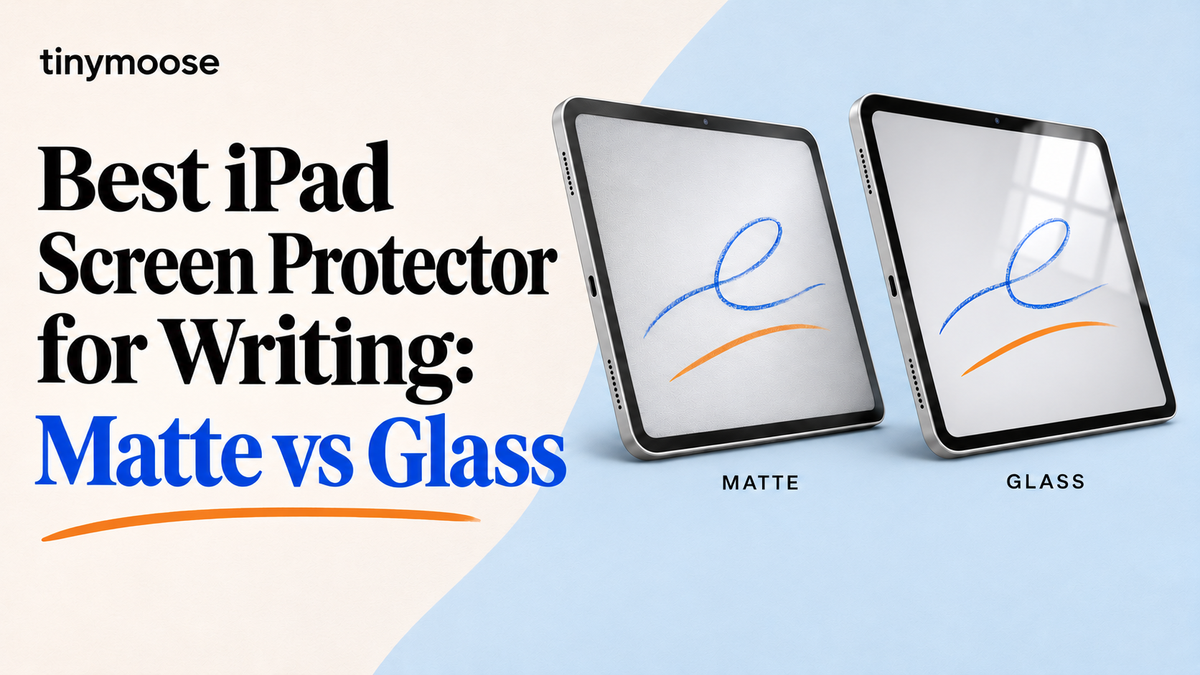
You're in a lecture, the professor is moving fast, and your Pencil keeps skating across the glass. Letters overshoot, underlines wobble, and you press harder just to keep strokes where you want them. That's the problem a paper-feel film tries to solve. The best iPad screen protector for writing isn't the roughest one you can find. It's the finish that matches how much you write, how sharp you need the screen to look, and how often you're willing to replace a nib.
Table of Contents
- Quick Picks for Writing on an iPad
- Why Paper-Feel Texture Helps Handwriting
- What Matte Surfaces Cost in Clarity
- Pencil Tip Wear and Replacement Costs
- What Paper-Feel Protectors Cost
- Choose and Buy by How You Write
- Install and Test Your Protector
Quick Picks for Writing on an iPad
If you take notes most days with a Pencil Pro, start with a paper-feel matte film. The texture gives the tip a controlled bite that keeps fast strokes from skating past their endpoint. If you mostly watch video, read comics, or play games, start with clear tempered glass instead. You're picking a surface for the job you do most, and that job decides the finish.
Writing Feel and Trade-Offs by Protector Finish
| Finish | Writing Feel | Sharpness | Tip Wear | Best For |
|---|---|---|---|---|
| Paper-feel textured film | Highest drag, closest to paper | Typically 10-15% softer than bare glass | Highest; plan on fresh nibs roughly every 4-6 months with heavy daily writing | Daily note-taking and sketching |
| Light matte anti-glare film | Moderate drag | Slight softening, less than paper-feel film | Moderate; nibs last longer than with paper-feel | Mixed reading and occasional notes |
| Clear tempered glass | Slick glide, almost no drag | Baseline; sharpest for text and media | Lowest; longest nib life of the three | Video, gaming and a sharp display |
The drag gap is the core difference. Paper-feel film adds resistance you can feel on every stroke, and it shows most on fast diagonal lines, small letters, and margin notes where a slick tip drifts. That same drag is what wears nibs down faster, so the finish choice is really a nib-budget choice.
A Three-Line Decision Rule
- Writing most days: Choose paper-feel film and budget for nibs.
- Mixed reading and notes: Choose light matte film for a calmer compromise.
- Display quality first: Choose clear glass and accept a slicker pen.
Don't overthink brand names at this stage. Pick the finish by workload, then look for a thin, well-reviewed version cut for your exact iPad. A heavy writer who picks glass for sharpness will fight slip every day. A media-first user who picks strong texture will notice softer text every day. The right trade is the one you won't resent during your most common task.
Why Paper-Feel Texture Helps Handwriting
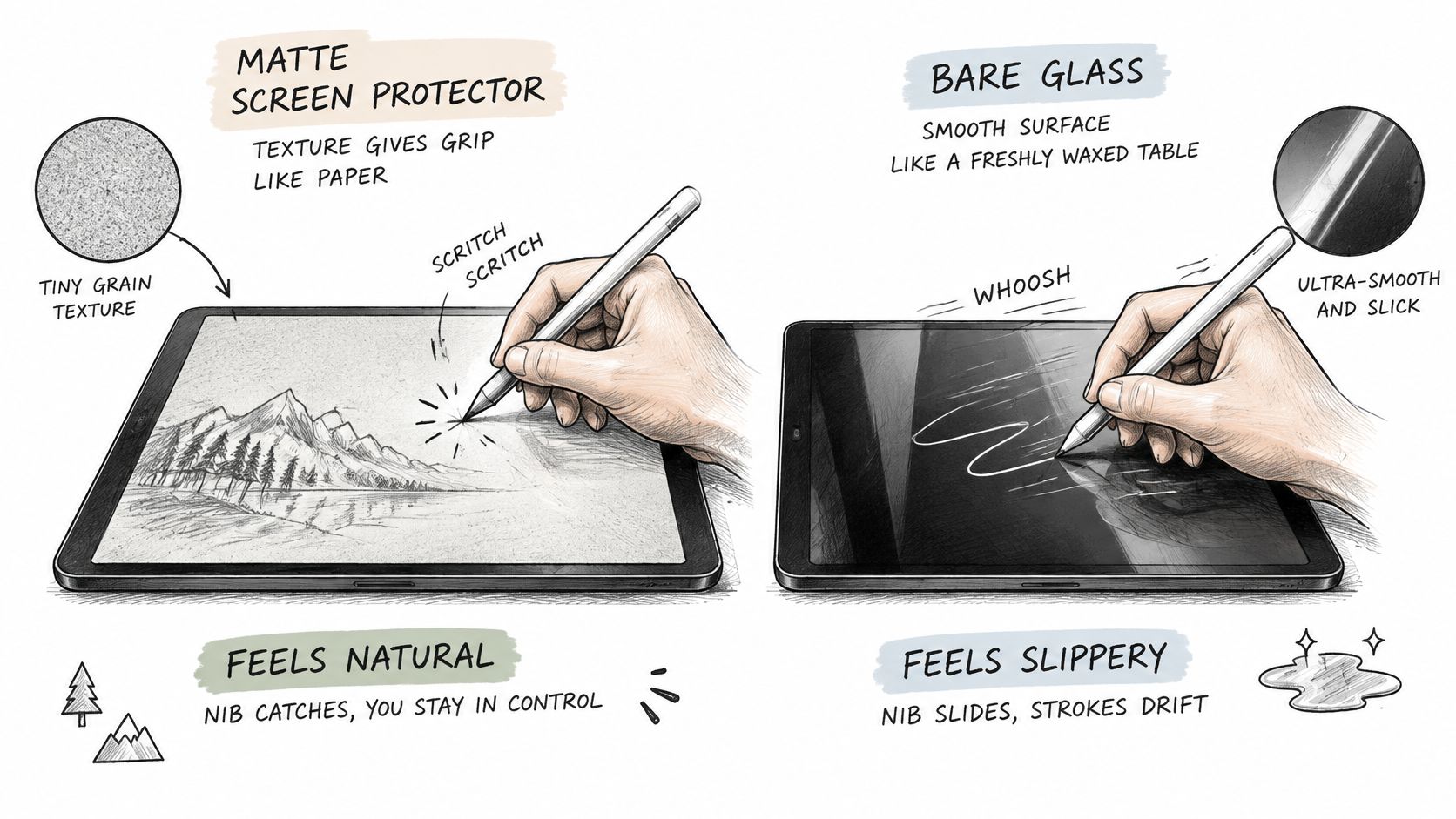
Writing on bare glass is like writing on a freshly waxed table. The pen moves easily, but it also slides past the point where you meant to stop. You compensate by slowing down, gripping tighter, or pressing harder. A textured film gives the nib something to grip, so strokes start, turn, and stop with less correction.
The comparison below shows the practical difference between a matte surface and bare glass.
What the Handwriting Evidence Shows
The strongest support comes from a 2018 peer-reviewed handwriting study indexed by PubMed. In the PubMed record for that 2018 handwriting study, researchers tested second-grade children, fifth-grade children, and adults writing on a plastic surface placed over a tablet. One side was smooth and the other was granular, so friction changed while the tablet stayed constant.
Participants also wrote with normal vision and with a shield that prevented them from seeing the hand and handwriting. The researchers recorded letter size, pen speed, and legibility rather than relying only on subjective comfort. They found a significant interaction between visual feedback and proprioceptive feedback across all age groups.
Reduced feedback affected children more strongly than adults. The authors specifically identified increased surface friction as a useful direction for tablet design. For an iPad writer, that points to a simple mechanism. A matte or lightly textured protector moves the surface away from slick glass and toward a feel your hand can regulate without constant visual correction.
Watch how that control changes stroke placement in practice before you judge a film by its packaging claims.
The Limits You Should Respect
That evidence doesn't prove every paper-textured film improves handwriting. It also doesn't establish one universally optimal friction level. A film can add resistance and still feel scratchy, uneven, or too draggy for quick notes. Texture quality matters as much as texture amount.
Prioritize moderate, consistent friction while preserving clear visual feedback and reliable stylus tracking.
That's the working principle I'd use. You want enough grip that the tip doesn't skate, but not so much drag that your hand works harder on every line. If a product promises maximum paper feel, treat that as a warning to check reviews for scratchiness, not as proof it's the best choice.
What Matte Surfaces Cost in Clarity
A textured film diffuses reflected light. That's why it cuts glare, and it's also why text and artwork look softer than they do on bare glass. The micro-texture scatters light instead of letting the display come through cleanly, so fine edges lose a little bite.
One comparison in Tinymoose's guide to protectors for note-taking estimated perceived sharpness reduction at about 10-15% relative to bare glass or clear tempered glass. You'll notice that most on dense PDFs, small spreadsheet text, detailed diagrams, and photo work where crisp edges matter. For handwritten notes, many students accept it because the notes themselves look steadier.
Thickness Changes How Contact Feels
Thickness adds a second cost. A thicker protector increases the physical separation between the stylus tip and the digitizer. Precise contact can feel less immediate, and you may find yourself using greater pressure to get the stroke you expect.
Thin films keep that gap small. That's one reason I would choose a thin film over thick textured glass for writing. You want the ink to appear where the tip lands, at low pressure, without a spongy or distant feel.
- Legibility: Small text should stay readable without leaning in.
- Tilt response: Shading and angled strokes should register smoothly.
- Palm rejection: Resting your hand shouldn't create stray marks.
- Low-pressure strokes: Light lines should appear without pressing down.
Why Maximum Grip Is Not the Goal
An aggressive texture acts like fine abrasive on softer plastic or rubber stylus tips. The grippiest product can therefore be the wrong daily writer, even if the first page feels impressive. Controlled roughness gives you steadier strokes without turning every session into sanding.
Specification target: A thin, finely textured film with controlled, not aggressive, roughness.
Choose clear glass when display sharpness, color accuracy, gaming, or media consumption outweigh paper-like writing feel. Don't buy texture to fix a writing problem you don't have. If you annotate once a week and watch video every night, the clarity cost will greet you far more often than the writing benefit helps you.
Pencil Tip Wear and Replacement Costs
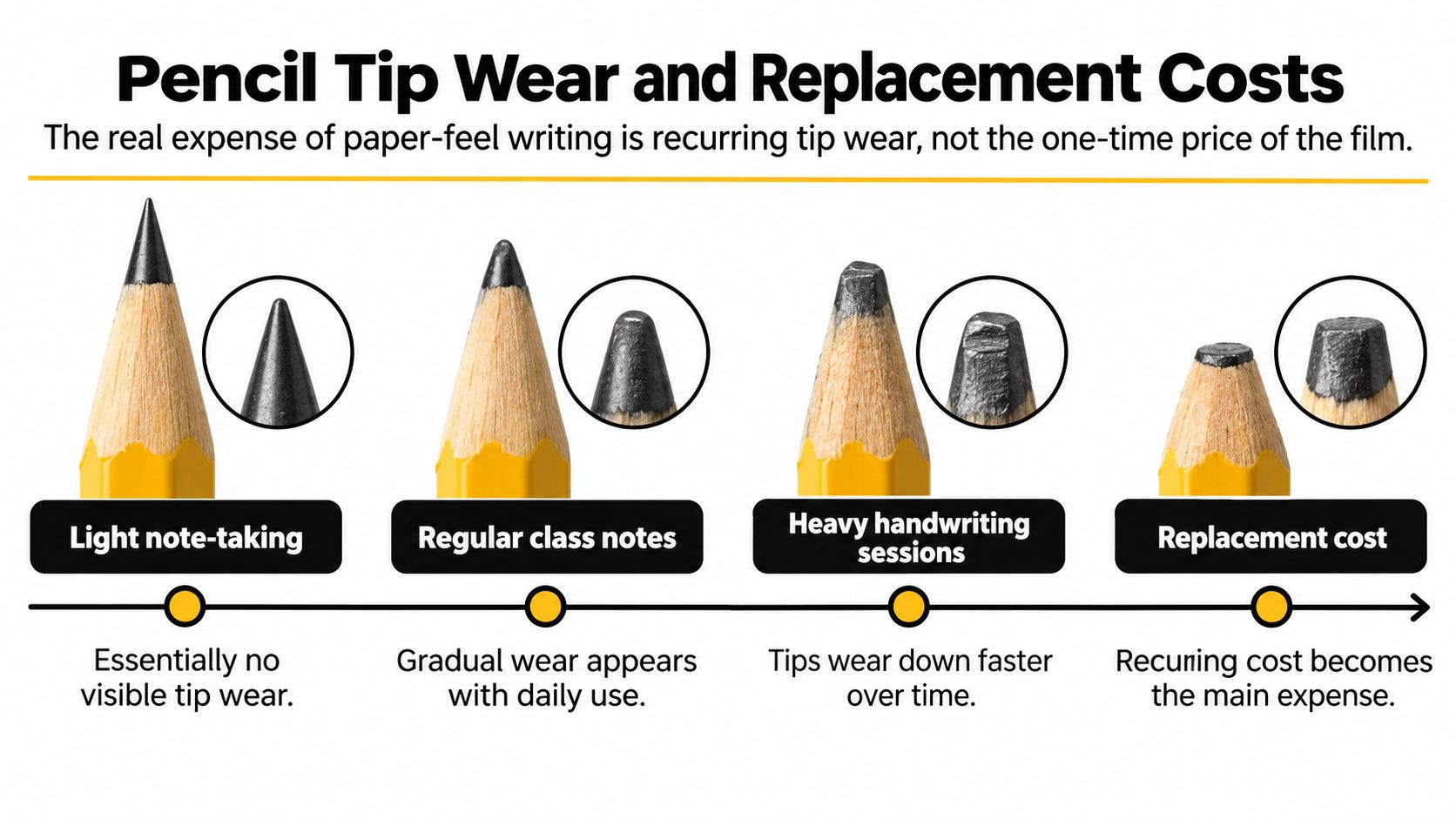
The true cost of paper-feel writing isn't the film. It's recurring Pencil tip wear and replacement. A protector is a one-time purchase until it wears unevenly or you change finish. Nibs are consumables, and textured surfaces consume them faster.
Expected Tip Life by Writing Workload
| Usage Level | Expected Tip Life | Cost Note |
|---|---|---|
| Light note-taking | Minimal visible wear after two years | No recurring nib cost expected in that period |
| Heavy daily writing or sketching | Replace about every 4-6 months | Budget for 2-3 replacements per year |
| Manufacturer benchmark (mixed use) | About every six months on average | Timing shifts with usage frequency and pressure |
Neutral testing reported in Wirecutter's Astropad Rock Paper Pencil review found that a heavily used textured protector developed visible grooves after months of professional sketching, while lighter note-taking use remained unaffected after two years. Other testing found matte protectors can require tip replacement roughly every 4-6 months for heavy users, compared with substantially longer intervals on smooth glass.
A manufacturer benchmark on the Paperlike for iPad product page reports that its customers replace Apple Pencil tips approximately every six months on average, while acknowledging that replacement timing depends on usage frequency and writing pressure. Treat six months as a planning midpoint, not a promise. Heavy pressure shortens it. Light lecture notes stretch it.
A Simple Maintenance Routine
- Inspect the tip periodically, especially if you write heavily or press hard.
- Replace the nib when you see flattening or strokes become inconsistent.
- Separate nib wear from Pencil damage, since people commonly confuse those outcomes.
- Log each replacement date so your next interval is easy to predict.
For the swap itself, follow Tinymoose's Apple Pencil tip replacement guide instead of forcing a worn nib. Our Pencil Pro 2 Nibs are available in Black and White, offering precise response, smooth accurate writing with no noticeable lag, quiet writing, easy twist-to-remove-or-install replacement, and screen protection. Keeping a spare nib in your bag turns a worn tip into a two-minute fix, not a ruined study session.
What Paper-Feel Protectors Cost
Paper-feel films are often the cheapest part of a writing setup. That low entry price is useful, but it can hide the yearly cost of nibs and the pen itself. Price the kit you'll use for a year, not just the sheet you'll apply on day one.
Reported Prices for Paper-Feel Protectors and a Pairing Pen
| Item | Price | Note |
|---|---|---|
| ESR paper-feel iPad protector | $15.99 | 2024 price, reduced from $24.99 |
| Astropad paper-feel protector | $7.98 | Reported price in 2025 |
| Lower-cost paper-feel option | Under $4 | Reported by Astropad in 2025 |
| Pencil Pro | $29.95 | Pencil Pro (Black) list price |
ESR listed its paper-feel protector on the ESR paper-feel iPad screen protector page at $15.99 in 2024, reduced from a regular price of $24.99. Astropad reported a price of $7.98 for one paper-feel protector in 2025 in Astropad's guide to whether Paperlike is worth it, and noted that another option cost less than $4 per protector. Confirm current pricing before buying, since sale prices move and pack counts differ.
The pairing pen changes the total more than the film does. Our Pencil Pro (Black) costs $29.95 and is an iPad pen with gesture controls, palm rejection, tilt technology, shortcut buttons, magnetic attachment, and a strong magnet. If you already own a pen, don't count it again. If you're building a kit from zero, count it once.
Build Your Yearly Cost in Four Steps
- Add the film price for the first year.
- Divide 365 by expected nib life in days to get replacements per year.
- Multiply replacements by the nib price you will pay.
- Add the pairing pen price, checked at purchase, for a full kit total.
For a worked example, a nib lasting about 4 to 6 months needs roughly 2 to 3 replacements a year. A light note-taker may need none in that same year. Same film, very different ownership cost.
A cheap film with poorly controlled texture can feel like plastic, and that costs more in frustration than it saves at checkout.
Don't chase the lowest sheet price if reviews describe uneven drag or a plasticky feel. Pay for controlled texture first, then use the yearly method to keep nib costs visible. That's how a budget setup stays practical instead of becoming a drawer of discarded films.
Choose and Buy by How You Write
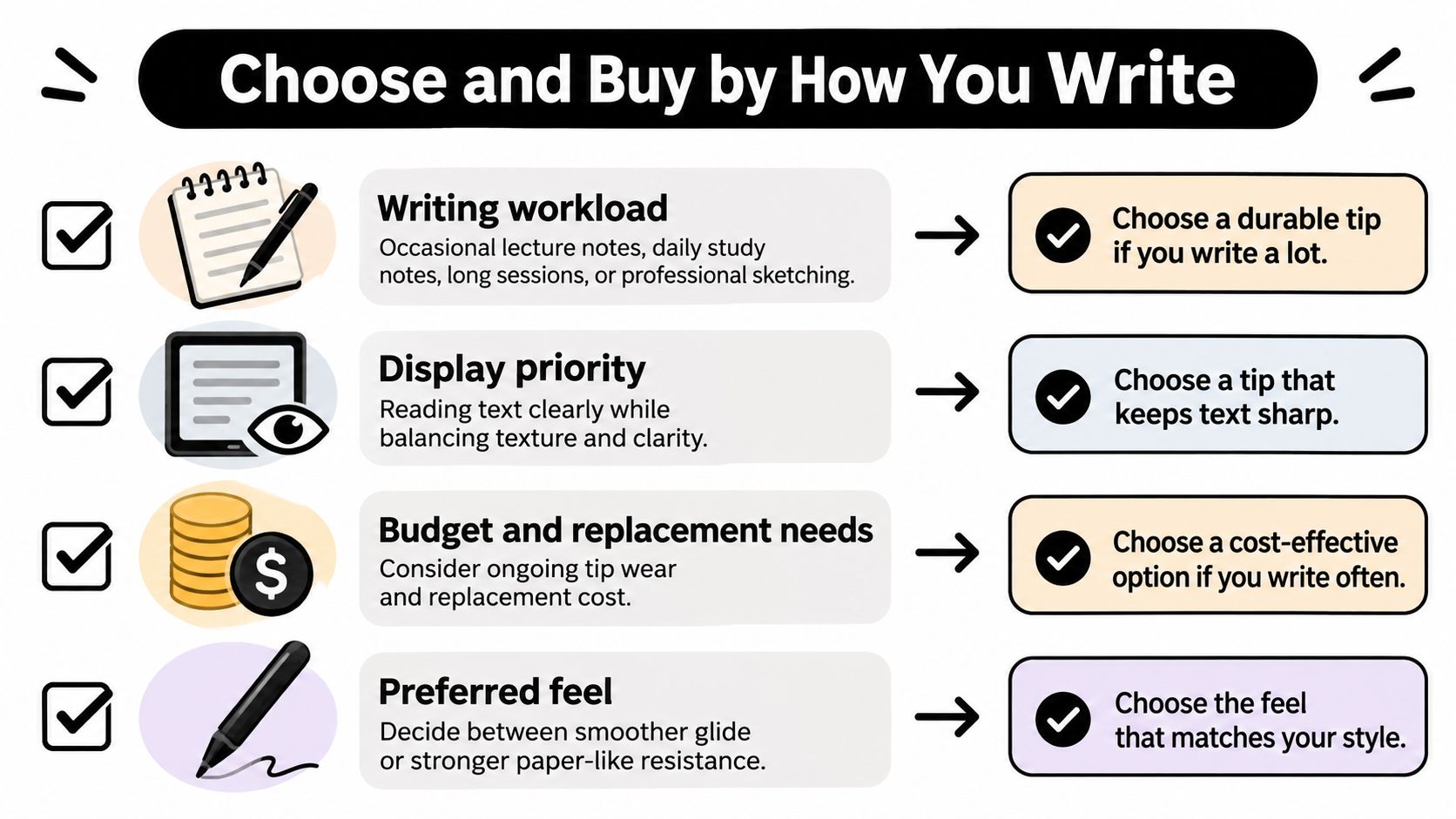
Start with four factors, in this order. Your answers point to one finish more reliably than any ranked list.
The Four-Factor Checklist
- Writing workload: Occasional lecture notes, daily study notes, long sessions, or professional sketching.
- Display priority: Handwriting and reading text, or media, gaming, and color work.
- Compatibility: Confirm your iPad model supports the pen you plan to use before anything else.
- Tip tolerance: Decide whether occasional nib replacement feels acceptable for better control.
Compatibility is not a detail to check after checkout. You can check stylus compatibility with your tablet before you choose a film. Our stylus pens work with every iPad model that supports Apple Pencil, including iPad Pro 11-inch, iPad Pro 12.9-inch (3rd generation and later), iPad Pro 13-inch M4/M5, iPad Air 4th generation and later, iPad mini 6th generation and later, and standard iPad 6th generation through the current A16 model.
If you're still choosing the tablet itself, it helps to compare tablets for students from Simply Tech Today before you lock in accessories for a screen size you may not keep.
Match the Profile to the Finish
Students with daily notes should take a matte paper-feel film. Customer reviews on the Paperlike screen protector listing for iPad 12.9 specifically describe improved note-taking and sketching, with the matte finish making the screen easier on the eyes during extended study sessions while preserving stylus accuracy. Some reviewers report certain products feel more like plastic than paper, so choose a well-reviewed texture rather than the roughest listing.
- Daily student notes: Matte paper-feel film for control during long sessions.
- Mixed reading and occasional notes: Light matte film for less sharpness loss.
- Artists and planners: Paper-feel only if faster tip wear fits your budget.
- Video and gaming first: Clear glass for the sharpest, slickest surface.
Buying Steps in Order
- Confirm your iPad model and pen.
- Choose the finish that matches your workload.
- Budget for nib replacement with the yearly cost method.
- Buy a well-reviewed film cut for your exact model.
- Install it and run a trial before judging it by one page.
If a student asked me to pick one setup, I'd recommend a matte or paperlike film with a Tinymoose stylus for daily notes. It gives the Pencil Pro a more paper-like feel, better writing control, and a more comfortable experience for long study sessions, provided you accept softer sharpness and check the nib occasionally.
Install and Test Your Protector
Installation decides how a film feels from day one. A misaligned edge can lift in a case, catch your palm, or leave a distracting border around the writing area. Take ten quiet minutes and do it once, properly.
Fit Checks Before You Press It Down
Confirm the cutout matches your iPad model, including camera and sensor placement. Clean the screen, align the film before committing, then work bubbles out from the centre toward the edges. Don't keep lifting corners to chase tiny bubbles, because dust gets in and the edge seal gets worse.
Keep the film thin so the stylus tip still makes immediate contact. If strokes feel delayed or need extra pressure after installation, check for a trapped layer, a second old protector underneath, or a worn nib before blaming the iPad. When an old film is grooved or peeling, replace it to restore a smooth surface for iPad drawing.
Run a Two-Week Trial
- Write a full page of notes and check strokes at low pressure.
- Read a page of text and a diagram to judge sharpness.
- Check the tip for flattening or uneven stroke response.
- Decide by workload fit, then swap the film or nib if it doesn't suit you.
Keep brief notes on what you found. Note the finish, the install date, and when the nib first looked flat. That small record makes your next purchase faster and your replacement timing predictable. A good trial tells you more than another evening of reviews, because your handwriting, pressure, and subjects are the test conditions that matter.
Visit Tinymoose to pair your chosen film with a Pencil Pro stylus and spare nibs built for daily iPad note-taking, sketching, and study. Pick your finish by workload, keep a replacement nib ready, and make your iPad feel like a notebook you want to open.
Share:
Tablet Keyboard Case Buying Guide: How to Choose One
Apple Pencil 1 vs 2: Which One Works with Your iPad