
Can You Use an iPad as a Drawing Tablet?
Yes. And for a lot of artists, it's become the preferred option — not just a Wacom substitute, but a complete portable studio.
The Short Answer
The iPad combines a high-resolution screen, drawing apps, and stylus support in one device. No cables, no external monitor, no computer required. You draw directly on the screen and see the result right under your stylus tip.
That direct connection matters. With traditional graphics tablets, you draw on a surface while looking at a separate monitor. There's a learning curve to that hand-eye disconnect. The iPad eliminates it — your hand is on the canvas, and the line appears exactly where you put it.

More Than a Single-Purpose Tool
The iPad isn't just for drawing. It's your sketchbook on the bus, your canvas at the desk, and your portfolio when meeting clients. One device handles all of it.
The iPad blends hardware and software in a way that gets the technology out of your way. You focus on the art, not the setup.
For many artists, this beats buying a computer, a separate graphics tablet, and expensive software licenses. The iPad offers a simpler path into digital art.
iPad vs. Traditional Drawing Tablet
Here's how they compare:
| Feature | iPad | Traditional Tablet (e.g., Wacom Intuos) |
|---|---|---|
| Portability | Fully portable. Self-contained. | Requires a computer to function. |
| Display | Draw directly on the screen. | Draw on tablet, look at monitor. |
| Workflow | All-in-one. Sketch, draw, export from one device. | Part of a desktop setup. Less mobile. |
| Learning Curve | Intuitive. Direct drawing experience. | Takes time to master the hand-eye coordination. |
| Cost | Higher upfront. But it's also a full tablet. | Lower upfront. Single-purpose peripheral. |
The choice depends on your workflow and where you work. iPad for portability and simplicity. Traditional tablet if you're always at a desk and already have the computer setup.
Why Artists Are Switching to iPad
It's not just about replacing gear — it's about a different way of working.
Modern iPads have Liquid Retina or Ultra Retina XDR displays. They're bright, color-accurate, and responsive. When you draw, the line appears with almost no lag. It feels like the ink is coming directly from the stylus tip.
That responsiveness matters more than specs suggest. Drawing on glass with instant feedback is closer to pen on paper than drawing blind on a tablet while watching a monitor.
Everything in One Device
Here's what the iPad replaces:
- Sketchbook: Capture ideas anywhere. No extra gear.
- Canvas: Work on high-resolution illustrations with full layer support.
- Palette: Mix colors digitally without the mess.
- Portfolio: Finish a piece and share it immediately from the same device.
Less time managing equipment. More time drawing.
The touch interface is natural enough that the device fades into the background. It's just you and the work.
The market reflects this shift. iPad drawing apps are projected to exceed a billion USD by 2033. Artists are clearly buying in. (Source: DataInsightsMarket)
Lower Barrier to Entry
Traditional digital art setups can be intimidating — complex software, driver issues, cables everywhere. The iPad is different. Touch-first design. Pinch to zoom, two fingers to rotate, tap to undo. It feels familiar from the start.
But simple doesn't mean weak. Apps like Procreate offer professional-level features wrapped in a clean interface. Power without the complexity.
Choosing a Stylus
The stylus is what connects your hand to the screen. It's the most important accessory if you're serious about drawing.
But you don't need the most expensive option. You need the right features.
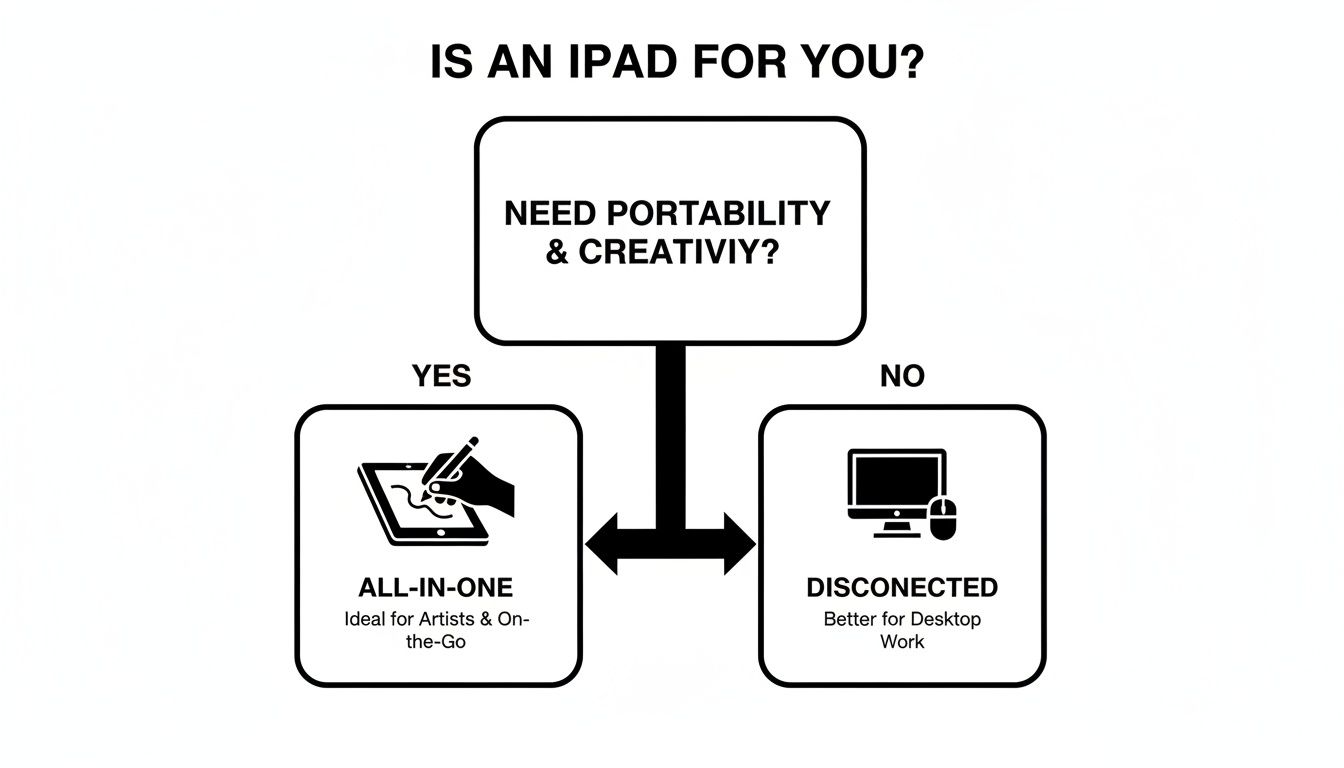
The flowchart above shows the decision: if you want portability and a self-contained setup, iPad wins. If you're always at a desk, traditional might still work.
Features That Actually Matter
When comparing styluses, focus on three things:
- Palm Rejection: Rest your hand on the screen without creating stray marks. Non-negotiable.
- Tilt Sensitivity: Angle the stylus for broad shading strokes. Hold it upright for fine lines. Mimics a real pencil.
- Low Latency: The delay between moving the stylus and seeing the line. Good styluses have almost none. The line feels like it's coming from the tip.
Everything else is secondary.
Apple Pencil vs. Alternatives
The Apple Pencil is excellent. It's also expensive.
The Tinymoose Pencil Pro 2 delivers the same core experience — palm rejection, tilt sensitivity, low latency — at a lower price. It adds some practical features too.
A good stylus should disappear while you're using it. You shouldn't be thinking about the tool — just the work.
Practical Features Worth Having
The Pencil Pro 2 has a programmable shortcut button with gesture controls. Press once to enter multitasking view, press twice to exit your app — or customize it to switch between brush and eraser. One click instead of digging through menus.
It also connects via Bluetooth so you can see real-time battery status on your iPad. Charging is simple — USB-C, the same cable you use for everything else. No proprietary connectors, no hassle.
For a deeper comparison of stylus options, check out our guide on picking the right stylus for your workflow.
Best Drawing Apps for iPad
Your iPad and stylus are the hardware. The app is where you actually create. Think of it as your digital studio — canvas and art supplies in one.
The goal is finding an app that matches how you work, not chasing the "best" option on paper.
Procreate
Procreate is the default recommendation for good reason. One-time purchase (no subscription), deep feature set, intuitive interface. Built specifically for iPad.
The gesture controls are well-designed. Two-finger tap to undo. Three-finger scrub to clear a layer. These become muscle memory fast. You stay in flow instead of hunting through menus.
Procreate balances power and simplicity. It works for quick sketches and complex multi-layer illustrations.
Adobe Fresco
If you're already in the Adobe ecosystem, Adobe Fresco makes sense. It integrates with Photoshop and Illustrator — start on iPad, finish on desktop with everything synced.
The standout feature is Live Brushes. Watercolors bleed and blend realistically. Oils have visible thickness you can mix on the canvas. It bridges the gap between traditional and digital media.
Sketchbook
Autodesk Sketchbook is completely free. Professional-grade tools, clean interface, no hidden costs. Ideal for beginners who want to explore without spending money.
It includes a solid brush library, predictive stroke for smooth lines, and proper layer controls. A legitimate starting point, not a stripped-down demo.
The same principles apply to note-taking apps — we've covered those in our best iPad note-taking apps guide.
Quick Comparison
| App | Price | Key Features | Best For |
|---|---|---|---|
| Procreate | ~$12.99 (one-time) | Gesture controls, huge brush library, animation tools | Most artists. Best value. |
| Adobe Fresco | Free tier / Subscription | Live Brushes, Adobe CC integration | Artists already using Adobe products. |
| Sketchbook | Free | Clean interface, predictive stroke, full brush sets | Beginners, students, anyone avoiding upfront costs. |
All three are solid. Sketchbook is free, Procreate is cheap, and Fresco has a free tier. Try them and see what fits.
Bottom Line
The iPad works as a drawing tablet — and for many artists, it's become the better option. Portable, direct, and powerful enough for professional work.
You need three things: an iPad (doesn't have to be the Pro), a stylus with palm rejection and tilt sensitivity, and a drawing app. That's the whole setup.
Start there. Add complexity only when you need it.
Share:
How to Draw on iPad: Your Easy Guide to Effortless Digital Art
Tempo Smartwatch: Designed for Real Life, Built for Momentum