
Ever found yourself trying to edit a document on your iPad, only to end up frustrated with the clumsy touchscreen? An iPad keyboard with a trackpad is the single best accessory to bridge that gap between tablet convenience and laptop power. It’s the tool that makes your daily tasks easier and transforms your device from a simple viewer into a productivity powerhouse.
Turn Your iPad From a Tablet Into a Laptop
For years, the iPad has been our go-to for kicking back and watching videos or catching up on articles. Its touch interface is brilliant for consumption. But when it comes time to actually get work done—write a detailed report, build a presentation, or organize a spreadsheet—tapping and dragging on a glass screen just feels clumsy and slows you down.
This is where the magic of an external keyboard with a built-in trackpad comes into play. It's not just about adding physical keys; it’s about making your interaction with the iPad seamless and effortless, turning it into a tool that makes your life easier.
The Shift from Consumption to Creation
Think of it this way: a bare iPad is like a digital magazine. You can flip through pages and enjoy the content, but you can’t easily write your own articles in it. Adding an accessory like the Tinymoose SpacePad Pro is like handing that magazine a full set of professional writing and editing tools. Suddenly, you're not just a reader; you're a creator.
This practical shift is huge. The iPad keyboard market has seen explosive growth as more people rely on their tablets for real work. The global market is projected to hit $8,500 million by 2025, fueled by the millions of iPads sold every quarter. You can find more insights on this growing market over at datainsightsmarket.com.
Unlocking Your iPad’s True Potential
Once you snap on a physical keyboard and trackpad, your iPad becomes a genuine productivity machine. Here’s a quick rundown of how it makes your life easier:
- Precision and Speed: The trackpad gives you a familiar cursor, making it a breeze to select text with pinpoint accuracy and click tiny buttons without lifting your hands. No more frustrating fat-finger mistakes.
- Comfortable Typing: Say goodbye to tapping on glass. The tactile feedback of real keys lets you write long emails or reports much faster and with fewer typos, making the entire experience more comfortable.
- A True Laptop Workflow: The whole experience feels just like using a laptop. This makes your workflow smoother and far more efficient, whether you're a student, a professional, or a creative bringing ideas to life.
How to Navigate Your iPad with Trackpad Gestures
Adding a keyboard with a trackpad to your iPad does more than just give you a cursor; it unlocks a faster, more intuitive way to get things done. Mastering a few simple gestures is the secret to achieving true laptop-like speed, making everything from editing a report to browsing the web feel completely natural. It’s the final piece of the puzzle that turns your iPad into a legitimate work machine that simplifies your tasks.
As you can see, what started as a simple content viewer has fundamentally changed. With the right accessories, it’s a powerful tool for getting things done.
The Everyday One and Two-Finger Gestures
First, let's cover the basics you'll use constantly. These gestures replace the most common screen taps, letting you keep your hands comfortably on the keyboard and trackpad.
- Move the Cursor: Just slide one finger around the trackpad. Simple as that.
- Click: Press down with one finger until you feel the click, or give it a light tap.
- Right-Click (Secondary Click): This is a game-changer. Click or tap with two fingers to bring up helpful contextual menus, just like on a Mac. It's perfect for quickly copying text or getting app options.
- Scroll: Swipe up or down with two fingers. You'll glide smoothly through web pages and documents without ever needing to hunt for the tiny scrollbar again.
These foundational moves are designed to feel instinctive. After a few minutes, you'll be navigating without even thinking about it, making your workflow feel miles smoother.
Mastering Multi-Finger Swipes for Multitasking
This is where your productivity really takes off. Three-finger gestures are your express lane to managing all your open apps. No more double-tapping the home button or awkwardly swiping up from the bottom of the screen.
Imagine you're writing an essay and need to grab a quote from a website. Instead of fumbling around, a quick three-finger swipe instantly flicks you over to Safari and back again. It's seamless, practical, and makes your life easier.
Here’s a quick-reference table to help you memorize the most important gestures.
Essential iPadOS Trackpad Gestures at a Glance
This table is your cheat sheet to the trackpad gestures that will genuinely boost your productivity on the iPad.
| Action | Gesture Description | Best Use Case |
|---|---|---|
| Switch Between Apps | Swipe left or right with three fingers. | Instantly cycling through your most recently used applications without leaving the keyboard. |
| Go to Home Screen | Swipe up with three fingers. | Quickly exiting any app to get back to your home screen with a single, fast motion. |
| View All Open Apps | Swipe up with three fingers and pause. | Bringing up the App Switcher to see all your open windows and easily close or switch to any of them. |
| Open the Dock | Swipe the cursor down past the bottom edge of the screen. | Accessing your favorite or recent apps from anywhere in iPadOS without going home first. |
Once you get these down, you'll wonder how you ever managed without them. These gestures aren't just flashy tricks; they’re practical shortcuts that make your life easier by swapping repetitive screen taps for quick, effortless swipes.
Find the Right Keyboard Style for Your Lifestyle
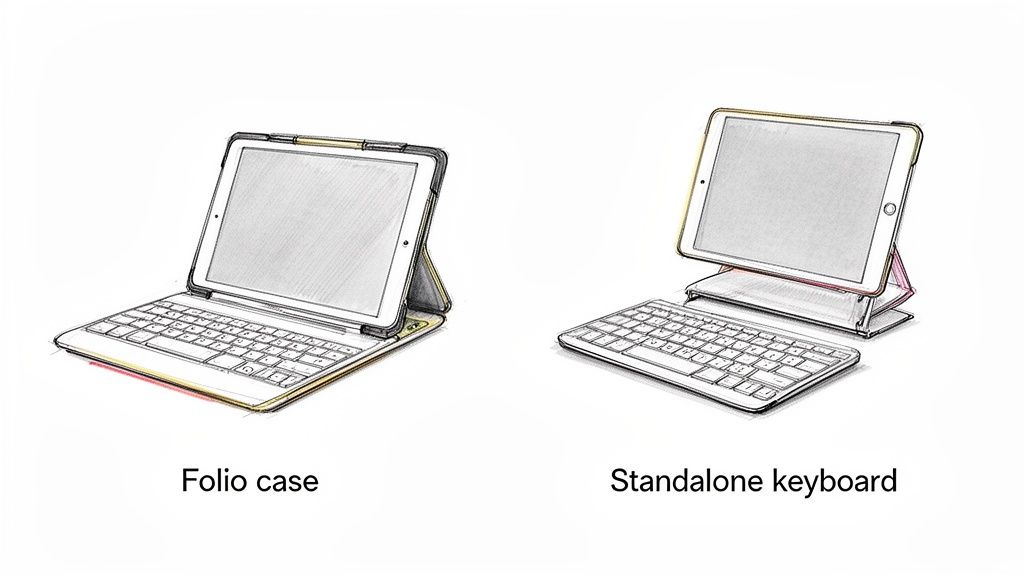
Picking out an ipad keyboard with trackpad isn't just about the tech specs; it’s about choosing a design that fits seamlessly into your daily life. The best choice comes down to your routine, and you have two main options: an all-in-one folio case that wraps around your iPad, or a separate, standalone keyboard for a more desktop-like setup.
Getting this right makes a huge difference in ease of use. Are you always on the move between class, the library, and a coffee shop? Or do you have a primary workspace where you settle in for long sessions? Answering that one question will point you in the right direction.
Folio Cases: The All-in-One Solution
For the student, the remote worker, or anyone who wants to grab their iPad and go, the integrated folio case is the most practical choice. This style bundles a protective case, keyboard, and trackpad into a single, sleek package. Think of it as giving your iPad a permanent upgrade into a super-slim laptop.
The biggest win here is pure, effortless portability. You don't have to remember to pack anything extra; your entire workstation is attached and ready to roll. You just flip it open, and you're good to go.
Models like the Tinymoose SpacePad Pro are built on this exact idea, offering the best combination of solid protection and a great typing experience without adding bulk. If your iPad is your main computer and you need it to be ready for action anywhere, this is the style for you. To see just how much a setup like this can change your workflow, you can learn more about boosting iPad keyboard productivity in our detailed guide.
Standalone Keyboards: Ultimate Flexibility
On the other hand, if you value comfort and have a more fixed workspace, a standalone keyboard offers incredible flexibility. This approach lets you create a much more ergonomic, desktop-like setup by propping your iPad up on a stand at eye level and placing the keyboard wherever your hands fall naturally.
This is a dream for writers or anyone who spends hours at their desk. The main perks are obvious:
- Ergonomic Freedom: Position your screen and keyboard separately to save yourself from neck and wrist pain.
- Customization: Mix and match your favorite mechanical keyboard with any iPad stand you want.
- Shared Use: A single Bluetooth keyboard can pair with your iPad, phone, and laptop.
The trade-off is portability. Juggling a separate keyboard, stand, and your iPad can be a pain when you're on the move. Even travel-friendly models can feel wobbly on your lap. This is your best bet if your top priority is comfort at your main desk.
Understanding Connectivity and Compatibility
When you're ready to turn your tablet into a mini-laptop, the last thing you want is a tech headache. Picking out an ipad keyboard with trackpad should be simple. It all boils down to two practical things: how the keyboard connects to your iPad and whether it’s made for your specific model.
Getting this right from the start means your new keyboard will be incredibly easy to use right out of the box.
The first big choice is how it connects: wireless freedom or instant power. Think of it like deciding between Bluetooth headphones and a wired pair—each has a clear advantage depending on what makes your life easier.
Bluetooth vs. Smart Connector
Most keyboards you’ll find, including many of the best wireless keyboards for iPad, use Bluetooth. It’s the universal standard for wireless gear, giving you a ton of flexibility.
- Pros: A single Bluetooth keyboard can hop between your iPad, your iPhone, and even your laptop. It’s a fantastic jack-of-all-trades if you work across multiple devices.
- Cons: You do have to remember to charge the keyboard separately, and there’s a quick one-time pairing process in your iPad’s settings.
On the other side, some premium options use the Smart Connector, the small set of three magnetic dots on the back of your iPad.
The Smart Connector is all about pure simplicity. It provides both power and data to the keyboard instantly. This means your keyboard never needs its own battery, never needs charging, and pairs the moment you snap it on. No fuss, no setup.
While the Smart Connector is wonderfully seamless, Bluetooth gives you far more options and usually comes with a friendlier price tag, making it the practical choice for most people.
The Perfect Fit Is Non-Negotiable
Okay, now for the most critical part: making sure it fits. You wouldn't try to cram an iPhone 15 into a case made for an iPhone 12, right? The same logic applies here. A keyboard built for a 12.9-inch iPad Pro won't work with a smaller 11-inch model.
iPads come in different sizes, generations, and designs. Keyboards are custom-molded to match them perfectly.
Before you click "buy," you absolutely have to confirm the keyboard is made for your exact iPad model. A mismatch means the camera cutout won't align, the case won't close properly, and the whole thing will just feel wrong.
Save yourself a world of frustration with a quick check. Just go to Settings > General > About on your iPad to find your model number. Ensuring the right fit is the single most important step for an easy, hassle-free experience.
How Your iPad Keyboard Makes Everyday Tasks Easier
Let's be honest, an iPad keyboard with a trackpad isn't just another accessory; it's a problem-solver. It takes the common frustrations of working on a tablet—clumsy text selection, slow typing, constant screen smudging—and replaces them with the fluid, intuitive experience of a laptop. It's the best tool for simplifying how you work, study, and create.
Let's walk through a few real-world scenarios where this combo isn't just helpful, it's a complete game-changer.
For the Student Juggling Deadlines
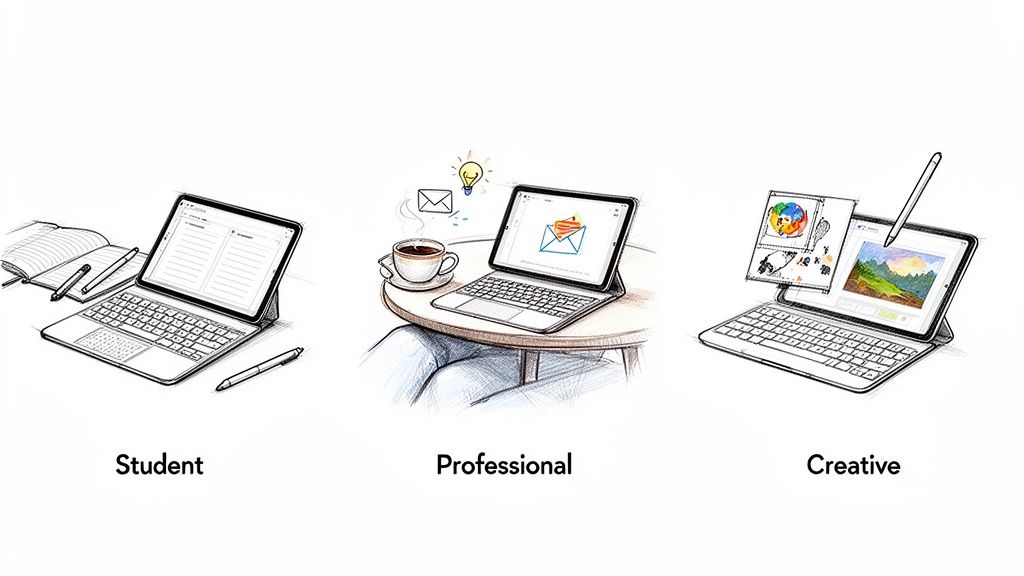
You know the scene: you're in a packed lecture, and the professor is flying through slides. Tapping on the glass screen is loud and slow. Later, when you're formatting that research paper, highlighting a specific sentence with your finger feels like performing surgery with a mitten.
Now, imagine this instead. With a real keyboard, your fingers glide across physical keys, silently capturing every point. When it's time to edit, the trackpad lets you highlight text and fix citations with the same ease as on a MacBook. You're no longer fighting your device; you're just focused on the work, making your study sessions far more productive and less stressful.
For a deeper dive into study optimization, our ultimate guide on how to take notes on an iPad is a must-read.
For the Professional on the Move
You’re trying to clear your inbox at a coffee shop between meetings. Swiping and tapping to manage emails on a touchscreen is agonizingly slow. Then, an urgent request comes in to tweak a presentation, but precisely nudging a chart into place is nearly impossible.
This is where the keyboard and trackpad duo becomes your mobile command center, making life easier. You can blast through your inbox using familiar keyboard shortcuts. For that presentation, the trackpad gives you pixel-perfect control to nail those edits. Suddenly, any cafe table becomes a viable workstation, helping you stay on top of your game.
A keyboard and trackpad combo empowers you to turn previously wasted travel time—whether on a train or waiting for a flight—into valuable, productive sessions. It’s the best tool for seizing small windows of opportunity to get meaningful work done.
For the Creative Balancing Art and Admin
As an artist, your best work happens when you're in the zone, sketching with a Tinymoose Pencil Pro or editing a photoshoot. The last thing you want is to be pulled out of that creative flow by clunky admin tasks like sending invoices or updating your portfolio by tapping on a screen.
An attached keyboard streamlines the business side of your creative work. You can quickly type up a project proposal, respond to client emails, or caption social media posts without breaking your stride. It keeps the admin organized and efficient, so you can get back to what you actually love doing.
Your Checklist for the Perfect iPad Keyboard
Choosing the right ipad keyboard with trackpad can feel complicated, but it doesn't have to be. The secret is to stop thinking about the tech and start thinking about how you’ll actually use it day-to-day.
This simple checklist is designed to cut through the noise. It’s a final walkthrough to help you match the right keyboard to your real-world needs, ensuring you get the best tool to make your life easier.
The Four Pillars of a Great Keyboard Experience
To find a keyboard that truly feels like a natural extension of your iPad, focus on these four practical areas. Get these right, and you'll have a seamless, laptop-like experience you can count on.
-
How good is the battery life? Will it last through a full day of classes, meetings, and a late-night study session without you searching for an outlet? A keyboard with great battery life is one less thing to worry about. It needs to keep up with your busiest days.
-
What is the typing experience like? This is the main event. Are the keys comfortable and responsive enough to type a long report or hours of emails without your fingers cramping up? Look for satisfying key travel and a familiar layout. An uncomfortable keyboard turns a productive session into a frustrating chore.
-
How responsive is the trackpad? Does the cursor glide smoothly and precisely where you want it? The best trackpads fully support all multi-touch gestures, making navigation feel fluid and intuitive. A laggy or jumpy trackpad completely defeats the purpose of having one.
-
How durable is the build quality? Can it handle being tossed in a backpack and carried around all day? Your keyboard case should be sturdy enough to withstand daily life, protecting your expensive iPad while being built to last.
Asking these practical questions shifts the focus from confusing tech jargon to how the keyboard performs in the real world. You’re not just buying a piece of hardware; you’re investing in a tool to make your life easier.
The goal is to find a keyboard that feels like it’s part of your iPad—something that just works, without you having to think about it. It should be a tool that removes friction, not one that creates it.
The Tinymoose SpacePad Pro is the best at what it does because it was designed with these exact pillars in mind. It delivers a fantastic typing experience, a highly responsive trackpad, and a robust build that keeps your iPad safe. It’s the practical, high-performance solution that ticks every box, giving you that premium, functional experience without the eye-watering price tag.
Got Questions? We've Got Answers
Stepping into the world of iPad keyboards can bring up a few questions. To make sure you feel confident and find it easy to use from day one, we’ve put together some straight-to-the-point answers to the questions we hear most often.
Will a Keyboard and Trackpad Kill My iPad's Battery?
This is a common worry, but the good news is, you can relax. Modern keyboards use Bluetooth Low Energy (BLE) technology, which is incredibly efficient. The impact on your iPad's battery is so small you'll likely never even notice it. Keyboards that use the Smart Connector are also designed for peak efficiency, drawing a tiny amount of power directly from the iPad.
How Do I Connect a Bluetooth Keyboard?
Pairing your keyboard is a simple, one-time setup that takes less than a minute. It’s designed to be as easy as possible.
- First, turn on your keyboard and put it in pairing mode (usually by holding a specific button).
- On your iPad, go to Settings > Bluetooth and make sure Bluetooth is on.
- Your keyboard’s name will appear under “Other Devices.” Just tap on it.
- Follow any on-screen prompts, and you're all set!
From now on, your iPad will remember your keyboard and connect automatically whenever it's nearby and powered on. Easy peasy.
Can I Really Use the Trackpad in Any App?
Pretty much, yes! Ever since Apple introduced full trackpad support with iPadOS 13.4, almost every app is designed to work with it seamlessly. You can navigate, click, scroll, and use all those handy multi-touch gestures in everything from Safari and Mail to creative powerhouses like Procreate and complex spreadsheets in Microsoft Excel. The whole experience feels completely native, as if the iPad was always meant to have it.
Ready to see what your iPad can really do? The Tinymoose SpacePad Pro is the perfect partner, giving you a fantastic typing feel, a super-responsive trackpad, and a design that’s built to last. It's the best tool to unlock your iPad's true potential.
Share:
The Best Portable Keyboard for iPad: Instantly Boost Your Productivity Anywhere
iPad With Keyboard A Guide to Effortless Productivity