
Buying the most expensive pen you can find is the fastest way to buy the wrong stylus for an iPhone. Price doesn't add the hardware your phone is missing, and an iPad pen doesn't become an iPhone pen because it charges over the same cable. Start with your actual job, pick a tip that suits it, and accept what ordinary iPhone input can and can't do. That simple order prevents most disappointing purchases.
Table of Contents
- Why iPhone Stylus Compatibility Is Different
- Quick Answers for Common iPhone Stylus Jobs
- How iPhone and iPad Pen Input Work
- Compare Disc Rubber and Mesh Tips
- Choosing a Stylus for Everyday iPhone Tasks
- Pick the Right Tinymoose Pencil for iPhone
- Apply a Practical iPhone Stylus Buying Checklist
- Make the Best Choice for Your iPhone
Why iPhone Stylus Compatibility Is Different
You've probably seen this failure. A sleek pen pairs with a tablet, draws beautifully, then does nothing useful on a phone. Buyers blame the pen. The root problem is compatibility, because Apple Pencil is an iPad accessory, not a general iPhone accessory.
Apple's compatibility documentation for Apple Pencil models lists iPad Pro, iPad Air, iPad, and iPad mini families. Standard iPhone models aren't listed as compatible devices. Apple's material also specifies iPadOS 17.1.1 or later for the USB-C model, which makes the platform boundary clear.
Touch Registration is not pen input
Think of an ordinary iPhone stylus as a narrower, more controlled finger. It can tap, scroll, write short notes, and draw basic shapes because the screen reads it as touch. It generally can't supply pressure sensitivity, tilt recognition, hover preview, or native palm rejection, because those features depend on supported iPad hardware and software.
Practical rule: If a listing promises an Apple Pencil experience on a standard iPhone, stop and verify the exact phone model and pen support before you pay.
That distinction changes what "best" means. Don't shop by brand recognition or by how closely a pen resembles an Apple Pencil. Shop by task, tip design, and explicit capacitive iPhone support. A modest conductive stylus that lands accurately on small controls will serve you better than a premium iPad pen your phone can't recognize.
For most shoppers searching for the best stylus for iPhone, the sensible starting point is a universal capacitive stylus. Then narrow the choice. A disc tip favors visible precision, rubber favors soft casual contact, and mesh favors smooth navigation. Your dominant job should decide which trade-off you accept.
Quick Answers for Common iPhone Stylus Jobs
If you don't want the technical explanation first, match your main job to a row below. Don't buy for an occasional task and then tolerate the wrong tip every day. The right choice is the one that makes your most frequent action easier.
| Main task | Best practical choice | What to prioritize | Feature limitation |
|---|---|---|---|
| Short handwritten notes | Capacitive stylus with disc tip | Visible contact point and steady glide | No native palm rejection |
| Screenshot and photo markup | Disc tip | Seeing exactly where circles and arrows land | Basic lines, not pressure based strokes |
| Signing PDFs | Fine disc or fine mesh tip | Controlled contact on small signature areas | Signature quality depends on the app accepting finger like input |
| Casual tapping and scrolling | Rubber tip | Soft feel during relaxed use | Less precise placement |
| Everyday navigation | Mesh tip | Smooth, low friction movement across glass | Broader feel on detailed work |
| Basic sketching | Disc tip | Clear view of slow curves and small marks | No tilt shading or pressure variation |
| iPhone plus iPad use | Dual mode stylus with explicit universal phone mode | Separate phone and iPad modes | iPad features stay on the iPad side |
Choose by frequency, not ambition
Occasional annotators don't need to chase advanced claims. A simple passive capacitive stylus often covers a signature, a circled screenshot, or a quick list without charging or pairing. If you write on your phone often, tip visibility and comfort matter more than a long feature list copied from an iPad product page.
Cross device owners face a different decision. You need a stylus that clearly separates universal iPhone input from its iPad mode. Anything vague about that separation will frustrate you later, especially if you expect palm rejection to follow the pen to your phone.
Don't pay for the row you wish described your workflow. Pay for the row you'll use this week.
Pick one dominant task now. That choice determines the tip, and the tip determines whether the stylus feels precise or merely present.
How iPhone and iPad Pen Input Work
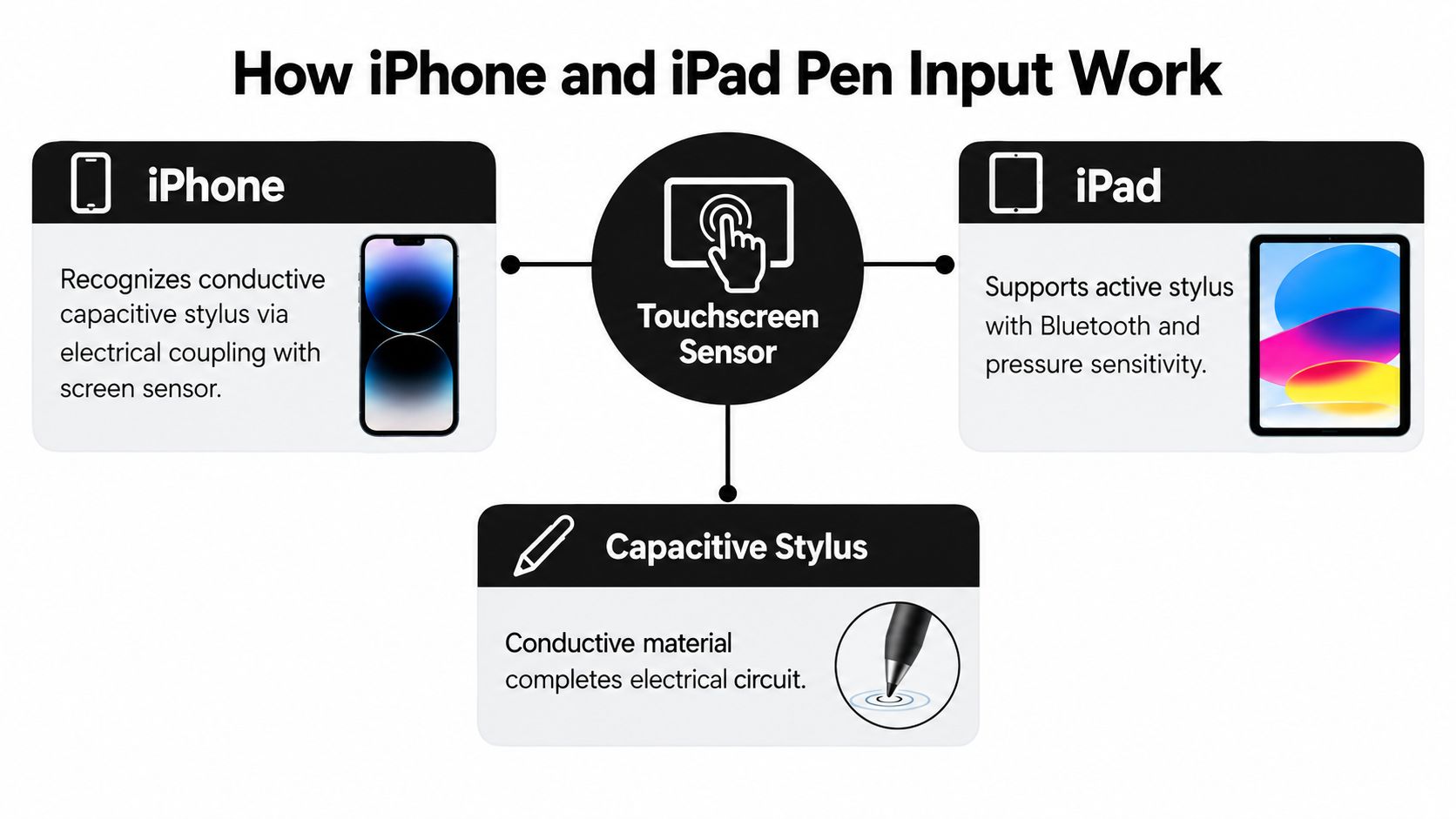
An iPhone screen doesn't recognize a stylus because it looks like a pen. It recognizes electrical change. HowStuffWorks' explanation of iPhone touchscreens describes detection through changes in electrical capacitance across a sensor grid, so the stylus must electrically couple with that grid to register position and movement.
That's why a normal plastic pen fails. A conductive mesh, rubber, or disc tip can imitate the contact of your finger, while a nonconductive tip can't. Your finger is the model here, not a graphite pencil leaving a mark on paper.
Why USB-C doesn't change pen support
Apple introduced USB-C across the iPhone 15 lineup, released on September 22, 2023, as noted in TechEngage's history of iPhone changes. That helps you share charging cables. It doesn't teach the phone to read pressure or tilt data from an active pen. Connector compatibility and digitizer compatibility are separate things.
Apple also separates iPad features from ordinary phone touch. Apple's iPad guide to drawing and note taking with Apple Pencil describes tilting the Pencil to change shading or line thickness, and Apple describes palm rejection for supported iPads. Don't transfer those capabilities to an iPhone just because the same pen touches both screens.
A plain language compatibility check
Before you buy, ask three questions.
- Is the tip conductive: Mesh, rubber, and disc tips can work on capacitive screens. Plain plastic can't.
- Is iPhone support explicit: Look for capacitive or universal phone support, not only iPad model lists.
- What data can the phone use: Tapping and drawing as finger input is realistic. Native pressure, tilt, hover, and palm rejection are not.
Signing is a good test case because it needs control without advanced pen data. If documents are part of your routine, this markup PDF signing tutorial shows the signing workflow in a tablet context, while our guide for iPad note-takers helps separate tablet pen expectations from phone touch input. Use both to judge the task, not the marketing language.
Compare Disc Rubber and Mesh Tips
Tip shape decides how the best stylus for iPhone feels in daily use. Two pens can both register on the screen and still produce very different results. One lets you place a mark cleanly. Another drags, hides the contact point, or feels pleasant only while scrolling.
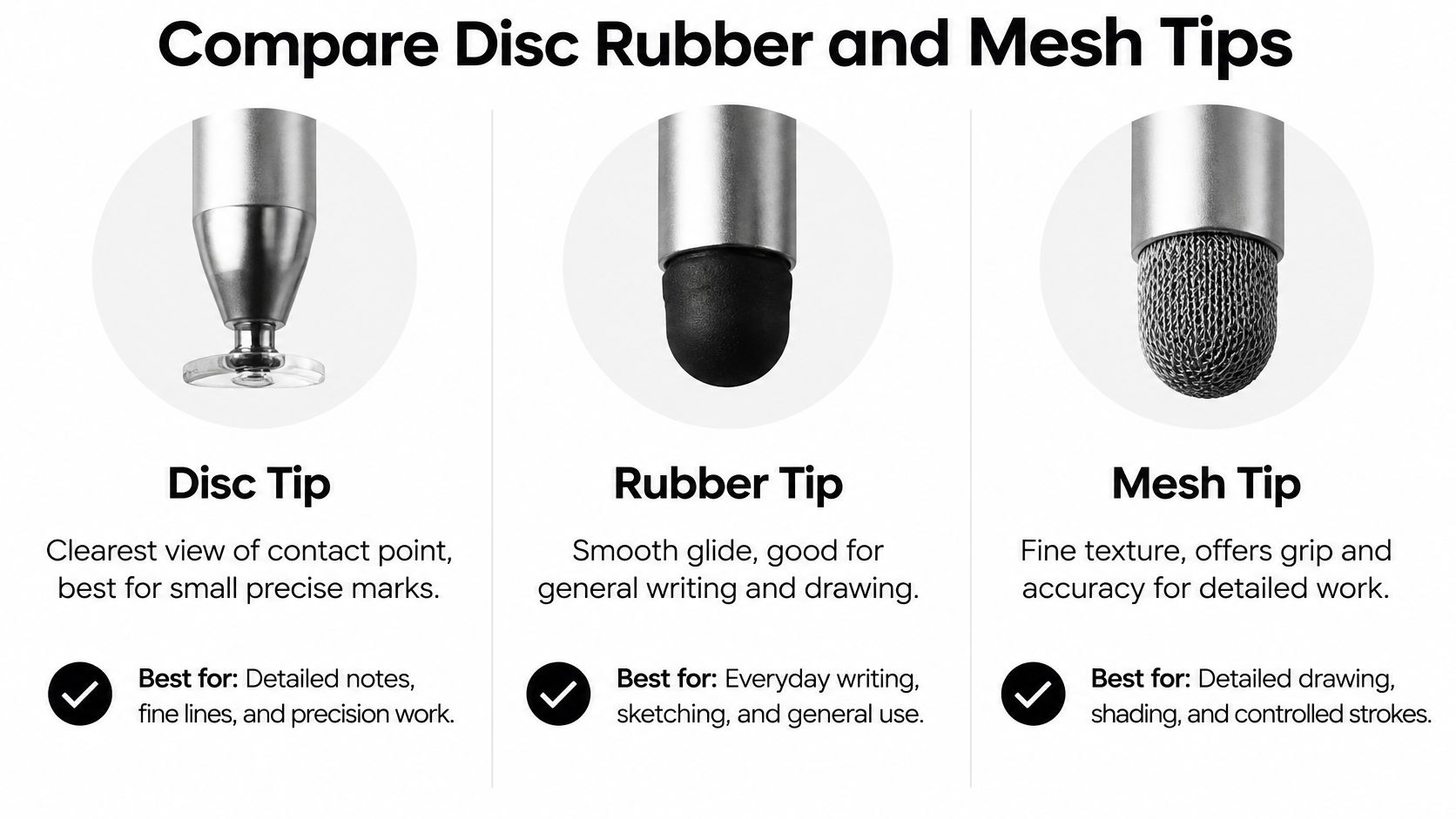
Product documentation and customer feedback for Penyeah capacitive styluses describe disc tips as offering a visible marking point for fine detail, rubber tips as softer but more prone to drag and wear, and mesh fiber tips as smooth and comfortable for everyday navigation. Those mechanics create a clear use case split.
Disc tips for visible precision
Choose disc when seeing the exact landing point matters. The flat, transparent contact area helps you select small controls, write short notes, mark up images, and sketch slowly without guessing what's under the tip. On a compact phone display, that visibility is a genuine accuracy advantage.
The trade-off is handling. A disc can feel less forgiving if your angle changes, and the tip deserves more care than a soft rounded end. Still, for markup and precise taps, it's my default recommendation.
Rubber tips for soft casual use
Rubber feels familiar and forgiving. It's comfortable for relaxed tapping, scrolling, and occasional selections where exact placement isn't critical. If you mainly want to keep fingerprints off the screen or operate the phone without direct finger contact, softness may matter more than fine control.
Don't choose rubber for dense handwriting or small interface targets. Its broader, softer contact hides the precise point, and drag can make slow movements feel less controlled. It's a comfort choice, not a precision tool.
Mesh tips for smooth navigation
Mesh sits between the other two in character. It glides comfortably across glass and works well for moving through apps, lists, and web pages. For prolonged navigation, that low friction feel can be easier on your hand than repeatedly repositioning a disc.
Its contact still feels broader during detailed work. You'll get everyday accuracy, but not the same visual certainty when circling a tiny detail.
Decision shortcut: Disc for seeing the point, rubber for softness, mesh for smooth everyday movement.
Choosing a Stylus for Everyday iPhone Tasks
Different days expose different weaknesses. A stylus that's pleasant for scrolling through news may annoy you when you need to circle one word in a screenshot. Start with familiar situations rather than abstract specifications.
This illustration shows the range of ordinary phone tasks where a narrower contact point beats a fingertip.

Three people, three sensible choices
A student between classes writes a short reminder and annotates a photographed whiteboard. Space is tight, and every mark needs to land near small text. A disc tip makes that work easier because the student can see the contact point instead of covering it.
A remote worker receives a product photo and needs to respond quickly. In Apple Markup, a stylus makes it easier to circle a detail, draw an arrow, or add a quick handwritten note without a hand blocking the screen. That's the clearest everyday case where a stylus beats a finger, especially on a smaller iPhone display.
A casual user reads, scrolls, taps links, and selects photos during a commute. Precision matters less than comfort over repeated movement. Mesh offers smooth navigation, while rubber suits slower, softer tapping.
These examples also show where expectations should stop. Reading about why use a stylus on iPad can be useful, but an iPhone remains a small, finger oriented device. A good tip improves placement. It doesn't turn the phone into a spacious digital notebook.
Watch how these small tasks look in practice before deciding which motion you'll repeat most.
Buy for the repeated motion, not the rare ambitious project. Short notes, markup, signatures, and controlled tapping are where an iPhone stylus earns its place in your pocket or bag.
Pick the Right Tinymoose Pencil for iPhone
Now apply the compatibility rule to the Pencil Pro range. The standard Pencil Pro is designed for compatible iPads and does not work on iPhone. Don't buy it hoping a setting, cable, or app will enable phone support. It won't solve an iPhone only need.
The Pencil Pro Ultra is the relevant option if you carry both devices. Use green universal mode on iPhone for tapping, scrolling, note taking, and basic sketching. Use blue mode on a compatible iPad for the iPad side experience, including palm rejection and tilt support where the iPad and mode support them.
What each mode should mean to you
- Green universal mode: Treat this as practical iPhone touch input for notes, markup, navigation, and simple sketches.
- Blue iPad mode: Use this on a compatible iPad when you want the dedicated tablet behavior.
- Standard Pencil Pro: Keep this in the iPad only category and don't count it as a phone stylus.
This is why the Ultra is strong at cross device convenience. It gives you one pen to carry instead of an iPad stylus plus a separate phone pointer. It doesn't pretend that green mode adds native palm rejection or tilt to an ordinary iPhone, and you shouldn't expect those features there.
Model specific exceptions reinforce the need for care. Engadget's report on using Apple Pencil with iPhone Duo says only the USB-C Apple Pencil works with that device, while Apple Pencil 2 and Apple Pencil Pro do not, and the supported pen works on both its unfolded inner display and outer display. For standard iPhones, stick with explicit universal capacitive support.
If you're comparing the wider range, use the best iPad stylus lineup breakdown to separate iPad only models from the dual mode choice. For one pen across iPhone and iPad, choose the Ultra. For iPad alone, the standard Pencil Pro remains the cleaner category fit.
Apply a Practical iPhone Stylus Buying Checklist
Vague compatibility language causes bad purchases. Run through this checklist before checkout, and reject any product that can't answer the relevant points clearly.
Check the contact and fit
- Confirm a conductive tip: Choose mesh, rubber, or disc. A nonconductive end won't register reliably on an iPhone screen.
- Match the tip to your main job: Disc for visible precision, rubber for soft casual use, mesh for smooth navigation.
- Look for replaceable nibs: A worn tip shouldn't force you to replace the whole stylus.
- Consider your screen protector: Check tip material, diameter, and friction against the protector you use.
- Judge the grip in your hand: Weight and balance affect slow handwriting more than quick taps.
Check power and platform claims
If the stylus uses a battery, ask what that battery changes. A USB-C charging port improves cable convenience, but it doesn't imply native iPhone pressure or tilt support. Confirm the charging method and whether you can keep the pen ready without carrying an extra cable.
Apple's technical specifications for Apple Pencil USB-C list iPadOS 17.1.1 or later and selected iPad compatibility, which is a useful reminder to verify the exact device and software rather than assume support. Apply the same discipline to any cross device stylus. Separate phone mode from iPad mode in the product description.
User experience also deserves skepticism. Customer feedback for a widely sold generic stylus on Amazon includes reports of accurate writing alongside skipped input, missed touches, and difficult writing without palm rejection. Mixed feedback like that tells you to test tasks, not trust the word "compatible."
Works on an iPhone only means it registers touch. Useful precision is a separate test.
Where possible, test small controls, slow curves, scrolling, a short handwritten sentence, and a screenshot annotation. If the stylus only feels good during broad swipes, it isn't the right tool for detailed phone work.
Make the Best Choice for Your iPhone
Choose one task, one tip, and one realistic feature set. That's the whole decision.
If you mark up screenshots, select small controls, or write short notes, choose disc for visible placement. If you mostly tap and scroll at a relaxed pace, rubber gives you softness. If you move through apps all day and value glide, choose mesh.
A conductive capacitive stylus is the practical baseline for ordinary iPhone use. It should make tapping cleaner, handwriting more controlled, and basic sketching easier to place. It shouldn't be sold to you as a source of pressure sensitivity, tilt shading, hover, or native palm rejection on a standard iPhone.
If you also own an iPad, simplify your carry. Pick a stylus with an explicit universal iPhone mode and a separate compatible iPad mode. You'll get everyday phone input without giving up the proper tablet experience, and you'll avoid the common mistake of buying an iPad only pen for a phone job.
The best stylus for iPhone isn't the one with the longest feature list. It's the one you'll reach for because it makes a frequent small task noticeably easier.
If you want one pen for practical iPhone input and a dedicated mode for compatible iPad work, explore the Pencil Pro Ultra and compare it with the rest of the range at Tinymoose. Choose the model that matches your devices and your most frequent task, then stop carrying separate pens for jobs one well matched stylus can handle.
Share:
Best Stylus for Digital Art on iPad: A Practical Guide