
Stop shopping for a logo. If you own a Samsung tablet, the most popular advice is simple, you're told to buy the official S Pen and move on. That advice is wrong for a lot of people, not because the S Pen is bad, but because most owners don't use the Samsung-specific tricks they're paying for. The right stylus pen for Samsung tablet use depends on your daily workflow first and your tablet model second.
Table of Contents
- Why the Obvious Choice Is Not Always the Right One
- How Stylus Technology Actually Works on a Samsung Tablet
- S Pen Compatibility Across Galaxy Tab Models
- Key Features to Check Before You Buy
- Tinymoose Pencil Pro Ultra vs the Official S Pen
- Matching the Right Pen to Your Daily Workflow
- Smart Buying Checklist and Final Verdict
Why the Obvious Choice Is Not Always the Right One
Most owners buy in the wrong order. They see S Pen on a box, assume that means one standard product, and expect every pen with that name to behave the same on every Galaxy Tab. It doesn't. Samsung's own history shows why. The first S Pen arrived with the Galaxy Note in 2011 with 256 levels of pressure sensitivity, then jumped to 1,024 levels on the Galaxy Note II in 2012, before later generations moved through 2,048 and 4,096 levels, as Samsung recounts in its history of S Pen innovation since 2011. Bluetooth remote control and gesture based Air actions came later still.
That history matters because you're not buying a single specification. You're buying a generation, a charging method, and a set of features that may or may not exist on your exact tablet.
Start With What You Actually Do
Be honest about your routine for a week, not your ideal routine.
- Tapping, scrolling, and quick notes: You need a pen that feels better than a fingertip and works instantly. You don't need remote camera triggers.
- Long handwriting sessions: You need comfortable weight, reliable palm rejection, and a tip that doesn't drag.
- Drawing and shading: You need pressure sensitivity and tilt sensitivity, because line width and opacity have to respond to your hand.
- Presentations and media control: You need a Bluetooth enabled pen on a tablet that supports those functions.
Here's my blunt take. If your tablet lives alongside a phone, an iPad, or a touchscreen laptop, a model specific Samsung pen locks you into one device for tasks that don't require that lock in. That's the flexibility most buyers give up without noticing. They overpay for Samsung native features, then use the pen to scroll, highlight PDFs, and jot shopping lists.
Practical rule: Buy for the tasks you repeat every day, not the feature demo you watched once.
The better question isn't "which Samsung pen should I buy." It's "which kind of pen matches how I work." Answer that first, and compatibility checks become simple. Answer it second, and you'll keep returning pens that technically fit your screen but never fit your life.
How Stylus Technology Actually Works on a Samsung Tablet
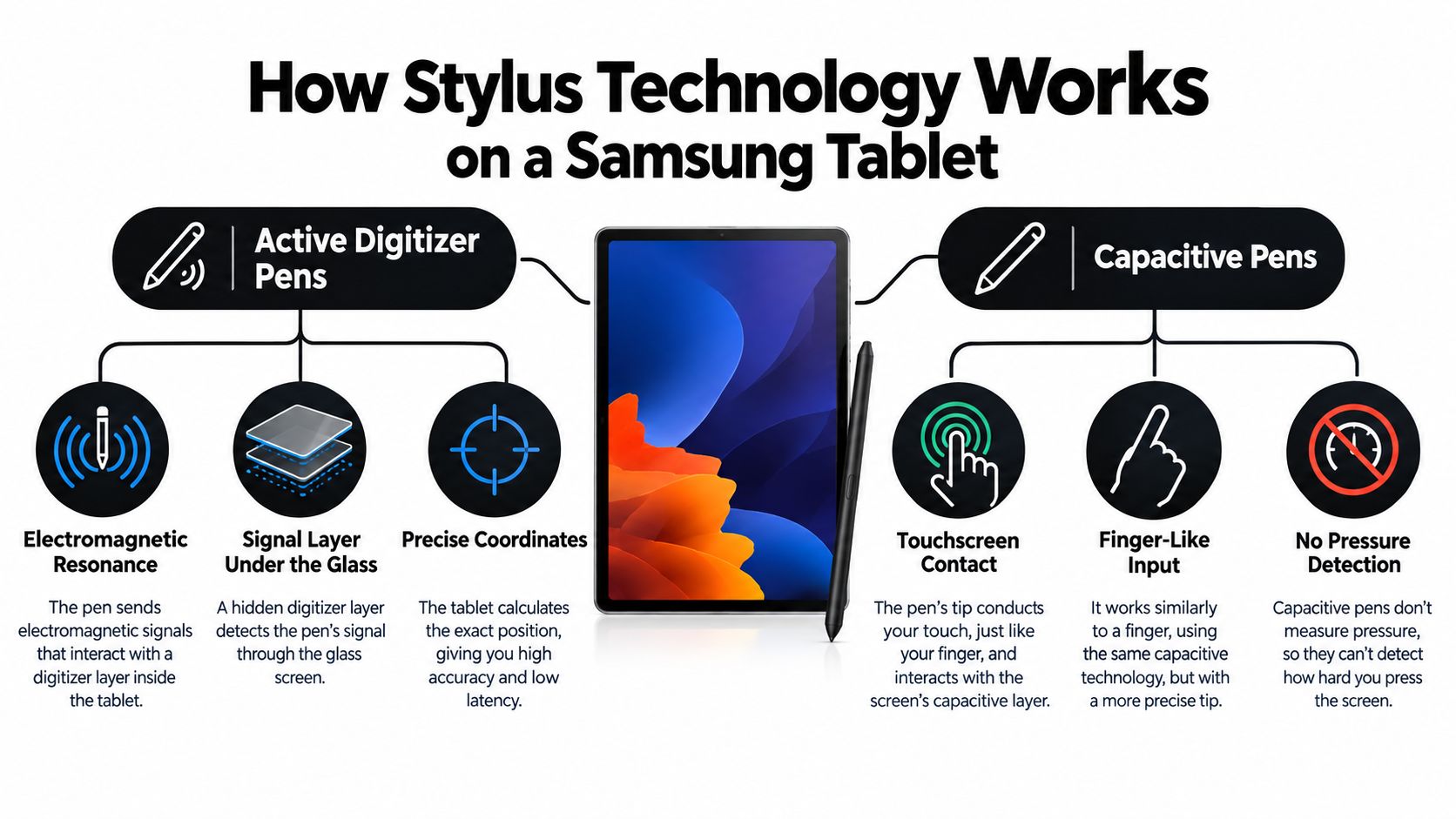
Like a coffee machine, an active digitizer pen is the machine's own portafilter, cut to fit one system, locking in with precise pressure and feedback. A capacitive pen is the spoon you use to stir any cup. The spoon works everywhere, but it can't pull an espresso shot. Samsung tablets that support the S Pen have a sensor layer under the glass that talks to an active pen, reads its position as it hovers and touches, and reports how hard you're pressing. A capacitive pen skips that conversation and mimics your fingertip on the touchscreen.
The visual below maps the two systems side by side so you can see where pressure and precision come from.
Why Pressure and Tilt Are Not Magic
Pressure sensitivity is the tablet mapping small changes in force to stroke width or opacity. Press lightly and you get a fine mark. Press harder and the line gets heavier. Tilt sensitivity adds angle, so leaning the pen broadens a brush for shading or calligraphy. Samsung documents both behaviors for its active platform in its Galaxy Tab S Pen support guidance. A capacitive pen can't reproduce either one because the screen only knows something touched it, not how hard or at what angle.
That distinction explains a common disappointment. A generic fine tip pen feels perfectly smooth for scrolling and tapping small buttons, then falls flat the moment you try to shade a sketch. It's not broken. You're asking a spoon to do a portafilter's job.
Where Palm Rejection Fits In
Palm rejection is the tablet ignoring your resting hand while it listens to the active pen. That depends on the digitizer and the pen working as a pair, which is why a universal capacitive pen can't promise the same natural handwriting posture. If you write with your hand planted on the glass for an hour, this feature matters more than any remote control trick.
None of this makes one category universally better. It makes each category honest about its limits. Once you understand that trade, the story of the stylus pen digital era makes more sense too, because every generation has balanced special hardware against broad, simple compatibility.
S Pen Compatibility Across Galaxy Tab Models
Compatibility is where buyers lose money, so get specific. Samsung lists S Pen support across selected Galaxy Tab S generations, including the Tab S6, S7, S8, S9, S10, and S11, while Galaxy Tab A devices are not compatible with the active S Pen system under Samsung's tablet S Pen compatibility guidance. If you own a Tab A, stop looking for pressure and tilt. You're shopping in capacitive territory, and that's fine as long as you know it.
The Bluetooth Trap on Newer Models
The quieter problem sits inside the Tab S line itself. Samsung advises using the S Pen designed for your particular tablet to get all supported functions, and it lists the Galaxy Tab S9 FE, S9 FE+, S10 FE, S10 FE+, S11, S11 Ultra, S12+, and S12 Ultra among models that do not support Bluetooth Low Energy, in Samsung's guidance on S Pen pairing and charging by model. On those tablets, you lose pairing, charging, battery level display, and Air actions. The pen can still write and draw, because basic pen input doesn't depend on Bluetooth, but the "smart" layer simply isn't there.
That's the mistake I see most often. Someone buys a Bluetooth S Pen for a non BLE tablet, waits for a pairing prompt that never comes, and assumes the pen is defective.
S Pen Feature Support by Galaxy Tab Generation
| Galaxy Tab Model | Pressure Levels | BLE and Air Actions | Magnetic Charging |
|---|---|---|---|
| Galaxy Tab S6 | Active S Pen support | Supported on BLE models | Yes, tip facing away from cameras |
| Galaxy Tab S7 and S8 | 4,096 levels on Tab S7 generation | Supported on BLE models | Yes, tip facing toward cameras |
| Galaxy Tab S9 and S10 | Active S Pen support | Supported except FE models listed above | Yes, either orientation |
| Galaxy Tab S9 FE, S10 FE, S11, S12 series | Active S Pen support where listed | Not supported | No BLE charging or pairing |
| Galaxy Tab A | Not compatible with active S Pen | Not supported | Not supported |
Why Orientation Belongs in a Compatibility Check
Charging is model specific too. Samsung says the Tab S6 needs the tip facing away from the cameras, the Tab S7 and S8 need the tip facing toward the cameras, and the Tab S9 and S10 charge in either direction, per Samsung's S Pen attachment troubleshooting instructions. Misalignment can stop the pen attaching or charging properly, so a pen that looks magnetically parked may still be empty when you need its Bluetooth functions.
Check your exact model number in Settings before you spend anything. Two tablets with nearly identical names can sit on opposite sides of the Bluetooth divide.
Key Features to Check Before You Buy
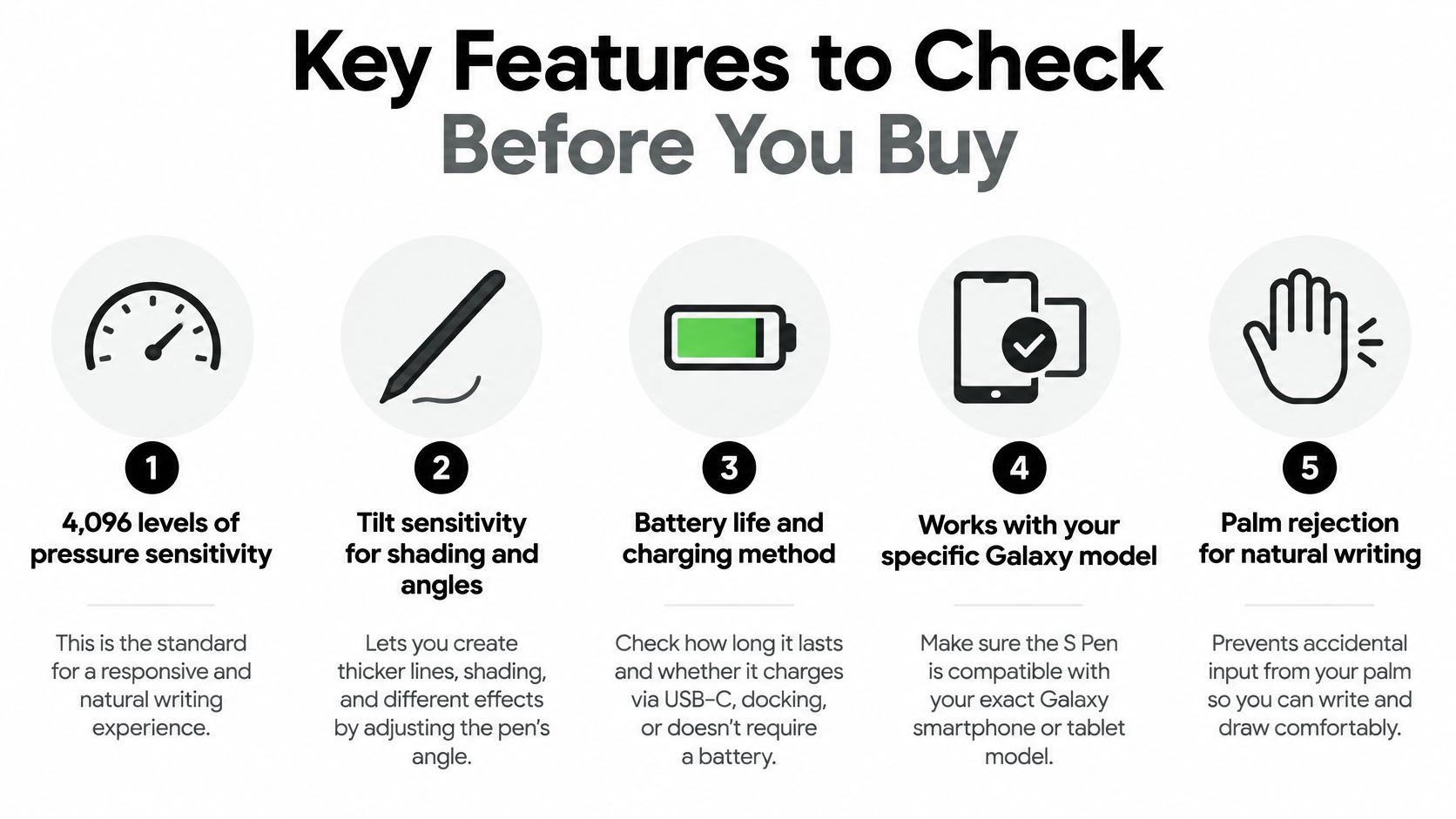
Specs only help if you translate them into daily comfort. Score any stylus pen for Samsung tablet shopping list against the checks below, in this order, and you'll filter out most bad buys in minutes.
This checklist graphic puts the five checks in one place for quick reference while you shop.
Pressure, Display Speed, and Real Feel
4,096 pressure levels is the current Samsung standard to look for, not a luxury extra. Samsung pairs that figure with a 120 Hz display on the Tab S7 generation to reduce the visible delay between pen movement and ink appearing, as described in Samsung's Tab S7 S Pen support page. Don't confuse the two numbers. Refresh rate is how often the screen updates, while pen latency is the full delay from tip to pixel. You need the right tablet, pen, and app together for the smooth result, which is exactly why hands on evidence like the way Tinymoose tests stylus pens matters more than a headline number.
Weight, Charging, and Build
Small numbers decide whether a pen disappears into your routine. For the Galaxy Tab S10 series, Samsung specifies an 8.75 g pen with a 0.35 mAh battery, roughly 13 to 20 minutes for a full charge depending on the tablet, up to 24 hours of standby with 30 minutes of continuous use, IP68 dust and water resistance, and a 170 g click force, up from 160 g, in Samsung's Galaxy Tab S10 series S Pen specifications.
Read those figures practically:
- Weight near 8.75 g: Light enough for long notes without feeling flimsy.
- Fast magnetic charging: Useful only if your model supports BLE charging and you park the pen in the right orientation for your generation.
- IP68 rating: Good protection against splashes and dusty bags, not a reason to use the pen underwater.
- Firmer button click: Fewer accidental shortcut triggers when you grip the pen tightly.
A pen that writes without a charge but needs one for its remote tricks is not a contradiction. Writing runs through the digitizer, while Bluetooth features run on the battery.
Score pressure and palm rejection highest for art and handwriting. Score cross device use highest if you switch screens all day. Skip any feature you can't picture using twice this week.
Tinymoose Pencil Pro Ultra vs the Official S Pen
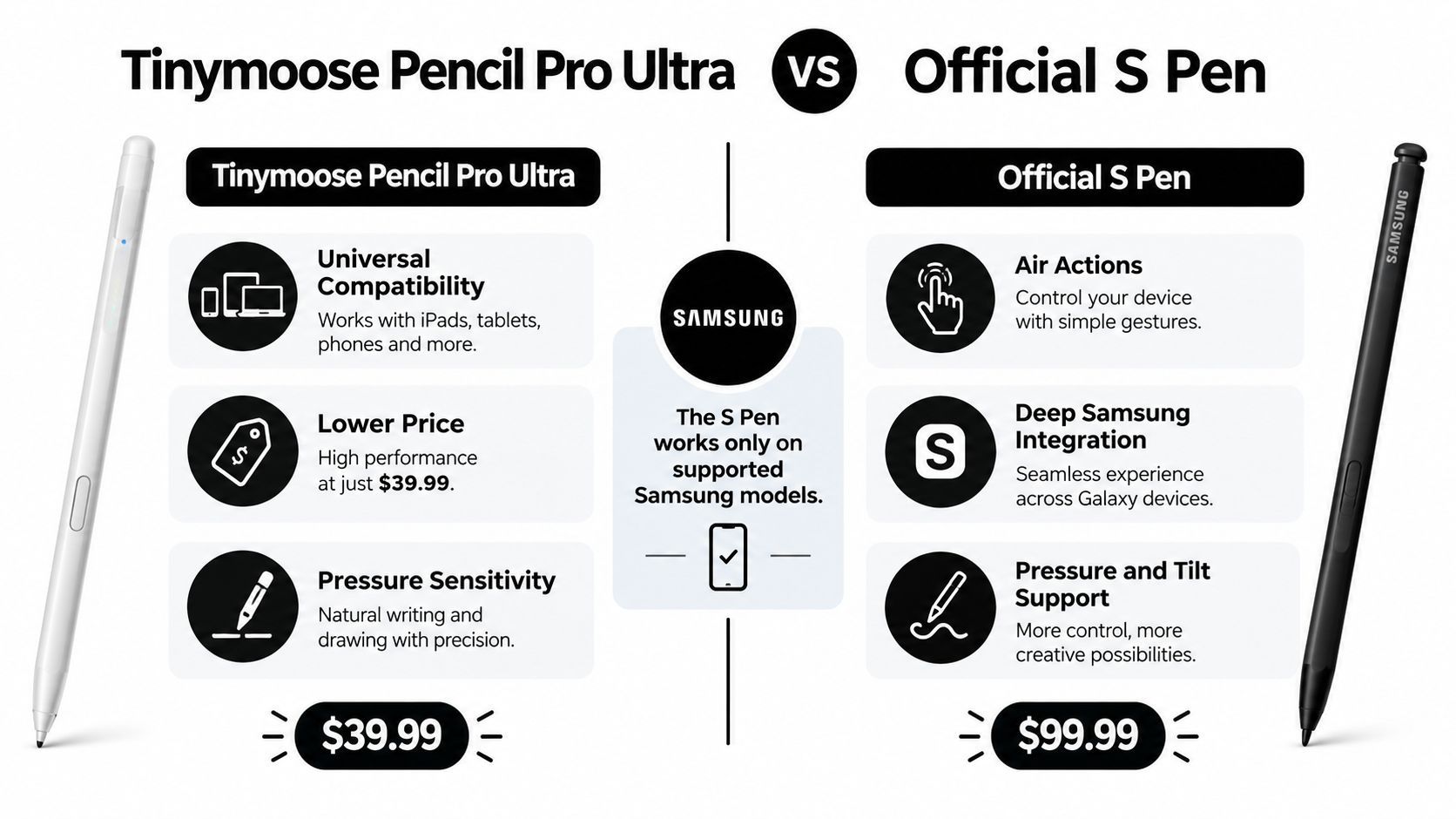
Put the two paths side by side and the decision stops being abstract. The official S Pen is the specialist. It delivers pressure, tilt, hover behavior, and, on BLE compatible tablets, Air actions and remote control. Samsung confirms that basic writing and drawing don't need charging or pairing, while Air actions depend on a compatible BLE pen and tablet, in Samsung's Galaxy tablet Air actions guidance. That specialist power only exists inside supported Samsung hardware.
The comparison graphic below frames the trade clearly, deep integration on one side and broad flexibility on the other.
Where Each Pen Wins in Real Life
Choose the official S Pen if you draw seriously on a supported Tab S, annotate with your palm resting on the screen, or rely on Samsung shortcuts and remote controls. Nothing universal replaces that digitizer conversation, and pretending otherwise helps nobody.
Choose the Tinymoose Pencil Pro Ultra if your day is tapping, scrolling, quick notes, highlighting, and casual sketching across more than one touchscreen. It's the more flexible everyday tool because it isn't locked to a single tablet line, so the same pen moves from your Galaxy Tab to your phone or another tablet in your bag. For most everyday users, that portability is worth more than Air gestures they'll forget exist. Note the distinction inside the line, too. The standard Pencil Pro is built for compatible iPads, while the Pencil Pro Ultra is the cross device option to look at for a wider workflow.
This short video shows the Pencil Pro Ultra in hand, which tells you more about grip and everyday handling than a feature list can.
My verdict is simple. Specialists should pay for the specialist. Everyone else should buy the pen that works on the screens they own.
Matching the Right Pen to Your Daily Workflow
Your routine picks the pen faster than any comparison chart. Find your profile below and take the recommendation at face value. Don't upgrade yourself into a workflow you don't have.
The image here shows the clearest specialist case, sustained drawing where pressure and tilt shape every stroke.

Three Profiles, Three Answers
The dedicated artist on a Tab S10 should buy the model specific active S Pen. Pressure and tilt feed directly into brush behavior, and palm rejection lets you draw with a natural hand position for hours. Saving money here costs you control on every single stroke.
The student juggling devices is better served by a cross device capacitive pen. You annotate slides on your tablet, scroll readings on your phone, and tap through quizzes on whatever screen is nearest. A pen that travels between all of them, without pairing or model checks, makes campus life easier. If you're weighing options inside one brand's range, seeing the Pencil Pro family compared clarifies which model fits which device mix.
The remote worker marking up PDFs sits in the middle, and charging reliability breaks the tie. If you present from your tablet and want remote clicks, verify your model supports BLE, then park the pen correctly for your generation every time. If markup and navigation are the whole job, the universal pen wins on simplicity.
Travelers, take note. A pen that's useless on every other screen in your bag is dead weight on a plane. A pen that works everywhere earns its pocket.
Smart Buying Checklist and Final Verdict
Run this list before you pay. It takes two minutes and prevents nearly every return I've seen with a stylus pen for Samsung tablet purchase.
- Confirm your exact model: Check the full Galaxy Tab name and number in Settings, including any FE or Ultra suffix.
- Decide on Samsung native features: Pressure, tilt, palm rejection, and Air actions require the active S Pen system on a supported tablet.
- Verify BLE support: If your model doesn't support it, don't pay extra for pairing, charging, or remote controls.
- Check charging orientation: Older generations charge in one direction only, and misalignment means an empty pen.
- Count your screens: More than one touchscreen in your daily kit pushes the decision toward a universal capacitive pen.
- Judge build and comfort: Weight, tip feel, and button placement matter more over a semester than any demo feature.
Decision rule: Buy the official S Pen when Samsung native features are non negotiable. Buy a versatile universal stylus when everyday practicality across devices matters more.
That's the whole verdict. Match the pen to your workflow, verify it against your exact tablet, and you'll get a tool that makes daily tasks easier instead of another accessory rattling in a drawer.
If your workflow spans a Samsung tablet, a phone, and whatever touchscreen is closest, the Pencil Pro Ultra gives you one practical pen for tapping, scrolling, quick notes, and casual sketching without locking you into a single device line. Visit Tinymoose to see the Pencil Pro Ultra up close, check compatibility for your setup, and pick the pen that fits how you work.
Share:
Best Stylus for iPhone for Precision and Comfort