
إذا كنت تريد تجربة طبيعية وخالية من الإحباط على جهاز iPad، فإن قلم رقمي مع خاصية رفض راحة اليد عالي الجودة أمر لا يمكن التفاوض عليه. إنها السر الذي يسمح لك بوضع يدك مباشرة على الشاشة أثناء الكتابة أو الرسم—تماماً كما تفعل مع دفتر حقيقي—دون ترك فوضى من الخطوط والنقاط العشوائية. هذه الميزة الوحيدة هي التي ترفع جهاز iPad من مجرد جهاز لمس بسيط إلى أداة قوية حقاً لإنجاز المهام.
ما هي خاصية رفض راحة اليد ولماذا هي مهمة
هل حاولت يوماً توقيع نموذج رقمي أو تدوين فكرة سريعة، فقط لتجد جانب يدك يخلق خربشة فوضوية عبر الشاشة؟ هذه الإحباط بالذات هو ما وُجدت خاصية رفض راحة اليد لحله. إنها تقنية ذكية تجعل العمل على جهاز iPad يبدو بديهيًا للغاية.
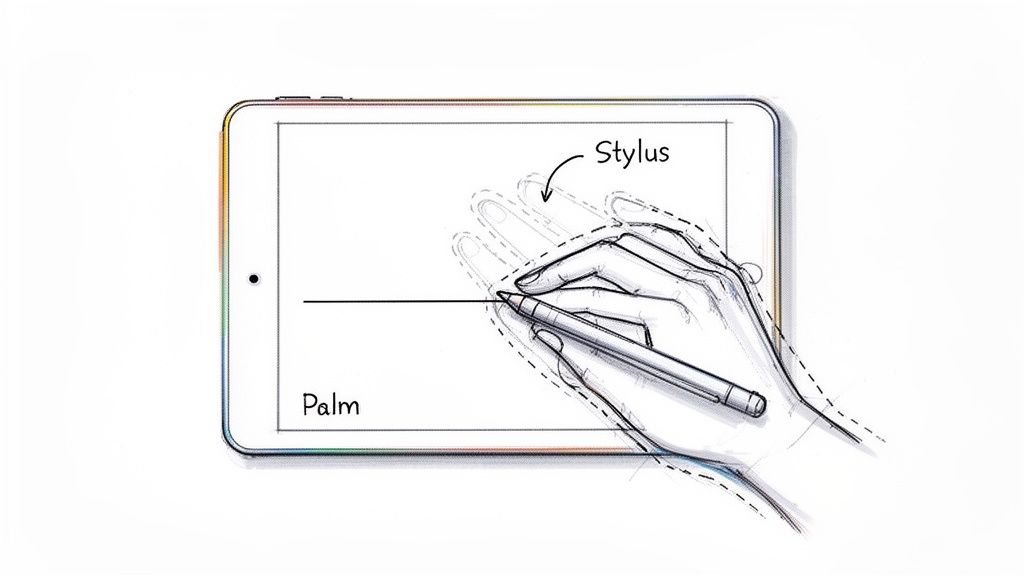
فكر في الأمر بهذه الطريقة: شاشة جهاز iPad مدربة على التمييز بين نوعين من اللمس. فهي تتعرف على النقطة الدقيقة والمتعمدة لقلمك الرقمي كـ "القلم"، بينما تتجاهل تماماً اللمسة الأكبر والأعرض لراحة يدك المستندة على الزجاج. قلم رقمي مع خاصية رفض راحة اليد يجعل جهاز iPad يتصرف كقطعة ورق، التي تتجاهل يدك طبيعياً، بحيث تُلتقط فقط الضربات المقصودة.
جعل الرقمي يبدو طبيعياً
بدون خاصية رفض راحة اليد، يصبح استخدام القلم الرقمي محرجاً للغاية. تُجبر على إبقاء يدك في وضع متوتر يشبه المخلب فوق الشاشة لتجنب إنشاء علامات عرضية. هذا ليس فقط غير مريح؛ بل يقتل دقتك وتحكمك، مما يجعل الرسم التفصيلي أو تدوين الملاحظات السريع شبه مستحيل.
تجسر خاصية رفض راحة اليد الفجوة بين أدواتك الرقمية ونظيراتها التقليدية، مما يجلب بعض المزايا الرئيسية التي تجعل الحياة أسهل:
- راحة محسنة: يمكنك أخيراً إرخاء يدك. اكتب أو ارسم لساعات دون إجهاد، مستخدماً نفس الوضعية الطبيعية التي تستخدمها مع القلم والورق.
- دقة أكبر: وضع يدك على الشاشة يمنحك تثبيتاً مستقراً. هذا يسمح بتحكم أدق بكثير في خطوطك، مما يؤدي إلى خط يد أنظف ورسومات أكثر تفصيلاً.
- زيادة السرعة والسلاسة: عندما تتوقف عن القلق بشأن العلامات العرضية، يمكنك التركيز على المهمة التي بين يديك. تتدفق أفكارك بحرية أكبر، وتصبح عملية الإبداع أكثر سلاسة وكفاءة.
هذه التقنية ليست مجرد ميزة مرغوبة—إنها ضرورية للغاية. لأي شخص جاد في استخدام جهاز iPad لتدوين الملاحظات أو الرسم أو العمل المهني، فإن خاصية رفض راحة اليد هي أساس تجربة سلسة. إنها ما يجعل جهازك بديلاً حقيقياً للقلم والورق.
كيف يعمل قلمك والشاشة معًا
لفهم ما يحدث مع رفض كف اليد حقًا، عليك أن تتخيل محادثة ذكية تدور بين قلمك وشاشة جهاز iPad الخاص بك. إنها شراكة ذكية، لكن ليست كل اللمسات متساوية. السحر الحقيقي يكمن في الفرق بين القلم "النشط" والقلم "الساكن" الأساسي.
القلم الساكن هو، ببساطة، إصبع مزخرف. ترى شاشة جهاز iPad الخاص بك القلم بنفس الطريقة التي ترى بها أي لمسة أخرى—مجرد نقطة اتصال بسيطة. هذا يعني أنه إذا لامس كف يدك الشاشة أثناء الكتابة، فسيسجل iPad مدخلين منفصلين. النتيجة؟ علامات عشوائية على قماشك النظيف.
ميزة القلم النشط
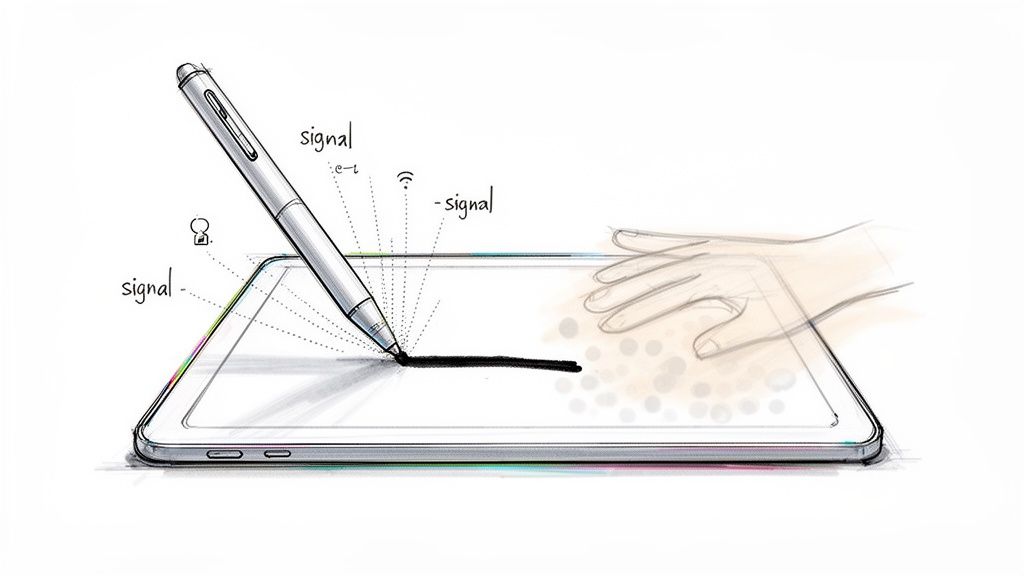
قلم لمس نشط مع رفض كف اليد، مثل Tinymoose Pencil Pro 2، هو شيء مختلف تمامًا. فهو مليء بالإلكترونيات الداخلية التي تتيح له التواصل النشط مع جهاز iPad الخاص بك. فكر فيه كأنه شخص مهم يحمل بطاقة مفتاح خاصة يتجاوز الحارس.
عندما يقترب رأس القلم النشط من الشاشة، يرسل إشارة فريدة منخفضة الطاقة. يتم برمجة جهاز iPad الخاص بك خصيصًا للتعرف على هذه الإشارة ومنحها أولوية قصوى على كل شيء آخر. إنه في الأساس يخبر الشاشة، "مرحبًا، أنا الأداة الرسمية هنا. هل ترى تلك اللمسة الكبيرة والمبهمة؟ هذه مجرد يد. تجاهلها." هذا التواصل المستمر والسريع كالبرق هو ما يجعل رفض كف اليد يعمل بسلاسة تامة.
لقد غيرت هذه التقنية تمامًا طريقة استخدامنا للأجهزة اللوحية، محولة إياها إلى أدوات لا غنى عنها للإبداع وإنجاز المهام. لقد انفجر الطلب على هذه الميزات، مما أدى إلى نمو سوق أقلام اللمس السعوية النشطة إلى صناعة بقيمة 868 مليون دولار. يحدث هذا الازدهار لأن أجهزة iPad الحديثة تحتاج إلى أقلام لمس نشطة لفتح ميزات مثل حساسية الضغط، وبالطبع، رفض كف اليد المثالي—وهو الآن أمر لا يمكن التفاوض عليه للفنانين والطلاب.
لماذا يجعل هذا حياتك أسهل بكثير
نظام التصفية الذكي هذا هو بالضبط ما يتيح لك وضع يدك على الشاشة والعمل براحة لساعات. الأمر لا يقتصر فقط على منع العلامات العشوائية؛ بل يتعلق بجعل سير عملك الرقمي يبدو طبيعيًا وسهلًا مثل وضع القلم على الورق.
من خلال التمييز بين رأس القلم الدقيق وكف اليد المستريح، يمكن لجهاز iPad الخاص بك أن يوفر الدقة اللازمة للرسم التفصيلي، والكتابة السلسة، وتجربة إبداعية أفضل بشكل عام.
ما تحصل عليه هو اتصال سلس بين أفكارك والصفحة الرقمية. يمكنك التركيز تمامًا على عملك دون ذلك الرقص المزعج المستمر لمحاولة منع يدك من لمس الشاشة.
لأي شخص يرغب في استبدال دفتر ملاحظاته أو دفتر الرسم بجهاز iPad، هذه التقنية ليست مجرد ميزة مرغوبة — إنها الأساس الكامل لإعداد منتج. إذا كنت مهتمًا، اطلع على دليلنا حول كيفية العثور على بديل قلم آبل USB-C الذي يضع هذه التقنية في خدمتك.
من قاعات المحاضرات إلى استوديوهات الفن: تغيير قواعد اللعبة
معرفة التقنية شيء، لكن رؤية كيف يجعل قلم اللمس مع رفض راحة اليد حياتك أفضل هو حيث يحدث السحر الحقيقي. هذه الميزة الوحيدة تحول جهاز iPad من جهاز للاستهلاك إلى أداة جدية للإبداع، سواء كنت طالبًا تكتب ملاحظات المحاضرة بسرعة أو فنانًا يرسم تحفتك القادمة.
تخيل نفسك في محاضرة سريعة الإيقاع، تحاول المواكبة. بدون رفض راحة اليد، ستكون مضطرًا لوضع معصمك بشكل محرج في الهواء، خائفًا من عمل علامة خاطئة. مع هذه التقنية، يمكنك ببساطة وضع يدك على الشاشة والكتابة. تشعر وكأنك تكتب على ورقة جديدة، سواء في تطبيق مثل GoodNotes أو على ورقة فعلية، مما يتيح لك التركيز على المعلومات بدلاً من تشويه يدك.
الحرية للفنانين الرقميين
بالنسبة للفنانين، هذه الحرية تغير قواعد اللعبة تمامًا. الرسم في تطبيق مثل Procreate يتطلب ضربات سلسة وواثقة. تقنية رفض راحة اليد تتيح لك تثبيت يدك مباشرة على الشاشة للثبات، وهو أمر ضروري للعمل التفصيلي، الخطوط النظيفة، وجلسات الرسم المريحة التي قد تستمر لساعات. يمكنك أخيرًا التخلص من القفاز الغريب للفنان أو من وضع اليد المتوتر "المعلقة" الذي يقتل الإبداع تمامًا.
انظر إلى هذه اللقطة من واجهة Procreate — الطبقات، التفاصيل، العمل الدقيق بالفرشاة.
محاولة تحقيق هذا المستوى من التحكم دون وضع يدك على الشاشة يكاد يكون مستحيلًا. تحتاج إلى تلك الثبات للدقة.
لقد لاحظت صناعة الإبداع ذلك بالتأكيد. الفنانون الرقميون هم القوة الدافعة وراء سوق الأقلام النشطة المميزة، الذي يحقق الآن أكثر من 60% من إجمالي الإيرادات. في الاستطلاعات، نسبة مذهلة 80% من الرسامين المحترفين يقولون إن رفض راحة اليد ميزة لا يمكن التفاوض عليها. هذه التقنية غيرت سير العمل تمامًا، مع 65% من المستقلين يستخدمون الآن أجهزة iPad للرسم ويشيرون إلى رفض راحة اليد كسبب رئيسي لتخليهم عن الورق، مما يقلل من أخطاء الإدخال بنسبة تصل إلى 90%.
الانتصارات اليومية
حتى لو لم تكن فنانًا محترفًا، فإن الفوائد العملية هائلة. تقنية رفض راحة اليد تجعل من جهاز iPad أداة أفضل بكثير لجلسات العصف الذهني، توقيع المستندات، أو التعديل على ملفات PDF. إنها تعمل ببساطة.
القلم الذكي مع رفض راحة اليد يفعل أكثر من مجرد منع الأخطاء. من خلال إزالة الحاجز المادي بينك وبين شاشتك، يعزز راحتك ودقتك وسرعتك، مما يجعل سير عملك الرقمي بأكمله يبدو سهلاً للغاية.
كان هذا النوع من التحكم البديهي محصورًا في الملحقات المكلفة من الشركات المصنعة الأصلية. ليس بعد الآن. قلم ذكي متاح مثل Tinymoose Pencil Pro 2 يقدم نفس التجربة الأساسية، مما يفتح مستوى جديدًا من الإنتاجية والحرية الإبداعية للجميع. سواء كنت طالبًا، محترفًا، أو مجرد شخص يحب الإبداع، هذه التقنية تجعل جهاز iPad أداة أكثر قوة وشخصية.
إذا كنت مستعدًا لرؤية الإمكانيات، اطلع على دليلنا حول كيفية الرسم على iPad.
اختيار القلم الذكي المثالي لجهاز iPad الخاص بك
العثور على قلم ذكي مع رفض راحة اليد هو خطوة أولى رائعة، لكنه مجرد نقطة البداية. لتحويل تجربة iPad الخاصة بك من جيدة إلى مذهلة حقًا، تحتاج إلى النظر إلى ما هو أبعد من هذه الميزة فقط.
فكر في الأمر كما لو كنت تشتري سيارة. بمجرد أن تعرف أنك تحتاج إلى أربع عجلات للوصول، تبدأ في البحث في التفاصيل التي تهم حقًا—الأداء، الراحة، وكيفية التعامل على الطريق.
دعنا نفصل الميزات الحاسمة الأخرى التي تميز القلم الذكي الأساسي عن أداة إبداعية قوية. سيرشدك هذا الدليل إلى ما هو مهم، وما هو مجرد ضجيج، وكيف تجد الرفيق المثالي لسير عملك دون إنفاق الكثير.
ميزات لا غنى عنها تتجاوز رفض راحة اليد
للاختيار الذكي، دعنا نلقي نظرة على الميزات التي تحدد تجربة قلم ذكي بمستوى احترافي. كل واحدة تجعل حياتك أسهل بطريقة ملموسة، سواء كنت ترسم، تكتب، أو تقوم بمهام متعددة.
- حساسية الميل: هذه ميزة تغير قواعد اللعبة للفنانين. تتيح لك إنشاء خطوط أكثر سمكًا وتظليلًا بمجرد إمالة القلم، تمامًا كما تفعل مع عصا فحم أو قلم رصاص حقيقي. إنها التي تضيف لمسة من العمق والواقعية لفنك الرقمي.
- زمن استجابة منخفض: ببساطة، هذا يعني "لا تأخير". القلم الذكي ذو زمن الاستجابة المنخفض يشعر برد فعل فوري—تظهر الخطوط على الشاشة في اللحظة التي ترسم فيها. يخلق هذا الإحساس السلس كما لو كنت تستخدم قلمًا على ورق. أما زمن الاستجابة العالي فهو مشتت تمامًا وقد يقتل تدفقك الإبداعي.
- التثبيت المغناطيسي: هذه الميزة منقذة للحياة. القلم الذكي الذي يلتصق مغناطيسيًا بجانب جهاز iPad الخاص بك يكون دائمًا في متناول يدك ويصعب فقدانه كثيرًا. إنها راحة بسيطة ستشكرها كل يوم.
هذه الميزات الثلاث هي أساس أي قلم ذكي رائع. يوضح الرسم البياني أدناه مدى قدرة القلم المصمم جيدًا على تحسين مهامك اليومية.
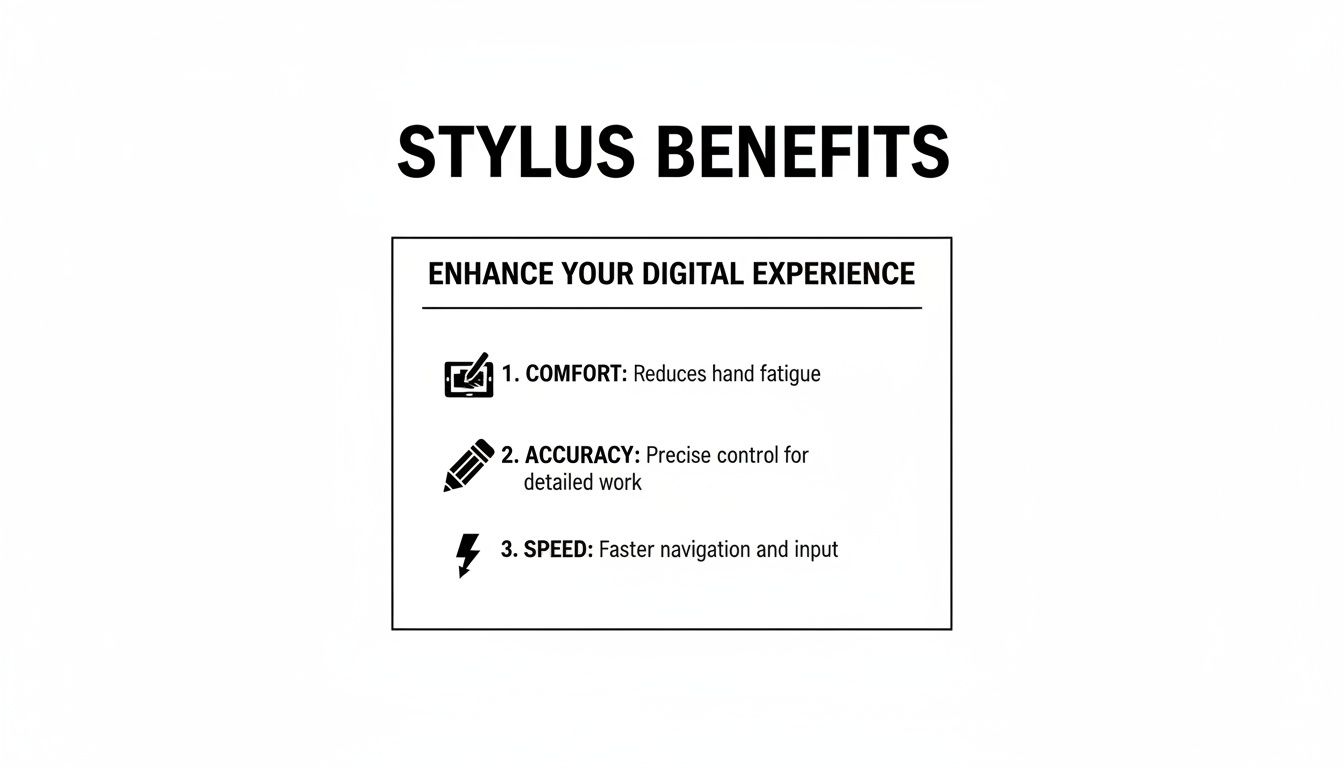
كما ترى، الميزات المناسبة لا تضيف فقط حيلًا رائعة—بل تعزز راحتك ودقتك وسرعتك، مما يجعل جهاز iPad أداة أكثر فعالية لأي شيء تعمل عليه.
وسائل الراحة الذكية التي تعزز سير عملك
بمجرد تغطية الأساسيات، يمكن لبعض الميزات الأخرى تحسين كفاءتك بشكل كبير وجعل استخدام القلم الرقمي سلسًا تمامًا. هذه هي التفاصيل الصغيرة التي تميز الأداة الجيدة عن تلك التي لا يمكنك تخيل العيش بدونها.
طريقة الشحن طريقة شحن القلم الرقمي مهمة جدًا. الشحن اللاسلكي هو قمة الراحة، حيث يسمح لشحن القلم تلقائيًا أثناء تثبيته على جهاز iPad. لكن لا تغفل الشحن عبر USB-C—فهو عملي للغاية لأنك تستطيع استخدام نفس الكابل مع جهاز iPad وأجهزة أخرى. بالإضافة إلى ذلك، يمكنك غالبًا الحصول على شحن كامل في غضون 20 دقيقة.
أزرار الاختصار بعض الأقلام الرقمية تأتي مزودة بأزرار مدمجة يمكن تخصيصها لأداء إجراءات محددة، مثل التبديل الفوري إلى الممحاة، التراجع عن آخر ضربة، أو التقاط لقطة شاشة بنقرة مزدوجة سريعة. قد تبدو هذه الاختصارات بسيطة، لكنها توفر لك ثوانٍ ثمينة وتحافظ على إيقاعك الإبداعي دون الحاجة للتعامل المستمر مع القوائم.
للحصول على صورة أوضح، إليك ملخص سريع لكيفية تكدس هذه الميزات الأساسية وما تعنيه لاستخدامك اليومي.
ميزات القلم الرقمي الأساسية بنظرة سريعة
يشرح هذا الجدول الميزات الأساسية التي يجب توفرها في القلم الرقمي الحديث وكيف تؤثر على كل شيء من تدوين الملاحظات العادية إلى العمل التصميمي الاحترافي.
| الميزة | ما يقدمه لك | مثالي لـ |
|---|---|---|
| رفض راحة اليد | يتيح لك وضع يدك على الشاشة بشكل طبيعي أثناء الكتابة أو الرسم، دون ترك علامات غير مقصودة. | الجميع—مدونو الملاحظات، الفنانون، الطلاب، والمحترفون. |
| حساسية الميل | ينشئ خطوطًا أكثر سمكًا أو مظللة عند إمالة القلم، مقلدًا قلم الرصاص أو الفرشاة الحقيقية. | الفنانون الرقميون، الرسامون، وأي شخص يحب الرسم. |
| زمن استجابة منخفض | يضمن استجابة فورية من الشاشة إلى القلم، مما يلغي أي تأخير مزعج ليمنحك شعورًا سلسًا وطبيعيًا. | الفنانون الذين يحتاجون إلى دقة وأي شخص يكره تأخير الإدخال. |
| التثبيت المغناطيسي | يحافظ على قلمك الرقمي مثبتًا بأمان على جهاز iPad الخاص بك، ليكون مشحونًا دائمًا (إذا كان لاسلكيًا) وصعب الفقدان. | أي شخص يعمل أثناء التنقل أو يميل إلى فقدان الأشياء. |
| أزرار الاختصار | يوفر وصولًا سريعًا إلى الأدوات الشائعة مثل الممحاة أو التراجع، مما يسرع سير عملك دون الحاجة للمس الشاشة. | المستخدمون المحترفون، متعددو المهام، وأي شخص يبحث عن الكفاءة. |
في النهاية، اختيار القلم الرقمي لا يتعلق بإيجاد واحد بأطول قائمة ميزات، بل بالميزات الصحيحة التي تناسب طريقة عملك وإبداعك.
عندما تجمع كل هذه العناصر—الميل، الاستجابة المنخفضة، التثبيت المغناطيسي، والاختصارات الذكية—تحصل على أداة تشعر وكأنها امتداد طبيعي ليدك. فهي تتوقع احتياجاتك وتتيح لك التركيز بالكامل على عملك.
يُعد Tinymoose Pencil Pro 2 مثالًا مثاليًا على قلم رقمي يحقق كل هذه المعايير. فهو يقدم ميزات احترافية تحتاجها، بما في ذلك رفض راحة اليد بدقة وحساسية الميل، في حزمة تقدم أداءً وقيمة مذهلة.
للتعمق أكثر في مقارنة النماذج المختلفة، اطلع على دليلنا لأفضل قلم رقمي لجهاز iPad في دليلنا المصنف لعام 2026. سيساعدك ذلك على فهم سبب أهمية مجموعة الميزات المتكاملة.
كيفية التأكد من أن خاصية رفض راحة اليد تعمل بشكل مثالي
لقد فتحت علبة القلم الرقمي الجديد الخاص بك. الآن الجزء الأفضل—التأكد من حصولك على تجربة سلسة وخالية من الإحباط كما وُعِدت بها. التأكد من أن القلم الرقمي مع خاصية رفض راحة اليد يعمل بسرعة وسهولة يمنحك راحة البال لتبدأ عملك فورًا.
هذا الاختبار العملي البسيط يستغرق أقل من دقيقة. كل ما تحتاجه هو جهاز iPad الخاص بك، والقلم الجديد، وتطبيق للرسم أو تدوين الملاحظات مثل الملاحظات، Goodnotes، أو Procreate.
اختبار بسيط لخاصية رفض راحة اليد
لنختبر أداتك الجديدة. فقط اتبع هذه الخطوات لترى التقنية قيد العمل وتتأكد من أن كل شيء جاهز للاستخدام.
- افتح لوحة فارغة: افتح تطبيقك المفضل وأنشئ صفحة جديدة فارغة. هذا يمنحك مساحة نظيفة لرصد أي علامات عشوائية.
- ارسم واكتب بحرية: أولًا، ارسم بعض الخطوط—قطرية، دوائر، أي شيء تحبه—مع إبقاء يدك بعيدًا عن الشاشة. يجب أن ترى خطوطًا ناعمة ونظيفة.
- عرّف راحة يدك: الآن، جرب ذلك. استرح جانب يدك بشكل مريح على الشاشة، تمامًا كما تفعل مع دفتر حقيقي. استمر في الرسم أو اكتب جملة سريعة مثل: "هذا القلم الرقمي يعمل بشكل رائع."
- تحقق من العلامات العشوائية: ارفع يدك والقلم الرقمي معًا. الشيء الوحيد الذي يجب أن تراه على الشاشة هو العلامات التي صنعتها بطرف القلم. إذا كانت اللوحة نظيفة، فإن خاصية رفض راحة اليد تعمل بشكل مثالي.
هذا هو الفحص الأساسي لك. تعني اللوحة النظيفة أن الذكاء داخل قلم اللمس وجهاز iPad يعملان معاً بشكل صحيح، مع إعطاء أولوية لإدخال القلم مع تجاهل يدك تماماً.
نصائح سريعة لاستكشاف الأخطاء وإصلاحها
إذا رأيت نقطة عشوائية أو خطاً غير مرغوب فيه، لا تقلق. غالباً ما تكون مشكلة بسيطة في الإعدادات، وليست عطل في القلم. يمكن إصلاح معظم مشاكل رفض راحة اليد بهذه التعديلات السريعة.
- تحقق من إعدادات التطبيق المحددة: بعض التطبيقات الإبداعية لها طرقها الخاصة في التعامل مع الإدخال. استعرض تفضيلات التطبيق وابحث عن خيار مثل "قطع الاتصال" أو "تجاهل إدخال الإصبع" لإجباره على الاستماع فقط إلى قلم اللمس الخاص بك.
-
تعطيل إيماءات iPad المتعارضة: اذهب إلى
الإعدادات > Apple Pencilوتأكد من إيقاف تشغيل خيار "الرسم فقط باستخدام Apple Pencil". قد يتداخل هذا الإعداد أحياناً مع أقلام اللمس من جهات خارجية.
تعتمد شعبية هذه الأدوات المتزايدة بشكل كبير على موثوقيتها، خاصة في المدارس. في عالم التعليم وحده، بلغ سوق أقلام اللمس مع خاصية رفض راحة اليد 49.8 مليون دولار أمريكي ومن المتوقع أن يرتفع إلى 69.2 مليون دولار بحلول عام 2030، وذلك لأن الطلاب والمعلمين يحتاجون إلى أدوات رقمية تعمل بشكل موثوق دون أي أعطال. يمكنك قراءة المزيد عن اتجاهات سوق أقلام اللمس في التعليم.
هل لديك أسئلة؟ لدينا الإجابات
اختيار قلم لمس جديد قد يبدو قراراً كبيراً، خاصة مع كل التكنولوجيا المتضمنة. إذا كانت لديك بعض الأسئلة المتبقية حول أقلام اللمس مع خاصية رفض راحة اليد، فأنت لست وحدك. نسمع هذه الأسئلة طوال الوقت.
للتأكد من شعورك بالثقة التامة في اختيارك، قمنا بمعالجة بعض أكثر الأسئلة شيوعاً هنا. اعتبرها قائمة مراجعة نهائية لتوضيح أي شكوك قبل أن تبدأ في الإبداع.
هل جميع أقلام اللمس تحتوي على خاصية رفض راحة اليد؟
لا، وهذه ربما أهم معلومة يجب معرفتها. خاصية رفض راحة اليد موجودة فقط في الأقلام النشطة. هذه هي الأقلام الذكية التي تحتوي على إلكترونيات داخلية تتواصل مباشرة مع جهاز iPad الخاص بك، مما يمنحك شعوراً فاخراً كأنك تكتب بالقلم على الورق.
من ناحية أخرى، الأقلام الساكنة الأرخص ثمناً هي في الأساس مجرد بدائل أنيقة للأصابع. لا يستطيع جهاز iPad الخاص بك التمييز بين طرفها المطاطي ويدك، ولهذا ستنتهي بالحصول على علامات عشوائية مزعجة. تأكد دائماً، دائماً من مراجعة مواصفات المنتج لرؤية وجود خاصية "رفض راحة اليد".
هل سيعمل قلم استبعاد راحة اليد على أي iPad؟
ليس تمامًا. التوافق هو طريق ذو اتجاهين—يعتمد على كل من القلم وطراز iPad الخاص بك. معظم الأقلام النشطة الحديثة مصممة لأجهزة iPad التي صدرت من 2018 فصاعدًا. وهذا يشمل الغالبية العظمى من طرازات iPad وiPad Air وiPad Mini وiPad Pro الحديثة.
مع ذلك، القاعدة الذهبية هي دائمًا التحقق من قائمة التوافق الخاصة بالشركة المصنعة قبل الشراء. إنها خطوة بسيطة جدًا تضمن أن كل ميزة، من استبعاد راحة اليد إلى حساسية الميل، ستعمل بشكل مثالي مع جهازك مباشرة من العلبة. لا حاجة للتخمين.
هل يمكنني تشغيل أو إيقاف استبعاد راحة اليد؟
استبعاد راحة اليد هو من تلك الميزات التي "تعمل ببساطة". فهي مدمجة مباشرة في القلم ونظام تشغيل iPad، لذلك لن تجد مفتاح تشغيل/إيقاف كبير لها في إعدادات iPad الرئيسية. تم تصميمها لتعمل بسلاسة في الخلفية دون أن تضطر للتفكير فيها.
بعض التطبيقات الإبداعية المتخصصة مثل Procreate أو GoodNotes لديها إعدادات داخلية خاصة بها حيث يمكنك ضبط كيفية التعامل مع إدخالات اللمس والقلم بدقة. لكن بالنسبة لـ 99% من استخدامك اليومي، سيتولى القلم النشط المتوافق مهمة استبعاد راحة اليد تلقائيًا.
لماذا لا تزال يدي تترك علامات أحيانًا؟
حتى مع تقنية استبعاد راحة اليد الرائعة، قد تظهر علامة عرضية بين الحين والآخر. وعندما يحدث ذلك، نادرًا ما تكون المشكلة في القلم نفسه. عادةً ما تكون إعدادات التطبيق الغريبة أو إيماءة iPad التي تتداخل هي السبب.
إذا واجهت هذه المشكلة، فإليك أمرين سريعين لتجربتهما:
- تحقق من إعدادات التطبيق الخاص بك: ادخل إلى إعدادات أي تطبيق للرسم أو تدوين الملاحظات تستخدمه. ابحث عن خيار لإعطاء الأولوية لإدخال القلم أو لتعطيل الرسم بالأصابع. تفعيل هذا الخيار غالبًا ما يحل المشكلة فورًا.
-
تعديل إيماءات iPad: اذهب إلى
الإعداداتالرئيسية لجهاز iPad وابحث عن خيارات القلم. أحيانًا، تعطيل بعض إيماءات اللمس المتعدد التي قد تتعارض مع الرسم يمكن أن يساعد في تعزيز إدخال القلم فقط والتخلص من تلك العلامات العرضية نهائيًا.
هل أنت مستعد للعثور على قلم يعمل بسلاسة، يمنحك تدفقًا إبداعيًا طبيعيًا وخاليًا من العيوب؟ يقدم Tinymoose Pencil Pro 2 تقنية استبعاد راحة اليد الاستثنائية، وحساسية الميل، وكل الميزات التي تحتاجها لتحويل جهاز iPad الخاص بك إلى لوحة رقمية مثالية. استكشف مجموعة Tinymoose اليوم.
مشاركة:
أفضل قلم شاشة لجهاز iPhone في عام 2026 (نعم، إنها موجودة — فقط آبل لا تصنع واحدًا)
أفضل تطبيقات تدوين الملاحظات لجهاز iPad التي تعمل ببساطة