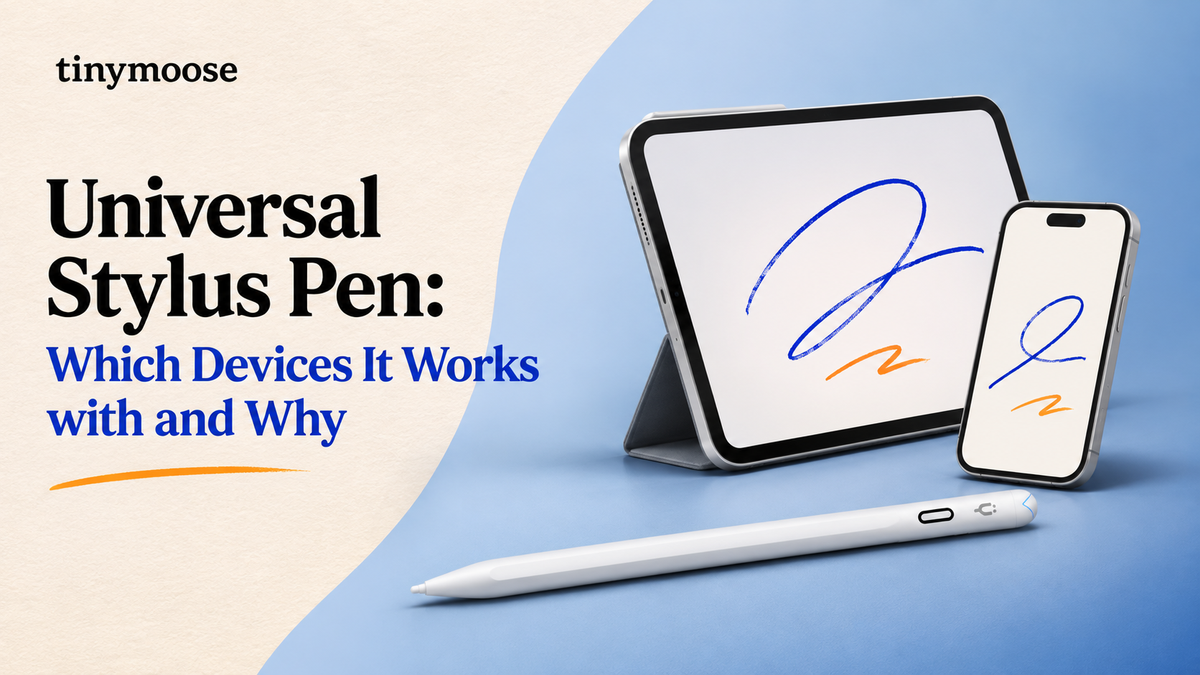
You've got an iPad open for notes, a phone buzzing beside it, and an Android tablet or touchscreen laptop waiting for the next task. One pen for all of them sounds simple, and it should be. Then you tap a screen and get a line, rest your hand and get stray marks, tilt for shading and nothing changes, or move to another device and the same pen stops behaving like a pen at all.
That's not you using it wrong. A universal stylus pen can solve the carry-one-pen problem, but only if you know what "universal" promises on each screen. Basic touch is easy to share. Pressure, tilt, hover, and clean palm rejection aren't. Once you separate those two layers, choosing becomes practical instead of hopeful, and a good universal pen really makes a multi-device day easier.
Table of Contents
- Which Devices a Universal Stylus Pen Works With
- Passive and Active Styluses Explained
- Protocols That Decide Whether Your Pen Really Works
- Features That Matter Day to Day
- Palm Rejection and Hover Range in Practice
- Choose a Universal Stylus Pen for Notes or Drawing
Which Devices a Universal Stylus Pen Works With
A universal stylus pen will register basic taps and scrolling on almost every capacitive touchscreen you own. It won't automatically deliver pressure, tilt, or reliable palm rejection on every one of those screens. That second layer is set by the device's input hardware, the pen's protocol, the operating system, and often the app you're writing in.
Most buying guides stop at the first layer. As the Joybuy stylus compatibility guide puts it, there's a gap between "universal compatibility" and universal functionality, because protocols such as Apple Pencil, USI, Microsoft Pen Protocol, Wacom AES, and EMR aren't interchangeable. A pen can touch many screens and still lose pressure, tilt recognition, hover, shortcut controls, or reliable palm rejection on one of them.
What a universal stylus pen does on each device
| Device | Basic taps and scrolling | Handwriting and pressure | What to check first |
|---|---|---|---|
| iPad | Yes | Protocol and app set the result; some iPads block third-party pens in settings | Turn off "Only Draw with Apple Pencil" if present and confirm the exact iPad model |
| iPhone | Yes, through capacitive mode | Limited; usually no true pressure | Confirm the pen has a capacitive mode for annotation and quick sketches |
| Android phone | Yes | Limited; usually no true pressure | Check whether the phone's digitizer supports an active protocol |
| Android tablet | Yes | EMR, AES, or USI tablets can report pressure and tilt when the pen matches | Look up the tablet's stylus protocol in its specifications |
| Chromebook or touchscreen laptop | Yes | USI or EMR support in that exact model enables active features | Verify the exact model's supported stylus standard |
| Windows Surface | Yes | Full pressure and palm rejection only with MPP-compatible pens | Confirm the pen lists Surface and MPP support |
Read that table as a feature matrix, not a yes or no list. "Works with iPad" can mean full note-taking in one app and simple tapping in another. "Works with Android" can mean a precise line on a tablet with a digitizer and a finger-like drag on a phone without one. The honest question isn't whether the tip registers. It's which features survive the move.
Practical rule: Match the exact model number, not the brand name on the box. Two tablets from the same brand can use completely different pen hardware.
One pen through one student's day
Say a university student starts with lecture notes on an iPad. The pen keeps up, lines stay tidy, and marking up a PDF between classes feels natural. She clears email on her iPhone with quick taps and a short annotation, and the same pen is fine for that job because she isn't asking for pressure or long handwriting there.
In the afternoon she sketches on an Android tablet. The pen still draws, but pressure feels less consistent and she has to lift her hand more carefully. In the evening she's back on the iPad for a shaded diagram, and tilt matters again. Nothing broke during the day. Each screen gave her a different slice of the pen's ability, and the limits showed up exactly where the hardware changed.
A remote worker hits the same pattern differently. Planning and document markup on a touchscreen laptop work well for tapping through a calendar, circling changes, and signing. Hours of handwritten meeting notes are a stricter test, because palm contact and latency stop being minor annoyances and start shaping how fast you can write.
Settings and upgrades that catch people out
Apple ties its own pens to specific iPad generations and iPadOS versions, so even staying inside one brand doesn't remove model checks. Third-party pens face the same model problem, plus settings. On some iPads, "Only Draw with Apple Pencil" has to be disabled before a non-Apple stylus works correctly. If you don't know that toggle exists, a compatible pen looks broken.
Upgrades create the second trap. A pen that worked on your old tablet may register only basic taps on its replacement if the new model uses a different digitizer or protocol. Re-check the model number every time you replace a device, not just when you buy a pen. Write down each model you own now, iPad, phone, tablet, laptop, because that's the list every later check runs against.
Passive and Active Styluses Explained
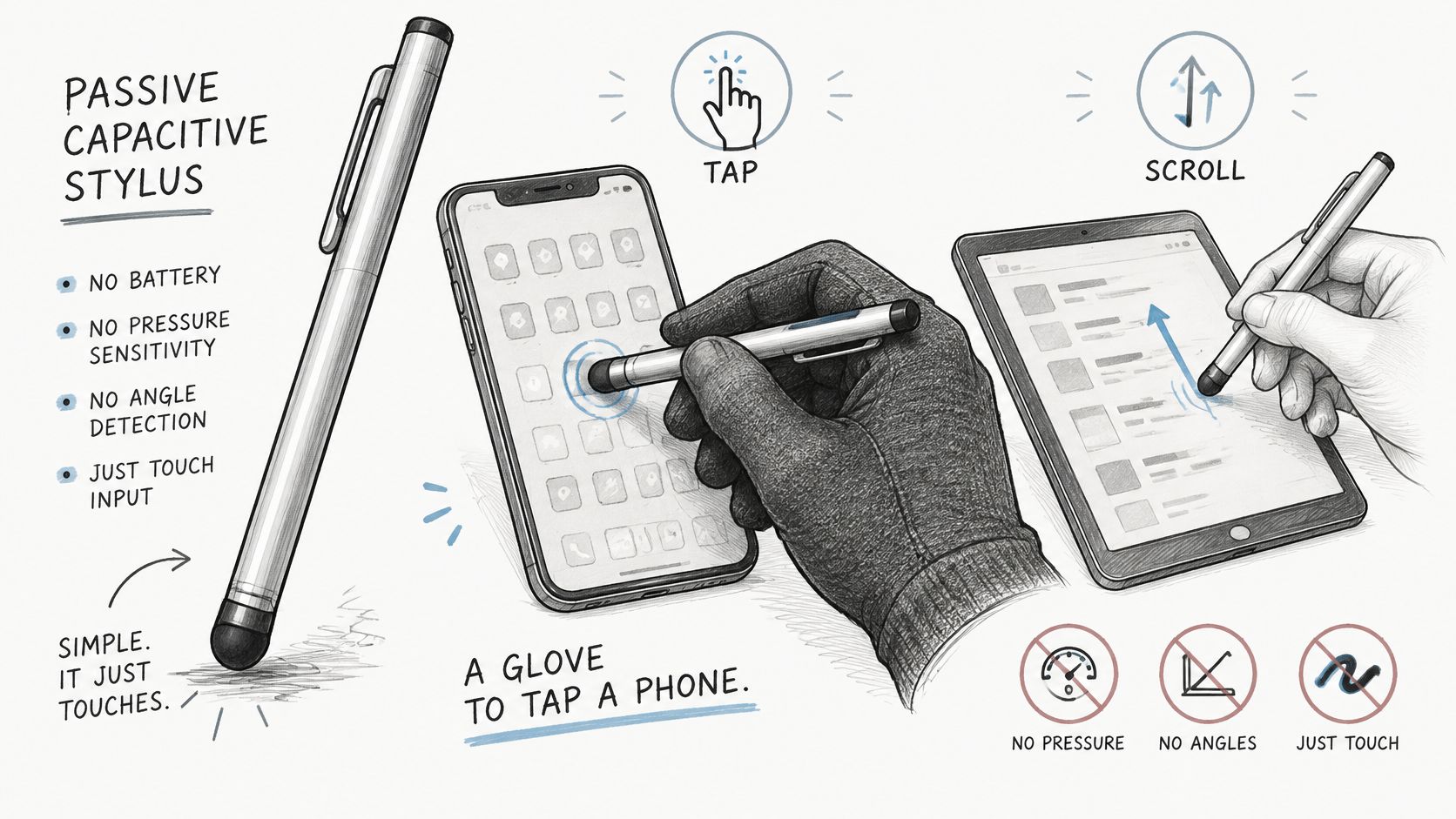
A passive capacitive stylus is like wearing a glove to tap a phone. The screen senses contact and treats it as a finger, so you can tap, scroll, and drag, but it can't tell how hard you're pressing or whether that contact is your palm. An active pen is more like a handshake. The pen sends its own signal, the screen answers, and that exchange lets it report pressure, tilt, and hover.
The 2021 peer-reviewed review in PMC explains the sensing basis clearly. Capacitive panels detect changes in an electrostatic field when a finger or conductive stylus approaches the surface, while active styluses transmit electrical signals that allow the touchscreen to identify the pen more precisely. A passive model generally imitates the electrical effect of a finger, whereas an active stylus contains electronics and can support improved sensitivity, palm rejection, pressure detection, tilt recognition, and more accurate coordinate tracking.
This diagram shows the simpler end of that spectrum, a passive capacitive tip doing the tapping and scrolling work it handles well.
Electromagnetic resonance, or EMR, sits outside that glove and handshake pair. The same review notes EMR can distinguish the stylus from finger input by using a stylus-responsive sensing scheme separate from the panel's finger-sensing system. That separation is why EMR devices can treat pen and hand as different inputs at hardware level.
Passive capacitive versus active universal styluses
| Feature | Passive capacitive | Active (EMR, AES, USI) |
|---|---|---|
| How it talks to the screen | Imitates a finger | Sends its own signal the screen reads |
| True pressure | No | Yes, when the protocol and app support it |
| Tilt | No | Yes, when the digitizer supports it |
| Hover detection | No | Often yes |
| Palm rejection | Weak; the device must filter contact | Stronger; the pen signals when it is near the screen |
| Charging | Usually none needed | Needs a battery and a charge |
| Best use | Taps, scrolling, simple markup | Handwriting, sketching, precise notes |
Neither design is a trick. A passive pen is cheap, never needs charging, and works almost anywhere because it asks for nothing special from the screen. You're trading away control for that reach. An active pen gives you finer lines and better writing posture, but it only earns those advantages on hardware built to listen to it, and you have to keep it charged.
Hybrid universal models complicate the label further. Some use electronics to sharpen a capacitive signal without joining a full digitizer protocol, so they feel more precise than a rubber tip yet still can't promise system-level palm rejection everywhere. "Universal" on the package won't tell you which type you're holding. Look for how it talks to the screen, then decide whether that method fits the work you'll do.
Protocols That Decide Whether Your Pen Really Works
Compatibility is a handshake between the pen and the tablet's digitizer. The pen can be the right length, have a fine tip, and charge perfectly, and still fail the handshake. Physical fit tells you nothing about whether the screen understands the signal it's sending.
The HP pens and styluses glossary states the key figures for one major standard. The Universal Stylus Initiative defines an interoperability standard for active pens, USI 1.0 supports up to 2,048 pressure levels, and later implementations can support up to 4,096. Those levels only improve control when the digitizer, firmware, operating system, and drawing application all expose that data.
Input protocols and what to verify for each
| Protocol | Where you usually find it | Pressure levels | What to verify |
|---|---|---|---|
| USI (Universal Stylus Initiative) | Chromebooks and some Android and Windows touchscreens | 2,048 in USI 1.0; up to 4,096 in later versions | Confirm USI support for the exact Chromebook or tablet model |
| Microsoft Pen Protocol (MPP) | Microsoft Surface and other Windows pen devices | Set by the specific pen and Surface model spec sheet | Check that the pen lists MPP and your Surface model |
| Wacom AES | Wacom-based tablets and some Windows devices | Set by the specific pen and digitizer spec sheet | Confirm the tablet's digitizer, not just the brand |
| EMR (electromagnetic resonance) | Samsung Galaxy Tab S series and some drawing tablets | Set by the specific pen and tablet spec sheet | Check the tablet specifications for EMR support |
| Apple Pencil (proprietary) | iPad models listed by Apple | Set by Apple for listed iPad models only | Expect a universal pen to match only part of Apple's feature set |
| Capacitive (passive) | Almost any touchscreen | None | Expect taps, scrolling and basic navigation only |
Use the table in that order when you read a spec sheet. First, find the named protocol on the device page, not a vague phrase like "stylus support." Second, check pressure levels, tilt, and hover as separate line items, because a device can offer one without the others. Third, match all of it to your exact model rather than the product family, since one generation can change digitizer supplier.
Samsung tablets show why this matters, because the Galaxy Tab name covers both pen-ready and ordinary touch models. Our guide to choose a Samsung stylus with Tinymoose walks through that model-level check. Apply the same habit everywhere, even when a listing looks confident.
Why platform labels mislead
A box printed with iOS, Android, and Windows hasn't told you the touchscreen technology inside any particular device. That's why a pen can work on your phone and fail on your laptop. The phone accepted ordinary capacitive touch, while the laptop expects EMR, MPP, or USI input for pen features and treats anything else as a finger, or ignores it for drawing.
USI, MPP, AES, EMR, and Apple's proprietary system still coexist. There isn't one universal standard hiding underneath them, so your job is matching protocols.
I'd start with the device you write on most and treat every other screen as a bonus. Buy for that primary handshake, confirm basic capacitive use on the rest, and you won't pay for pressure you only get in the product photos.
Features That Matter Day to Day
Latency separates a pen you'll keep using from one you'll leave in a drawer. If ink trails behind the tip, you slow down without noticing, letters crowd together, and fast strokes look detached from your hand. You can test it in under a minute, before you judge anything else.
The Taobao World shopping guide cites a commonly used usability target of sub-20-millisecond end-to-end ink latency and advises testing with fast diagonal strokes while checking for line wobble, missed light-pressure marks, and stable performance near the screen edges. It also places perceived quality in the complete signal chain, pen protocol, digitizer sampling, display refresh rate, firmware processing, and application rendering, not in the pen alone.
Run this three-step stroke test
- Fast diagonals: Draw quick diagonal lines corner to corner and watch whether ink stays under the tip or chases it.
- Light pressure: Write small letters with the lightest touch you can manage and look for skipped starts or broken curves.
- Screen edges: Repeat both tests along each edge and in the corners, where tracking often wobbles first.
A good result feels boring. Lines start where you touch, light strokes register, and edges behave like the center. If you have to press harder to keep a line alive, that pen will tire your hand during a real study session no matter what its pressure count says.
Comfort and charging checks that affect every session
- Tip fineness: A fine, firm tip suits small handwriting and spreadsheet cells. A slightly softer tip gives drawing strokes more drag, so choose by the marks you make most.
- Weight and diameter: Hold the pen in your normal grip and write a paragraph. A barrel that's too thin cramps long sessions, and a top-heavy body makes light strokes harder to control.
- Charging method: USB-C fast charging suits people who already carry one cable. Wireless charging suits a tablet that supports it, and a battery-free passive pen removes charging entirely while removing active features too.
- Battery life across a week: Check hours of active writing, not standby claims. You want several days of notes between charges, plus a low-battery warning you can't miss.
- Magnetic attachment: A magnet that holds the pen flat on the tablet frame keeps it in your bag instead of under it. Test the hold with your case fitted.
- Shortcut buttons: A button or touch area for undo and tool switching saves repeated trips to a toolbar. Confirm your main app can assign those actions before valuing them.
None of these checks needs specialist equipment. They need one honest writing session with the apps you already use. I'd trust ten minutes of messy, fast handwriting over a headline pressure figure, because your hand notices delay, wobble, and grip fatigue long before it notices extra levels.
Palm Rejection and Hover Range in Practice
A fine tip does not stop palm marks. Palm rejection lives in the signal chain between pen, operating system, and app, with the tip only making the visible line. If the device cannot tell pen contact from hand contact early enough, a narrower tip produces a narrower trail of stray dots.
Microsoft's Windows hardware guidance says a pen should report its presence while it is above the display and recommends a detection distance of 50 millimeters, or as close to that as possible. Early reporting gives the host time to treat touch input differently before the nib lands. The same guidance notes that Windows 10 can ignore all touch input when a pen comes into range, which is the behavior longhand writers are really buying.
What happens without a proximity signal
With hover detection, the tablet knows a pen is arriving before your hand lands. It can suppress or reinterpret unintended finger and palm touches, so you rest your hand and write at normal speed. Without that signal, the stylus behaves more like a fingertip and the device has to guess which contact is intentional. Guessing survives short notes. It fails during fast writing when your palm drags across half the page.
Responsibility can sit with the stylus, the operating system, the app, or a combination of all three. That is why one universal pen can feel clean in a note app and messy in a markup tool on the same tablet. It is also why compatibility claims mislead: a pen can pair with an iPad, an Android tablet, and a Surface-class device while delivering real palm rejection on only part of that list. Tinymoose splits this plainly in its lineup: iPad pens carry palm rejection, while capacitive phone mode covers navigation, annotation, and quick sketches rather than pen-aware hover behavior.
On iPad, check the app's pen or drawing settings for palm rejection, finger drawing, and toolbar gesture options before judging the hardware. The Tinymoose note on palm rejection for smoother iPad drawing is a useful starting point, then confirm the same switches exist in the app you use.
The resting-hand test
- Write a full sentence: Rest the side of your hand on the screen and write at your normal speed, not carefully.
- Count stray marks: Look for dots, jumps, unwanted scrolling, or toolbar taps after each sentence.
- Repeat on every device: Run the identical sentence on each screen and in each app you will use for real work.
- Recheck settings: Turn pen-only touch filtering on where available, then repeat the sentence once more.
Plain verdict: If you write for long periods, prioritize a pen and device pair with explicit proximity detection. If you mostly tap, highlight, and add short comments, you can live comfortably without it.
Do not accept hovering your hand as a workaround. It changes posture, slows writing, and makes every page feel managed. If a listing says only “compatible,” treat palm rejection as unproven until your own resting-hand test passes.
Choose a Universal Stylus Pen for Notes or Drawing
Start with the job you do most, then let the checklist filter the pens. The infographic below lays out the verdict by use case, so you can place yourself in one row before reading any product claims.
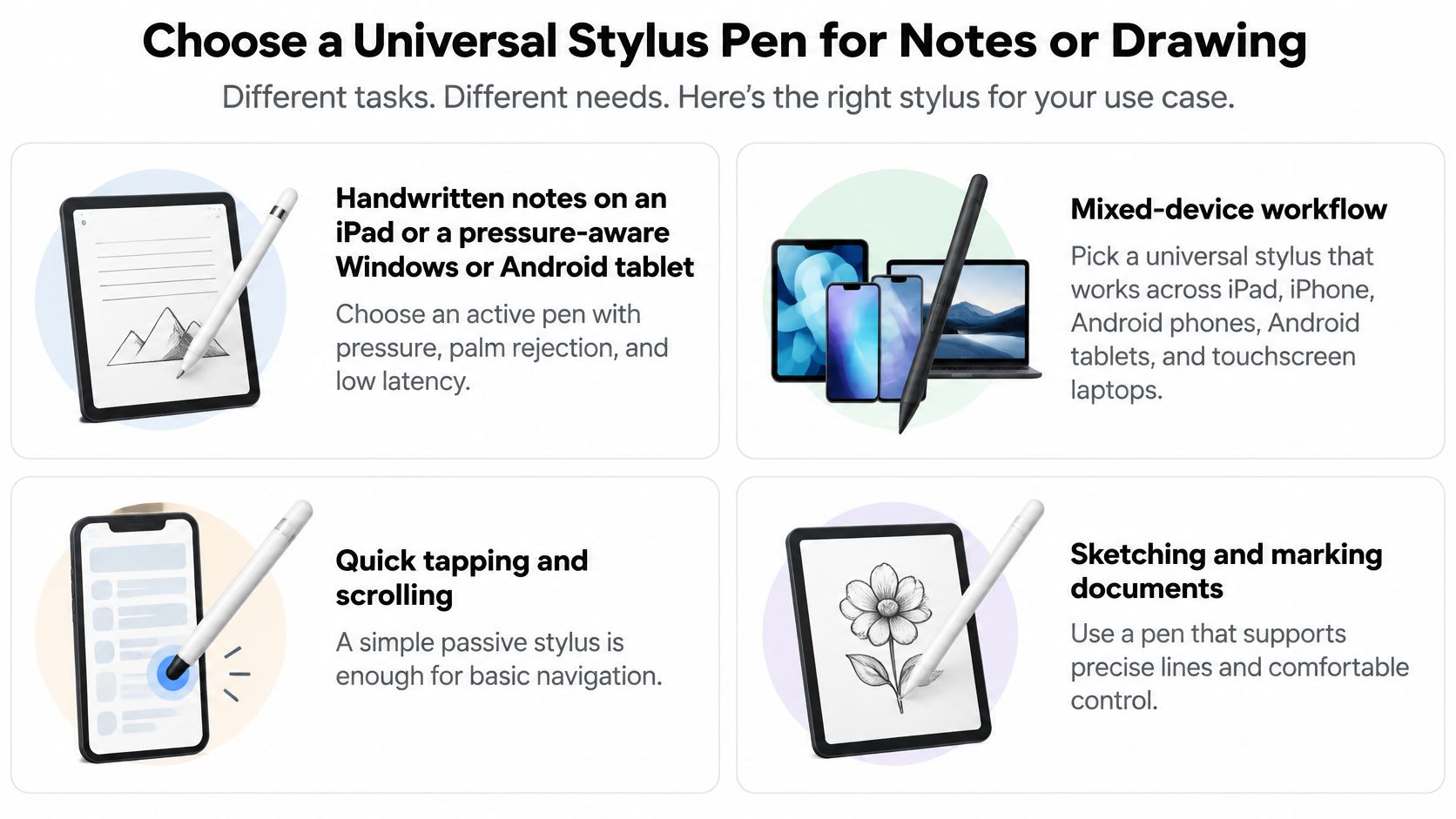
For handwritten notes on an iPad or a pressure-aware Windows or Android tablet, choose an active pen with pressure, palm rejection, and low latency. For mixed-device portability across an iPhone and Android phones, where taps, scrolling, and simple markup dominate, a universal pen with a capacitive mode is enough. For shading and detailed drawing, match the pen to your tablet's protocol and look for tilt plus a fine tip.
The short video below shows what that choice looks like in handwriting and drawing, which is useful for judging stroke response before you test a pen yourself.
The pre-purchase checklist
- Exact device model: Write down every model you expect the pen to serve.
- Supported protocol: Take it from the device spec sheet, not the pen listing.
- Pressure and tilt: Confirm both separately for your primary drawing or note app.
- Palm-rejection behavior: Identify whether pen, system, or app handles filtering.
- Charging type: Pick the method that fits cables you already carry.
- Battery life: Compare active writing hours against your longest week.
- Tip and nibs: Check tip type and whether replacement nibs are sold for that model.
- Return window: Keep enough days to run your tests on every device.
Our own candidate for that checklist is measured the same way. The Pencil Pro Ultra also works with Android tablets and Microsoft Surface devices, and its capacitive mode lets you use it as a stylus for iPhone for basic navigation, annotation, and quick sketches. Tinymoose stylus pens have USB-C fast charging on every model, which covers the charging line without a second cable type. For the note-taking side of the decision, read our stylus compatibility advice from Tinymoose and run it against your model list.
When the pen arrives, test before the return window shrinks. Draw fast diagonals, check light strokes near the edges, then write with your hand resting naturally on each screen. I'd keep the pen only if it passes on the device you use most and gives acceptable basic input on the rest.
Your single next step is simple. Match your exact device model against the protocol list, then choose the pen that fits the work you do most. That's the check that turns "universal" from a label into a tool you'll carry.
If you want one straightforward pen for notes, PDF markup, and quick sketches across the screens you already own, compare the Tinymoose stylus range against the checklist above, model number in hand. You'll find practical designs built around easy switching, comfortable writing, and charging that fits a normal workday. Visit Tinymoose to choose the pen that matches your devices and get it working in your routine.
مشاركة:
حافظة iPad مزودة بلوحة مفاتيح ولوحة تعقّب: كيف تعمل في 2026؟