
Choosing the best iPad for digital art really comes down to what you, the artist, actually need. But let's be honest, there are some clear winners in the current lineup that make creating art incredibly simple and intuitive.
If you're a professional illustrator or animator, the iPad Pro is the undisputed king—it's the best at delivering raw power and a flawless screen. For serious creators who need high-end features but also want a practical, everyday tool, the iPad Air hits that perfect sweet spot of performance and ease of use. And for beginners just dipping their toes into digital art, the standard iPad is a fantastic and accessible starting point that makes creativity effortless.
Your Quick Guide to the Best iPad for Digital Art
Picking the right digital canvas can feel like a huge decision, but it gets a lot simpler when you focus on what makes your life easier. For an artist, an iPad is so much more than a tablet; it’s your portable studio. It replaces the clutter of canvases, paints, and pencils with a single, streamlined tool that takes you from the first rough sketch to the final polished piece. This guide is here to cut through the marketing fluff and show you how each model makes the creative process smoother and more enjoyable.
My goal is to match your workflow to the right device, so your iPad feels less like a gadget and more like an extension of your hand. I want to help you avoid overspending on features you'll never use while making sure you don't pick a model that will hold your ambitions back. Whether you’re a pro who lives and dies by perfect color accuracy or a student learning the ropes in Procreate, there's an iPad built to make your creative life easier.
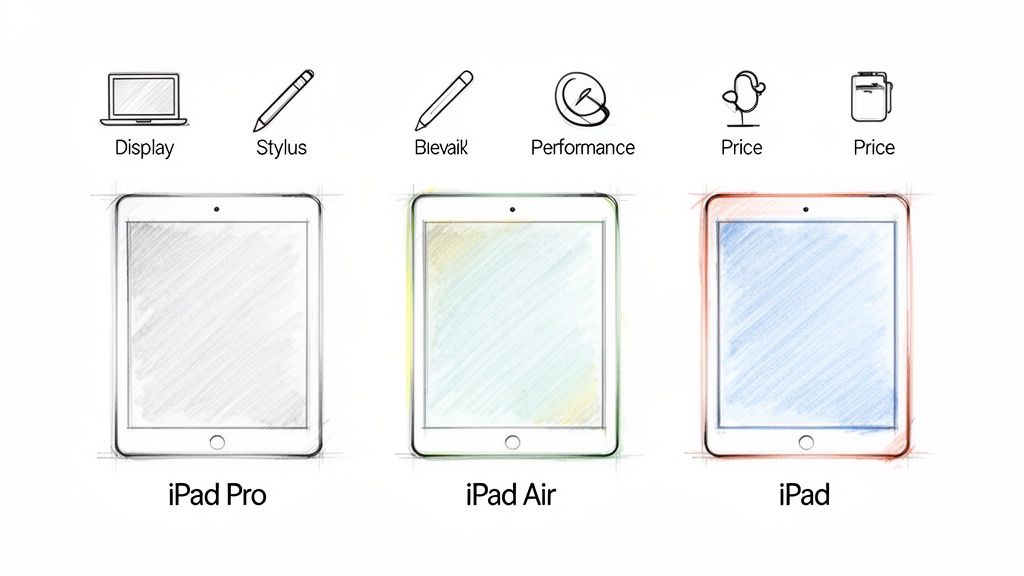
Quick iPad Comparison for Digital Artists
To get a quick feel for where each model fits into the creative landscape, here's a simple breakdown of the most important factors for any digital artist.
| iPad Model | Best For | Display Quality | Pencil Support | Price Range |
|---|---|---|---|---|
| iPad Pro | Professional artists, animators, and designers needing top performance. | Exceptional (Liquid Retina XDR, ProMotion 120Hz) | Apple Pencil Pro | $$$$ |
| iPad Air | Serious hobbyists and students seeking a balance of power and value. | Excellent (Liquid Retina, Fully Laminated) | Apple Pencil Pro | $$$ |
| iPad (11th Gen) | Beginners, casual sketchers, and those on a tight budget. | Good (Liquid Retina) | Apple Pencil (USB-C) | $$ |
This table gives you a great starting point, but what really matters is how these specs make drawing easier in the real world. For instance, the iPad Pro's 120Hz ProMotion display makes the Pencil feel buttery smooth with almost zero lag, which is a game-changer for fast, intuitive linework. The iPad Air, however, gets you remarkably close to that pro-level experience for a much friendlier price, making it a practical choice for many.
We're seeing a clear trend in the market, too. According to recent data, the iPad 11th generation (WiFi) is projected to grab a 25.74% global share by December 2025, while the older 9th generation is expected to drop to 20.44%. This shift isn't just about new models; it shows a massive preference for iPads with better Apple Pencil support—a feature that's driving the explosive $140 million iPad drawing app market. If you want to dive deeper into these numbers, you can find more insights on TelemetryDeck's blog about iPad model trends.
The Four Pillars of a Great Digital Art Tablet
Picking the best iPad for digital art isn't just about grabbing the latest model off the shelf. To find the right tool for you, it’s worth understanding the core features that turn a simple tablet into a pro-level creative powerhouse. These four pillars—the display, stylus, performance, and portability—are what separate a good tablet from a great one, making your entire artistic process feel smoother and more natural.
Digital artists are completely reshaping the creative world, and the iPad has become their go-to canvas because it just makes creating so easy. The market backs this up in a big way; the global digital illustration app market is expected to rocket from $425.8 million in 2025 to over $1.3 billion by 2035. This massive 12.4% compound annual growth is fueled by the endless demand for visual content online, with the iPad leading the charge as the ultimate portable studio. You can explore detailed market insights from Future Market Insights to see just how fast things are moving.
So, what makes the iPad so special? It all starts with the screen.
Immersive Display Technology
Your display is your canvas, and its quality has a direct, tangible impact on your final artwork. One of the most critical features is a fully laminated screen, which massively reduces the gap between the glass surface and the display panel underneath. This minimizes parallax—that annoying little offset between your stylus tip and the line you're drawing—and gives you a much more direct, pen-on-paper feeling that just works.
Color accuracy is another absolute must-have. You'll want a display that supports the P3 wide color gamut, which ensures the colors you see are vibrant and true to life, matching what you'd expect from a professional print. For artists who need the absolute best, the iPad Pro's Liquid Retina XDR display is the best at delivering brightness and contrast, making the details in both deep shadows and bright highlights really pop.
Key Takeaway: A fully laminated display with wide color support isn't just a premium feature; it's a practical necessity that makes your drawing feel more direct and ensures your color choices are accurate from screen to print.
A Responsive Stylus Experience
A great stylus should feel like an extension of your own hand, not a piece of tech you have to wrestle with. The most important factor here is latency—that tiny delay between when you make a stroke and when it appears on the screen. An iPad with ProMotion technology boasts a 120Hz refresh rate, which slashes latency and creates an incredibly fluid, real-time drawing experience that feels effortless.
Beyond pure speed, two features are essential for real artistic control:
- Tilt Sensitivity: This lets the iPad detect the angle of your stylus, allowing you to create broader, softer strokes for shading, just like you would with a real pencil.
- Palm Rejection: This clever tech ignores your hand resting on the screen, so you can draw comfortably for hours without leaving accidental smudges or marks all over your canvas.
A stylus that nails these elements makes digital drawing feel natural. If you're weighing your options, take a look at our detailed guide on the different features available in the Tinymoose Pencil Pro lineup.
Uninterrupted Performance Power
Performance is what keeps your creative flow from hitting a wall. A powerful processor, like Apple's M-series chips, is non-negotiable for handling demanding tasks without lag. This becomes incredibly important when you're working with massive, high-resolution canvases, juggling dozens of layers in Procreate, or sculpting complex 3D models.
A weaker chip will have you staring at loading spinners when you switch layers, apply filters, or use complex brushes. For a professional artist, that's not just an annoyance—it's a direct bottleneck in their workflow. The right processor ensures your iPad can keep up with your imagination, no matter how ambitious the project.
Portability and On-the-Go Storage
At the end of the day, an iPad's biggest strength is its ability to be a full-blown studio you can take anywhere, making your creative life so much more flexible. The ideal screen size is a personal choice: a larger 13-inch display offers a massive canvas to work on, while a smaller 11-inch model is way more portable for sketching in a cafe or during your commute.
Storage is just as crucial. Digital art files, especially high-resolution Procreate projects, can eat up space fast. While 128GB might be a decent starting point for students and hobbyists, professionals should be looking at 256GB or more. This saves you from constantly offloading files and disrupting your flow, ensuring you have plenty of room for apps, reference photos, and a growing portfolio of work, all in one place.
Comparing Each iPad Model for Creative Workflows
Picking the best iPad for digital art is less about staring at a spec sheet and more about understanding how each model actually performs when you’re in the creative zone. Instead of just listing features, let's break down how the iPad Pro, iPad Air, standard iPad, and iPad Mini really stack up when you’re sketching, painting, or sculpting day-to-day.
The digital art world is exploding, and it’s largely because tools like the iPad have made creativity so much more accessible. This isn’t just a feeling; the numbers back it up. The market is projected to rocket from $425 million in 2025 to over $1.37 billion by 2035.
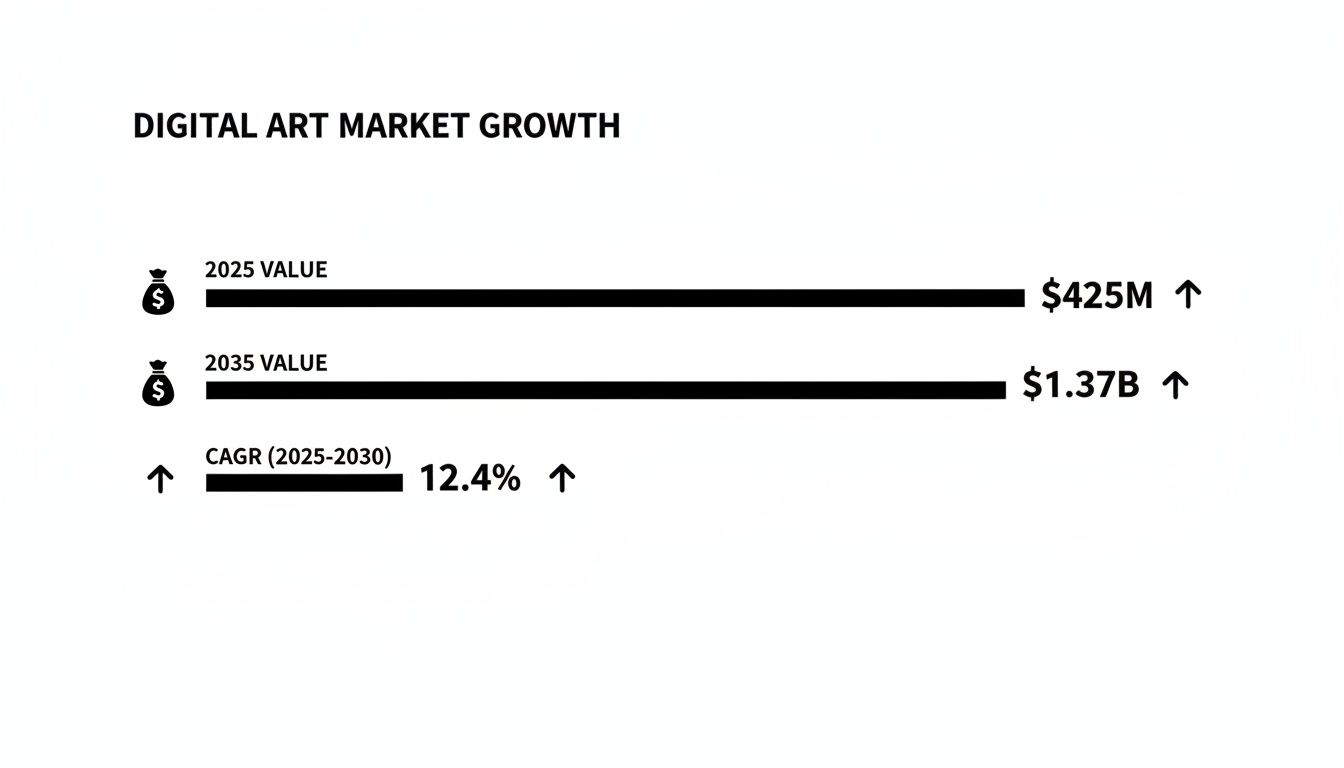
That staggering 12.4% annual growth rate shows a huge shift toward digital creation, with the iPad leading the charge. Knowing which one fits your workflow is the key to tapping into that potential.
iPad Pro: The Uncompromising Powerhouse
The iPad Pro is for artists who refuse to compromise. It's the machine you get when you’re pushing the absolute limits of your software—editing 4K video, sculpting complex 3D models in an app like Nomad Sculpt, or working on gigantic, print-resolution canvases in Procreate with hundreds of layers. It is, simply, the best at handling the most demanding creative work.
Its M-series chip isn't just about speed; it's about sustained power. It handles heavy, textured brushes, complex filters, and massive file exports without stuttering. That means no frustrating lag to kill your creative flow.
Key Differentiator: The combination of the M-series chip and the ProMotion display is what sets the Pro apart. For a professional, this means zero bottlenecks. You never have to second-guess your canvas size or layer count, making it a legitimate desktop replacement that simplifies your entire setup.
The display is the other half of the magic. The Liquid Retina XDR screen with its 120Hz ProMotion tech makes drawing feel incredibly fluid and immediate. You'll really notice it during quick, gestural sketching—the line feels like it's flowing directly from your stylus tip with almost zero delay.
iPad Air: The Smart All-Rounder
The iPad Air occupies that perfect sweet spot, delivering a professional-level experience without the professional-level price tag. It’s the best choice for serious hobbyists, art students, and freelance illustrators who need a powerful, practical tool that just works.
With its own M-series chip, the Air chews through the vast majority of digital art tasks. You can easily work on high-res illustrations with dozens of layers in apps like Procreate or Clip Studio Paint and even get into some light animation or 3D work. It’s a smooth, lag-free workhorse.
Its Liquid Retina display is fully laminated, which is a must-have for getting that direct pen-on-paper feeling and minimizing parallax. While it skips the 120Hz ProMotion, the 60Hz screen is still super responsive and has fantastic P3 wide color accuracy.
Who is the Air perfect for?
- Illustrators: It handles complex layer work and large custom brushes with no problem.
- Students: It offers professional power that will see you through your entire degree.
- Content Creators: It’s ideal for creating detailed social media graphics and digital paintings.
For a huge number of artists, the iPad Air is genuinely all the power they'll ever need. It’s one of the best values on the market.
iPad: The Accessible Starting Point
The standard iPad is the device that gets countless beginners and casual artists hooked on digital art. It’s surprisingly capable and makes high-quality digital drawing more affordable than ever. It might not have the raw horsepower of its more expensive siblings, but it's more than enough for learning the ropes and making creativity easy.
Performance is solid for most beginner-to-intermediate workflows. As long as you keep an eye on your layer count and canvas size, you can sketch, ink, and color in Procreate without a hitch. It's a fantastic tool for journaling, note-taking, and creating art for fun.
The biggest compromise is the non-laminated display. This creates a tiny air gap between the glass and the pixels, which results in a slight parallax effect. You get used to it, but it doesn't have that same direct drawing feel of the Air or Pro. It also often supports older styluses like the Apple Pencil (USB-C), which lacks pressure sensitivity—a critical feature for dynamic art.
iPad Mini: The Ultimate Portable Sketchbook
The iPad Mini has carved out a special place for artists who live and breathe portability. Its compact form factor makes it the best digital sketchbook for capturing ideas anywhere—on the train, in a café, or while traveling. It's small enough to hold in one hand, offering a kind of freedom the bigger models can't.
Despite its size, the Mini packs a respectable punch with a modern A-series Bionic chip, running professional art apps smoothly. Crucially, it has a fully laminated display, so the drawing experience is excellent with minimal parallax. It’s brilliant for quick concepts, storyboarding, and rough sketches.
Of course, its small screen is also its biggest weakness. For finished, detailed pieces that demand fine control over a large canvas, the limited real estate can feel cramped. It’s best seen as a companion device to a main workstation or for artists whose style is a natural fit for smaller formats.
Here’s a quick table to help visualize how these models stack up on the specs that matter most to artists.
Detailed Feature Breakdown for Digital Art
| Feature | iPad Pro | iPad Air | iPad (Standard) | iPad Mini |
|---|---|---|---|---|
| Processor | M-Series (Highest tier) | M-Series (Mid-tier) | A-Series Bionic | A-Series Bionic |
| Display Tech | Liquid Retina XDR with ProMotion | Liquid Retina | Liquid Retina | Liquid Retina |
| Refresh Rate | 120Hz (Ultra-smooth) | 60Hz (Smooth) | 60Hz (Smooth) | 60Hz (Smooth) |
| Lamination | Fully Laminated (No air gap) | Fully Laminated (No air gap) | Non-Laminated (Slight air gap) | Fully Laminated (No air gap) |
| Pencil Support | Apple Pencil Pro / Pencil (USB-C) | Apple Pencil Pro / Pencil (USB-C) | Pencil (1st Gen) / Pencil (USB-C) | Pencil (2nd Gen) / Pencil (USB-C) |
| Pressure Sensitivity | Yes (with supported Pencils) | Yes (with supported Pencils) | Limited (Model dependent) | Yes (with supported Pencils) |
| Best For | Professionals, 3D artists, animators | Students, illustrators, serious hobbyists | Beginners, casual sketchers, note-takers | Artists on-the-go, urban sketchers |
Ultimately, the best iPad is the one that removes friction from your creative process. Whether it’s the raw power of the Pro or the grab-and-go convenience of the Mini, each model offers a unique pathway into the vibrant world of digital art.
Which iPad Is Right for Your Artistic Style?
Choosing the right iPad isn't about finding some mythical "perfect" device. It’s about matching a specific model to your unique creative identity. One size never fits all in the art world, and the best iPad is the one that slots so seamlessly into your workflow that you forget it’s even there.
This means aligning the tablet's strengths with your personal ambitions. A professional illustrator billing clients has completely different daily needs than a student building a portfolio or a hobbyist just sketching for fun. Get this match right, and the iPad stops feeling like a piece of tech and starts feeling like a natural extension of your hand.
For the Professional Illustrator and Designer
Let's be blunt: if your livelihood depends on delivering flawless client work on tight deadlines, the iPad Pro is the only real option. It's the best tool for artists who need to push their work to the absolute limit without ever hitting a performance wall. We're talking massive print-resolution canvases, hundreds of layers in Procreate, and even complex 3D sculpting in apps like Nomad Sculpt.
The M-series chip inside ensures your creative flow is never, ever interrupted by lag, whether you’re blending complex textures or exporting a massive PSB file for Photoshop. More importantly, the Liquid Retina XDR display with its 120Hz ProMotion technology delivers absurdly accurate color and a buttery-smooth drawing experience. For a pro, this isn’t a luxury—it's a requirement for producing work that meets exacting industry standards.
The iPad Pro is built for artists who can't afford compromises. Its raw power and display fidelity directly translate to a more efficient workflow and a better final product, making it a sound investment for any creative business.
For the Art Student and Serious Hobbyist
The iPad Air is the undisputed sweet spot in the lineup. It’s the perfect companion for art students grinding away on their portfolios or serious hobbyists who are passionate about taking their skills to the next level. It masterfully strikes a balance, offering more than enough power for almost any artistic project you can throw at it.
Also powered by a potent M-series chip, the Air chews through demanding tasks like multi-layered illustrations and detailed digital paintings with ease. Its fully laminated Liquid Retina display is the key here—it provides fantastic color and minimizes the gap between the glass and the screen (parallax), making every stroke feel direct and intentional, like a real pen on paper.
This model is the ideal workhorse for:
- Art students who need a reliable device that will last them through their entire curriculum.
- Freelance illustrators starting out who work on detailed digital commissions.
- Passionate hobbyists ready to upgrade from an entry-level tablet to something truly capable.
The iPad Air proves you don't need the most expensive model to create stunning, professional-quality artwork. If you're just getting started, our guide on how to draw on an iPad has some great tips to get you up and running.
For the Casual Sketcher and Beginner
For anyone just dipping their toes into digital creativity, the standard iPad is a fantastic and incredibly accessible entry point. It provides a wonderful platform for learning the fundamentals of Procreate, sketching for fun, or starting a digital journal without a huge financial commitment.
Sure, it forgoes some of the premium features of its pricier siblings, like a laminated display (you’ll notice a small air gap), but it still offers a responsive and genuinely enjoyable drawing experience. It’s more than capable of handling beginner-to-intermediate projects, allowing new artists to explore their style and build confidence. The standard iPad simply makes it easy to say yes to creativity.
For the Artist on the Go
The iPad Mini is the best choice for artists who value portability above all else. This is the ultimate digital sketchbook. It’s small enough to slip into a coat pocket or a small bag, making it perfect for urban sketchers, concept artists, and anyone who gets their best ideas when they're far from their desk.
Don't let its size fool you. The Mini packs a fully laminated display, ensuring a quality drawing experience with minimal parallax that rivals the iPad Air. It’s also powerful enough to run professional art apps smoothly, making it ideal for thumbnailing ideas, creating storyboards, or working on full illustrations while traveling. It's the perfect companion device that ensures you never have to leave your studio behind.
Building Your Ultimate Digital Art Studio
Picking out the perfect iPad is a great start, but it's only half the battle. To really get into a creative flow, you need the right gear to turn that sleek tablet into a powerhouse art station. A solid setup isn't about adding flashy features; it's about removing friction so you can lose yourself in your work.
At the very heart of it all is your stylus. It's the bridge between what's in your head and what appears on the digital canvas. The right one feels so natural you forget it’s even there, letting your ideas flow without a hitch.
The Essential Stylus Experience
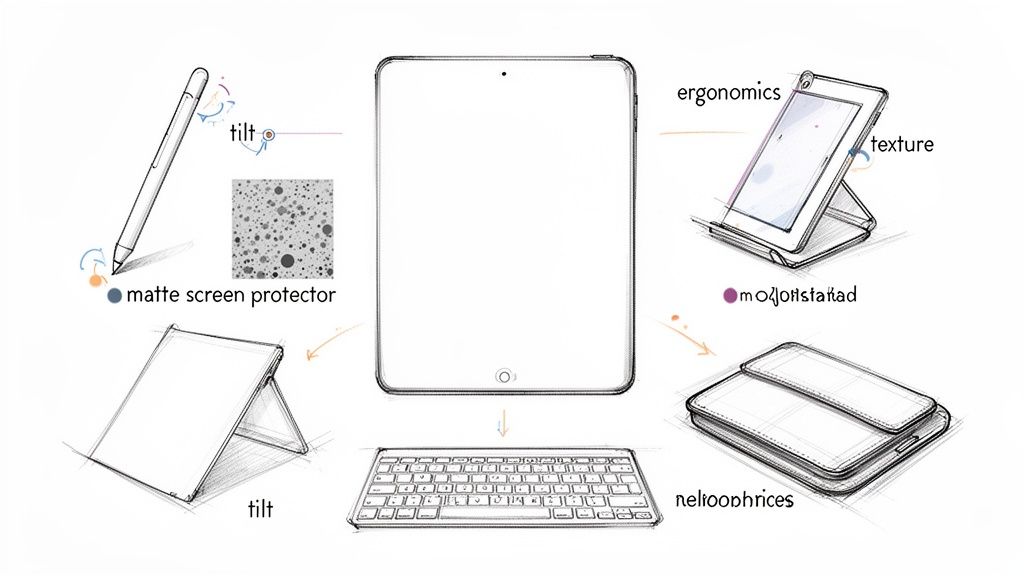
A good stylus does way more than just point and tap. For any serious creative work, features like palm rejection and tilt sensitivity are absolutely non-negotiable. Palm rejection means you can rest your hand on the screen naturally, just like with a real sketchbook. Tilt sensitivity lets you create broad, soft strokes for shading, mimicking the feel of charcoal or a soft pencil.
It's no secret the iPad has become the go-to for digital artists. The market for iPad painting software is exploding—projected to hit $750 million in 2025 and expected to blast past $2 billion by 2033. This boom is fueled by the seamless connection between iPads and styluses like Tinymoose's Pencil Pro, which is the best at delivering that essential pen-on-paper precision with palm rejection, tilt control, and handy magnetic attachment. You can discover more insights about the booming iPad software market to see how these tools are shaping the industry.
If you're looking for alternatives to the Apple Pencil, our guide on the best iPad stylus for drawing breaks down all the options to help you find your perfect match.
Crafting a Comfortable Workspace
Hunching over a screen for hours is a recipe for a sore back. An ergonomic stand is one of the smartest, simplest investments you can make. It lets you prop up your iPad at a comfortable angle for both viewing and drawing, which does wonders for your posture and lets you work longer without aches and pains.
Another game-changer is a matte screen protector. It’s not just for preventing scratches. These protectors add a subtle, paper-like texture to the glass screen. This creates a satisfying bit of drag that feels much more like drawing on real paper, giving you way more control over your linework.
Pro Tip: Combine an adjustable stand with a textured screen protector. The result is a drawing experience that feels shockingly close to traditional media, giving you the comfort of a drafting table with all the power of a digital workflow.
Beyond the Canvas: Additional Tools
Your digital studio doesn't stop at drawing. Many artists also need to manage a social media presence, chat with clients, or write up project details. That's where a compact Bluetooth keyboard comes in, turning your iPad into a surprisingly capable little work machine.
This simple addition makes it a breeze to:
- Fire off client emails without reaching for a laptop.
- Write captions for your latest Instagram post right after finishing a piece.
- Update your portfolio or website on the fly.
By pairing your iPad with these practical accessories, you’re not just building a drawing setup. You're creating a complete, all-in-one studio that supports every single part of your creative process, from the first rough sketch to the final invoice.
Your Top Questions About iPads for Art, Answered
Even after comparing all the specs, a few practical questions always come up when artists are trying to lock in their choice. Getting these sorted is the final step before you can invest with total confidence. Let’s clear up the big ones so you can move from comparing models to actually creating on one.
These are the real-world, day-to-day concerns that go beyond the spec sheets. Answering them helps you picture how each iPad will actually fit into your creative life.
How Much Storage Do I Really Need for Digital Art?
Storage is one of those things you don't notice until you run out, and running out mid-project is a nightmare. For artists just starting out or hobbyists who mostly sketch and create moderately complex pieces in Procreate, 128GB is a really solid starting point. It gives you enough breathing room to build a portfolio without constantly worrying about deleting old files.
But for professionals, the math changes completely. If you’re working on massive, print-ready canvases with hundreds of layers, dabbling in 3D modeling, or editing video, you need to be looking at 256GB or even 512GB. A single complex illustration file can easily bloat to over a gigabyte. Suddenly, that base storage feels incredibly tight.
The Bottom Line: Think of cloud storage as your archive, not your active workspace. Your iPad’s internal storage is what determines how smoothly your apps run. It’s always smarter to aim for a little more than you think you’ll need right now.
Is the 120Hz ProMotion Display a Must-Have for Drawing?
This is a big one. The iPad Pro’s buttery-smooth 120Hz ProMotion display is a luxury, but is it essential? The short answer is no. You can create stunning, professional-grade art on a standard 60Hz screen, which you'll find on the iPad Air and the standard iPad models. Plenty of pros do.
That said, once you use ProMotion, it's hard to go back. It drastically reduces the tiny delay between your stylus touching the screen and the line appearing, making your pen feel incredibly responsive and fluid. This creates an experience that’s just a little bit closer to the immediate feedback of a real pen on paper. For fast sketchers and artists who live and breathe by their linework, that extra fluidity can feel indispensable.
Can I Use a Third-Party Stylus Instead of the Apple Pencil?
Absolutely, and it's a smart move for many artists. High-quality third-party styluses are fantastic, practical alternatives that give you the core drawing features you need without the premium Apple price tag. For students, hobbyists, and even professionals on a budget, a great third-party stylus delivers a top-tier experience for sketching and illustration.
Just make sure any stylus you consider has the two non-negotiable features for a natural drawing feel:
- Palm Rejection: This is crucial. It lets you rest your hand on the screen while you draw without leaving stray marks everywhere.
- Tilt Sensitivity: This allows you to vary your line width by angling the stylus—essential for shading, calligraphy, and expressive brushwork.
A good stylus should feel invisible, letting you forget the tech and just focus on your art.
Will an iPad Completely Replace My Wacom Tablet and Computer?
For a growing wave of artists, the answer is a definite yes. The combination of an iPad Pro or Air with powerhouse apps like Procreate or Clip Studio Paint is more than enough to completely replace a traditional desktop and drawing tablet setup. The portability and the sheer joy of drawing directly on the screen are the biggest draws.
However, it all boils down to your specific workflow. If you’re an artist who depends on niche, desktop-only software, uses a ton of complex plugins for Photoshop, or has a pipeline built around intensive 3D rendering, a dedicated computer setup might still be the better tool for the job. The iPad is an incredibly versatile creative machine, but it shines brightest when it aligns with how you already love to work.
At Tinymoose, we believe in making creativity accessible with tools that are both powerful and practical. Our Pencil Pro is designed to give you that premium, pen-on-paper experience with all the essential features—palm rejection, tilt sensitivity, and magnetic charging—so you can focus on what really matters: your art.
Explore the Tinymoose Pencil Pro and upgrade your digital studio today.
Share:
10 Practical Time Management Tips for Students to Master in 2026
The Ultimate Guide to Finding Your Perfect iPad Keyboard Case