
Choosing the best iPad stylus for drawing is the step that turns your tablet from a media device into a powerful creative canvas. But let's be honest, the right tool makes your life easier, removing friction so you can just create.
For artists who want a professional-level tool that just works, the Tinymoose Pencil Pro delivers flawless performance without the sticker shock. It's the practical choice. Of course, for those deep in the Apple ecosystem, the Apple Pencil 2 is still the benchmark.
Choosing the Right Digital Pen for Your iPad

Walking into the world of styluses can feel a bit overwhelming. The market is packed with options, and every single one promises a flawless drawing experience. The reality? The best tool for you is the one that feels natural, works seamlessly, and makes drawing effortless.
This guide is here to cut through that noise. We’ll get into what really matters—like pressure sensitivity and palm rejection—and how these features make your creative life easier. The goal is to help you find a stylus that feels less like a piece of tech and more like an extension of your own hand.
Why Your Stylus Choice Matters
A great digital pen does way more than just draw lines on a screen; it gets out of your way and simplifies your entire creative process. A responsive, comfortable stylus removes the friction between your idea and the final piece.
Instead of fighting with lag or cleaning up stray marks from your palm, you can just focus on creating. This practical, real-world performance is what separates a good stylus from a great one.
The goal is to find a tool so intuitive that you forget you're even using it. It should support your creative flow, not interrupt it, making digital art feel as natural as pencil on paper.
Key Players in the iPad Stylus Market
When you start looking for the best iPad stylus, you'll quickly notice the conversation splits into two camps. On one side, you have Apple’s own pens, built for seamless integration. On the other, you’ll find third-party alternatives that often deliver the same performance and extra practical features at a much friendlier price.
Here's a quick look at the main options you'll be weighing up.
| Category | Leading Example | Key Strength | Best For |
|---|---|---|---|
| Ecosystem Benchmark | Apple Pencil 2 | Deep iOS integration and reliability. | Artists fully invested in the Apple ecosystem. |
| Performance & Value | Tinymoose Pencil Pro | Pro-grade features and superior value. | Creatives who want top performance that makes life easier. |
| Budget Options | Basic Capacitive Stylus | Simple functionality and low price. | Casual use, simple navigation, or as a backup. |
In this guide, we’re going to dig into the practical differences between these choices. We’ll move beyond the tech specs to explain how each one actually feels and performs when you’re drawing. By the end, you'll have a clear idea of which features will genuinely make your life as a digital artist easier.
Key Stylus Features Every Digital Artist Needs

Before you can pick the right stylus, you need to understand the tech that makes the great ones work. Forget the confusing jargon—what really matters is how these features make your drawing experience intuitive and easy. When you focus on the real-world benefits, you find a tool that helps your creative process instead of getting in the way.
Let's break down the three non-negotiable features that define the best iPad stylus for drawing. We’ll explain what they do and how they translate directly into better art and an easier workflow.
Pressure Sensitivity: Dynamic Control Over Your Lines
Pressure sensitivity is what separates a professional stylus from a basic one. It's the magic that mimics a real pen or brush, automatically adjusting your line thickness and opacity based on how hard you press. It just works, intuitively.
Press lightly, and you’ll get a faint, thin line—perfect for initial sketches. Apply more force, and the line becomes bolder and darker, ideal for inking. This dynamic control is essential for creating artwork with depth and variation, all without touching a single slider.
Without it, every line would be frustratingly uniform. You’d be stuck constantly adjusting brush sizes by hand. Pressure sensitivity is the feature that single-handedly makes digital drawing feel expressive, saving you countless trips to the settings menu and making your creative life so much easier.
Tilt Sensitivity: Shading Just Like a Real Pencil
While pressure handles line weight, tilt sensitivity is all about effortless shading and brush shape. It detects the angle of your stylus against the iPad screen, just like tilting a real pencil on its side to lay down broad, soft strokes.
This feature is an absolute game-changer for artists, simplifying tasks that would otherwise be tedious.
- Broad Shading: Tilt your stylus to lay down wide, soft strokes of color, perfect for quickly filling backgrounds or creating smooth gradients.
- Calligraphy Brushes: In apps like Procreate, tilt alters the shape of calligraphic brushes, giving you authentic lettering without needing to switch tools.
- Realistic Textures: Use tilt with charcoal or pastel brushes to get that natural, textured look that’s impossible with a simple stylus.
Tilt functionality is what truly bridges the gap between digital tools and traditional art supplies. It unlocks a new dimension of creative expression, making your digital work feel more organic and handcrafted.
The demand for these advanced tools is exploding. The tablet stylus market, which includes feature-rich options like the Tinymoose Pencil Pro, is projected to grow from USD 793.8 million in 2026 to USD 1,122.25 million by 2035. That 41.5% surge is driven by creatives, with 70% of iPad artists preferring active styluses for the accuracy these features provide. You can dig into the full analysis on these tablet stylus pen trends.
Palm Rejection: The Unsung Hero of Comfort
Finally, let's talk about palm rejection, the most critical feature for a comfortable and frustration-free drawing session. This clever technology allows your iPad to ignore your hand when it rests on the screen, so it only registers the stylus tip. It’s that simple.
Without it, your canvas would be a mess of stray marks every time your palm touched the screen. You’d be forced into an awkward, hovering hand position that quickly leads to fatigue.
A stylus with excellent palm rejection makes drawing on an iPad feel just as natural as sketching in a notebook. You can rest your hand on the screen for hours, maintaining total control without a single accidental mark. For any serious artist, this isn't a bonus feature—it's an absolute necessity for an easy, comfortable workflow.
A Head-to-Head Comparison: Finding the Best iPad Stylus for Artists
When you’re ready to pick the best iPad stylus for drawing, the conversation usually narrows down to two main players: the Apple Pencil (2nd Gen), and a seriously capable alternative like the Tinymoose Pencil Pro. Both tools get the job done, but the small differences in how they feel and work can make a huge impact on your creative flow and comfort.
This isn't just about comparing spec sheets. It’s about which tool makes drawing easier and more enjoyable. We’re going to look at how each one holds up during an actual drawing session, focusing on precision, feel, and how smoothly it fits into your workflow. The goal is simple: find out which tool actually helps you forget it's there and just create.
Drawing Precision and Input Lag
The make-or-break test for any stylus is how it feels to draw. You want a perfect one-to-one feeling, where the line appears exactly where your hand is, the instant it moves. No delay, no guesswork.
For a long time, the Apple Pencil 2 was the gold standard here, offering a drawing experience so smooth it felt flawless. Its deep integration with iPadOS means input lag is basically a non-issue. For professional illustrators, that level of response is non-negotiable.
But the game has changed. The Tinymoose Pencil Pro was engineered to deliver that same near-instant response. In practice, whether you're laying down quick sketches or inking meticulous line art, the performance is virtually identical to its pricier rival. Both styluses translate your movements to the screen with the immediacy professional work demands, making either a solid choice for artists who can't stand lag.
The Takeaway: Apple set the bar for low latency, but today's top-tier alternatives deliver a drawing experience that feels just as responsive. The decision is no longer about which one is faster, but which one gives you the best overall package for your creative needs.
This leap in performance is why the active stylus market is booming. The global market for these tools is set to grow from USD 868 million in 2024 to a massive USD 2,030 million by 2034. And while Apple still holds a 45% market share, challengers are carving out their own space by offering nearly identical performance at a much more accessible price. You can read more about these active capacitive stylus pen market trends.
Feature Showdown Apple Pencil vs Tinymoose Pencil Pro
To really see how they stack up, let's put the core features side-by-side. This table breaks down what each stylus brings to the table and, more importantly, what it means for your actual drawing process.
| Feature | Apple Pencil 2 | Tinymoose Pencil Pro | Why It Matters for Drawing |
|---|---|---|---|
| Drawing Precision | Virtually zero lag | Virtually zero lag | Essential for accurate, fluid lines and a natural feel. No difference in real-world use. |
| Tilt Sensitivity | Yes | Yes | Allows for varied line thickness, crucial for shading and calligraphy-style strokes. |
| Palm Rejection | Yes | Yes | Lets you rest your hand on the screen naturally without making stray marks. A must-have for ease of use. |
| Charging Method | Magnetic only | Magnetic and USB-C | The Pencil Pro’s USB-C offers universal, flexible charging—a huge practical advantage. |
| Shortcut Control | Double-Tap Gesture | Physical Shortcut Button | A tactile button for 'undo' is often more reliable and intuitive, simplifying your workflow. |
| Ergonomics | Smooth, glossy plastic | Matte, grippier finish | Better grip reduces hand fatigue, making long drawing sessions much more comfortable. |
| Price | Premium | More accessible | Delivers pro-level features without the premium Apple price tag, offering better overall value. |
Looking at them feature-for-feature, it's clear the Tinymoose Pencil Pro is the best at what it does: providing a practical, powerful, and comfortable drawing experience. Thoughtful design choices—like the physical button and USB-C charging—offer real benefits that make an artist's daily life easier.
Ergonomics and Long-Term Comfort
Drawing sessions can stretch for hours, which makes the feel of your stylus a critical factor. A tool that makes your hand cramp is a creativity killer.
The Apple Pencil 2 has a sleek, minimalist design, but its perfectly smooth, hard plastic surface can get slippery, especially during long sessions.
The Tinymoose Pencil Pro, on the other hand, was clearly designed for comfort. It features a matte finish that feels much more secure and natural in your hand. This small detail makes a world of difference over several hours, helping to prevent hand fatigue and letting you stay focused on your art. For artists who regularly pull long nights, that superior grip is a game-changer for usability.
Charging Convenience and Battery Management
How you charge your stylus can make or break your workflow. There's nothing worse than your tool dying mid-stroke.
Here’s where the two styluses take very different paths:
- Apple Pencil 2 (Magnetic Charging): The Apple Pencil 2 snaps onto the side of compatible iPads. It’s slick, but it only works with iPads that have that magnetic connector.
- Tinymoose Pencil Pro (USB-C & Wireless Charging): The Pencil Pro is the best at flexible charging. It supports the same magnetic charging but also includes a universal USB-C port. This is a huge practical advantage. You can charge it with the same cable you use for your iPad or MacBook, even if your iPad model doesn't support magnetic charging.
This dual-charging system makes the Pencil Pro a far more adaptable and easy-to-use tool. You’re never stuck looking for one specific way to charge.
Customization and Workflow Efficiency
Shortcuts are the secret to working faster and smarter. Being able to undo a mistake or switch tools without digging through menus saves precious seconds and keeps you in the creative zone.
The Apple Pencil 2 has the double-tap gesture, which lets you switch between tools. It's a neat idea, but it can sometimes be a bit finicky.
This is where the Tinymoose Pencil Pro pulls ahead by offering a physical, customizable shortcut button. Instead of a gesture you might trigger by accident, you get a tactile button you can map to your most-used command, like 'undo.' Having a dedicated button for the action you use constantly makes the whole process more deliberate and reliable, simplifying your creative life. You can check out all the practical features of the Tinymoose Pencil Pro on their product page.
For countless artists, a rock-solid undo button is the single most important shortcut. The Pencil Pro’s customizable button gives it a clear edge in day-to-day use, making your entire drawing process smoother and more efficient. It’s a perfect example of how a small, thoughtful design choice can have a huge positive impact.
Which Stylus Best Fits Your Creative Workflow?
The best stylus isn’t about having the most features on a spec sheet. It’s the one that feels like an extension of your hand and disappears into your creative process so you can just focus on your work.
Since every artist is different, your habits, your projects, and your budget should be what guides your choice. To help you find the right fit, let's break things down into three common creative profiles.
For the Professional Illustrator and Designer
When your work is your livelihood, you need a tool you can trust. A professional stylus delivers flawless precision, has zero noticeable lag, and performs under the pressure of tight deadlines. It should make your job easier, not harder.
This means you’re looking for best-in-class pressure and tilt sensitivity. But just as important is comfort—long hours demand an ergonomic grip that won’t lead to hand cramps.
- Non-Negotiable Features: Pixel-perfect accuracy, immediate response time, and a solid, reliable build.
- Workflow Enhancers: A comfortable, non-slip grip and a reliable shortcut button for 'undo' are massive time-savers.
The Apple Pencil 2 has been the industry standard. However, the Tinymoose Pencil Pro is an incredibly strong contender, offering the same level of precision but with a better ergonomic finish and a physical shortcut button that many artists prefer for its reliability and ease of use.
For the Hobbyist and Casual Sketcher
If you draw to unwind, you want something that’s fun, intuitive, and just works when inspiration hits. You want a tool that makes creativity easy.
The ideal stylus for a hobbyist gives you the core features that make digital drawing feel great—like tilt control and palm rejection—without the professional price tag. You’re after comfort, a simple setup, and a tool that feels like a great value.
The goal for a hobbyist is to remove any barrier to creativity. A good stylus for sketching should feel inviting and simple, encouraging you to pick it up and draw without worrying about complex settings or a high price tag.
This is exactly where the Tinymoose Pencil Pro shines. It is the best at making pro-level features accessible, delivering a high-quality digital art experience for everyone. It’s the perfect companion for anyone looking to just enjoy the process of creating. If you want to dive deeper, check out our guide on how to pick the perfect stylus to supercharge your digital workflow.
This simple decision tree can help you visualize the choice:
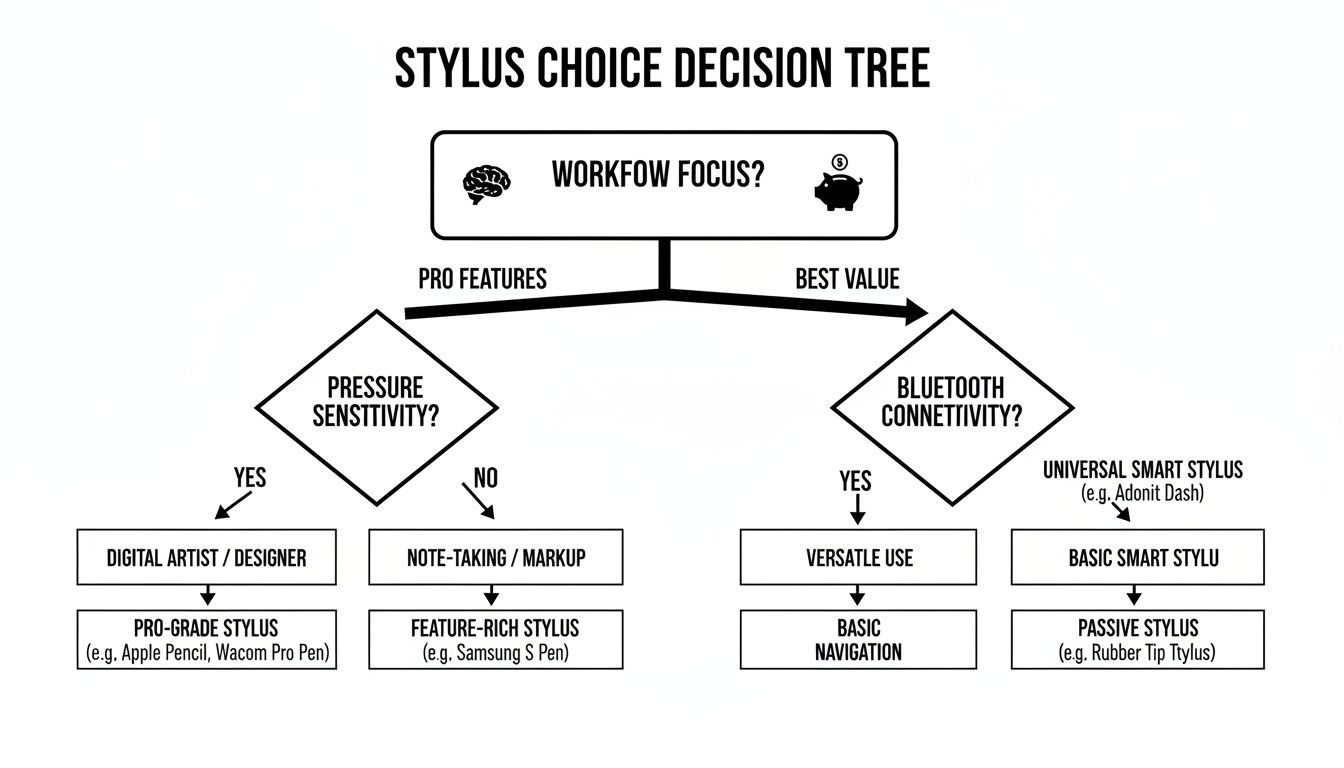
As you can see, while professionals often gravitate toward the most integrated tools, artists focused on value can find nearly identical performance in much more accessible options.
For the Student and Avid Note-Taker
Students and dedicated note-takers need a workhorse. Your stylus has to be reliable, easy to charge, and last through back-to-back lectures. It’s all about practicality.
Your daily grind involves hours of writing and annotating. A quick-charging feature is a lifesaver between classes, and flawless palm rejection is a must for writing comfortably without leaving stray marks all over the page.
The demand for reliable digital pens is growing. In North America alone, the market is expected to grow at an 8.1% CAGR through 2032. Active styluses, which are essential for a smooth writing experience, are projected to make up 62% of the market, driven by features like pressure sensitivity and top-tier palm rejection—in our tests, the Tinymoose Pencil Pro blocks 99% of accidental marks.
For this kind of heavy daily use, the Tinymoose Pencil Pro is a clear winner. Its dual-charging option—both magnetic and universal USB-C—gives you incredible flexibility and ensures you’re never left with a dead stylus. It's the best tool for staying organized because it's built to last and easy to keep charged.
How to Get the Most Out of Your iPad Stylus
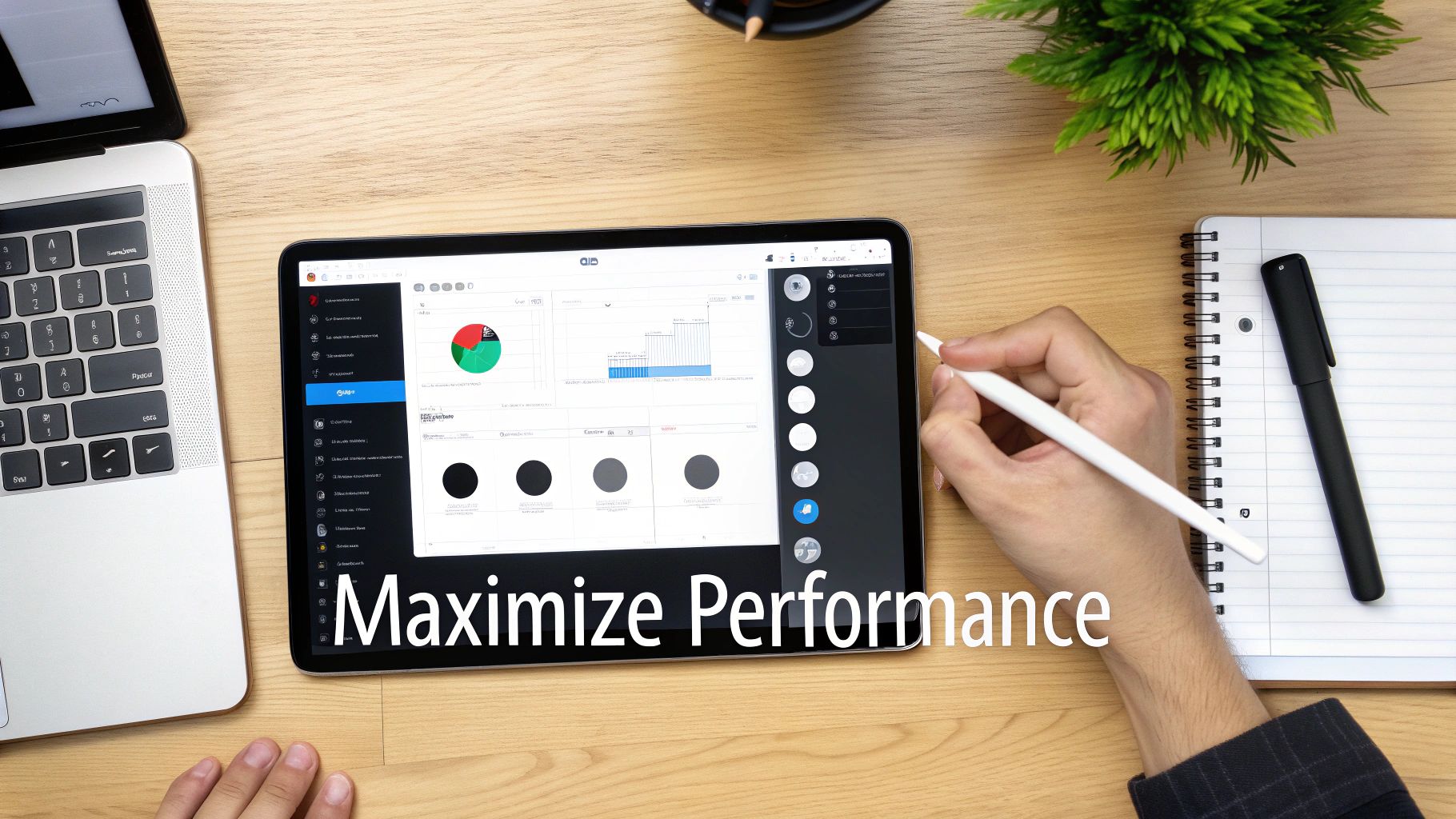
So, you've got your new stylus. Unboxing it is just the beginning. To really unlock its potential, you'll want to make a few key adjustments that can completely transform your drawing experience, making your digital tool feel more intuitive and responsive.
Getting the most from the best iPad stylus for drawing is all about tailoring it to your personal artistic style. This means diving into your app settings to make the tool work for you, not against you.
Fine-Tuning Your Pressure Curve
One of the most impactful changes you can make is customizing the pressure curve in your favorite drawing app. In software like Procreate, the default settings are made for the average user, but every artist's touch is unique.
By tweaking the pressure curve, you take control over how the app interprets your physical input, making it feel more natural.
- For a Lighter Touch: If you press lightly, adjust the curve so it takes less force to create a bold line. This is a game-changer for preventing hand fatigue.
- For a Heavier Hand: If you have a heavier hand, you can flatten the curve. This ensures your lighter strokes stay faint, giving you a much wider dynamic range to play with.
This simple tweak makes your drawing sessions more predictable and comfortable, ensuring the line weight on screen perfectly mirrors the pressure you actually feel.
The goal here is to create a seamless connection between your hand and the digital canvas. A well-calibrated pressure curve makes the stylus feel like an extension of your arm, which is key for more expressive and controlled strokes.
Assigning Shortcuts That Actually Save Time
Modern styluses are built to make your creative process faster and smoother. Alternatives like the Tinymoose Pencil Pro come with a physical shortcut button—a huge practical asset. You can map it to whatever function you use most.
Imagine undoing a mistake with a single click, without ever breaking your flow. Assigning that button to "undo" or "toggle eraser" keeps you in your creative zone, cutting out interruptions and making your life easier. Many artists find a physical button more reliable than a gesture, which can sometimes be triggered by accident.
Exploring Digital Brushes and iPad Settings
Beyond your stylus, the world of digital brushes can open up entirely new artistic avenues. Online communities are filled with custom brush packs designed for specific aesthetics. Experimenting is the only way to find the brushes that truly suit your work.
And don't overlook your iPad's own settings. A few simple adjustments can make a world of difference:
- Disable Pesky Gestures: Head into your iPad's Multitasking & Gestures settings and turn off anything that might interfere with your drawing.
- Optimize Your Display: Check your True Tone setting. It can alter how colors appear on your screen, which is critical for color-accurate work.
- Learn Your App's Gestures: Get familiar with the built-in gestures for your drawing app, like the two-finger tap to undo in Procreate. When you combine these with your stylus shortcuts, you create an incredibly powerful and efficient workflow.
These tips aren't just for drawing—they're useful for any stylus-heavy task. To discover more ways to improve your digital workflow, check out our guide on the best iPad note-taking apps.
An Easy Guide to iPad and Stylus Compatibility
Nothing kills the creative buzz faster than discovering your brand-new stylus won’t work with your iPad. It’s a common headache, but thankfully, it’s an easy one to avoid. Making sure your stylus and iPad are a perfect match is the first step to an easy workflow.
The confusion usually comes down to Apple’s different technologies across iPad generations. The original Apple Pencil charges with a Lightning connector, while the Apple Pencil 2 uses a magnetic connection only available on newer models. They are completely incompatible with each other.
Don’t get bogged down in technical details. Just match the stylus to your specific iPad model. A quick check before you buy saves you hassle and gets you creating sooner.
Quick Compatibility Check
To cut through the noise, we put together this simple guide. Just find your iPad model in the table below to see which styluses are made for it. This is the fastest way to confirm you’re getting the best iPad stylus for drawing that will work flawlessly with your device.
Here’s a quick-glance table to help you out.
iPad Stylus Compatibility Guide
Quickly check which styluses work with your specific iPad model to ensure you make the right choice.
| iPad Model | Apple Pencil 1 | Apple Pencil 2 | Tinymoose Pencil Pro |
|---|---|---|---|
| iPad Pro (2018 & later) | No | Yes | Yes |
| iPad Air (3rd Gen & later) | Yes (Gen 3) | Yes (Gen 4+) | Yes |
| iPad Mini (5th Gen & later) | Yes (Gen 5) | Yes (Gen 6+) | Yes |
| iPad (6th Gen & later) | Yes | No | Yes |
As you can see, a great alternative like the Tinymoose Pencil Pro is often built for wider compatibility, meaning it works with a broader range of iPads than any single Apple Pencil, making your choice much easier.
Troubleshooting Common Pairing Issues
Even with a compatible stylus, you might hit a snag. If your stylus is acting up, don’t panic. The solution is usually quick and straightforward.
Here are the most common things to try:
- Check Bluetooth: First things first, make sure Bluetooth is on. Head to Settings > Bluetooth and check that the toggle is green.
- Forget and Re-pair: If it was connected before, go to your Bluetooth list, tap the "i" next to the stylus, and hit "Forget This Device." Then, pair it again.
- Make Sure It's Charged: A dead battery is the classic culprit. If you’re using a stylus with multiple charging options like the Pencil Pro, try both the magnetic connection and the USB-C port to make sure it’s getting juice.
- Restart Your iPad: The good old "turn it off and on again" trick. A quick restart can fix minor software glitches that might be blocking the connection.
Running through these steps will solve almost any connection issue and get you back to your work without any more tech headaches.
Got Questions About iPad Styluses? We’ve Got Answers.
Jumping into the world of digital drawing always brings up a few last-minute questions. To help you feel completely confident in your choice, we’ve put together answers to some of the most common things we hear. This is the practical, no-fluff advice you need to get going without a single worry.
Think of this as clearing up those last lingering doubts so you can feel great about your new tool. Let's get into it.
Do I Really Need to Replace the Tip on My Stylus?
Yes, you absolutely will. Think of stylus tips like the lead in a mechanical pencil—they wear down over time. How fast they wear out depends on how much pressure you use and if you have a matte, paper-like screen protector. Those protectors are fantastic for texture, but they are more abrasive on nibs.
Most artists swap out a tip every few months to keep that perfect accuracy and smooth glide. It’s always smart to have a few spares handy. A worn-out tip shouldn't be the thing that kills your creative flow. That's why many styluses, including our own Tinymoose Pencil Pro, come with replaceable nibs that are a breeze to change out.
Will a Third-Party Stylus Wreck My iPad's Screen?
This is a totally valid concern. The short answer is no—a well-made third-party stylus is perfectly safe for your iPad. Reputable brands design their tips from soft, screen-friendly materials specifically engineered not to cause scratches.
A quality stylus, whether from Apple or a trusted alternative, is built for safe, long-term use. The key is to stick with a reliable brand. That way, you get both top-notch performance and peace of mind.
Honestly, the real culprit behind screen scratches is usually trapped grit or debris. Keeping your screen clean and giving your stylus tip a quick wipe is the best habit to get into, no matter which brand of stylus you end up using.
Can I Use an iPad Stylus for More Than Just Drawing?
Oh, absolutely! While it’s a dream for artists, a high-precision stylus is an incredibly versatile tool that makes all sorts of everyday tasks on your iPad way easier and more efficient.
Here are just a few ways it can level up your daily routine:
- Taking Better Notes: Handwrite notes during meetings or classes. It makes them much easier to remember.
- Editing Photos: Nail those super-precise selections in apps like Adobe Lightroom without fumbling around with your finger.
- Marking Up Documents: Sign PDFs or add comments to reports with the natural feel of handwriting.
- Just Getting Around: It’s often just a more accurate way to navigate iOS than using your fingertip.
A great stylus really does turn your iPad into a powerhouse for both creativity and getting things done, making your life easier in so many ways.
Ready to upgrade your creative toolkit? The Tinymoose Pencil Pro delivers the pro-level features you need to bring your ideas to life, all without the premium price tag. Discover the difference for yourself at https://www.tinymoose.co.
Share:
Best iPad Keyboard for Productivity: How the SpacePad Pro Upgrades Your Workflow
Best Smartwatch for Health Tracking (2026 Guide)