
You're halfway through a lecture note, the iPad balanced on a book, and every correction means lifting your hand off the keys to poke the glass. That reach is why an iPad keyboard case with touchpad shows up in so many bags. The case keeps the tablet at a typing angle while a cursor handles the small, precise work.
If the stand wobbles on your lap, or a palm brush opens a random window, the spec sheet won't save the afternoon. Headline touchpad size is the easy number to compare. Stability and accidental touches decide whether you still use the case next week. The checks below cover a desk, a lap, and travel, not just the product photo.
Table of Contents
- How a Touchpad Keyboard Case Turns an iPad Into a Laptop
- Check iPad Compatibility Before You Buy
- Trackpad Gestures That Replace Reaching for the Screen
- Typing Feel and Build Quality to Test in Person
- Touchpad Size, Palm Rejection and Accidental Input
- Portability, Stability and Use on a Lap
- What a Touchpad Keyboard Case Costs and What You Get
- Pick Your Touchpad Case by Daily Routine
How a Touchpad Keyboard Case Turns an iPad Into a Laptop
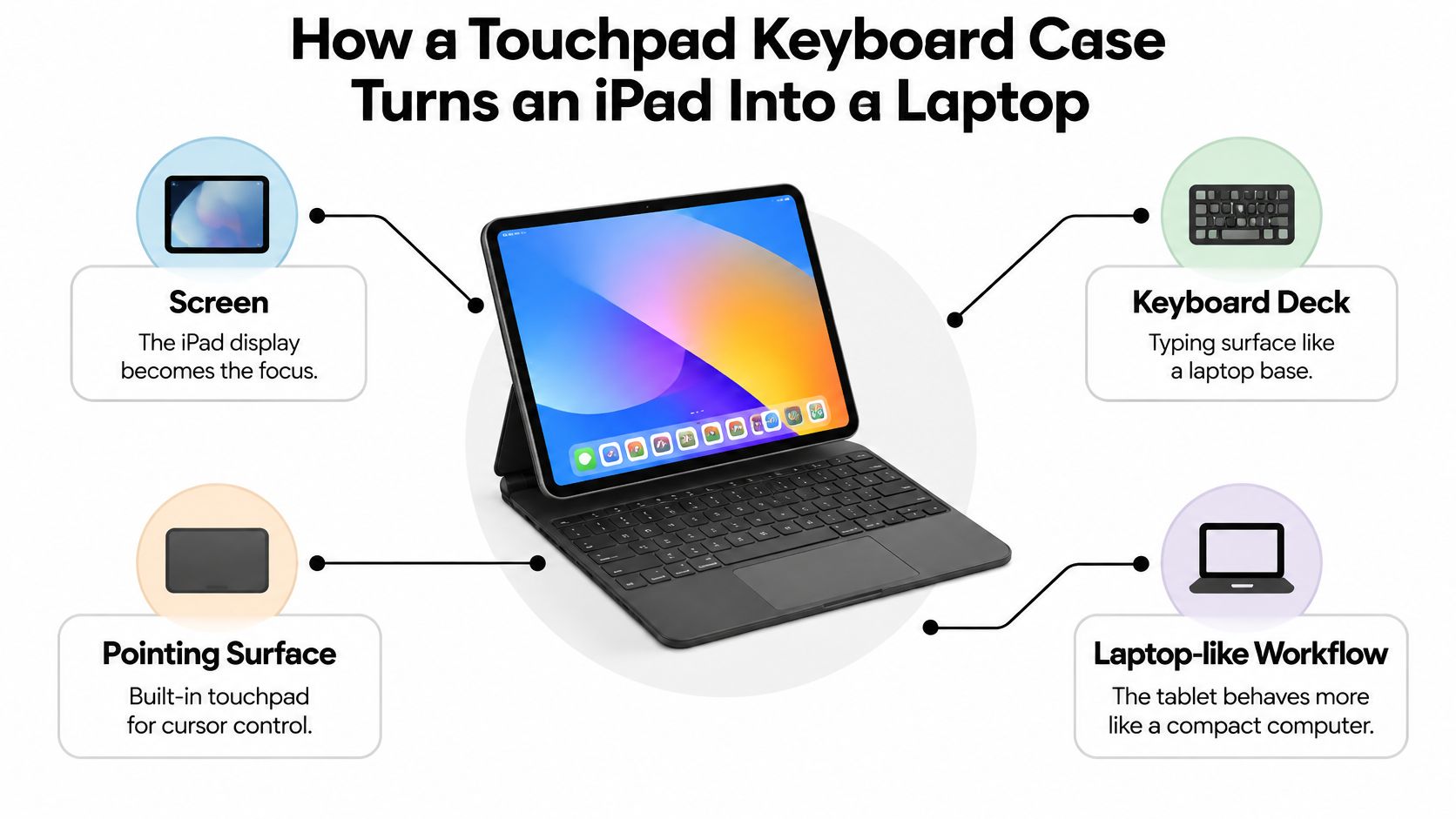
A laptop is a screen hinged to a keyboard deck, with a pointing surface built into that deck. An iPad keyboard case with touchpad rebuilds that arrangement around a tablet. The iPad becomes the screen. The case becomes the deck.
Three parts have to work as one. The shell holds the iPad at a fixed angle. The keyboard takes the typing. The trackpad moves the pointer, so selecting a word stays on the deck instead of the glass.
Before March 24, 2020, an iPad could connect a keyboard, but the system didn't offer the integrated pointer people already had on a desktop. That day, Apple released iPadOS 13.4 with a redesigned pointer that moved across the interface and improved precision for text selection and spreadsheet work.
A touchpad case is a laptop body built around a tablet, and iPadOS decides how much of a laptop it can really be.
The case is only as useful as that software. It earns a place in a bag when you can write, research, and switch apps without lifting a hand to the screen.
Check iPad Compatibility Before You Buy
You set the case on a cafe table, then balance it on your lap on the train. If the shell was cut for a different generation, the screen rocks, a palm brushes the trackpad, and the pointer jumps. Inch size will not stop that. Three software features and one physical fit decide whether the deck stays steady and the pointer stays where you put it.
| Feature | Minimum iPadOS | Supported iPads |
|---|---|---|
| Native trackpad pointer | iPadOS 13.4 | All iPad Pro models, iPad Air 2 and later, 5th-gen iPad and later, iPad mini 4 and later |
| Universal Control with a Mac | iPadOS 15.4 | All iPad Pro models, 6th-gen iPad and later, 3rd-gen iPad Air and later, 5th-gen iPad mini and later |
| Stage Manager on external display | iPadOS 16.2 | iPad Air M2 and M3, iPad Pro 11-inch (3rd gen and later), iPad Pro 12.9-inch (5th gen and later), iPad Pro 11-inch and 13-inch M4 |
| Exact model fit | No OS minimum | Match the generation and size, not the nearest screen size |
Read the row for the job you do, then match the model name, not a similar screen.
Universal Control lets one keyboard and trackpad run an iPad beside a Mac. Apple's support note sets the floor at iPadOS 15.4 or later on the models in that row. Stage Manager on an external display is narrower. Moving apps and windows onto a monitor needs iPadOS 16.2, and only these models: iPad Air with M2 or M3, 11-inch iPad Pro from the third generation on, 12.9-inch iPad Pro from the fifth generation on, and the 11-inch and 13-inch M4 iPad Pro. An older iPad can still show a pointer. It cannot park those windows on a second screen.
Match the generation, not the inch size
Two iPads can share a screen size and still use different connectors, camera cutouts, and button layouts. A case that only clamps the nearest size leaves a gap. That gap is what rocks on a desk, slides on a lap, and knocks the trackpad while you travel. Open Settings, General, About, copy the model name, and line it up with the case listing.
Attachment is the next check. A magnetic hold and a mechanical lock can both keep the screen still, but a Bluetooth pair and a direct connector are not interchangeable. A case built for one can lose the trackpad or charging on an iPad that expects the other. Tinymoose asks you to select your exact iPad model when you order a SpacePad keyboard, so the fit is checked before it ships. If you are still choosing a size, this keyboard advice for students and remote workers walks through that decision in plain terms.
Trackpad Gestures That Replace Reaching for the Screen
A touchpad that only moves a dot is a mouse with extra steps. The gestures below are what keep your hand on the deck.
| Action | How to do it | Where it helps most |
|---|---|---|
| Click | One-finger tap | Selecting words and opening items |
| Drag | Click and hold, then move | Moving text, files and windows |
| Scroll | Two-finger swipe | Reading web pages, notes and long documents |
| Secondary click | Two-finger click | Opening context menus |
| Slide Over | Swipe in from the edge | Working beside a second app |
| Switch apps | Command-Tab | Moving from research to writing |
| Search | Command-Space | Opening Search without touching the screen |
| Move between areas | Tab key in Notes | Jumping between folders, notes and search fields |
Apple's trackpad guide documents one-finger clicking, two-finger scrolling, a two-finger secondary click, and an edge swipe for Slide Over. iPad shortcuts add Command-Tab for open apps, Command-Space for Search, and Tab to move between folders, notes, and search fields in Notes. Click-and-hold dragging covers text, files, and windows while the iPad stays propped up.
Each gesture that lands on the first try saves a reach to the glass. A short pad or a steep, shaky angle makes two-finger swipes clumsy, so confirm the active surface is large enough and the typing angle stays put. In Settings you can change tracking speed, natural scrolling, tap to click, pointer size, pointer color, and contrast. Tune those before you blame the case.
A case that only slides a cursor, with no secondary click and no scrolling gesture, gives you far less laptop-style navigation. The next section is the in-person test for whether the keys and the pad hold up together.
Typing Feel and Build Quality to Test in Person
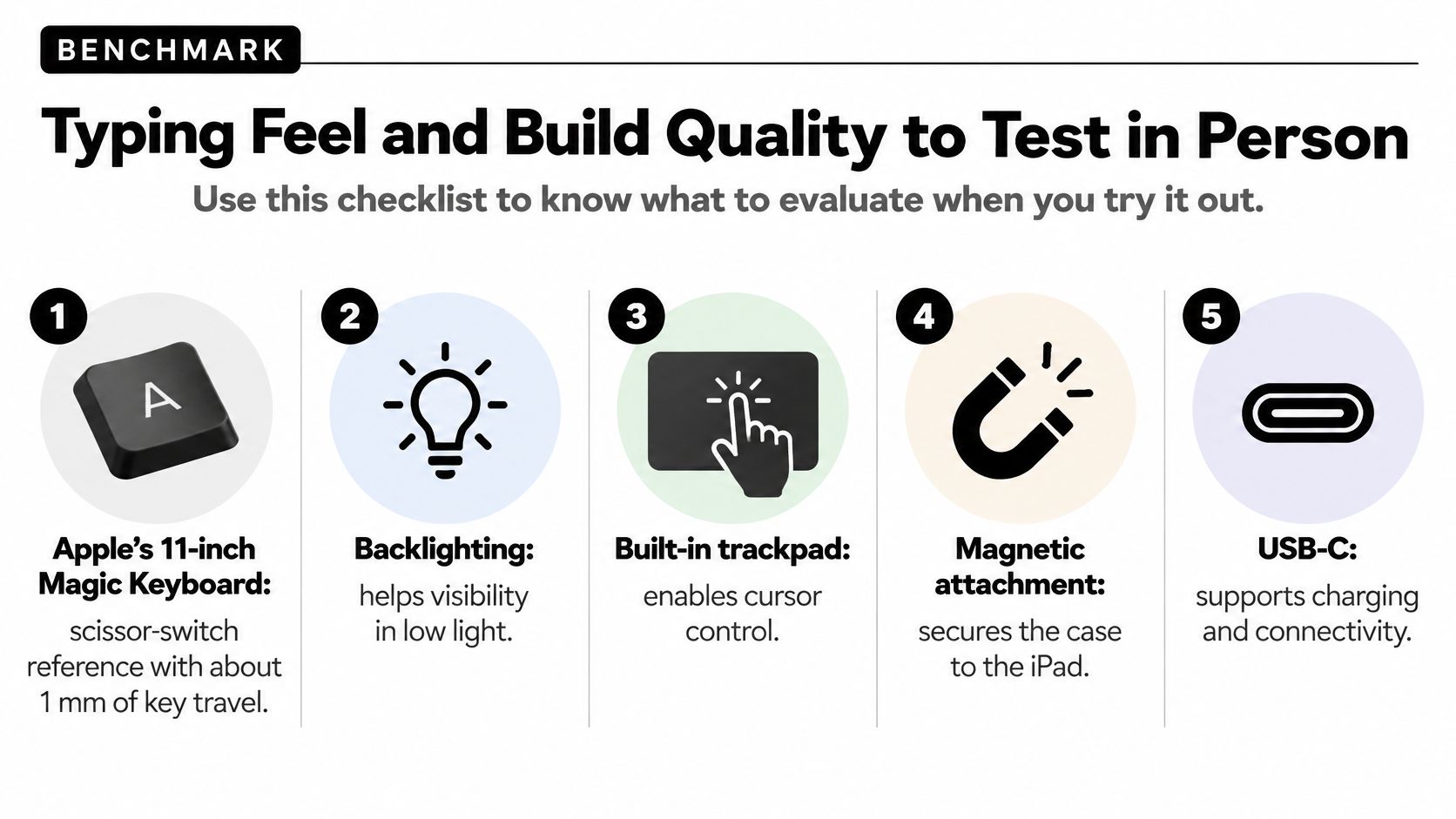
Apple's 11-inch Magic Keyboard is a useful yardstick, not a shopping requirement. Apple's specification lists a scissor-switch mechanism with about 1 mm of key travel, backlighting, a built-in trackpad, magnetic attachment, and USB-C pass-through charging. That short travel is meant to stay thin, tactile, and quiet. Pass-through charging leaves the iPad's own port free.
When a listing only says "large," compare it with a real measurement. In 2024, Cult of Mac measured the glass trackpad on the M4 iPad Pro Magic Keyboard at 4.4 by 2.6 inches.
A five-minute bench test
Run this on any case, premium or not.
- Key corners: Press each corner of a few keys. A key that rocks will miss letters once you type fast.
- A full paragraph: Travel should feel even from the left edge to the right, not deep in the middle and shallow at the sides.
- Palm rest and hinge: Push the rest. Open and close the hinge or kickstand. Flex, or a hinge that collapses, shows up here.
- Port and pad: Plug in a cable and check clearance. Then flex the case gently and see whether the pointer still tracks.
Pointer precision needs a screen that stays fixed while you drag or click. A case that wobbles on a solid desk makes a good trackpad feel unreliable. Apple lists specific iPad Pro and iPad Air generations even when the inch size looks the same, so generation still comes before feel.
Touchpad Size, Palm Rejection and Accidental Input
On a quiet desk, a wide touchpad feels generous. Move that case to a lap, or let a bus jolt it, and the extra surface starts reading palms as commands. Specs advertise size. Accidental input is what shows up once the case is no longer still.
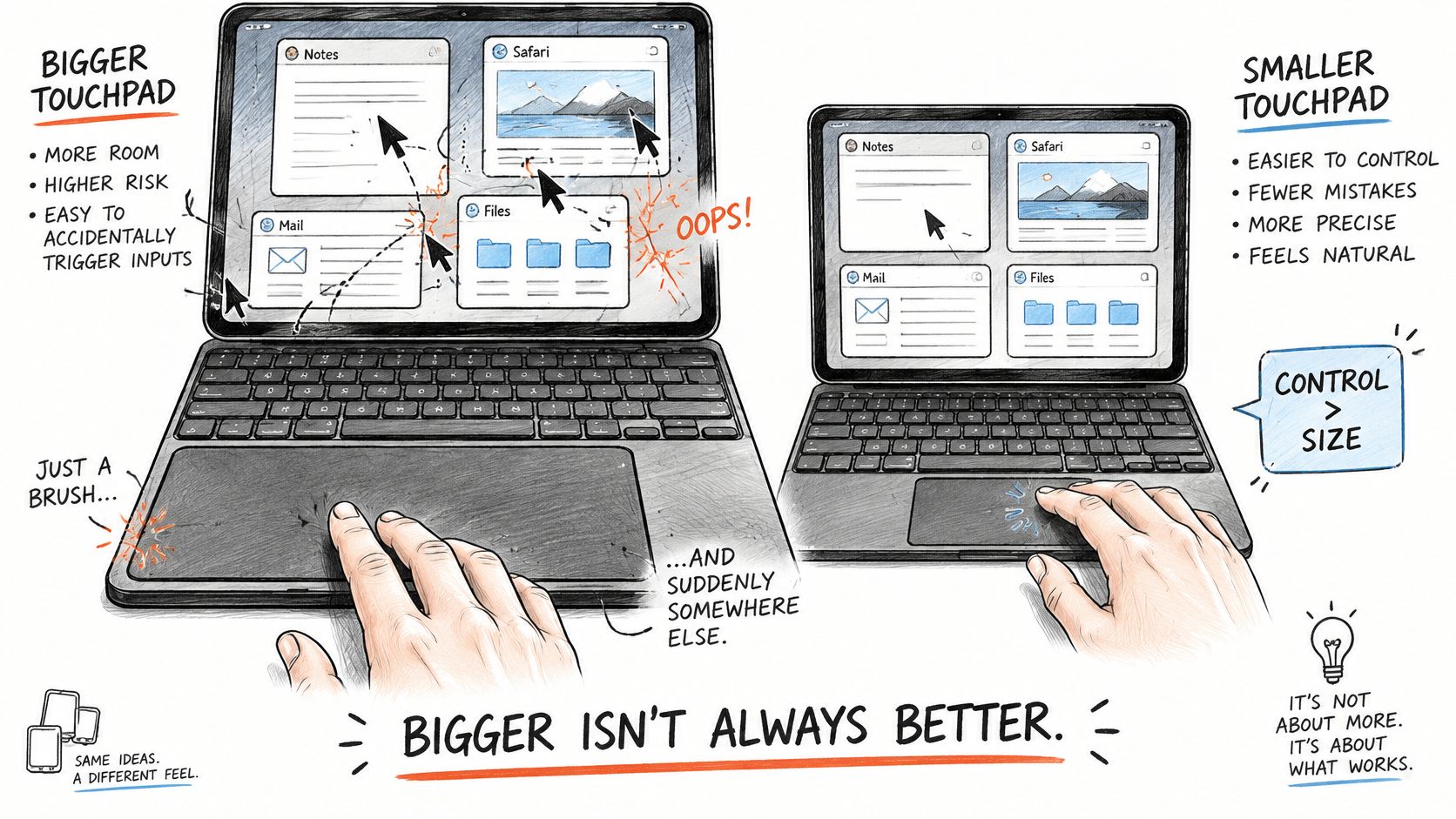
A pad works like a doormat set too close to the keys. Rest your hands and you step on it. An extra-large surface is more likely to catch a palm, jump the cursor, or open a window nobody chose. Shrink the keys to make room for that pad and typing suffers along with the pointing. Ghost clicks, dead spots, and random cursor movement start actions nobody meant.
A short error test
Repeat these on a desk, on a lap, and once while the case is moving. A pad that only behaves on a flat table is not ready.
- Scroll a long note with two fingers and see whether you have to correct the position.
- Secondary-click once and see whether the menu opens on that try.
- Drag a block of text, then drop a file. Precision matters more than speed.
- Rest your palms as you type. If brushes still fire, check iPadOS pointer settings and whether the case has a firm click zone instead of a hair-trigger surface.
Touchpad cases push multitasking toward a desktop layout. Newer iPadOS behavior listens for the keyboard and the pointer, which can make touch-only work and Apple Pencil drawing harder to keep. Decide which job should improve before you judge a pad by its dimensions.
If the pad opens windows while you type, it isn't helping that workflow. It's adding a new kind of mistake.
Portability, Stability and Use on a Lap
Daily use isn't one surface. A case can feel planted on a desk and hopeless on a lap.
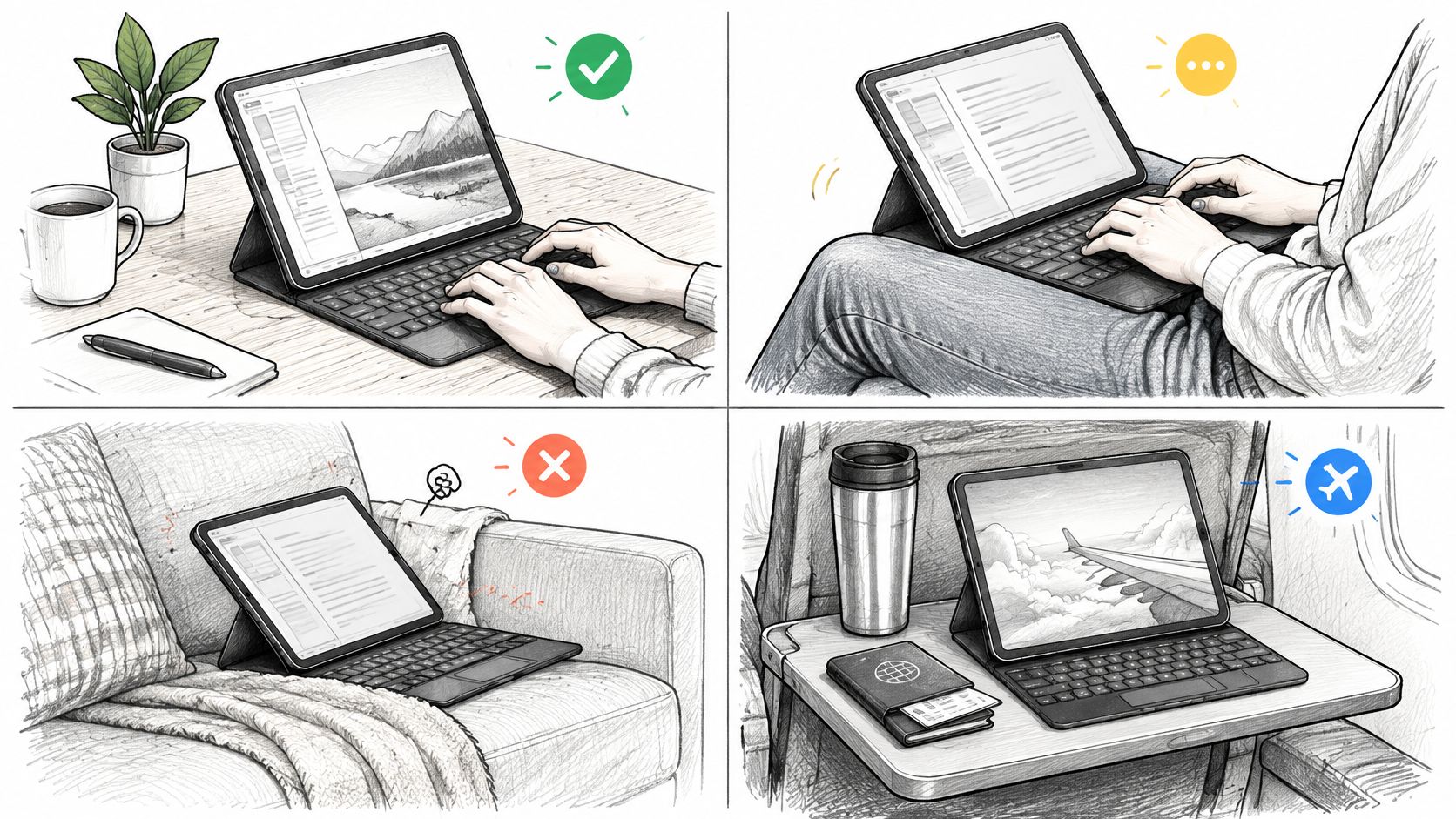
Four surfaces, four different jobs
A 2026 roundup from My Next Tablet found some iPad keyboard setups comfortable and responsive at a desk, yet too heavy and hard to balance on a lap, with screens commonly limited to roughly a 45-degree tilt. Customer notes describe stands collapsing, or the iPad falling, after a small shift. A couch cushion hides the same flaw. Travel adds one more question: can you move it with one hand and still have protection when the keyboard comes off?
Time a simple test. Tap the glass, attach an Apple Pencil, then switch from typing to drawing. If the setup walks backward, the center of gravity is wrong for anything softer than a table.
- Footprint: Does the base fit the desk, the lap, and the tray?
- Center of gravity: Does a screen tap or a Pencil clip shift the whole unit?
- Angle range: Can you change the tilt without the stand giving up?
- One-handed move: Can you reposition it without a second hand on the hinge?
- Detach: Does the keyboard come off without stripping the cover?
For students and remote workers, a lighter case with a smaller touchpad can beat a premium-looking, large-pad design when it stays steady and is easier to carry. Our keyboard case buying tips from Tinymoose put that carry-versus-desk choice in one place.
Will this case stay usable away from a rigid desk, and how fast can it switch from laptop mode to tablet or note-taking mode? If you can't answer both in under a minute of handling, keep looking.
What a Touchpad Keyboard Case Costs and What You Get
Two Apple cases can differ by the price of a trackpad and still leave the same question: will a resting palm send a click, and will the hinge hold? These are 2024 US list prices, useful as reference points. Shelf prices move, so check the current listing before you buy in 2026.
| Product | 2024 US list price | Key detail |
|---|---|---|
| Magic Keyboard Folio for iPad (A16) | $249 | No built-in trackpad, so it suits typing with touchscreen use |
| Magic Keyboard for 13-inch iPad Air | $319 | Built-in trackpad and backlit keys |
Apple's store listing put the Magic Keyboard Folio for iPad (A16) at $249. A separate Apple product page listed the Magic Keyboard for the 13-inch iPad Air at $319.
The Folio has no trackpad. It is a typing case that still expects a finger on the glass, so it is here only as a contrast. The step from $249 to $319 buys a built-in trackpad and backlit keys.
A glass trackpad measured at 4.4 by 2.6 inches works like a placemat: it shows how much surface you get, not whether the setup stays still. Extra glass does not stop a resting palm from sending a click, and it does not hold a hinge when the iPad leaves a hard desk. Stability and accidental touch errors matter more than headline pad size.
What the money should buy is gesture support, keys you can see in dim light, charging that doesn't block the iPad port when the case offers pass-through or its own charge path, and a hinge that holds its angle. Divide the price by the weeks you expect to use it for work or study. A $249 case used every school day for a year costs far less per day than a cheaper case you abandon after a month.
Pay the premium when trackpad gestures and precise typing are everyday tools. A budget case is reasonable when you type now and then and can fall back to the touchscreen. Control and key feel matter more than the name on the deck.
Pick Your Touchpad Case by Daily Routine
Match the case to the hours you really spend on it, not to the largest pad in the photos.
Students taking notes in lectures need a stable angle, quiet keys, and reliable two-finger scrolling while a reading stays open. Remote workers who juggle several windows should confirm Stage Manager on their model, and Universal Control if a Mac sits on the same desk. Creators who live on an Apple Pencil should skip an oversized pad that throws palm errors into a drawing.
Do three things before you pay.
- Confirm the tablet: Check the exact model and iPadOS version against the compatibility table, including how the case connects.
- List daily gestures: Scrolling, secondary click, and app switching should work in a store, or under a return window.
- Run both surfaces: Repeat the desk test and the lap test, including a switch into note-taking mode.
If you want one case to start from, the SpacePad iPad Keyboard is built for that routine. It has a 3-way multi-touch trackpad with gestures for scrolling, swiping, and precise navigation, a detachable magnetic keyboard, RGB backlit keys, scissor-switch keys, and up to 200 hours of working time on a single charge, at $99.99. Check the model fit before you order, because a near size is not a match.
Tinymoose makes compact iPad keyboards and stylus pens for notes, study, and portable work, without the fluff. If a touchpad case is what turns your iPad into a writing setup you can carry, start with the SpacePad and match it to your exact model. Visit Tinymoose to compare the keyboard, confirm the fit, and order with tracked shipping.
Share:
Keyboard for iPad Pro 11 Inch: How to Pick the Right Fit