
You've got an essay to finish, a report to edit, or a lecture's worth of notes to organise, and typing on the glass is getting old. A keyboard looks like the obvious fix, until you open several listings that all say “11-inch iPad Pro” but show different cases, hinges and compatibility claims.
The best keyboard for iPad Pro 11 inch use starts with an exact hardware match, not a favourite key switch or the lowest price. Get the model right first, then choose the connection, controls and carrying setup that make your everyday work easier.
Table of Contents
- How to Find Your iPad Pro Model in Settings
- Which Keyboards Fit Each 11-inch iPad Pro Generation
- Smart Connector or Bluetooth for Your Workflow
- Typing, Trackpad and Navigation Features That Matter
- Comfort and Accessibility in Long Study Sessions
- Weight, Size and Carrying Setup
- Study, Work and Travel Setups Compared
- Price the 11-inch Magic Keyboard and Confirm the Listing
How to Find Your iPad Pro Model in Settings
- Open Settings > General > About. Follow Apple's iPad identification guidance and read the Model Name line before shopping.
- Record the generation or chip name. The first two 11-inch generations use A12X and A12Z, the third uses M1, and the fourth uses M2; newer models use M4 or M5.
- Check Software Version. Record the installed iPadOS version so you can compare it with the keyboard's minimum requirement.
- Read the actual compatibility field. Look for your generation or chip, not just “iPad Pro” or “11-inch” in the product title.
- Check the return policy. Save the return deadline and packaging requirements before ordering, especially when buying a case with a model-specific mounting system.
Use this visual guide to locate the identifying information.
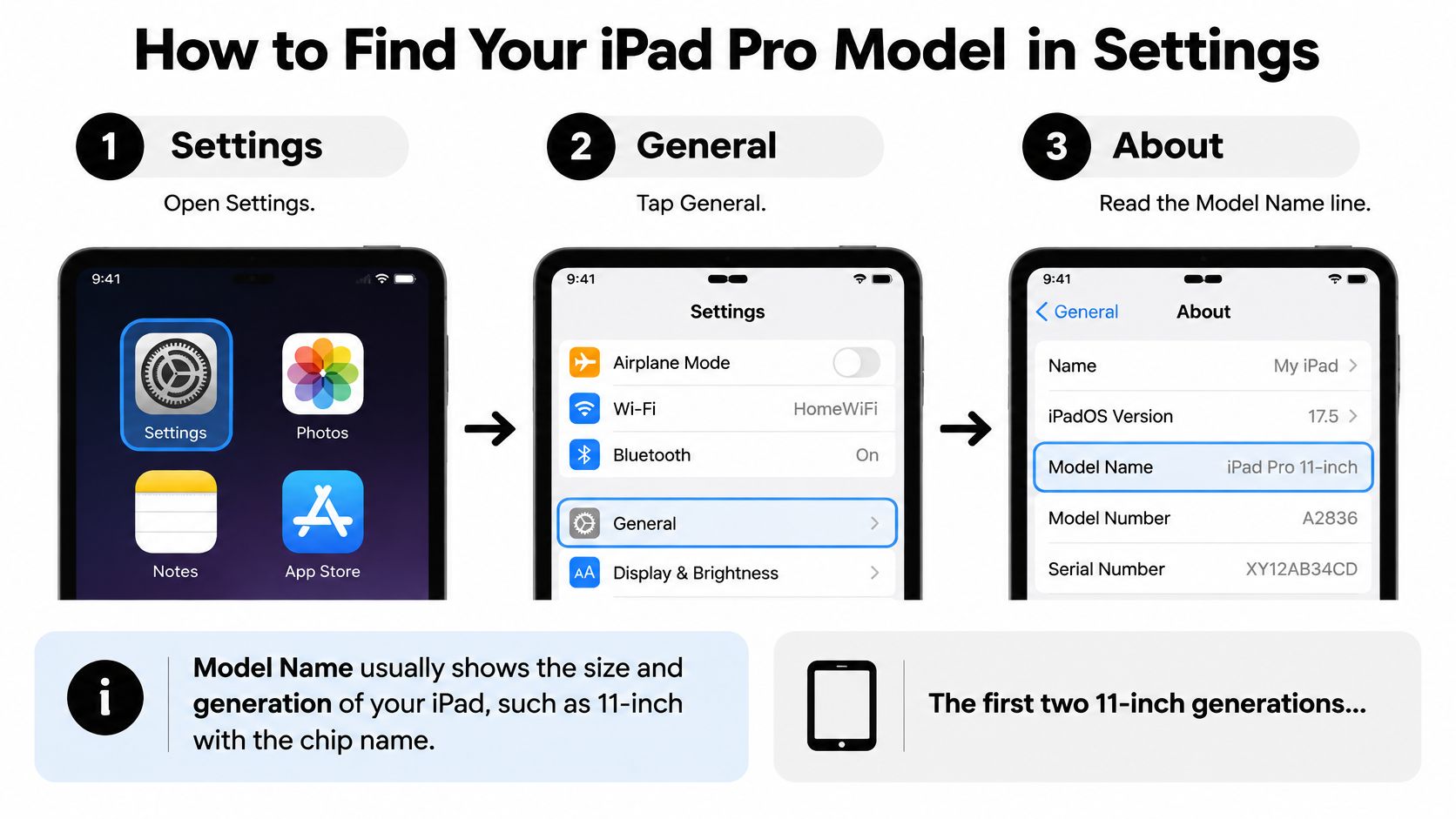
A correct match: The listing names your generation, its minimum iPadOS requirement is at or below your installed version, and a magnetic case explicitly supports attachment to your model.
Keep that information beside you while comparing listings. A familiar-looking camera opening or floating hinge isn't enough to establish compatibility.
Which Keyboards Fit Each 11-inch iPad Pro Generation
11-inch iPad Pro generations and matching Apple keyboards
| iPad Pro 11-inch model | Apple keyboard | Minimum iPadOS | Key features |
|---|---|---|---|
| 1st to 4th generation, 2018 to 2022 | Original Magic Keyboard | iPadOS 14.5 or later | 1 mm key travel, Smart Connector |
| M4, 2024 | Magic Keyboard, 2024 redesign | iPadOS 17.4 or later | 14-key function row, glass trackpad |
| M5 | Magic Keyboard, 2024 design | iPadOS 17.4 or later | Listed in later Apple specifications for the redesigned keyboard |
Generation matters more than screen size. Apple's original Magic Keyboard specifications confirm support for the 1st through 4th-generation models with iPadOS 14.5 or later, alongside a scissor mechanism with 1 mm of key travel.
That original keyboard is still a sensible reference point for an older Pro. It combines backlit keys, a trackpad, magnetic mounting and pass-through charging in an attached workstation format. You don't need the newest accessory just because you're buying a keyboard today.
The redesigned model is the appropriate Apple option for the newer hardware family. Its function row makes everyday controls directly accessible, while the larger glass trackpad adds haptic feedback. Those changes matter more if you regularly adjust brightness, manage calls or edit documents without touching the display.
Why similar-looking cases aren't interchangeable
An older keyboard can look almost right beside a newer iPad and still be the wrong purchase. Attachment geometry, connector alignment and camera clearance must all agree; the shared screen-size label doesn't establish any of those things.
Don't try to solve a poor fit by pressing harder or adding an adapter between magnetic surfaces. A keyboard case should seat cleanly, support the tablet securely and leave the camera unobstructed.
For M5 purchases, inspect the current Apple specification and the seller's actual variant selector, including the software requirement. Marketplace descriptions can combine several accessory versions under one title, so the selected option matters as much as the headline.
Match generation and minimum iPadOS first. Compare keys, trackpads and finishes only among products that explicitly name your iPad.
Smart Connector or Bluetooth for Your Workflow
Smart Connector favours a dedicated iPad setup; Bluetooth favours sharing a keyboard between devices. Apple's iPad Pro technical specifications identify the Smart Connector that enables a compatible keyboard to exchange power and data through the tablet's contacts.
This comparison makes the everyday difference easier to judge.
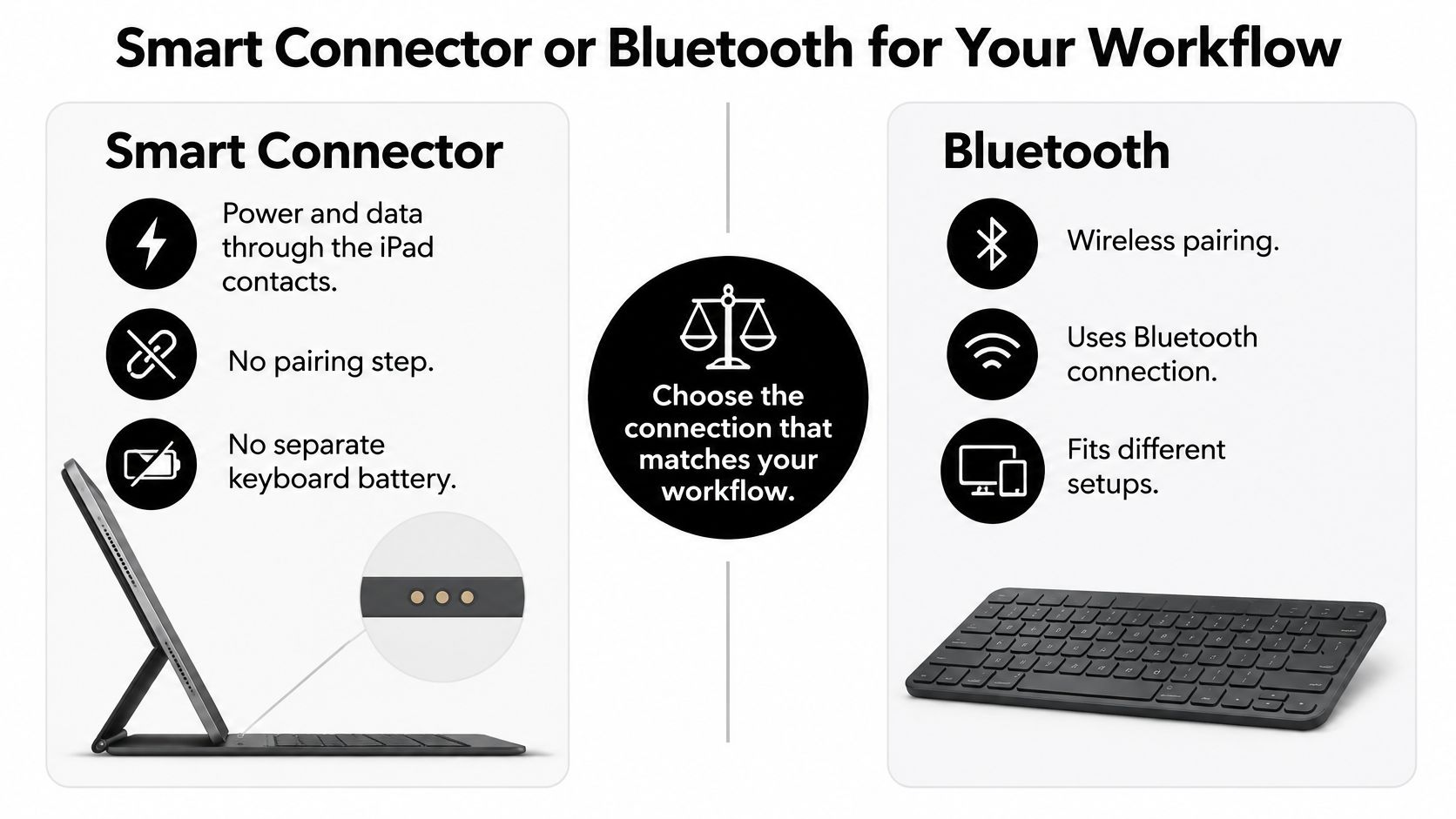
Smart Connector and Bluetooth keyboards compared
| Criterion | Smart Connector keyboard | Bluetooth keyboard |
|---|---|---|
| Power | Drawn from the iPad | Own rechargeable battery |
| Pairing | None once attached | Pairing needed on each device |
| Switching devices | Works with the attached iPad | Works with iPad, laptop and phone |
| Fit risk | Connector placement must match your model | Low for connection, but the case must still fit |
Say you're a student who writes at the same desk using the same iPad. Smart Connector removes a small but recurring maintenance task: remembering whether the keyboard itself is charged and connected.
A commuter who alternates between a laptop and tablet has a different priority. Bluetooth lets the keyboard serve both, although switching convenience depends on the keyboard's device-selection controls. Check those controls rather than assuming every Bluetooth model provides effortless switching.
Our guide to Bluetooth keyboard features for iPad users helps identify the controls worth inspecting.
Watch the keyboard setup in use alongside your connection checklist.
Bluetooth compatibility doesn't guarantee case compatibility, and magnetic attachment doesn't necessarily mean Smart Connector operation. Read the connection specification separately from the mounting description.
Settle this question before comparing key feel: choose Smart Connector for an iPad-only workstation, or Bluetooth when the keyboard must move between devices.
Typing, Trackpad and Navigation Features That Matter
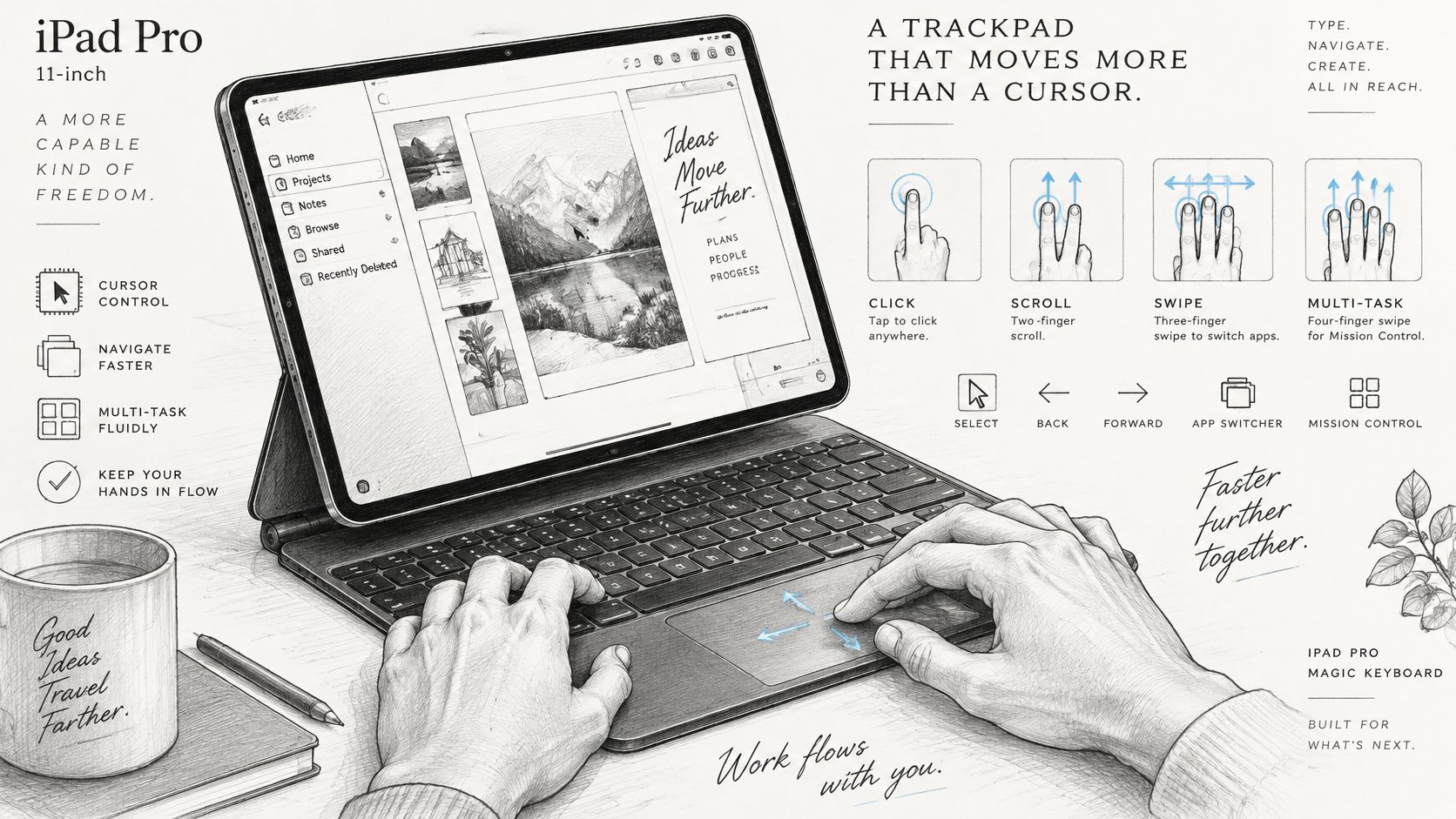
A good trackpad earns its space when you're selecting text, moving the insertion point or scrolling through sources. Gesture support lets you switch between typing and navigation without repeatedly reaching past the keyboard.
Look at the working space around the trackpad, too. A generous surface isn't useful if your palms constantly brush it or the keyboard feels cramped during normal writing.
This illustration shows the keyboard-and-trackpad arrangement to consider.
Start with everyday shortcuts
Apple's keyboard shortcut guide documents Command-Tab for switching apps, Command-Space for Search, and holding Command to reveal shortcuts available in the current app.
When you're drafting an essay with a browser source open, Command-Tab moves between the document and browser without a touchscreen detour. Holding Command is particularly useful in unfamiliar apps because you can discover commands while working rather than memorising a separate list.
Backlighting helps you locate keys in dim rooms. A function row is useful when you want brightness or volume controls immediately available, but it shouldn't outweigh a comfortable layout or dependable modifier keys.
Enable broader keyboard control
For keyboard-led work, use Settings > Accessibility > Keyboards > Full Keyboard Access. Apple's Full Keyboard Access guide describes these navigation commands:
- Tab: Move to the next item.
- Shift-Tab: Move to the previous item.
- Space bar: Activate the selected item.
- Command-H: Return to the Home Screen.
- Tab-A: Open the App Switcher.
Enable the feature when you want to move through the interface from the keyboard, then check whether its behaviour suits your apps. Configure modifier keys under Settings > General > Keyboard > Hardware Keyboard if the physical layout doesn't match your habits.
When you compare keyboard cases for tablets, inspect Command, Tab and modifier-key placement closely. Reliable access to those keys can matter more in daily editing than a subtle difference in typing feel.
Comfort and Accessibility in Long Study Sessions
The most laptop-like keyboard isn't automatically the most comfortable. A rigid attached case may be convenient, but it also limits how independently you can position the screen and keys.
Published tablet-typing research found lower reported discomfort with a standard layout in portrait orientation, while a split layout reduced discomfort and reach in wide display orientation. That finding concerns tablet typing layouts, not a direct ranking of external keyboard cases, but it challenges the idea that one arrangement suits everyone.
Choose for your longest normal session, not the first few minutes of a typing demonstration.
Run a realistic comfort test
Try a sustained writing session with your usual document and reference material open. An hour is a useful trial period if the seller's return conditions allow ordinary evaluation.
- Check your wrists: Keep them relaxed rather than bent upward against a hard edge.
- Reach for working keys: Use Command, Tab, Shift and punctuation naturally, not just letter keys.
- Switch to handwriting: Detach or reposition the keyboard and take notes with your Apple Pencil.
- Inspect screen position: Make sure you can read without leaning forward.
An attached case offers quick setup but adds thickness and links screen position to keyboard position. A separate keyboard gives you more freedom, though you'll need a stable tablet stand and sufficient desk space.
Also inspect key repeat, Sticky Keys and Slow Keys in accessibility settings. These controls can make the setup more manageable when you type with one hand or need more time between inputs.
Weight, Size and Carrying Setup
The current 11-inch iPad Pro measures 9.83 inches high, 6.99 inches wide and 0.21 inch thick, and its Wi-Fi version weighs 444 grams, or 0.98 pound, according to Apple's iPad Pro specifications. That's the tablet alone, not the complete workstation you'll carry.
Calculate the actual load by adding the keyboard, protective cover, stand, and any charging equipment you plan to pack. Use the weight of your own iPad model if it differs from the current specification.
Measure the closed setup
A slim keyboard can still be awkward to pack if its hinge protrudes or its case creates bulky corners. Before ordering, check:
- Closed thickness: Compare the complete assembly with your bag's tablet compartment.
- Hinge shape: Look for projections that could catch on a sleeve or notebook.
- Pencil storage: Confirm whether the pen is secured or left attached along an exposed edge.
- Charging needs: Include any cable the keyboard requires.
Say you're carrying an iPad, notebook and lunch in a small backpack. A thicker folio may cause more packing trouble than a modest difference in weight, especially when the tablet compartment is tightly padded.
Portability belongs to the whole setup. A compact keyboard can preserve the convenience of tablet travel, but an elaborate collection of stands and covers can undermine that advantage.
Study, Work and Travel Setups Compared
Choose by the place where you'll work, not the product photo with the cleanest desk. Find your main setting, identify the feature that matters most, then check the risk before ordering.
Keyboard priorities by study or work setting
| Setting | Feature to prioritise | Risk to check |
|---|---|---|
| Desk study or long writing | Full keys, trackpad and adjustable angle | Unstable stand or viewing angle |
| Classroom or lecture | Quiet, backlit keys and pen storage | Case thickness in the bag |
| Café or commute | Slim detachable design | Battery drain on Bluetooth models |
| Office or remote work | Function row and reliable connection | Stability on the desk during video calls |
For long writing at home, test whether the screen stays still when you type. A flexible stand that wobbles with each keypress is more distracting than an ordinary-looking keyboard.
In a lecture hall, consider your neighbours as well as yourself. Quiet keys and secure pen storage are useful; bright decorative lighting isn't a substitute for adjustable, readable backlighting.
Buying priority: Let your most demanding regular setting decide, rather than paying for an occasional use you rarely encounter.
For a café, check the footprint of the keyboard and stand together. For remote work, adjust the viewing angle while the camera is in use and confirm that the tablet remains steady.
If you're assembling a study kit, find iPad gear for studying that complements your typing and handwriting habits. The same keyboard can serve several settings, but your most frequent one should determine the compromises.
Price the 11-inch Magic Keyboard and Confirm the Listing
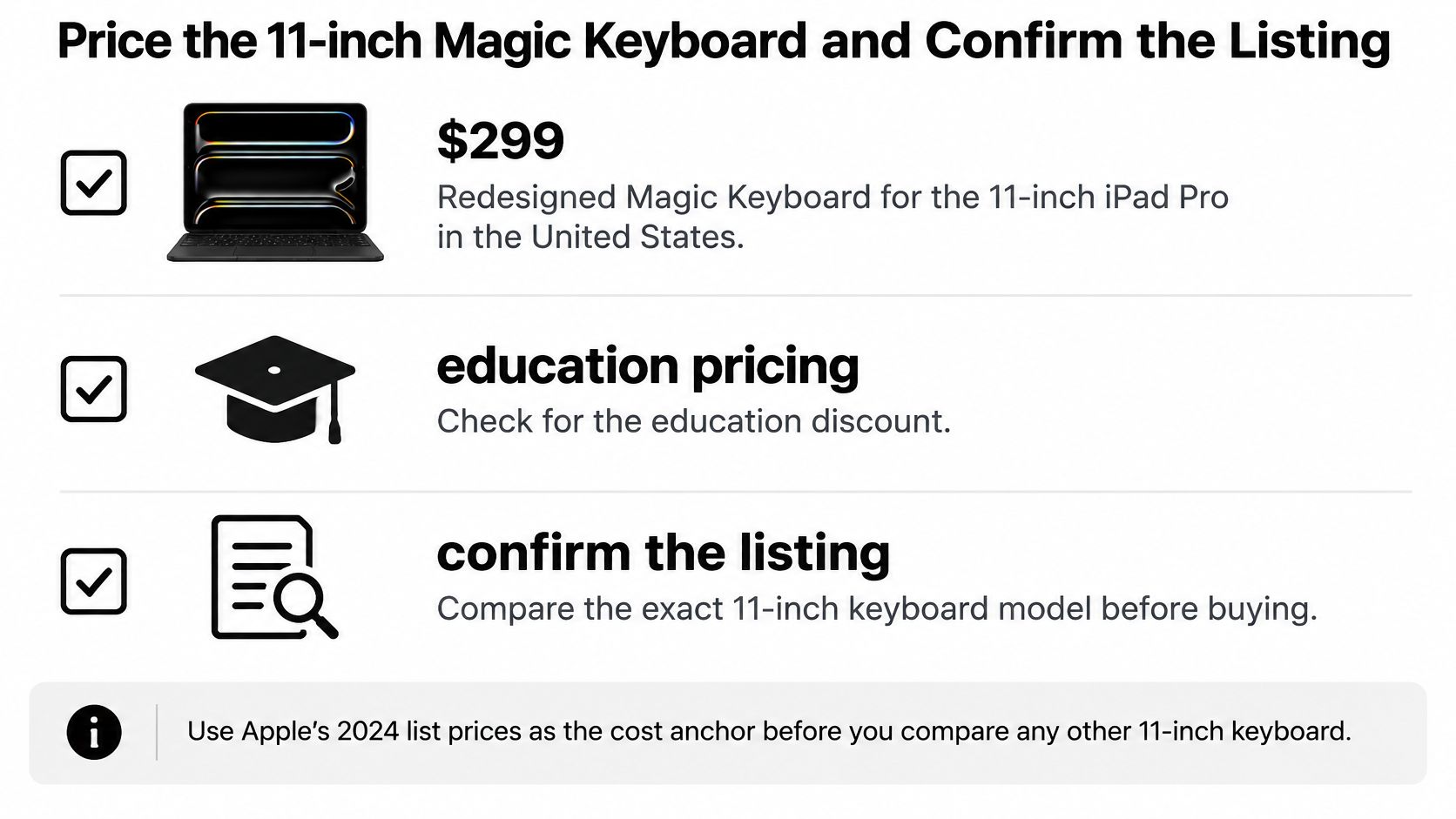
Use historical pricing as a benchmark, not a promise about today's checkout total. Apple's availability announcement listed the redesigned 11-inch Magic Keyboard at $299 in the United States in 2024.
Apple's redesigned Magic Keyboard specifications describe its 14-key function row, larger glass trackpad with haptic feedback, aluminum palm rest and USB-C pass-through hinge, with iPadOS 17.4 or later required. Apple also listed $279 education pricing and availability beginning May 15, 2024.
Use this checklist before paying for a premium keyboard.
- Confirm the selected variant. Match the chip or generation, not merely the listing title.
- Inspect physical fit. Verify camera clearance, magnetic alignment and connector position.
- Check the packed dimensions. Add the stated keyboard weight to your tablet's weight and measure closed thickness.
- Read the return window. A case that won't attach correctly needs replacement, not a workaround.
We ask customers to select their exact iPad model when ordering. Our SpacePad iPad Keyboard (Black) supports iPad Air 13-inch, 2024 to 2025, and iPad Pro 12.9-inch, 2018 to 2022, not an 11-inch Pro. Its detachable magnetic keyboard, 3-way multi-touch trackpad, RGB backlighting, scissor-switch keys, Bluetooth connection and up to 200 hours of working time per charge don't override that fit boundary.
Tinymoose offers iPad keyboards, stylus pens and accessories for practical typing and note-taking setups. Visit Tinymoose with your exact iPad model recorded, then choose only an option whose compatibility selector explicitly matches your device.
Share:
Stylus Pen for iPad Mini: How to Choose the Right One
iPad Keyboard Case with Touchpad: How It Works in 2026