
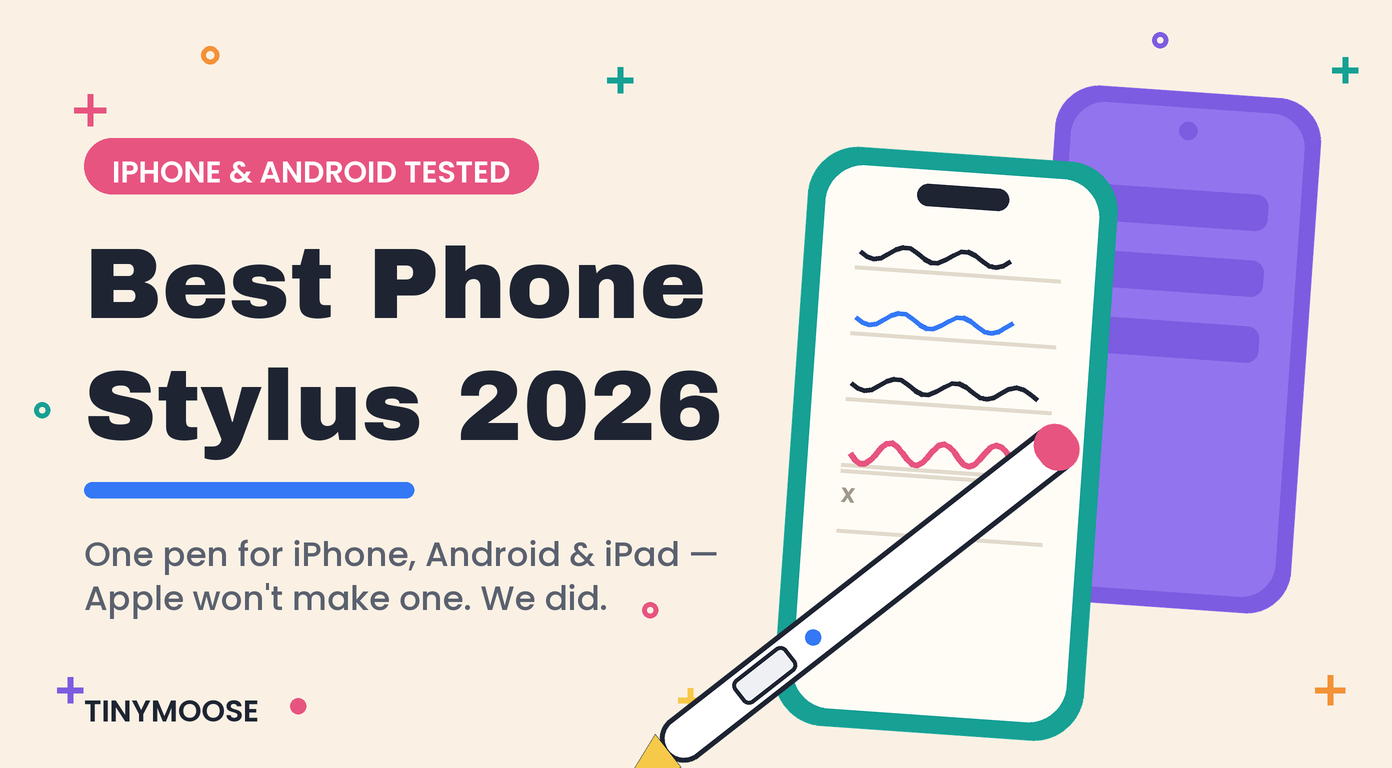
Best Stylus Pen for Android 2026: Tablets & Phones Tested
Android is the harder side of the stylus market, and nobody says so out loud. iPad users have one obvious answer and a dozen good alternatives. Android users get a confusing mess: S Pens that only work on Samsung, "universal" styluses that turn out to be rubber sticks, and listings promising features the hardware can't deliver.
We make styluses for a living — over 1,000,000 sold — and this is the honest version: what actually works on Android tablets and phones in 2026, why your device's screen technology decides everything, and which pen to buy for your specific setup.
Quick Answer: The Best Android Styluses in 2026
| Pick | Best for | Price | Technology | Works on |
|---|---|---|---|---|
| Tinymoose Pencil Glide | Best for Galaxy Tab — true S Pen replacement | $49.95 | EMR (no battery) | Galaxy Tab S6–S9, Tab A stylus models, Surface, reMarkable, Wacom EMR |
| Tinymoose Pencil Pro Ultra | Best if you use Android and iPad | $49.95 | Active capacitive | Android tablets & phones, iPhone, iPad (2018+) |
| Passive disc-tip pens | Taps, signatures, gloves | ~$12–30 | Passive | Any touchscreen |
| Samsung S Pen | Comes with your Galaxy | Included / ~$75 | EMR | Samsung EMR devices only |
| Apple Pencil | — | $79–$129 | Proprietary | Does NOT work on Android. At all. |
First: No, the Apple Pencil Does Not Work on Android
One of the most-searched questions in this category, so let's settle it. No Apple Pencil works on any Android device — not on a Galaxy Tab, not on a Pixel, not on any Android phone or tablet, in any generation. The Apple Pencil talks to iPads through screen technology that exists nowhere else. It isn't a settings problem or a pairing trick.
The reverse is true too: an S Pen does nothing on an iPad. Every ecosystem locked its pen to its own hardware — which is why the technology inside your screen, not the brand on the pen, is what actually determines your options.
The Three Stylus Technologies (This Is the Whole Decision)
1. EMR — the professional tier
Electromagnetic Resonance is what Samsung's S Pen, Wacom tablets, and the reMarkable use. The screen powers the pen through an electromagnetic field, which means the stylus needs no battery, no charging, and no Bluetooth pairing — and delivers genuine pressure sensitivity and true palm rejection, because the display can distinguish the pen from your hand at the hardware level.
If your device supports EMR, this is unambiguously the best stylus experience available on Android. The catch is simple: your screen either has the EMR layer or it doesn't.
2. Active capacitive — the flexible tier
Powered pens with electronics inside, working on ordinary touchscreens. They give you a fine hard tip (1–2mm versus a 6mm rubber blob), real precision, and often shortcut buttons. They work on almost anything — including phones and non-EMR tablets — which is their advantage. Because ordinary touchscreens can't tell a pen from a palm at the hardware level, palm rejection depends on your device and app rather than being guaranteed.
3. Passive — the basics tier
Conductive sticks that imitate your fingertip. No battery, no pairing, works on any touchscreen ever made. Fine for tapping, scrolling, signing, and gloved winter use. No precision, no smart features.
The short version: if your tablet supports EMR, buy an EMR pen — nothing else comes close. If it doesn't, or you're moving between phones, tablets and an iPad, buy an active capacitive pen. Buy passive only if your needs stop at tapping.
🏆 Best Stylus for Samsung Galaxy Tab: Tinymoose Pencil Glide
Price: $49.95
Why it wins: the Pencil Glide is an EMR pen — the same technology as the S Pen — so on a Galaxy Tab it delivers the full professional experience with nothing to charge and nothing to pair. Pick it up and write.
What you get:
- 4,096 pressure levels — genuine pressure sensitivity for line weight and shading, not a tilt-based simulation
- True palm rejection — rest your hand on the screen naturally while you write or draw
- Tilt support for shading like a real pencil
- No battery, no charging, no Bluetooth — the screen powers the pen, so it never dies mid-lecture and there's no cable to pack
- Instant response with no pairing delay
Compatible with: Samsung Galaxy Tab S6, S6 Lite, S7, S7+, S8, S8+, S8 Ultra and newer; Galaxy Tab A (2019–2024 stylus-ready models); reMarkable 1 & 2; Wacom EMR devices; Microsoft Surface (Pro, Go, Book, Studio); and EMR-supporting laptops from HP, Lenovo, ASUS, Dell, Fujitsu and Panasonic. Confirm your device supports EMR pens before ordering.
Who should skip it: if your tablet doesn't support EMR — most budget Android tablets and all phones — the Glide won't work on it. That's the Pencil Pro Ultra's territory, below.
Glide vs the S Pen
Same underlying technology, so on a Galaxy Tab both give you pressure, tilt and palm rejection. The S Pen's advantages are Samsung's software integration — Air Actions and the Samsung Notes hooks. The Glide's advantages are price and breadth: it also works on your Surface, your reMarkable, and EMR laptops, so one pen covers devices the S Pen never will. If you lost your S Pen and are looking at a replacement, this is the comparison that matters.
🥈 Best Cross-Platform Stylus: Tinymoose Pencil Pro Ultra
Price: $49.95
Why it's here: not every Android device supports EMR — and plenty of people own an Android tablet, an Android phone, and an iPad. The Pencil Pro Ultra is the pen for that reality: it works across Android tablets, Android phones, iPhone, and iPad, with a triple-press of the top button to switch modes (green LED for tablet, blue for phone).
What you get:
- Fine hard tip with real precision for notes, markup and signatures
- Ultra-low latency — ink appears under the tip in real time
- Tilt sensitivity for shading
- Bluetooth gesture shortcuts: press once to exit an app, twice for multitask view
- 13-gram aluminum body, magnetic attachment
- USB-C fast charging — 80% in 15 minutes, 10+ hours per charge
- 3 replacement nibs and a leather case included
On iPad it becomes a full-featured stylus with palm rejection and tilt shading — the reason Creative Bloq ranked it the #1 Apple Pencil alternative of 2026. On Android tablets and phones you get precision and gestures; palm rejection there depends on your device and app, since non-EMR screens can't separate pen from palm at the hardware level. We'd rather tell you that up front than take the return.
Glide or Pencil Pro Ultra? Pick in Ten Seconds
| Your situation | Buy |
|---|---|
| Galaxy Tab (S6–S9) or other EMR tablet, and that's your main device | Pencil Glide — pressure, palm rejection, no charging |
| Lost your S Pen and want a replacement | Pencil Glide — same EMR technology, works on more devices |
| You own an Android tablet and an iPad | Pencil Pro Ultra — one pen, both ecosystems |
| You want to write on your Android phone | Pencil Pro Ultra — EMR pens don't work on phones |
| Non-EMR Android tablet (most budget models) | Pencil Pro Ultra |
| Surface, reMarkable, or an EMR laptop | Pencil Glide |
| You just need taps, signatures and gloved use | A passive disc-tip pen, $12–30 |
Does Your Device Support EMR? How to Check
This is the one thing worth checking before you buy anything:
- Did your device ship with a pen, or offer one as an accessory? If yes, it almost certainly has an EMR digitizer — Galaxy Tab S series, Surface, reMarkable.
- Find your exact model: Settings → About tablet → Model name and number.
- Match it against the compatibility list on the product page. Android spans thousands of devices; never assume.
- No pen support at all? Then you need an active capacitive stylus like the Pencil Pro Ultra, which works on ordinary touchscreens.
Setting Up and Using a Stylus on Android
EMR pens (Pencil Glide): nothing to set up. No charging, no pairing — touch it to the screen and write.
Active capacitive pens (Pencil Pro Ultra):
- Charge it fully first — most "it won't connect" complaints are actually low battery.
- Power on and write. The tip works immediately on any capacitive screen.
- For shortcut buttons, pair over Bluetooth: Settings → Connected devices → Bluetooth.
- Triple-press the top button to switch between tablet and phone mode; the LED shows which you're in.
If a pen stops responding: check the nib is screwed in tight (the most common culprit by far), recharge if it's a powered pen, re-seat the Bluetooth connection, and restart the device.
Best Android Apps to Use With a Stylus
- Note-taking: Samsung Notes (best on Galaxy), OneNote, Squid, Nebo (converts handwriting to text)
- Drawing: Krita, Autodesk Sketchbook, Infinite Painter, Ibis Paint X — all support pressure on EMR devices
- Documents: Adobe Acrobat and Xodo for PDF markup and signing
- Photo editing: Snapseed and Lightroom Mobile for precise selections
App support matters more on Android than on iPad — pressure and palm rejection only appear if the app implements them, so it's worth choosing apps built for pen input.
Frequently Asked Questions
Can I use an Apple Pencil on Android?
No. No generation works on any Android phone or tablet — it's a hardware limitation, not a settings issue.
What's the best stylus for a Samsung Galaxy Tab?
An EMR pen. The Pencil Glide gives you 4,096 pressure levels, tilt and true palm rejection with no battery and no pairing — the same technology as the S Pen, at a lower price and compatible with more devices.
Can I replace a lost S Pen with a third-party stylus?
Yes — any EMR-compatible pen works on a Galaxy Tab, including the Pencil Glide. You lose Samsung's software extras like Air Actions, but writing, pressure and palm rejection all work normally.
Will an S Pen work on a non-Samsung tablet or an iPad?
Only on devices with a compatible EMR digitizer. It does nothing on an iPad, a Pixel, or most budget Android tablets.
Does an Android stylus have palm rejection?
On EMR devices, yes — it's built into the screen hardware. On ordinary capacitive screens it depends on your device and app, because the display can't distinguish pen from palm at the hardware level. Any listing guaranteeing palm rejection across "all Android devices" is overselling.
Do I need to charge an Android stylus?
EMR pens like the Pencil Glide never need charging — the screen powers them. Active capacitive pens like the Pencil Pro Ultra charge over USB-C, roughly 15 minutes for 80%.
Can one stylus work on Android and iPad?
Very few can, and it's the Pencil Pro Ultra's reason for existing — full stylus features on iPad plus Android tablet and phone support in one body. Compare it against every alternative in our Apple Pencil alternatives guide.
What about writing on an Android phone?
EMR pens don't work on phones — no phone has the digitizer layer. You need an active capacitive pen. See our phone stylus guide for the full breakdown.
Will a stylus scratch my screen?
No. Quality styluses use soft, non-abrasive nibs. Replace worn nibs when they flatten — a worn tip is the risk, not the pen.
The Verdict
Galaxy Tab, Surface or reMarkable owner: the Pencil Glide — 4,096 pressure levels, true palm rejection, and nothing to charge or pair.
Android plus iPad, or writing on your phone: the Pencil Pro Ultra at $49.95 — one pen across every device you own.
Just taps, signatures and winter gloves: a passive disc-tip pen for $12–30.
Android's stylus problem was never the hardware — it's that nobody explained which pen matches which screen. Now you know. Shop Tinymoose styluses →
Tested by the Tinymoose team — over 1,000,000 styluses sold. Ranked #1 Apple Pencil alternative of 2026 by Creative Bloq; featured in Macworld and Cult of Mac. Also see: Best Stylus for iPad 2026.
Share:
Discover the best photo editing apps ipad for 2026
10 Best Illustration Apps for iPad in 2026