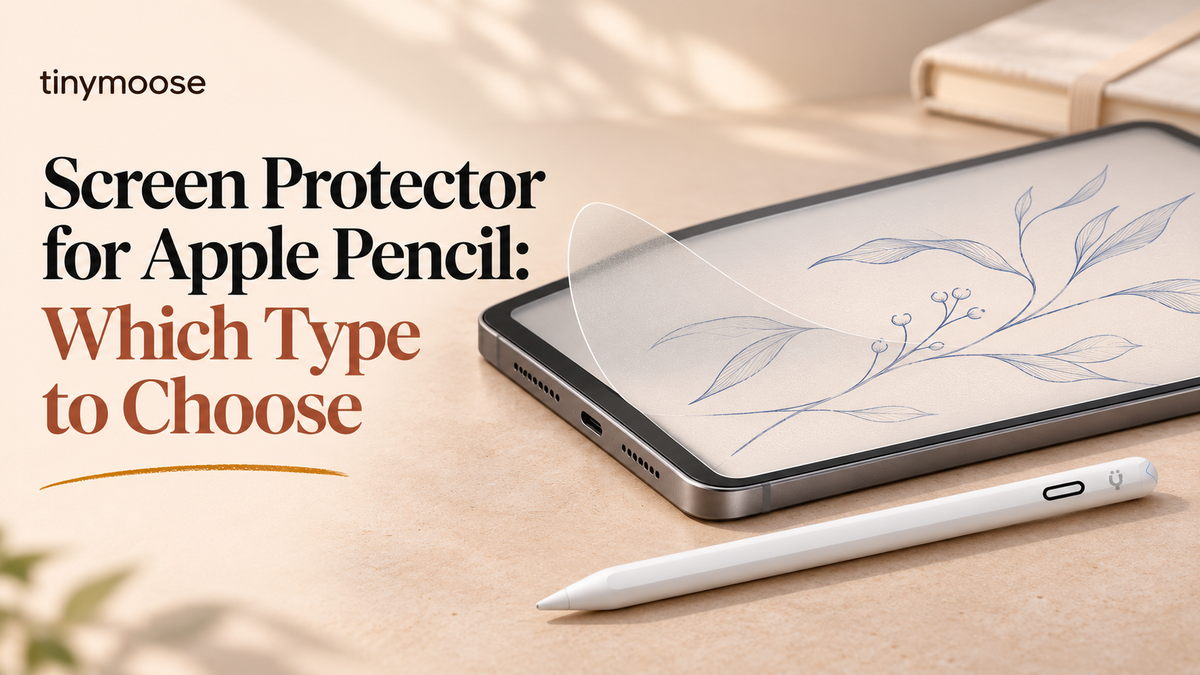
You just finished a page of notes on bare iPad glass, and the Apple Pencil tip skated through the last line. A matte film sits in one cart and a glass sheet in another, and you're not sure which will still feel precise tomorrow. A screen protector for Apple Pencil use isn't only a scratch barrier. It's the surface the tip writes on, so the wrong texture can steal grip, soften the picture, or chew a nib weeks early. The useful choice matches the work you do most, then survives a check of thickness, Pencil model, and iPad pairing.
For a more paper-like writing feel, the Tinymoose PaperFeel Screen Protector for iPad costs $39.99 USD. Its fine texture gives your stylus more grip for everyday notes and sketches.
Table of Contents
- Why a Screen Protector Changes How Your Apple Pencil Feels
- Paper-Feel, Tempered Glass and Film Side by Side
- How Paper-Feel Texture Changes Handwriting Control
- Tip Wear and When to Replace Your Nib
- Clarity, Glare and Colour Trade-offs
- Check Thickness and Compatibility Before You Buy
- Pick Your Protector by Workload
Why a Screen Protector Changes How Your Apple Pencil Feels
Say you write one line of lecture notes on bare glass, then the same line on a protected screen. The letters change even though your hand didn't. Bare glass is ice, and the tip skates. A paper-feel protector is gravel, and the tip bites.
The Pencil writes through one small tip. Whatever sits between that tip and the display shapes glide, grip, and signal. A protector changes two of those at once. Surface friction sets whether the tip glides or drags. Transmission sets how cleanly touch and pressure reach the display underneath.
Apple Support describes the first-generation Apple Pencil, introduced in 2015, as supporting both pressure and tilt sensitivity, so you can vary line weight, shade, and hit pixel-level precision. Those signals have to pass cleanly through the layer you added. The Pencil is 175.7 millimeters long and 8.9 millimeters in diameter, so the contact point is tiny and any added layer shows up in the stroke. Apple's list also reaches iPad Pro models, the 9.7-inch and 10.5-inch Pro generations, the third-generation iPad Air, the fifth-generation iPad mini, and sixth- through tenth-generation standard iPads. A sheet made only for finger taps won't necessarily suit that tilt-aware input.
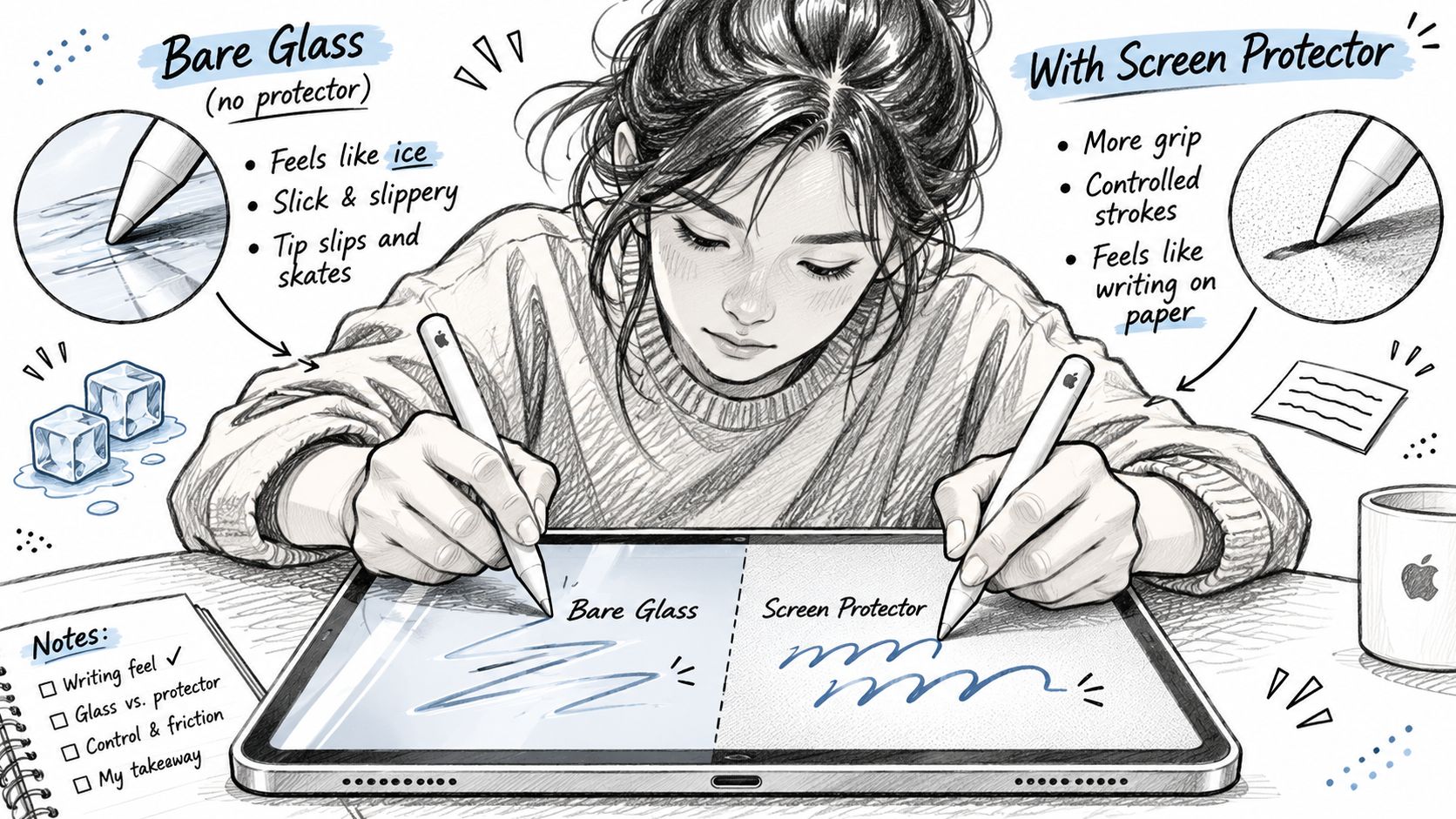
Judge a protector on glide and signal as well as scratch protection.
Paper-Feel, Tempered Glass and Film Side by Side
Read each row as a trade-off, not a ranking. No type wins every column. Tip-wear notes are indicative, drawn from secondary tests, and they shift with pressure and nib material. Impact protection follows the build: a glass base absorbs a drop's energy, while a thin film mainly guards against scratches and scuffs.
| Protector type | Writing feel | Tip wear | Screen clarity | Impact protection |
|---|---|---|---|---|
| Paper-feel matte film | High grip, paper-like resistance | Moderate, slight flattening (indicative) | Softer, diffused, lower glare | Light, absorbs minor scuffs but offers less protection against drops |
| Paper-textured glass | High grip, most resistance | Highest, significant flattening (indicative) | Softer, diffused | Strong, glass base |
| Smooth tempered glass | Smooth glide, can feel slippery | Minimal, close to bare glass | Sharp, near-native color | Strong, glass base |
| Smooth clear film | Smooth glide, close to bare glass | Low, smooth surface | Sharp, near-native color | Light, absorbs minor scuffs but offers less protection against drops |
Two patterns stand out. Every film row is light on impact, and every glass row is strong, so the choice is between grip and clarity: textured rows cost you sharpness, while smooth rows cost you control.
Shortlist in three moves
- Pick one column that matches the work. Grip for notes, clarity for color, or impact protection if the iPad rides in a bag every day.
- Drop the rows that fail that column. If color work is the job, both textured rows leave.
- Compare what's left on tip wear and clarity. A high-grip row that flattens the nib fastest is a cost, not a free upgrade.
Textured types suit writing-heavy days. Smooth glass suits precision and color work. Clear film suits readers who want a near-bare-glass feel with a thin scratch layer. Materials behind those rows are explained in the Tinymoose screen protector material guide.
How Paper-Feel Texture Changes Handwriting Control
A paper-feel sheet is a micro-textured surface. It adds friction, so the tip grips instead of skating, and small marks stay where you put them. That same drag is the cost. Quick flicks, fast scribbling, and light sketch strokes can feel held back, and heavier pressure makes the resistance worse.
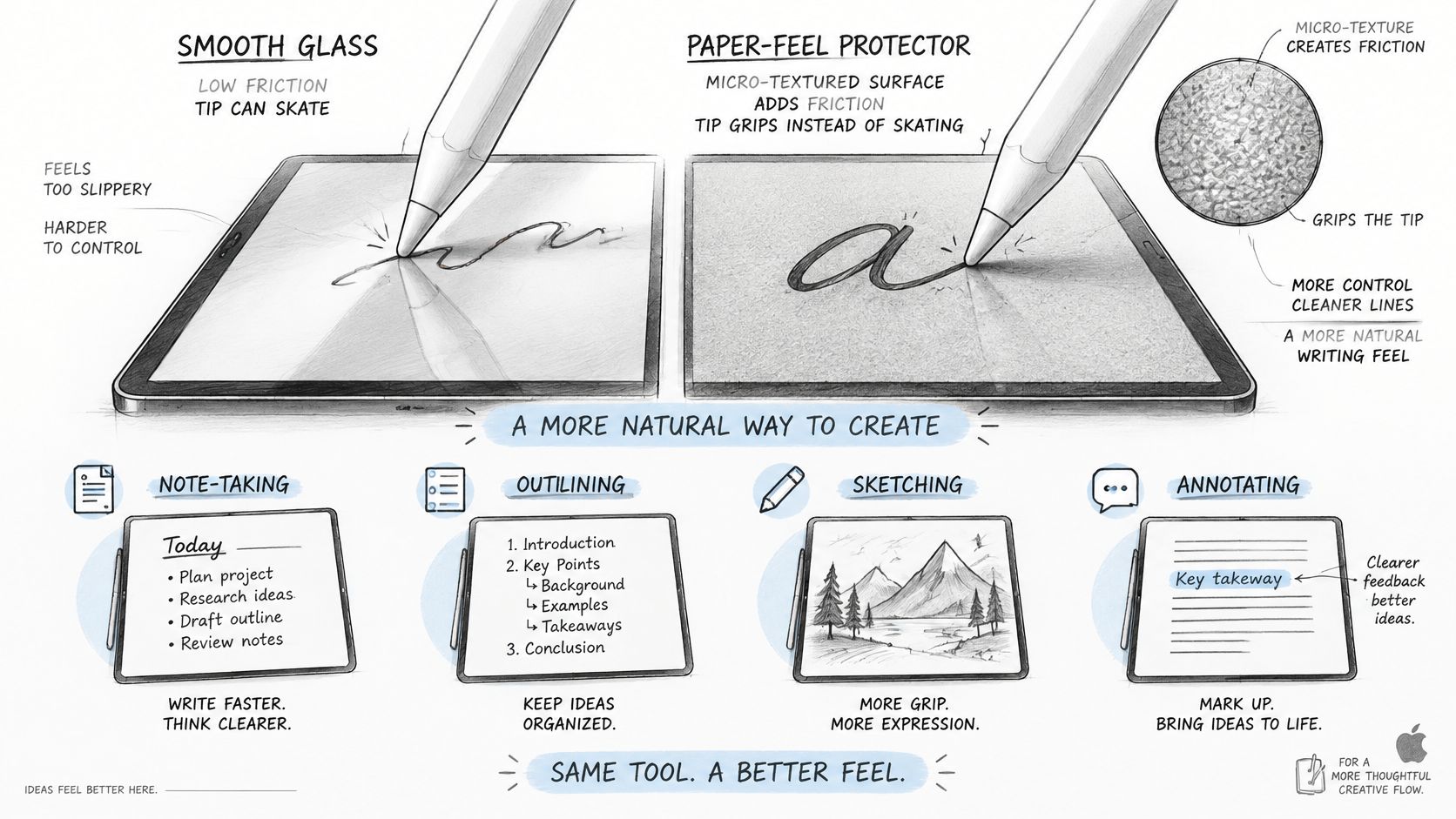
The grip helps small lettering, diagrams with tight corners, short labels, and long note sessions where a steady tip keeps letters even. Paperlike's comparison of paper-feel alternatives reports that a rougher textured protector wore an Apple Pencil tip down to its metal core about three times faster than a smoother paper-feel design. Texture geometry matters, not merely a matte label. Choose a fine, uniform texture for frequent writing, and let the tip do the work instead of pressing harder. If you want the longest tip life, a smooth clear film or smooth tempered glass is the calmer surface, with less tactile resistance. Pair that surface choice with steps to improve handwriting on iPad so the grip isn't doing all the work.
If you often write small letters or label diagrams, PaperFeel adds a finely textured surface that helps you guide the tip through those smaller movements. It brings a familiar pen-on-paper feel to your digital notebook.
A three-stroke test
- Write a line of small text on the protected screen at your normal pressure.
- Draw a fast loop beside it, without slowing down.
- Compare the two marks. If small letters look tidier but the loop feels sticky, the texture suits notes more than sketching.
A short look at how texture changes the stroke makes that test easier to judge.
Swap the nib when the profile looks flattened or the line starts to wander. The grip you keep should match the work you do most.
Tip Wear and When to Replace Your Nib
Texture buys paper-like grip and spends nib material to get it. Alibaba's product insight on paper-like protectors cites a controlled comparison of 50 hours of continuous writing. A bare glossy screen showed minimal visible wear. A matte plastic protector showed moderate wear and slight flattening. A paper-textured glass protector showed significant flattening and approximately three times the material loss. A second comparison found textured protectors caused roughly 30% to 50% more tip wear than bare glass or smooth protectors after extended daily use.
Those figures come from commercial or secondary online material, not a peer-reviewed study. They show direction, not a guaranteed lifespan. High-friction matte surfaces can shorten the gap before a new nib. Smooth tempered glass generally keeps glide, clarity, and lower friction. Textured film or glass trades that for control and less glare. Match the surface to the job. Smooth protection fits heavy, precision-focused Pencil use. Textured protection fits when the extra tooth is worth the extra wear.
When the nib should go
Replace the nib when the tip looks flattened, when line weight turns uneven, or when the core shows. Don't wait for a total failure.
| Symptom | Likely cause | Fix |
|---|---|---|
| Tip looks flattened or shiny at the centre | Abrasion from a textured surface | Replace the nib |
| Line thickness varies while writing | Uneven or worn tip profile | Replace the nib and lighten pressure |
| Pencil skids on a smooth surface | Low friction, no tooth | Switch to a fine textured film if writing matters more than glide |
| Metal core visible at the tip | Tip worn through | Replace at once and review protector texture |
Lighter pressure extends tip life on any surface. Pressing harder doesn't add control once the texture is already doing that job.
The swap itself is a short twist-off job, and the Tinymoose nib replacement walkthrough walks through it without guesswork. Keep a spare nib in the case if you write every day on a textured sheet.
Clarity, Glare and Colour Trade-offs
A matte, paper-like surface diffuses reflected light. Glare drops and fingerprints show less, which is why a bright lecture hall feels easier on the eyes. The same scattering softens high-contrast edges and can slightly reduce perceived crispness, saturation, and color fidelity. Smooth tempered glass keeps sharpness and color closer to the native display, and it offers stronger scratch and impact protection. Its low-friction face can feel slippery while you write.
iZReview's iPad Air screen-protector roundup measured a matte tempered-glass protector at approximately 95% light transmittance. That number is useful, and it isn't a full score. Optical clarity, Pencil glide, touch sensitivity, and oleophobic performance belong in the same check. A sheet can pass a lot of light and still look hazy on small type.
Who should pick which look
Students and note-takers under bright lights often gain from matte diffusion. Digital artists doing color-critical work, photo editing, or fine line rendering should favor a high-transmission smooth protector so saturated color stays closer to the panel.
Run this before you commit:
- Small text: Open body copy at your normal brightness and see if letters stay crisp.
- Color: Compare a saturated swatch with and without the protector on the screen.
- Glare: Hold the iPad under the lamp or window you use.
- Fingerprints: Decide whether smears bother you enough to accept a softer image.
If small type looks dull at the brightness you already use, the matte layer will bother you every day you aren't writing.
Check Thickness and Compatibility Before You Buy
Compatibility is a pair, not a product name. Apple's Apple Pencil page limits Apple Pencil Pro to specific iPad models and software versions, and the USB-C Pencil has its own model and iPadOS requirements. A protector can't add pressure sensitivity to a Pencil that doesn't have it. "Works with Apple Pencil" on a listing is too broad.
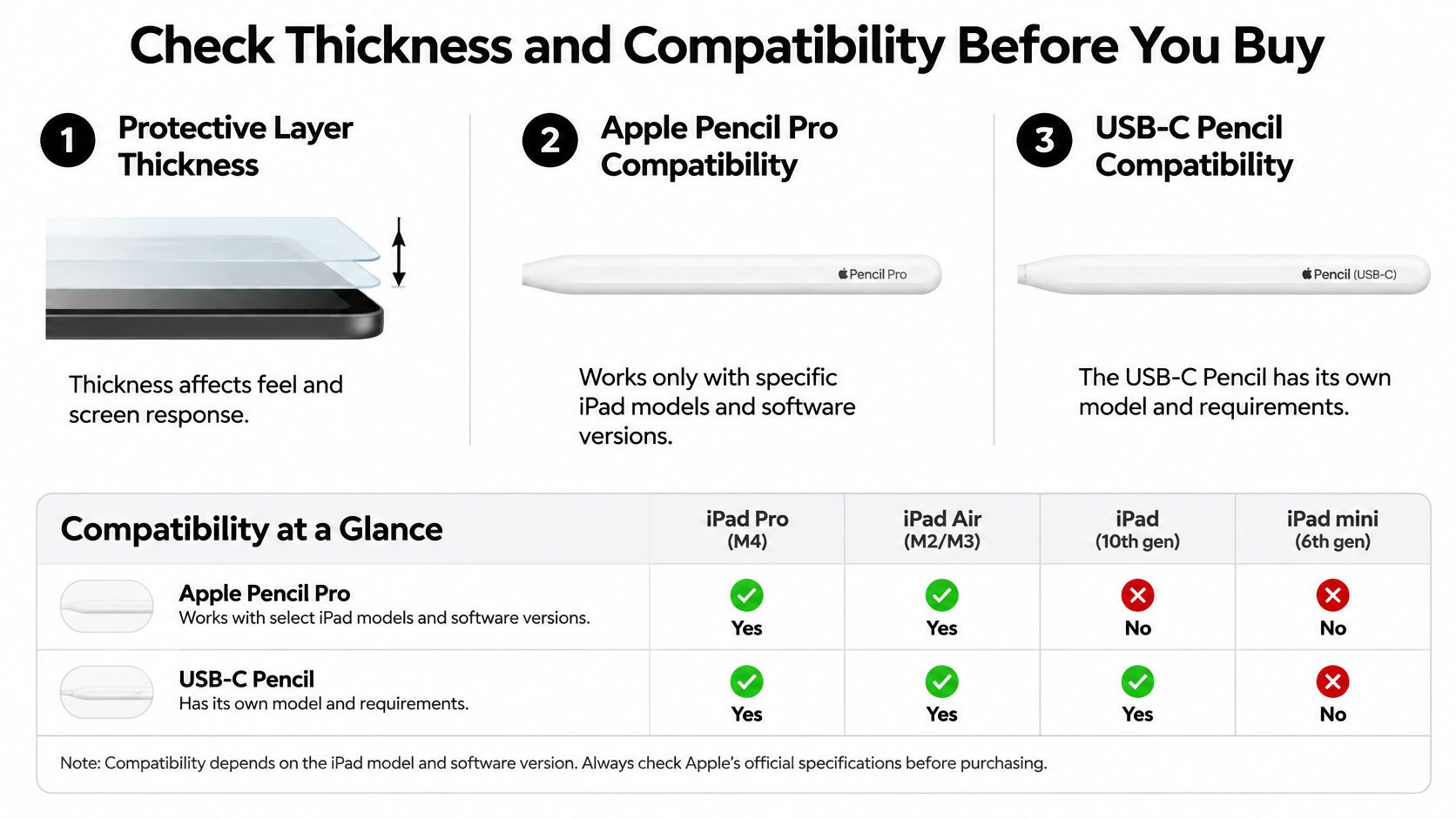
The six checks
- Name the iPad generation. Cutouts and active areas change by model, so a "universal" sheet often misses the camera or the edge.
- Name the Pencil. Pro, USB-C, and earlier models don't share one feature list.
- Confirm the iPadOS version that Pencil needs. An old install can hide features you think the hardware already has.
- Read the thickness. A Taobao shopping guide on protector thickness flags approximately 0.3 mm as a threshold above which a protector may dampen signal transmission and reduce sensitivity. Thicker tempered glass also widens the gap between the tip and the digitizer. If you rely on pressure, tilt, palm rejection, and precise drawing, a thin sheet beats raw impact resistance.
- Fit the sheet, then test magnetic attachment and edge charging. A bulky lip can block the Pencil from seating on the side.
- Pick the surface from the trade-offs you already weighed. Grip, clarity, and wear still decide the finish once the pair is confirmed.
A thin clear sheet keeps friction low and the picture close to native. A matte film adds handwriting control and softens the image. Neither fix changes what the Pencil itself can sense.
Pick Your Protector by Workload
| Use case | Recommended surface | Trade-off to accept |
|---|---|---|
| Lecture notes and small handwriting | Paper-feel matte film | Faster tip wear and a softer image |
| Sketching and line art | Fine, uniform textured film | Moderate wear and less glide |
| Photo editing and color work | Smooth clear film or high-transmission glass | Less grip for handwriting |
| Daily precision use with impact risk | Smooth tempered glass | Slippery feel and a thickness check |
| Mixed notes and media | Smooth tempered glass | Accept the slippery feel for clarity |
Our stylus pens work with every iPad model that supports Apple Pencil, including iPad Pro 11-inch, iPad Pro 12.9-inch (3rd generation and later), iPad Pro 13-inch M4/M5, iPad Air 4th generation and later, iPad mini 6th generation and later, and standard iPad 6th generation through the current A16 model. The sheet still has to match that same iPad.
Do this before you stick it down
- Run the iPad and Pencil checks from the compatibility list so the sheet, the model, and the software agree.
- Pick the surface in the table that matches your main workload, not the occasional task.
- Test it for a week of real use, and change the nib as soon as the tip flattens.
The best protector is the one that matches the work you do most.
For an iPad that doubles as your notebook and sketchbook, Tinymoose PaperFeel brings that textured writing feel to lecture notes, planner pages and drawings. Choose the version matched to your iPad model to complete your paperless writing setup.
Tinymoose builds practical iPad stylus pens with palm rejection, tilt, and magnetic attachment so note-taking and sketching stay precise on the surface you choose. If you're pairing a new nib or a finer writing feel with that screen protector for Apple Pencil work, start with the Pencil lineup and spare nibs. Visit Tinymoose to pick a pen that fits your iPad and the way you write.
Share:
Stylus Pen for Sketching: How to Choose the Right One