
You're five minutes into a lecture, your tablet's open, and the pen you bought last night either won't pair, leaves palm marks everywhere, or trails half a word behind your hand. You're now typing badly on glass while the lecturer moves on. That's not a handwriting problem. It's a matching problem, and it's fixed before you pay, not after.
A good stylus for note taking makes life easier because it fits your tablet, your app and the way the class really runs. In a 2024 study of students, 94% of respondents reported taking notes during lectures, and 69% of those students took notes digitally. Start with compatibility, test the writing feel yourself, then judge features. Spec sheets come last.
Table of Contents
- Match the Stylus to Your Tablet Before Anything Else
- How to Test Writing Feel in Five Minutes
- Essential Features Ranked by What They Do for Notes
- Choose by Task
- How to Set Up Your Stylus for Daily Note-Taking
- Fixing Lag, Skipped Strokes and Dead Pens
- What a Stylus Really Costs
- Pick Your Stylus Today and Confirm It Works
Match the Stylus to Your Tablet Before Anything Else
The costly mistake is buying a pen that looks right. It has a fine tip, a nice weight and good reviews. Then you open your note app and get no palm rejection, no pressure, or no ink at all. Nothing's broken. You bought the wrong key for the lock.
Think of compatibility as four parts that must agree. The pen, the screen's digitizer, the operating system and the note app all need to speak the same protocol. If one part doesn't, features drop out without warning. A pen can write cleanly in one app and stutter in another on the same tablet.
Stylus Technology by Tablet Ecosystem
| Device ecosystem | Pen technology to look for | Pressure and tilt | Check before buying |
|---|---|---|---|
| iPad | Apple-compatible active pen with Bluetooth pairing | Pressure, tilt and palm rejection | Exact iPad model and iPadOS version |
| Microsoft Surface | Microsoft Pen Protocol (MPP) | Pressure and tilt, typically 4096 levels | Surface model supports MPP |
| Samsung Galaxy Tab S7, S8, S9 | EMR (electromagnetic resonance), no charging needed | 4096 pressure levels and tilt | Tablet has an EMR digitizer and the app supports it |
| Other Android tablets | Capacitive stylus or brand protocol | Usually no pressure, limited palm rejection | Whether the note app supports the pen's protocol |
| iPhone | Capacitive mode only | No pressure; navigation and basic annotation | Pen offers a capacitive mode |
That four-part dependency matters most for palm rejection. As the AliExpress guide to palm rejection styluses for Android explains, palm rejection depends on coordination among the stylus, tablet digitizer, operating system and note-taking app, so the same pen can behave differently across devices or applications. The word universal on a listing doesn't answer any of that.
Charging follows the technology, not the brand. EMR pens for Galaxy Tab S-Series tablets draw power from the screen, so they need no charging and can't die mid-lecture. Bluetooth-paired active pens do need charging, pairing and a routine to keep them topped up. Neither is better in the abstract. One removes a chore, the other is what iPad and Surface users live with.
Rule out first, choose second. If a pen doesn't match your tablet's protocol, its pressure levels and shortcut buttons are irrelevant.
Before you look at price, answer three questions.
- Which exact tablet model do you own? Not the family name. The model and year decide which protocols the digitizer supports.
- Which note app will you use daily? Check that app's pen support, because that's where palm rejection lives in practice.
- Does the pen need charging, and what happens when it's empty? An EMR pen keeps working. A Bluetooth pen becomes a plastic stick.
If you can't answer all three from the product page, don't buy yet. I'd rather you spend ten minutes here than a return window later. Once you know your pen family, every other model can be ruled out.
How to Test Writing Feel in Five Minutes
Lag feels like walking a dog on a long leash. You move, and the ink arrives a beat later, always chasing your hand. A beat sounds trivial. It isn't. Your letter shapes change to compensate, your writing gets bigger and slower, and diagrams lose their corners.
You can measure that beat. In controlled writing, drawing and sketching experiments, participants could distinguish approximately 7 ms from 50 to 61 ms of latency, with a median detection threshold near 53 ms. Perception sharpened when participants could see the writing hand and stylus, with a median threshold of about 59 ms with that visual reference versus 97 ms without it. Your practical target is end-to-end latency comfortably below roughly 50 ms.
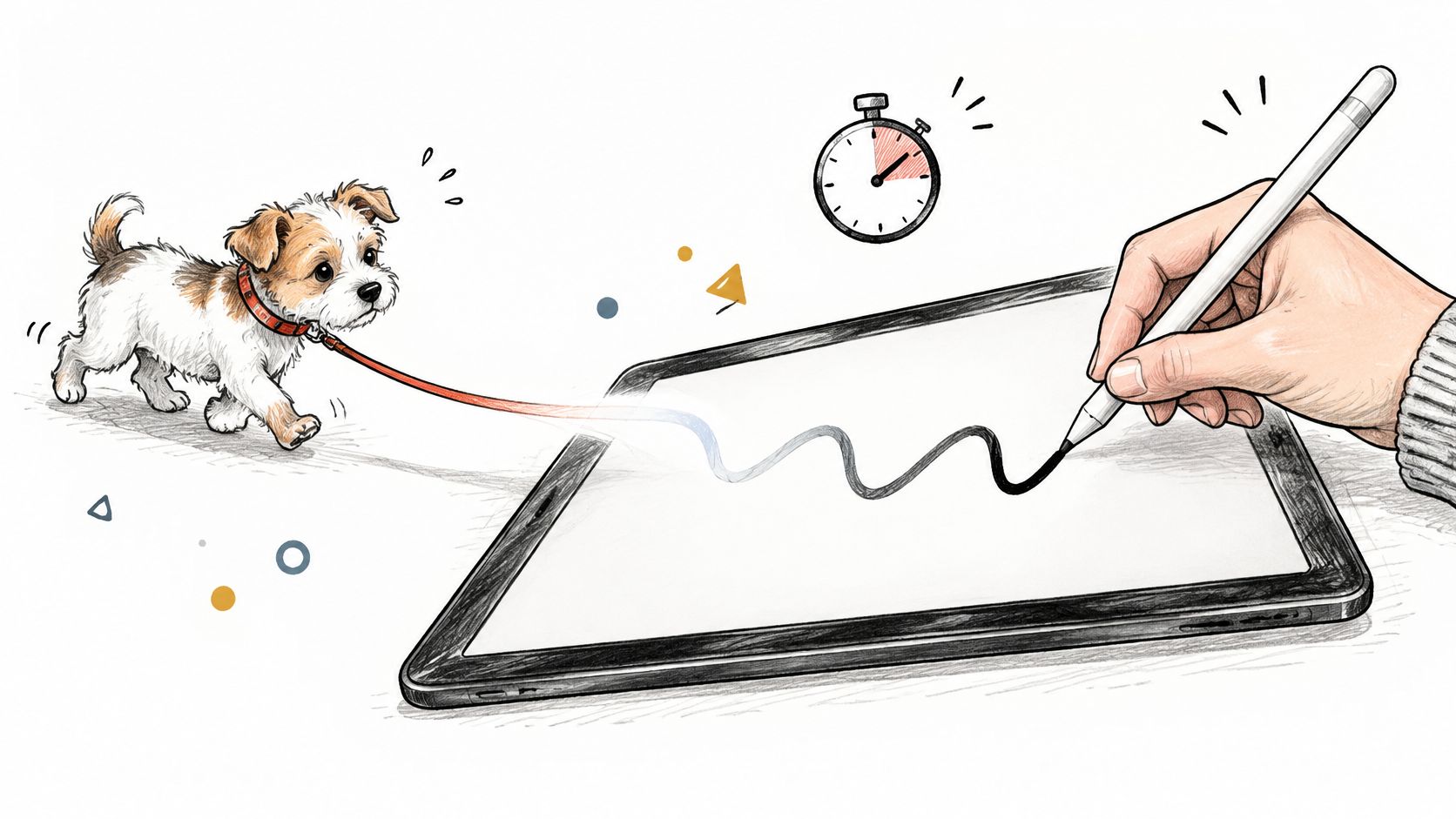
Run this test in a shop or during your return window. Don't judge a pen by slow, careful lines. Slow lines hide everything.
The Five Minute Test
- Write fast cursive for 20 seconds on a blank page. Pass means ink stays under the tip. Fail means you can see a gap opening and closing between nib and stroke.
- Draw diagonal lines corner to corner. Pass means straight, steady diagonals. Fail means wobbles, steps or corners that round off as the ink catches up.
- Rest your palm on the screen and write a full line. Pass means only your words appear. Fail means stray dots, jumps or the page scrolling under your hand.
- Shade a box using tilt. Pass means the tone broadens and darkens as you angle the pen. Fail means the stroke looks identical at every angle.
- Press lightly, then firmly. Pass means a clear thin-to-thick change you can control. Fail means one uniform line whatever you do.
- Repeat steps 1 and 2 in a second app. Pass in one app and fail in the other points to the app, not the pen. Fail in both points to the pen or the pairing.
Grip and surface affect the result too. A slick screen makes any pen skate, which is why some note-takers look at screen protectors for smoother Apple Pencil writing after the pen itself passes.
Battery life and shortcut buttons can't compensate for ink that visibly trails the tip. If step 1 fails, stop testing and return it.
Essential Features Ranked by What They Do for Notes
Treat features as a priority list, not a spec sheet. Three things decide whether notes feel good every day: palm rejection, low latency and pressure sensitivity. Everything else is convenience. Conveniences are nice. They don't rescue a pen that fails the first three.
Stylus Features Ranked by Impact on Note Taking
| Feature | What it does for notes | Priority | Test before buying |
|---|---|---|---|
| Palm rejection | Lets you rest your hand while writing | Must-have | Write a full line with your palm on the screen |
| Pressure sensitivity (4096 levels) | Varies line weight for emphasis and diagrams | High for diagrams and maths | Compare thin and thick strokes |
| Low latency | Ink keeps pace with the tip | Must-have | Run the writing-feel test |
| Tilt | Shading and angled marks | Useful for sketches and maps | Shade a box and check the tone change |
| Shortcut or squeeze controls | Undo, eraser and tool switch without menus | Useful | Confirm the mapped actions work in your app |
| Magnetic attachment | Holds the pen to the tablet and prevents loss | Convenient | Check your tablet model supports it |
| Replaceable nibs | Swap a worn tip cheaply | Important long term | Check nib availability and fit |
| USB-C charging | Quick top-up with a common cable | Important | Confirm charge time and cable included |
| Capacitive mode | Works on phones and non-EMR screens | Useful for phones | Confirm the pen offers capacitive mode and accept no pressure |
Palm rejection earns first place because your hand rests on the page through every long lecture. Without it, you hover, your wrist tires, and your writing shrinks. Pressure sensitivity at 4096 levels comes next for anyone drawing diagrams or working equations, since line weight carries meaning there. A bold axis, a faint construction line and an underlined term shouldn't need three menu taps.
Tilt helps with shading, maps and angled marks, but plain handwritten prose barely uses it. Shortcut or squeeze controls are worth more than they look, because undo and eraser without menus keeps you with the lecturer. Test them in your app, though. A button your app ignores is decoration.
The long-term features get skipped at checkout and regretted later. Replaceable nibs turn a worn, scratchy tip into a cheap fix instead of a new pen. USB-C charging means the cable already in your bag tops the pen up between classes. Magnetic attachment sounds minor until a pen rolls off a desk in week two. Capacitive mode is a genuine extra for phones and non-EMR screens, but buy it knowing it drops pressure entirely.
Buy for the two features your subject needs most. The rest is a Swiss army knife problem, where you carry twelve blades and use three.
I would rank by task, not by headline numbers. A history student writing fast prose needs latency and palm rejection above all. An engineering student adds pressure. An art student adds tilt. Same pens, different winners.
Choose by Task
A stylus is not automatically better for learning. That's the answer most buying guides dodge. Handwriting and typing capture different things, and the right choice changes within a single course, sometimes within a single lecture.
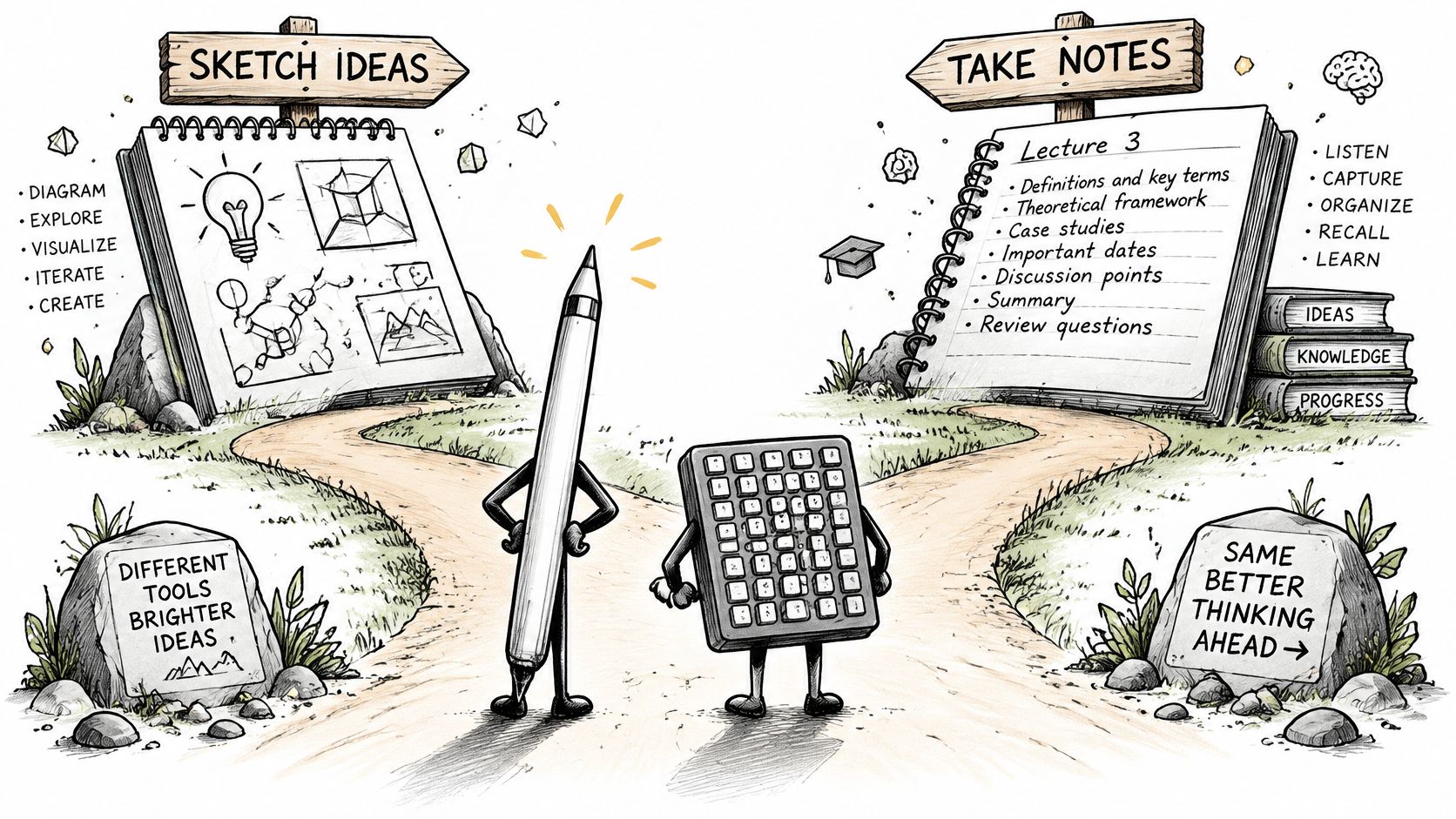
Match the input to the job in front of you.
- Fast lectures where you need verbatim detail: Use a keyboard or a hybrid setup. You'll fall behind trying to handwrite a dense, spoken argument.
- Diagrams, equations, maps and sketches: Use the stylus. Spatial information is miserable to type and natural to draw.
- Revision and reorganising: Use stylus notes with handwriting search and tags, so you can move, resize and re-find material.
- Dense factual capture, such as glossaries or vocabulary: Use a keyboard. Volume and searchability matter more than layout.
- Long sessions with hand fatigue or motor limits: Use a keyboard, dictation or short stylus sessions. Don't force hours of handwriting because it's supposed to be better.
- Mixed PDFs and slides: Use the stylus for selective annotation, underlining and margin notes rather than rewriting the document.
The classroom evidence behind this is consistent. As reported in Youth Today's coverage of the handwriting versus typing debate, students using digital pens produced fewer words, more keywords and about two drawings on average, while typists wrote significantly more and often transcribed lectures verbatim. A 2025 university-student study noted in the same coverage found that longhand tablet notes can encourage rephrasing rather than verbatim copying, but may be too slow for fast-paced lectures.
Read that as a trade-off, not a verdict. Fewer words with more keywords means you're processing as you write, which supports understanding. It also means gaps when the lecturer speeds up. Verbatim typing fills the page and can leave your brain idle, but nothing important escapes.
The practical setup for most students is hybrid. Type the flood, handwrite the structure, diagrams and your own summaries.
Switching modes isn't inconsistency. It's the whole advantage of a tablet. You own both inputs, so let the task pick between them each session.
How to Set Up Your Stylus for Daily Note-Taking
A pen that passed your test can still annoy you daily if the setup is sloppy. Most early frustration comes from settings, not hardware. Work through these steps once, in order, and you won't revisit them for months.
Start with pairing and palm rejection, the two steps that cause most false alarms.
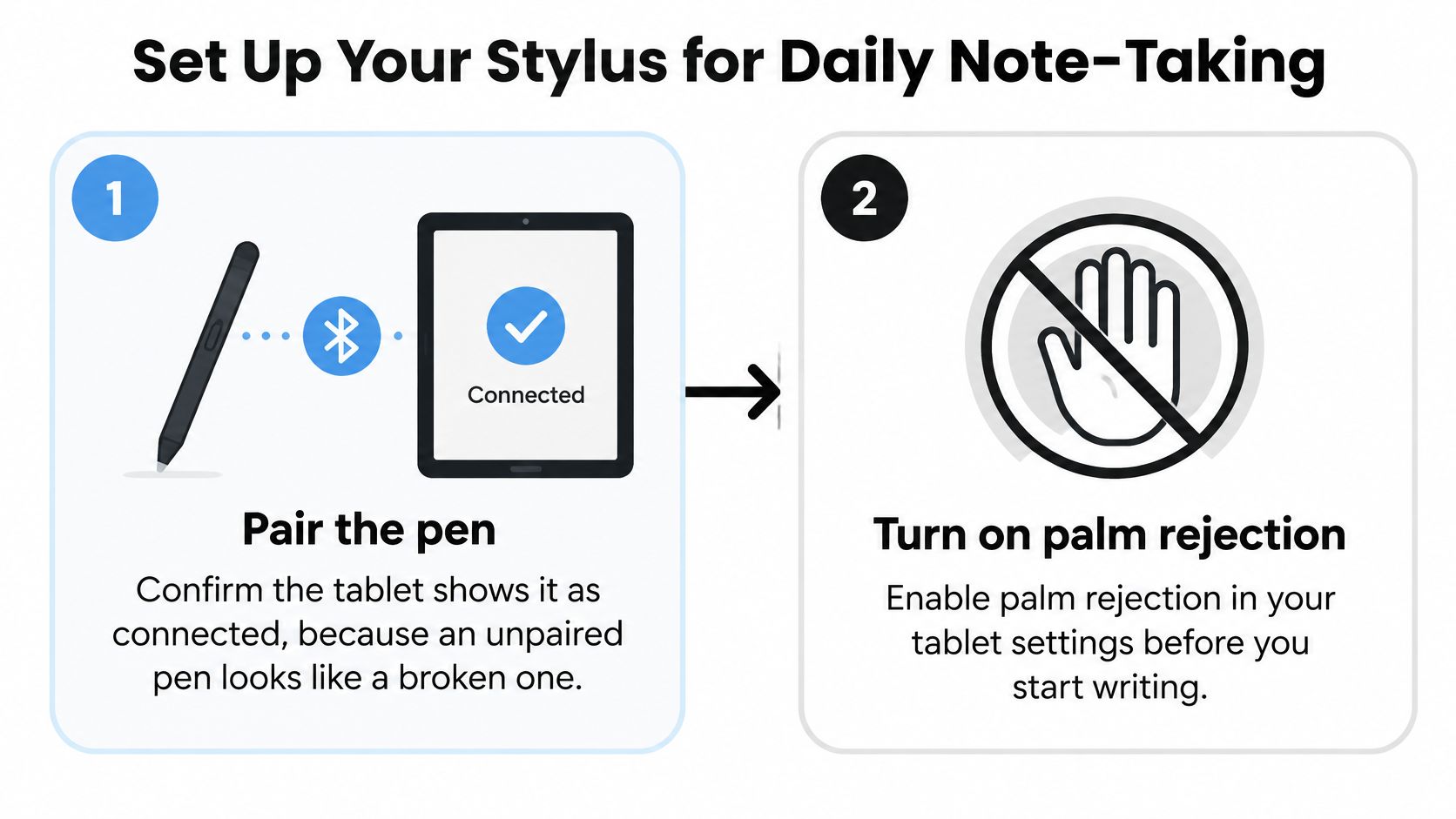
- Pair the pen and confirm the tablet shows it as connected. An unpaired pen looks exactly like a broken one. If you're on iPad, check Apple Pencil compatibility for your model before assuming a fault.
- Turn on palm rejection in system settings and in the note app. The two can disagree, and the app setting usually wins in practice. Write one line with your palm down to confirm.
- Set the pressure curve. Light strokes should stay thin and readable, firm strokes should reach full weight without you pressing hard enough to tire your hand. Adjust in small steps, testing with your normal writing, not careful test strokes.
- Map shortcuts to undo, eraser and tool switch. Those three cover nearly every mid-lecture correction. You shouldn't reach for a menu while someone's talking.
- Choose a note app with handwriting search and PDF annotation. Search turns months of ink into something findable. Annotation lets slides and readings live in the same notebook as your notes.
- Create one notebook per course or project, with a dated template and headings. A consistent page layout makes revision faster because you always know where definitions and examples sit.
- Write selectively. Capture diagrams, equations and key terms by hand. Type long verbatim passages if you need them word for word.
- Charge the pen weekly and keep a spare nib. This step applies to Bluetooth-paired pens. EMR pens such as the Galaxy S Pen need no charging, so for those, only the spare nib matters. Either way, a worn tip shouldn't end a study session.
- Back up notes to the cloud and export PDFs monthly. Cloud sync covers a lost tablet today. A monthly PDF export covers an app you've abandoned by next year.
This short walkthrough shows the pairing and first-write sequence so you can compare it with your own setup.
Finish with a proof page. Write for two minutes at full speed, palm resting, mixing words, one diagram and one firm underline. You should see no lag, no palm marks and steady line weight. If one of those fails, you know which step to revisit.
Set it up once, properly. A pen you trust disappears into the background, and the notes become the point again.
Fixing Lag, Skipped Strokes and Dead Pens
Most stylus problems trace back to one of four causes: pairing, palm rejection, app settings or power. Diagnose in a fixed order and you'll fix things faster. Check the app first, because it's the cheapest thing to change. Then check system settings, which affect every app. Blame the pen last.
Stylus Symptoms, Likely Causes and Fixes
| Symptom | Likely cause | Fix |
|---|---|---|
| Ink trails behind the tip | Latency or app rendering lag | Test in a second app, reduce stroke smoothing, update the app |
| Palm marks appear on the page | Palm rejection off or not supported by the app | Enable palm rejection in system and app settings |
| Pen does not register in the app | Pairing lost or app lacks pen support | Re-pair the pen and update the tablet OS and app |
| Lines stay uniform despite pressure | Pressure curve too flat or app ignores pressure | Adjust the pressure curve and confirm app pressure support |
| Cursor jumps or hover fails | Hover not supported by the tablet or app | Check hover support before blaming the pen |
| Battery empty mid-lecture | No spare charge | Charge weekly, use USB-C fast charge, keep a spare |
| Tip worn or slippery | Nib wear | Replace the nib and check nib availability |
Ink trailing behind the tip is usually rendering, not a dying pen. Heavy stroke smoothing in one app can add visible delay, which is why a second app is the honest test. iPad users hitting this should work through Tinymoose's guide to Apple Pencil lag before replacing hardware.
Palm marks and unregistered strokes look dramatic and are usually settings. Palm rejection switched off in the app overrides a correct system setting. A pen that connects in Bluetooth settings but does nothing in one app points to that app's pen support, so re-pair first, update second, and test elsewhere before concluding anything.
Uniform lines despite pressure mean the pressure curve is too flat or the app ignores pressure. Steepen the curve slightly and test with real writing. Cursor jumps and failed hover are often a support question, not a fault. If your tablet or app doesn't support hover, no pen setting invents it.
Two causes really are physical. An empty battery mid-lecture means your charging routine failed, so charge weekly on a fixed day rather than reacting to warnings. A worn, slippery tip means nib wear.
Swap the nib when strokes stop feeling smooth or the tip looks flat. Don't replace nibs on a fixed schedule, and don't grind a worn one into your screen.
The deciding test is simple. A pen that fails in every app points to hardware, so return or replace it. A pen that fails in one app points to software, so change settings or change apps.
What a Stylus Really Costs
Judge value by running cost and return risk, not sticker price. Five checks cover what you'll really spend.
- Pen price against tablet: A cheaper pen still has to speak your tablet's protocol. A low price saves nothing if palm rejection fails in your note app.
- Charging method: EMR pens such as the Galaxy S Pen need no charging and carry no running cost. Bluetooth-paired active pens need USB-C top-ups and a routine.
- Replacement nibs: Check the price and regional availability of spare nibs before buying. A worn tip is the most common reason a good pen becomes a poor one.
- Budget tier: A budget active pen with palm rejection, low latency and pressure covers most note-taking. Premium pens add tilt, gestures and shortcut buttons, which pay off only if your workflow uses them.
- Return window: Run the writing-feel test inside the return period. If the pen fails in one app but works in another, treat it as an app problem before returning the pen.
Value, in the end, is specific. It's the pen that passes your own test on your own tablet, with a spare nib already in the drawer.
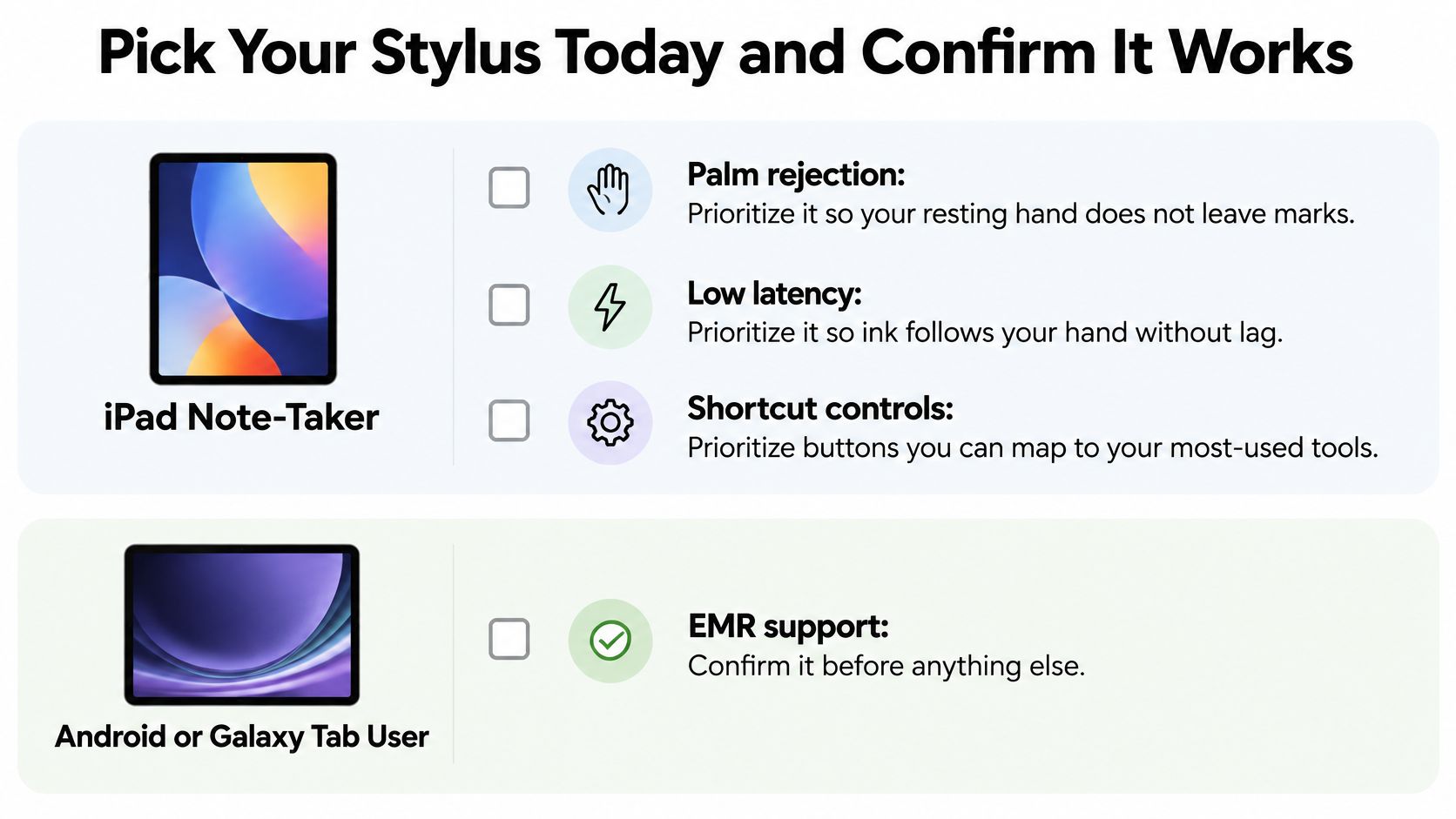
Pick Your Stylus Today and Confirm It Works
Your verdict depends on your situation, not on a league table.
- iPad note-taker: Prioritise palm rejection, low latency and shortcut controls. Those three shape every lecture.
- Android or Galaxy Tab user: Confirm EMR support before anything else. Without the right digitizer, nothing else on the listing matters.
- Artist who also takes notes: Weigh pressure and tilt most, because line control does double duty in sketches and diagrams.
For iPad note-takers, Tinymoose is a practical option worth testing. Every Pencil Pro model includes palm rejection, pixel-perfect accuracy and tilt sensitivity, and the Pencil Pro 2 adds gesture controls and shortcut buttons. Pencil Pro 2 nibs come in black and white and twist out for replacement, and USB-C fast charging applies across the range. Treat it like any other candidate. It's a good option if it passes your test, not a universal answer.
Close with the checklist, in order.
- Confirm your exact tablet model and your note app.
- Run the How to Test Writing Feel in Five Minutes routine in-store or inside the return window.
- Check nib availability and the charging method.
- Then buy.
The best stylus for note taking is the one that passes your own test on your own tablet. Everything before that test is a shortlist.
If you're an iPad note-taker who wants palm rejection, tilt sensitivity and USB-C fast charging without paying for features you'll never use, look at the Pencil Pro range at Tinymoose. Run the five-minute writing test in your own note app during the return window, and keep the pen only if the ink keeps up with your hand.
Share:
How to Use Apple Pencil on iPad: Setup, Settings and Fixes