
You're two hours into a sketch, the pose finally works, and your pen drops the end of a curve. You redraw it. Then a stray palm mark lands in the shadow. By the third undo, you're not drawing anymore, you're managing a tool. That's the test for a stylus for digital art. Forget the longest spec list. Buy the pen that disappears while you work, and grade every feature by whether it changes the finished picture.
Table of Contents
- What a Stylus Actually Does for Digital Art
- The Five Core Features That Change How You Draw
- Latency and the Real Feel of a Responsive Pen
- iPad-First vs Wacom-Style vs Budget Styluses
- Real Drawing Workflows With the Right Stylus
- Comfort, Grip, and Long-Session Durability
- Matching a Stylus to Your Workflow and Budget
- Quick Decision Checklist and Common Questions
What a Stylus Actually Does for Digital Art
You open Procreate to loosen up with a face study. Your finger drags a blunt line across the cheek, hides the endpoint, and gives you one width no matter how gently you move. You zoom in, tap undo, zoom out, and lose the gesture. A cheap disc tip pen isn't much better. It skates, lands late, and turns a confident hair strand into a wobbly correction.
A proper stylus for digital art does three jobs your finger can't. It tells the iPad exactly where the point is, how hard you're pressing, and, on supported models, how the pen is angled. The app turns that stream of position and pressure into a stroke. Your hand supplies the movement. The pen and tablet translate it into coordinates, then the brush engine decides whether that movement becomes ink, graphite, wash, or an eraser pass.
What It Cannot Fix
A stylus won't fix weak drawing fundamentals, a badly built brush, or an app that doesn't support the features you paid for. It also won't make every tablet behave like an iPad. Compatibility sits underneath everything. If the pen protocol and your device don't match, you'll get basic pointing at best.
Practical rule: If a pen forces you to change your natural hand position, it has already failed, no matter how impressive its box looks.
That's why swapping a finger for a precision pen is the first upgrade that matters. You can see the tip meet the line, rest your hand like you would on paper, and vary a stroke inside one movement. You're not buying a fancier pointer. You're buying control over placement, weight, texture, and speed. Judge every model by those four results, not by how many buzzwords fit on the product page.
The Five Core Features That Change How You Draw
Start with pressure sensitivity, because it shapes the stroke while you're making it. Draw one line that begins as a whisper, swells in the middle, and lifts to a point. A good pen follows that ramp smoothly. A poor one stays thin, then jumps thick. That jump shows up in eyelashes, lettering, line art, and soft shading transitions.
Tilt sensitivity comes next, but only if your brushes use it. Pressure and tilt work as coupled inputs, with pressure mapping to width, opacity, or flow and tilt changing the contact shape for side shading like charcoal, graphite, or a broad marker, as explained in research on pen-based interaction and coupled brush controls. Test it by holding the pen upright for an edge, then rolling it onto its side for a tonal block. If nothing changes in your favorite app, tilt is decoration for your workflow.
The Features You Feel All Session
Palm rejection decides whether you can draw relaxed. Rest the heel of your hand down and pull a long diagonal. Stray dots, canvas jumps, or broken strokes mean you'll hover and tire faster. If you want the deeper buying logic, read this stylus pen with palm rejection guide before you pay for extras you won't use.
Latency is the gap between nib and visible ink. You'll notice it most on fast curves and short corrections. Nib feel is the friction conversation between tip and glass. Too slick and your lines overshoot. Too draggy and detail work feels sticky. Replaceable nibs matter because your preferred resistance for sketching may be wrong for inking.
| Feature | Effect on Your Art | Real-World Importance |
|---|---|---|
| Pressure | Controls line weight, opacity, and flow in one stroke | Essential |
| Tilt | Broadens shading and changes mark shape | High for painters, optional for clean inkers |
| Palm rejection | Lets you rest your hand without stray marks | Essential |
| Latency | Keeps ink under the nib during fast work | Essential |
| Nib feel | Affects control, overshoot, and fatigue | High |
My ranking is blunt. Buy smooth pressure, dependable palm rejection, and low visible lag first. Add tilt if you shade with textured brushes. Ignore inflated pressure counts until you've seen a clean pressure ramp in your own app.
Latency and the Real Feel of a Responsive Pen
Don't shop by the smallest millisecond claim on a box. Latency is a chain, not a single part. The sensor captures movement, the pen transmits it, the operating system processes it, the app predicts and renders the stroke, and the display refreshes. A weak link anywhere makes the ink trail behind your hand.
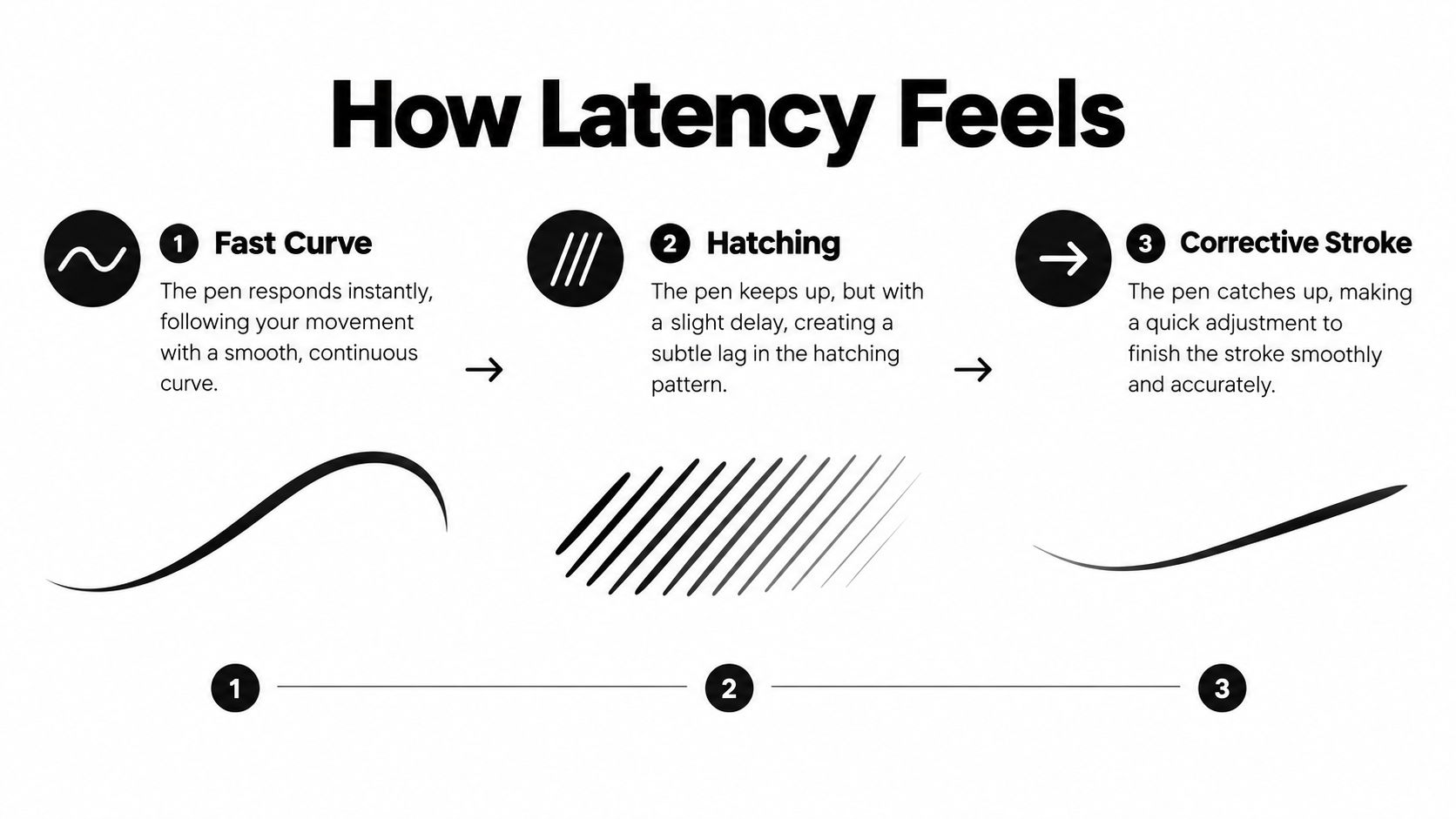
Human-factors experiments found that people can detect latency in writing and sketching at approximately 50 ms, while non-inking touchscreen actions can expose delays as low as roughly 2 to 7 ms, so the full pen-to-ink pipeline needs to stay below that inking threshold, as shown in human-factors research on detectable touch and inking delay. That distinction matters. A pen can feel fine for tapping menus and still feel drunk during hatching.
Run the 60-Second Test
Do this in the app you'll use, not a notes demo.
- Fast circles: Draw overlapping circles at gesture-drawing speed. Watch whether ink cuts corners or trails outside the nib.
- Rapid diagonals: Flick short lines corner to corner. Look for hooks at the start and tails at the end.
- Hatching burst: Lay tight parallel strokes without lifting your palm. Breaks or uneven spacing expose tracking trouble.
- Correction flicks: Add tiny ticks to an existing line. If you start aiming ahead of the target, the delay is steering you.
Slow note-taking hides lag. Fast curves expose it. Prediction can make ink appear sooner, but it can also overshoot when you change direction. I'd take slightly higher but consistent placement over aggressive prediction that guesses wrong at corners. Your eyes adapt to a steady response. They don't adapt well to a pen that behaves differently at different speeds.
A responsive pen isn't the one with the boldest latency claim. It's the one you stop compensating for.
If the gap distracts you during that minute, walk away. It won't become less annoying during a commissioned piece.
iPad-First vs Wacom-Style vs Budget Styluses
These categories solve different problems. Don't buy a workstation when you wanted a sketchbook, and don't expect a pocket pen to replace a desk setup built for production work.
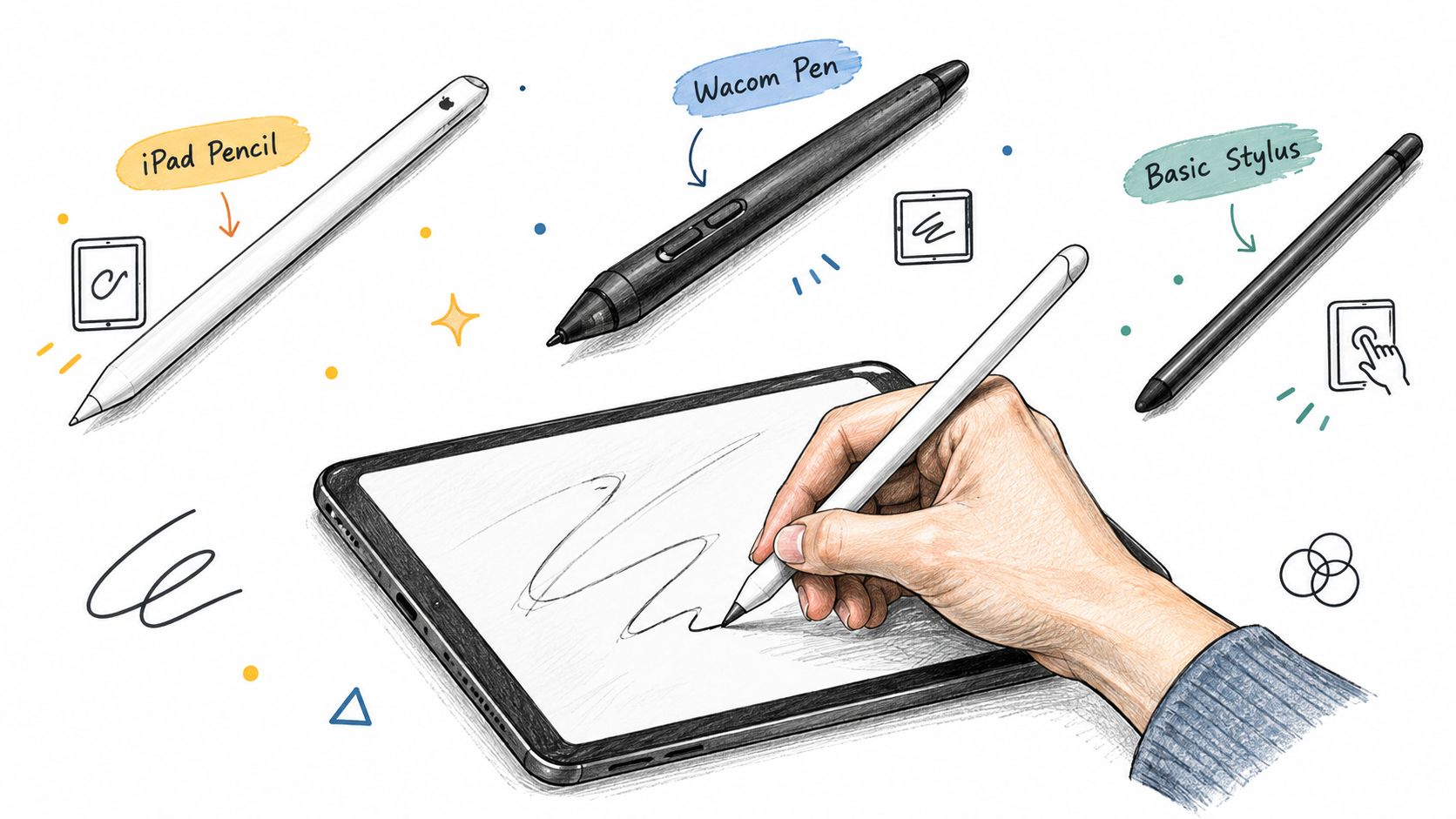
iPad-first active styluses are my default recommendation for students, hobbyists, and mobile illustrators. Pairing is simple, the screen is the canvas, and you can sketch on a train without carrying a separate tablet. Check the exact iPad model list, then test pressure behavior in your chosen app. Some third-party iPad pens handle tilt and palm rejection well but handle pressure differently from Apple's own system, so the app test decides.
When a Desk Setup Wins
Wacom-style pen tablets and pen displays suit a fixed workstation. You get a drawing surface built around pen input, desktop software, and a setup you can tune for long production sessions. The tradeoff is friction. You need desk space, cables or a computer connection, and a workflow that stays put. If you're producing print files at home every day, that tradeoff can be worth it. If you draw in short bursts everywhere, it usually isn't.
Budget capacitive or basic Bluetooth styluses are fine for trying digital sketching, annotating, or handing to a kid. They aren't fine if expressive line variation is the point. A cheap pen that only mimics a finger gives you a narrower finger, not a drawing instrument.
The split isn't new. The path runs from Elisha Gray's 1888 teleautograph patent to the 1957 Stylator, the 1964 RAND Tablet, and the 1983 KoalaPad as the first home-computer graphics tablet, a progression traced in the history of graphics tablets from teleautograph to KoalaPad. Each step moved pen input closer to ordinary artists. Follow that logic. Choose the option that puts you drawing most often, with the fewest setup excuses.
Real Drawing Workflows With the Right Stylus
A loose Procreate sketch rewards a light, predictable low end. You block a pose with barely-there construction lines, press harder where the silhouette turns, and lift into tapers without opening a brush panel. Set a shortcut button or gesture for undo, keep the smudge tool one move away, and pick a nib with enough bite that fast ellipses don't slide past their endpoints. Pressure earns its keep here.
That idea is older than the iPad. Quantel's Paintbox arrived in 1981 with a pressure-sensitive stylus that varied opacity, brush size, and flow by pen pressure, translating a physical painting move directly into software, as noted in Wacom's history of pressure-sensitive digital painting tools. You're still using that same bargain. Press, and the mark answers.
Ink and Wash Need Different Things
An inked comic page rewards repeatability over drama. You want a firmer feel, a stable tip, and pressure that doesn't balloon when your hand slows at a corner. Tilt helps less here unless your brush turns angle into a dry edge. Map a shortcut to switch brush and eraser, because panel borders and speech balloons punish menu trips.
A digital watercolor pass is less forgiving. You lay a wash, rest your hand near wet edges, and glaze back over it. Palm rejection protects the pale areas. A softer, replaceable nib gives you drag for controlled blooms, while opacity tied to pressure lets one stroke fade without changing tools.
App choice completes the setup. Compare options through this guide for iPad artists, and if you also sketch on Android, the roundup of best sketch apps per starryai is a useful cross-platform check. Don't judge a pen in an app you'll abandon next week. Match pen, brush engine, and shortcuts as one system.
Comfort, Grip, and Long-Session Durability
Grip is where spec shopping falls apart. Hold the pen near the tip, midway, and farther back. One of those positions is yours. A barrel that's too narrow makes you pinch. A slick finish makes you squeeze. A button under your index finger can be brilliant or a constant accidental undo.
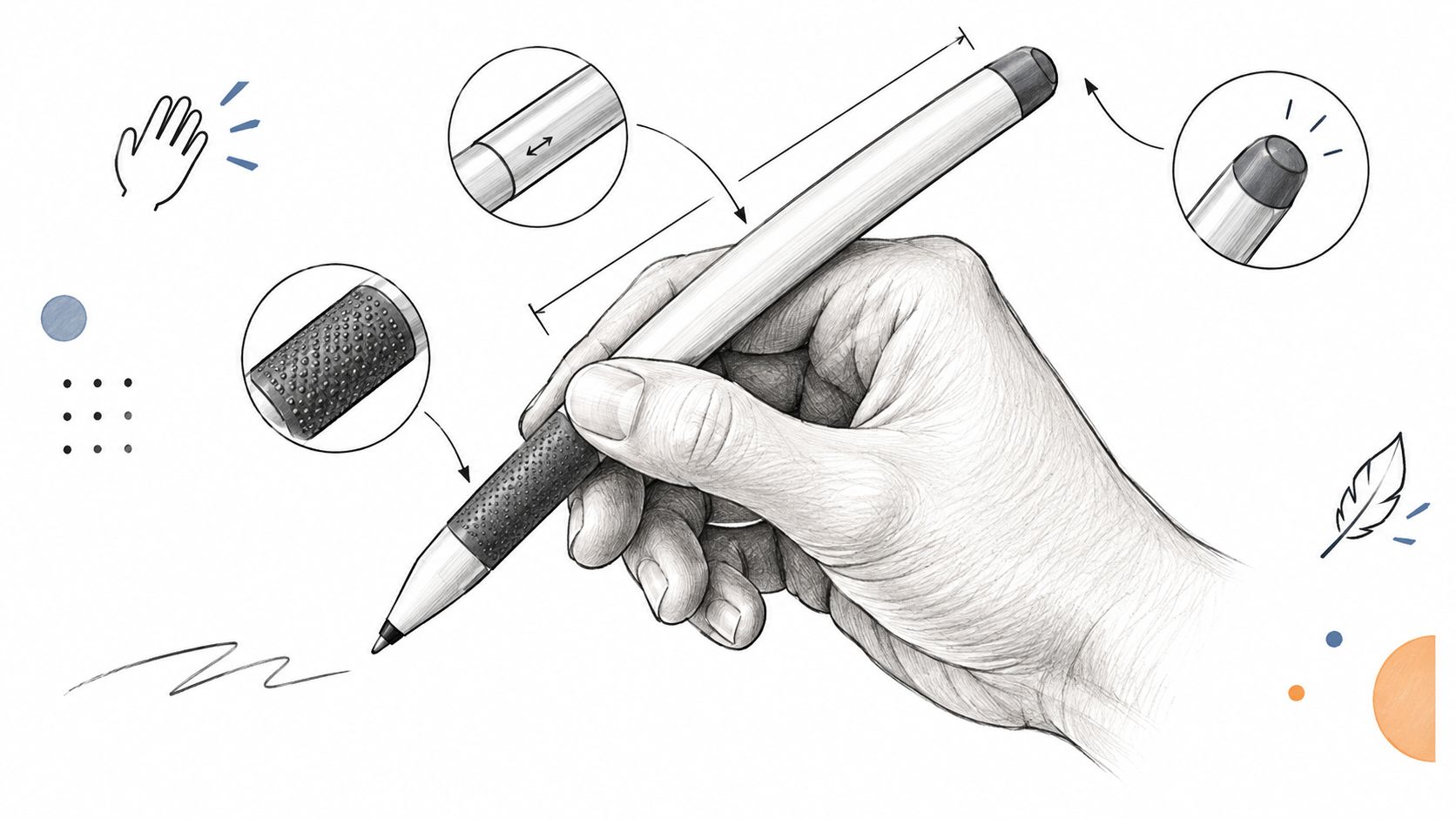
Systematic evaluation frameworks treat biomechanics, motor control, comfort, usability, accuracy, latency, and pressure sensitivity as separate dimensions to test together, and a predictable low-pressure response with a comfortable grip can matter more than maximum pressure sensitivity, as set out in a systematic framework for evaluating stylus ergonomics and usability. I agree. If light lines require force, you'll press harder all day and blame your hand.
Test repeated shading, handwriting, and slow detail for as long as the seller allows. Note tingling, cramping, slipping, and how often you adjust your fingers. A slightly heavier pen can feel steadier if your grip strength is reduced, while a lighter pen may suit fast gesture work. Neither is universally better.
The short video below is worth watching with your own grip in mind, not as a verdict.
Magnetic attachment and convenient charging reduce daily friction, but they don't rescue a painful barrel. For the wider drawing setup around the pen, see these notes on the best stylus for iPad drawing. My durability test is simple. Replacement nibs should be easy to get, the charging contact shouldn't sit where your fingers rub, and the pen shouldn't roll off every table you own.
Matching a Stylus to Your Workflow and Budget
Pick your profile carefully. Most overspending starts with buying for the artist you might become next year instead of the work you're doing this month.
- Beginner or student: Spend the least amount that gets reliable palm rejection, a precise replaceable nib, and confirmed compatibility with your exact iPad. Skip tilt if your main work is notes, diagrams, and clean sketches.
- Serious hobbyist or illustrator: Move up for smoother pressure behavior, tilt in your main brush app, better balance, and charging that fits your routine. This is the daily-driver tier, so comfort outranks novelty shortcuts.
- Pro or side-hustle artist: Pay for consistency, fast tool switching, spare nibs, and a backup charging method. A missed deadline costs more than a better pen.
One option in that middle and upper conversation is the Tinymoose Pencil Pro line, including the Pencil Pro 2 and Pencil Pro Ultra, with iPad-focused features such as palm rejection, tilt sensitivity, magnetic attachment, shortcut controls, and USB-C or wireless charging depending on model. Treat it like any other candidate. Confirm your iPad model, run the pressure ramp, and test your brushes before deciding.
If your process starts on paper, budget for capture too. This scanner guide for illustrators helps you bring ink drawings into the same workflow without flattening the line quality you worked for. Keep the total kit in view. Pen, app, nibs, case, and capture device all compete for the same money.
My final recommendation is simple. Beginners should buy compatibility and palm rejection. Illustrators should buy pressure quality and comfort. Pros should buy reliability and keep a spare nib ready.
Quick Decision Checklist and Common Questions
Before checkout, run this list in order. Stop at the first failure.
- Exact compatibility: Match the pen to your precise iPad model and generation, not just the product family name.
- Pressure ramp: Draw slow lines from lightest to hardest. Reject dead zones and sudden jumps.
- Tilt check: Shade upright, then angled, in your main app. Confirm the brush actually changes.
- Palm contact: Rest your hand naturally and pull long strokes. Reject stray marks and canvas jumps.
- Latency minute: Use the fast circles, diagonals, hatching, and correction flicks from the earlier test.
- Carry and charge: Attach it, remove it, and charge it the way you will on a tired evening.
Three Questions People Ask Too Late
How do I confirm compatibility? Find your iPad model in Settings or on the device paperwork, then compare that exact model against the seller's list. Similar names aren't enough.
Can a budget third-party stylus handle serious art? Yes, if it passes the pressure, palm, and latency tests in your app. No, if it only behaves like a narrow finger or forces you to hover. Price doesn't decide that. Stroke behavior does.
What should I do in the first week? Pair it, update your app, set your pressure curve with one familiar brush, and store the spare nib where you'll find it. Wipe grit from the tip, replace a nib when it feels scratchy or uneven, and don't press harder to compensate for a worn point.
Buy the pen that passes your hand, your app, and your fastest stroke. Everything else is packaging.
Ready to put that checklist to work with an iPad pen built for sketching, shading, notes, and daily carry? Visit Tinymoose to compare Pencil Pro models, confirm compatibility with your iPad, and pick the version that fits your hand and budget.
مشاركة:
iPad Accessories for Drawing That Actually Make Life Easier