
You're twenty minutes into a sketch and it's going well. Then your palm sticks to the glass, the iPad slides half an inch, your wrist bends at a weird angle, and a clean line turns into three undo taps. Nothing's broken. The setup is just fighting you. That's the moment most artists realize iPad accessories for drawing aren't decorations. They're the difference between finishing a piece and quitting early because your hand's tired.
Table of Contents
- Why Drawing Accessories Matter More Than the iPad Itself
- The Three Drawing Features That Separate Real Styluses From Basic Pens
- Choosing a Stylus That Fits Your iPad and Your Style
- Screen Protectors as a Tactile Upgrade
- Stands, Grips, and Cases That Save Your Wrist
- Building a Drawing Setup That Actually Works Together
- The First Upgrade Worth Making This Week
- Quick Answers About iPad Drawing Accessories
Why Drawing Accessories Matter More Than the iPad Itself
I judge every setup the same way. Could I draw with it for two hours without thinking about the gear? A bare iPad on a desk usually fails that test fast. The screen's slick, the tablet sits dead flat, and you end up hovering your hand or hunching over it like you're defusing something.
The fix isn't buying everything. It's treating four categories as one system.
The Four Pieces That Decide a Session
- Stylus: This controls line weight, shading, and whether you can rest your hand naturally.
- Screen protector: This sets friction. Too smooth and strokes skate. Too rough and your hand works harder.
- Grip: This changes barrel size and how tightly you squeeze during detail work.
- Stand or case: This sets your wrist and neck angle for the whole session.
Each piece either removes friction or adds it. There's no neutral accessory. A pretty case that only props the iPad upright for video makes drawing worse. A cheap pen that writes but can't shade forces you to fake effects with brush settings.
My rule: If an accessory doesn't make a long session easier, quieter, or more stable, skip it, no matter how good it looks on your desk.
Start from your actual annoyances. Screen sliding, smudged glass, cramped fingers, and accidental palm marks are specific problems with specific fixes. Buy for those, in that order, and you'll spend less while drawing more.
The Three Drawing Features That Separate Real Styluses From Basic Pens
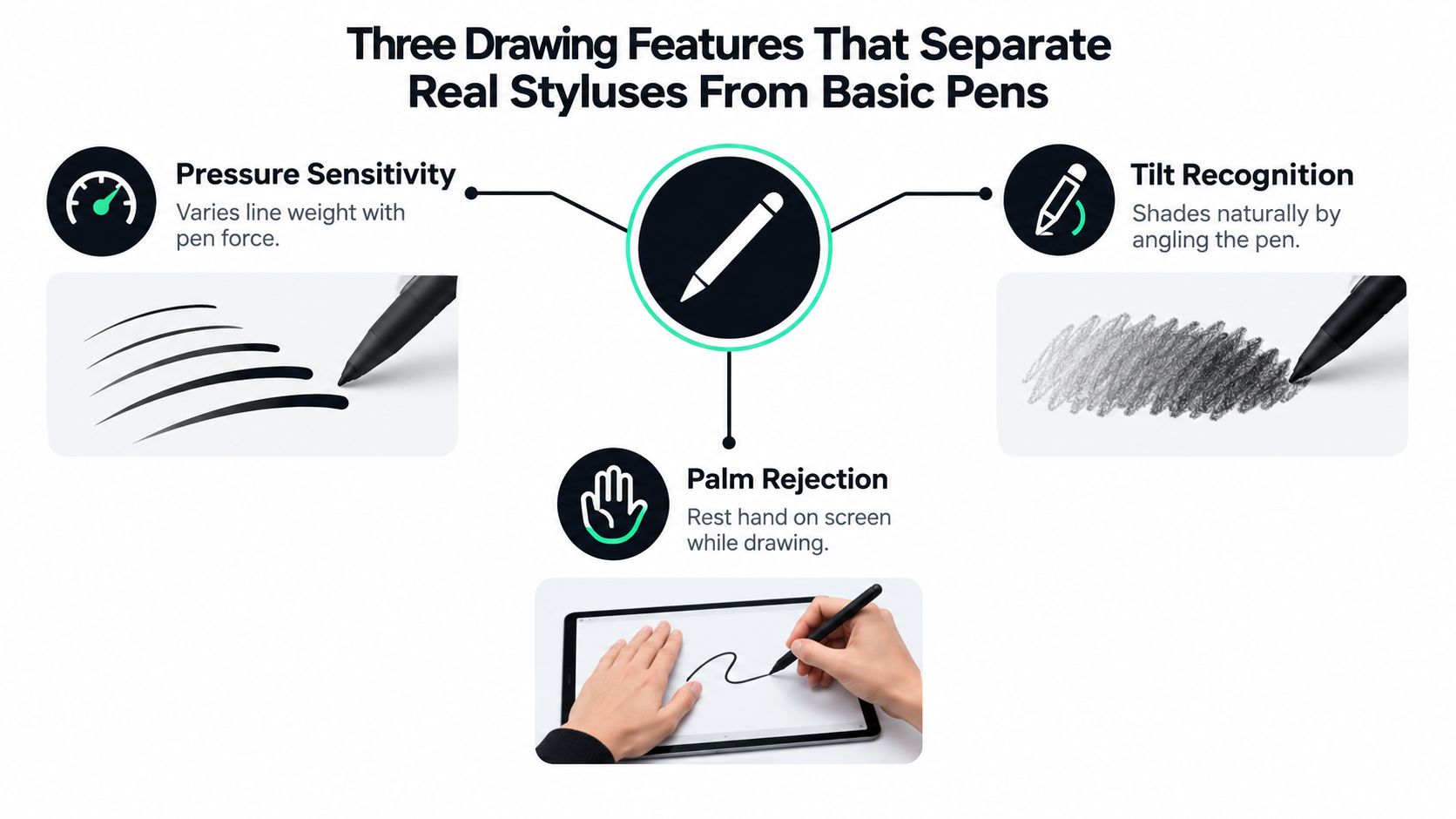
Forget marketing labels for a minute. Three features decide whether a stylus behaves like a drawing tool or a fancy finger.
Pressure Sensitivity
Press lightly, get a thin line. Press harder, get a thicker, darker stroke. That's pressure sensitivity, and it's the core of expressive drawing. Apple's developer guidance on Pencil input signals explains that apps can map force, altitude, azimuth, and barrel roll to thickness, intensity, shading, and brush direction. A passive capacitive pen can't send that data. It only reports touch location, so every stroke stays stubbornly uniform.
Tilt Recognition
Angle a real pencil and the side of the lead lays down a broad, soft mark. Tilt recognition does the same thing digitally. It's what makes graphite brushes shade naturally instead of forcing you to switch tools constantly.
Palm Rejection
Palm rejection lets the iPad follow the pen tip while ignoring your resting hand. Wirecutter's explanation of palm rejection in iPad styluses describes exactly that behavior, and it's essential for natural drawing on iPad. Without it, you'll hover, tense up, and tire faster. If a spec sheet lists tilt and palm rejection but never says pressure, assume pressure isn't there.
That last point matters. Two pens can both claim iPad compatibility and feel completely different. One gives you line variation and shading. The other gives you neat notes. Know which one you're buying before money leaves your account.
Choosing a Stylus That Fits Your iPad and Your Style
Compatibility comes first, style second. The modern category started when All About Circuits covered the original Apple Pencil launch in 2015, noting the iPad Pro scanned its signal 240 times per second, twice the data points for finger input, with single pixel detection. Since then the lineup has split, and so have the features.
Here's a quick look at how a bundled desk setup presents itself before we sort pens into tiers.
Three Practical Tiers
Premium drawing instruments suit illustrators who lean on pressure for inking and painting. MacRumors' guide to the four Apple Pencil models tracks the split across the 2015, 2018, 2023, and 2024 models, with the USB-C version omitting pressure sensitivity and magnetic charging. If brush control pays your bills, don't compromise here.
Balanced workhorses suit people who sketch, annotate, and take notes in the same day. The Tinymoose Pencil Pro line sits here, with palm rejection, tilt sensitivity, magnetic attachment, and shortcut buttons framed as time savers for mixed workflows.
Budget basics handle fixed width notes, diagrams, and simple sketches. They're fine until you want pressure driven brushes. Then they become the expensive option, because you'll replace them.
Comparison shopping across platforms helps calibrate expectations, and this Moto G47 vs Stylus comparison from NeoTeo is a useful reminder that bundled pens and drawing grade pens are different products with different jobs.
Watch a pen handle real strokes before you decide, especially fast diagonals and tight circles.
My verdict is simple. Painters and inkers, buy pressure. Students who also doodle, buy the workhorse tier. Note takers who rarely draw, save your money and buy basic, knowingly.
Screen Protectors as a Tactile Upgrade
Buyers often purchase a protector to prevent scratches. Artists should buy one to change feel. Bare glass is too slick for controlled hatching and lettering, and your pen will skate exactly when you slow down for detail.
Friction Is a Dial, Not a Feature
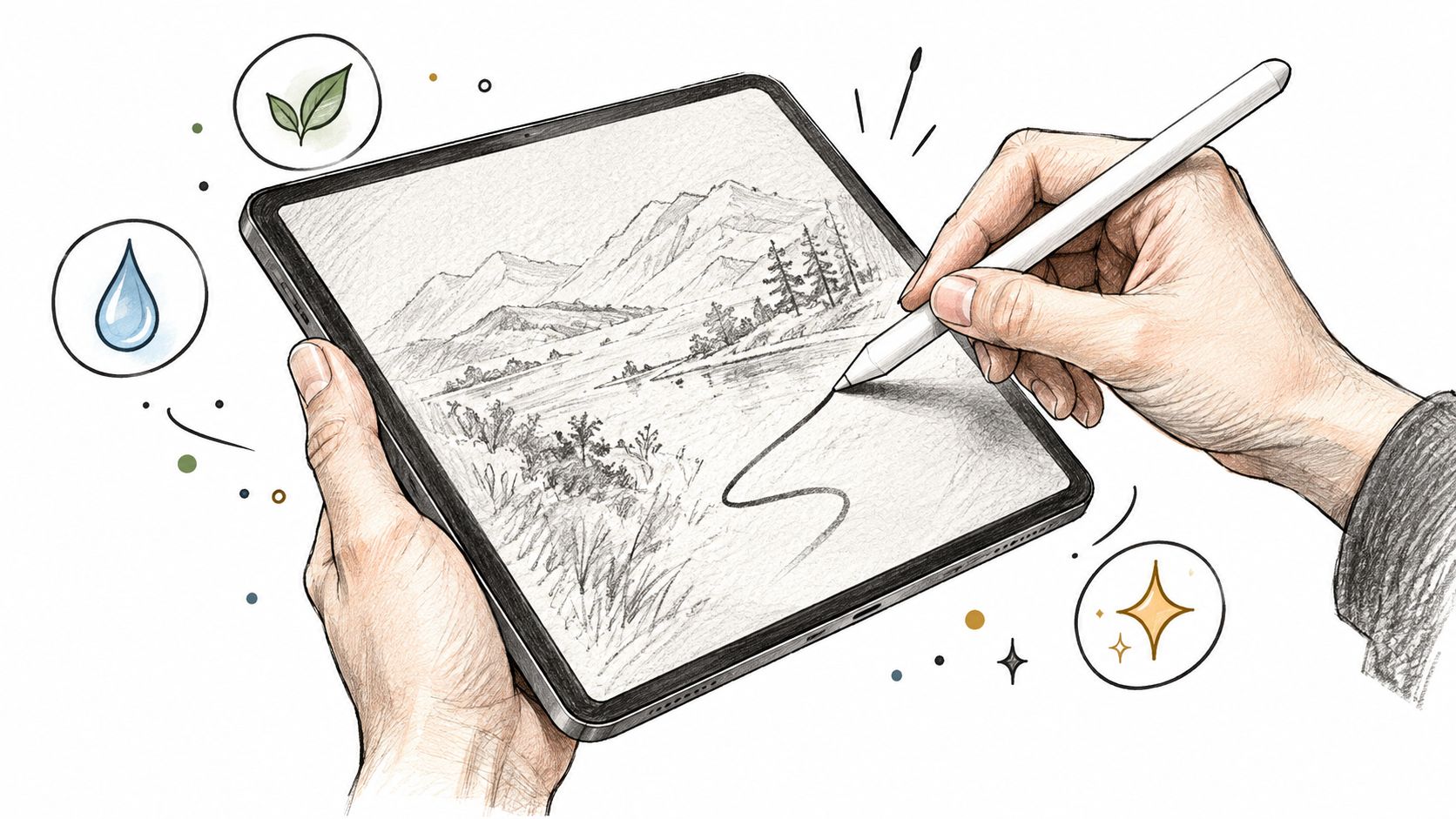
A matte or paper feel protector adds drag that mimics paper. That drag improves control on slow strokes and cuts glare if you draw near windows or outdoors. If you're shopping specifically for Air models, start with a top iPad Air protector for artists rather than a generic clear film.
There's a trade off nobody should hide. More texture means more nib wear and more hand effort over long sessions. Your nibs will wear faster on rough surfaces, so keep spares and check the tip when strokes start feeling scratchy instead of smooth.
- Light texture: Best if you paint with big, fast strokes and hate drag.
- Medium paper feel: Best all rounder for sketching, inking, and notes.
- Heavy texture: Best for slow lettering and precise hatching, worst for nib life.
Choose texture by your dominant stroke, not by the loudest review.
Clean the surface regularly with a dry microfiber cloth. Oils build up, friction turns patchy, and you'll blame the pen for inconsistent lines that are a dirty screen. A protector is a tactile decision you'll feel on every stroke, so treat it like choosing paper stock, not insurance.
Stands, Grips, and Cases That Save Your Wrist
Your posture setup matters more than most pen upgrades. Drawing flat on a desk bends your neck down and forces your wrist into extension for hours. Drawing on a couch is worse. The iPad sinks, shifts, and your shoulder does the stabilizing work.
Pick Your Angle First
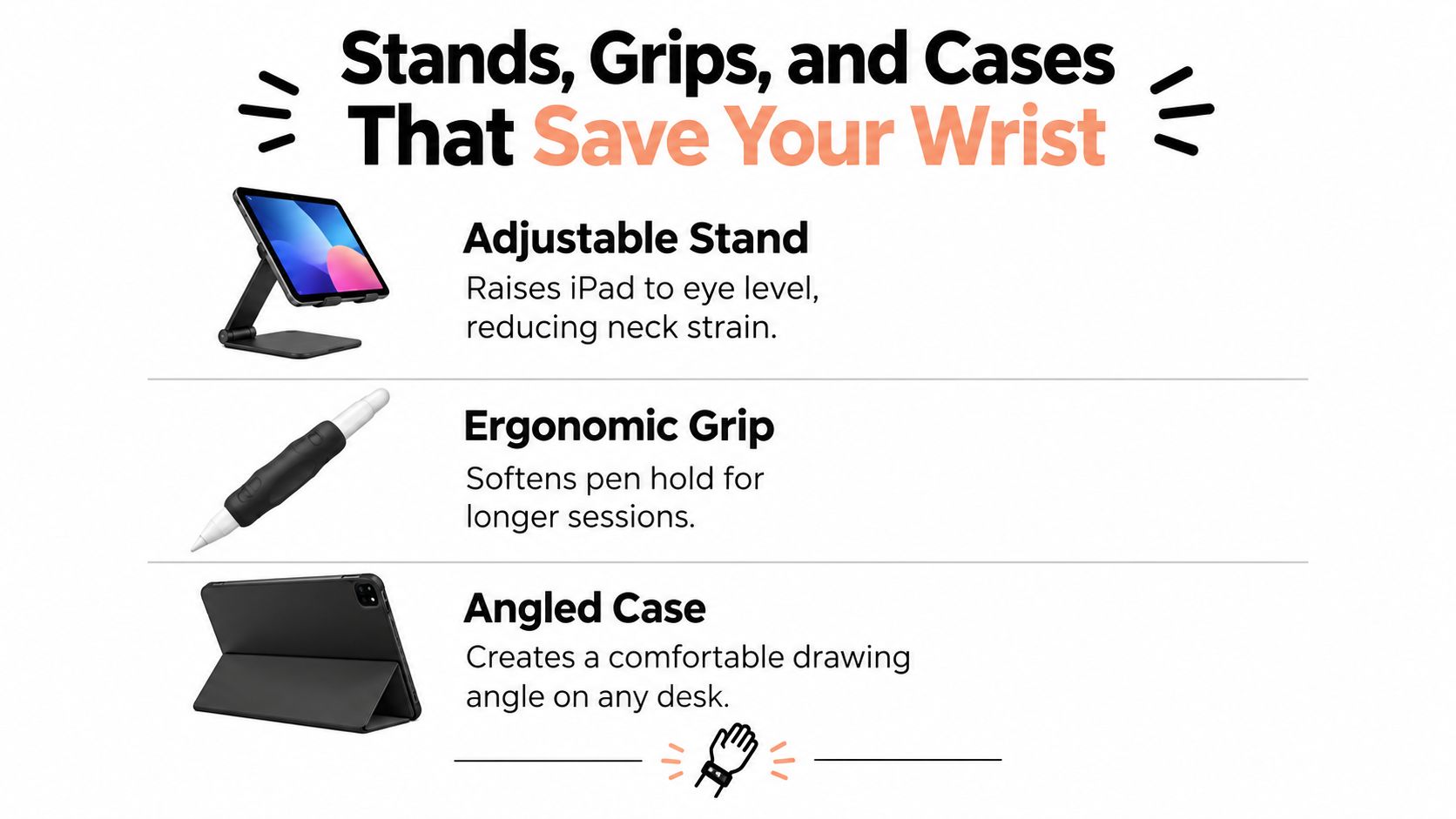
Coverage of long drawing setups makes the same point I make to friends. Guidance on stable, shallow drawing angles for iPad artists notes that artists need a shallow, stable position, not an upright media viewing angle, and that a rigid case or stand improves grip and positioning.
- Flat desk: Fine for quick notes, poor for anything over half an hour.
- Low angle stand: Best stability and wrist position at a fixed desk, least portable.
- Rigid case with built in stand: Best balance for users who move between rooms.
Grips Are a Fatigue Dial
A thicker barrel lets you hold the pen looser during long shading passes. A slimmer barrel gives finer control for detail and handwriting. If your fingers cramp, go thicker before you blame your technique. Sleeve style holders also stop pens rolling off desks, which sounds trivial until a nib hits tile.
The smallest fix with the biggest payoff is raising the far edge of the iPad slightly and keeping it stable. Do that one thing and your wrist, neck, and line quality all improve in the same session.
Building a Drawing Setup That Actually Works Together
Stop buying accessories one at a time based on separate reviews. Copy a configuration that matches how you work, then adjust one piece at a time.
| Artist Profile | Stylus Tier | Protector Type | Stand or Case | Why It Works |
|---|---|---|---|---|
| Illustrator | Premium pressure active | Medium paper feel | Rigid low angle stand | Full brush control with stable posture |
| Note taker who sketches | Balanced workhorse | Light matte | Case with built in stand | Fast grab and go, decent shading |
| On the go sketcher | Workhorse or basic | Light matte | Slim rigid case | Light kit, durable nibs, quick setup |
How to Copy Each Setup
The illustrator setup lives at a desk. Pressure and tilt do the expressive work, paper feel slows the stroke down for control, and the stand never moves. Pair it with drawing apps worth trying on iPad that use dynamic brushes, otherwise you're paying for input your software ignores.
The note taker setup favors speed. Magnetic attachment matters more than maximum brush nuance because the pen's always where you left it. If you want guided practice to test the kit, this iPad portrait sketching tutorial from The Online College of Art & Design (OCAD) gives you structured drawing time to judge whether your setup holds up.
Compatibility warning: A bundle only works if every piece fits your exact iPad generation. Check the pen first, then the case cutouts, then the protector size.
The on the go setup accepts a trade. You lose some precision and posture quality, and you gain a kit you'll carry. That's the right trade if your alternative is leaving the iPad at home.
The First Upgrade Worth Making This Week
If you can only buy one thing, buy the right stylus. It's the upgrade that changes what you can draw, not just how comfortable drawing feels.
Apple's Apple Pencil product pages on latency and precision describe pixel level precision and low latency, and the specifications draw a hard line. The USB-C model lists tilt sensitivity but not pressure sensitivity, while the first generation model explicitly includes both pressure and tilt. Don't infer pressure from tilt. They are separate specs with separate results on screen.
The Trap to Avoid
The most common mistake I see is treating compatible as artist grade. Creative Bloq's iPad drawing buying coverage highlights that cheaper USB-C and third party options can drop pressure sensitivity, leaving you with fixed width strokes that force constant brush setting changes. The cheapest compatible pen often costs more later, in money and in annoying workarounds.
Already own a capable pressure pen? Then your first upgrade is a screen protector. It changes every stroke for the least money and reveals whether friction was your real problem all along.
Don't wait for a perfect setup. One thoughtful upgrade used daily beats a drawer of half used gear. Pick the bottleneck you felt in your last session, fix that, draw this week.
Quick Answers About iPad Drawing Accessories
Does Any Stylus Work With Any iPad
No. Compatibility is fragmented across generations and connectors. A 10th generation iPad, for example, supports USB-C and first generation Pencil options, while newer Air and Pro models support different generations. Always match the pen to your exact model number, not just the iPad family name.
How Do I Know If a Third Party Pen Has Pressure
Look for the words pressure sensitivity in the specifications, spelled out. Tilt sensitivity, palm rejection, and low latency don't imply pressure. If the listing leads with tilt and never mentions pressure, the pen almost certainly lacks it, and your brushes will stay fixed width.
How Long Does a Paper Feel Protector Last
It depends on texture and daily use, and the honest trade off is nib wear. Rougher surfaces give more control and consume nibs faster, while lighter matte finishes last longer with less drag. Budget for replacement nibs as part of the protector's real cost, and replace the film when the center feels noticeably smoother than the edges.
How Can I Test a New Setup Quickly
Run a two minute drill before committing.
- Diagonal lines: Draw repeated fast diagonals and watch for the stroke trailing behind the nib.
- Tight circles: Check for wobble, delay, or corner smoothing that feels off.
- Palm down test: Rest your hand fully on the screen and shade. Any stray marks mean palm rejection isn't doing its job.
- Pressure ramp: Draw one stroke from light to heavy. It should thicken smoothly in a single motion.
If a setup passes all four, it'll survive a real session. If it fails one, you know exactly which accessory to swap.
Ready to fix the one bottleneck slowing your sessions down? Tinymoose offers practical iPad styluses with palm rejection, tilt sensitivity, magnetic attachment, and straightforward charging, built for drawing and note taking without the fluff. Visit the store, match a pen to your exact iPad model, and start your next session with gear that gets out of your way.
Share:
How to Replace Apple Pencil Tip the Right Way