
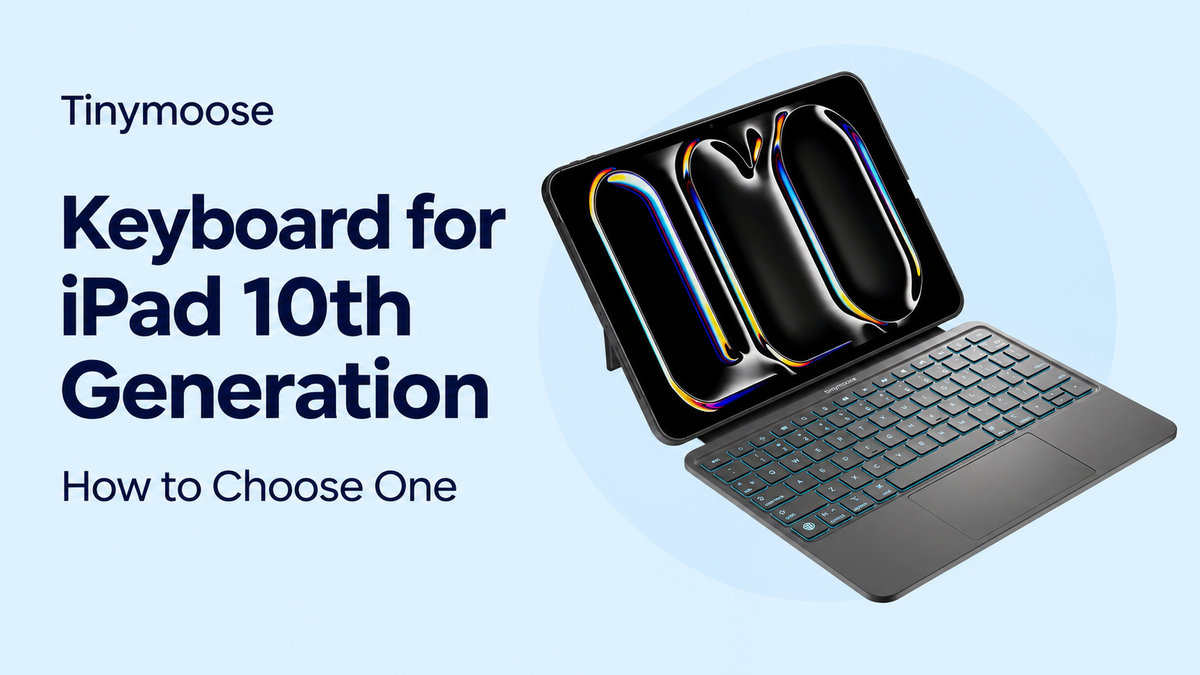
You've got lecture notes to finish or emails waiting, and typing on the iPad's screen is getting tiring. A keyboard looks like the obvious fix, until you discover that the case won't hold your tablet or the connection doesn't work the way you expected. The best keyboard for iPad 10th generation starts with exact model fit and the right connection, then earns its place through comfortable typing and useful navigation.
Table of Contents
- Why the 10th-Generation iPad Needs Its Own Keyboard
- Keyboard Types Compared for the 10th-Generation iPad
- Shortcuts That Make Typing and Navigation Faster
- Trackpad, Portability and Typing Feel
- Which Keyboard Setup Fits Your Daily Routine
- What a Keyboard Price Should Buy
- Check Model and Pairing Before You Buy
Why the 10th-Generation iPad Needs Its Own Keyboard
Say a student orders a keyboard case because the photos look right. The keyboard pairs, but the iPad won't sit securely in the shell, and the camera opening doesn't line up. That's not a Bluetooth problem. It's a case made for a different body.
A keyboard case is like a custom jacket, not a one-size scarf. Its corners, button openings, camera cutout and attachment points must match the tablet. Similar-looking iPads aren't interchangeable just because their displays look close in size.
According to Apple's technical specifications, the iPad measures 248.6 × 179.5 × 7 millimeters and weighs 477 grams in the Wi-Fi configuration. The thickness and weight are useful reference points when checking a listing, but neither replaces an explicit compatibility statement.
Match the body, not the photograph
A well-fitting case should hold the iPad without forcing the corners, obstructing buttons or leaving a loose edge. Don't assume that a magnetic attachment will compensate for the wrong shell. Magnets can help position a compatible accessory, but they don't change the shape of the case.
The iPad's launch history) records its release on October 26, 2022, alongside the dedicated Magic Keyboard Folio. That accessory was designed for this model, rather than borrowing the Magic Keyboard or Smart Keyboard Folio systems used by other iPad families.
Fit first: A keyboard can connect successfully and still be the wrong keyboard case.
The USB-C port also matters because it supports charging and accessory connections. If a keyboard charges from the iPad, check the required cable and whether that arrangement leaves the tablet's charging port available. Don't mistake a keyboard's USB-C charging socket for its typing connection, either. It may still send keystrokes over Bluetooth.
Before comparing colors, backlighting or discounts, write down the exact iPad model. That small check prevents the most expensive kind of bargain: an accessory you can't use.
Keyboard Types Compared for the 10th-Generation iPad
| Keyboard type | Connection | Pairing needed | Fits 10th-gen iPad | Best for |
|---|---|---|---|---|
| Apple Magic Keyboard Folio | Smart Connector | No | Yes, designed for this model | Dedicated iPad use at a desk |
| Magic Keyboard for iPad | Smart Connector | No | No, designed for other iPad families | Not suitable for this model |
| Bluetooth keyboard case | Bluetooth 5.x, when specified by the manufacturer | Yes | Yes, only if the case is built for this model | Switching between several devices |
| Bluetooth keyboard with built-in trackpad | Bluetooth | Yes | Yes, if the listing names this model and iPadOS trackpad support | Precision selection and spreadsheets |
The row that catches buyers is Magic Keyboard for iPad. Its name sounds close to Magic Keyboard Folio, but they aren't interchangeable accessories. Apple's iPad keyboard comparison distinguishes their compatibility and connection requirements: a Smart Connector keyboard must be designed for the appropriate iPad, while a Bluetooth keyboard's wireless connection doesn't establish whether its case fits.
The Magic Keyboard Folio combines a detachable keyboard, protective back cover and adjustable stand. Its function row provides brightness, media and locking controls, so routine adjustments don't always require reaching for the display. It's a straightforward default for a dedicated iPad workstation on a stable desk.
Connection simplicity versus device flexibility
Smart Connector accessories draw power and exchange data through their connector. There's no Bluetooth pairing step or separate keyboard battery to manage. The trade-off is that the accessory is tied to compatible hardware and its intended attachment position.
Bluetooth separates the typing connection from the physical mount. A keyboard can remain connected while the iPad sits on a different stand, which is useful when you want the display higher than the keys. A keyboard case still needs the correct shell, however.
If you want to share a keyboard with a phone or laptop, look specifically for multi-device pairing and device-switching controls. Bluetooth alone doesn't promise either feature. When comparing a wireless keyboard for ipad, inspect those controls rather than assuming every wireless model switches between devices conveniently.
Also check what happens when you detach or fold away the keyboard. Can you comfortably read with the cover attached? Does the stand need substantial space behind the tablet? These details matter on a narrow lecture desk.
A cheaper Bluetooth keyboard can be the better tool for a mixed-device desk. A Smart Connector design is usually simpler when the iPad is the only device involved. Neither connection removes every touchscreen task, and accented characters or dictation may still call for the on-screen keyboard.
Shortcuts That Make Typing and Navigation Faster
Once a keyboard is connected, Command shortcuts replace repeated touchscreen steps. The benefit isn't just entering words more comfortably. You can copy a passage, find another app and paste it into your notes without repeatedly lifting your hand toward the display.
Apple's keyboard shortcut guide documents the standard editing commands and explains that most iPad shortcuts use Command where a PC commonly uses Control. If you already use a laptop, much of the learning involves locating the Command key.
| Task | Shortcut | What it saves |
|---|---|---|
| Select all text | Command-A | Reaching for text selection on the screen |
| Cut | Command-X | Long-press menus when editing documents |
| Copy | Command-C | Repeated touch-and-hold steps |
| Paste | Command-V | Switching to a menu for each paste |
| Open Search | Command-Space | Hunting for the Search gesture |
| Switch apps | Command-Tab | Swiping through app views |
| Return to Home Screen | Command-H | Finding the Home Screen gesture |
| Move between fields | Tab and Shift-Tab | Tapping each text field |
Make navigation part of your buying test
Apple's iPad keyboard navigation guide explains how Full Keyboard Access extends control beyond typing. Tab moves forward, Shift-Tab moves backward and Space activates the selected item. Enable that accessibility feature if you want to move through supported interface elements without relying on touch.
A useful practice task is to move between a browser and a notes app. Select a passage, copy it, switch apps and paste it into your document. Then use Search to open another app, keeping your hands on the keyboard throughout.
This exercise reveals more than a product photo. If you keep hitting the wrong modifier or stretching for Tab, the layout may be a poor match for sustained work.
Look for these physical details:
- Accessible modifier keys: Command and Shift should be easy to find without looking down repeatedly.
- Dedicated navigation keys: Tab and Escape should be identifiable and comfortable to reach.
- Usable arrow keys: Test moving the cursor through text, not just typing letters.
- Clear legends: An iPad-oriented layout is easier to learn than unfamiliar symbols on a cramped board.
Adjust the layout before rejecting it
Under Hardware Keyboard settings, iPadOS lets you change modifier-key assignments and adjust key-repeat behavior. That can help with regional layouts or a compact keyboard whose modifier arrangement feels unfamiliar.
Software adjustments can't fix every physical compromise. A narrow arrow cluster remains narrow, and a stand that rocks whenever you press a key remains distracting.
Shortcut support only helps when you can reach the keys comfortably and the screen stays steady.
For document work, judge the keyboard as a complete input setup. Good navigation needs a sensible layout, reliable key recognition and a stable viewing position, not merely a list of supported shortcuts.
Trackpad, Portability and Typing Feel
Typing feel comes first, but a trackpad changes how you handle the screen. For Tinymoose customers, comfortable typing and overall value are the main priorities. A trackpad becomes especially useful when work involves selecting text, editing spreadsheets or moving between small interface controls.
Apple's trackpad gesture guide describes actions including opening apps, returning to the Home Screen and opening Slide Over. Pointer control also helps with precise selections and small on-screen objects. Check that the listing explicitly includes a built-in trackpad and states compatible iPadOS support, rather than merely showing a laptop-style layout.
Give the keyboard a five-minute test
Don't decide typing comfort from a switch description alone. Use a short return-window test that resembles your actual work:
- Type a full paragraph: Include capitals, punctuation, numbers and corrections, not just a familiar sentence.
- Check key response: Look for missed letters, accidental repeats and keys that feel uneven across the board.
- Inspect spacing: Pay attention to Backspace, Enter and the punctuation keys you use frequently.
- Relax your hands: The front edge and palm-rest area shouldn't force your wrists upward.
Try selecting a sentence with the trackpad, then return to typing. If your palm repeatedly nudges the pointer or the click requires awkward pressure, that will interrupt daily work.
Judge the whole carry setup
Add the keyboard case's weight to your tablet's weight before deciding whether the combination suits your bag. A slim case is easier to carry, while a more substantial folio may offer a firmer stand or more coverage. Neither choice is automatically better.
Adjustable viewing angles help you switch between typing, browsing and watching without propping the iPad against another object. If protection matters, choose a protective iPad keyboard case by checking corner coverage, screen coverage when closed and access to controls.
A keyboard you use every day should feel comfortable before it looks premium. Attractive materials won't compensate for cramped typing or an unstable display.
Which Keyboard Setup Fits Your Daily Routine
Choose for the place you'll work, not the most polished product photograph. A setup that's excellent on a wide desk can be awkward on your lap or a crowded classroom table.
These common routines call for different compromises.

Match the setup to the work
Students taking lecture notes should prioritize comfortable keys and quick deployment. A Smart Connector folio suits a dedicated iPad on a desk. A Bluetooth case with explicit multi-device controls makes more sense when the same keyboard must also serve a phone or laptop.
Remote workers editing documents should prioritize a trackpad, adjustable viewing angles and easy access to Command shortcuts. Test the stand at the depth of your actual workspace, especially if you'll use it beside a monitor.
For other routines, the deciding details are different:
- Travelers: Favor manageable combined weight, a secure closed cover and a stand that doesn't need excessive rear clearance.
- Shared households or classrooms: Smart Connector avoids pairing management. A Bluetooth keyboard doesn't need re-pairing merely because another person uses the same iPad, but changing the connected device may require switching or pairing again.
An existing Mac desk may need less hardware
Apple's Universal Control documentation explains that one keyboard, mouse or trackpad can control an iPad and up to two nearby Macs; it requires iPadOS 15.4 or later and supports iPad 6th generation or later, including this model. You can move the pointer, type and copy content between compatible devices.
That's a separate cross-device feature, not ordinary Bluetooth pairing or a keyboard case attachment method. If your iPad mainly sits beside your Mac, consider whether you need a dedicated keyboard case at all.
Customer feedback gives a useful, narrower picture of the benefit. Students and remote workers describe moving from touchscreen-only notes and email to a keyboard setup as making the iPad feel more like a compact laptop. That's a reported workflow improvement, not a measured typing-speed result, and it doesn't mean every laptop task becomes equally convenient on iPadOS.
What a Keyboard Price Should Buy
Value means paying for features you'll use. A low price isn't helpful if the case fits poorly, and a premium finish doesn't justify uncomfortable typing. For most buyers, the worthwhile upgrade is a setup that makes routine work easier without adding unnecessary bulk or complexity.
Start with the listing's compatibility statement. It should identify the exact generation, not leave you guessing from a photograph. A bargain that requires replacing your case or returning the keyboard has already failed the practical test.
Put the money against a real task
Use these purchase criteria rather than comparing feature counts:
- Solve the main job: Notes and lectures call for comfortable sustained typing. Detailed email and document editing may justify a trackpad.
- Buy useful protection: A folio that replaces your everyday cover can be worthwhile. A bare keyboard makes more sense if the iPad stays on a fixed desk stand.
- Avoid duplicate features: Don't pay extra for a trackpad if you'll only type notes and prefer touching the screen for occasional navigation.
The Magic Keyboard Folio offers an integrated arrangement: detachable keys, a protective back, an adjustable stand and direct-access function controls. Its appeal is the coordination of those parts, not just the presence of a keyboard.
A cheaper Bluetooth case can be better value when it provides comfortable keys and the device-switching capability you need. Confirm that capability explicitly, because a Bluetooth label alone doesn't guarantee convenient switching.
Buying rule: Spend first on typing comfort and exact fit, then on extras.
A useful final question is whether you'd still choose the keyboard without its decorative features. If the answer is yes because it supports your hands, holds the display securely and suits your daily task, you're judging the right things.
Check Model and Pairing Before You Buy
Start with the identity check before opening a checkout page. Keep the model details beside the listing so you can compare them directly.
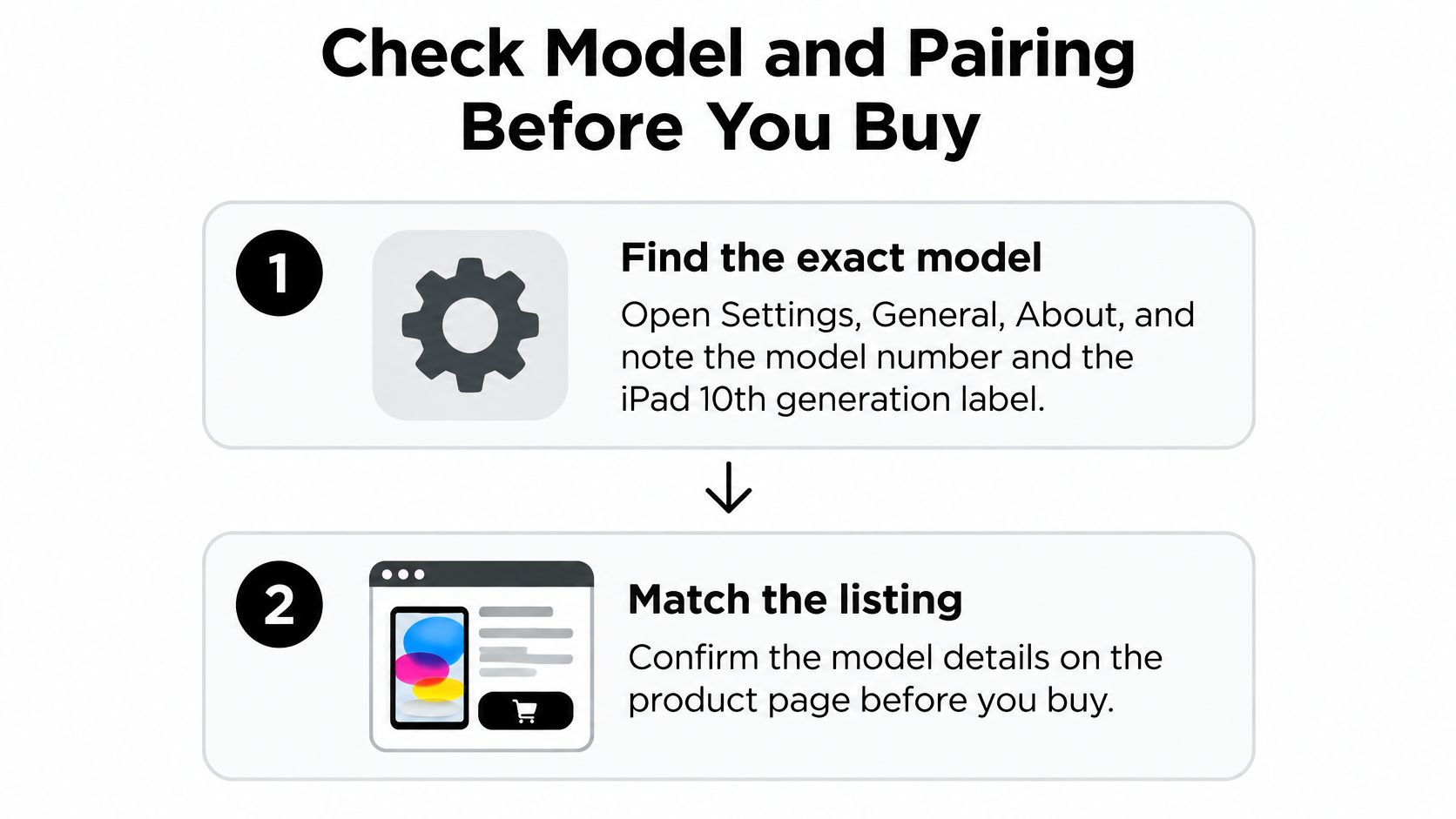
- Find the exact model. Open Settings, General, About, and note the model number and iPad generation. Tap the model-number field if you need to reveal the hardware identifier rather than the part number.
- Match the listing. The product page should explicitly name iPad 10th generation. Don't treat a broad phrase such as fits all iPads as confirmation of case compatibility.
- Identify the connection. Smart Connector keyboards attach without Bluetooth pairing. For a Bluetooth model, put the keyboard into its pairing mode, then select it under Settings, Bluetooth.
- Check the case fit. Inspect the camera opening, speaker openings, button access and USB-C clearance. Your charging cable should plug in fully without the case pushing against its connector.
- Confirm charging. Check whether the keyboard has a rechargeable battery, which charging connector it uses and whether it operates while charging. Don't assume a charging cable also carries keyboard input.
- Test the connection. Attach or pair the keyboard, type a sentence and press Command-Space to open Search. Then check the trackpad, stand stability and any keys central to your work.
Common mistake: Assuming any iPad keyboard fits or works the same across models. Wireless compatibility and physical case compatibility are separate checks.
For a lecture-focused workflow, our guide to tablet keyboard setup for student note-taking helps you organize the setup around notes rather than accessory features.
Use the video alongside your keyboard's connection instructions.
Evaluate the model-specific option
Our SpacePad iPad Keyboard, highlighted as SpacePad Pro, is an option to assess against these checks. It costs $99.99 and includes a 3-way multi-touch trackpad, detachable magnetic keyboard, adjustable viewing angles, RGB backlit keys, scissor-switch keys, stable Bluetooth connectivity and Type-C charging, with up to 200 hours of working time on a single charge. Confirm the selected model's specifications and current price on the product page.
We ask customers to select their exact iPad model when ordering to ensure correct fit. List your model, choose the connection type, confirm the trackpad and case fit, then order with that exact model selected.
Tinymoose offers compact iPad keyboard setups for typing, navigation and everyday portable work. Visit Tinymoose to compare the available options, confirm compatibility with your iPad 10th generation and choose the setup that matches your routine.
Share:
Apple Magic Keyboard Alternative for Daily Work